
Go to Theme Options → Search → Advanced Search Form to configure how the global WPResidence search system works.
These settings control all search forms that are not created with the Elementor Search Form Builder.
This includes:
- Search forms displayed in Hero Media (theme default setup)
- Advanced Search Results pages
- Advanced Search widgets
- Advanced Search shortcodes
- Half Map search filters
- Mobile search
Any change made here affects the structure, logic, and behavior of search forms across the site.
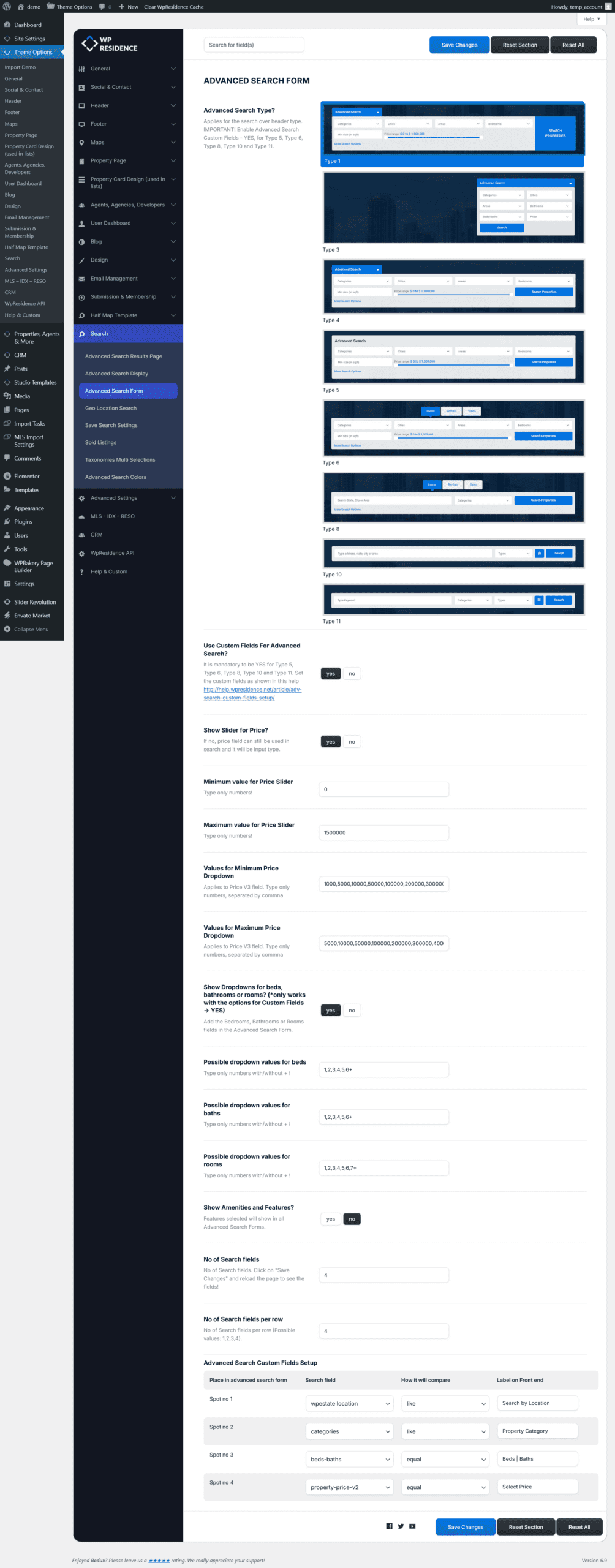
Advanced Search Type
WPResidence provides multiple predefined Advanced Search Types. Each type defines the layout, interaction style, and supported field combinations.
Selecting a search type controls:
- how fields are visually arranged
- how filters expand or collapse
- which search patterns are supported
Available Advanced Search Types:
| Advanced Search Type 1 | Advanced Search Type 6 |
| Advanced Search Type 3 | Advanced Search Type 8 |
| Advanced Search Type 4 | Advanced Search Type 10 |
| Advanced Search Type 5 | Advanced Search Type 11 |
Use Custom Fields for Advanced Search
This option controls whether the search system uses the Advanced Search Custom Fields configuration.
It must be set to Yes for the following search types:
- Advanced Search Type 5
- Advanced Search Type 6
- Advanced Search Type 8
- Advanced Search Type 10
- Advanced Search Type 11
When enabled, you control exactly:
- which fields appear in the search form
- the order of fields
- comparison logic (equal, greater than, like)
Full setup guide:
Advanced Search Custom Fields Setup
Price Settings for Search
WPResidence supports multiple price filtering methods: sliders, input fields, or dropdowns.
Show Slider for Price
When enabled, you must define:
- Minimum value for Price Slider
- Maximum value for Price Slider
When disabled, the price field can still be used as a manual input.
Price as Dropdowns
To use dropdowns, select the Price V3 field in the search fields setup.
Then define values for:
- Minimum Price Dropdown
- Maximum Price Dropdown
These values are also reused in the
Property List Directory.
Currency settings are controlled from:
Theme Options → General → Price & Currency
Rooms, Bedrooms, Bathrooms Dropdowns
Rooms, Bedrooms, and Bathrooms are default WPResidence fields.
When enabled, they appear as dropdowns and require Use Custom Fields for Advanced Search to be set to Yes.
You can define the numeric values shown in each dropdown.
Amenities and Features Fields
When enabled, visitors can filter results by amenities such as pool, parking, or custom features.
Amenities must be defined first: Amenities and Features Setup
Homepage Location-Only Search
When enabled, the homepage search form displays only the location field.
The location search covers:
- Address
- City
- Area
- State
- Zip Code
Number of Search Fields and Fields per Row
These options control how many fields appear and how they are distributed per row.
Maximum supported rows: 4
After changing these values, always:
- Click Save Changes
- Refresh the page
Advanced Search Custom Fields Setup
This section defines the exact structure of the global search form.
You control:
- field type
- order
- labels
- comparison logic
Common fields include:
- Location
- Property Category
- Property Type
- Property Status
- Price
- Bedrooms, Bathrooms, Rooms
- Property Size
- Year Built
- Title keyword
- Custom numeric or text fields
Full documentation:
Advanced Search Custom Fields Setup
The Elementor Search Form Builder creates page-specific search forms only. It does not replace or sync with the global search logic configured here. For Elementor-based forms, see:
Search Form Builder for Elementor