
WP Residence Help WP Residence Help

  • WpEstate
  • WPRESIDENCE
  • Video Tutorials
  • Client Support
  • API
Home / 04. Theme Options & Global Settings, 11. Header / Theme Options – Design – Mobile Menu Colors

Theme Options – Design – Mobile Menu Colors

5965 views 0
  • Where to Find Mobile Menu Colors
  • Mobile Header Background Color
  • Mobile Header Icon Color
  • Mobile Menu Font Color
  • Mobile Menu Hover Font Color
  • Mobile Menu Item Hover Background Color
  • Mobile Menu Background Color
  • Mobile Menu Item Border Color
  • Save Changes and Clear Cache

Where to Find Mobile Menu Colors

You can manage the mobile menu colors from Theme Options > Header > Mobile Menu Colors.

These settings control the colors used in the mobile header and the mobile slide-out menu shown on phones and tablets.
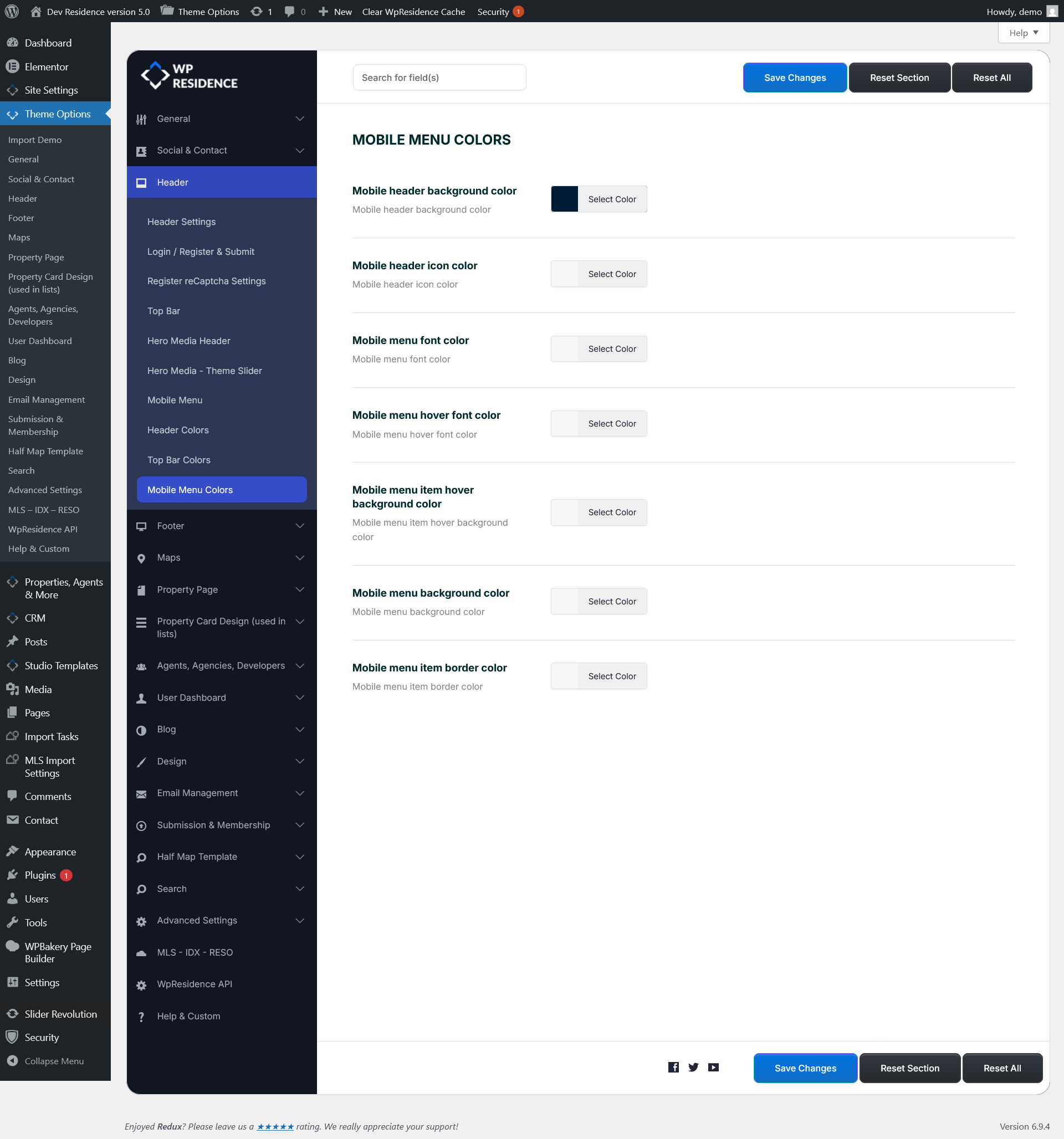
Mobile Header Background Color

This option controls the background color of the mobile header bar.

The mobile header is the top area shown on smaller screen sizes, where the mobile menu icon appears.

Mobile Header Icon Color

This option controls the color of the icons shown in the mobile header.

This usually affects the mobile menu icon and other header icons displayed on mobile devices.

Mobile Menu Font Color

This option controls the text color of the menu items inside the mobile menu.

Use this setting to make sure the menu labels are easy to read against the selected mobile menu background color.

Mobile Menu Hover Font Color

This option controls the text color of the mobile menu items when the user hovers over them or when the item becomes active, depending on the device behavior.

This helps highlight the selected or hovered menu item.

Mobile Menu Item Hover Background Color

This option controls the background color shown behind a menu item when that item is hovered or active in the mobile menu.

You can use it to create a stronger visual contrast for the selected menu item.

Mobile Menu Background Color

This option controls the main background color of the mobile menu panel.

This is the large background area behind all mobile menu items once the menu is opened.

Mobile Menu Item Border Color

This option controls the border color between the menu items in the mobile menu.

It helps separate each item visually and can make the menu look cleaner and easier to scan.

Save Changes and Clear Cache

After making changes to the mobile menu colors, click Save Changes.

If the new colors are not visible right away on the front end, clear the theme cache from the top admin bar by clicking Clear WpResidence Cache.

You may also need to clear any additional cache used by:

  • cache plugins
  • server-side cache
  • Cloudflare or CDN cache
  • your browser cache

If the changes still do not appear immediately, refresh the page in an incognito window or test from a mobile device after clearing the cache.

Note: Theme option color changes are sometimes stored in cache, so saving the new settings may not always show the result instantly until the cache is cleared.
04. Theme Options & Global Settings11. Header

Related Articles

  • Theme Options – Roles (Editor) Permissions Controls
  • Theme Options -> Agent Card Settings
  • Mega Menu with WPResidence Studio
  • Theme Options > General Settings > Forced Registration

WP Residence Documentation

  • 01. Getting Started
    • How to Get Support
    • Get your buyer license code.
    • Use SSL / https
    • Server / Theme Requirements
  • 02. Installation & Setup
  • 03. Installation FAQ
  • 06. Search & Filtering
    • Advanced Search Display Settings
    • Advanced Search Form
    • Geolocation Search for Half Map
    • Save Search Theme Options
    • Advanced Search Colors
  • 09. Agent, Agency & Developers
  • 08. Property Pages & Layouts
  • 07. Property Lists, Categories & Archive
  • 14. WPResidence Elementor Studio
  • 10. Blog Posts & Blog List
  • 11. Shortcodes
    • Contact Form
    • Featured Agency/Developer
    • Membership Packages
    • Testimonials
    • Google Map with Property Marker
    • Listings per Agent, Agency or Developer
    • Display Categories
    • Agent List
    • Recent Items Slider
    • Recent items
    • List Properties or Articles by ID
    • Featured Agent
    • Featured Article
    • Featured Property
    • Login & Register Form
    • Icon Content Box Shortcode
  • 12. Widgets
  • 04. Theme Options & Global Settings
    • General Settings
    • User Types Settings
    • Appearance
    • Logos & Favicon
    • Header
    • Footer Style and Colors
    • Price & Currency
    • Property Custom Fields
    • Features & Amenities
    • Listing Labels
    • Theme Slider
    • Permalinks
    • Splash Page
    • Social & Contact
    • Map Settings
    • Pin Management
    • How read from file works
    • General Design Settings
    • Custom Colors Settings
    • Header Design & Colors
    • Mobile Menu Colors
    • User Dashboard Colors
    • Print PDF Design
    • Property, Agent, Blog Lists Design Settings
    • Sidebar Widget Design
    • Font management
    • How to add custom CSS
    • Custom Property Card Unit – Beta version
    • Email Management
    • Import & Export theme options
    • reCaptcha settings
    • YELP API Integration
    • iHomefinder Optima Express IDX
    • MEMBERSHIP & PAYMENT Settings
    • Property Submission Page
    • PayPal Setup
    • Stripe Setup
    • Wire Transfer Payment Method
  • 20. Translations & Languages
  • 24. FAQ
  • 10. Pages
  • 11. Header
  • 12. Footer
  • 05. Maps & Location Settings
  • 18. Payments & Monetization
  • Plugins
    • 22. Third Party Plugins – IDX Compatibility
    • 21. Third-Party Plugins – Multi-Language
    • 23. Third party Plugins – Other
  • Technical
    • 26. Technical how to | Custom Code Required
    • 25. Technical: Child Theme

Join Us On

Powered by WP Estate - All Rights Reserved
  • WpEstate
  • WPRESIDENCE
  • Video Tutorials
  • Client Support
  • API