WP Residence Help WP Residence Help

  • WpEstate
  • WPRESIDENCE
  • Video Tutorials
  • Client Support
  • API
Home / 04. Theme Options & Global Settings, 08. Property Pages & Layouts / Theme options – Property Page – Print Page Design

Theme options – Property Page – Print Page Design

6444 views 0

Content

  • Print Page Design controls
  • Map in Print or PDF
  • Where users create the PDF
  • Print Page logo
  • Important notes

What Print Page Design controls

WPResidence allows you to control the layout and content of the property print/PDF page.

This is the version of the property page that users can generate when they use the Print to PDF option from a property page.

You can choose which sections appear in the PDF and control their order, so the printed property presentation includes only the information you want to show.

Where to find the settings

Go to:

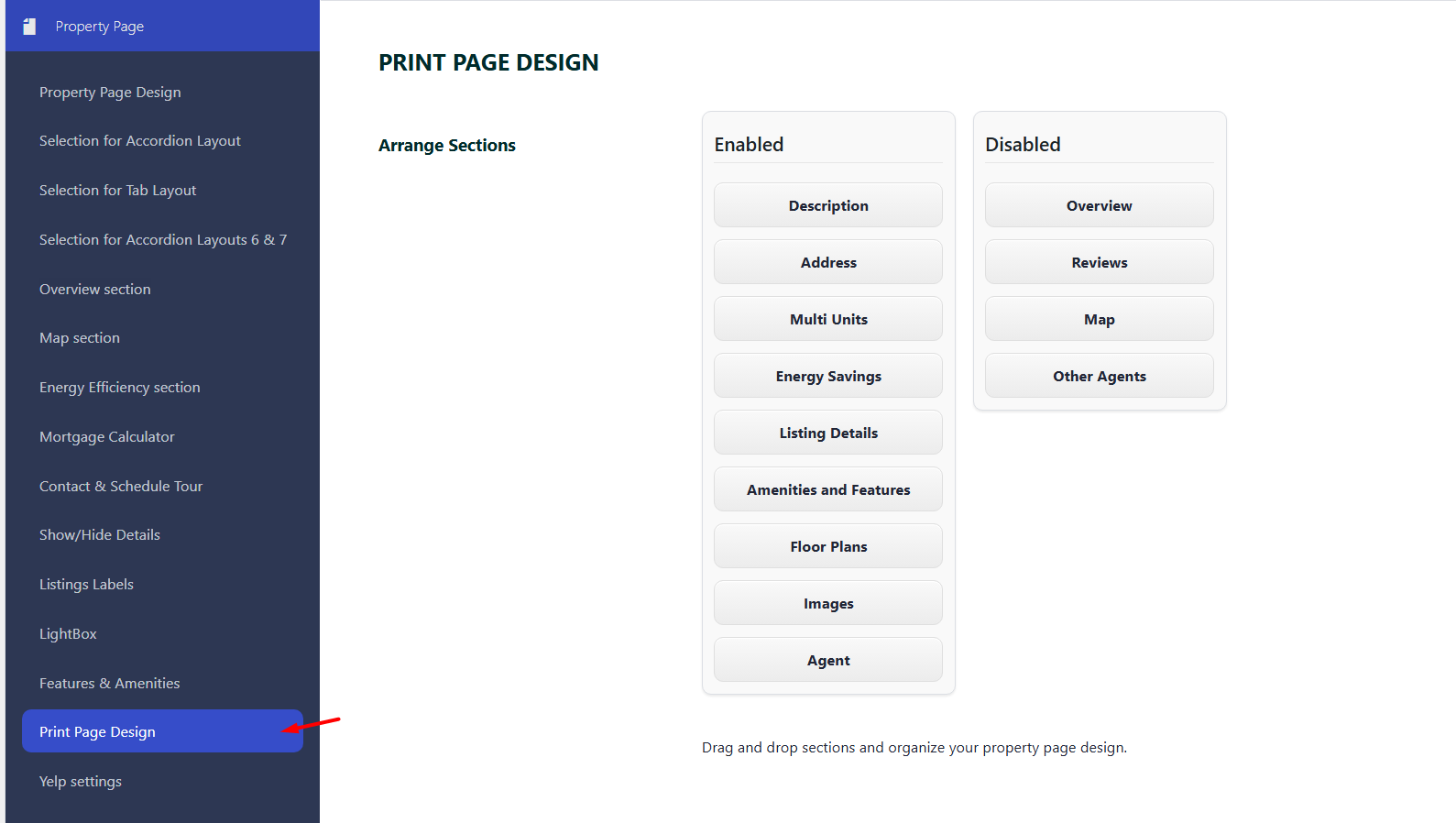
Theme Options > Property Page > Print Page Design


WPResidence Print Page Design settings

Available options

From this section, you can manage the print/PDF page sections.

  • Arrange Sections: Drag and drop sections to reorder them on the print/PDF page.
  • Disable Sections: Move any section you do not want to include to the Disabled column. Disabled sections will not appear in the printed or PDF version of the property page.

Use these options to create a cleaner print layout and include only the property details your clients should see.

Map in Print or PDF

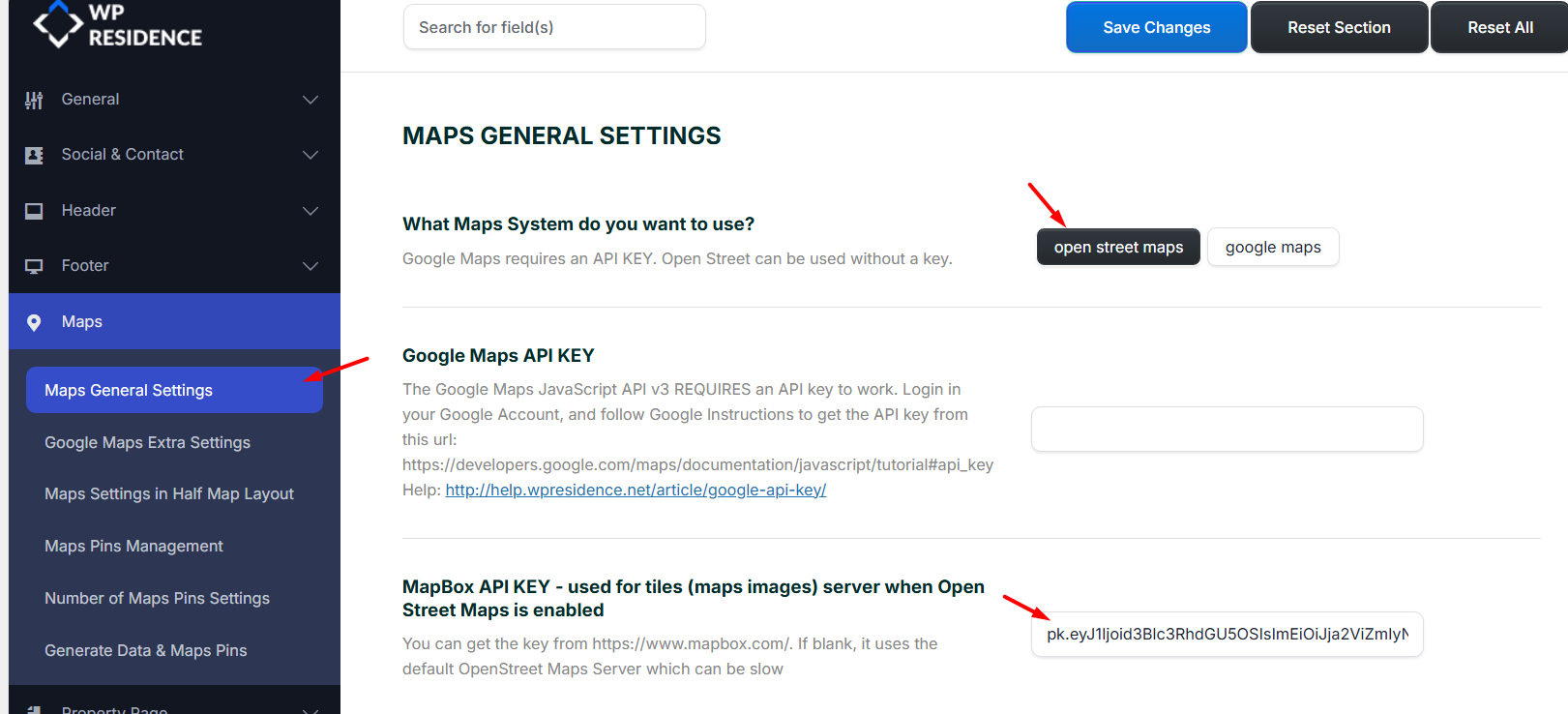
If you want to include the map in the print/PDF version of a property, make sure the map image service is configured correctly.

If this is not set correctly, the map may appear as a broken image in the printed/PDF page.

Google Maps

If you use Google Maps, enable the Maps Static API in the Google Cloud application connected to your Google Maps API key.

Related help:

Google API Key Setup


Google Maps Static API setting

OpenStreetMap

If you use OpenStreetMap, add a Mapbox token so the theme can generate map images for the print/PDF page.

Related help:

OpenStreetMap Setup


Mapbox token setting for OpenStreetMap

Where users create the PDF

Users can create the PDF from the property page by selecting the Print to PDF option.
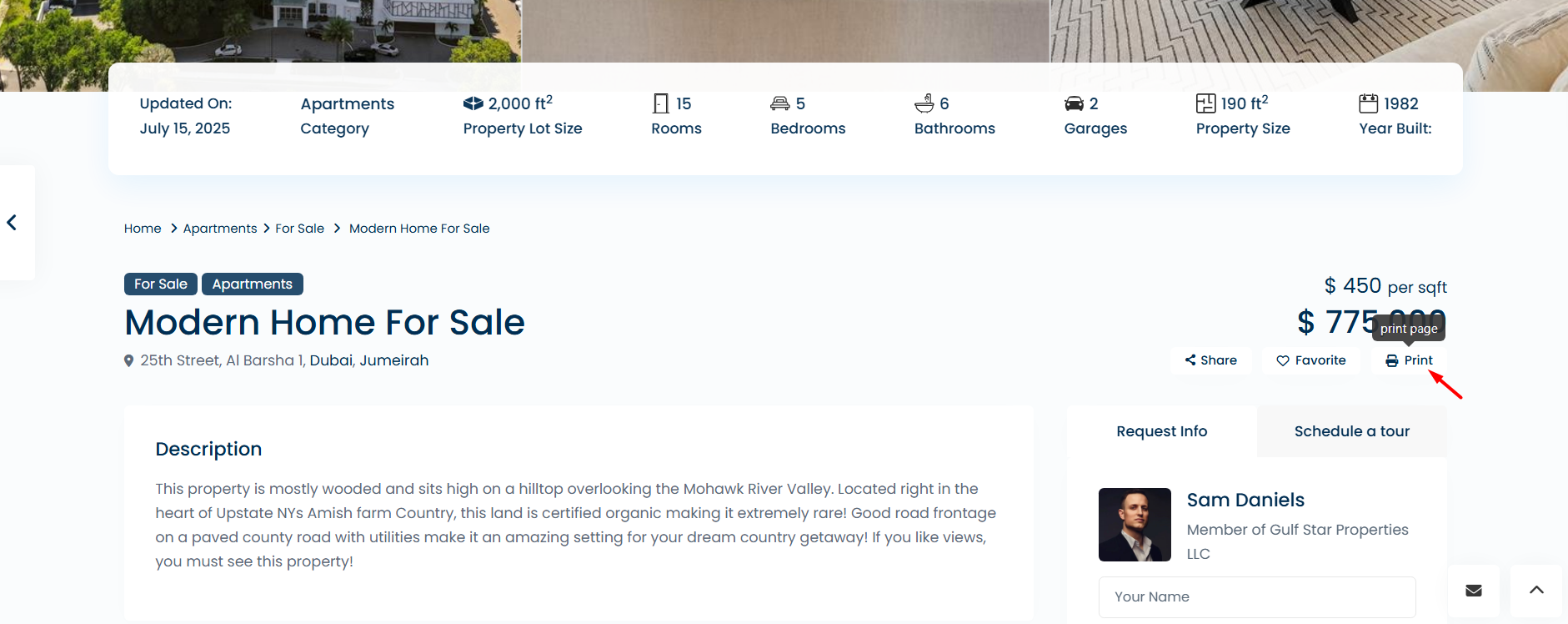

Print to PDF option on property page

Print Page logo

The logo used on the print/PDF page is managed from the Logos and Favicon settings.

Go to:

Theme Options > General > Logos & Favicon

Upload or change the logo used for the print page from this section.
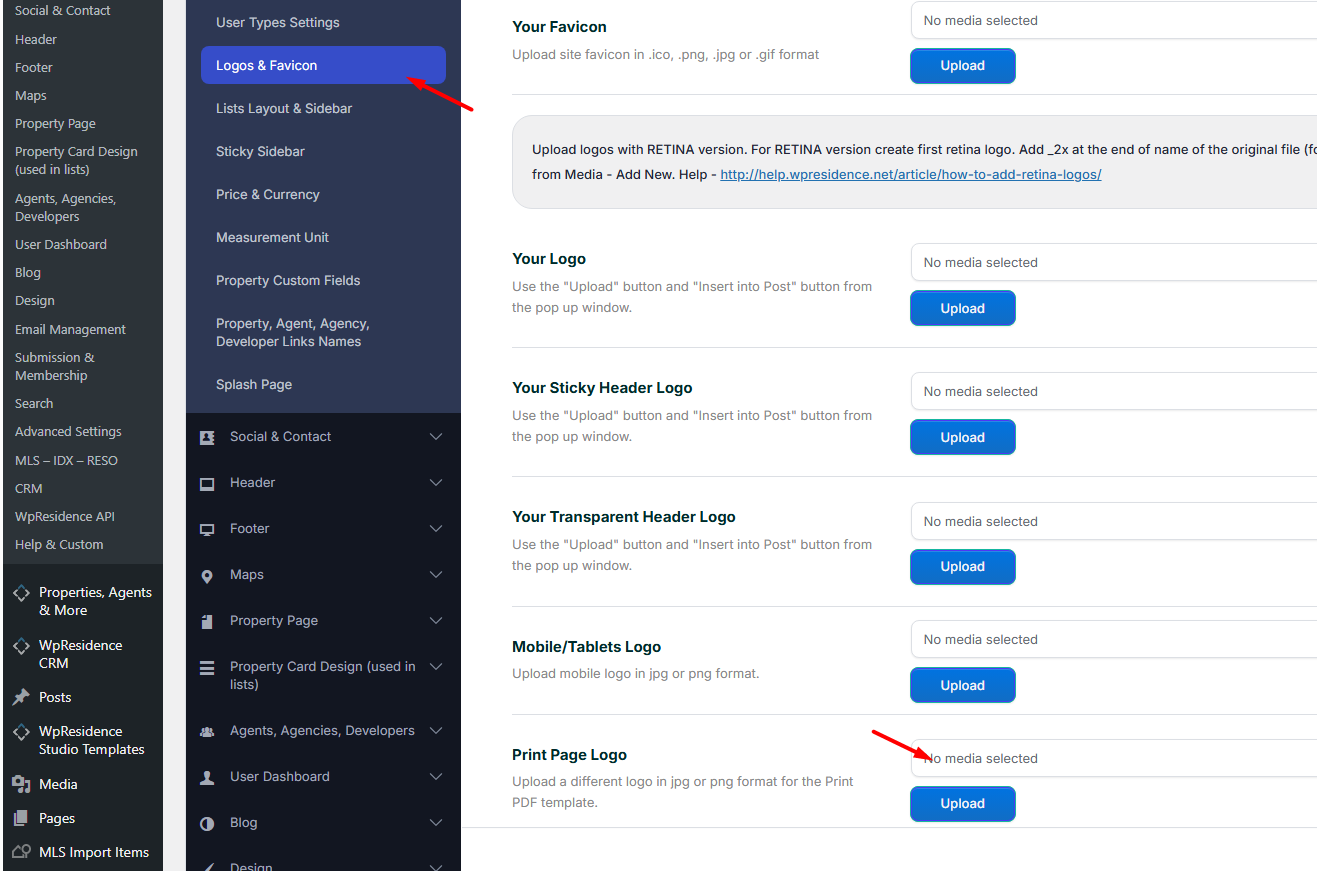

WPResidence Logos and Favicon settings for print page logo

Important notes

Important:

  • If the map does not show in the PDF, check that the correct static map service is enabled for your selected map provider.
  • For Google Maps, the Maps Static API must be enabled.
  • For OpenStreetMap, a valid Mapbox token is required for map images.
  • If you change the print layout and do not see the update immediately, clear cache and reload the property page.
04. Theme Options & Global Settings08. Property Pages & Layouts

Related Articles

  • ACF – Advanced Custom Fields – Integration with WPResidence
  • Theme Options – Roles (Editor) Permissions Controls
  • Theme Options -> Agent Card Settings
  • Theme Options > General Settings > Forced Registration

WP Residence Documentation

  • 01. Getting Started
    • How to Get Support
    • Get your buyer license code.
    • Use SSL / https
    • Server / Theme Requirements
  • 02. Installation & Setup
  • 03. Installation FAQ
  • 06. Search & Filtering
    • Advanced Search Display Settings
    • Advanced Search Form
    • Geolocation Search for Half Map
    • Save Search Theme Options
    • Advanced Search Colors
  • 09. Agent, Agency & Developers
  • 08. Property Pages & Layouts
  • 07. Property Lists, Categories & Archive
  • 14. WPResidence Elementor Studio
  • 10. Blog Posts & Blog List
  • 11. Shortcodes
    • Contact Form
    • Featured Agency/Developer
    • Membership Packages
    • Testimonials
    • Google Map with Property Marker
    • Listings per Agent, Agency or Developer
    • Display Categories
    • Agent List
    • Recent Items Slider
    • Recent items
    • List Properties or Articles by ID
    • Featured Agent
    • Featured Article
    • Featured Property
    • Login & Register Form
    • Icon Content Box Shortcode
  • 12. Widgets
  • 04. Theme Options & Global Settings
    • General Settings
    • User Types Settings
    • Appearance
    • Logos & Favicon
    • Header
    • Footer Style and Colors
    • Price & Currency
    • Property Custom Fields
    • Features & Amenities
    • Listing Labels
    • Theme Slider
    • Permalinks
    • Splash Page
    • Social & Contact
    • Map Settings
    • Pin Management
    • How read from file works
    • General Design Settings
    • Custom Colors Settings
    • Header Design & Colors
    • Mobile Menu Colors
    • User Dashboard Colors
    • Print PDF Design
    • Property, Agent, Blog Lists Design Settings
    • Sidebar Widget Design
    • Font management
    • How to add custom CSS
    • Custom Property Card Unit – Beta version
    • Email Management
    • Import & Export theme options
    • reCaptcha settings
    • YELP API Integration
    • iHomefinder Optima Express IDX
    • MEMBERSHIP & PAYMENT Settings
    • Property Submission Page
    • PayPal Setup
    • Stripe Setup
    • Wire Transfer Payment Method
  • 20. Translations & Languages
  • 24. FAQ
  • 10. Pages
  • 11. Header
  • 12. Footer
  • 05. Maps & Location Settings
  • 18. Payments & Monetization
  • Plugins
    • 22. Third Party Plugins – IDX Compatibility
    • 21. Third-Party Plugins – Multi-Language
    • 23. Third party Plugins – Other
  • Technical
    • 26. Technical how to | Custom Code Required
    • 25. Technical: Child Theme

Join Us On

Powered by WP Estate - All Rights Reserved
  • WpEstate
  • WPRESIDENCE
  • Video Tutorials
  • Client Support
  • API