Select Advanced Search Type 8
To enable Search Type 8, go to: Theme Options → Search → Advanced Search Form Set Advanced Search Type to Type 8.
Choose the taxonomy used for tabs
Still in: Theme Options → Search → Advanced Search Form
Select the taxonomy that will be used as the source for the tabs. This selection controls what appears in the second dropdown field (for example Property Type or Property Action)

Click Save Changes and then refresh the page. The available tab options will only appear after refreshing.
After refreshing, select the specific taxonomy terms that should be used.

Configure the search form fields
The available search fields are managed from:
Theme Options → Search → Advanced Search Form
Search Type 8 relies on custom fields defined in Theme Options.
These custom fields are also used by:
- Advanced Search widget
- Advanced Search shortcode
- Mobile search
Full guide:
Advanced Search Form – Field Setup
Configure the display of the search form
Display options such as alignment, spacing, and visibility are controlled from:
Theme Options → Search → Advanced Search Display
Display guide:
Advanced Search Display Options
Set search form colors
To customize colors for fields, buttons, and backgrounds, go to:
Theme Options → Search → Advanced Search Colors
Colors guide:
Advanced Search Colors Setup
Elementor Search Form Builder – Important Note
When using the Elementor Search Form Builder widget on specific pages:
- The global Advanced Search Type still applies.
- Search fields are configured inside the Elementor widget.
- Button styling (colors, padding, border, typography, alignment) is controlled from the widget’s Style tab.
Elementor widget guide:
Property Search Form Builder for Elementor
Important limitations of Search Type 8
- Search Type 8 is displayed only over the theme header media. It cannot be used inside page content. Header media settings
- Auto-complete values reset after redirecting to the search results page. Users must select a new location for a new search.
- Search Type 8 works only with custom fields enabled. Tabs and auto-complete logic do not sync with the Advanced Search widget or shortcode. Advanced Search custom fields setup
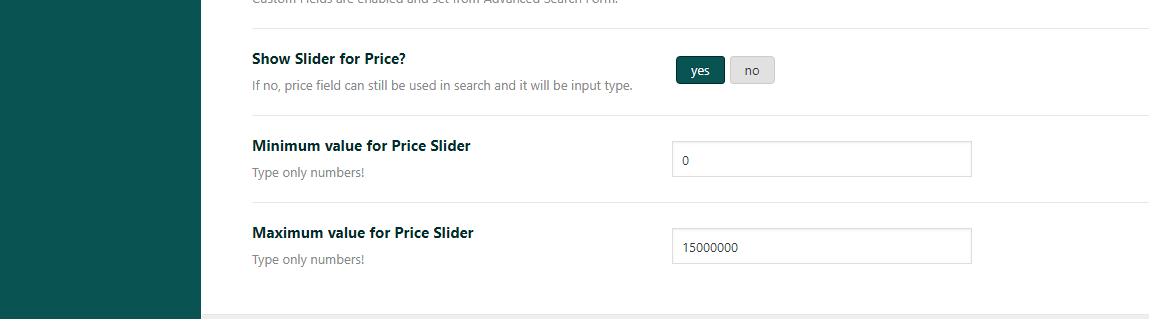
- Minimum and maximum price values set per tab do not apply to Search Type 8. Price sliders used in mobile search, half map layouts, widgets, and shortcodesrely on the values set globally in: Theme Options → Search → Advanced Search Form