
WP Residence Help WP Residence Help

  • WpEstate
  • WPRESIDENCE
  • Video Tutorials
  • Client Support
  • API
Home / 15. Elementor Shortcodes / Properties List with Sort / Search Filters for Elementor

Properties List with Sort / Search Filters for Elementor

5632 views 0

CONTENT

  • Widget Overview
  • Add the Widget in Elementor
  • Content Tab Settings
  • Filter Controls
  • Style Tab Options
  • Pagination Settings
  • Example: City + Number of Rooms
  • Important Limitations

Properties List with Filter (Elementor)

The Properties List with Filter widget is an Elementor-only widget available in the WPResidence theme. It allows you to display a list of properties with optional filtering controls such as city, category, type, features, and sorting.

This widget is designed for manual page creation using Elementor and gives you full control over which properties are shown on a specific page.

Add the Widget in Elementor

  1. Create a new page from Pages → Add New.
  2. Click Edit with Elementor.
  3. Search for Properties List with Filter.
  4. Drag the widget into your page layout.
Content Tab Settings

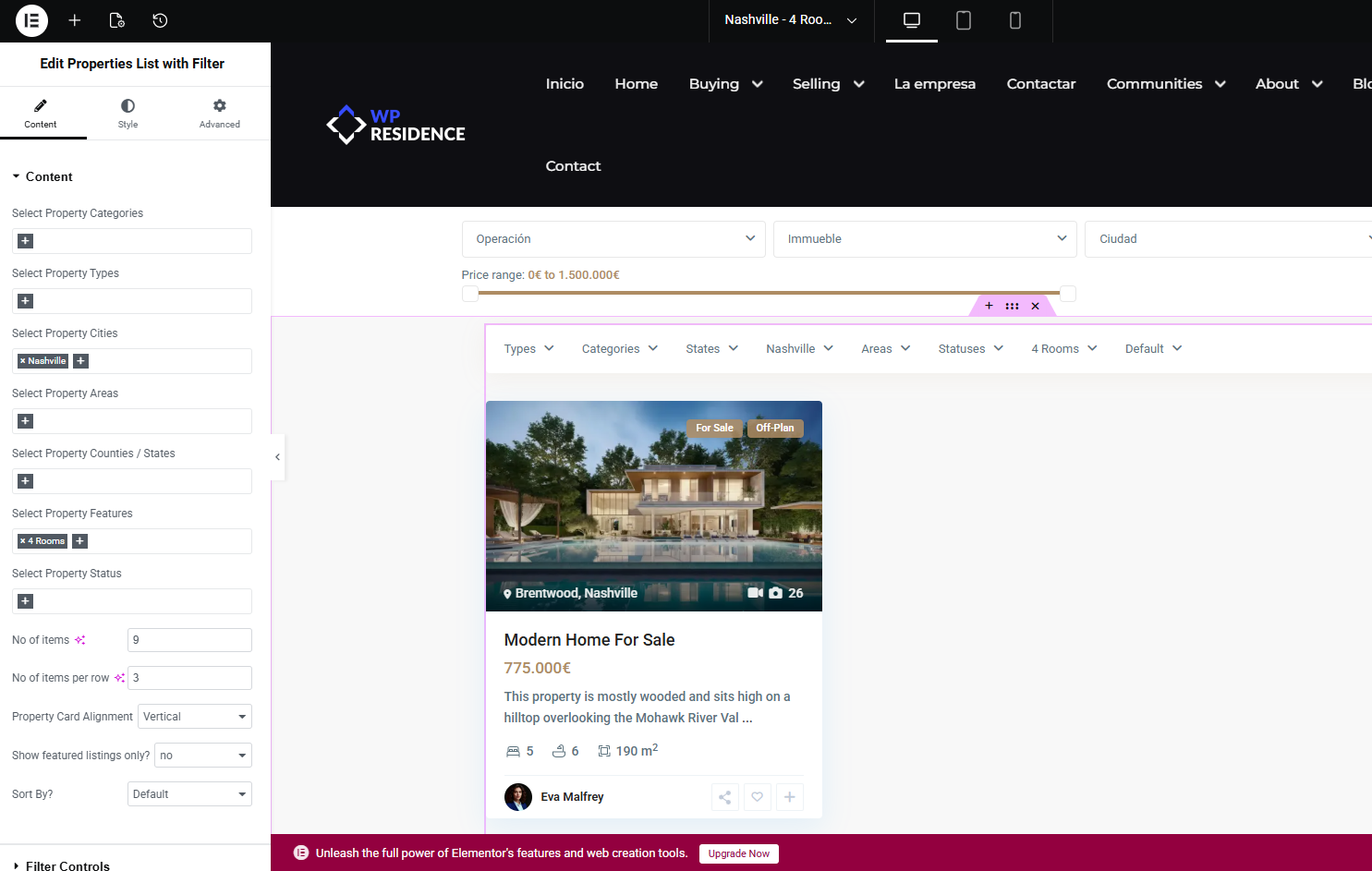
The Content tab controls which properties are loaded and how many are displayed.

  • Select Property Categories – Limit results to specific categories.
  • Select Property Types – Filter by property type.
  • Select Property Cities – Pre-filter listings by city.
  • Select Property Areas – Limit results to specific areas.
  • Select Property Counties / States – Optional geographic filtering.
  • Select Property Features – Filter by features and amenities.
  • Select Property Status – For Sale, For Rent, etc.
  • No of items – Total number of properties loaded.
  • No of items per row – Columns per row.
  • Property Card Alignment – Vertical or horizontal layout.
  • Show featured listings only – Optional.
  • Sort By – Default, price, date, etc.

Filter Controls

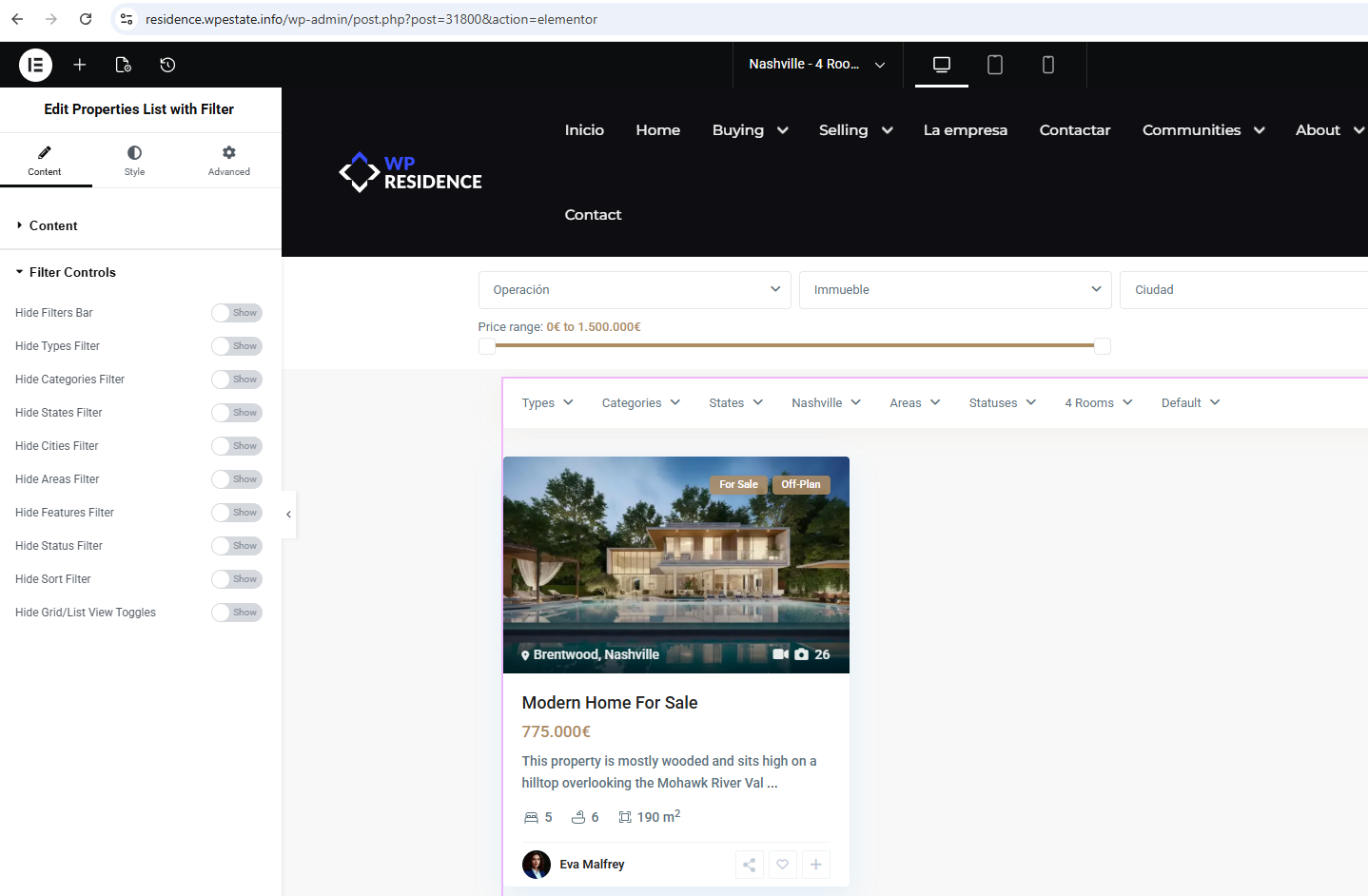
The Filter Controls section allows you to hide or show individual filters in the top bar.

  • Hide Filters Bar
  • Hide Types Filter
  • Hide Categories Filter
  • Hide States Filter
  • Hide Cities Filter
  • Hide Areas Filter
  • Hide Features Filter
  • Hide Status Filter
  • Hide Sort Filter
  • Hide Grid/List View Toggles

These controls affect visibility only. They do not change which properties are loaded, only which filters the visitor can interact with.

Style Tab Options

The Style tab controls the visual appearance of the listings.

  • Box shadow
  • Spacing and alignment
  • Typography and colors (depending on theme settings)
Pagination Position

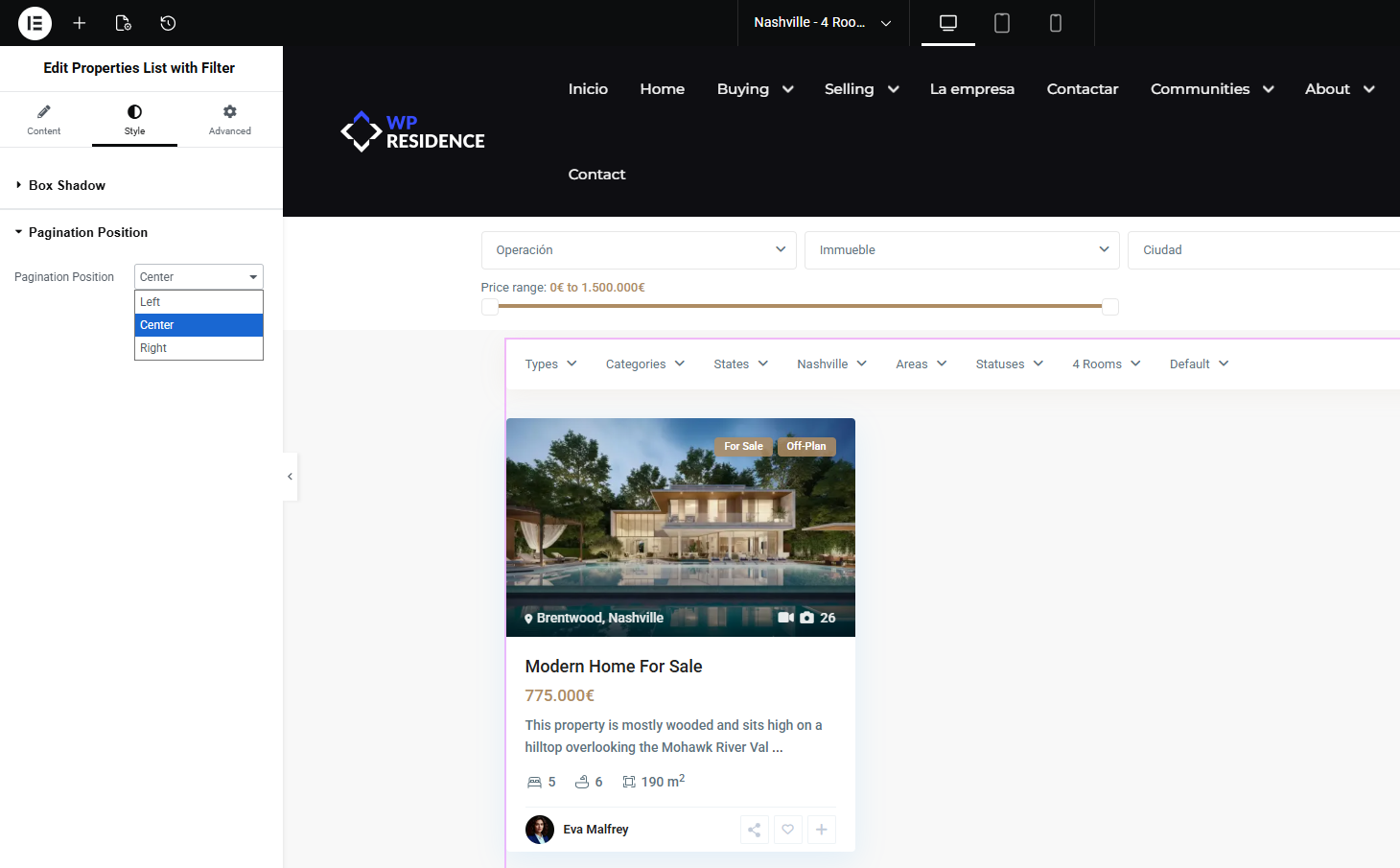
The widget includes pagination controls when more items are loaded than fit on one page.

You can set the pagination position to:

  • Left
  • Center
  • Right

Example: Properties From One City With 4 Rooms

Scenario:
“I want to create a page that shows properties from a specific city (for example New York) with 4 rooms.”

Important Concept

The number of rooms is not a native filter in the Properties List widget.
To filter by rooms, the value must be handled as a Feature & Amenity.

Step 1: Create the Feature

  1. Go to Admin → Listings → Features & Amenities.
  2. Create a feature named 4 Rooms.

Step 2: Assign the Feature to Properties

  1. Edit each property that has 4 rooms.
  2. Enable the 4 Rooms feature.

Step 3: Create a Custom Page

  1. Create a new page (for example: New York – 4 Rooms).
  2. Set a custom URL slug if needed.
  3. Edit the page with Elementor.

Step 4: Configure the Widget

  • Select Property Cities: New York
  • Select Property Features: 4 Rooms

This creates a page that displays only properties located in New York that have th 4 Rooms feature assigned.
Important Limitations

  • This setup works only on manually created pages.
  • You cannot create automatic URLs like /city/new-york/4-rooms.
  • Dynamic room filtering requires custom development.
  • The widget does not generate automatic SEO landing pages.

For advanced dynamic filtering or automatic URLs, a custom development solution is required.

Related Links

How to manage Property Categories / Taxonomies

15. Elementor Shortcodes

Related Articles

  • Mortgage Calculator for Elementor Pages
  • Property Slider V1 for Elementor
  • Property Slider V2 for Elementor
  • Property Slider V4 for Elementor

WP Residence Documentation

  • 01. Getting Started
    • How to Get Support
    • Get your buyer license code.
    • Use SSL / https
    • Server / Theme Requirements
  • 02. Installation & Setup
  • 03. Installation FAQ
  • 06. Search & Filtering
    • Advanced Search Display Settings
    • Advanced Search Form
    • Geolocation Search for Half Map
    • Save Search Theme Options
    • Advanced Search Colors
  • 09. Agent, Agency & Developers
  • 08. Property Pages & Layouts
  • 07. Property Lists, Categories & Archive
  • 14. WPResidence Elementor Studio
  • 10. Blog Posts & Blog List
  • 11. Shortcodes
    • Contact Form
    • Featured Agency/Developer
    • Membership Packages
    • Testimonials
    • Google Map with Property Marker
    • Listings per Agent, Agency or Developer
    • Display Categories
    • Agent List
    • Recent Items Slider
    • Recent items
    • List Properties or Articles by ID
    • Featured Agent
    • Featured Article
    • Featured Property
    • Login & Register Form
    • Icon Content Box Shortcode
  • 12. Widgets
  • 04. Theme Options & Global Settings
    • General Settings
    • User Types Settings
    • Appearance
    • Logos & Favicon
    • Header
    • Footer Style and Colors
    • Price & Currency
    • Property Custom Fields
    • Features & Amenities
    • Listing Labels
    • Theme Slider
    • Permalinks
    • Splash Page
    • Social & Contact
    • Map Settings
    • Pin Management
    • How read from file works
    • General Design Settings
    • Custom Colors Settings
    • Header Design & Colors
    • Mobile Menu Colors
    • User Dashboard Colors
    • Print PDF Design
    • Property, Agent, Blog Lists Design Settings
    • Sidebar Widget Design
    • Font management
    • How to add custom CSS
    • Custom Property Card Unit – Beta version
    • Email Management
    • Import & Export theme options
    • reCaptcha settings
    • YELP API Integration
    • iHomefinder Optima Express IDX
    • MEMBERSHIP & PAYMENT Settings
    • Property Submission Page
    • PayPal Setup
    • Stripe Setup
    • Wire Transfer Payment Method
  • 20. Translations & Languages
  • 24. FAQ
  • 10. Pages
  • 11. Header
  • 12. Footer
  • 05. Maps & Location Settings
  • 18. Payments & Monetization
  • Plugins
    • 22. Third Party Plugins – IDX Compatibility
    • 21. Third-Party Plugins – Multi-Language
    • 23. Third party Plugins – Other
  • Technical
    • 26. Technical how to | Custom Code Required
    • 25. Technical: Child Theme

Join Us On

Powered by WP Estate - All Rights Reserved
  • WpEstate
  • WPRESIDENCE
  • Video Tutorials
  • Client Support
  • API