
WP Residence Help WP Residence Help

  • WpEstate
  • How to Build Your Website
  • Video Tutorials
  • Client Support
  • API
Home / 06. Search & Filtering / How to setup the Advanced Search types 4 and 5

How to setup the Advanced Search types 4 and 5

4581 views 0

SUMMARY

  • What are Advanced Search Types 4 and 5
  • Differences between Search Type 4 and Search Type 5
  • 1. Select Advanced Search Type 4 or 5
  • 2. Set up search form fields
  • 3. Configure search form display
  • 4. Set search form colors
  • Elementor Search Form Builder – Important Note
  • Helpful links for Advanced Search setup
Before reading this help file, you may want to watch this video. It explains how to set up Advanced Search Types 4 and 5. Watch Video on Youtube

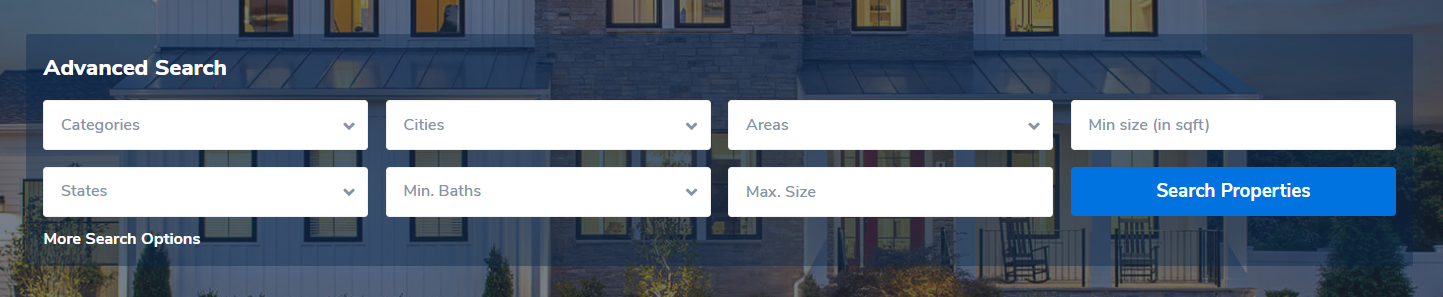
Advanced Search Types 4 and 5 are compact header-style search forms. Both are visual variations of Advanced Search Type 1 and are commonly used in the site header area.

These search types are ideal when you want to keep the header clean while still providing a powerful advanced search experience.

Differences between Search Type 4 and Search Type 5

Advanced Search Type 4 uses a compact layout with a smaller search button and includes a close button, allowing users to collapse the search form.

Advanced Search Type 5 has the same layout as Type 4, but the close button is replaced with a search title. This title can be renamed or translated using the Loco Translate plugin.
How to translate or rename theme text using Loco Translate

1. Select Advanced Search Type 4 or 5

To set up Search Type 4 or 5, navigate to:

Theme Options → Search → Advanced Search Form

Select Type 4 or Type 5 for the Advanced Search Type option.

Note: When using Search Type 4, you also have the option to display the search form opened by default in the header.


2. Set up the search form fields

The fields displayed in the search form are configured from:

Theme Options → Search → Advanced Search Form

Here you can define:

  • Which search fields are displayed
  • The order of the fields
  • The field type (dropdowns, text inputs, sliders)

Full guide:
Advanced Search Form – Field Setup

3. Configure the display of the search form

Display-related options such as spacing, visibility, and alignment are managed from:

Theme Options → Search → Advanced Search Display

Display options guide:
Advanced Search Display Options

4. Set search form colors

To customize colors for the search fields, buttons, background, and text, go to:

Theme Options → Search → Advanced Search Colors

Colors guide:
Advanced Search Colors Setup

Elementor Search Form Builder – Important Note

If you use the Elementor Search Form Builder widget on specific pages,
please note the following:

  • The global Advanced Search Type selected in Theme Options still applies.
  • Search fields are configured inside the Elementor widget and do not sync with Theme Options.
  • Changes made in Theme Options → Search → Advanced Search Form will not affect Elementor-based search forms.
  • Button styling (colors, padding, typography, alignment) is controlled from the widget’s Style tab.
  • This allows full page-level customization without changing global search settings.

Elementor widget guide:
Property Search Form Builder for Elementor

Helpful links for Advanced Search setup

  • How to show categories with zero properties
  • Advanced Search Results – Half Map layout
  • Advanced Search Results – Standard layout
  • Advanced Search shortcode
  • Advanced Search widget
06. Search & Filtering

Related Articles

  • Mobile Search in WPResidence
  • How to control the Advanced Search float position
  • Theme Options – Search – Taxonomies Multi Selection
  • Theme Options -> Search -> Advanced Search Results page

WP Residence Documentation

  • 01. Getting Started
    • How to Get Support
    • Get your buyer license code.
    • Use SSL / https
    • Server / Theme Requirements
  • 02. Installation & Setup
  • 03. Installation FAQ
  • 06. Search & Filtering
    • Advanced Search Display Settings
    • Advanced Search Form
    • Geolocation Search for Half Map
    • Save Search Theme Options
    • Advanced Search Colors
  • 09. Agent, Agency & Developers
  • 08. Property Pages & Layouts
  • 07. Property Lists, Categories & Archive
  • 13. WPResidence Elementor Studio
  • 10. Blog Posts & Blog List
  • 11. Shortcodes
    • Contact Form
    • Featured Agency/Developer
    • Membership Packages
    • Testimonials
    • Google Map with Property Marker
    • Listings per Agent, Agency or Developer
    • Display Categories
    • Agent List
    • Recent Items Slider
    • Recent items
    • List Properties or Articles by ID
    • Featured Agent
    • Featured Article
    • Featured Property
    • Login & Register Form
    • Icon Content Box Shortcode
  • 12. Widgets
  • 04. Theme Options & Global Settings
    • General Settings
    • User Types Settings
    • Appearance
    • Logos & Favicon
    • Header
    • Footer Style and Colors
    • Price & Currency
    • Property Custom Fields
    • Features & Amenities
    • Listing Labels
    • Theme Slider
    • Permalinks
    • Splash Page
    • Social & Contact
    • Map Settings
    • Pin Management
    • How read from file works
    • General Design Settings
    • Custom Colors Settings
    • Header Design & Colors
    • Mobile Menu Colors
    • User Dashboard Colors
    • Print PDF Design
    • Property, Agent, Blog Lists Design Settings
    • Sidebar Widget Design
    • Font management
    • How to add custom CSS
    • Custom Property Card Unit – Beta version
    • Email Management
    • Import & Export theme options
    • reCaptcha settings
    • YELP API Integration
    • iHomefinder Optima Express IDX
    • MEMBERSHIP & PAYMENT Settings
    • Property Submission Page
    • PayPal Setup
    • Stripe Setup
    • Wire Transfer Payment Method
  • 20. Translations & Languages
  • 26. FAQ
  • 10. Pages
  • 11. Header
  • 12. Footer
  • 05. Maps & Location Settings
  • 18. Payments & Monetization
  • Plugins
    • 19. Included Plugins
    • 22. Third Party Plugins – IDX Compatibility
    • 21. Third-Party Plugins – Multi-Language
    • 23. Third party Plugins – Other
  • Technical
    • 24. Technical how to | Custom Code Required
    • 25. Technical: Child Theme

Join Us On

Powered by WP Estate - All Rights Reserved
  • WpEstate
  • How to Build Your Website
  • Video Tutorials
  • Client Support
  • API