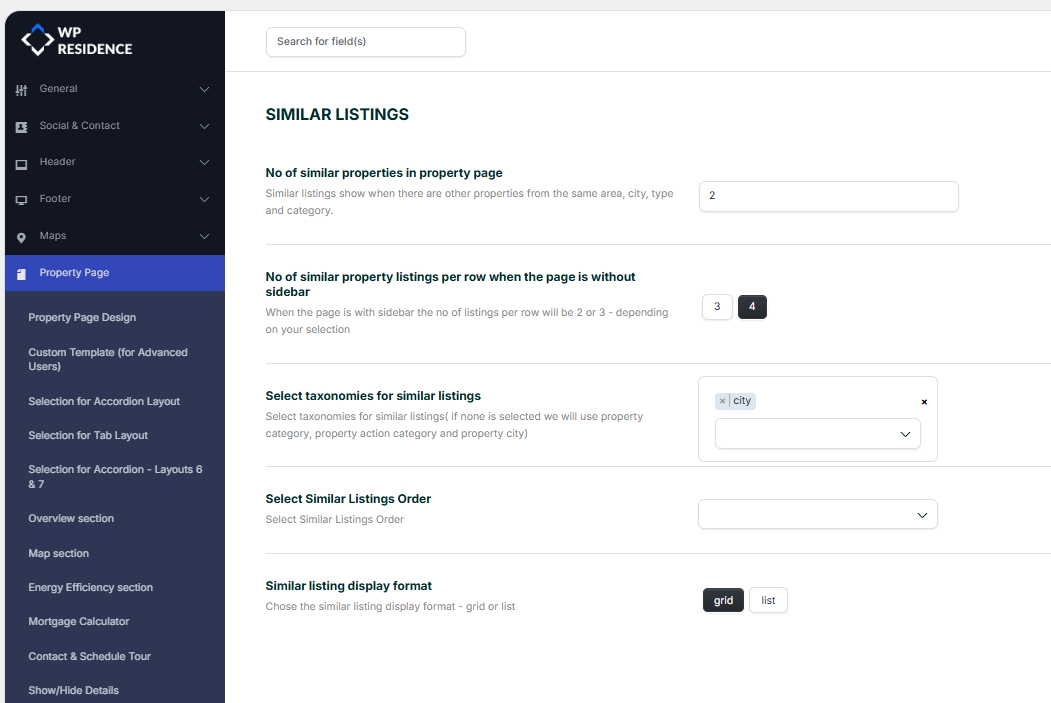
In Theme Options- Property you will find settings for the property page.
1. PROPERTY PAGE DESIGN
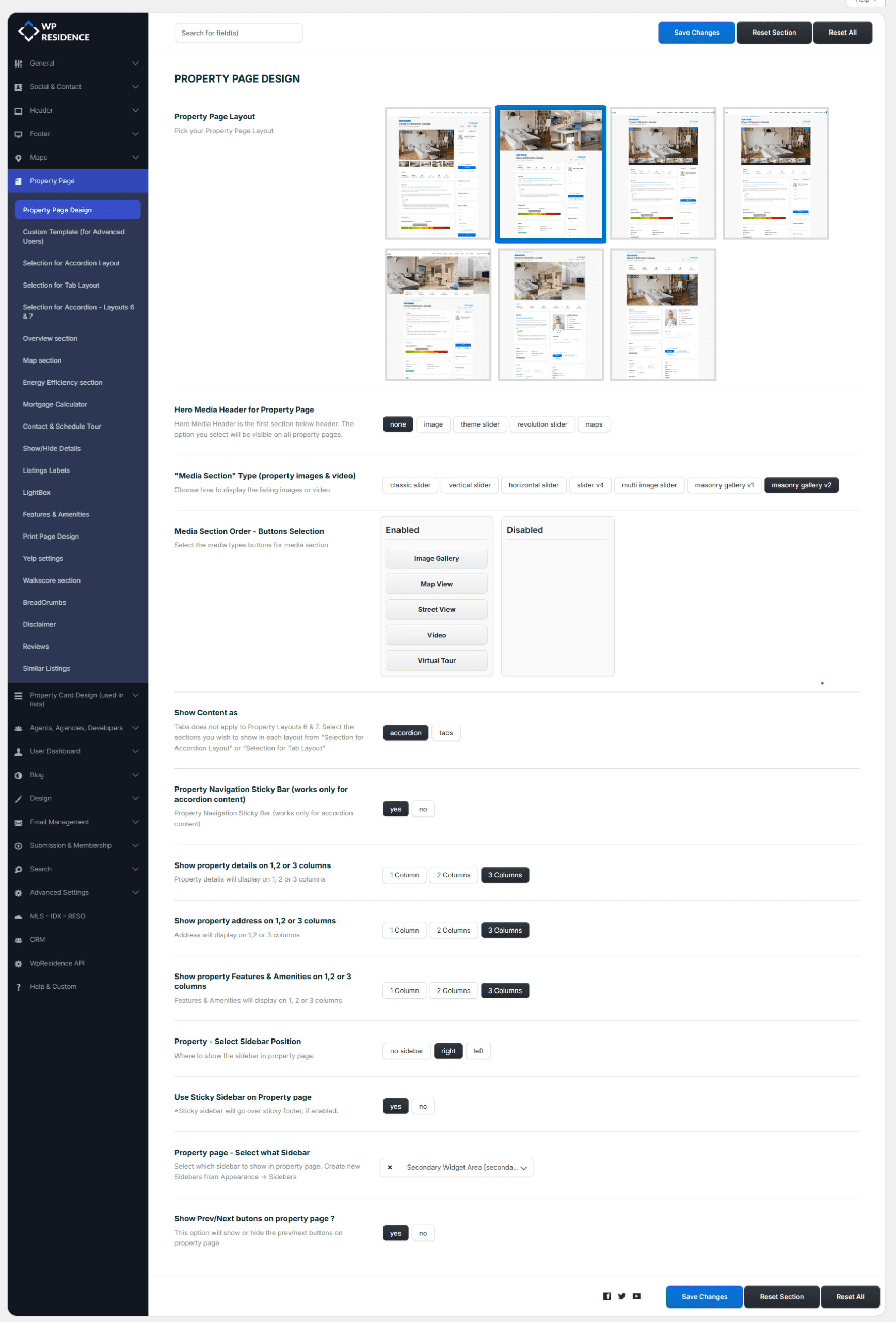
Property Page Layout
1. How to set the property page layout 1 and the settings available for this layout.
2. How to set the property page layout 2 and the settings available for this layout.
3. How to set the property page layout 3 and the settings available for this layout.
4. How to set the property page layout 4 and the settings available for this layout.
5. How to set the property page layout 5 and the settings available for this layout.
2. “Media Header” type for Property Page?
Media Header is the first section below header. The option you select will be visible on all property pages.
3.”Media Section” Type (images & video)
You can choose the slider type for your properties. You can choose between:
4. Media Section Order – Buttons Selection
Select the media types buttons for the media section. this option will be applicable for Classic Slider, Vertical Sldier and Horizontal Slider
5. Show Content as
You can choose the property page content: accordion or tabs
Tabs does not apply to Property Layouts 6 & 7. Select the sections you wish to show in each layout from “Selection for Accordion Layout” or “Selection for Tab Layout”
6. Property Navigation Sticky Bar (works only for accordion content) Yes/NO
Property Navigation Sticky Bar (works only for accordion content)

7.Show property details on 1,2 or 3 columns
You can select the number of columns for the Details section
8.Show property address on 1,2 or 3 columns
You can select the number of columns for the Address section
9. Show property Features & Amenities on 1,2 or 3 columns
You can select the number of columns for the features and amenities section
10. Property – Select Sidebar Position
Where to show the sidebar in property page.
11. Use Sticky Sidebar on Property page
Sticky sidebar will go over sticky footer, if enabled.
12. Property page – Select what Sidebar
Select which sidebar to show in property page. Create new Sidebars from Appearance -> Sidebars
13. Show Prev/Next butons on property page ?
This option will show or hide the prev/next buttons on property page
SELECTION FOR ACCORDION LAYOUT
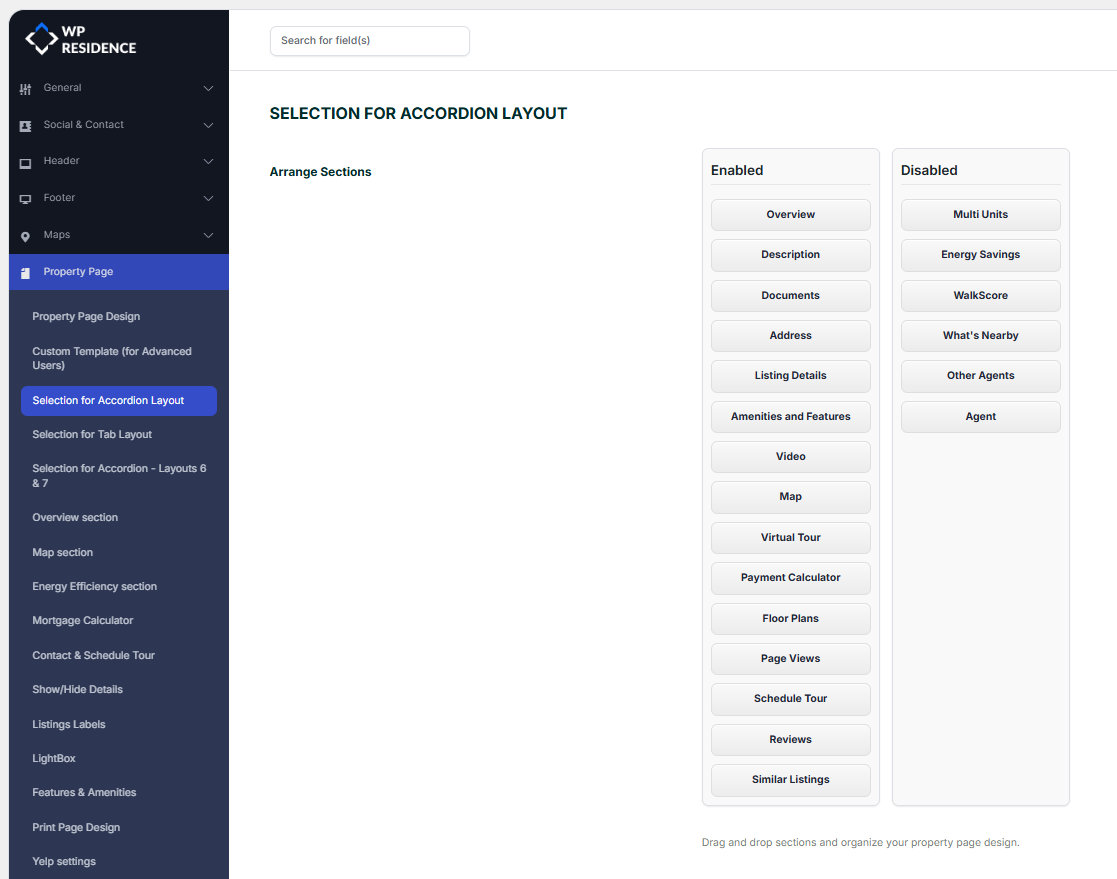
The properties section for the accordion layout can be managed here. The elements from the Visible section will show on the property page and the elements moved with drag and drop in Disabled will not show on the property page.
SELECTION FOR TAB LAYOUT
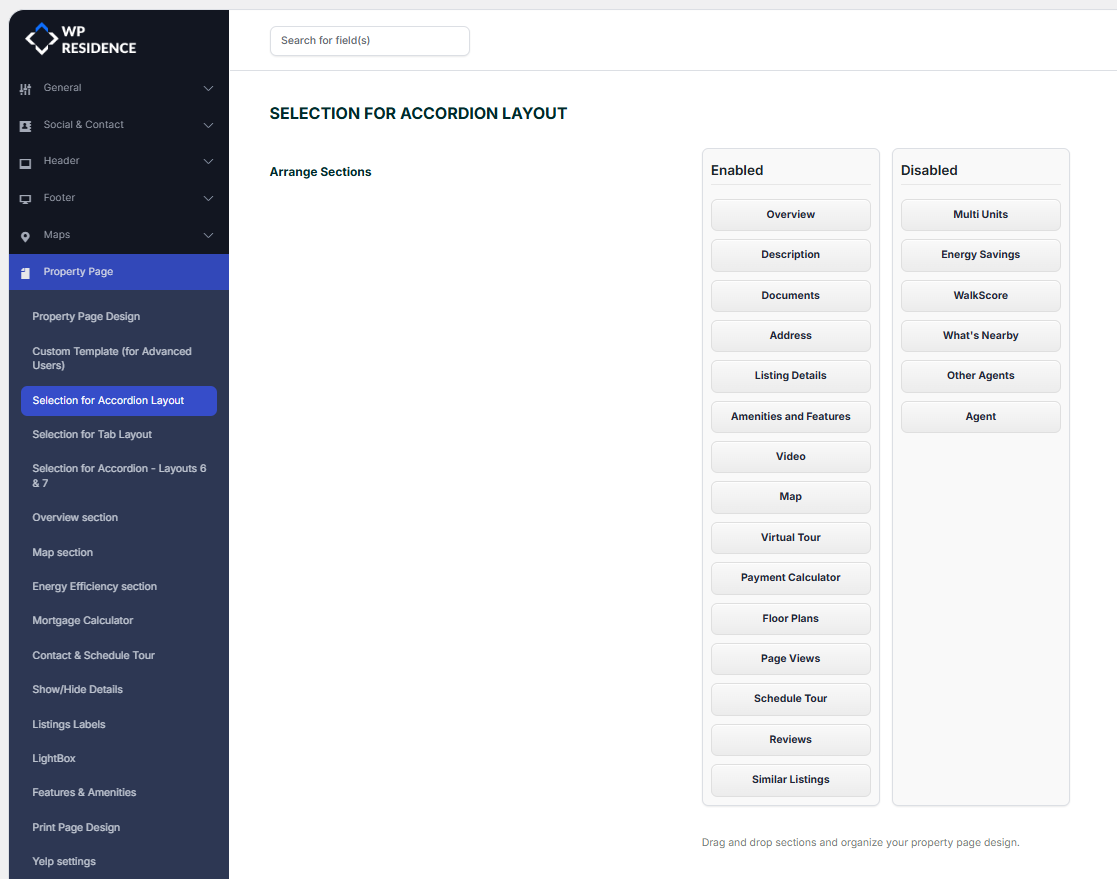
The properties section for the tab layout can be managed here. The elements from the Visible section will show on the property page and the elements moved with drag and drop in Disabled will not show on the property page.
SELECTION FOR ACCORDION – LAYOUTS 6 & 7
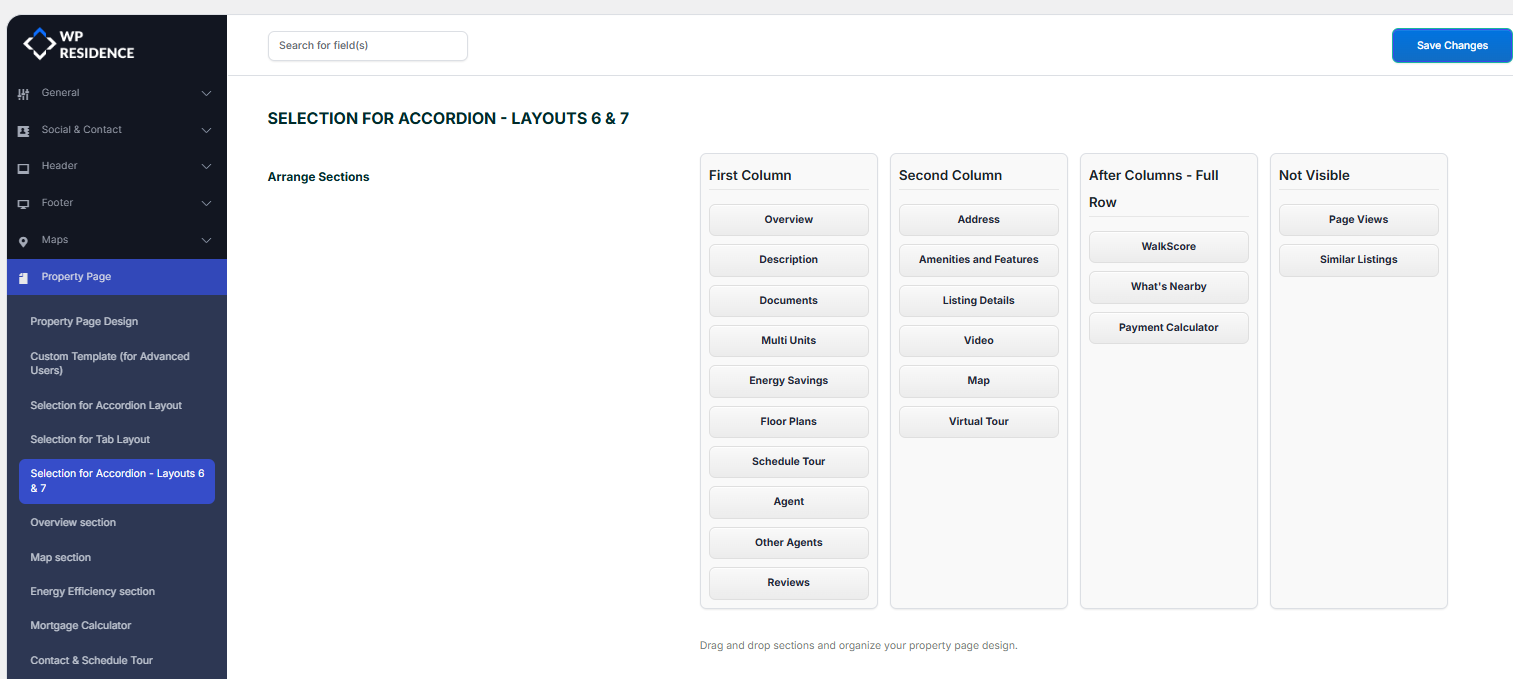
The properties section for the accordion layout, for the templates 6 and 7, can be managed here.
The 6 and 7 templates will have 3 sections in the property page: first column, the second column, and the after columns
The elements from the first column, the second column, and the columns after the section will show on the property page and the elements moved with drag and drop in not visible will not show on the property page.
OVERVIEW SECTION
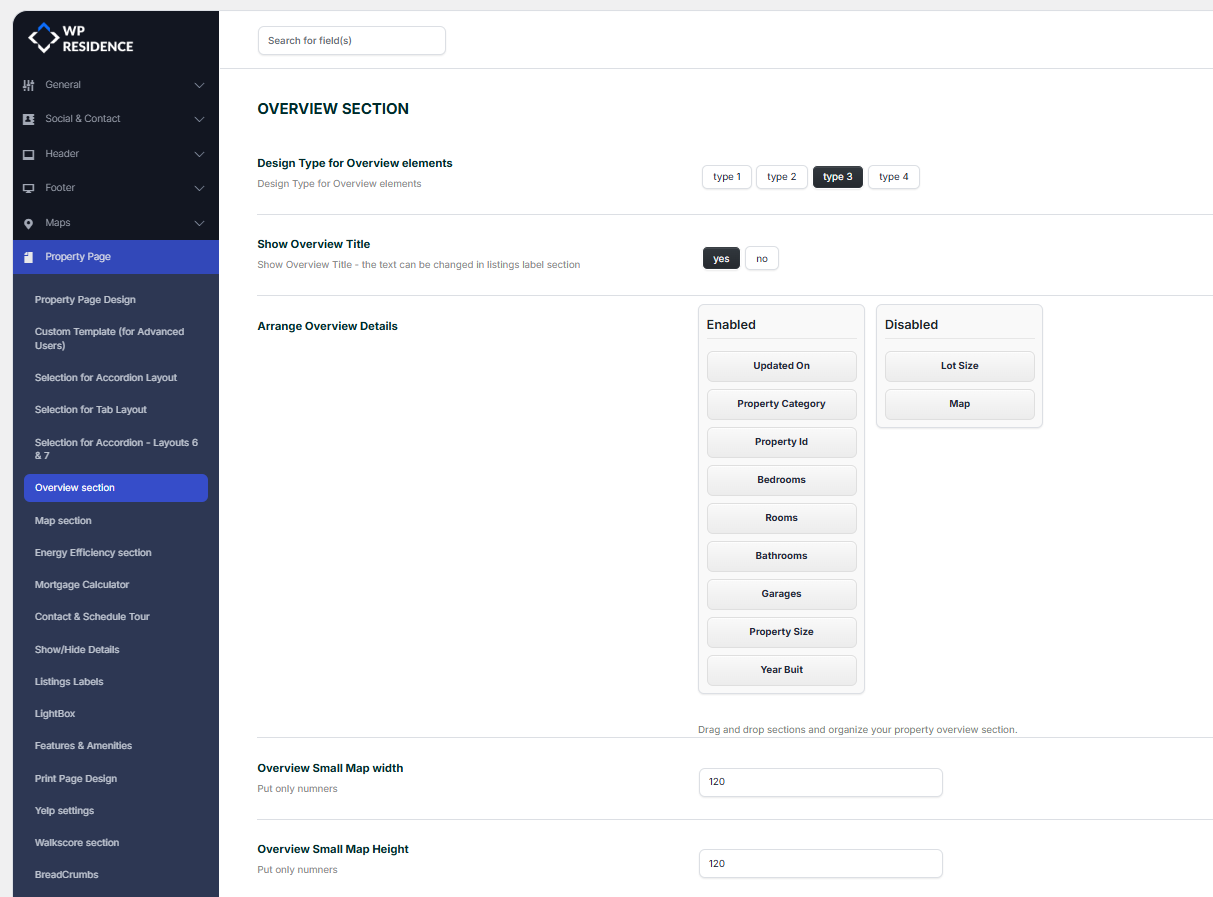
If you use Map in Overview – you will need to check the following settings to not have a broken image
For Google Maps API – Enable the Maps Static API from the application you create in your Google Account.
Help https://help.wpresidence.net/article/google-api-key/


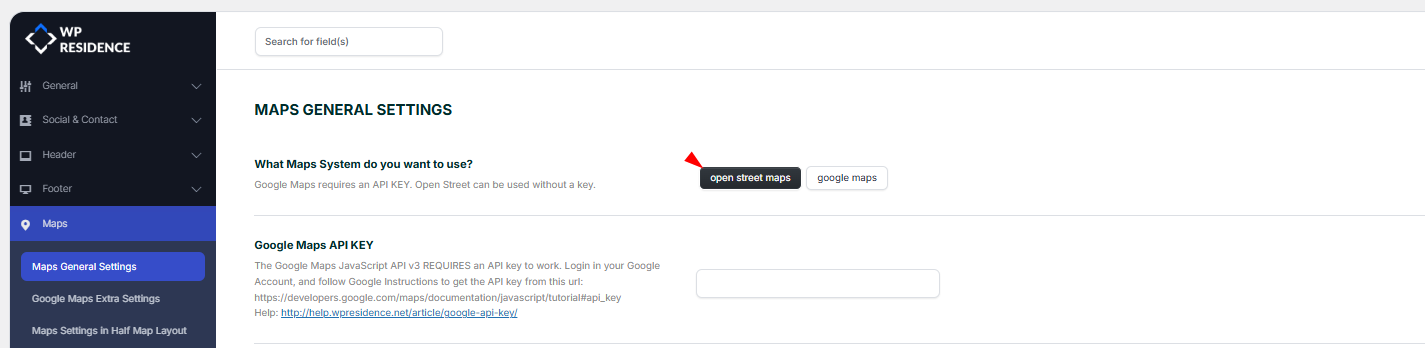
For Open Street API you will need to add MAP BOX token to have access to Map Images
Help – https://help.wpresidence.net/article/map-type-open-street-or-google-maps/#open_street
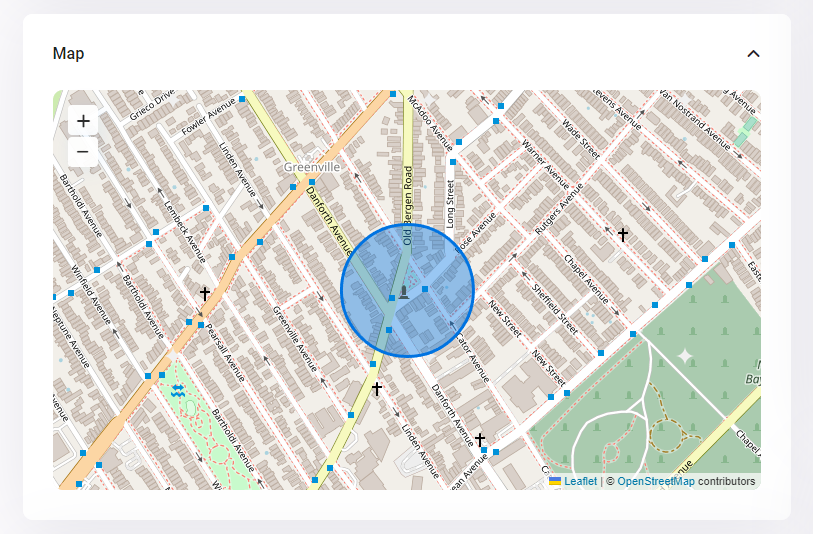
MAP SECTION
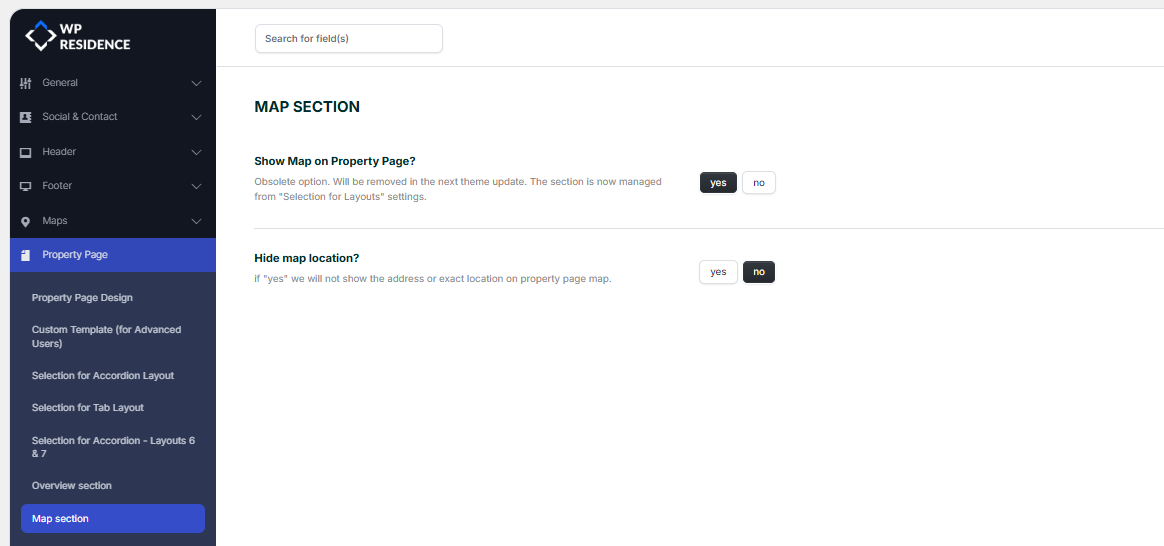
1. Show Map on Property Page? Yes/NO
You can enable or disable the map in the property pages. In the near future this option will be removed and the fields in the property page will be managed only from SELECTION FOR ACCORDION LAYOUT and SELECTION FOR TAB LAYOUT
2. Hide map location? Yes/NO
if “yes” we will not show the address or exact location on the property page map.
ENERGY EFFICIENCY SECTION
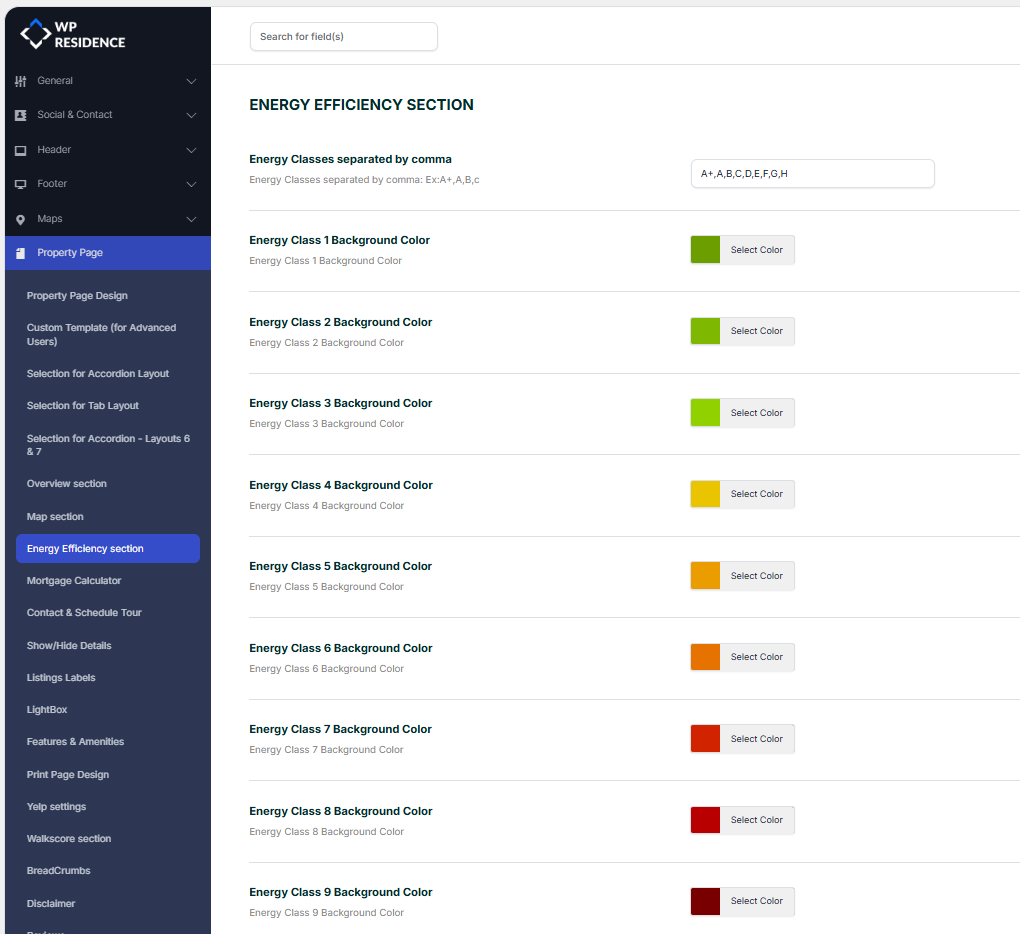
The theme offers support for energy class certificate and Greenhouse Gas Emissions details (needed in the European market)
How to add Energy class certificate and Greenhourse Gas Emissions (for EU market) on Property Page
MORTGAGE CALCULATOR
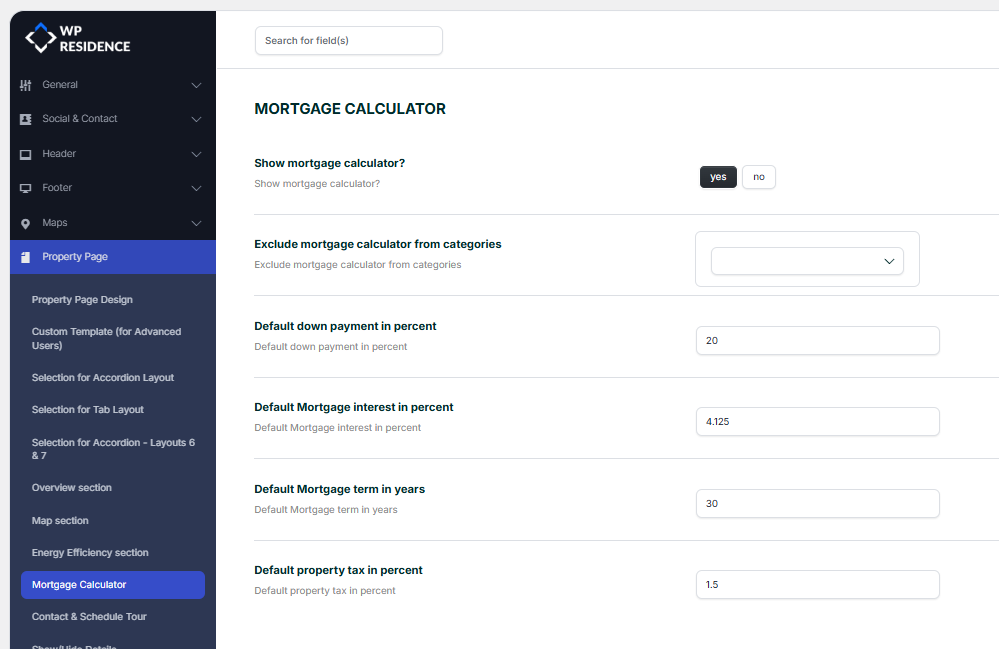
The admin can configure the built-in mortgage calculator with the following options:
Show mortgage calculator? – Yes (enabled) or No (disabled).
Exclude mortgage calculator from categories – Dropdown field to select categories where the calculator will not appear.
Default down payment in percent – Fill it with the wanted value
Default mortgage interest in percent – Fill it with the wanted value
Default mortgage term in years – Fill it with the wanted value
Default property tax in percent – Fill it with the wanted value
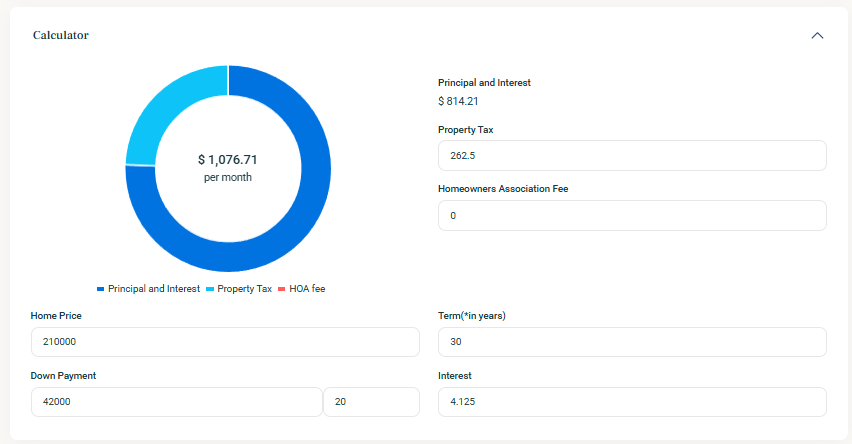
The Mortgage section will show in the property page:
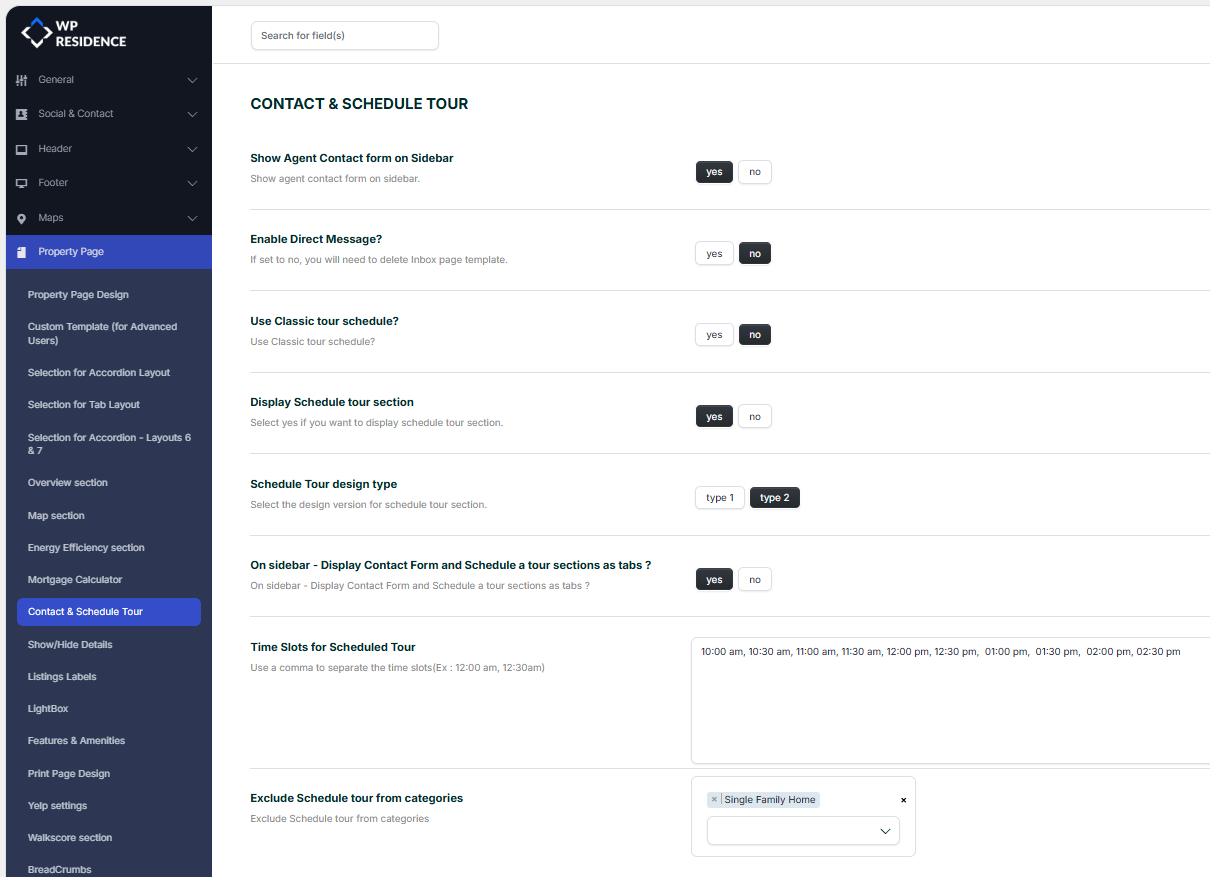
CONTACT & SCHEDULE TOUR
SHOW/HIDE DETAILS
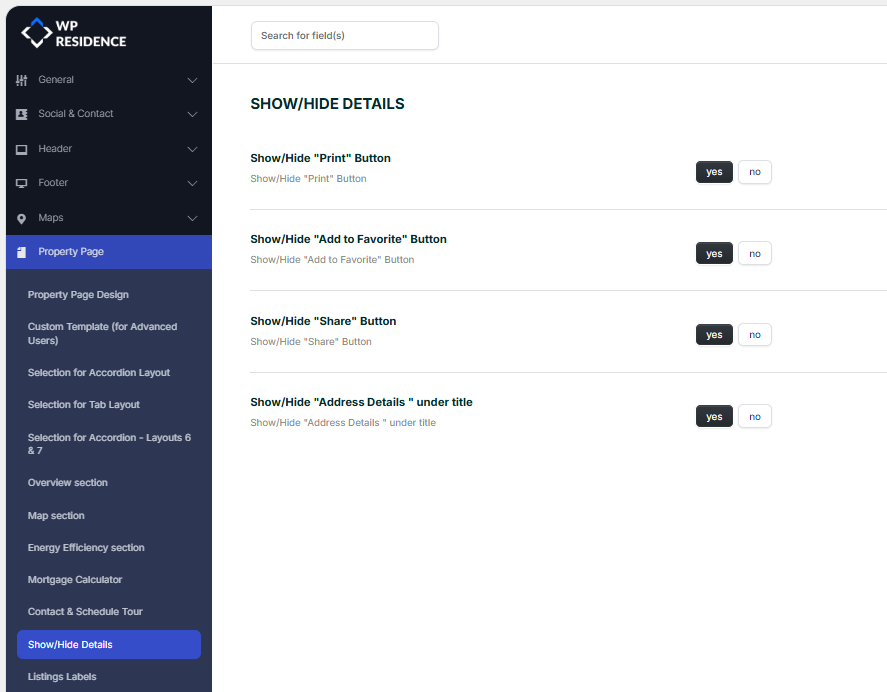
1. Show/Hide “Print” Button YES/NO

2. Show/Hide “Add to Favorite” Button YES/NO

3. Show/Hide “Share” Button YES/NO

4. Show/Hide “Address Details ” under title YES/NO

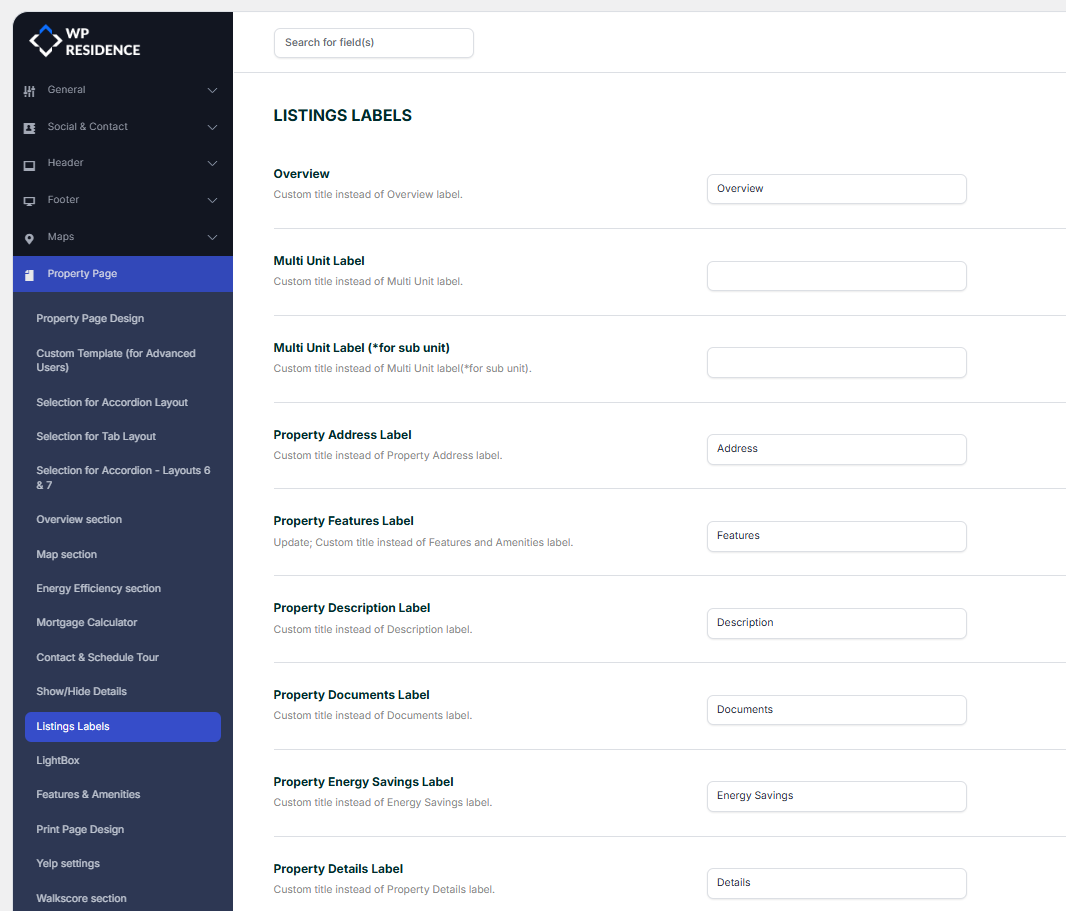
LISTINGS LABELS
LIGHTBOX
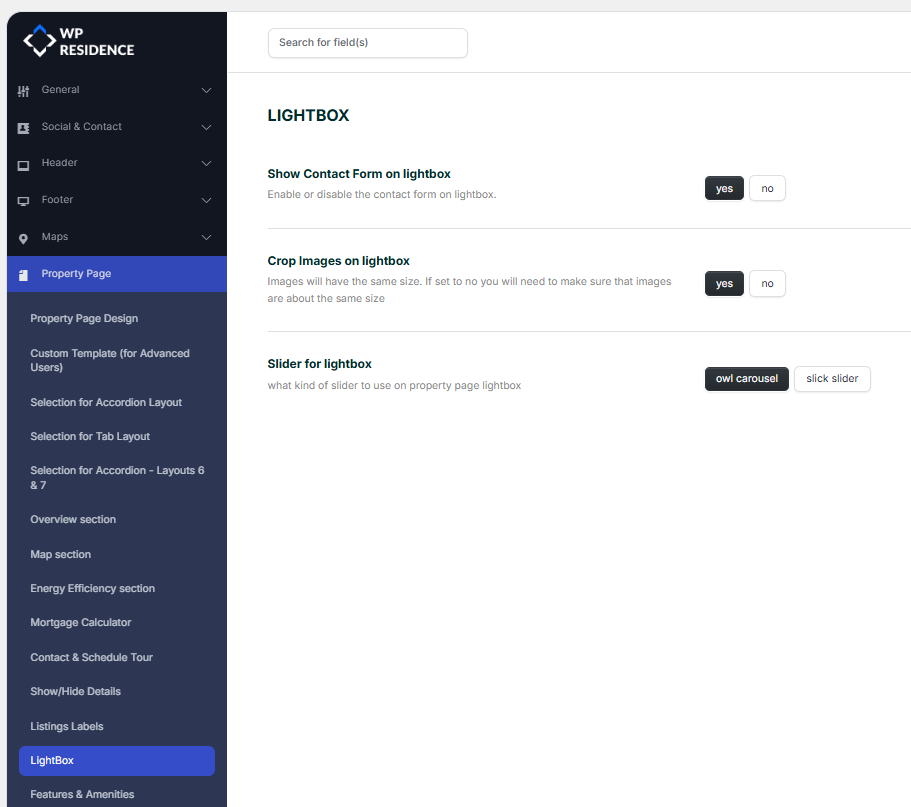
1. Show Contact Form on lightbox YES/NO
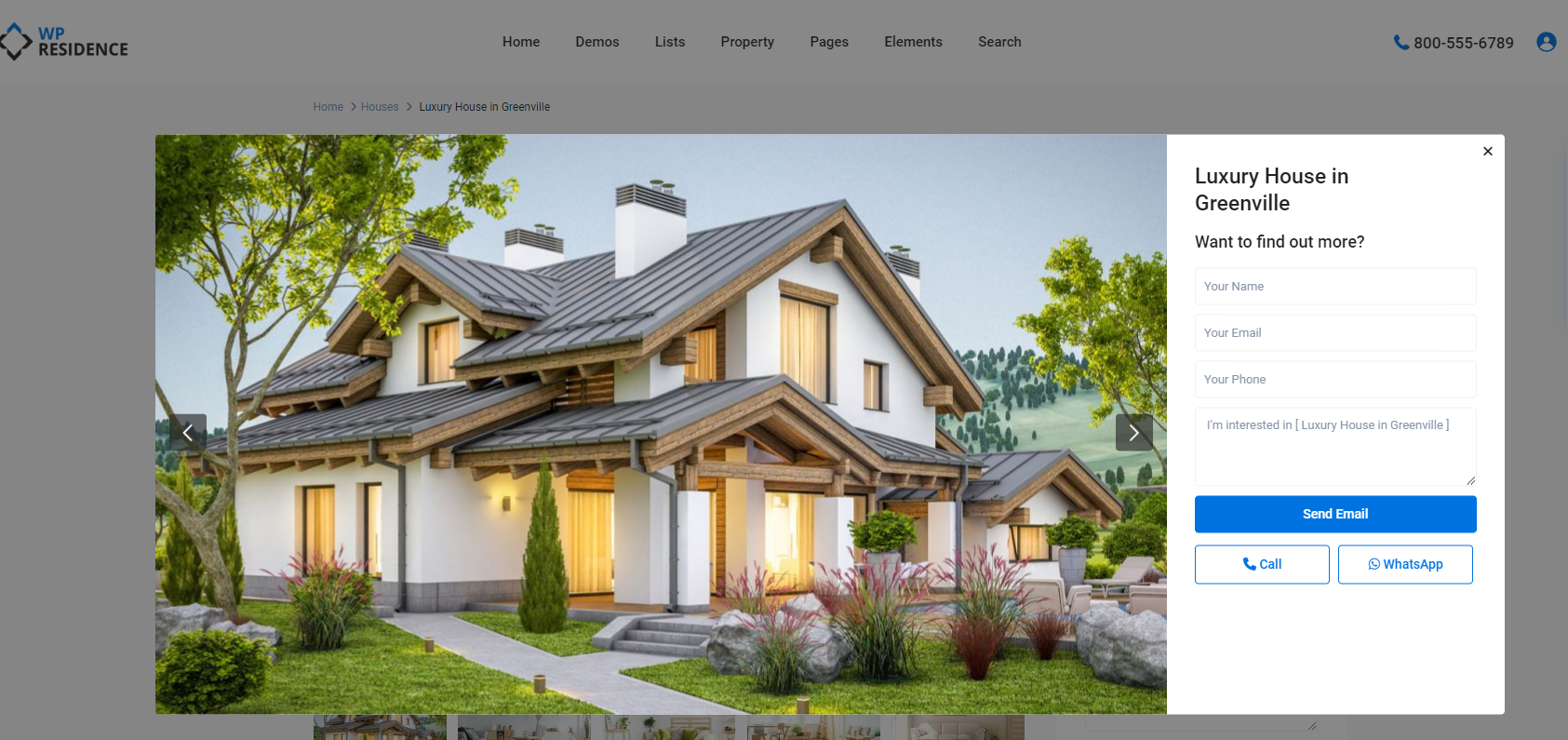
2. Crop Images on lightbox YES/NO
Images will have the same size. If set to no you will need to make sure that images are about the same size
3. Slider for lightbox
Owl Carousel
When Owl Carousel is selected, the lightbox uses a modern, touch friendly slider designed for smooth navigation.
This option is recommended in most cases because it:
Handles swipe gestures very well on mobile and tablets
Provides smooth transitions between images
Works reliably with a large number of photos
Is well tested across different browsers and devices
For most real estate websites, Owl Carousel offers the best balance between performance, stability, and user experience.
Slick Slider
When Slick Slider is selected, the lightbox uses an alternative slider engine that some users may already be familiar with.
This option can be useful if:
-Your slider crashes on IOS devices/Mobile devices
You prefer Slick’s animation style
You have tested it and prefer how it feels for your audience
However, Slick Slider may require more careful testing on mobile devices and with very large image galleries.
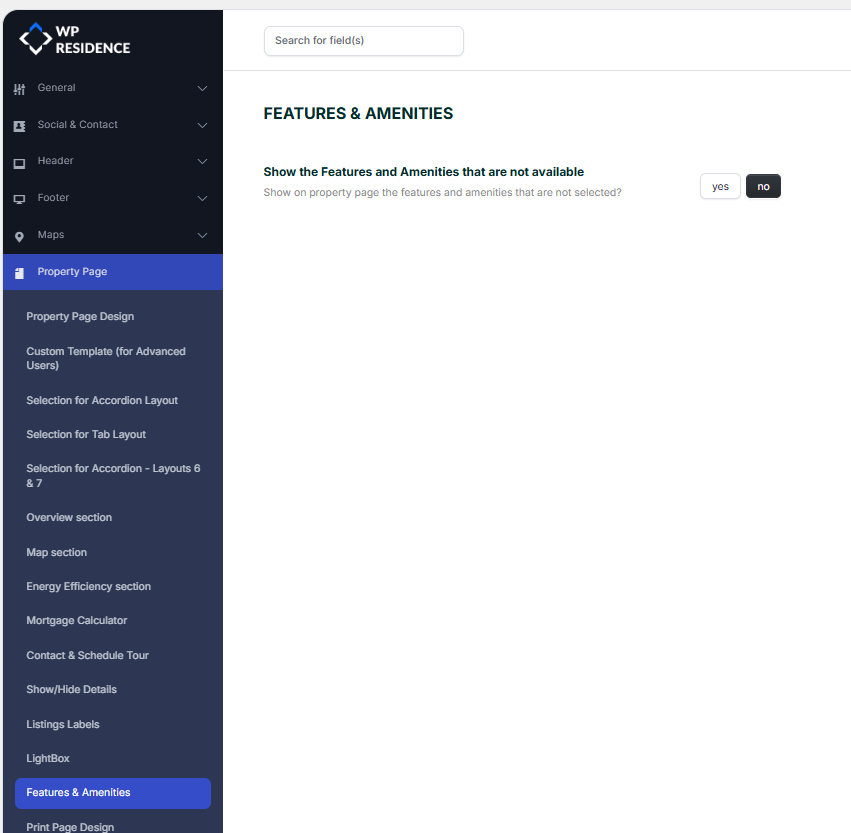
FEATURES & AMENITIES
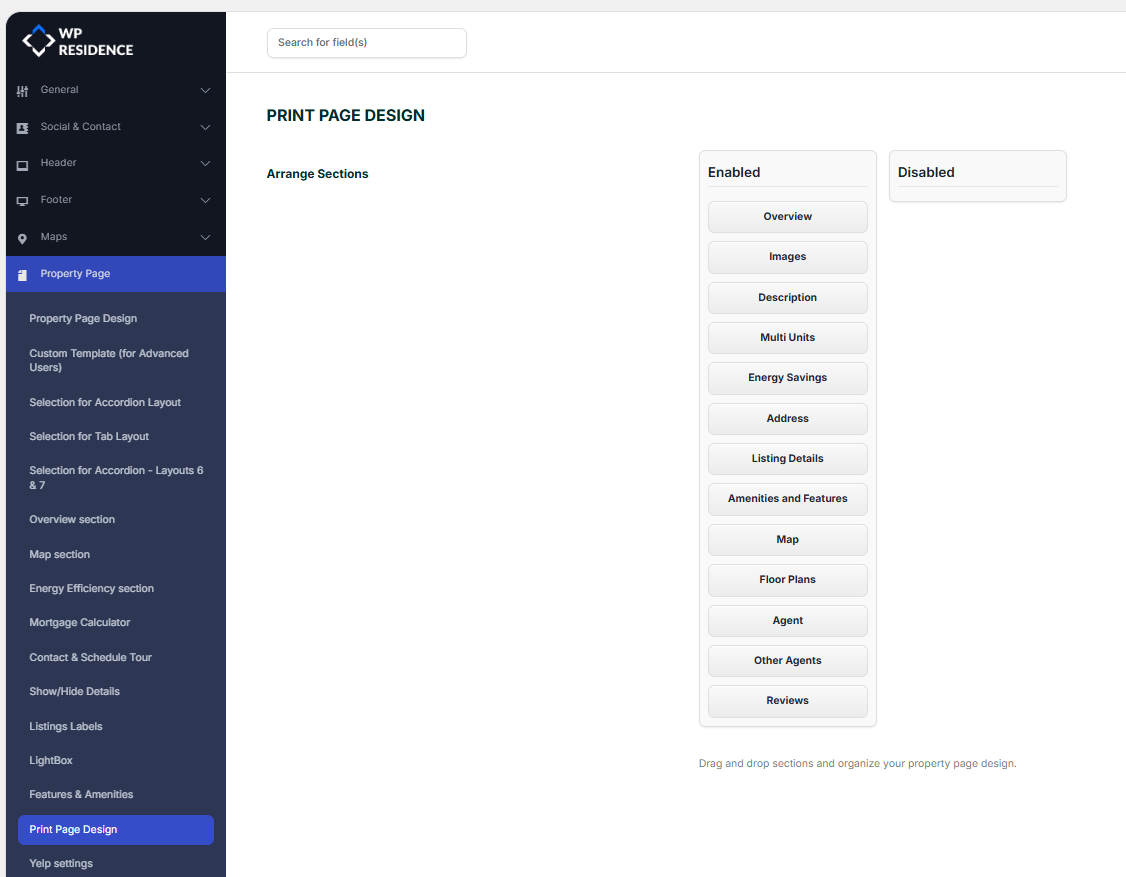
PRINT PAGE DESIGN
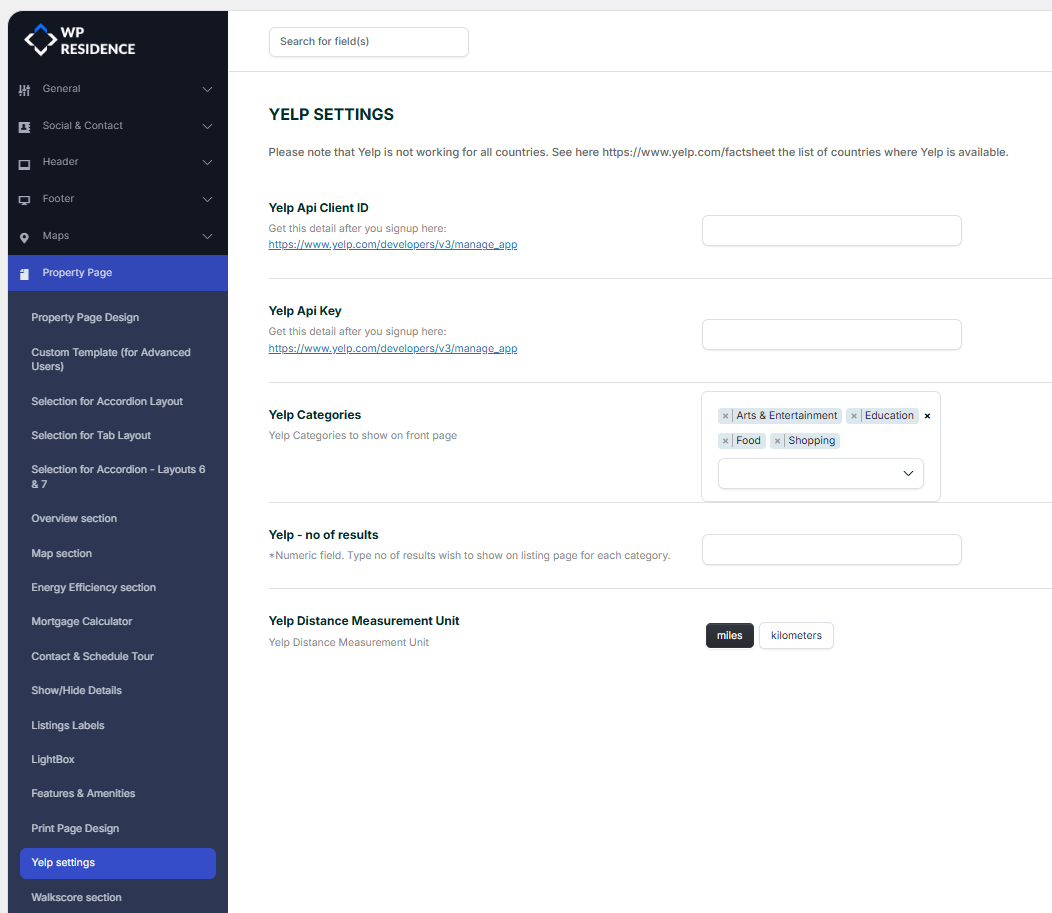
YELP SETTINGS
Walkscore APi Key
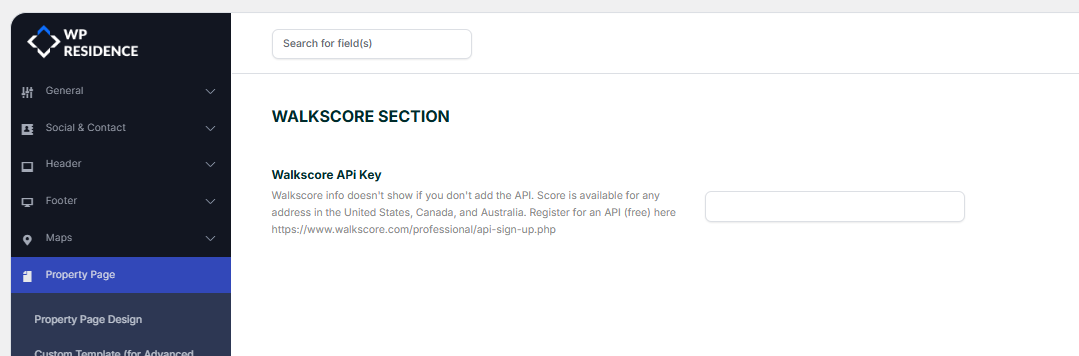
The API for WalkScore can be set in https://www.walkscore.com/professional/api-sign-up.php
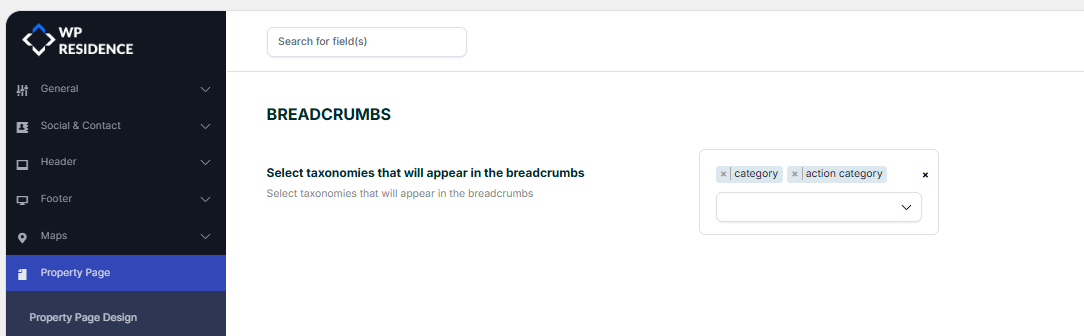
BREADCRUMBS
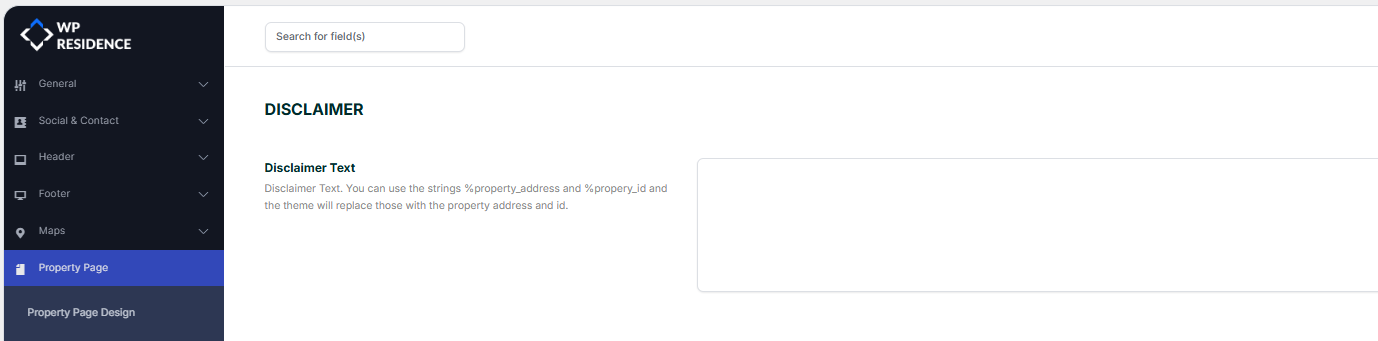
DISCLAIMER
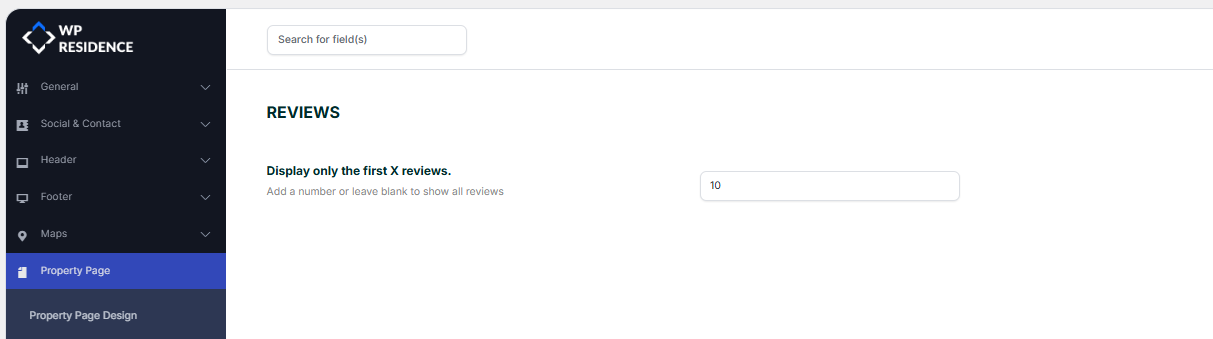
REVIEWS
SIMILAR LISTINGS