
What Category Templates are
With WPResidence and Elementor Free, you can design custom templates for property category and taxonomy pages.
These templates can be used for taxonomy pages such as:
- Cities
- Neighborhoods / Areas
- Types
- Projects / Buildings
- Counties / States
- Property Status
- Features and Amenities
Using WPResidence Studio widgets, you can choose what content to display for each type of category page and customize the layout without writing code.
Each category template can have its own design, so a city page, neighborhood page, project page, or building page can show the information that is most useful for that taxonomy.
Term Map Widget note
For the Term Map widget, create a polygon map and download the GEOJSON file from:
https://geojson.io
Video guide
Activate the WPResidence Studio plugin
Install and activate the WPResidence Elementor Design Studio plugin.
You can install it from:
- WP Admin > Appearance > Install Plugins
- WPResidence > Site Settings > Plugins
After installing the plugin, activate WPResidence Studio.

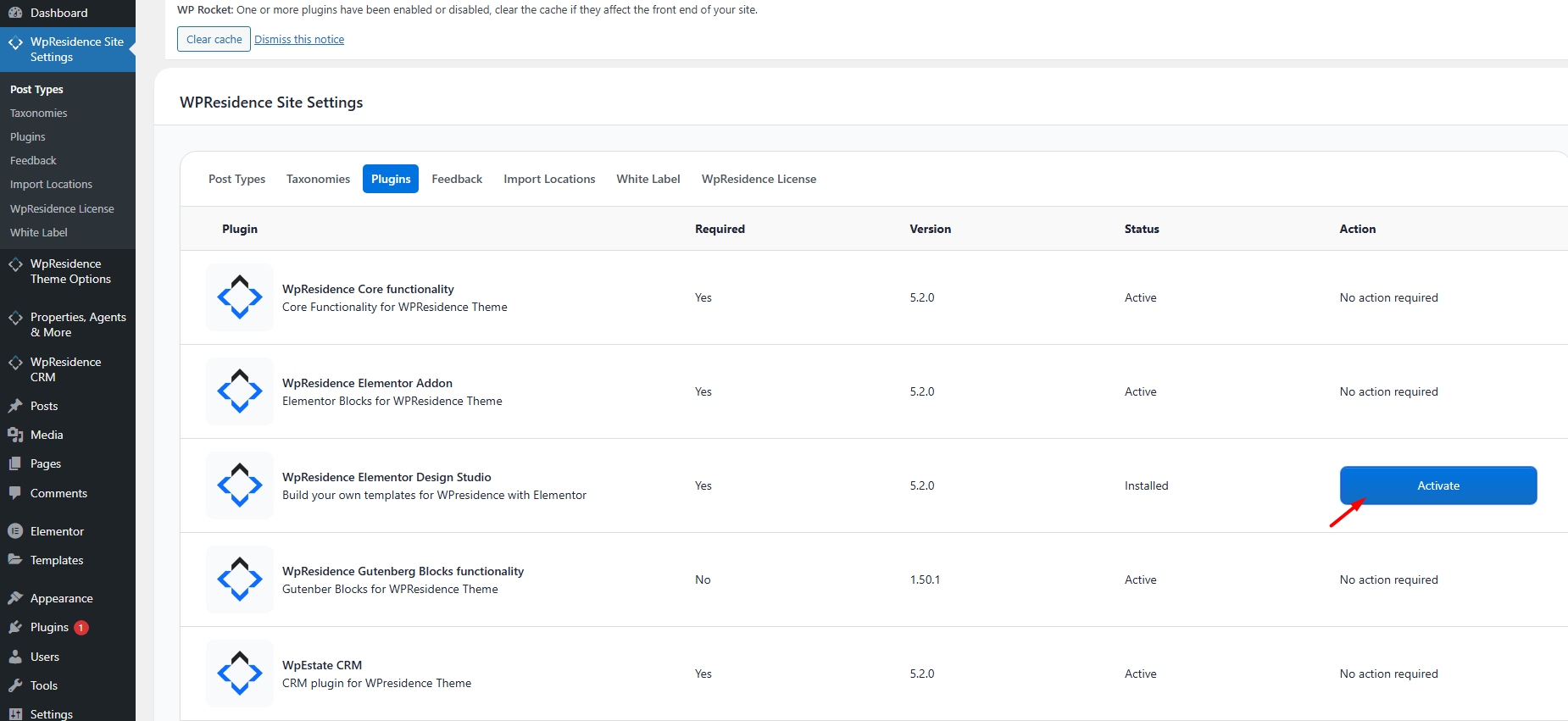
Once active, you will see a new menu item in wp-admin:
WPResidence Studio Templates
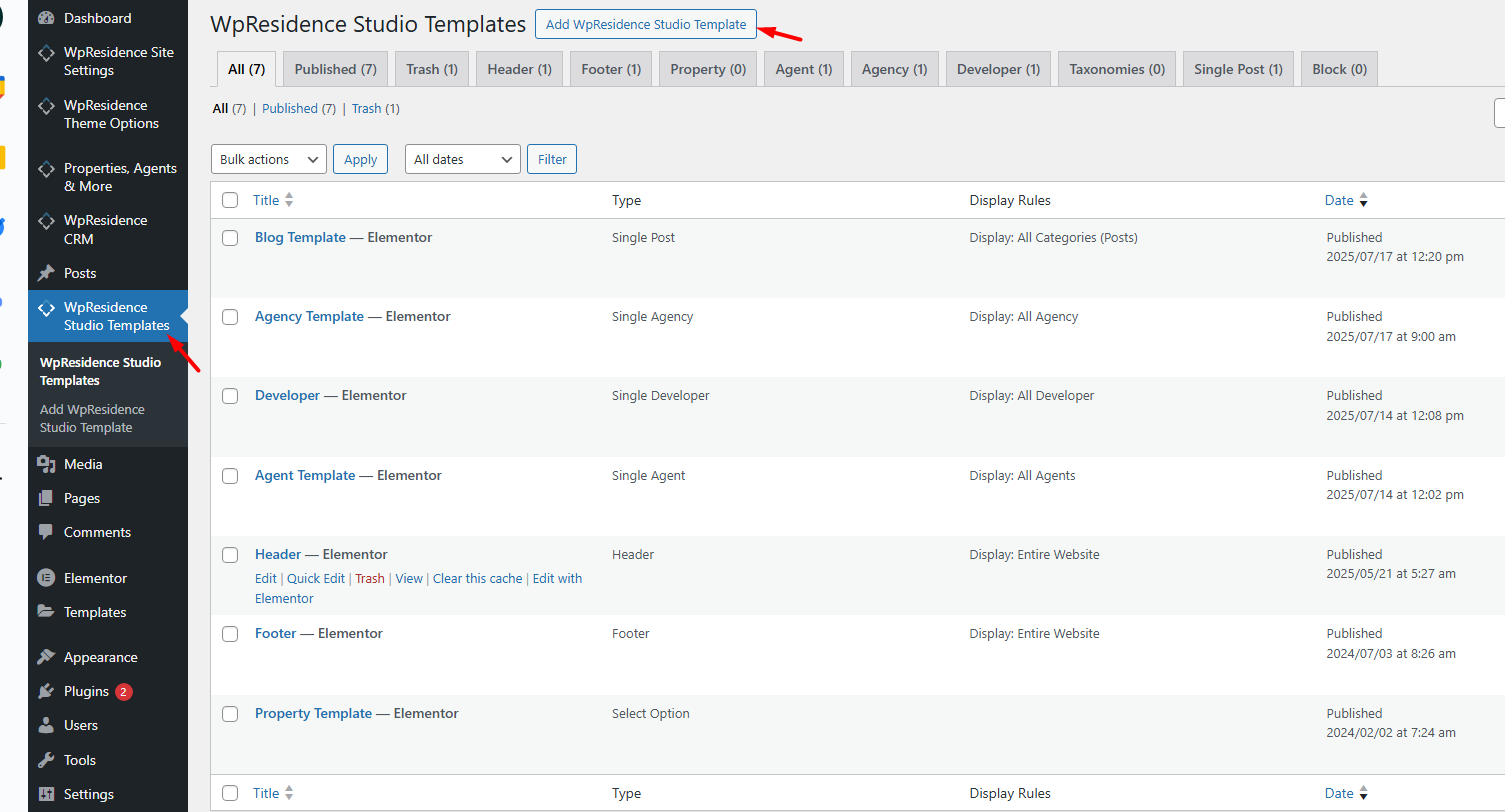
Create a new Category Template
To create a new category template:
- Go to WPResidence Studio Templates in your WordPress dashboard.
- Click Add New WPResidence Studio Template.
- Choose Category Template as the template type.
- Give your template a clear name, such as City Template, Area Template, Project Template, or Building Template.
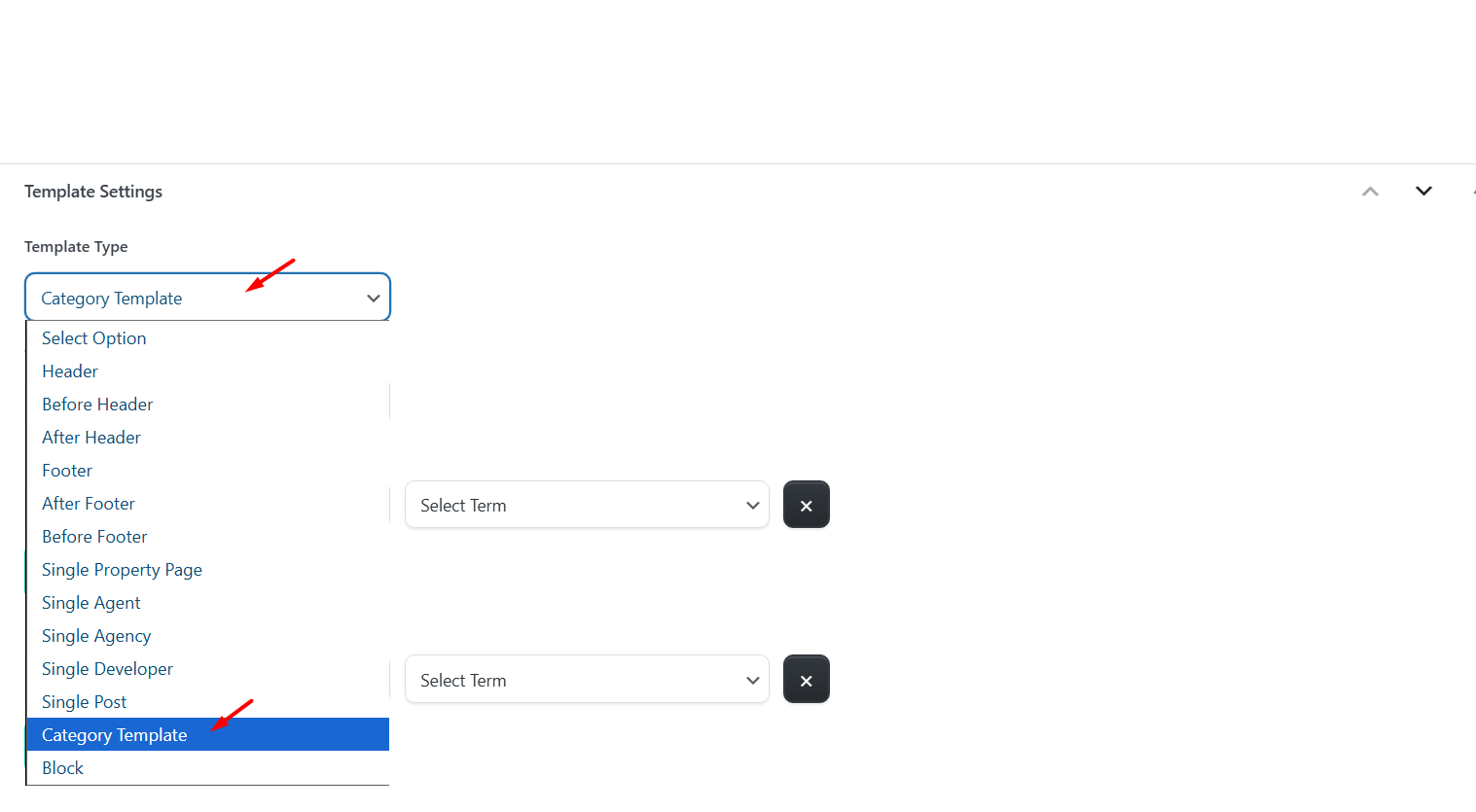
Import an existing Studio template
You can also start from an existing WPResidence Studio template and edit it with Elementor.
To import a template:
- Click Edit with Elementor to open the Elementor editor.
- In Elementor, click the Folder icon to open the WPResidence Design Studio Templates library.
- Choose the template you want to use.
- Click Insert to add it to your template.

Design the template with Elementor
Open the template with Edit with Elementor.
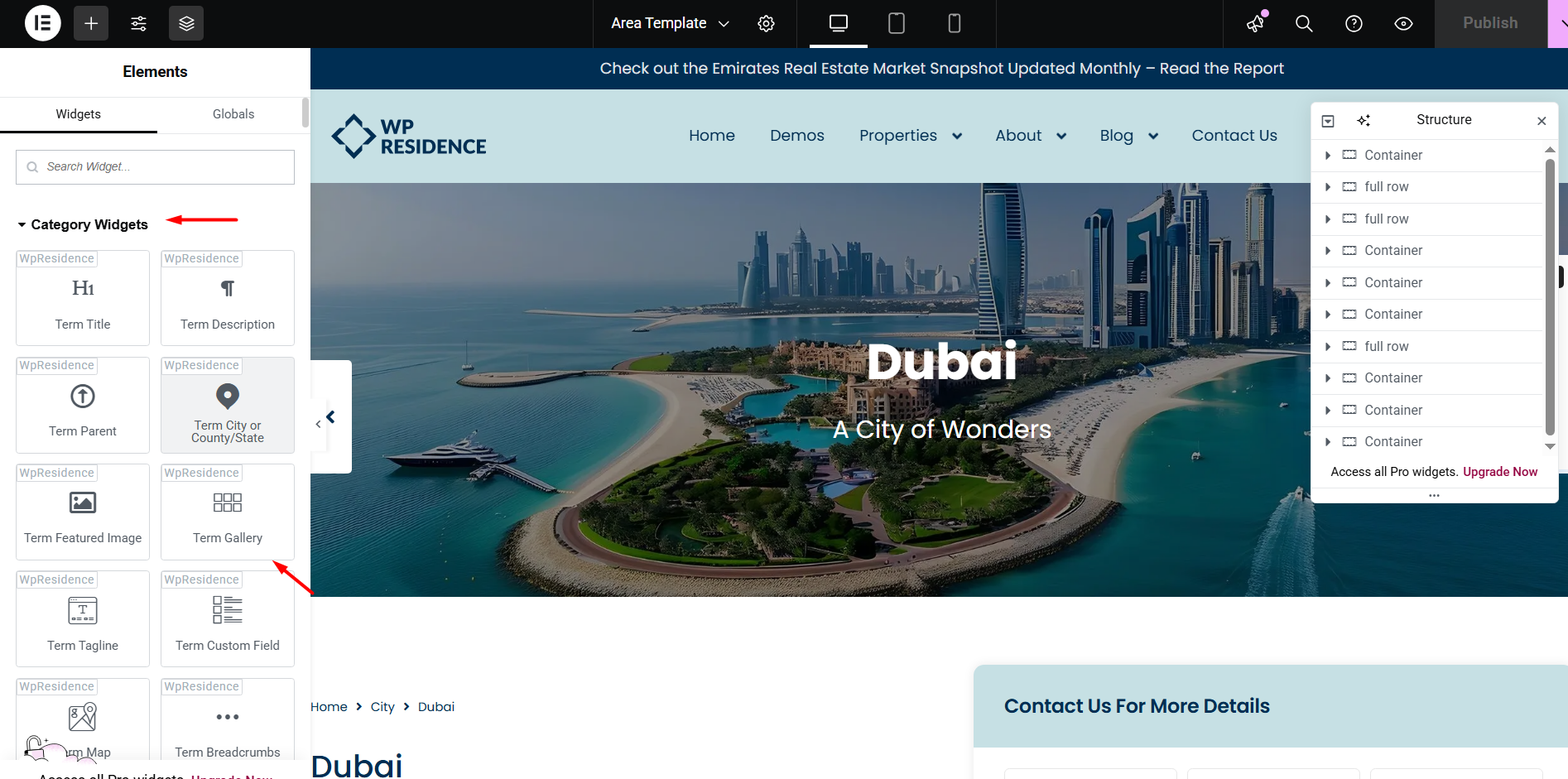
Use the WPResidence Studio widgets for property categories and taxonomies to build the layout.
You can combine taxonomy content, maps, images, custom fields, documents, property counts, and listings to create a dedicated page design for each type of category.
Available category template widgets
The available WPResidence Studio widgets for category templates include:
- Term Title
- Term Description
- Term Parent
- Term City or County/State
- Term Featured Image
- Term Gallery
- Term Tagline
- Term Custom Fields
- Term Map
- Term Breadcrumbs
- Term Header
- Term Property Count
- Term Documents (PDF)
- Listings Per Term
Responsive design
Use Elementor’s responsive preview options to adjust the template for:
- Desktop
- Tablet
- Mobile
After editing the responsive settings, test the template on real devices to confirm that the layout displays correctly.
Assign the template
After the template is ready, assign it to the categories or taxonomy pages where it should be used.
For example, you can assign a template to a specific city, neighborhood, project, building, property type, status, feature, or amenity.
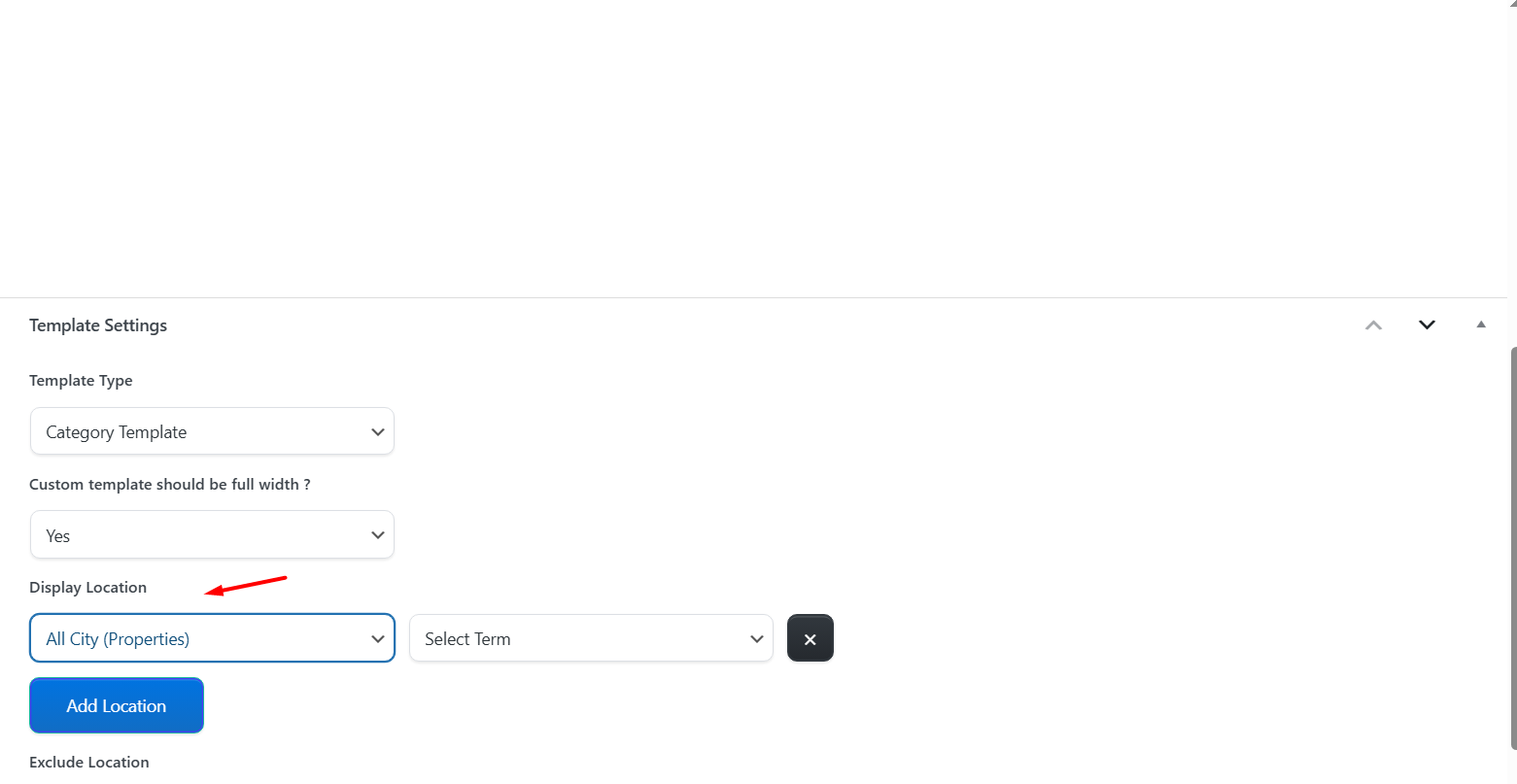
After the template is assigned, the selected property category pages will use the custom design you created.
If a category page does not show the expected template, check the template display assignment and clear cache after saving changes.