
Languages Included
WPResidence includes a mix of human translations and machine translations.
If you would like to contribute improvements, you can send your updated translation files via client support at https://support.wpestate.org/ and we will review them for inclusion in a future theme update.
WPResidence can be translated in two places:
- Theme and plugin interface text (buttons, labels, messages) using .po/.mo translation files
- Content and labels created by you in wp-admin (categories, custom fields, search labels, menu items), which must be translated from the admin panels
Important:
- We recommend adding and storing translations in a child theme so you do not lose changes during theme updates.
- If you translate plugin strings (WPResidence Core), always backup your custom .po/.mo before updating plugins, then restore them after updates.
Install WPResidence Child Theme
Install the child theme first:
How to install the Child Theme
Why this matters:
- Theme updates replace the parent theme files.
- Translations stored in the parent theme folder can be overwritten.
- Child theme translations are safer because you update only the parent theme.
Existing translations are usually stored in these folders:
- themes/wpresidence-child/languages/
- plugins/wpresidence-core/languages/
Regardless of whether you translate with Loco Translate or with Poedit, the next step is always to set the site language in WordPress.
Change Site Language
Go to WordPress Dashboard → Settings → General and select your language from the Site Language dropdown.
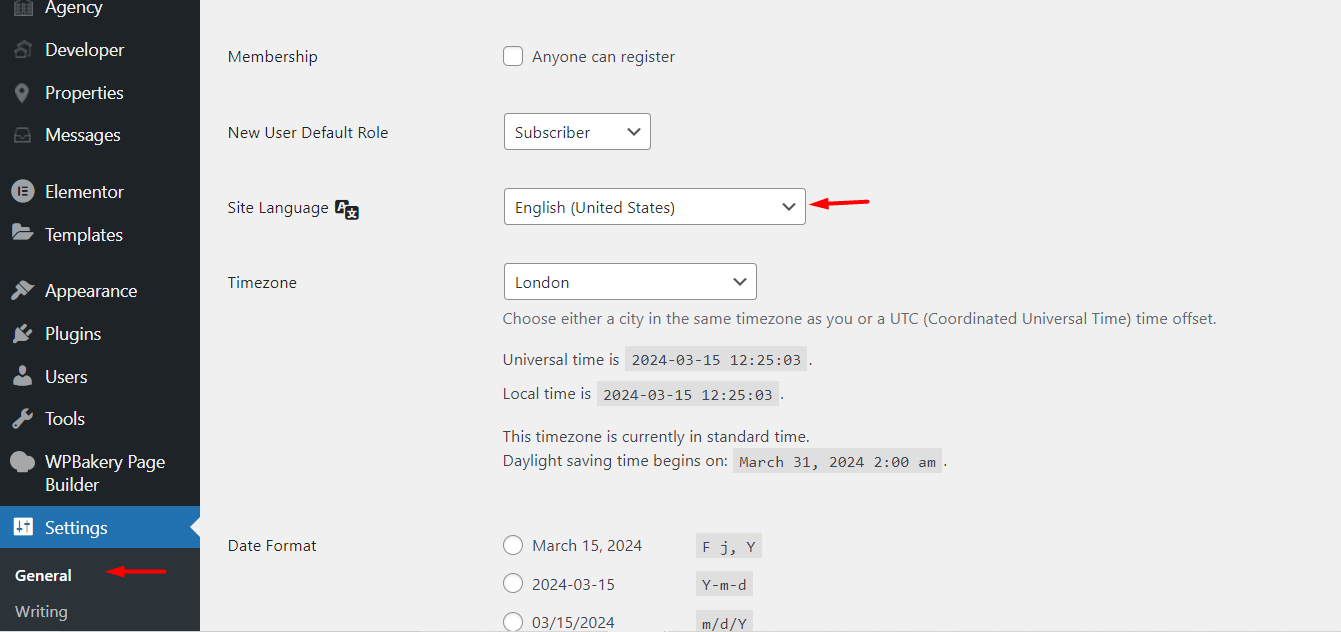
After changing the site language, WordPress will automatically load the matching translation files (if they exist) for the theme and plugins.
Translate the theme and included plugins with Loco Translate
The Loco Translate plugin lets you translate the theme and plugins directly from the WordPress dashboard.
You can either:
- Edit an existing translation, or
- Create a new language translation
Step 1: Install Loco Translate: https://wordpress.org/plugins/loco-translate/ and activate it.
Step 2: Go to:
- Dashboard → Loco Translate → Themes (for WPResidence)
- Dashboard → Loco Translate → Plugins (for WPResidence Core and other plugins)
Click the theme/plugin you want to translate.
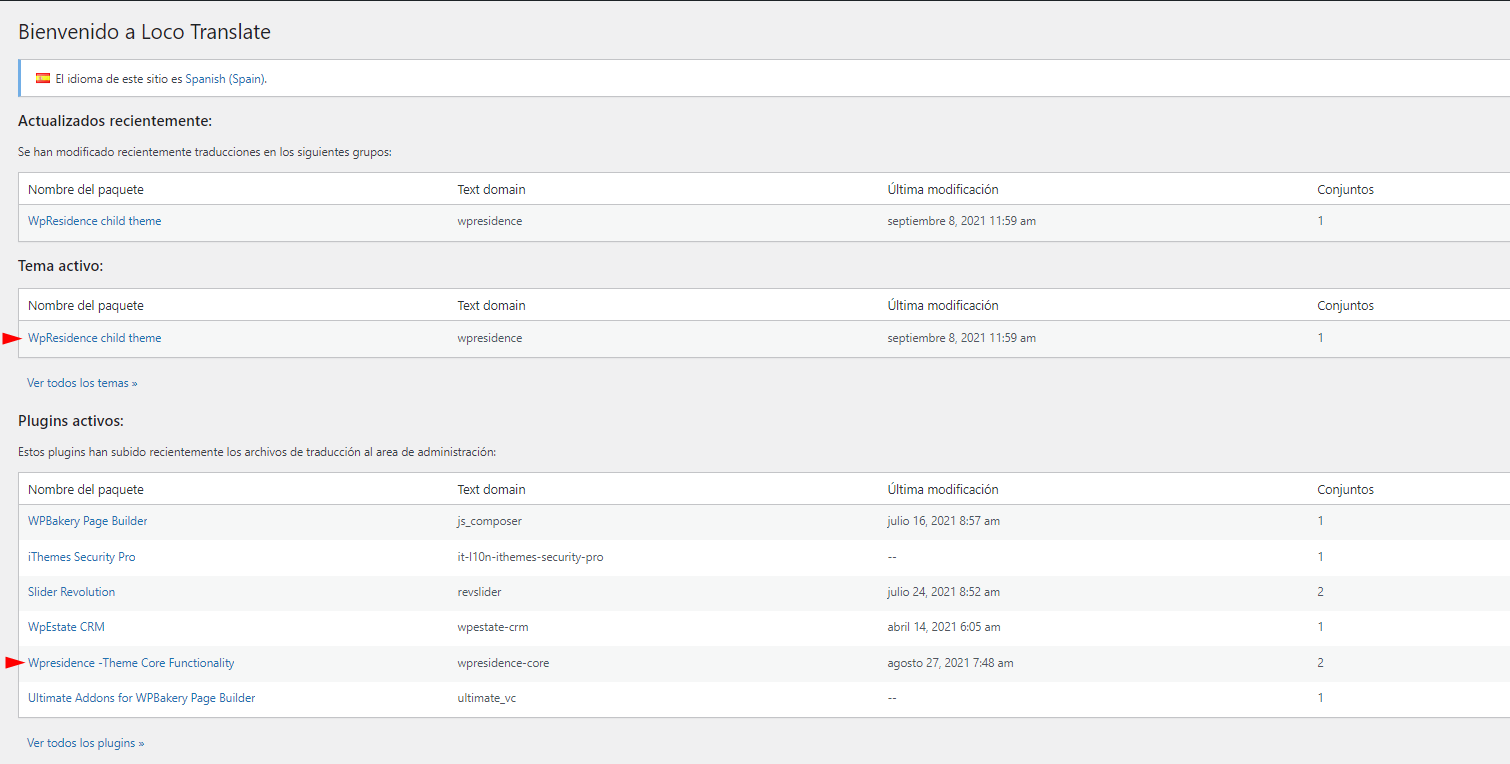
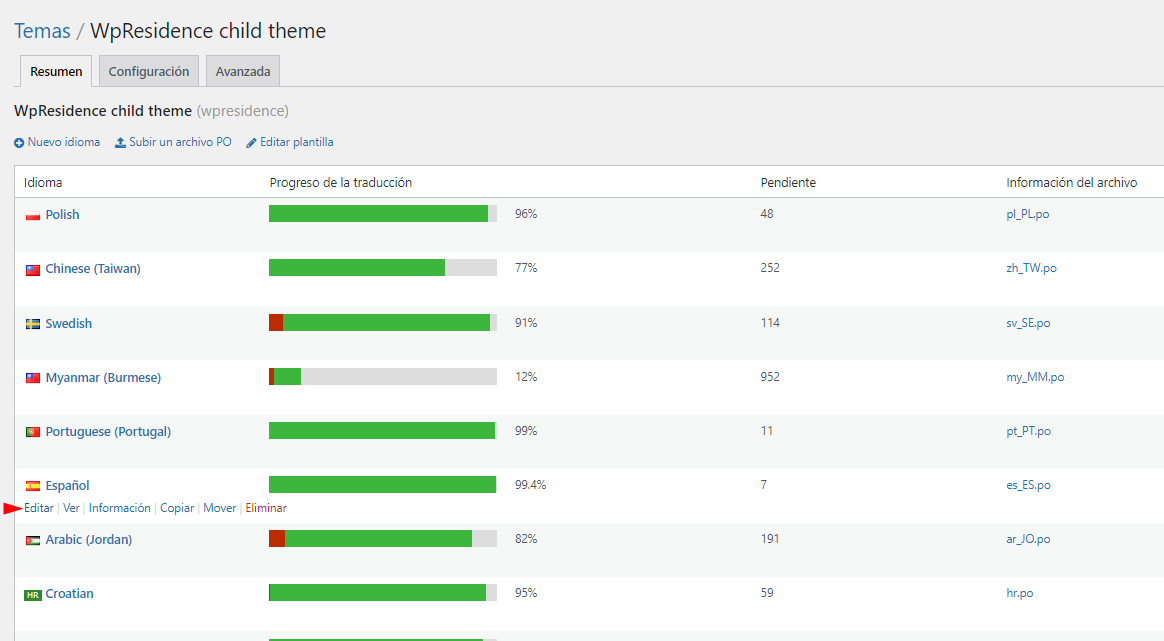
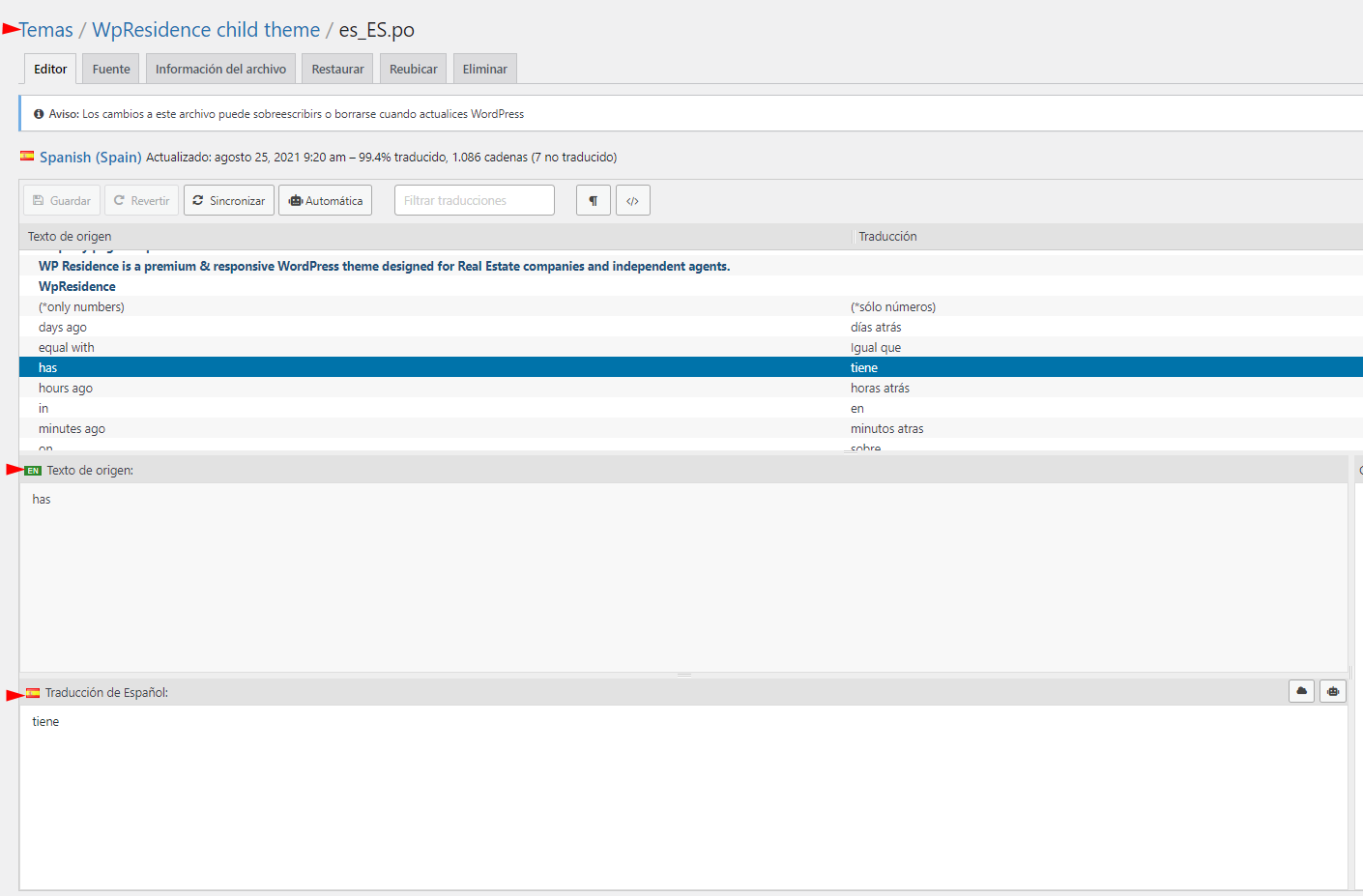
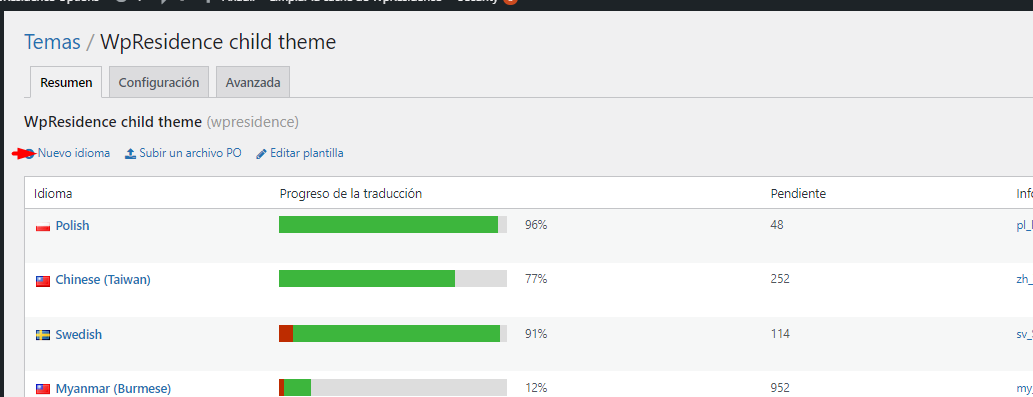
Step 3:
If there is no translation file yet, create one:
- Click New language
- Select your language
- Choose where to save it (recommended: Custom or Child theme location)
- Skip creating a template if prompted
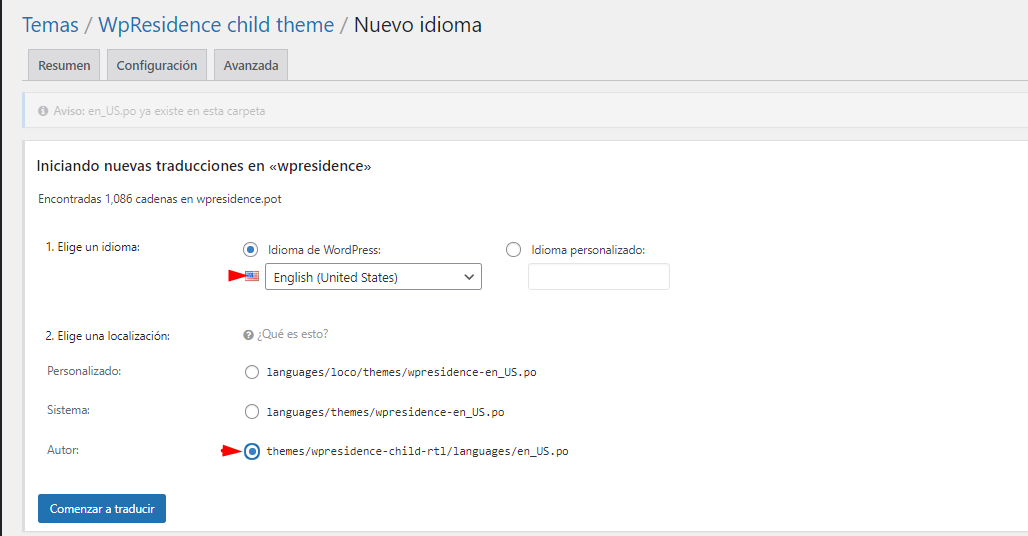
If you save translations inside the plugin folder (example: plugins/wpresidence-core/languages/), plugin updates can overwrite them. Always back them up before updating.
Translate text labels and content that are not included in .po files
Some text is not included inside translation files because it is created by you inside wp-admin.
Common examples are:
- Property categories and taxonomy names (City, Area, Type, Status, Features)
- Custom field labels
- Advanced search field labels
- Menu item labels
Property single page labels
Labels for property details sections (example: Property Details, Address, Features) can be edited in:
Theme Options → Property Page → Listing Labels
Property categories and taxonomies
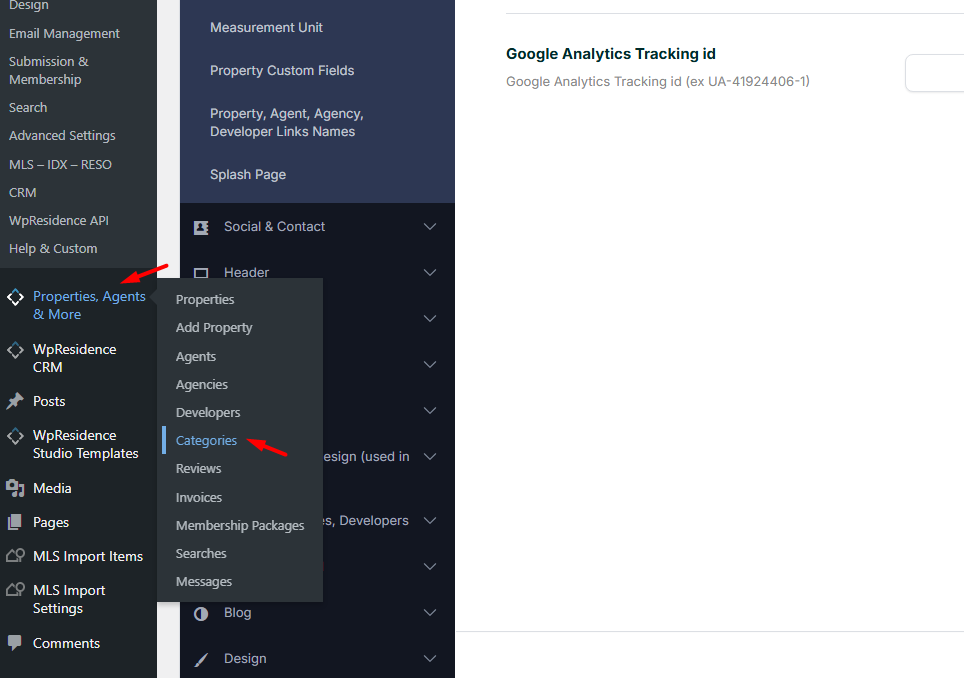
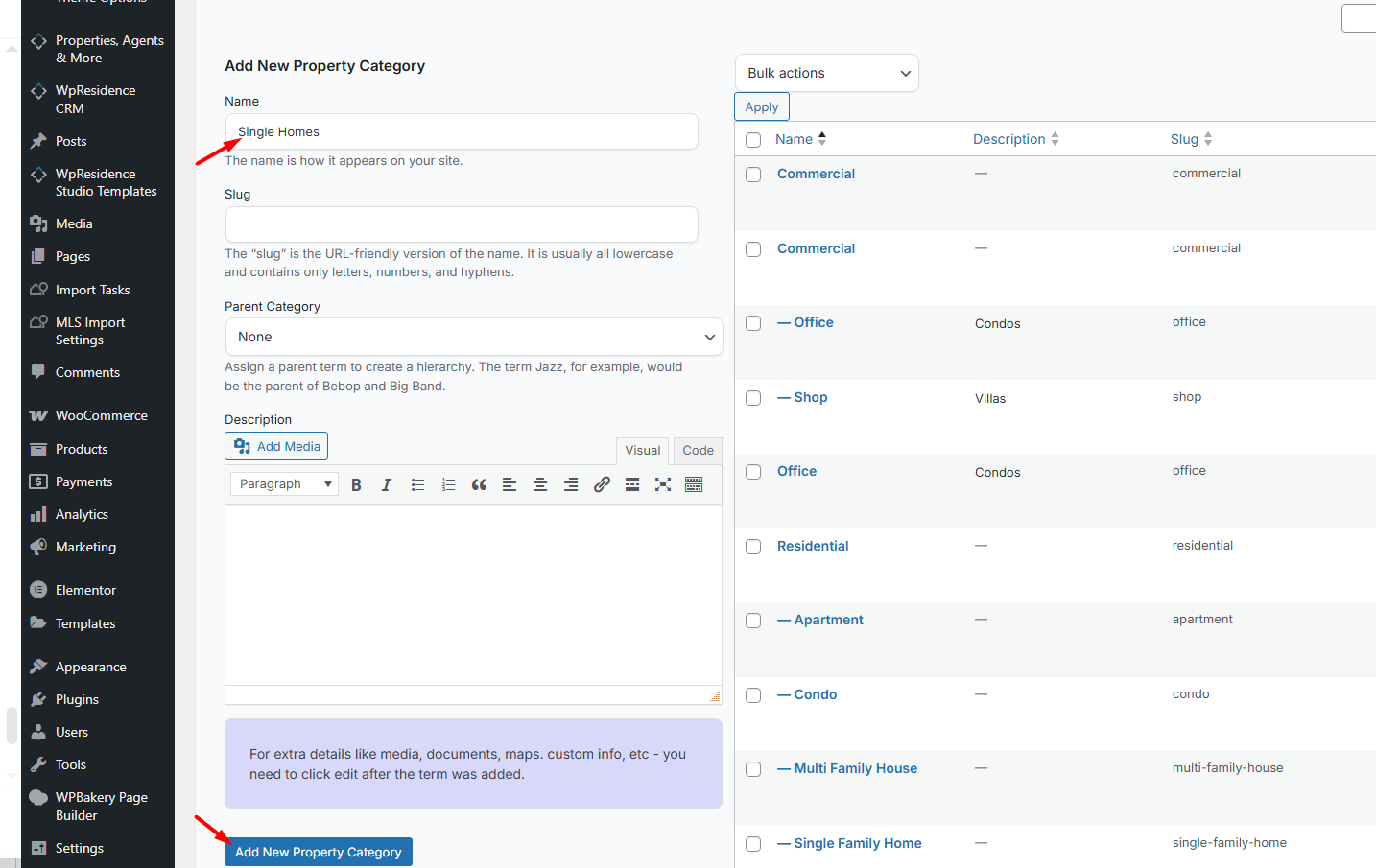
Property categories are translated by editing their names in: Admin Dashboard → Properties, Agents & More → Categories
How to add a category (taxonomy term)
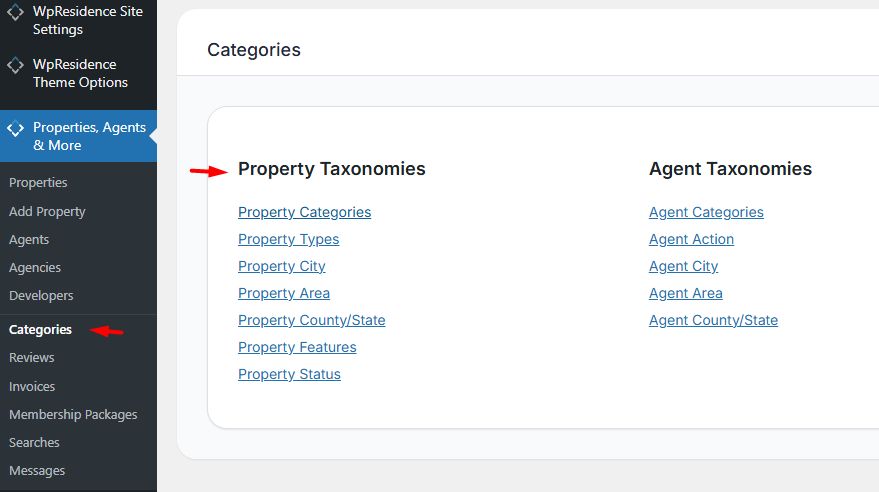
- Go to Properties, Agents & More → Categories.
- Select the taxonomy type you want to manage (Category, Type, City, Area, etc.).
- Enter a Title.
- Leave Slug empty so WordPress generates it automatically.
- Click the Add button (example: “Add New Property Category”).
Note about slugs: Titles and slugs should remain consistent, especially if you use translated versions or import data. Avoid changing slugs after you already have properties assigned, unless you fully understand the SEO and URL impact.
Custom fields labels
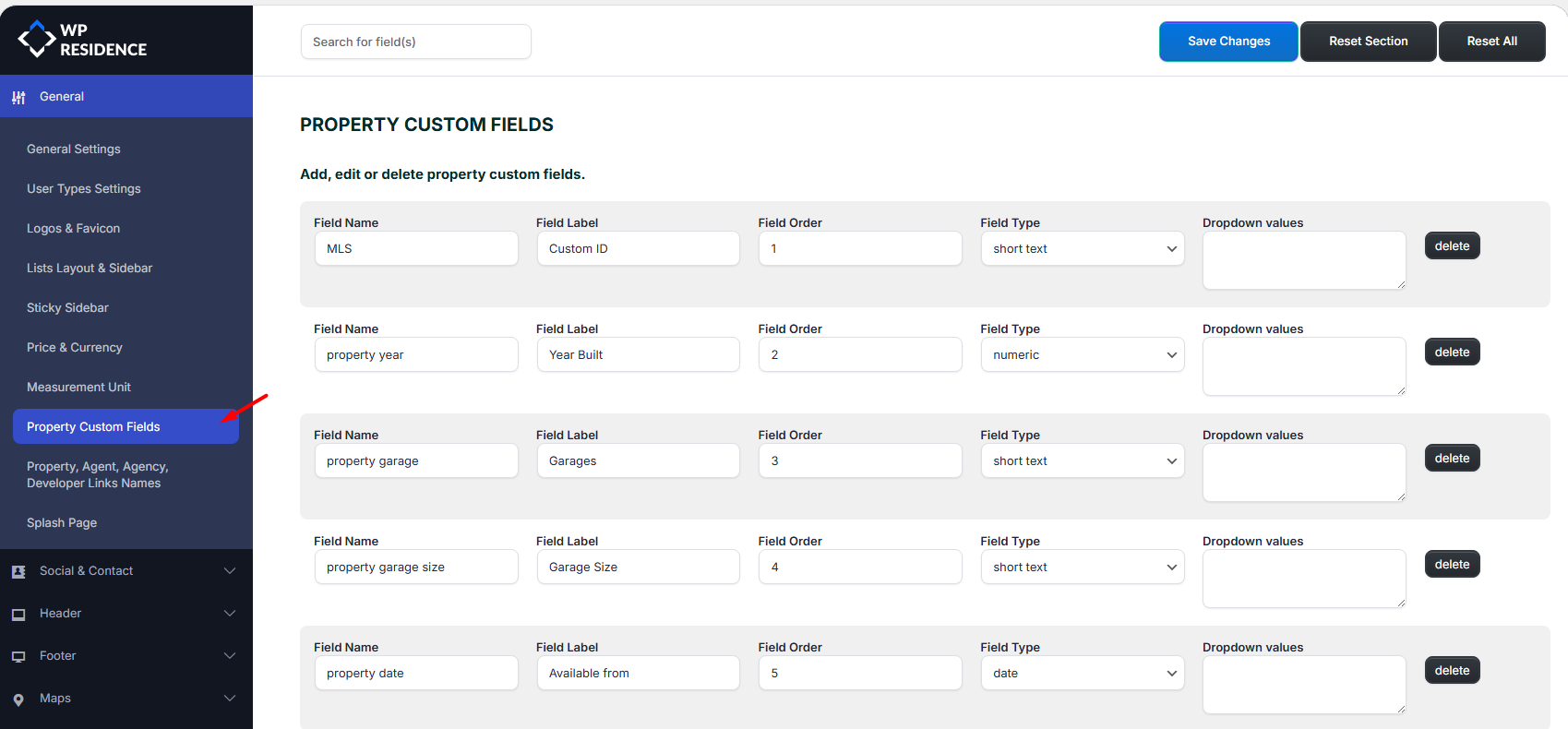
Property custom fields are created and managed from
Theme Options → General → Property Custom Fields.
Add “Field Label” for each custom field, in your language, directly in this area.
Advanced search labels
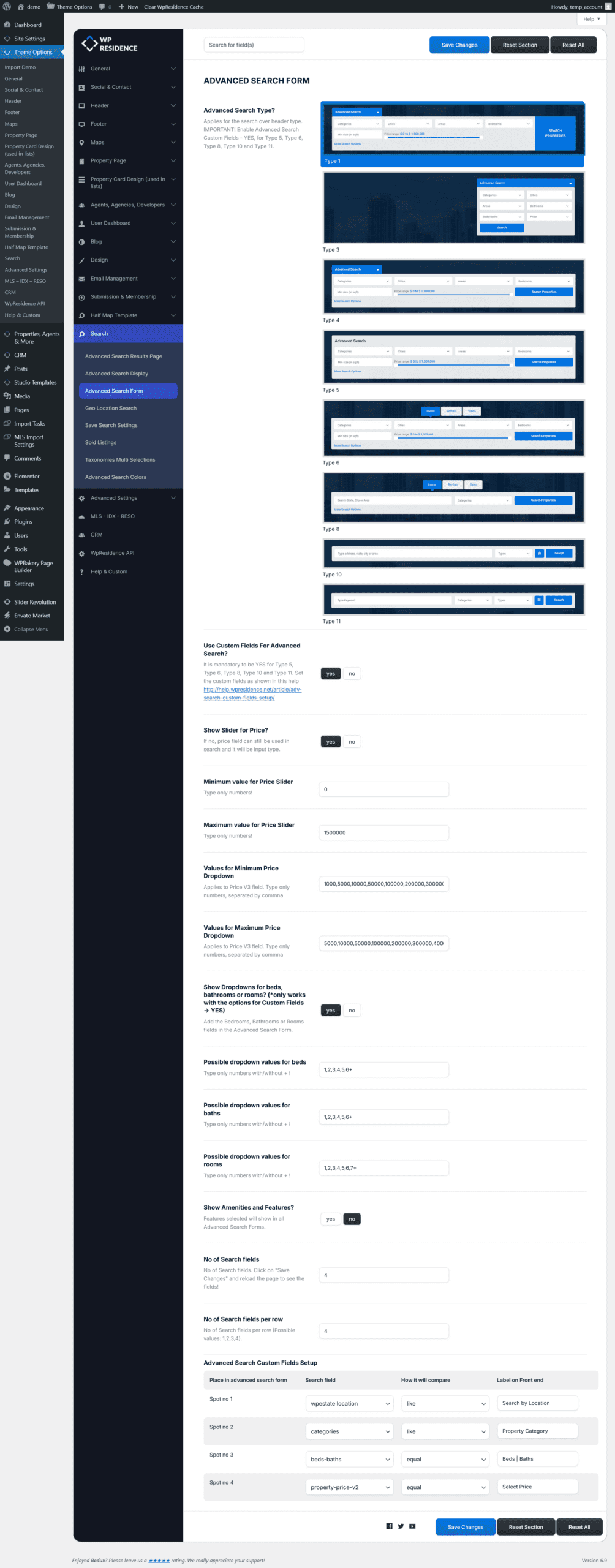
Go to Theme Options → Search → Advanced Search Form to configure how the standard WPResidence search forms behave and look.
Change the “Label on Front End” in your language for each field you select.
Main menu items
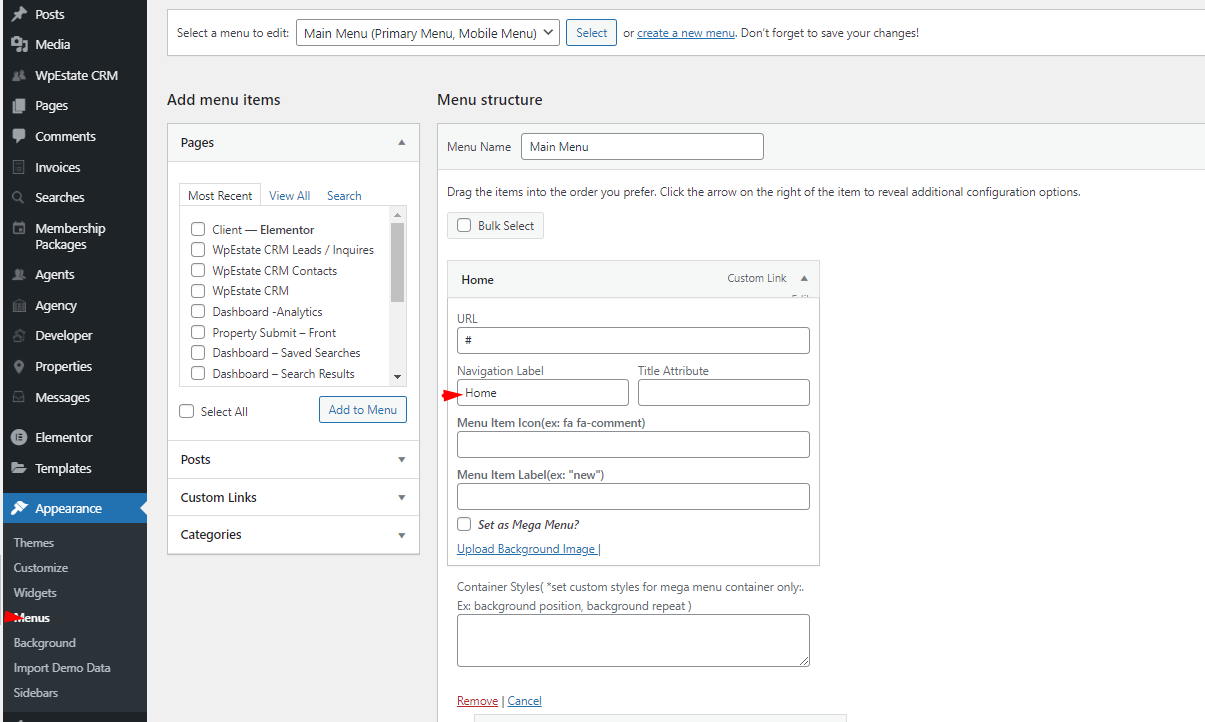
Menu item labels are translated/edited from:
Appearance → Menus
Update the .po translation after a theme update
Theme and plugin updates can add new strings or modify existing ones. This may require refreshing your translation files to include the new text.
Follow the dedicated help here:
How to update the .po translation after a theme update
After updating, if some words appear in English again, it usually means the translation file needs to be updated or re-synced to include new strings.
How to backup and restore custom translations with Loco Translate
Before you update the theme or plugins, it is recommended to download a backup of your custom translation files.
This is especially important if you saved translations inside the plugin folder:
plugins/wpresidence-core/languages
Step 1: In Loco Translate, open your translation and use the download option to save the .po file.
Step 2: Complete the theme update and the WPResidence Core plugin update.
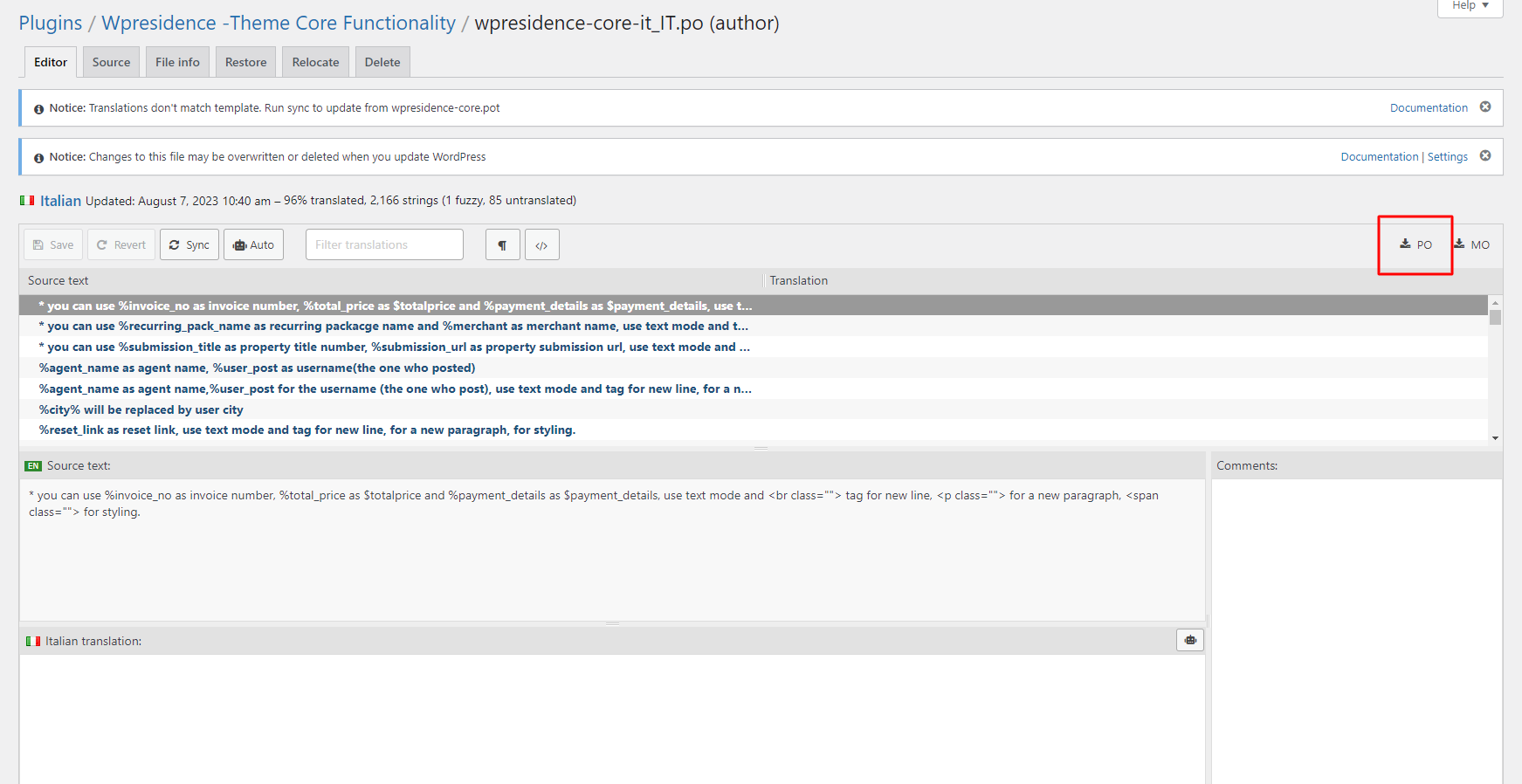
Step 3: Upload your saved .po back into the correct translation location.
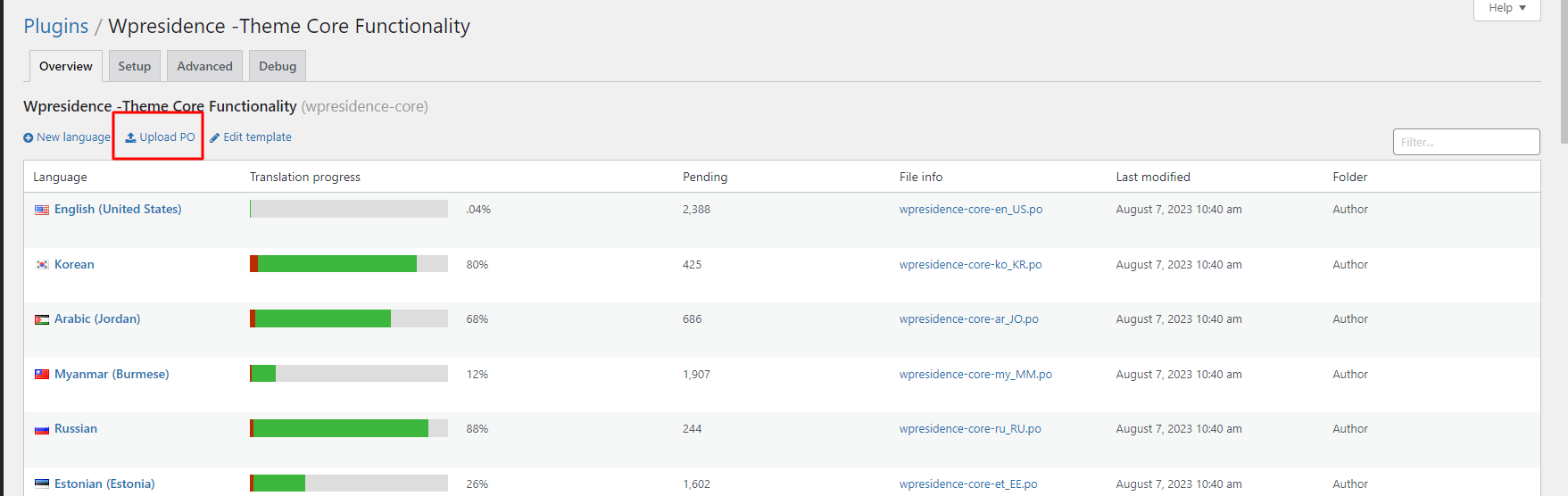
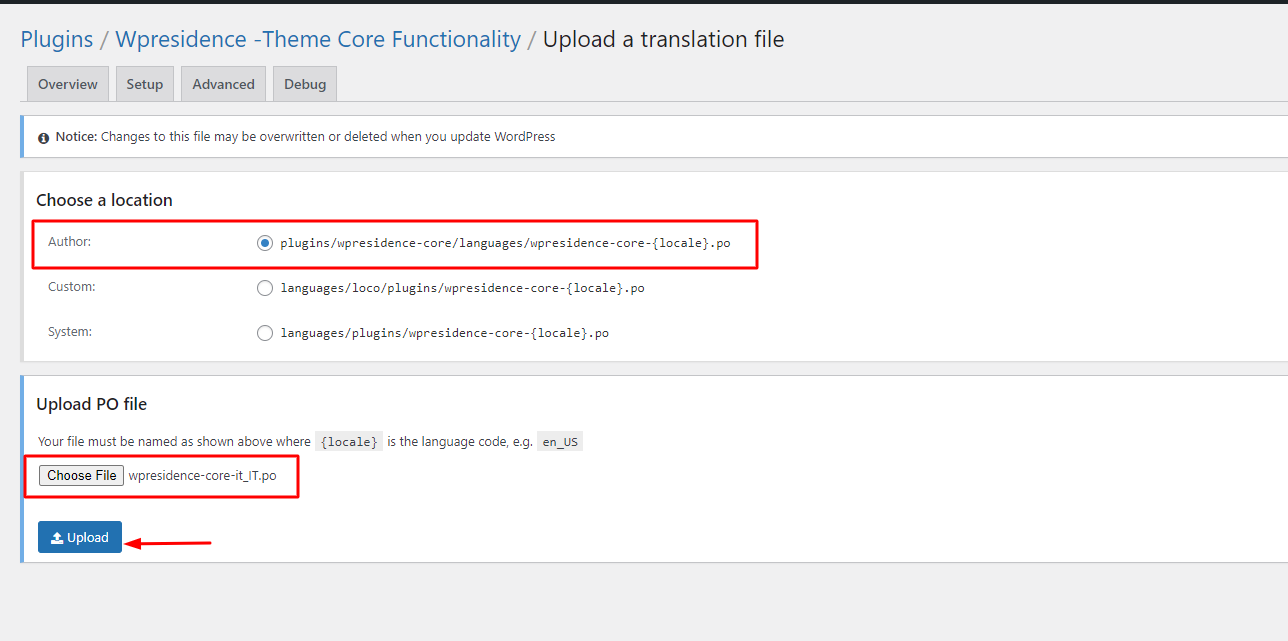
You can repeat this process for any translation stored under themes or plugins.
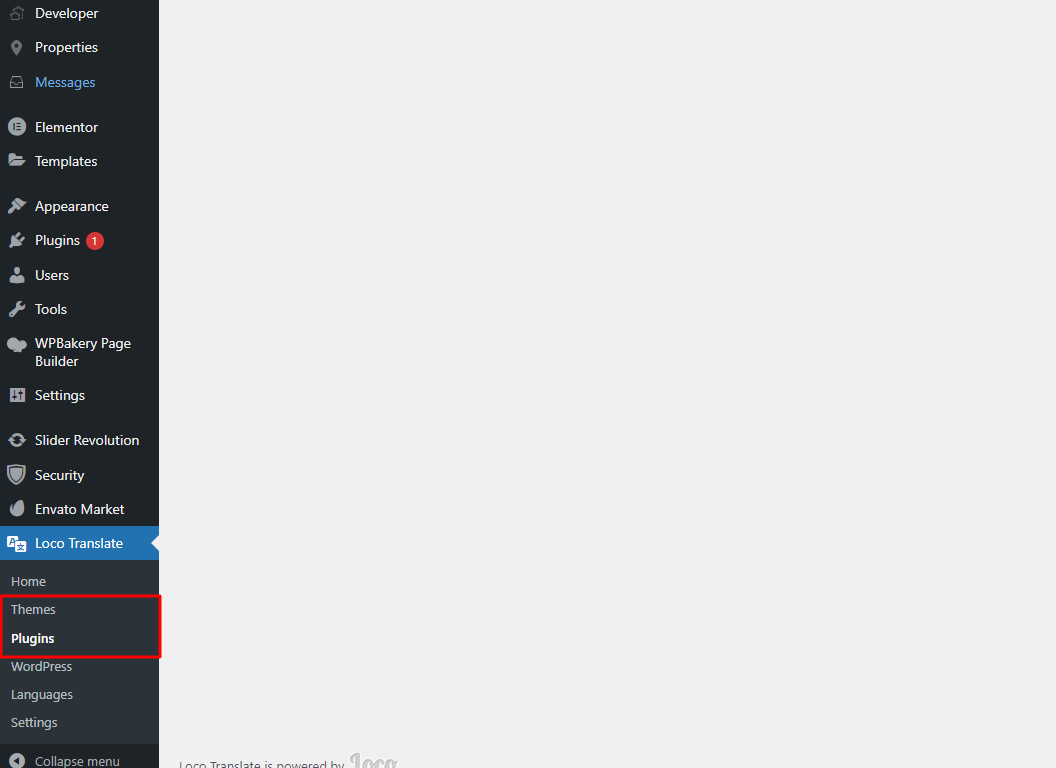
If you update plugins and your translations were stored inside the plugin folder, they may be overwritten. Always keep a local backup of your .po/.mo files.
How to translate the User Role labels
WPResidence user role labels (User, Agent, Agency, Developer) can be translated using Loco Translate the same way as other plugin/theme strings. The video above shows the exact steps and where the role strings are stored.