
Updating WPResidence is a standard maintenance task and is safe when done correctly. The theme update replaces theme files, and the plugin updates replace plugin files, so it is important to follow the correct steps and to prepare properly before you start.
Before you update (read first)
- Never edit the parent theme files directly. If you changed theme code, those changes will be overwritten by updates. Use a child theme for customizations.
- Update on a staging site first if your website is live and receiving traffic.
- Always update WPResidence Core Functionality after updating the theme. The theme and core plugin are designed to work together and are updated as a pair.
- Clear cache after updates. Old cached files can make it look like the update “broke” something when it is only cached CSS/JS.
1. Backing Up First
Before any update, do a full backup. If something goes wrong (hosting crash, timeout, or a plugin conflict), the backup lets you revert quickly.
- Backup files and database using your hosting backup tool or a WordPress backup plugin.
- Backup translations if you have custom language files. If you stored translations inside the plugin folder, they can be overwritten during plugin updates.
- Recommended: keep all translation files in a child theme (so they are not overwritten). See: How to add translated PO files in child theme
If you have custom translations saved under plugins/wpresidence-core/languages/, copy them somewhere safe before updating, and add them back after the update.
See: Translation help
2. Check the changelog
Before you update, review what changed in the new version. This helps you understand if any features were modified, removed, or replaced and avoids surprises.
Check the update notes here:
WPResidence Change Log
3. Update the theme with Envato Market plugin (recommended)
This method is recommended because it updates the theme directly from ThemeForest via your Envato account connection.
Step 1: Install the Envato Market plugin from: https://envato.com/market-plugin/ or from the theme’s “Install Plugins” notice.
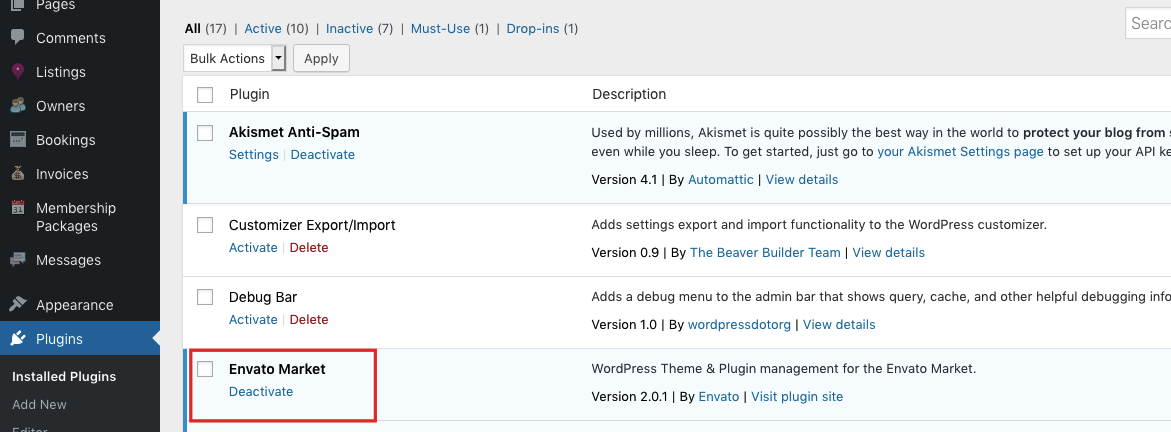
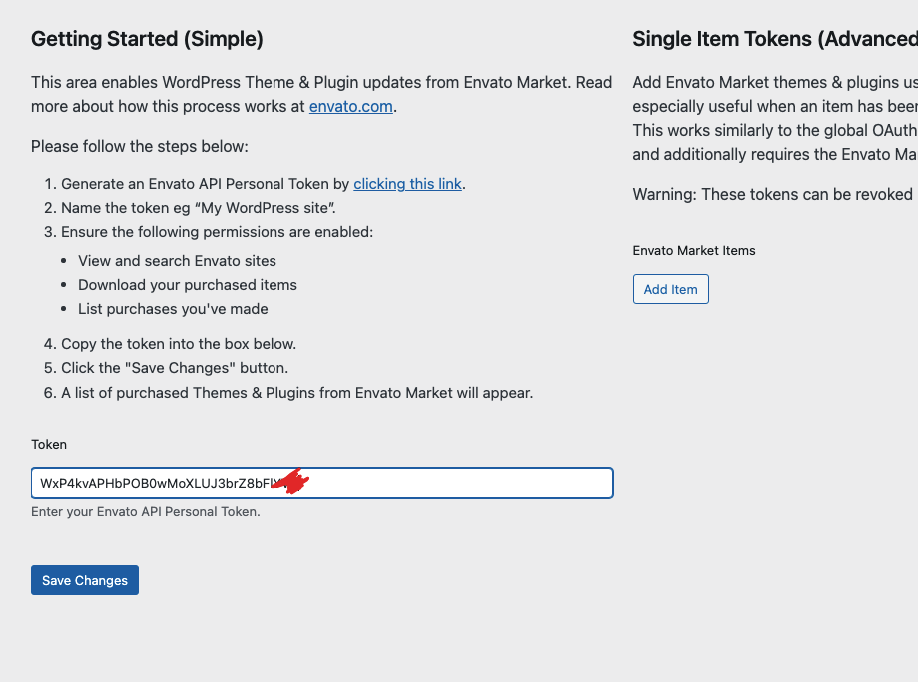
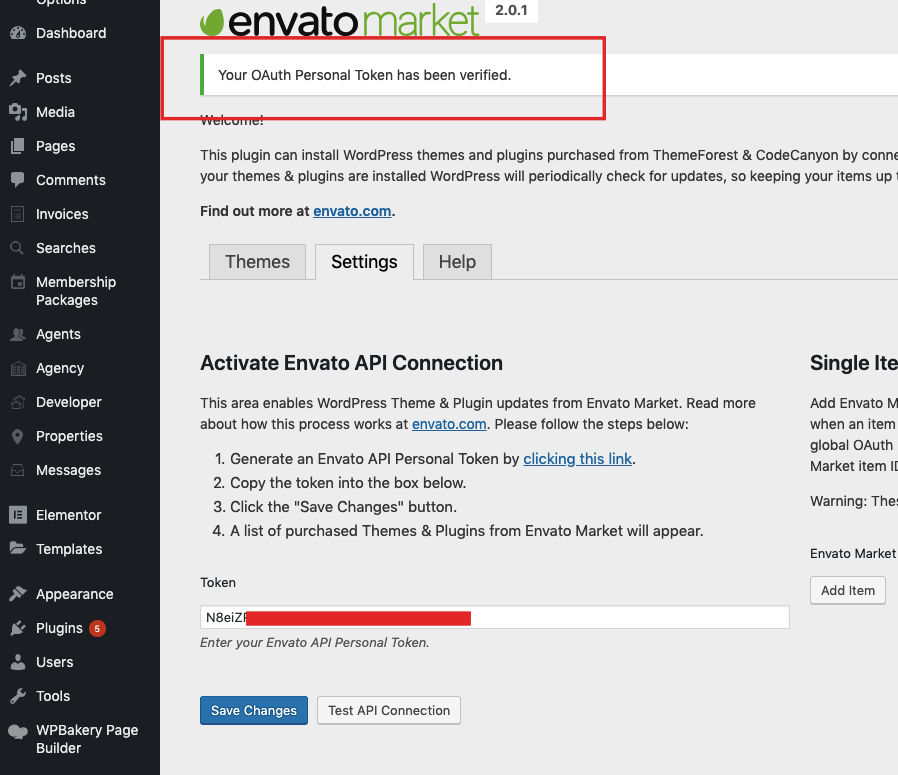
Step 2: Go to Envato Market settings and connect using an API token.
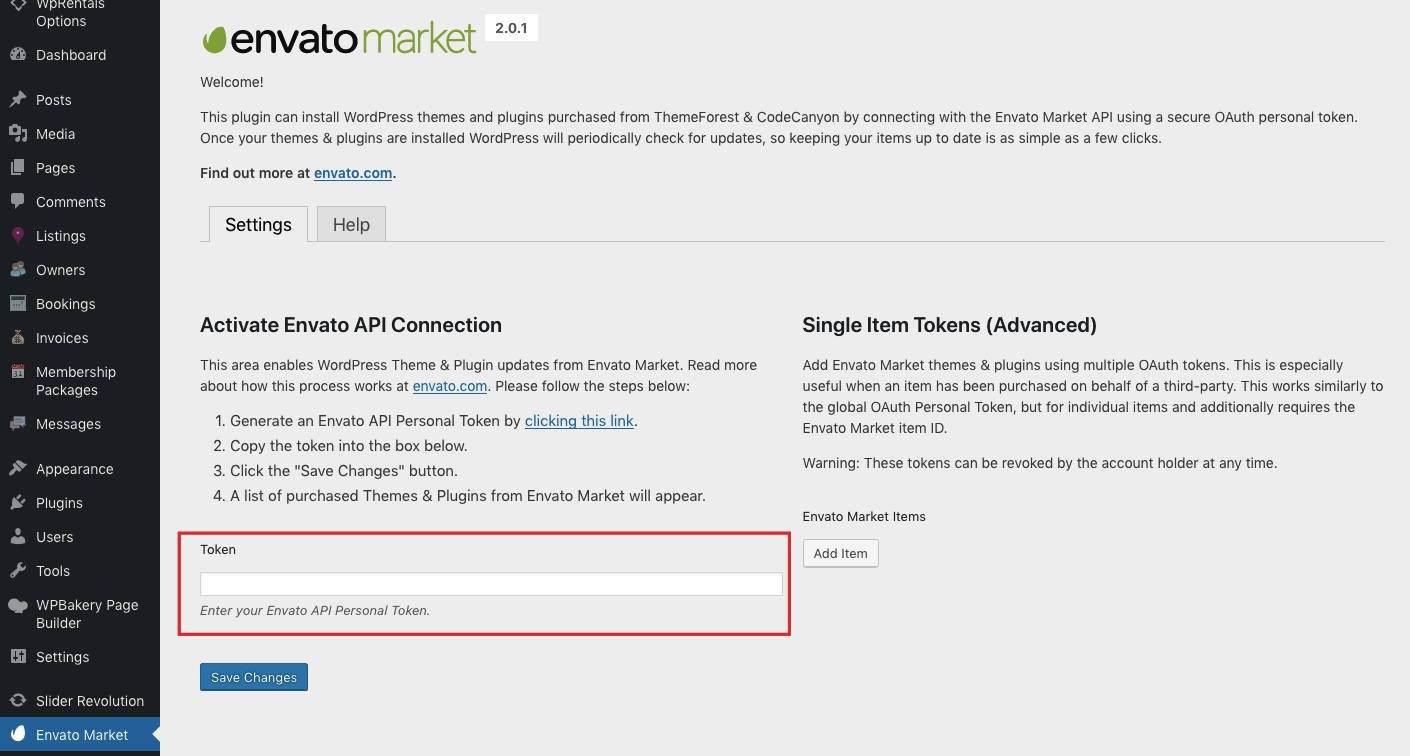
To create the token, follow the Envato link shown by the plugin:
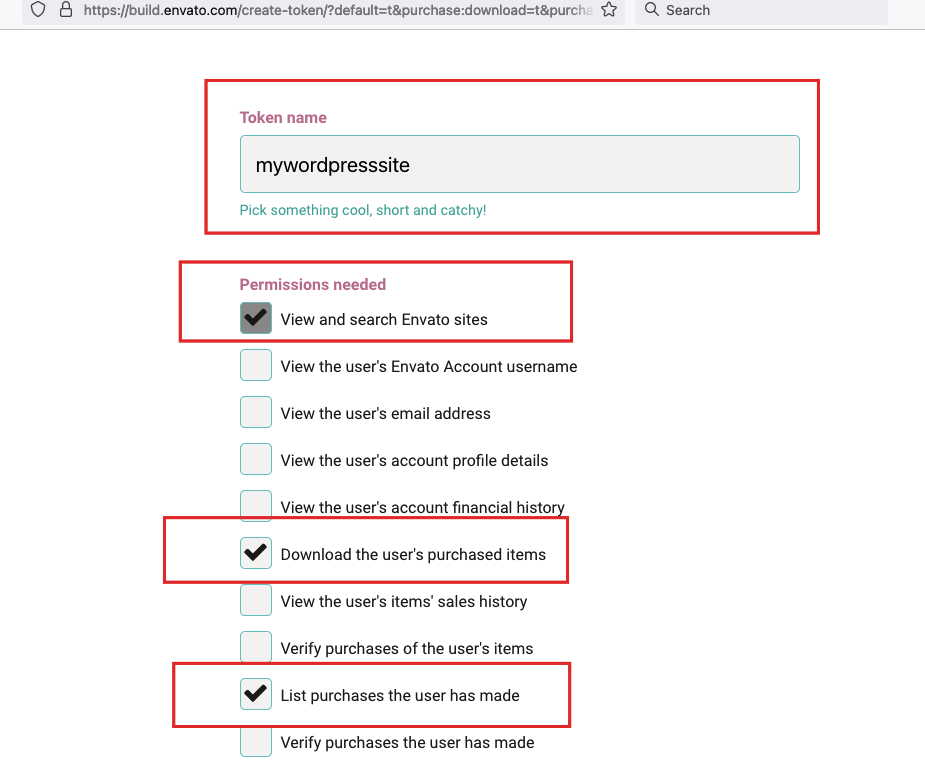
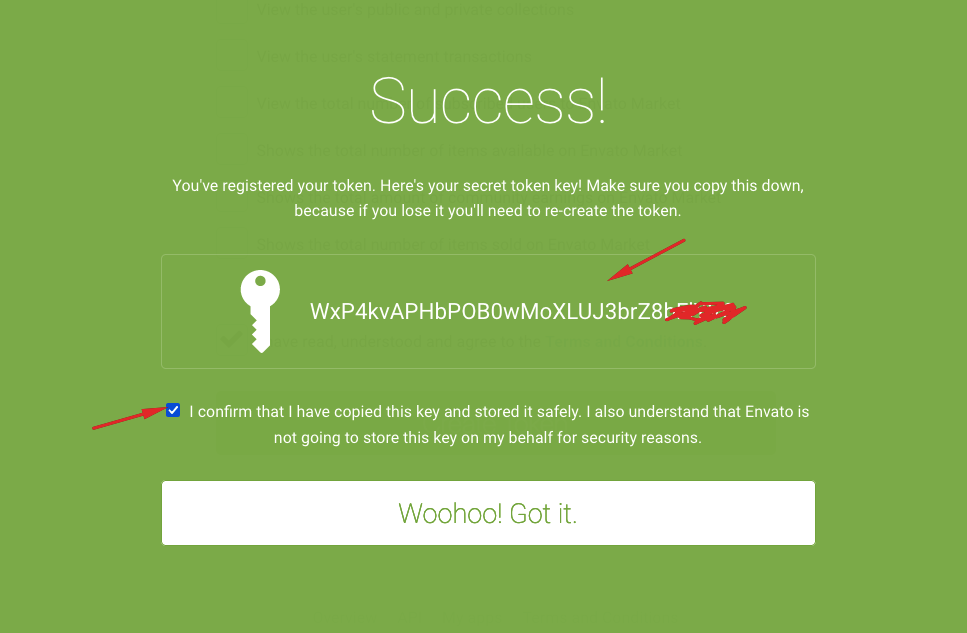
- Generate an Envato Personal Token
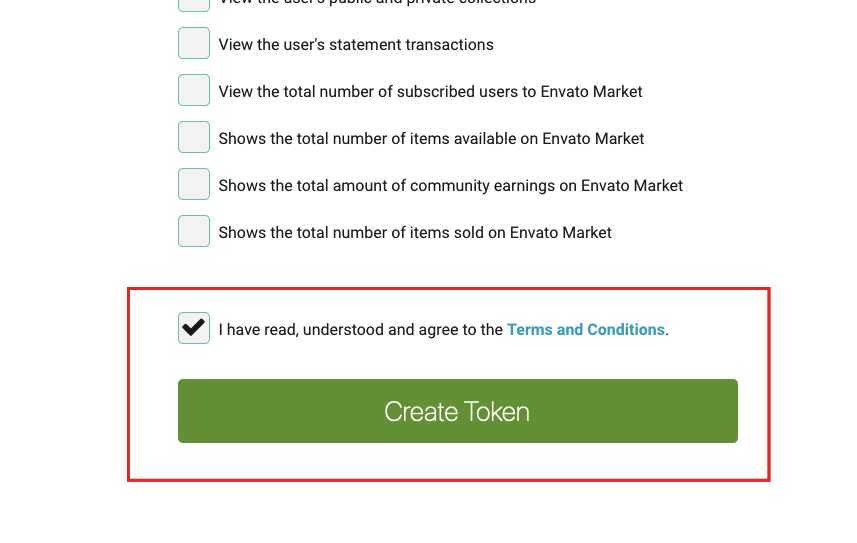
- Select the permissions requested by Envato and assign a name to your token
- Create the token and copy it
- Paste the token into the Envato Market plugin and click Save Changes
You must see the message: Your OAuth Personal Token has been verified
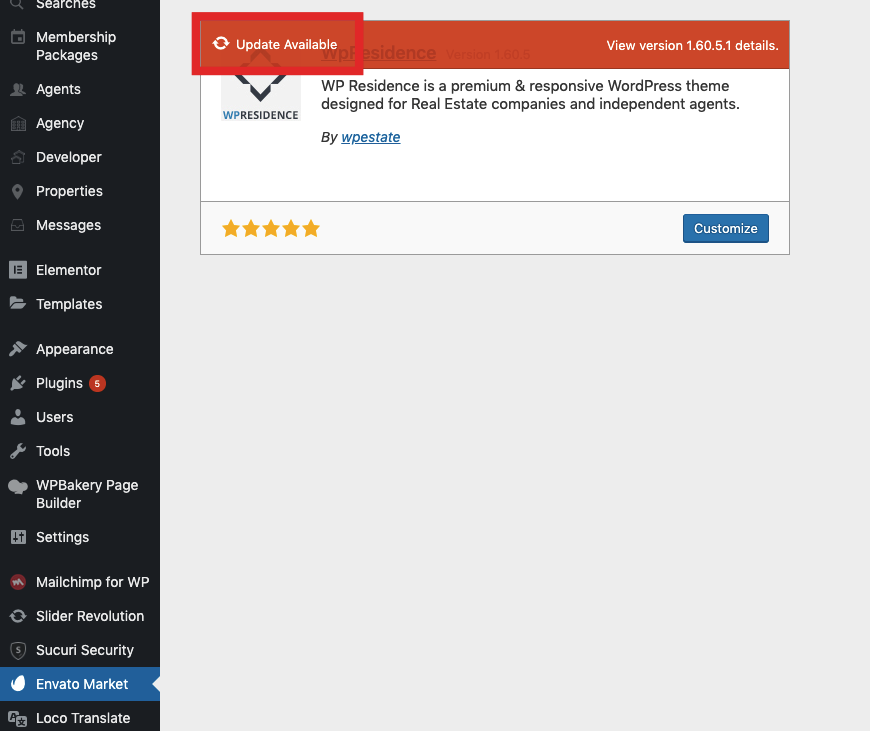
Step 3: Update the theme.
This process replaces the theme files. If you edited parent theme code, those edits will be overwritten. Use a child theme for custom changes.
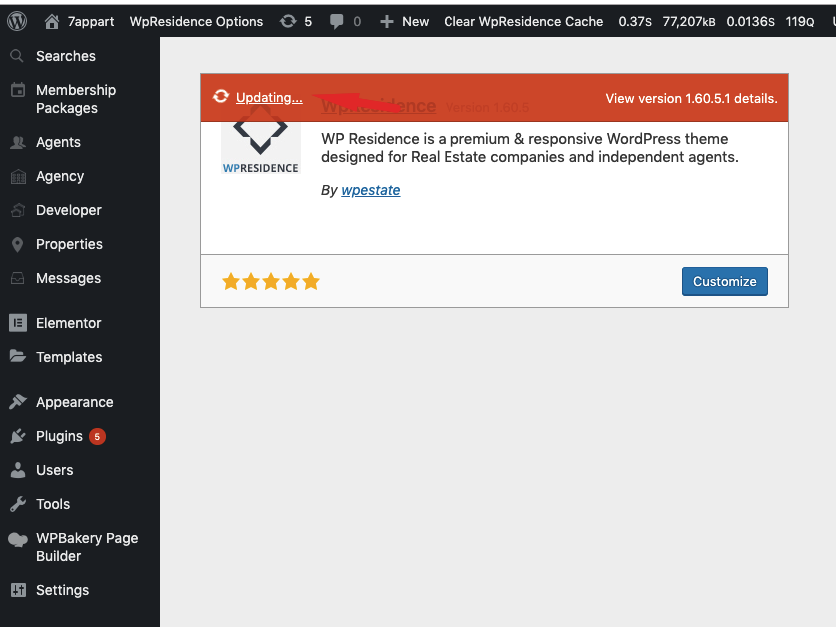
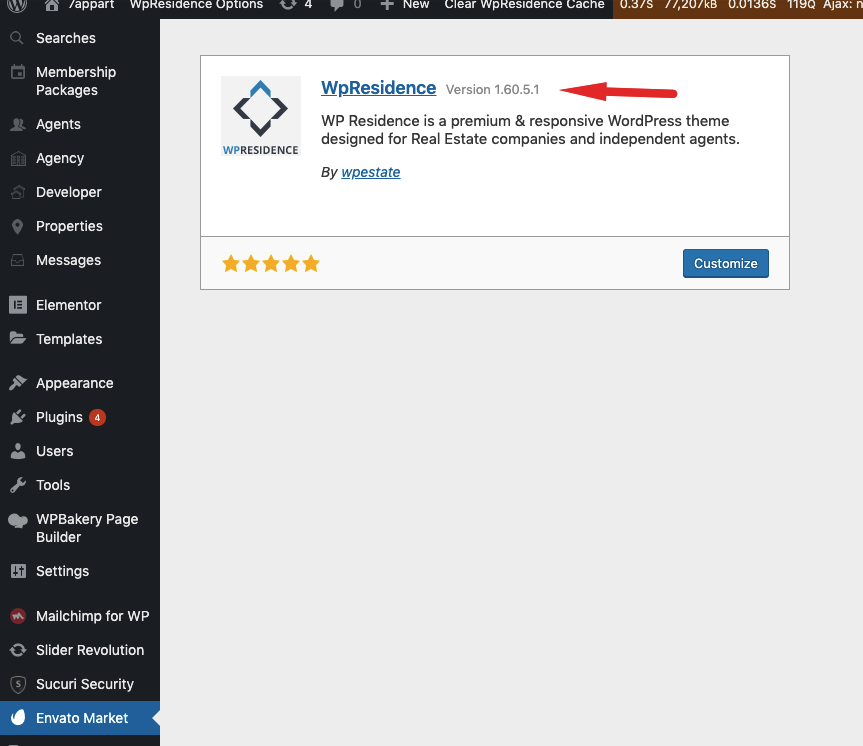
4. Update required and bundled plugins
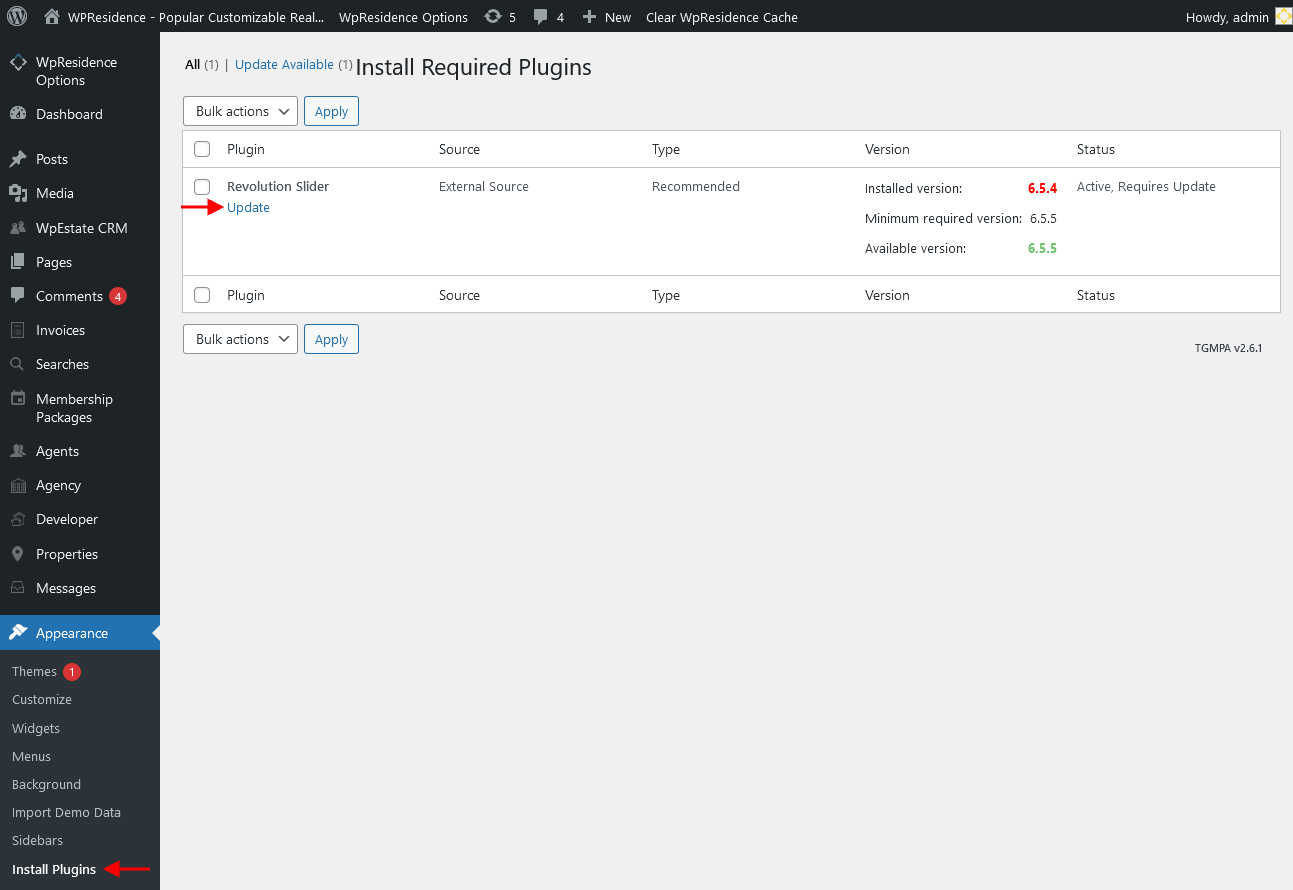
After updating the theme, update all required plugins. This is mandatory, especially:
WPResidence Core Functionality.

If you do not see the update notice, go to:
Appearance → Install Plugins
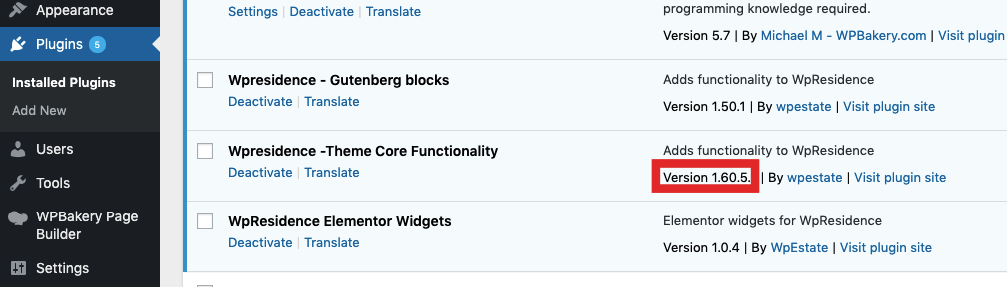
Confirm updates by checking the Plugins screen:
5. Update theme via FTP
Use FTP when the WordPress dashboard update fails, when your hosting blocks large uploads, or when you want full control of file replacement.
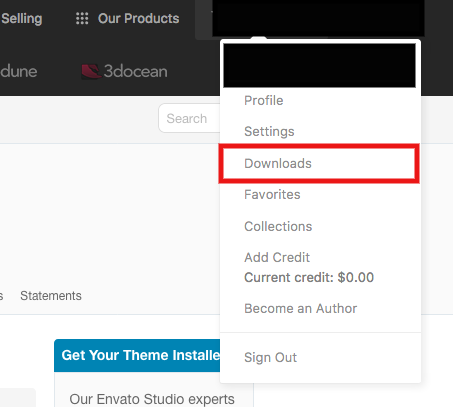
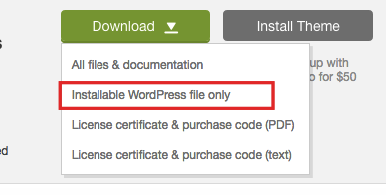
Step 1: Download the latest theme version from your ThemeForest account.
Go to ThemeForest → Downloads and select:
Installable WordPress file only (this is wpresidence.zip).
Step 2: Enable maintenance mode if your site is live (optional but recommended).
Step 3: Connect via FTP and go to:
yoursite/wp-content/themes
Step 4: Backup the current theme folder by downloading it or renaming it to:
wpresidence_old
Step 5: Extract wpresidence.zip on your computer to obtain the wpresidence folder.
Step 6: Upload the new wpresidence folder into:
yoursite/wp-content/themes
and overwrite the existing theme folder.
NOTE:
- Do not upload the theme folder inside another wpresidence folder (this creates duplicate paths and breaks the theme).
- If you have custom code changes, move them from your backup into a child theme instead of editing the parent theme.
- Child theme help: How to install a child theme
6. Update the theme via WordPress dashboard (manual reinstall)
This method is useful when you cannot use Envato Market and do not want to use FTP.
Step 1: Go to Appearance → Themes and activate a different theme temporarily.
Step 2: Delete the current wpresidence theme.
Step 3: Upload the new wpresidence.zip (Installable WordPress file only) from ThemeForest.
Step 4: Install and activate the theme.
Step 5: Update all required plugins.
Your content will not be lost and your Theme Options settings will not reset by reinstalling the theme.
However, any code edits done directly in the parent theme folder will be lost.
For translations, use the child theme PO method:
Translation files in child theme
7. Update plugins only (without updating the theme)
You do not need your own license for bundled plugins. WPResidence includes bundled plugin updates via theme updates.
There is one license per purchase, handled by the theme authors.
If you only need updated plugins:
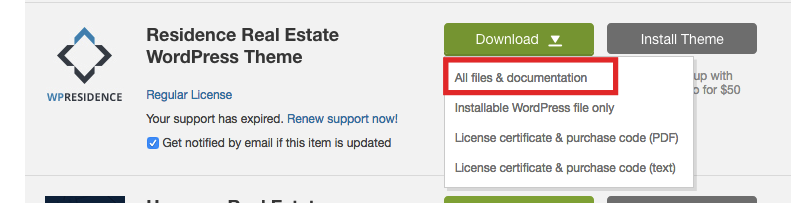
Step 1: Download the theme again from ThemeForest and choose All files and documentation.
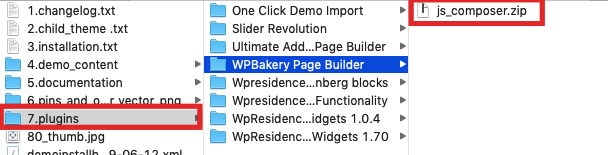
Step 2: Unzip the package and open the plugins folder.
Step 3: In wp-admin, go to Plugins, deactivate and delete the old plugin versions.


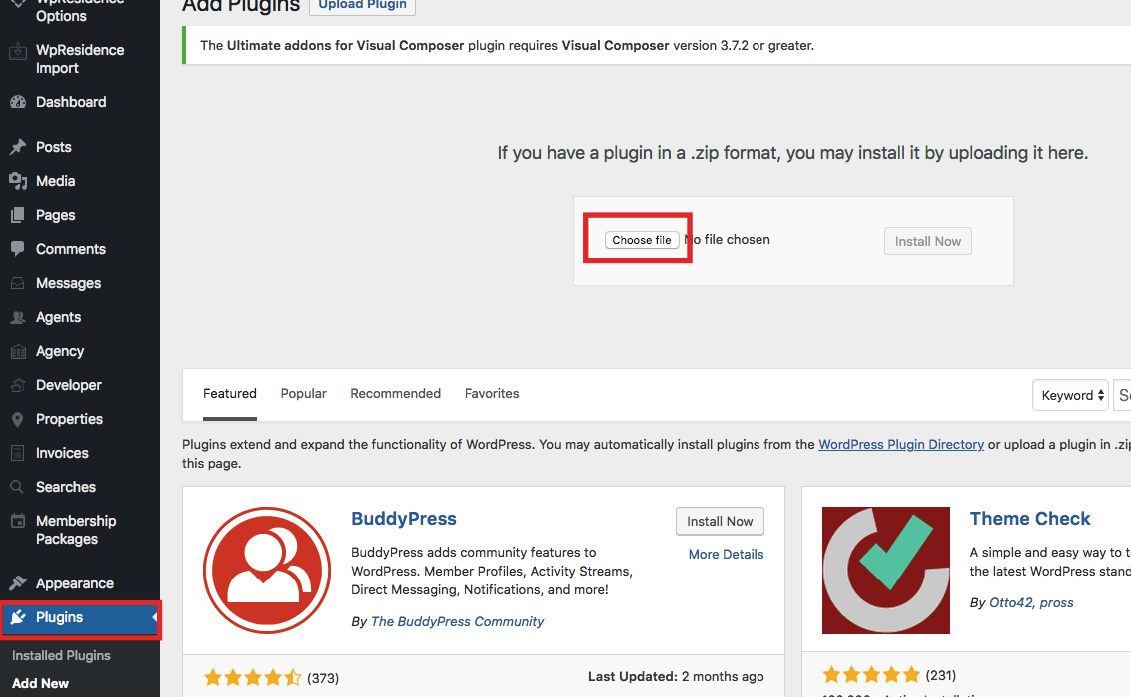
Step 4: Upload and activate the new plugin ZIP files via Plugins → Add New → Upload Plugin.
8. Important after update
- Clear all cache after updating: CDN cache (if any), hosting/server cache, cache plugins, theme cache (if enabled), and browser cache.
- If you need plugin updates sooner than the theme update release, open a ticket at:
http://support.wpestate.org/
9. Common update issues and fixes
Site looks broken after update (layout, CSS, missing icons)
- Clear all caches (server, plugin, CDN, browser).
- Confirm WP Residence Core Functionality was updated.
- Go to Appearance → Install Plugins and confirm there are no pending plugin updates.
Changes were lost after update
- If you edited the parent theme files directly, the update overwrote them. Move changes into a child theme.
Related Help
WPResidence Change Log
How to update translations after a theme update
Enable/disable WPResidence cache and clear theme cache