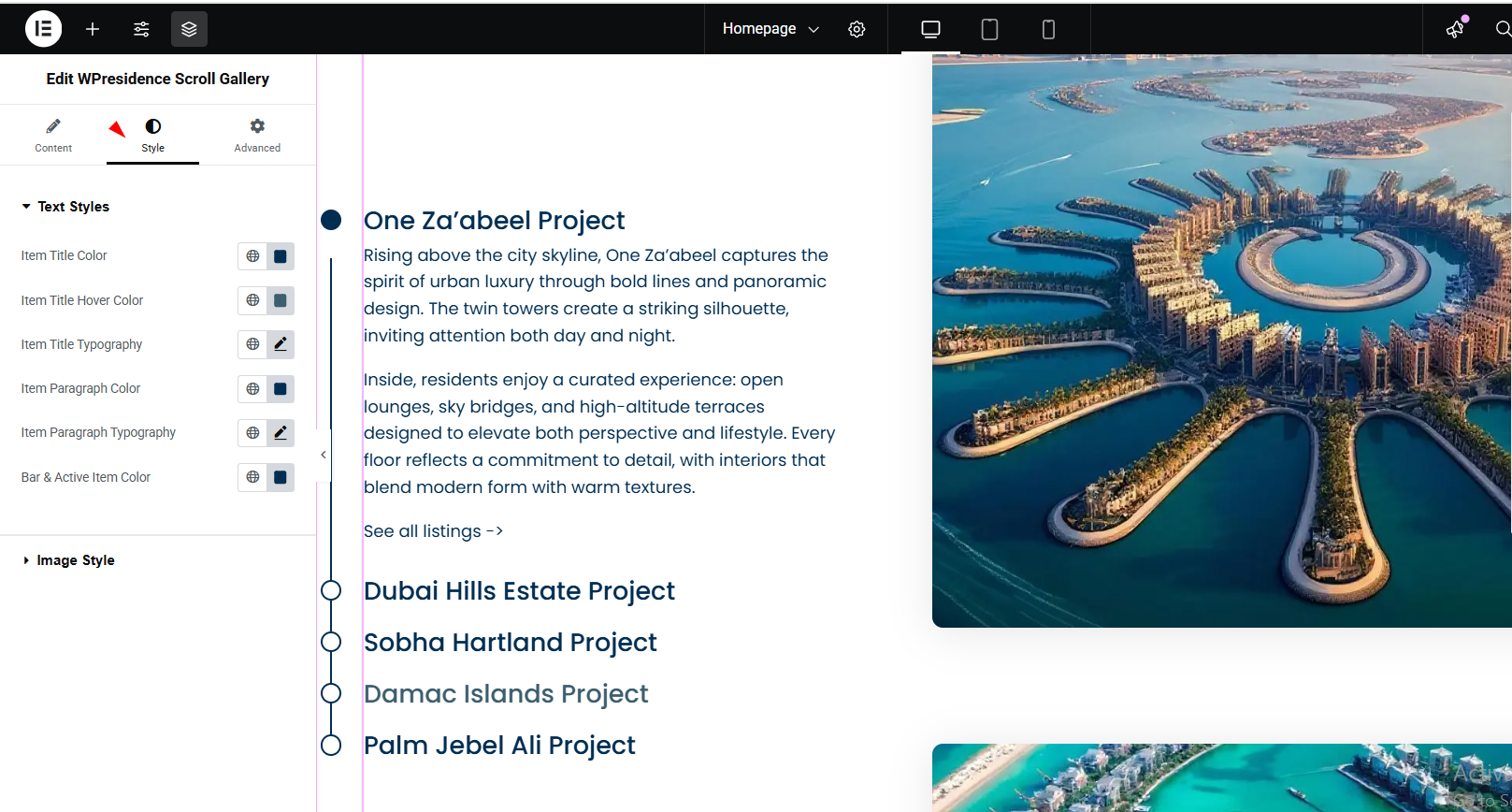
In this step-by-step tutorial, you’ll learn how to set up, customize, and manage the Scroll Gallery in WP Residence when using Elementor
Watch Video on Youtube
This help walks you through enabling and customizing the WP Residence Scroll Gallery using Elementor. The scroll gallery is a sleek, interactive image carousel that lets users browse property images in a smooth, engaging way.
The steps to add the widget to a page are:
- Log in to your WordPress dashboard.
- Go to Pages (or create a new page).
- Click Edit with Elementor.
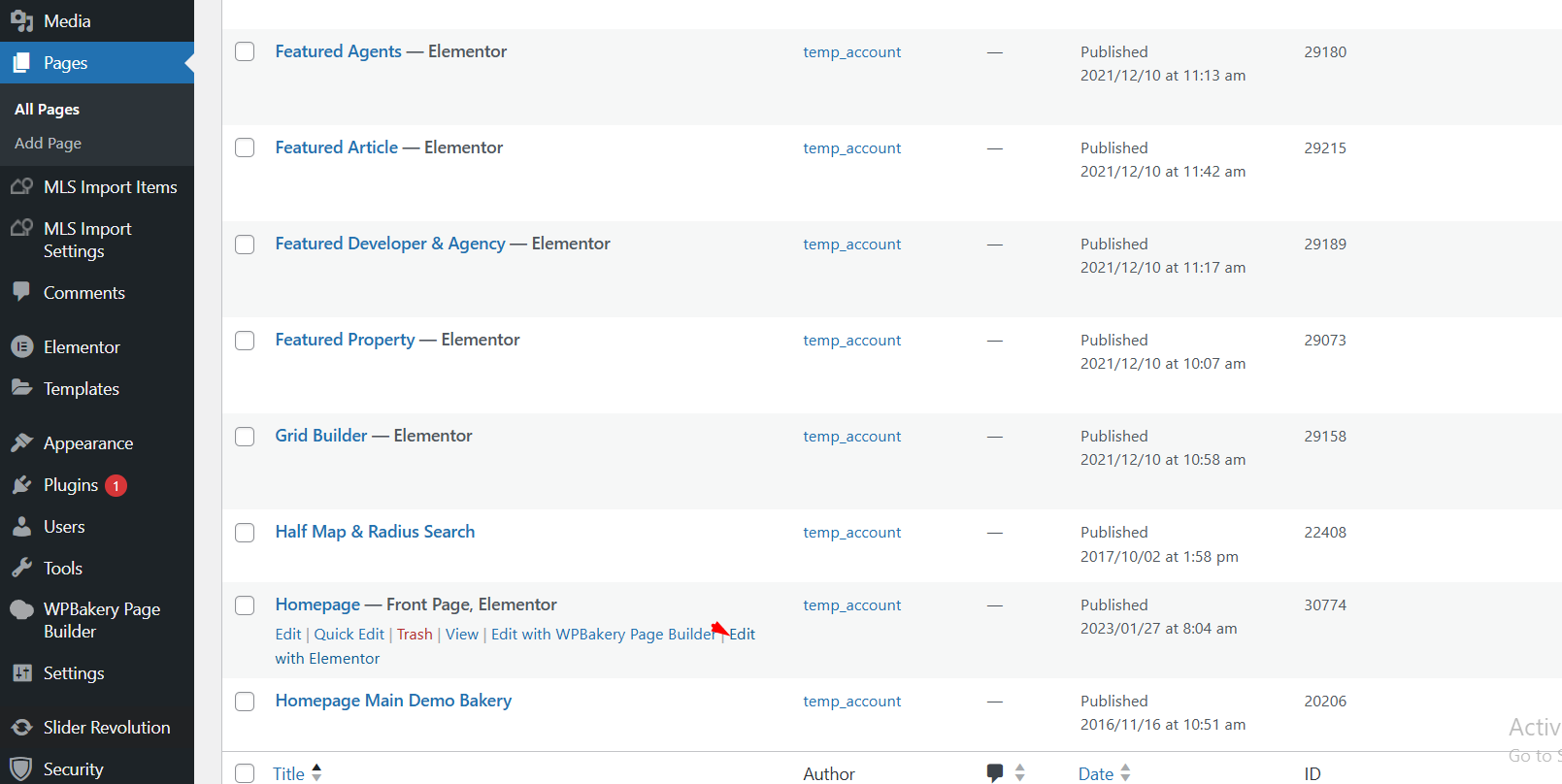
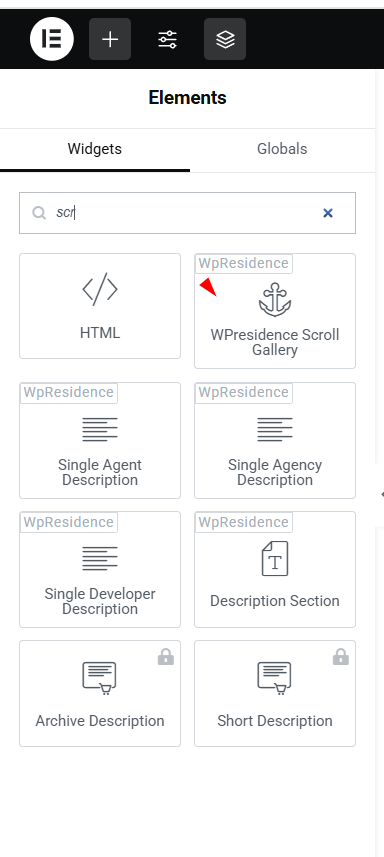
4. In the Elementor widget panel, search for Scroll Gallery
5. Drag the scroll gallery widget onto your page.
Once added, you can start setting the widget
1. Content
Add as many items as you need
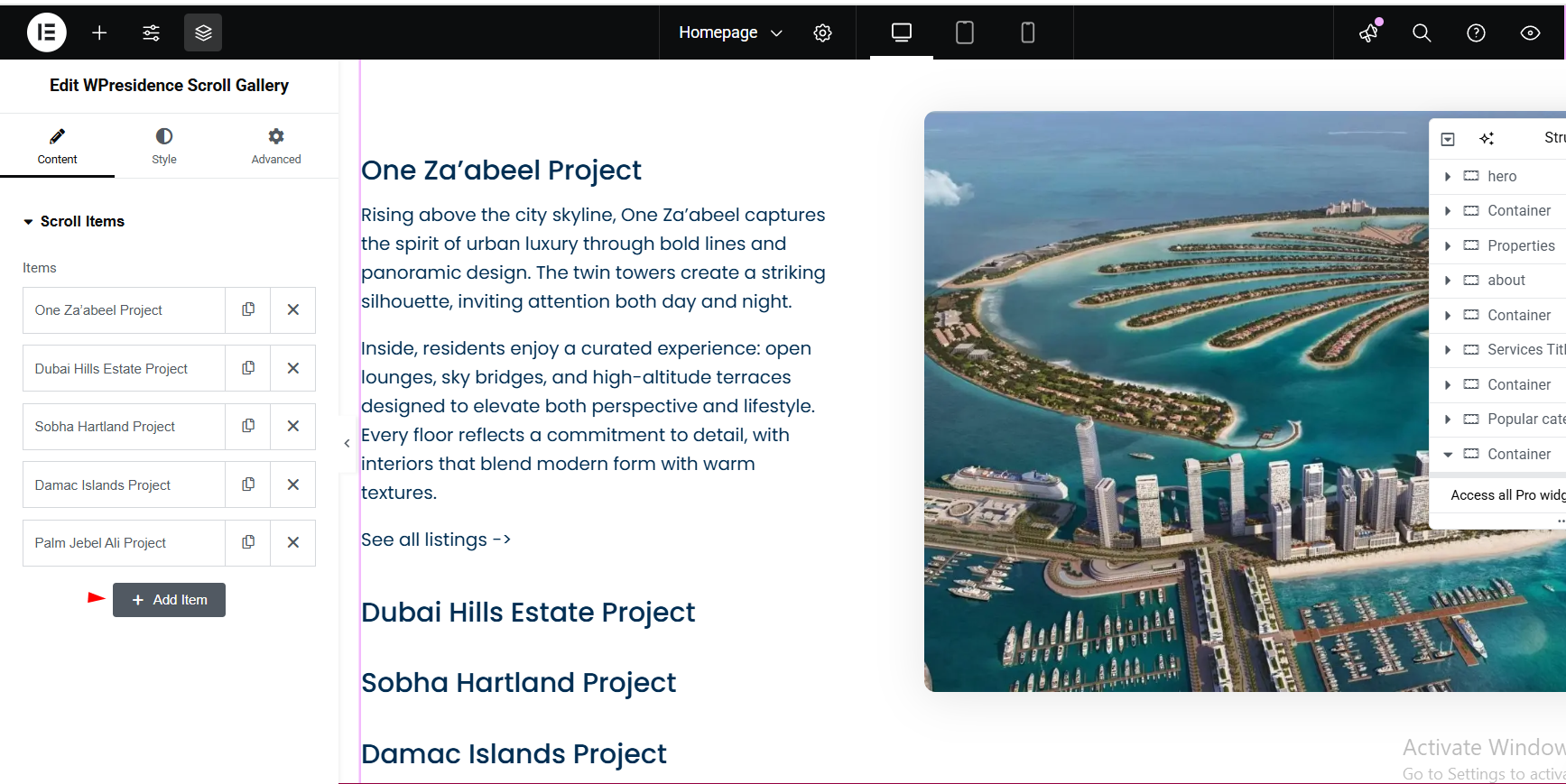
Set each item by adding a title, text ,and an image.
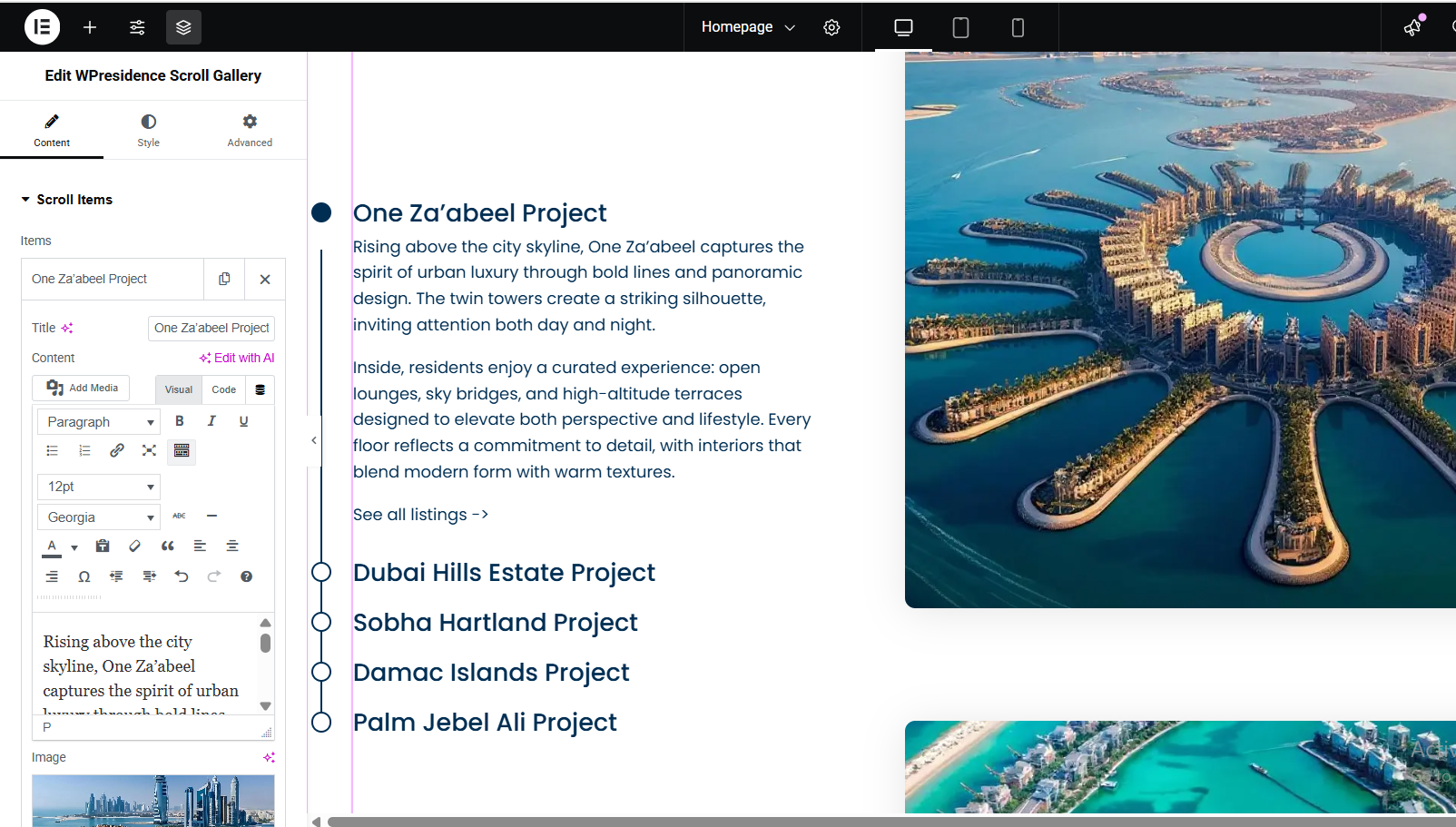
2. Style
You can make design settings, change colors, text typography, and settings for the image appearance.