WP Residence Help WP Residence Help

  • WPRESIDENCE
  • Video Tutorials
  • Client Support
  • API
Home / Blog Posts & Blog Lists, WPResidence Elementor Studio / Custom Blog Post Template with WpResidence Studio + Elementor Free

Custom Blog Post Template with WpResidence Studio + Elementor Free

587 views 0

This guide explains how to create and assign a custom single blog post template using WpResidence Studio Templates and Elementor Free.

WPResidence already includes a default blog post layout. You can read more about the default blog options here:
Blog List Page.

Use a Studio template if you want to fully customize the single blog post page design, including the title, featured image, content area, author box, share buttons, related posts, comments, and navigation.

Important: This help is for the single blog post page. It is not for the blog list/archive page.

Content

  • Install and activate WpResidence Studio
  • Create a custom blog post template
  • Optional: Import an existing Studio template
  • Design the blog layout with Elementor
  • Blog post widgets available in Elementor
  • Assign the template to blog posts
  • Important notes
  • Related help articles
Learn about WPResidence Design Studio plugin and how you can use it to design custom blog post template for your website. Watch Video on Youtube

Install and activate WpResidence Studio

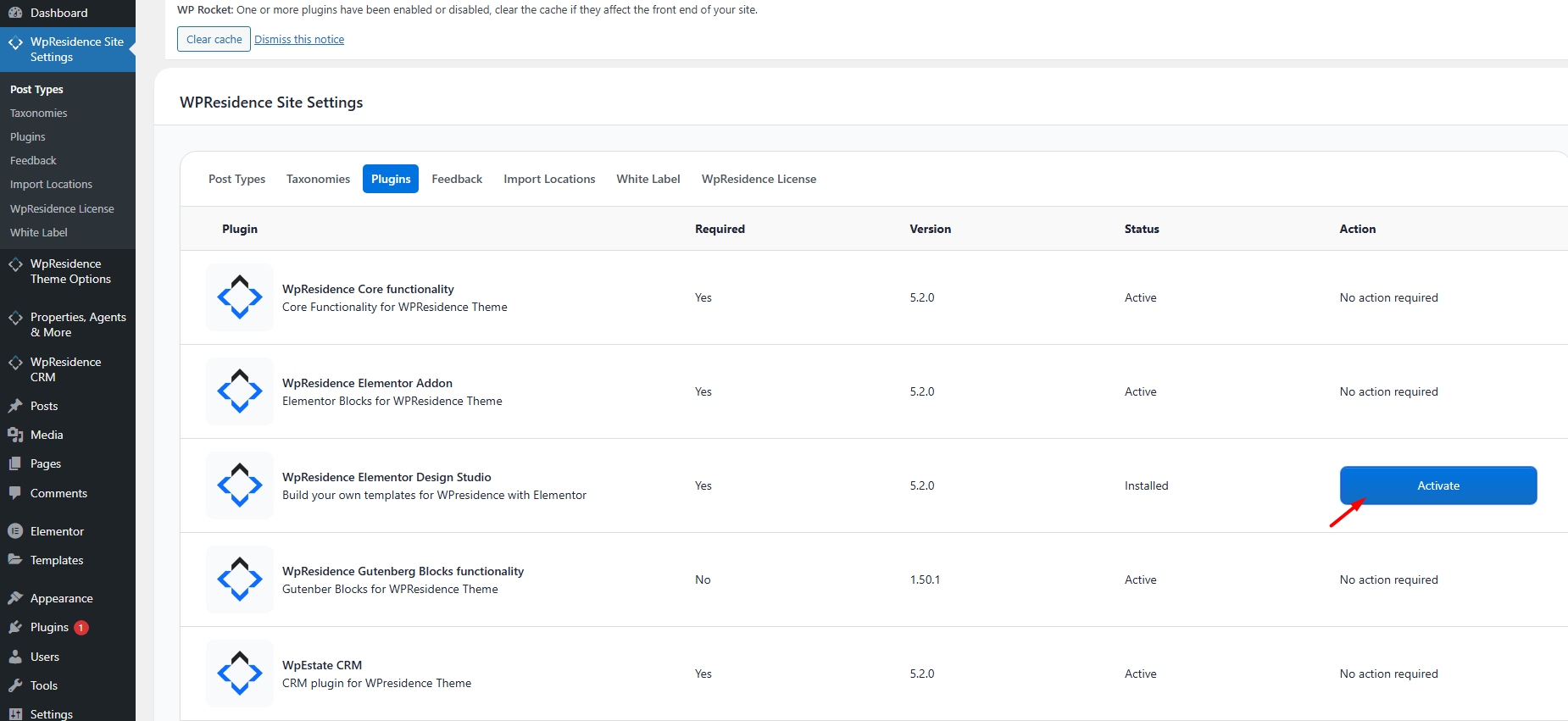
To create custom blog post templates, first install and activate the WpResidence Elementor Design Studio plugin.

You can install it from:

  • WP Admin > Appearance > Install Plugins
  • or WpResidence > Site Settings > Plugins

Install and activate:

WpResidence Studio


Install WpResidence Studio plugin


Activate WpResidence Studio plugin

After the plugin is active, you will see a new admin menu:

WpResidence Studio Templates
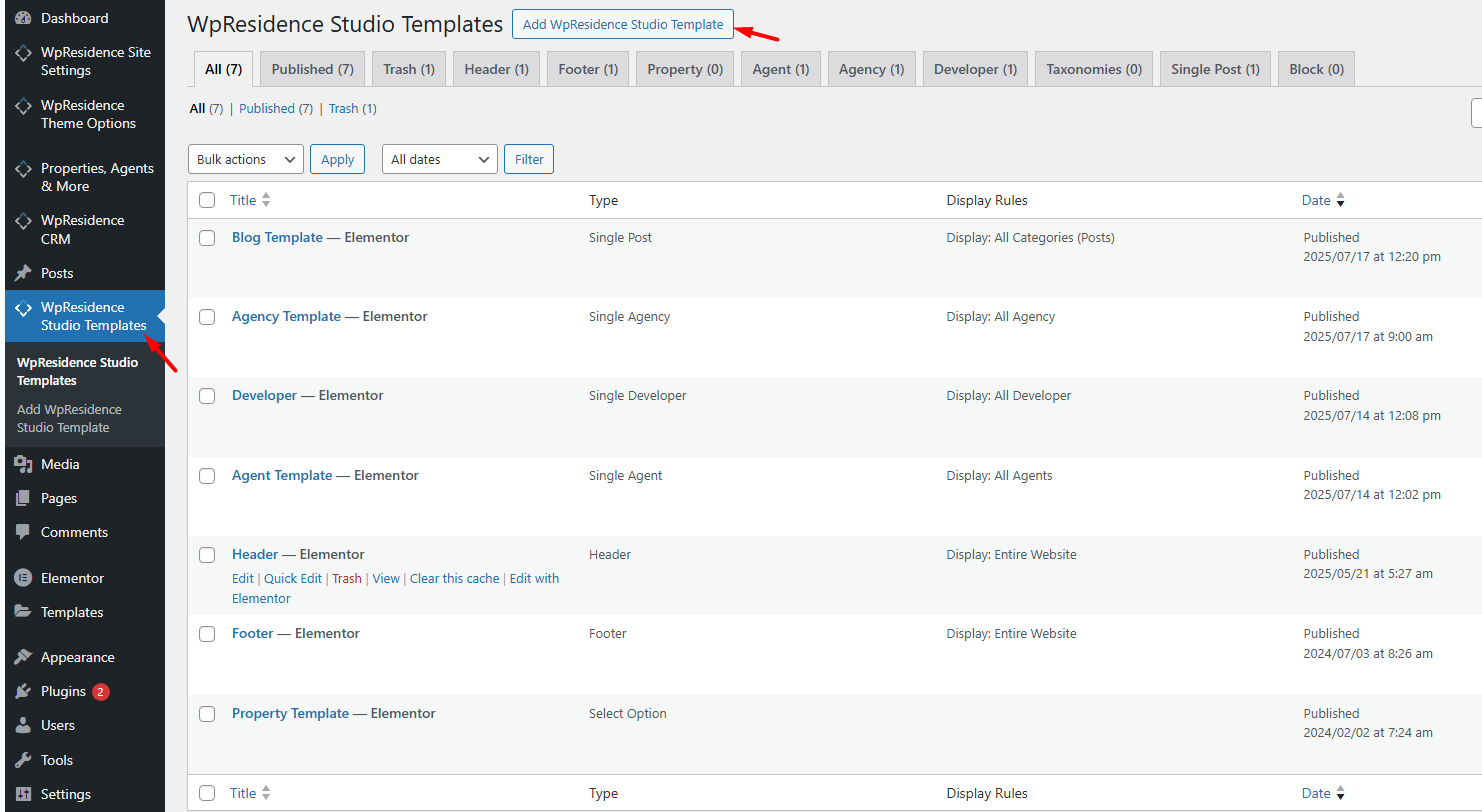

WpResidence Studio Templates menu

Create a custom blog post template

  1. Go to WpResidence Studio Templates > Add New.
  2. Add a template name, for example Blog Layout – Clean.
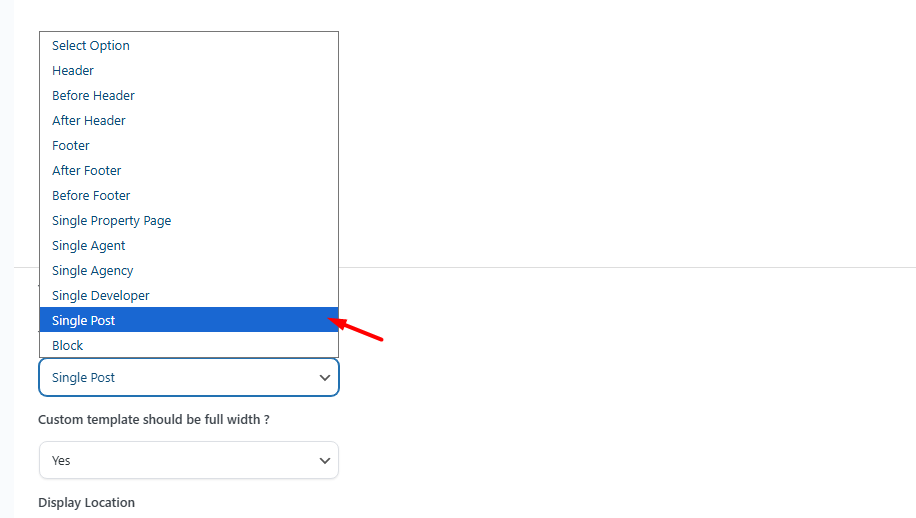
  3. For Template Type, choose Single Post.
  4. Set Elementor Full Width to Yes if you want to manage the layout and spacing from Elementor.
  5. Click Publish.
  6. Click Edit with Elementor.


Create Single Post template in WpResidence Studio

Important: The template type must be Single Post. This is what makes the template available for blog post pages.

Optional: Import an existing Studio template

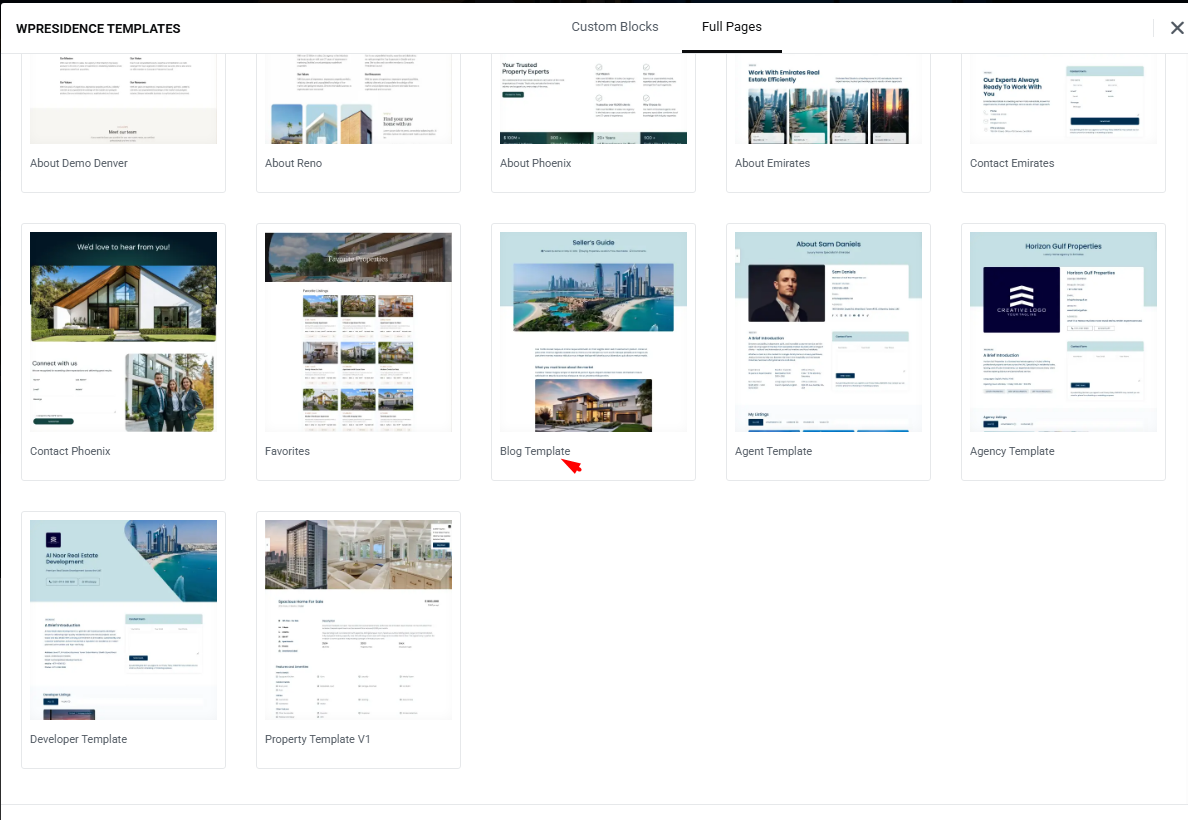
You can build the design from scratch, or you can import a prebuilt Studio template and edit it.

  1. Click Edit with Elementor to open the Elementor editor.
  2. Click the Folder icon in Elementor.
  3. Open the WpResidence Design Studio Templates library.
  4. Click Insert to add the template.
  5. Edit the layout, text, spacing, and widgets as needed.


Open Studio template library in Elementor


Insert WpResidence Studio template


Edit imported blog post template with Elementor

Design the blog layout with Elementor

After opening the template with Elementor, you can create the blog post layout using drag-and-drop widgets.

You can control the layout, columns, spacing, typography, colors, and the position of each blog post element.

Tip: If you set Elementor Full Width to Yes, you can manage the full page width and spacing directly from Elementor.

Blog post widgets available in Elementor

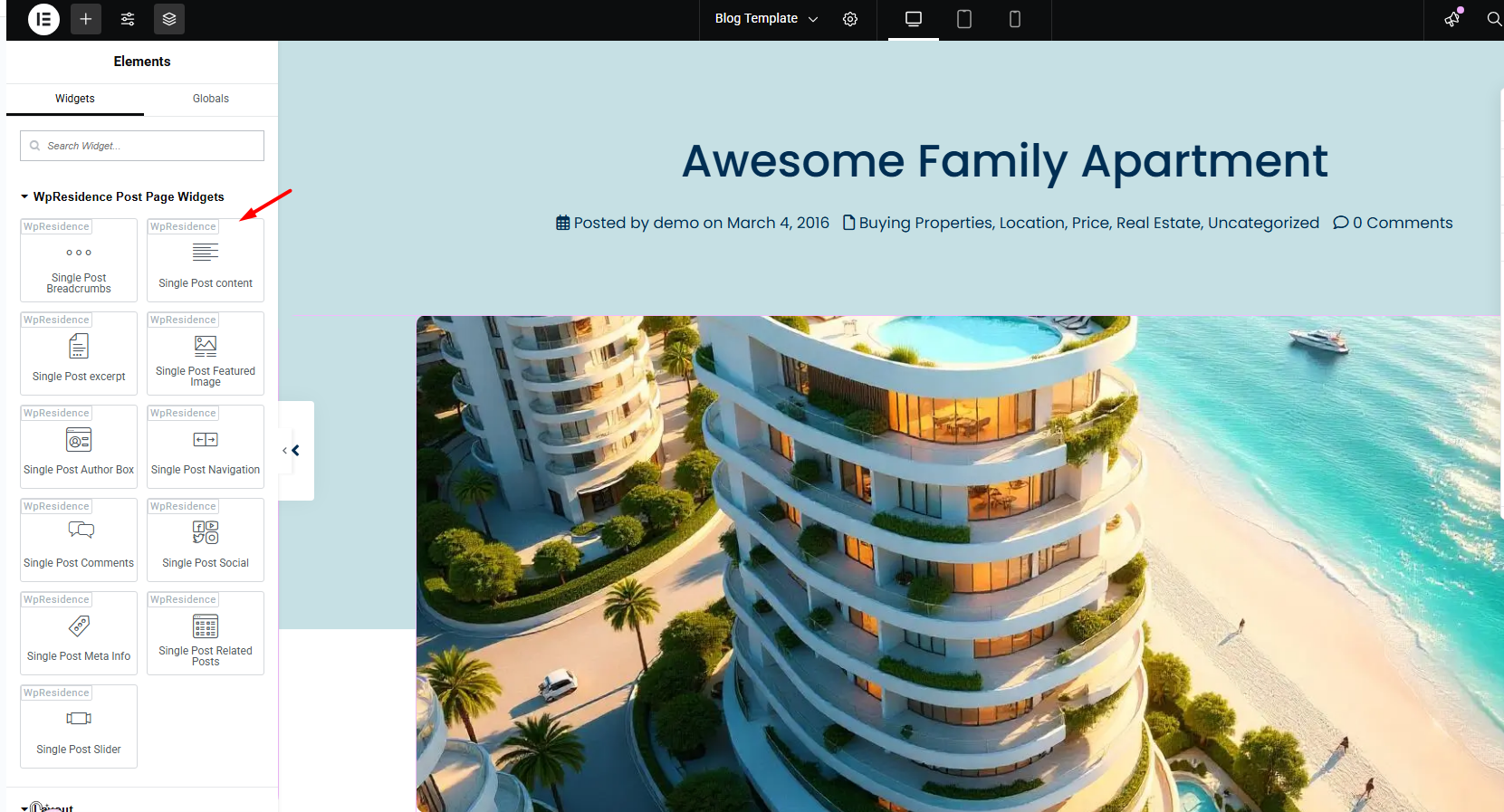
Inside Elementor, look for:

WpResidence > Post Page Widgets

These widgets are available for the blog post template:

  • Title
  • Featured Image
  • Post Meta – author, date, category
  • Post Content
  • Tags
  • Share Buttons
  • Author Box
  • Related Posts
  • Next / Previous Navigation
  • Comments Section


WpResidence Post Page Widgets in Elementor

Assign the template to blog posts

After the template is ready, assign it from Theme Options.

  1. Go to Theme Options > Blog Settings.
  2. Find Template for Blog Post.
  3. Select the Studio template you created.
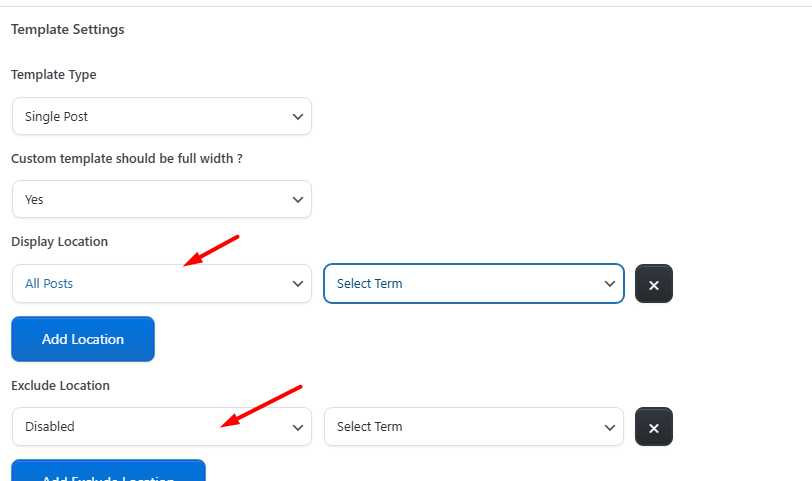
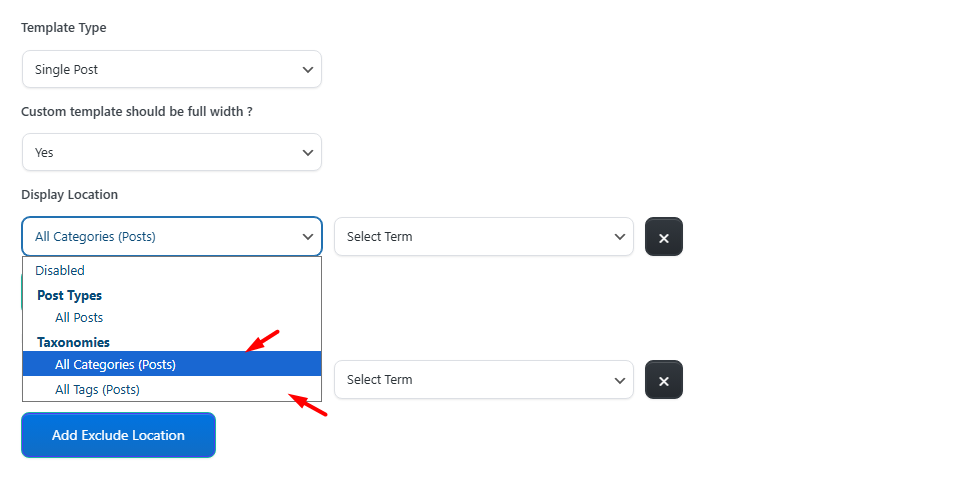
  4. Choose where the template should apply.
  5. Save changes.

You can assign the template to:

  • All blog posts
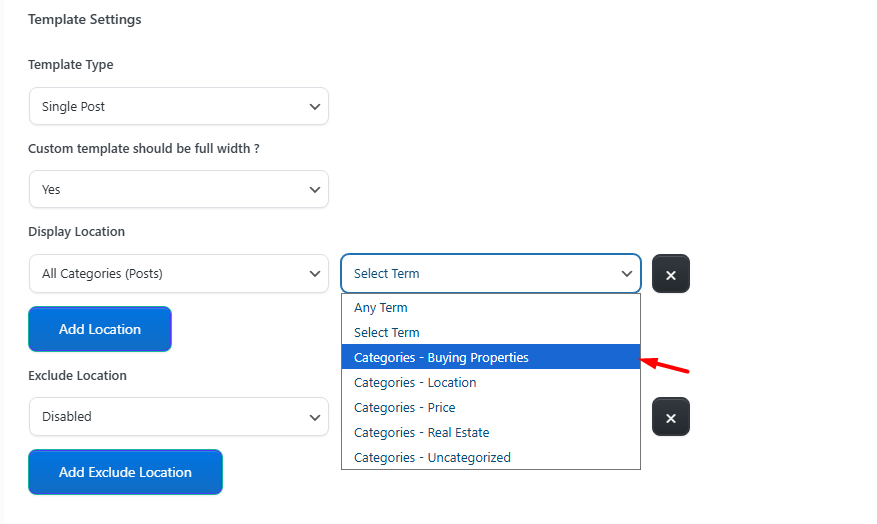
  • Specific blog categories
  • Specific blog tags


Select template for blog post in Theme Options


Assign blog post template by category or tag


Blog post template assignment options

After saving, open a blog post on the front end to check the new layout.

Important notes

  • This template is for single blog posts, not for the blog list/archive page.
  • The template type must be Single Post.
  • The template works with Elementor Free.
  • Use the widgets from WpResidence > Post Page Widgets for dynamic blog post content.
  • If a widget does not show content, test the template on a real published blog post.
  • After assigning the template, clear cache if the old blog design still appears.

Related help articles

  • Blog List Page
  • Header & Footer with WpResidence Studio + Elementor Free
  • How to create a custom property page design with Elementor
  • How to Enable / Disable WPResidence Cache
Blog Posts & Blog ListsWPResidence Elementor Studio

Related Articles

  • How to Control Similar Blog Posts
  • Mega Menu with WPResidence Studio
  • Custom template for each Property Category / Taxonomy with WPResidence Studio and Elementor Free
  • Custom Agent, Agency or Developer Template with WPResidence Studio + Elementor Free

Help Categories

  • 18Agent, Agency & Developers
  • 5Blog Posts & Blog Lists
  • 38Elementor Shortcodes Built-In
  • 45FAQ
  • 15Footer
  • 5Getting Started
  • 37Header
  • 2IDX & MLSImport
  • 6Installation & Setup
  • 23Installation FAQ
  • 23Maps & Location Settings
  • 21Multi-Language Third Party Plugins
  • 6Other Third party Plugins
  • 19Pages
  • 4Payments & Monetization
  • 20Property Lists, Categories & Archive
  • 36Property Pages & Layouts
  • 31Search & Filtering
  • 162Technical how to | Custom Code Required
  • 8Technical: Actions and filters
  • 6Technical: Child Theme
  • 86Theme Options & Global Settings
  • 6Translations & Languages
  • 16WPBakery Shortcodes
  • 51WPResidence / WPEstate CRM
  • 50WPResidence 5.0 Documentation
  • 8WPResidence Elementor Studio
  • 50WPResidence Translate Plugin

Join Us On

Powered by WP Estate - All Rights Reserved
  • WPRESIDENCE
  • Video Tutorials
  • Client Support
  • API