WP Residence Help WP Residence Help

  • WpEstate
  • How to Build Your Website
  • Video Tutorials
  • Client Support
  • API
Home / 26. FAQ / Fix: Property Images Upload but Do Not Display (Missing Thumbnails)

Fix: Property Images Upload but Do Not Display (Missing Thumbnails)

13 views 0

This article explains how to fix an issue where property images upload successfully but do not display in the WPResidence property admin (gallery/media area). In some cases, you may also see a browser console error similar to: Cannot read properties of undefined (reading ‘url’).

CONTENT

  • What you will see
  • When it happens
  • Why it happens
  • Solution: Restore WordPress Media image sizes (recommended)
  • Extra checks if it only happens on one site
  • How to prevent it
  • Need help

What you will see

  • Images upload successfully to the Media Library.
  • Images are attached to the property but do not appear visually in the property gallery/admin panel.
  • Selecting multiple images may fail or the media modal may stop responding.
  • In some cases, the browser console shows an error like Cannot read properties of undefined (reading ‘url’).

When it happens

  • This can happen on any WPResidence version.
  • This can happen with or without Elementor.
  • It often affects only one website even if other sites use the same theme/plugin versions.
  • It is commonly seen after image optimization or performance changes.

Why it happens

WPResidence relies on WordPress-generated thumbnails to display preview images inside the property admin area.

If WordPress is configured to generate no thumbnails, WPResidence may not be able to retrieve valid preview URLs. The result is:

  • Images exist and upload correctly,
  • but the property admin cannot display them visually.

The most common cause is:

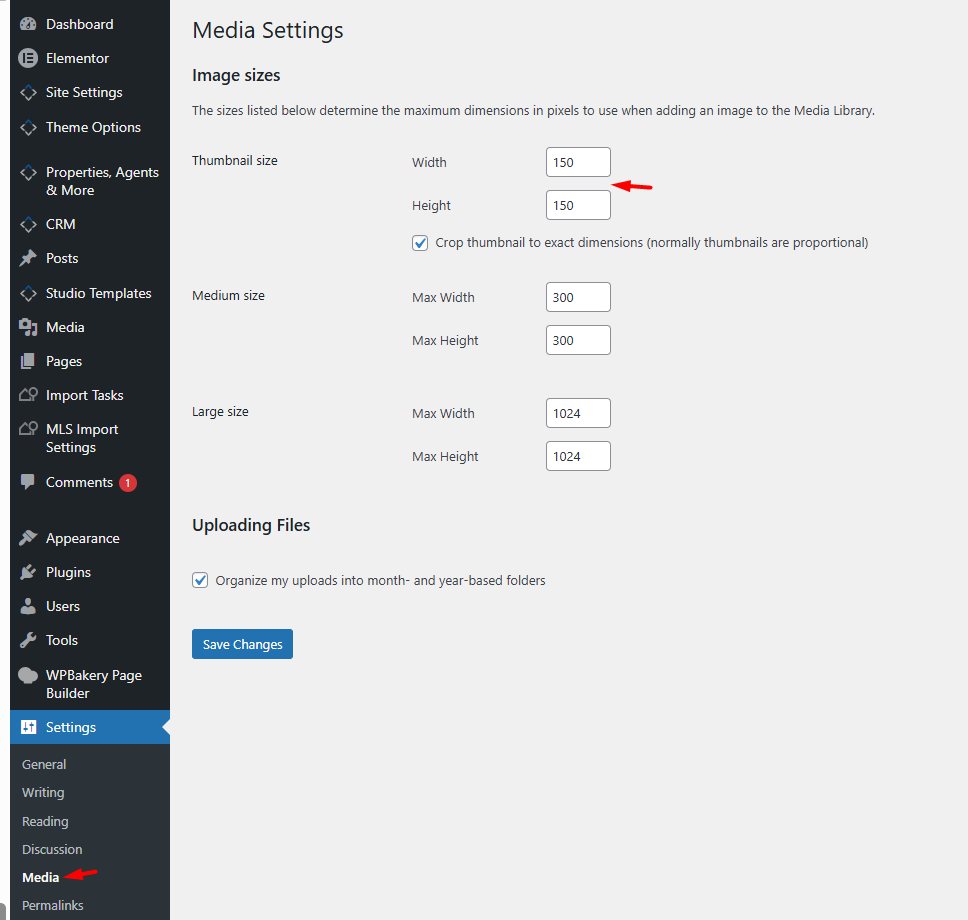
  • WordPress Media image sizes set to 0 in Dashboard → Settings → Media (often done to reduce thumbnail generation).

This also explains why it may happen on only one site: that specific site can have different Media settings or older attachment metadata, even if versions look identical.

Solution: Restore WordPress Media image sizes (recommended)

This fixes the root cause and is the recommended solution.

Step 1: Restore Media settings

  • Go to WordPress Dashboard → Settings → Media.
  • Make sure the image sizes are not set to 0.
  • Use reasonable non-zero values.
  • Click Save Changes.

Step 2: Regenerate thumbnails

Existing images may still have missing thumbnail metadata. Regenerating thumbnails usually resolves this.

  • Install a thumbnail regeneration plugin (example: Regenerate Thumbnails).
  • Run the regeneration process.
  • Remove the plugin afterward if you prefer.

Step 3: Clear caches

  • Hard refresh your browser (especially in wp-admin).
  • Clear any caching or optimization plugin cache.
  • Clear server cache or CDN cache if used.

Step 4: Retest

  • Edit a property and try selecting multiple images again.
  • Confirm that property images now display correctly.
Tip: Also test by uploading a brand new image. If new images work but older ones do not, thumbnail regeneration is required.

Extra checks if it only happens on one site

  • Compare Settings → Media values with a working site.
  • Temporarily disable optimization or media-related plugins and retest.
  • Test with a brand-new image upload (not an older library item).
  • Check for admin-side JS errors caused by minify/merge settings in optimization plugins.

How to prevent it

  • Do not set WordPress image sizes to 0 if you want property image previews to display.
  • Avoid disabling thumbnails globally.
  • If you change Media settings, always regenerate thumbnails afterward.

Need help

If the issue persists after the steps above, please open a support ticket and include:

  • Your WPResidence version
  • Your WordPress version
  • Your active page builder (Elementor / WPBakery / Gutenberg)
  • A screenshot of Settings → Media
  • The full browser console error (if any)

Support portal: https://support.wpestate.org/

26. FAQ

Related Articles

  • FAQ – Can I Use All Templates After Purchasing WPResidence?
  • Error on Single Property Page: Call to undefined function wpestate_return_property_address()
  • Create custom Login/Register buttons in elementor
  • How to change the login icon on mobile.

WP Residence Documentation

  • 01. Getting Started
    • How to Get Support
    • Get your buyer license code.
    • Use SSL / https
    • Server / Theme Requirements
  • 02. Installation & Setup
  • 03. Installation FAQ
  • 06. Search & Filtering
    • Advanced Search Display Settings
    • Advanced Search Form
    • Geolocation Search for Half Map
    • Save Search Theme Options
    • Advanced Search Colors
  • 09. Agent, Agency & Developers
  • 08. Property Pages & Layouts
  • 07. Property Lists, Categories & Archive
  • 13. WPResidence Elementor Studio
  • 10. Blog Posts & Blog List
  • 11. Shortcodes
    • Contact Form
    • Featured Agency/Developer
    • Membership Packages
    • Testimonials
    • Google Map with Property Marker
    • Listings per Agent, Agency or Developer
    • Display Categories
    • Agent List
    • Recent Items Slider
    • Recent items
    • List Properties or Articles by ID
    • Featured Agent
    • Featured Article
    • Featured Property
    • Login & Register Form
    • Icon Content Box Shortcode
  • 12. Widgets
  • 04. Theme Options & Global Settings
    • General Settings
    • User Types Settings
    • Appearance
    • Logos & Favicon
    • Header
    • Footer Style and Colors
    • Price & Currency
    • Property Custom Fields
    • Features & Amenities
    • Listing Labels
    • Theme Slider
    • Permalinks
    • Splash Page
    • Social & Contact
    • Map Settings
    • Pin Management
    • How read from file works
    • General Design Settings
    • Custom Colors Settings
    • Header Design & Colors
    • Mobile Menu Colors
    • User Dashboard Colors
    • Print PDF Design
    • Property, Agent, Blog Lists Design Settings
    • Sidebar Widget Design
    • Font management
    • How to add custom CSS
    • Custom Property Card Unit – Beta version
    • Email Management
    • Import & Export theme options
    • reCaptcha settings
    • YELP API Integration
    • iHomefinder Optima Express IDX
    • MEMBERSHIP & PAYMENT Settings
    • Property Submission Page
    • PayPal Setup
    • Stripe Setup
    • Wire Transfer Payment Method
  • 20. Translations & Languages
  • 26. FAQ
  • 10. Pages
  • 11. Header
  • 12. Footer
  • 05. Maps & Location Settings
  • 18. Payments & Monetization
  • Plugins
    • 19. Included Plugins
    • 22. Third Party Plugins – IDX Compatibility
    • 21. Third-Party Plugins – Multi-Language
    • 23. Third party Plugins – Other
  • Technical
    • 24. Technical how to | Custom Code Required
    • 25. Technical: Child Theme

Join Us On

Powered by WP Estate - All Rights Reserved
  • WpEstate
  • How to Build Your Website
  • Video Tutorials
  • Client Support
  • API