
What this section controls
This section of the WPResidence Theme Options controls how your site displays list-style pages.
In WPResidence terminology, “lists” mostly means property lists, but these settings also affect:
- Property category pages
- Property taxonomy archive pages (for example: City, Area, Type, Status, Features)
- Blog category and archive pages
These are the pages visitors use when they are browsing and comparing multiple results, not when they are viewing a single property or a single blog post.
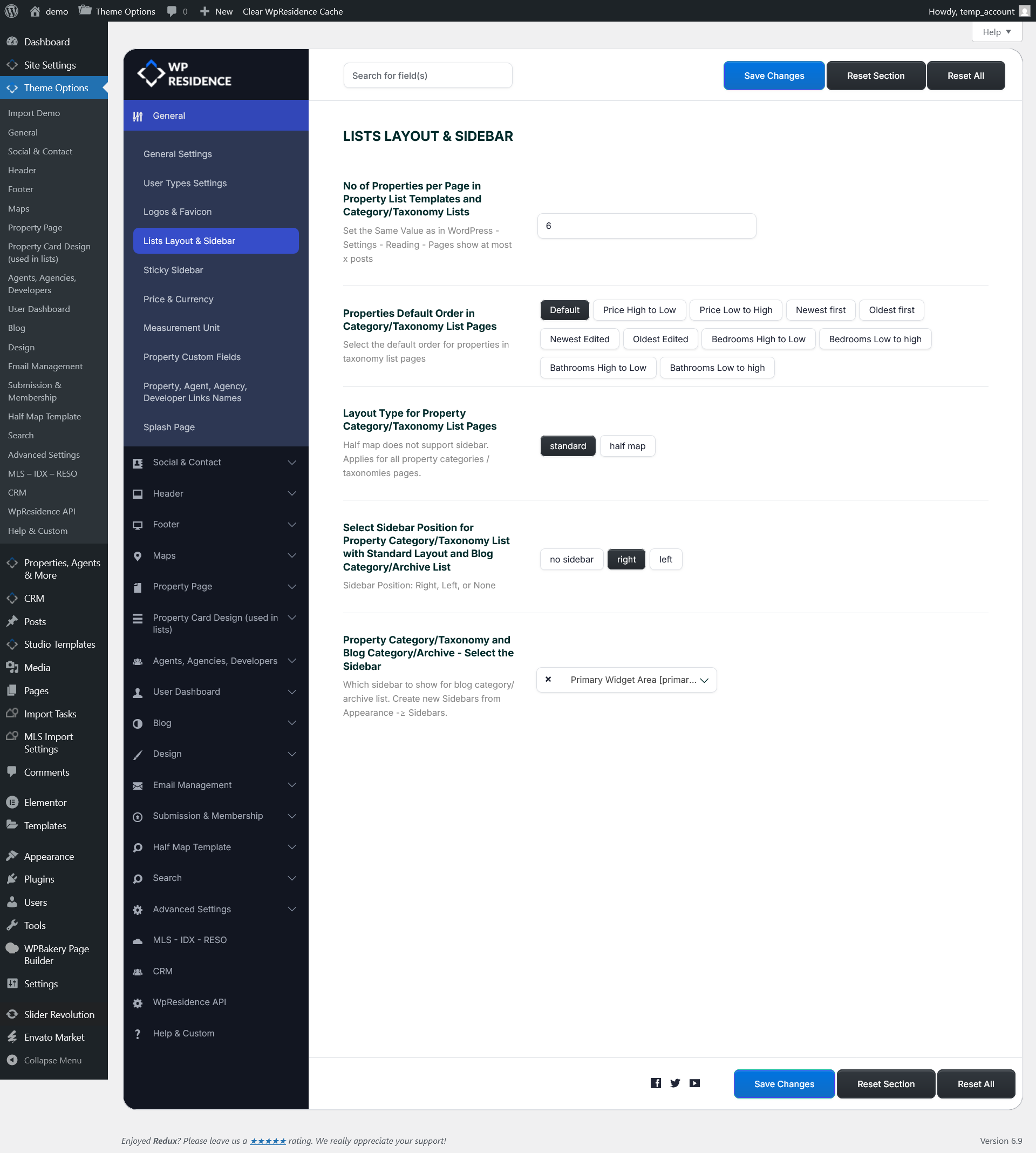
Number of Properties per Page in Property List Templates and Category/Taxonomy Lists
This option controls how many properties are displayed on each page of results when visitors browse:
property list templates, property category pages, and property taxonomy archive pages.
Behind the scenes, WPResidence uses WordPress’s default pagination system. Because of that, this value should match the WordPress setting found in: Settings → Reading → “Blog pages show at most”.
When these values match, pagination behaves consistently and you avoid common issues like duplicated pages, missing results, or navigation that looks correct but loads unexpected content.
This setting does not affect Elementor widgets, shortcodes, or custom templates that define their own “number of items” directly.
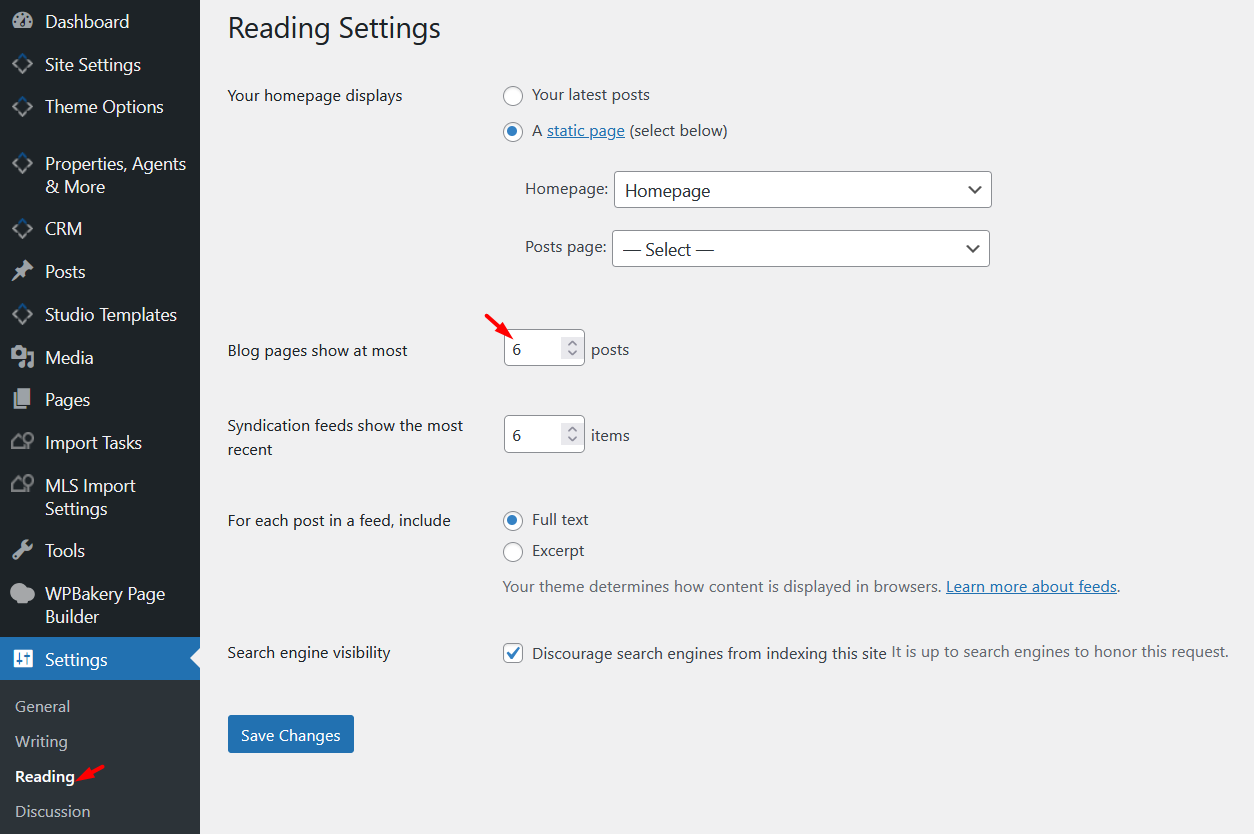
Important: If WPResidence “Number of properties per page” and WordPress “Blog pages show at most” are different, your list pages can paginate incorrectly.
Properties Default Order in Category / Taxonomy List Pages
This option determines the default sorting order used when visitors land on a property category or taxonomy list page.
It sets the initial order before the visitor applies any frontend sorting.
Available options:
- Default – Uses the theme’s default ordering.
- Price High to Low – Highest priced properties first.
- Price Low to High – Lowest priced properties first.
- Newest First – Most recently published properties first.
- Oldest First – Oldest published properties first.
- Newest Edited – Properties edited most recently appear first.
- Oldest Edited – Properties with the oldest edit date appear first.
- Bedrooms High to Low – More bedrooms first.
- Bedrooms Low to High – Fewer bedrooms first.
- Bathrooms High to Low – More bathrooms first.
- Bathrooms Low to High – Fewer bathrooms first.
If your visitors can sort results from the frontend (for example “Price” or “Newest”), that visitor choice overrides the default order after they select it.
Layout Type for Property Category / Taxonomy List Pages
This option controls the overall page layout used for property category and taxonomy archive pages.
You can choose between two structures:
Standard layout
The Standard layout displays properties in a classic list or grid format. It supports sidebars, and it behaves like a normal archive page.
Use this layout when you want a traditional browsing experience and want to display widgets (filters, featured properties, contact widgets, etc.) inside a sidebar.
Half Map layout
The Half Map layout splits the page into two parts: a map and a property list. It is designed for visitors who browse primarily by location.
Pins on the map are synchronized with the properties shown in the list.
WPResidence does not support a sidebar on Half Map layout pages. This is not a styling choice – it is a structural limitation of how the Half Map template is built.
If you want to learn how the Half Map list works and what its requirements are, see:
Select Sidebar Position for Property Category/Taxonomy List with Standard Layout and Blog Category/Archive List
This setting controls where the sidebar appears on:
- Property category and taxonomy list pages using Standard layout
- Blog category and blog archive pages
Available options:
- No Sidebar – Content displays full width.
- Right – Sidebar appears on the right side.
- Left – Sidebar appears on the left side.
Note: Sidebar position applies only to pages that actually support sidebars. Half Map layout pages do not use sidebars.
Property Category/Taxonomy and Blog Category/Archive – Select the Sidebar
This option controls which sidebar widget area is used on Standard layout taxonomy pages and blog archive pages.
You can select an existing sidebar from the dropdown. If you need a new sidebar area, create it from:
Appearance → Widgets → Sidebars.
This is useful when you want different widget setups for different contexts, for example:
- A “Property Filters” sidebar for property category pages
- A different sidebar for blog archives
- A minimal sidebar for specific browsing pages
How to save or reset these settings
When you change any option in this panel, make sure you save your changes before testing on the frontend.
- Adjust the settings inside the Lists Layout & Sidebar section.
- Click Save Changes (top right) to apply the updates.
- Use Reset Section to revert only this section to defaults.
- Use Reset All only if you want to reset all WPResidence theme options.