
Once WPResidence Translate is active, the WordPress admin post list (for posts, pages, properties, agents, agencies, developers, and any translatable custom post type) gains a set of controls designed to make multilingual editing fast. This article walks through every addition from a site editor’s perspective. If you are running a multi-language real estate website, these are the controls you will use the most.

The Language Column
WPResidence Translate injects a new Language column into every translatable post type’s list screen. Each row shows one icon per active language:
- Filled flag — a translation in that language exists. Click to jump directly to its editor.
- Flag with a plus icon — no translation yet. Click to create a fresh draft translation cloned from the current row.
- Highlighted flag — the current row is that language’s version.
- Warning badge — the translation exists but is flagged as Needs Update because the original changed after the translation was created.
The column is the quickest place to:
- See at a glance how complete your translations are.
- Launch new translation drafts without opening any post.
- Hop from one language version to another.
The Language Filter Dropdown
Above the table, next to the built-in date and category filters, a Languages dropdown is added. Options include:
- All languages (default).
- One entry per active language.
- Untranslated — shows source posts that are missing at least one translation.
Pick a language and click Filter to restrict the table to posts in that language. This is the single best way to audit where translation gaps are.

Language Views Above the Table
On top of the standard WordPress status views (All | Published | Draft | Trash), WPResidence Translate adds language-scoped quick links. Each language shows its own count of posts, so you can see “Published in French: 14” without running a custom filter.
Sortable Language Column
Click the Language column header to sort posts by language code. WPResidence Translate bends the default WordPress sort so the posts in the default language appear first; translations group below. This keeps original-language posts predictable in your list.
The Title Row — Translation Links
Below every post title, WPResidence Translate injects a small row of language links. Each link either opens an existing translation’s editor or kicks off the cloning workflow for a missing language — the same two actions as the Language column, but tied to the title row for easier scanning on narrow screens.
In-Editor Language Badge
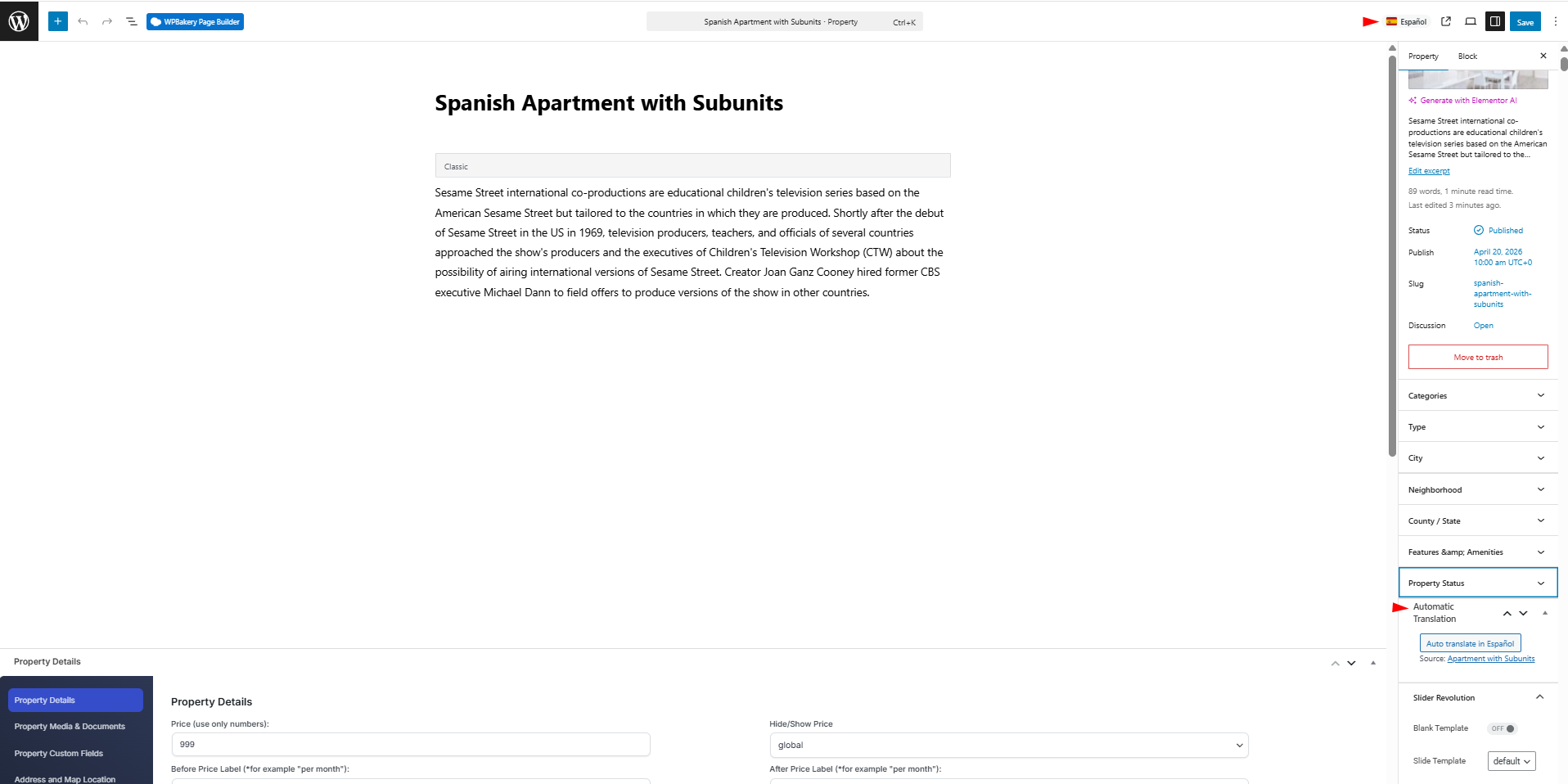
When you open a post for editing, the header shows a badge with the flag and name of the language that post is in. This is a safety cue so you never accidentally edit the wrong language version. The same badge also appears in the block editor header.
Behavior Behind the Scenes
You do not have to configure any of these enhancements — they appear automatically on every post type that is registered as public and translatable, including WPResidence custom post types: estate_property, estate_agent, estate_agency, estate_developer, posts, and pages.
Quick Workflow Tips
- Audit missing translations: open Posts > All Posts, pick Untranslated in the Language dropdown, filter, and work through the list top to bottom.
- Translate in bulk from the list: click plus icons row by row. Each click opens the newly cloned draft in a new tab if you Ctrl/Cmd-click.
- Find the Russian version of a property fast: filter by Russian in the Language dropdown, then sort by modified date.
- Spot posts needing a refresh: look for flags showing the needs update badge — those are drafts where the original has moved on since the translation was made.
Non-Latin Alphabets
The language column, filters, and title row fully preserve UTF-8 in language names and post titles. Cyrillic, Arabic, Hebrew, Chinese, Japanese, Korean, Thai, and Greek titles render without transliteration.
Capability Notes
- You see the column and filter if you can access the post list at all (usually Edit Posts).
- You can create new translations if you have Edit Posts on the source post.
- Language management (adding or removing languages) still requires manage_options.
Common Questions
Can I hide the Language column?
Yes — use the WordPress Screen Options panel in the top-right of the posts screen and uncheck Language. Your preference is saved per user.
Why do I see a plus icon for a language on only some rows?
That row has no translation in that language yet. Click to create one.
The language filter seems to show the same post twice.
Each language variant is a separate WordPress post. Filtering All languages shows every variant; filter by one language or use the language views above the table to see only one version of each.
What To Read Next
- Translating Posts & Pages — the full editor workflow.
- Translation Linking (trid system) — what links all variants together.
- WP_Query Language Filtering — how frontend queries behave with the same data.
For more on site-wide multilingual behavior, see our guide to a multi-language real estate website with WPResidence.