
The WPEstate Translate string scanner is the engine that discovers every translatable label on your site and registers it in the plugin’s database. Without a scan, the translation grid under Theme & Plugins Strings is empty. This article explains what gets scanned, what gets skipped, and how to re-run the scanner after changes. For the bigger picture, see our guide on building a multi-language real estate website.
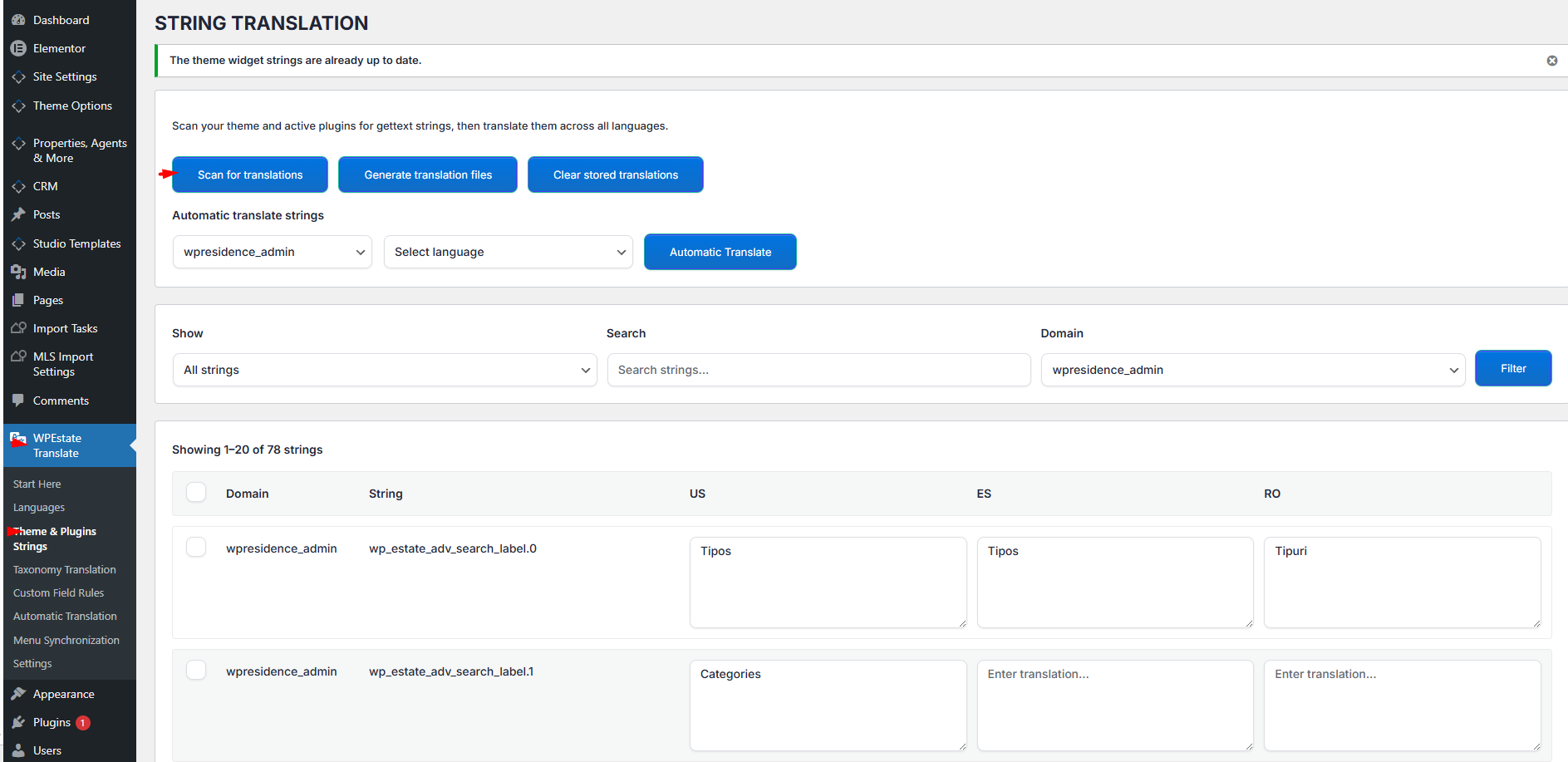
Where to Trigger a Scan
Go to WPEstate Translate → Theme & Plugins Strings and click Scan for translations. A confirmation banner reports how many new strings were registered (for example: “Scan completed. 427 new strings were registered.”).
What The Scanner Looks At
For each run, the scanner inspects three sources:
- Active (child) theme — reads all .mo and .po files in the theme’s languages/folder.
- Parent theme — if a child theme is active, the parent is scanned too, so you inherit its translations.
- Active plugins — any plugin that ships a language/directory. On a multisite, network-activated plugins are included automatically.
For every file the scanner pulls the source strings, any translations already shipped inside the file, and stores them in the plugin’s database. Non-Latin alphabets (Cyrillic, Arabic, Chinese, Japanese, etc.) are preserved byte-for-byte.
What The Scanner Skips
- Themes and plugins without a languages/ folder — the scanner has nothing to read.
- Single-file plugins (like hello.php) — these are intentionally skipped.
- Inactive plugins — only active/network-active plugins are examined.
- Files that are not .mo or .po.
If a plugin or theme has no translation files at all, its strings never appear in the grid. In that case, install its language pack (WordPress.org → Dashboard → Updates → Translations) or place a starter .po file in the relevant languages/ folder and rescan.
When To Re-Scan
The scanner is incremental. It records the most recent modification time of each target’s languages/ folder and skips untouched targets on subsequent runs. Re-run a scan whenever you:
- Activate or deactivate a plugin.
- Switch themes or activate a child theme.
- Update WordPress, the theme, or a plugin (because updates often add new strings).
- Add or remove a language under WPEstate Translate → Languages.
- Drop fresh .po files into a languages/ folder manually.
Scans are safe to run as often as you like. They do not delete existing translations — they only add new strings and refresh metadata for known ones.
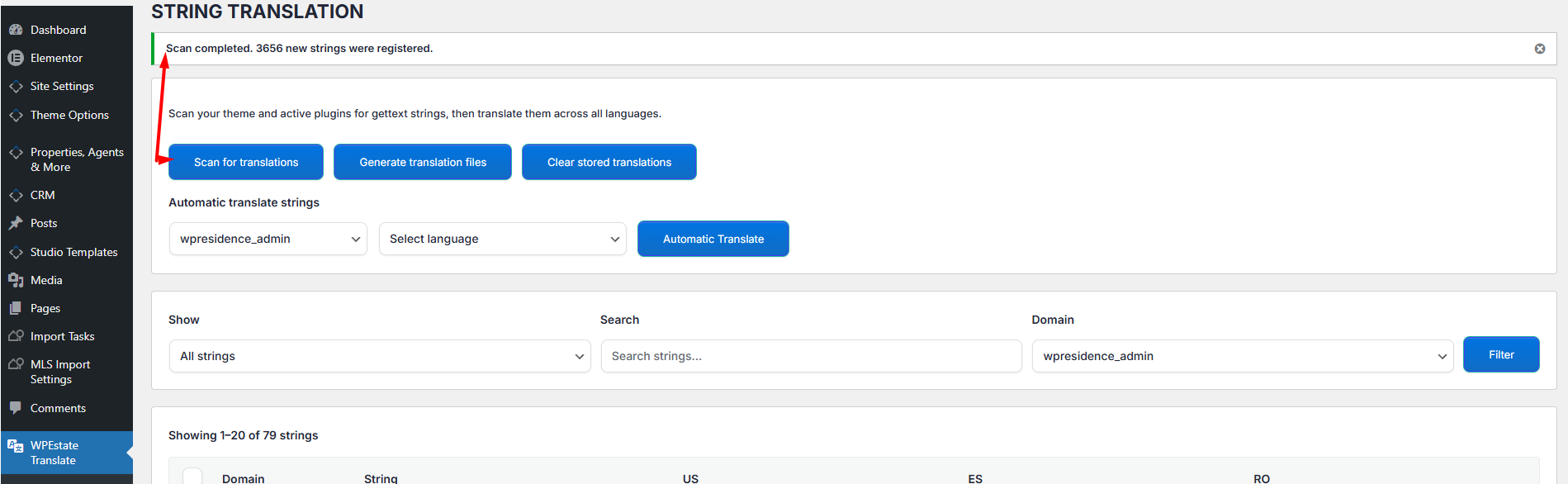
Forcing a Full Rescan
If you want to rebuild from nothing — for example after deleting obsolete strings — use Clear stored translations at the top of the page, then click Scan for translations again. This wipes the strings database and recreates it from what is currently on disk. Be aware: any translations you typed in by hand will be lost, so export or generate MO files first.
Child Theme Notes
The scan screen shows a status banner for translation-file discovery:
- Green — a child theme is active and has its own translations folder with .mp/.po files. Both child and parent translations are picked up.
- Red — a child theme is active but its languages folder is empty. Copy the files from the parent theme to keep your translations safe across updates.
- Amber — no child theme is active. Translation files come only from the parent theme and may be overwritten by theme updates.
Large Sites & Performance
On sites with many active plugins, an initial scan may take several seconds. Subsequent scans are much faster thanks to the per-target modification-time check. If your server times out, deactivate a few plugins temporarily, run the scan, then reactivate them.
Related Articles
- Translating Theme & Plugin Strings — the editor workflow after scanning.
- Gettext Pipeline & MO Files — how translations reach the front end.
For the product overview, see the multi-language real estate website page.