WP Residence Help WP Residence Help

  • WpEstate
  • WPRESIDENCE
  • Video Tutorials
  • Client Support
  • API
Home / 30. WPResidence Translate Plugin / Gettext & MO Files — Making Translations Appear on the Front End

Gettext & MO Files — Making Translations Appear on the Front End

9 views 0

Typing translations into the WPResidence Translate grid is only half the story. WordPress reads translated strings from compiled binary files called MO files, not from the database. This article explains what MO files are, where WPResidence Translate writes them, and what you need to do after editing strings so visitors see the translated interface. For the wider context of running a multilingual site, see our multi-language real estate website guide.

What Is an MO File?

MO stands for Machine Object. It is a compact binary lookup of original string → translated string pairs. WordPress loads one MO file per text domain (a short identifier used by themes and plugins) per locale. When a theme says __( 'Properties', 'wpresidence' ), WordPress looks up Properties inside the MO file for wpresidence in the current locale and returns the translated label.

Generating Files From Inside the Plugin

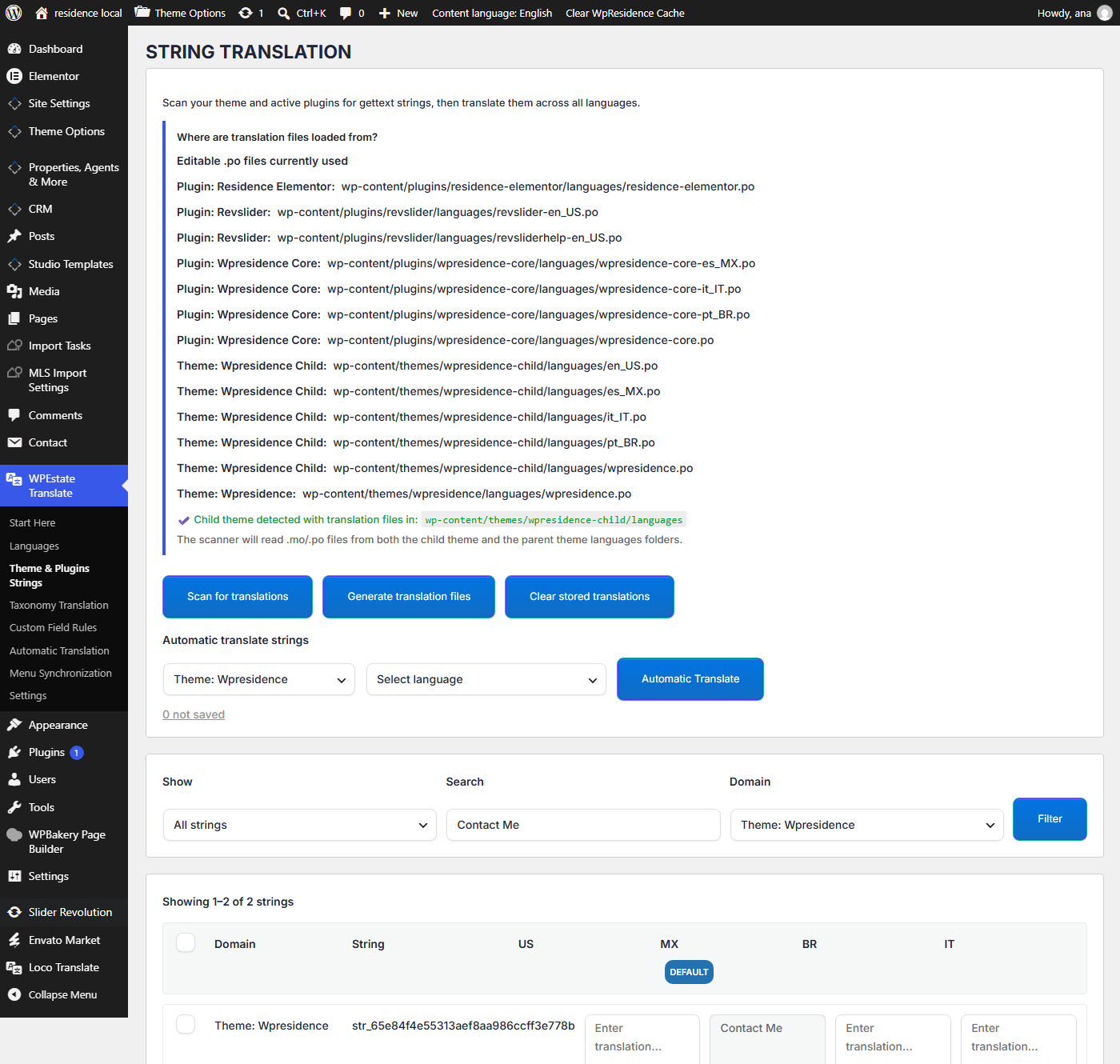
Go to WPEstate Translate → Theme & Plugins Strings and click Generate translation files. The plugin walks through every translation stored in its database and writes one <domain>-<locale>.mo file per language (for example wpresidence-fr_FR.mo, wpresidence-de_DE.mo).

A confirmation notice reports how many files were written and how many strings they cover. For example: “Generated 3 files covering 427 translations.”

Where the Files Are Saved

The plugin picks the first writable directory from this list:

  1. wp-content/themes/<your-child-theme>/languages/wpr/
  2. wp-content/themes/<parent-theme>/languages/wpr/
  3. wp-content/plugins/wpresidence-translate/languages/wpr/

Using a child theme is the safest choice because theme updates do not overwrite the languages/wpr/ folder there. If the preferred folder is not writable, the plugin falls back to the next candidate and records the chosen path. A front-end notice or log entry helps you diagnose permission issues if no candidate is writable.

When You Need to Regenerate

Regenerate MO files whenever:

  • You edit, add, or remove translations in the string grid.
  • You add a new language under Languages.
  • You import translations from another source (for example an updated PO file).
  • You finish a bulk automatic-translation run.

Without a fresh MO file, edits stay in the database but do not appear on the front end.

Why Some Strings Still Appear in English

If you translated a string but still see English on the site, work through this checklist:

  • Did you click Generate translation files after editing?
  • Is the visitor actually browsing in the target language (URL prefix correct, language cookie set)?
  • Does the source plugin declare the same text domain the scanner used? A plugin with a non-standard loader may need its own translations in the plugin’s own languages/ folder.
  • Is an object cache caching old translations? Flush caches via WPEstate Translate → Settings (Cache Purge tools).

Do You Still Need PO Files?

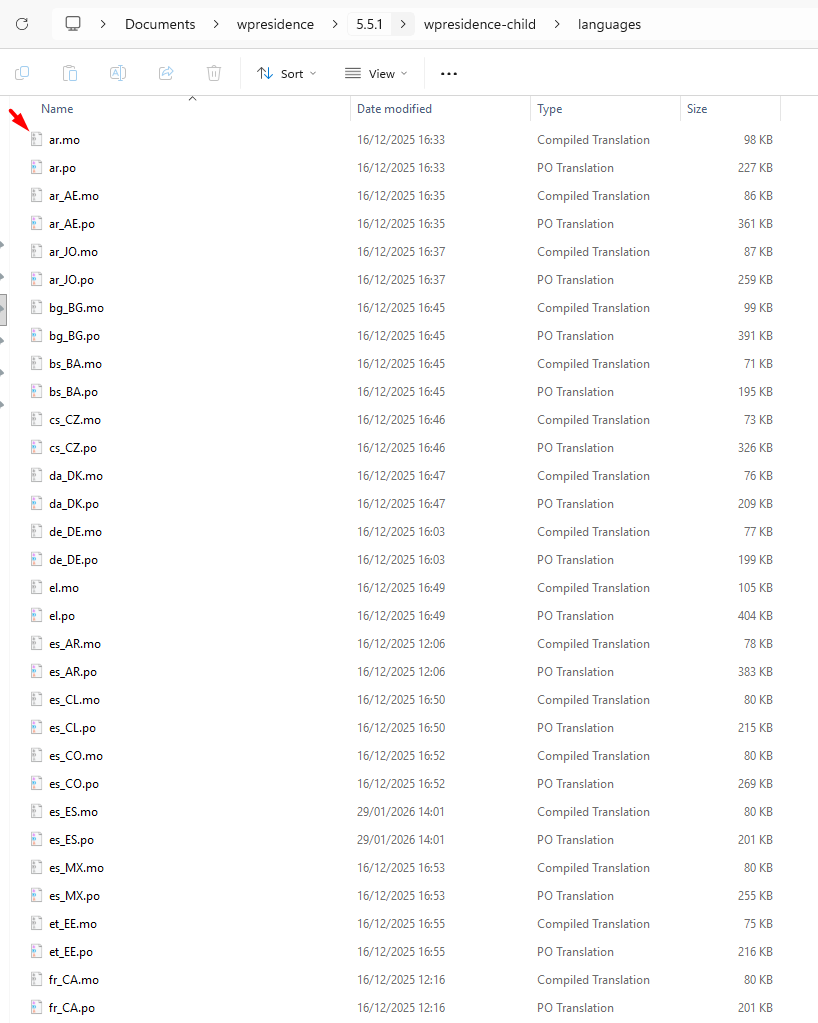
PO files (human-readable translation source files) are the standard way to ship translations with a theme or plugin. WPResidence Translate reads existing PO files during scanning and writes compiled MO files on export. If you want to keep hand-editable PO sources for version control or handover to a translator, continue to maintain them in the usual languages/ folder of the theme or plugin. The plugin’s workflow is an alternative, not a replacement.

Performance Notes

  • MO files are very fast – WordPress loads them once per request and caches them in memory.
  • Generation is cheap: it writes one binary per domain+locale pair, not one per string.
  • If the languages folder is in a child theme, updates to the parent theme will not touch your translations.

Related Articles

  • Translating Theme & Plugin Strings – the editor workflow.
  • String Scanner – how strings are discovered before compile.
  • Cache Purge & Reset Tools – when translations appear stale.

For the full multilingual story, see the multi-language real estate website page.

30. WPResidence Translate Plugin

Related Articles

  • String Scanner — Developer Guide
  • The String Scanner
  • Gettext Pipeline & MO Files — Developer Guide
  • Automatic Translation — Developer Guide

WP Residence Documentation

  • 01. Getting Started
    • How to Get Support
    • Get your buyer license code.
    • Use SSL / https
    • Server / Theme Requirements
  • 02. Installation & Setup
  • 03. Installation FAQ
  • 06. Search & Filtering
    • Advanced Search Display Settings
    • Advanced Search Form
    • Geolocation Search for Half Map
    • Save Search Theme Options
    • Advanced Search Colors
  • 09. Agent, Agency & Developers
  • 08. Property Pages & Layouts
  • 07. Property Lists, Categories & Archive
  • 13. WPResidence Elementor Studio
  • 10. Blog Posts & Blog List
  • 11. Shortcodes
    • Contact Form
    • Featured Agency/Developer
    • Membership Packages
    • Testimonials
    • Google Map with Property Marker
    • Listings per Agent, Agency or Developer
    • Display Categories
    • Agent List
    • Recent Items Slider
    • Recent items
    • List Properties or Articles by ID
    • Featured Agent
    • Featured Article
    • Featured Property
    • Login & Register Form
    • Icon Content Box Shortcode
  • 12. Widgets
  • 04. Theme Options & Global Settings
    • General Settings
    • User Types Settings
    • Appearance
    • Logos & Favicon
    • Header
    • Footer Style and Colors
    • Price & Currency
    • Property Custom Fields
    • Features & Amenities
    • Listing Labels
    • Theme Slider
    • Permalinks
    • Splash Page
    • Social & Contact
    • Map Settings
    • Pin Management
    • How read from file works
    • General Design Settings
    • Custom Colors Settings
    • Header Design & Colors
    • Mobile Menu Colors
    • User Dashboard Colors
    • Print PDF Design
    • Property, Agent, Blog Lists Design Settings
    • Sidebar Widget Design
    • Font management
    • How to add custom CSS
    • Custom Property Card Unit – Beta version
    • Email Management
    • Import & Export theme options
    • reCaptcha settings
    • YELP API Integration
    • iHomefinder Optima Express IDX
    • MEMBERSHIP & PAYMENT Settings
    • Property Submission Page
    • PayPal Setup
    • Stripe Setup
    • Wire Transfer Payment Method
  • 20. Translations & Languages
  • 26. FAQ
  • 10. Pages
  • 11. Header
  • 12. Footer
  • 05. Maps & Location Settings
  • 18. Payments & Monetization
  • Plugins
    • 19. Included Plugins
    • 22. Third Party Plugins – IDX Compatibility
    • 21. Third-Party Plugins – Multi-Language
    • 23. Third party Plugins – Other
  • Technical
    • 24. Technical how to | Custom Code Required
    • 25. Technical: Child Theme

Join Us On

Powered by WP Estate - All Rights Reserved
  • WpEstate
  • WPRESIDENCE
  • Video Tutorials
  • Client Support
  • API