WP Residence Help WP Residence Help

  • WpEstate
  • WPRESIDENCE
  • Video Tutorials
  • Client Support
  • API
Home / 30. WPResidence Translate Plugin / Managing Languages in WPResidence Translate

Managing Languages in WPResidence Translate

1 view 0

The Languages page is the control center for every language that appears on your WPResidence site. From here you pick which languages visitors can switch to, which one is the default, the flag shown in the switcher, and the order they appear in. This article walks through the screen field by field so you can configure a multi-language real estate website without guessing.

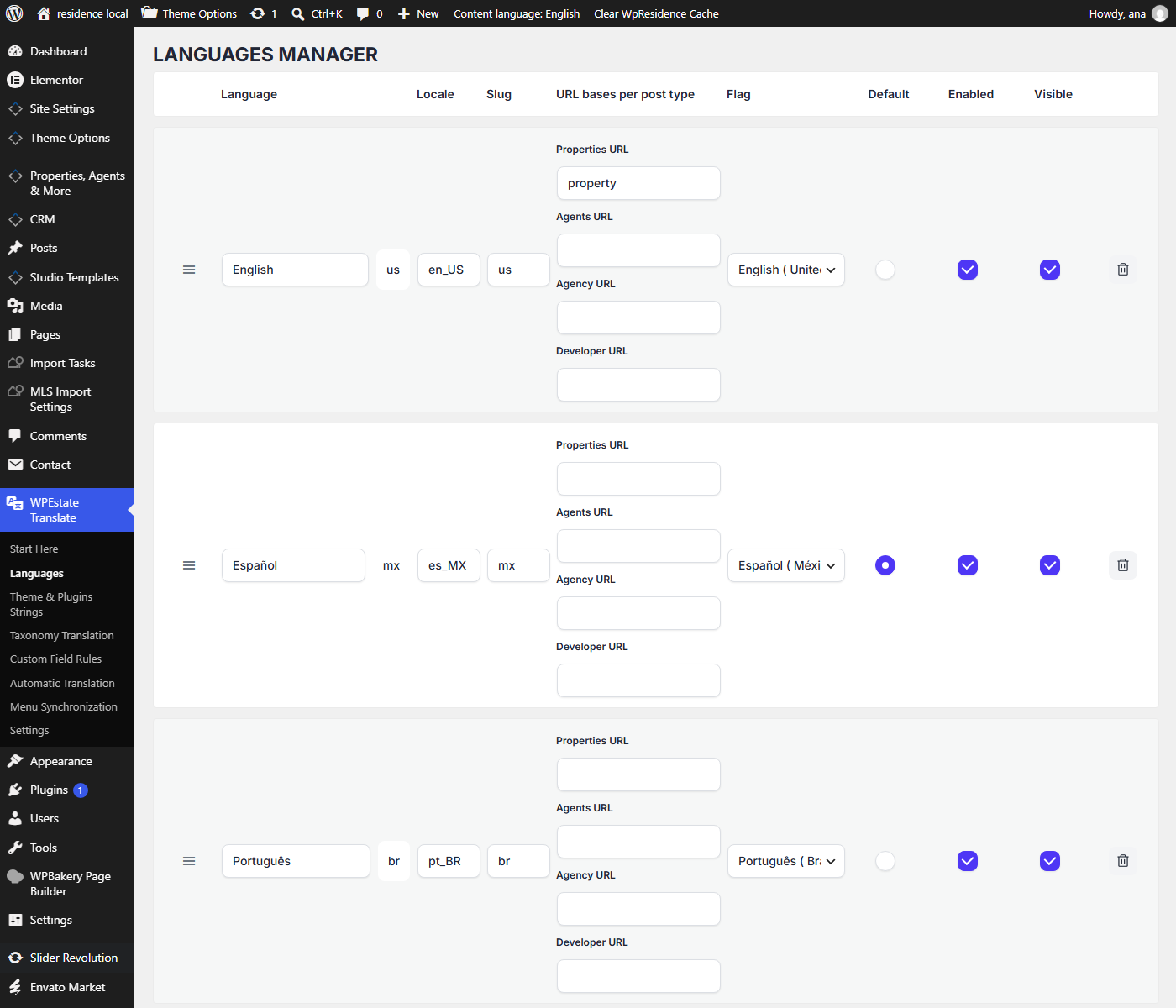
Screenshot: Languages Manager screen with several configured languages listed in a grid

Where to Find It

In the WordPress admin sidebar, open WPEstate Translate > Languages. You need the manage_options capability (administrator role) to see the page. The heading reads Languages Manager.

Adding a Language From the Catalog

WPResidence Translate ships with a built-in catalog of more than 200 languages, each preloaded with an ISO code, locale, slug, and flag icon. Adding one is a two-click process:

  1. Scroll to the Language catalog card below the languages grid.
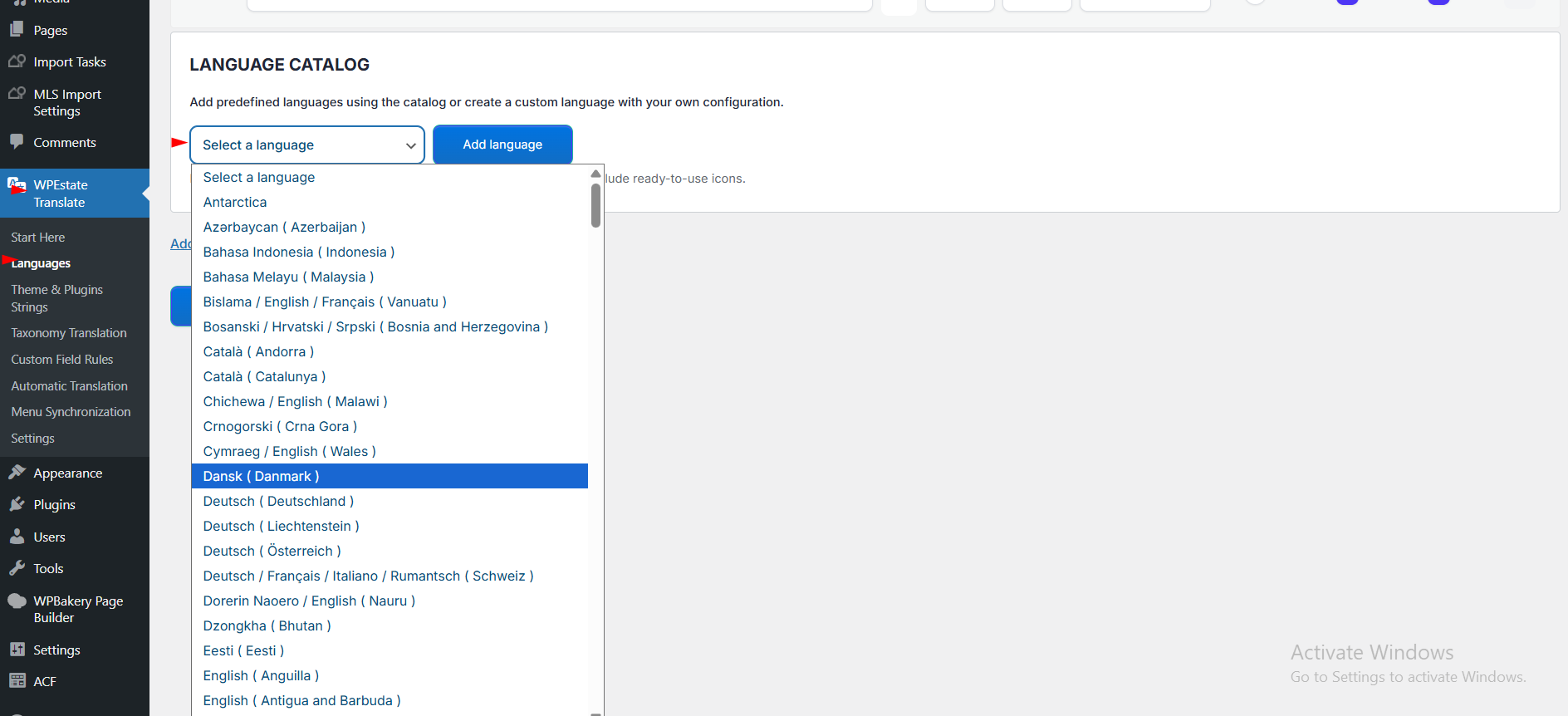
  2. Pick a language from the Select a language dropdown. Languages already added are greyed out.
  3. Click Add language. A new row appears at the top of the grid with the catalog values filled in.
  4. Click Save languages to persist the change.

Screenshot: Language catalog card with dropdown open showing ISO language options

Adding a Custom Language

If the language you need is not in the catalog, use the Add custom language link under the catalog card. A blank row is added where you fill in the fields manually. Custom languages support non-Latin names and slugs (Cyrillic, Arabic, Chinese, Greek, and so on) without modification.

Fields in the Languages Grid

Field What it does
Drag handle Grab the menu icon on the left of each row and drag up or down to reorder. The order here is the order languages appear in the frontend switcher.
Language Display name shown in switchers and admin lists. Free text, UTF-8 safe.
Language code Short ISO-style code, for example en, fr, de. Used in URLs and stored on every translated record.
Locale WordPress locale string such as en_GB or fr_FR. Drives gettext MO file loading and date formatting.
Slug Auto-generated URL segment based on the code. Read-only in the form.
Flag Dropdown of flag icons included with the plugin. Used next to the language name in the switcher.
Default Radio button — exactly one language can be the default. Content created without an explicit language is treated as being in the default language.
Enabled Checkbox that controls whether the language is active at all. Disabled languages are not used for routing, queries, or switching.
Visible Checkbox that controls whether the language is visible to frontend visitors. You can enable a language for admin-only work and hide it from the public switcher.
Remove Trash icon that removes the row. The change only takes effect after you click Save languages.

Setting the Default Language

The default language has two special behaviors:

  • It is the language assumed for any post or term that has no explicit language assignment.
  • Its URLs do not carry a language prefix — they use the clean site URL.

To change it, click the Default radio button on the target row and save. Only one language can hold this flag at any time.

Reordering Languages

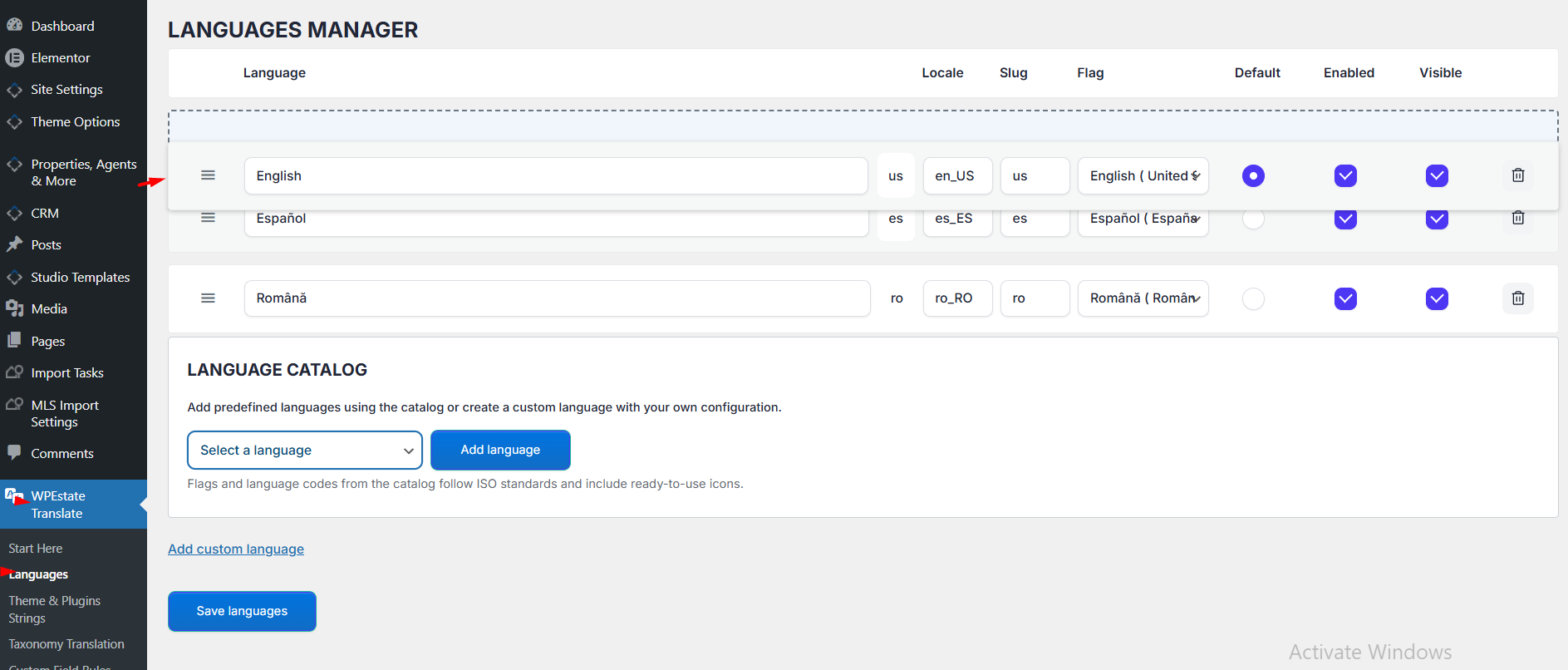
Grab the drag handle (menu icon) in the first column and move a row up or down. The order you set here controls:

  • The sequence of entries in the frontend Language Switcher widget.
  • The sequence of entries in the admin bar Content Language dropdown.
  • Tiebreaker order when resolving a browser preference during language detection.

Screenshot: Drag-and-drop reorder in action on the Languages Manager grid

Enabling vs Visible — What is the Difference

These two checkboxes look similar but do different things:

  • Enabled — the language is wired into the plugin. Disable it and the system forgets the language exists (no routing, no filtering, no switcher entry).
  • Visible — the language is wired in and shown to frontend visitors. Turn this off if you are preparing translations that are not ready for launch — editors can still work in that language from the admin, but visitors cannot switch to it.

Removing a Language

Clicking the trash icon removes the row from the grid. The change is only saved after you click Save languages. Removing a language does not delete the translated posts and pages created in that language — they remain in the database and can be reactivated later by re-adding the same language code.

Non-Latin Languages

Every field on this screen preserves UTF-8. You can enter language names in Cyrillic, Arabic, Greek, Hebrew, Chinese, Japanese, Korean, Thai, and more. Slugs are derived from the code (ASCII), but names and flags are rendered exactly as you type them.

Typical Setups

  • Bilingual site (English + one other): add both from the catalog, set English as default, keep both Enabled and Visible.
  • Staged rollout: add a third language but leave Visible unchecked until translations are complete. Editors can still prepare posts in that language.
  • Regional variants: add multiple English or Spanish variants with distinct locales (for example en_GB and en_US) to target different dates and spelling.

What Happens After You Save

  • The admin bar Content Language switcher updates immediately.
  • The frontend Language Switcher widget re-reads its list.
  • Permalinks for non-default languages start with the new language slug.
  • If you added the first extra language, translation UI appears in the post editor and the post list table.

For the full conceptual overview of how multilingual data flows through the plugin, see our guide to building a multi-language real estate website.

What To Read Next

  • Translating Posts & Pages — create your first translation variant.
  • Language Switcher Widget — let visitors pick their language on the frontend.
  • Admin Bar Language Switcher & Editor Header Selector — the two in-admin switchers.
30. WPResidence Translate Plugin

Related Articles

  • String Scanner — Developer Guide
  • The String Scanner
  • Gettext Pipeline & MO Files — Developer Guide
  • Gettext & MO Files — Making Translations Appear on the Front End

WP Residence Documentation

  • 01. Getting Started
    • How to Get Support
    • Get your buyer license code.
    • Use SSL / https
    • Server / Theme Requirements
  • 02. Installation & Setup
  • 03. Installation FAQ
  • 06. Search & Filtering
    • Advanced Search Display Settings
    • Advanced Search Form
    • Geolocation Search for Half Map
    • Save Search Theme Options
    • Advanced Search Colors
  • 09. Agent, Agency & Developers
  • 08. Property Pages & Layouts
  • 07. Property Lists, Categories & Archive
  • 13. WPResidence Elementor Studio
  • 10. Blog Posts & Blog List
  • 11. Shortcodes
    • Contact Form
    • Featured Agency/Developer
    • Membership Packages
    • Testimonials
    • Google Map with Property Marker
    • Listings per Agent, Agency or Developer
    • Display Categories
    • Agent List
    • Recent Items Slider
    • Recent items
    • List Properties or Articles by ID
    • Featured Agent
    • Featured Article
    • Featured Property
    • Login & Register Form
    • Icon Content Box Shortcode
  • 12. Widgets
  • 04. Theme Options & Global Settings
    • General Settings
    • User Types Settings
    • Appearance
    • Logos & Favicon
    • Header
    • Footer Style and Colors
    • Price & Currency
    • Property Custom Fields
    • Features & Amenities
    • Listing Labels
    • Theme Slider
    • Permalinks
    • Splash Page
    • Social & Contact
    • Map Settings
    • Pin Management
    • How read from file works
    • General Design Settings
    • Custom Colors Settings
    • Header Design & Colors
    • Mobile Menu Colors
    • User Dashboard Colors
    • Print PDF Design
    • Property, Agent, Blog Lists Design Settings
    • Sidebar Widget Design
    • Font management
    • How to add custom CSS
    • Custom Property Card Unit – Beta version
    • Email Management
    • Import & Export theme options
    • reCaptcha settings
    • YELP API Integration
    • iHomefinder Optima Express IDX
    • MEMBERSHIP & PAYMENT Settings
    • Property Submission Page
    • PayPal Setup
    • Stripe Setup
    • Wire Transfer Payment Method
  • 20. Translations & Languages
  • 26. FAQ
  • 10. Pages
  • 11. Header
  • 12. Footer
  • 05. Maps & Location Settings
  • 18. Payments & Monetization
  • Plugins
    • 19. Included Plugins
    • 22. Third Party Plugins – IDX Compatibility
    • 21. Third-Party Plugins – Multi-Language
    • 23. Third party Plugins – Other
  • Technical
    • 24. Technical how to | Custom Code Required
    • 25. Technical: Child Theme

Join Us On

Powered by WP Estate - All Rights Reserved
  • WpEstate
  • WPRESIDENCE
  • Video Tutorials
  • Client Support
  • API