
When your site has two or more languages, WPEstate Translate adds two small controls to wp-admin. The Content language menu in the top admin bar chooses which language you see in the admin lists, and the language badge in the block editor shows the language of the post you are editing.
The Content Language Menu in the Admin Bar
The menu sits in the top admin bar and reads Content language: followed by the language you work in, for example Content language: English.

- Hover over Content language in the admin bar.
- Click a language. The same admin page reloads.
- Work in the lists. Properties, agents, pages, posts, categories and the other translatable lists now show the items of that language.
Your choice is saved on your user account, so it stays after you log out, and every admin can work in a different language. Until you pick one, the menu shows the default language set in Languages.
This menu changes the content you see, not the language of wp-admin. Menus, buttons and screen titles follow the language in your WordPress user profile.
The Language Badge in the Editor
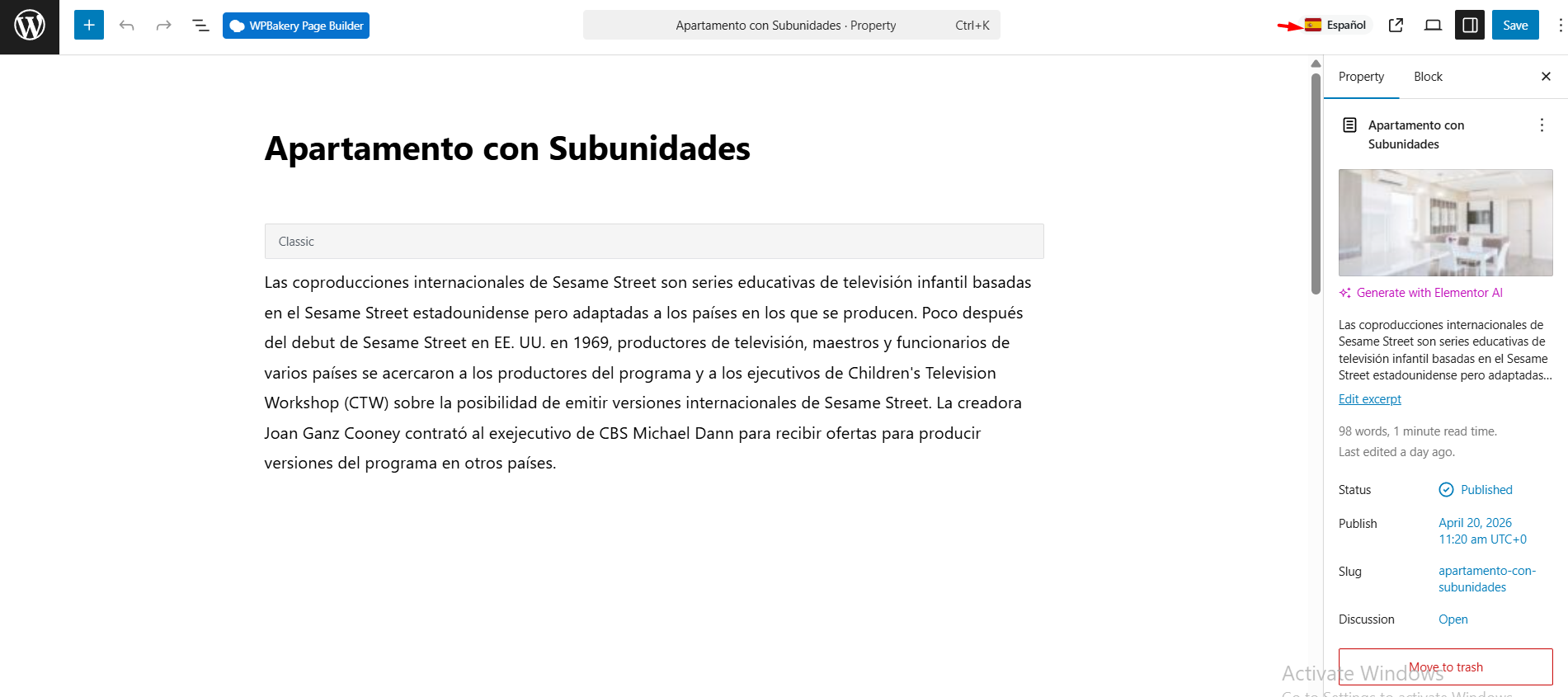
In the block editor, a flag and the language name appear at the top right, next to the Save button. They show the language of the post, property, agent or page you are editing.
| You open | The badge shows |
|---|---|
| An existing post or translation | The language saved on that post. A Spanish translation always shows Español, whatever the Content language menu says. |
| A new post (Add New) | The default language |
Check the badge before you publish or run an automatic translation, so you know which language you are changing. The badge is for information only. To add or link translations, see Translating Posts and Pages.
Who Sees the Two Controls
| Control | Shown when |
|---|---|
| Content language menu | At least two languages are enabled in WPEstate Translate > Languages and the user can edit posts (Contributor or higher). |
| Editor language badge | Any user who can open the post editor. |
Languages show with the names typed in WPEstate Translate > Languages, so Arabic, Greek, Cyrillic or Chinese names appear as written.
Troubleshooting
- The Content language menu is missing. Only one language is enabled, or your user role cannot edit posts. Enable a second language in WPEstate Translate > Languages.
- A list looks empty. The Content language menu is set to a language with no translations yet. Pick the default language.
- The badge has no flag. Choose a flag for that language in the Flag column of WPEstate Translate > Languages.
To let visitors change the language on the front end, see The Language Switcher.