
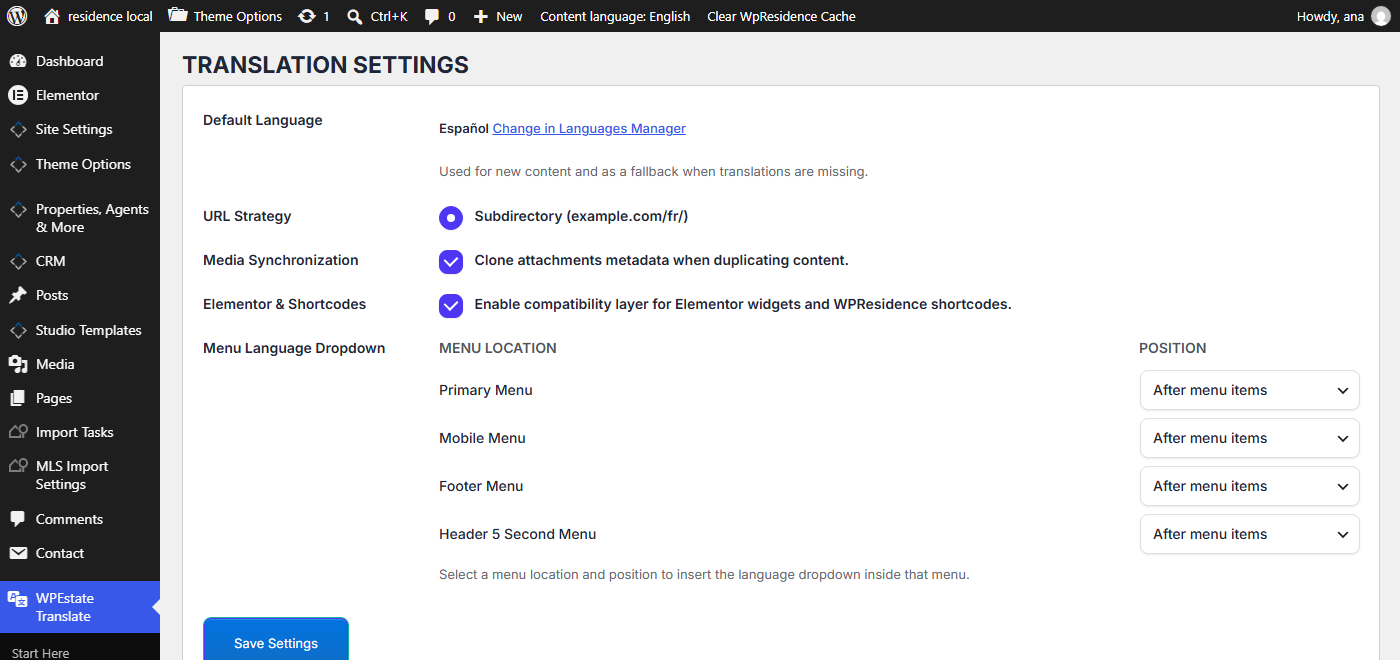
WPEstate Translate > Settings holds the options that apply to the whole site, plus the reset and delete tools. You set most of them once. This article explains each option on the screen, which is titled Translation Settings. Only administrators can open it.
The Options
| Option | What it does |
|---|---|
| Default Language | Shows the default language, read-only. New content uses it, and it is the fallback when a translation is missing. To change it, click Change in Languages Manager and tick Default for another language there. See Managing Languages. |
| URL Strategy | Subdirectory (example.com/fr/) is the only mode. The default language has no prefix, each other language gets its own. See URL Structure and Permalinks. |
| Media Synchronization | Clone attachments metadata when duplicating content. When ticked, a new translation gets the same featured image and gallery as the original. Untick it if each language should have its own images. On for new installs. |
| Elementor & Shortcodes | Enable compatibility layer for Elementor widgets and WPResidence shortcodes. When ticked, widgets and shortcodes on a translated page use the translated version of the properties, agents, pages and search forms they point to. Keep it on. See Shortcode and Widget ID Remapping. |
| Menu Language Dropdown | Adds the language dropdown inside a menu. See below. |
Click Save Settings after changes.
Menu Language Dropdown
Each menu location of the theme has its own row, for example Primary Menu, Mobile Menu and Footer Menu.
- Choose the Position for each location: No dropdown, Before menu items or After menu items.
- Click Save Settings.
If the theme has no menu locations, the screen shows No menu locations are registered by the theme. Other ways to add the switcher are in The Language Switcher.
Reset Translation Settings
The second box on the screen starts the plugin over. It deletes the language list, all settings, the automatic translation settings and API keys, your Custom Field Rules changes, the language switcher settings and all string translations. Translated posts and terms stay as normal WordPress content.
- Back up the site.
- Click Reset Translation Settings and confirm.
- Add your languages again in WPEstate Translate > Languages. Only the site language is there after the reset.
Delete Translations
The last box removes the translated copies of one language and never touches the originals:
- Delete Translated Posts: choose the post types and the language.
- Delete Translated Terms: choose the taxonomies and the language.
The deletion is permanent. Step by step: Cache Purge and Reset Tools.
Settings on Other Screens
| What you are looking for | Where it is |
|---|---|
| Languages, the default language, flags, URL names | WPEstate Translate > Languages |
| Translation services and API keys | WPEstate Translate > Automatic Translation |
| Which taxonomies are translated | WPEstate Translate > Taxonomy Translation |
| Copy or translate rules for custom fields | WPEstate Translate > Custom Field Rules |
| Copying one menu into its translation | WPEstate Translate > Menu Synchronization |
| Style of the language switcher | Theme Options > Header > Language Switcher |