
What the Half Map Template options control
The Half Map Template section controls how Half Map pages look and behave across WPResidence.
Half Map layouts show a map and a list of properties on the same page, designed for visitors who browse by location.
These options are mainly about layout and presentation:
- whether the search bar is visible,
- which Half Map search layout is used,
- how many fields fit per row,
- which view opens by default,
- where the map sits (left or right),
- and whether the footer is displayed.
Important: These options do not replace your search field configuration. They control how the Half Map layout is displayed and how the search bar is arranged visually.
If you are looking for a full walkthrough of creating a Half Map page and how it works with pins and listings, see:
Properties List Half Map Page.
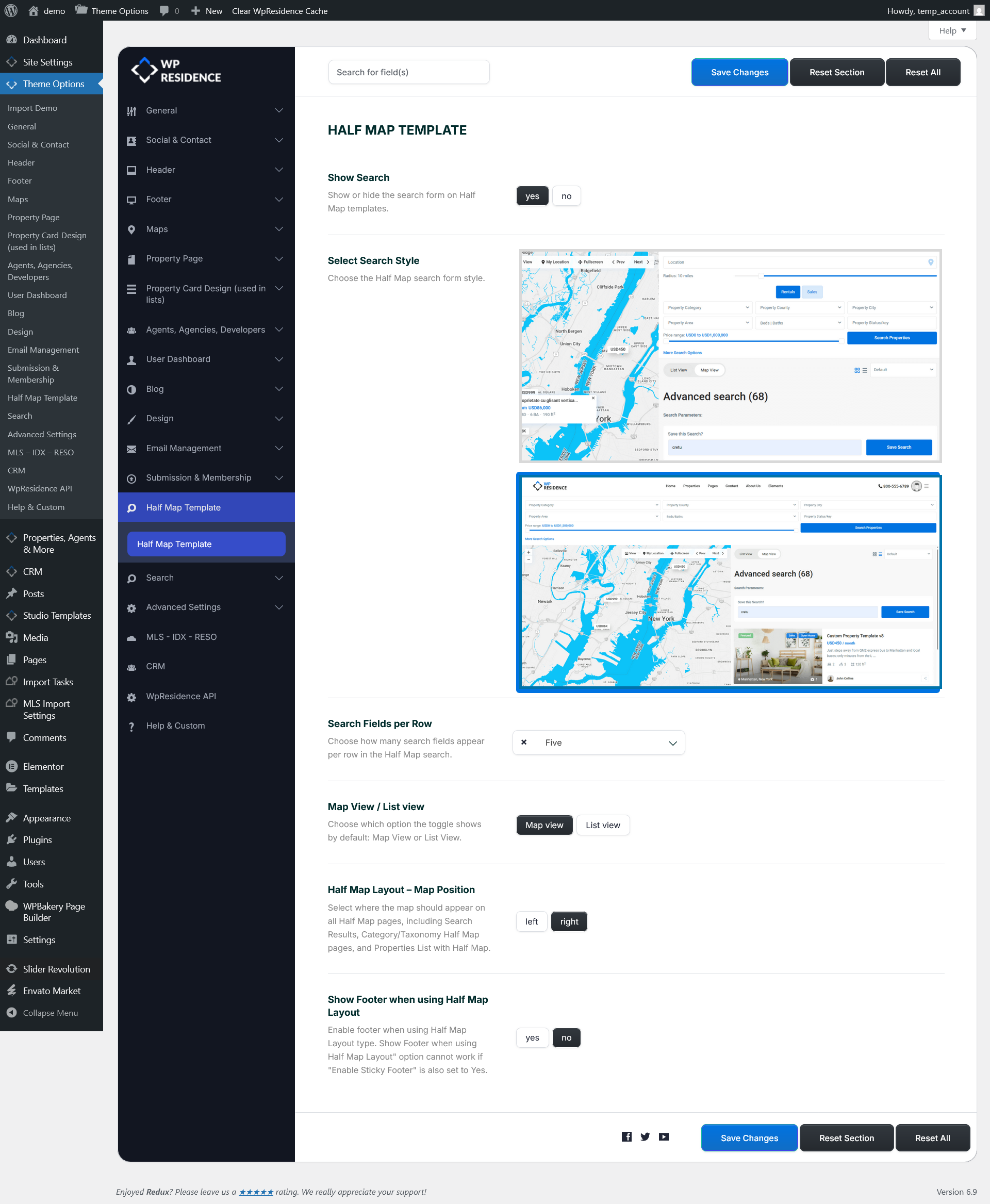
Show Search (Yes/No)
This option shows or hides the search form on Half Map templates.
- Yes shows the search bar on Half Map pages.
- No hides the search bar completely, leaving only the map and the property list.
Use No when you want a cleaner browsing layout and you already provide filtering elsewhere (for example via navigation links, category pages, or pre-filtered pages).
Use Yes when you want visitors to actively refine results on the Half Map page.
Tip: Showing the search is recommended for most real estate sites, because the Half Map layout is most useful when visitors can filter and immediately see both the list and the map pins update.
Select Search Style
This option selects the visual style of the Half Map search bar.
WPResidence provides different Half Map search layouts (as shown by the preview images in the option panel).
Changing the style here affects how the search bar is positioned and presented, for example:
- whether the search is displayed as a compact bar or a larger panel
- whether the layout appears more “header-like” versus more “page-integrated”
- how the map and list area visually align with the search form
Important: Selecting a search style does not change which fields are inside the search form. It only changes the layout used to display the search form on Half Map pages. The actual fields and filtering logic are controlled from the Search settings (see the section Where to change the search logic).
Search Fields per Row
This option controls how many search fields appear on each row of the Half Map search form.
For example, setting it to Five means WPResidence will try to fit five search fields on one row before wrapping to a new line.
This is a layout control that helps you balance compactness and readability:
- Choose a higher number if your fields are short and you want a compact search bar.
- Choose a lower number if your fields have longer labels, longer dropdown values, or you want a cleaner visual spacing.
The final appearance can also depend on the active search style, your site width, and the labels used for each field.
Map View / List View (default view)
Half Map layouts often include a toggle that allows visitors to switch between Map View and List View.
This option controls which view is selected by default when the page first loads.
- Map view opens with the map as the primary focus.
- List view opens with the property list as the primary focus.
In most cases, Map view is the expected default for Half Map pages because it highlights the location-first browsing experience.
If your audience is more list-focused (for example, heavy filtering and comparing details), List view can be a better starting point.
Half Map Layout: Map Position (Left/Right)
This option controls where the map appears in the Half Map layout:
- Left places the map on the left side and the property list on the right.
- Right places the map on the right side and the property list on the left.
This setting applies across Half Map pages, including:
- Half Map search results pages
- Category and taxonomy pages if they are set to Half Map layout
- Properties List pages that use the Half Map list template
Show Footer when using Half Map Layout (Yes/No)
This option enables or disables the footer on Half Map layout pages.
Half Map pages often keep the map fixed while the list scrolls, so the footer can be optional depending on the design you want.
- Yes shows the footer on Half Map pages.
- No hides the footer on Half Map pages.
Important: The Half Map footer option can conflict with a sticky footer setup. If you have an option like Enable Sticky Footer enabled elsewhere in your theme settings, the Half Map footer behaviour may not work as expected. In that case, disable sticky footer first, then re-test the Half Map footer setting.