
What the Import Locations option does
The Import Locations option in WPResidence helps you create location terms in bulk by uploading a CSV file. This is useful when you want to prepare your location structure in advance instead of adding cities, areas, and states one by one from the dashboard.
The import works with the location hierarchy used by the theme:
State, City, Area
After import, these terms can be used in property submission, search forms, filters, and location-based archive pages.
Where to find Import Locations
You can find this option in:
WPResidence Site Settings > Import Locations
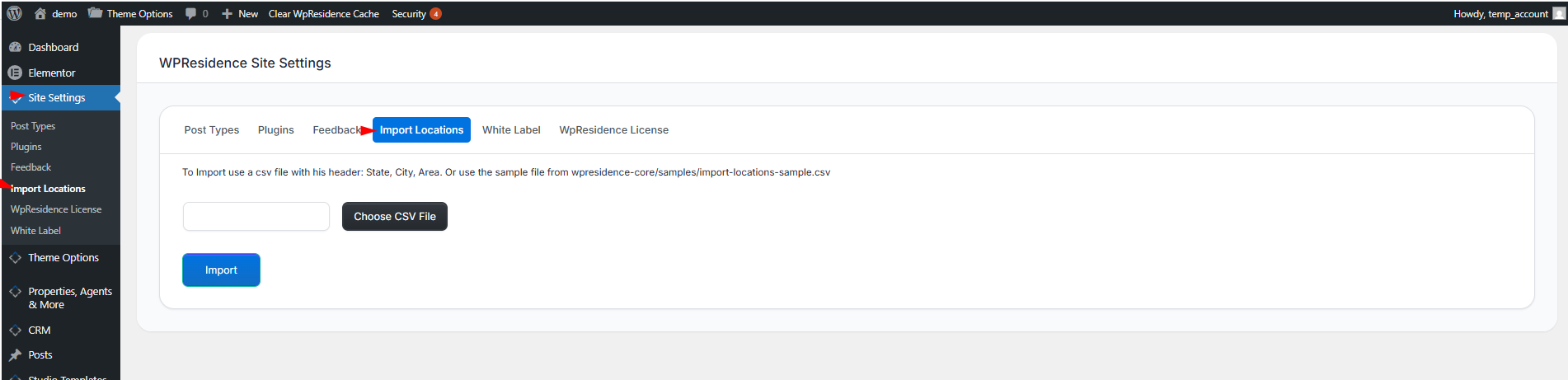
CSV file requirements
To use the import correctly, the CSV file must include this exact header:
State, City, Area
The column order matters, so the file should follow exactly the same structure.
Each row in the CSV should represent one complete location combination.
Example:
| State | City | Area |
|---|---|---|
| California | Los Angeles | Beverly Hills |
| California | Los Angeles | Hollywood |
| Florida | Miami | Brickell |
Sample CSV file
If you do not already have a CSV file prepared, you can use the sample file included with the core plugin:
wpresidence-core/samples/import-locations-sample.csv
How to import locations
- Go to WPResidence Site Settings in your WordPress dashboard.
- Open the Import Locations tab.
- Click Choose CSV File and select your prepared CSV file.
- Click Import.
The system will read the file and create the location terms from the CSV rows.
Important notes before importing
Make sure the CSV file uses the exact required header:
State, City, Area
If the header is different, the import may not work correctly.
Make sure the values are clean and consistent. For example, if one row says New York and another says new york, the imported result may not be organized the way you expect.
It is also best to avoid duplicate rows in the CSV file.
Before importing, check that the file is saved as a valid CSV and does not include empty rows or formatting issues.
What happens after import
Once the import is complete, the new location terms become available in the WPResidence location taxonomy.
You can then use these locations in:
- search forms
- property filters
- property submission fields
- location archive pages
- location selection when editing or adding properties
If locations do not appear as expected
If the import finishes but the locations do not appear correctly, check the following:
- Make sure the CSV file uses the exact required header.
- Confirm the file is saved as a valid CSV format.
- Check that there are no empty rows or formatting issues.
- Review whether some location terms already exist on the website, because existing terms can affect the final structure.
Recommended workflow
A good practice is to import your location structure before adding a large number of properties. This helps keep the city, area, and state taxonomy organized from the start and makes search setup easier later.
If you plan to use locations in the search form, import them first, then configure the search fields to use the location taxonomy structure.