
WPResidence includes integration with Advanced Custom Fields, so ACF fields assigned to Property can also appear in the theme’s Property Custom Fields area and be used together with the theme’s property field structure.
This is useful when you want to manage additional property data with ACF while keeping those fields connected to WPResidence property pages and related theme functionality.
1. Install ACF and create your field group
First, install and activate the Advanced Custom Fields plugin.
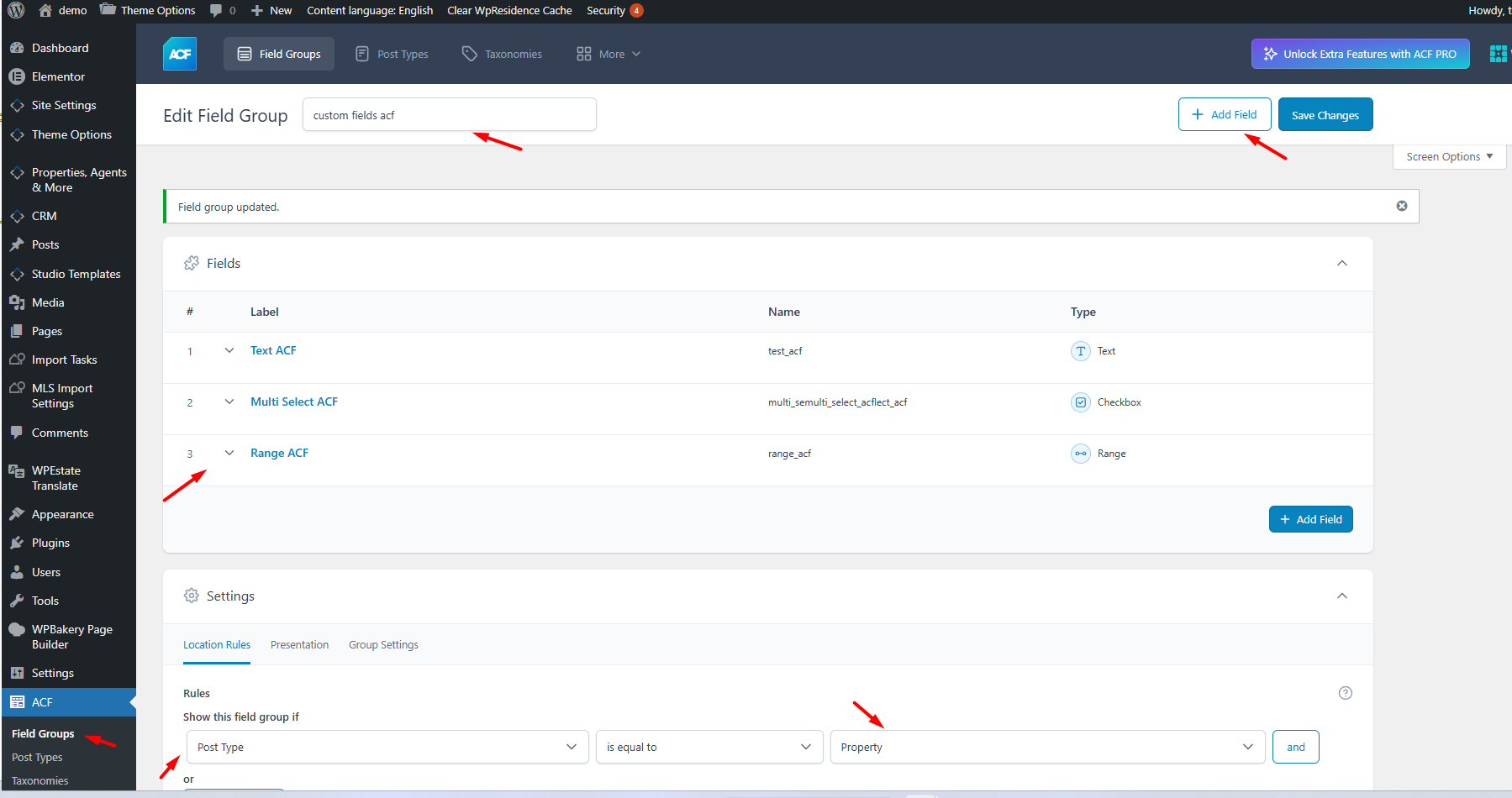
Then go to ACF → Field Groups and create your field group.
When creating the field group, make sure the Location Rules are set to:
Post Type → is equal to → Property
This is important because WPResidence will only recognize ACF fields that are assigned to the Property post type.
After adding your fields, click Save Changes in ACF.
2. Enable ACF fields inside WPResidence
Go to:
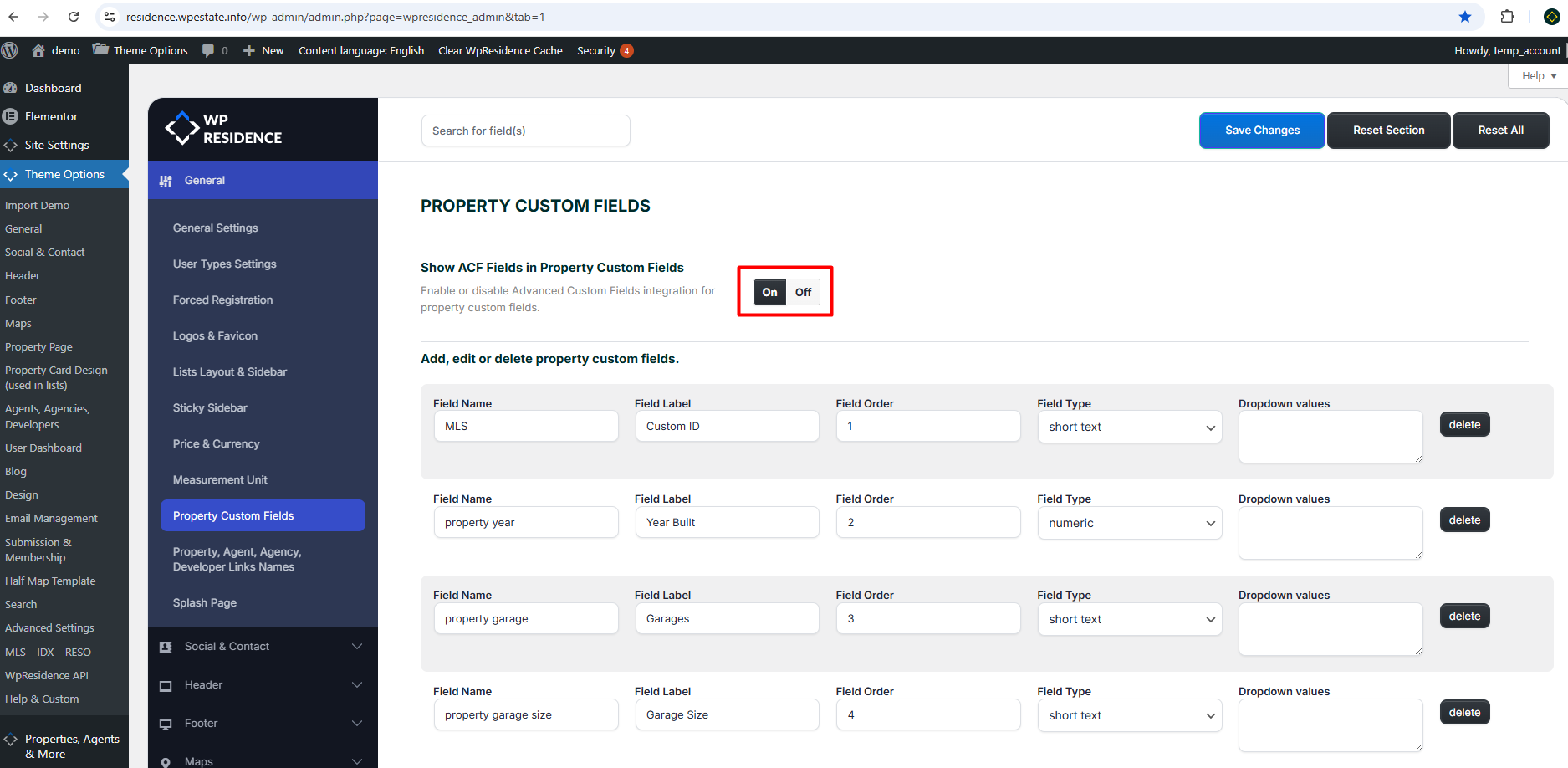
Theme Options → Property Custom Fields
There you will find the option:
Show ACF Fields in Property Custom Fields
Set this option to On and save changes.
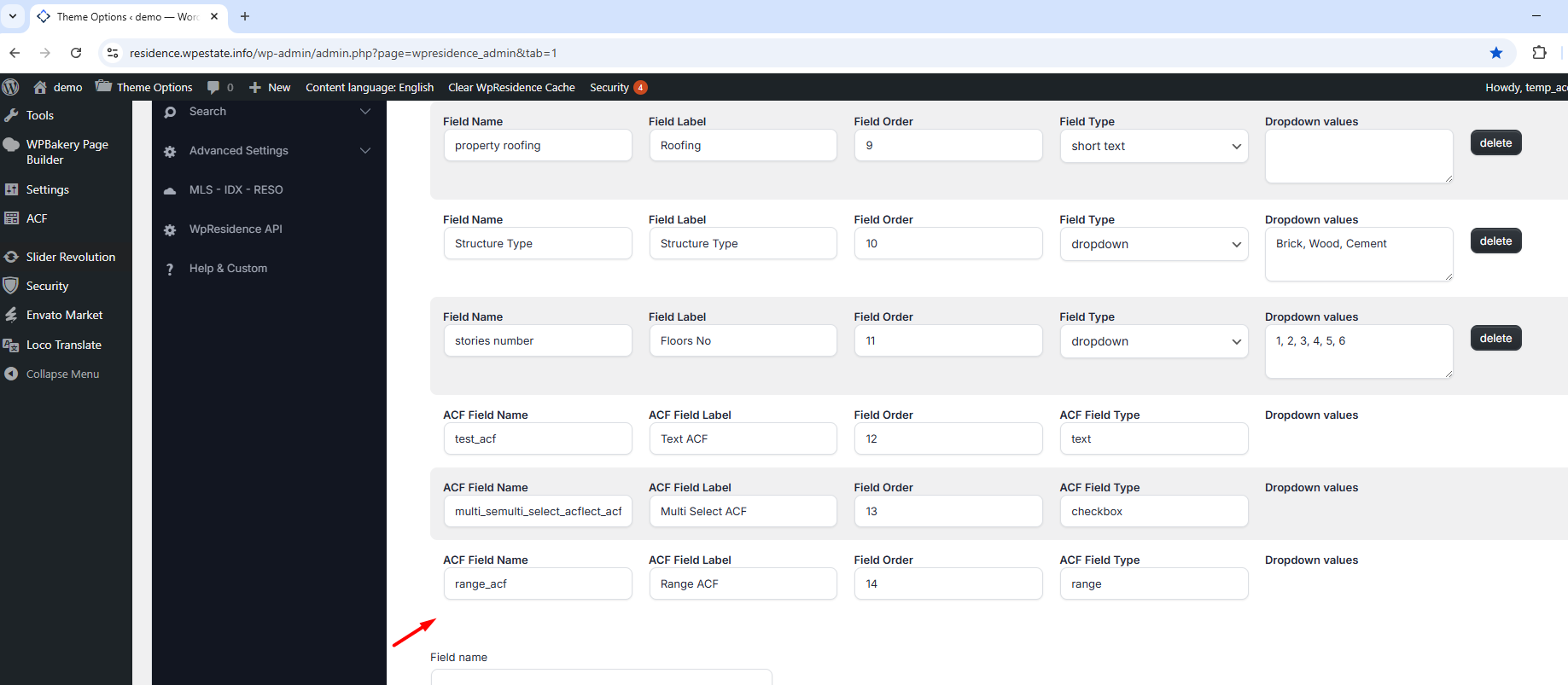
Once enabled, the ACF fields assigned to the Property post type will appear in the WPResidence Property Custom Fields list together with the standard theme custom fields.
In the example shown, the ACF fields appear in the list with labels such as Text ACF, Multi Select ACF, and Range ACF.
3. What this integration does
When ACF integration is enabled, WPResidence reads the ACF fields attached to Property and includes them in the Property Custom Fields area, but they are transformed into WPResidence supported fields.
This allows those fields to become part of the property field structure recognized by the theme.
The integration works best when the ACF field type and stored value format are compatible with what WPResidence expects for property fields.
Simple field types are usually the safest option. More advanced field types may appear correctly in the list, but you should always test how they behave on the front end, in searches, and in property display areas.
4. Important note about displaying ACF values with shortcode
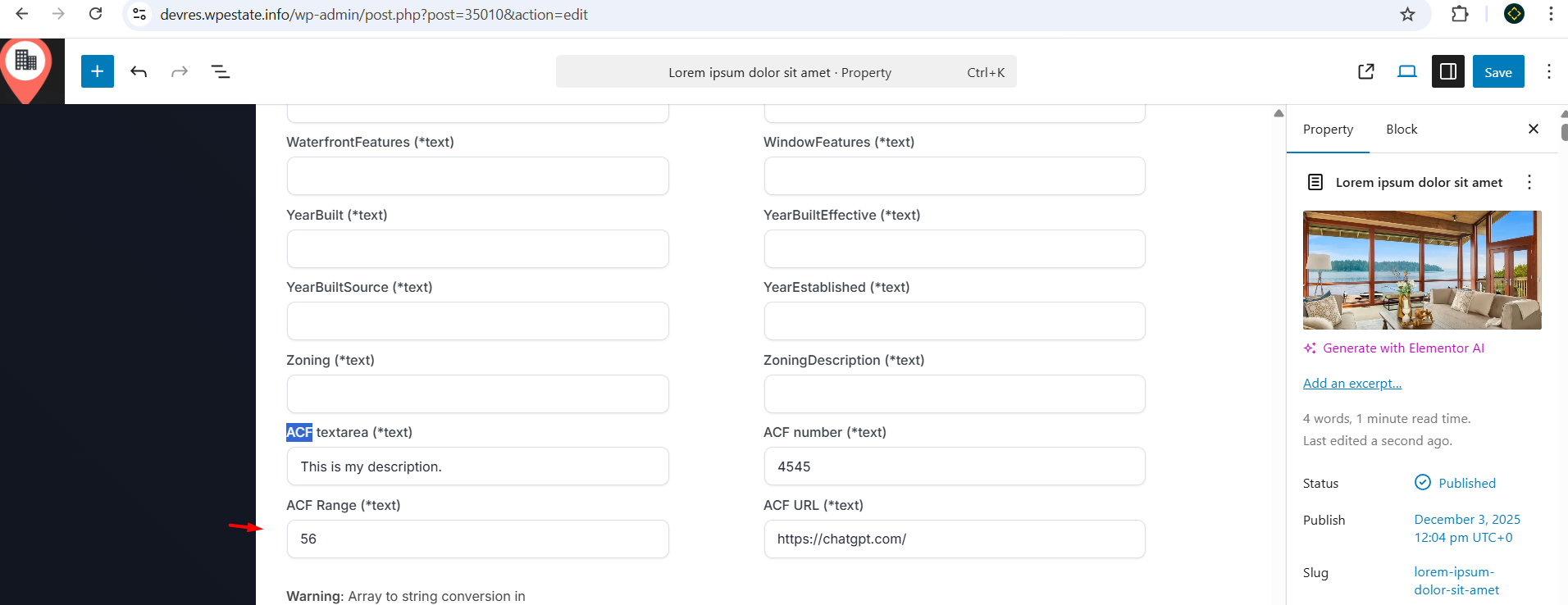
ACF still supports displaying field values in the editor by using the ACF shortcode, but in newer ACF versions this access is controlled more strictly.
Starting with ACF 6.3.0, the ACF shortcode is disabled by default for new installs. In ACF 6.3.6, ACF also added a field-level setting called Allow Access to Value in Editor UI. This setting controls whether content editors can access and display the field value in the editor through the ACF shortcode or Block Bindings.
If you want to use an ACF field with shortcode display, open that field in ACF and go to the Presentation tab. There, enable:
Allow Access to Value in Editor UI
If this option is disabled, the shortcode may return nothing even if the field exists and contains a value. ACF explains that this field-level control was introduced as part of its newer security model for shortcode and editor access.
5. Why an ACF shortcode may not show anything
If the ACF shortcode does not display a value, the most common reasons are:
The field group is not assigned to the Property post type.
The field is not enabled for Allow Access to Value in Editor UI. Help https://www.advancedcustomfields.com/blog/acf-6-3-6/#field-value-access-editor
The shortcode is using the wrong field name.
The field type is more complex and does not output well through shortcode.
For shortcode display, ACF uses the field name, not the field label. ACF also notes that the shortcode is best suited for simple text-based values, while more complex values may need custom output with template code instead.