
WP Residence Help WP Residence Help

  • WpEstate
  • WPRESIDENCE
  • Video Tutorials
  • Client Support
  • API
Home / 04. Theme Options & Global Settings / Theme Options > General Settings > Forced Registration

Theme Options > General Settings > Forced Registration

8 views 0

Content

  • What is Forced Registration
  • Where to find Forced Registration settings
  • Enable Forced Registration
  • Free Property Views
  • Free Image Views
  • Reset Period
  • Registration Required Message
  • How Forced Registration works on the front end
  • Example setup

What is Forced Registration

Forced Registration is a new option added in WPResidence 5.6.0 that helps you limit how much anonymous visitors can browse before they must register on the website.

You can use this feature to require registration after visitors view a specific number of properties or gallery images. This is useful for lead generation websites that want to allow a limited preview first, then ask users to create an account to continue browsing.

Where to find Forced Registration settings

You can manage this feature from:

Theme Options > General Settings > Forced Registration

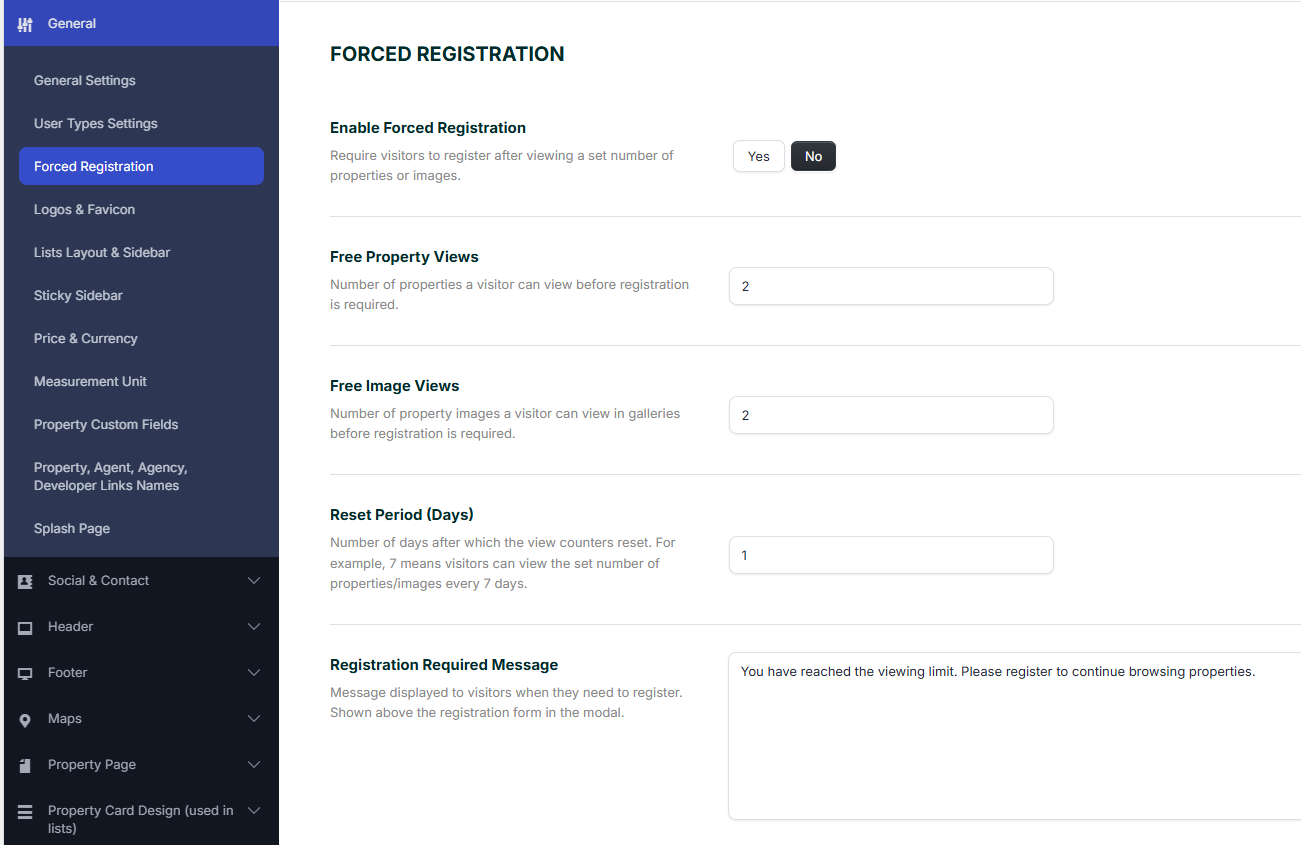
In this panel, you can enable the feature, define how many free views are allowed, set when the counters reset, and customize the message shown to visitors when registration becomes required.
Enable Forced Registration

To activate this option, set Enable Forced Registration to Yes.

When enabled, visitors can browse only the number of properties and images allowed by your settings. After they reach that limit, the theme will require registration before they can continue.

Free Property Views

Free Property Views controls how many property pages a visitor can open before registration is required.

For example, if you set this value to 2, a visitor can view 2 property pages without registering. When they try to continue browsing after reaching that limit, they will be prompted to register.

Free Image Views

Free Image Views controls how many property gallery images a visitor can open before registration is required.

This setting is useful if you want to let users preview a limited number of images, but require an account for deeper browsing.

For example, if this value is set to 2, a visitor can open only 2 gallery images before the registration prompt is shown.

Reset Period

Reset Period (Days) defines after how many days the property and image view counters reset for the visitor.

If you set this to 1, the visitor can use the allowed number of free views again after 1 day.

If you set this to 7, the counters reset every 7 days.

Registration Required Message

The Registration Required Message is the custom text shown to visitors when they reach the browsing limit and need to register.

This message is displayed above the registration form in the modal window, so you can use it to clearly explain why registration is required and encourage users to sign up.

Example message:

You have reached the viewing limit. Please register to continue browsing properties.

How Forced Registration works on the front end

Once Forced Registration is enabled, the theme tracks how many property pages and gallery images a non-logged-in visitor views.

As long as the visitor stays under the limits you defined, they can continue browsing normally.

After one of the limits is reached, the visitor is asked to register before they can continue viewing more content.

This means you can allow partial browsing access while still using the website as a lead capture tool.

Example setup

Here is a simple example based on the settings shown:

  • Enable Forced Registration: Yes
  • Free Property Views: 2
  • Free Image Views: 2
  • Reset Period: 1 day
  • Message: You have reached the viewing limit. Please register to continue browsing properties.

With this setup, a visitor can view 2 property pages and 2 gallery images before being required to register. After 1 day, the counters reset and the free views are available again.

Tip: Keep the free view limits low if your goal is lead generation, or set higher limits if you want to give visitors more time to explore before asking them to register.
04. Theme Options & Global Settings

Related Articles

  • Theme Options – Roles (Editor) Permissions Controls
  • Theme Options -> Agent Card Settings
  • How to Import Locations in WPResidence
  • How to Manage the Header: Default Header vs Custom Elementor Header

WP Residence Documentation

  • 01. Getting Started
    • How to Get Support
    • Get your buyer license code.
    • Use SSL / https
    • Server / Theme Requirements
  • 02. Installation & Setup
  • 03. Installation FAQ
  • 06. Search & Filtering
    • Advanced Search Display Settings
    • Advanced Search Form
    • Geolocation Search for Half Map
    • Save Search Theme Options
    • Advanced Search Colors
  • 09. Agent, Agency & Developers
  • 08. Property Pages & Layouts
  • 07. Property Lists, Categories & Archive
  • 14. WPResidence Elementor Studio
  • 10. Blog Posts & Blog List
  • 11. Shortcodes
    • Contact Form
    • Featured Agency/Developer
    • Membership Packages
    • Testimonials
    • Google Map with Property Marker
    • Listings per Agent, Agency or Developer
    • Display Categories
    • Agent List
    • Recent Items Slider
    • Recent items
    • List Properties or Articles by ID
    • Featured Agent
    • Featured Article
    • Featured Property
    • Login & Register Form
    • Icon Content Box Shortcode
  • 12. Widgets
  • 04. Theme Options & Global Settings
    • General Settings
    • User Types Settings
    • Appearance
    • Logos & Favicon
    • Header
    • Footer Style and Colors
    • Price & Currency
    • Property Custom Fields
    • Features & Amenities
    • Listing Labels
    • Theme Slider
    • Permalinks
    • Splash Page
    • Social & Contact
    • Map Settings
    • Pin Management
    • How read from file works
    • General Design Settings
    • Custom Colors Settings
    • Header Design & Colors
    • Mobile Menu Colors
    • User Dashboard Colors
    • Print PDF Design
    • Property, Agent, Blog Lists Design Settings
    • Sidebar Widget Design
    • Font management
    • How to add custom CSS
    • Custom Property Card Unit – Beta version
    • Email Management
    • Import & Export theme options
    • reCaptcha settings
    • YELP API Integration
    • iHomefinder Optima Express IDX
    • MEMBERSHIP & PAYMENT Settings
    • Property Submission Page
    • PayPal Setup
    • Stripe Setup
    • Wire Transfer Payment Method
  • 20. Translations & Languages
  • 24. FAQ
  • 10. Pages
  • 11. Header
  • 12. Footer
  • 05. Maps & Location Settings
  • 18. Payments & Monetization
  • Plugins
    • 22. Third Party Plugins – IDX Compatibility
    • 21. Third-Party Plugins – Multi-Language
    • 23. Third party Plugins – Other
  • Technical
    • 26. Technical how to | Custom Code Required
    • 25. Technical: Child Theme

Join Us On

Powered by WP Estate - All Rights Reserved
  • WpEstate
  • WPRESIDENCE
  • Video Tutorials
  • Client Support
  • API