
Buttons, labels, search fields, dashboard texts and emails in WPResidence come from translation files, not from your pages. This article explains which files the site reads, how a text you type in WPEstate Translate reaches the front end, and what to check when a text still shows in the wrong language.
.po and .mo Files
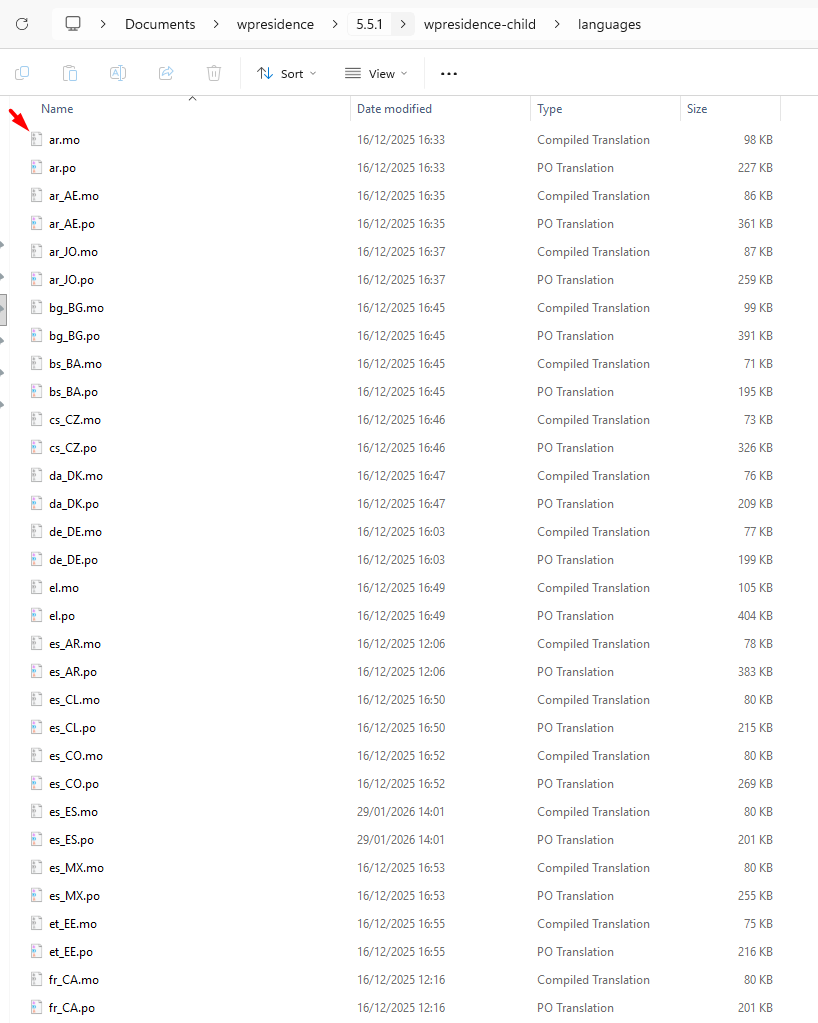
Each translation comes as a pair of files with the same name:
- .po: the file you edit, with each original text and its translation. Loco Translate opens it.
- .mo: the compiled copy that WordPress reads. Loco Translate creates it each time you save the .po.
The name tells WordPress the language, for example pt_BR.po for the theme and wpresidence-core-pt_BR.po for the WPResidence Core plugin. The part before the language is the text domain, the group the text belongs to.
Which Files the Site Reads
For each language, the site loads the .po/.mo files of the theme and plugins that match the language locale set in WPEstate Translate > Languages. The child theme languages folder is the safe place for the theme files, because updates do not replace it.
To see which files your site uses, open WPEstate Translate > Theme & Plugins Strings and read the box Where are translation files loaded from?. It lists the .po files in use for the active theme and plugins.
How to create and edit these files with Loco Translate: How to translate WPResidence.
Publish Your Edits: Generate Translation Files
Texts you type in Theme & Plugins Strings are saved right away, but visitors see them only after one more click.
- Translate the texts in WPEstate Translate > Theme & Plugins Strings. Each one saves when you click outside the box.
- Click Generate translation files at the top of the screen.
- Reload the front end in the translated language and clear your cache plugin or server cache if you use one.
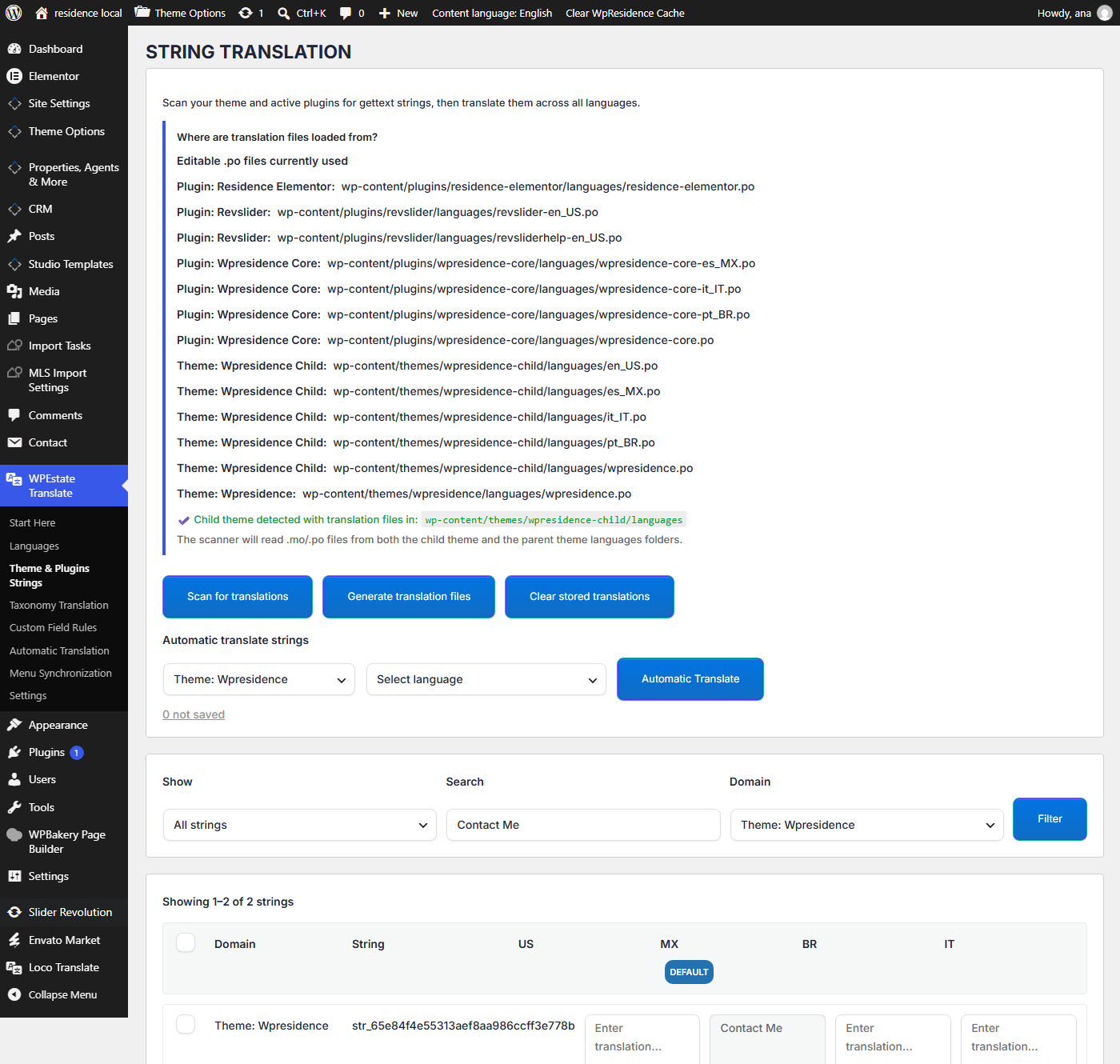
The generated files sit on top of the .po files: a text you translated in Theme & Plugins Strings wins, and every text you left empty keeps the translation from the .po file. Click Generate translation files again after each round of edits, after an automatic translation run and after you add a language.
The Default Language
The default language column in Theme & Plugins Strings is read only, and Generate translation files creates no file for it. To change a default-language text:
- for Theme Options texts, such as search labels, change them in Theme Options;
- for theme and plugin texts, edit the .po file of the default language with Loco Translate.
Sites that used an older version of the plugin may still have a generated file for the default language. Version 1.0.9 removes it the next time you click Generate translation files, so plural forms such as “1 bedroom / 2 bedrooms” display correctly again.
A Text Still Shows in English
| Check | What to do |
|---|---|
| You did not click Generate translation files. | Click it, then reload the page. |
| The page is not in the translated language. | Look at the address: it needs the language prefix, for example /br/. |
| The text is not in the list. | Click Scan for translations and search again. Choose the right Domain before you click Filter. |
| The text is a page, a property or an Elementor widget. | These are content, not strings. Translate them on the page: see Translating Posts and Pages. |
| A cache shows the old page. | Clear the cache plugin, the server cache and the CDN. |
More: Translating Theme and Plugin Strings and The String Scanner.