Overview
WPEstate Translate is the multilingual plugin built for WPResidence. It helps you create a multilingual real estate website by translating languages, properties, pages, agents, agencies, developers, menus, taxonomies, theme strings, plugin strings, and Elementor content.
After the plugin is installed and activated, a new admin menu named WPEstate Translate is added in the WordPress dashboard.
Use this help article as the main setup guide for creating a multilingual website with WPResidence and WPEstate Translate.
WPEstate Translate has dedicated documentation for each part of the plugin. You can use the full documentation category for setup steps and technical questions:https://help.wpresidence.net/article-category/wpresidence-translate-plugin/
WPEstate Translate license cost and automatic translation cost
WPEstate Translate is included with WPResidence.
There is no separate WPEstate Translate license cost from our side. You do not need to buy a separate annual or lifetime license for WPEstate Translate.
WPEstate Translate itself does not add a separate license cost from our side. However, automatic translation uses your own API account, for example your own OpenAI API account. Any API cost is billed directly by the API provider to your account. It is not paid to us.
Manual translations do not require OpenAI API usage.
Automatic translation costs depend on:
- How much content you translate.
- How many languages you translate into.
- The automatic translation provider and model selected in the plugin settings.
- The amount of text sent for translation and returned by the API provider.
You can check OpenAI API pricing here:
https://openai.com/api/pricing/
You can check your OpenAI API usage and costs from your OpenAI Platform account here:
https://platform.openai.com/usage
OpenAI also explains how to check token usage here:
https://help.openai.com/en/articles/6614209-how-do-i-check-my-token-usage
You can find the automatic translation setup help here:
https://help.wpresidence.net/article/automatic-translation-openai-google-deepl-azure/
Video tutorials
What WPEstate Translate does
WPEstate Translate gives WPResidence a multilingual workflow inside WordPress admin.
With this plugin, you can manage:
- Languages: add, enable, disable, reorder, and set the default language.
- Content translations: create language versions for posts, pages, properties, agents, agencies, and developers.
- Theme and plugin strings: translate labels, buttons, filters, forms, emails, and other interface text.
- Taxonomies: translate property categories, actions, cities, areas, counties/states, statuses, features, and other taxonomy terms.
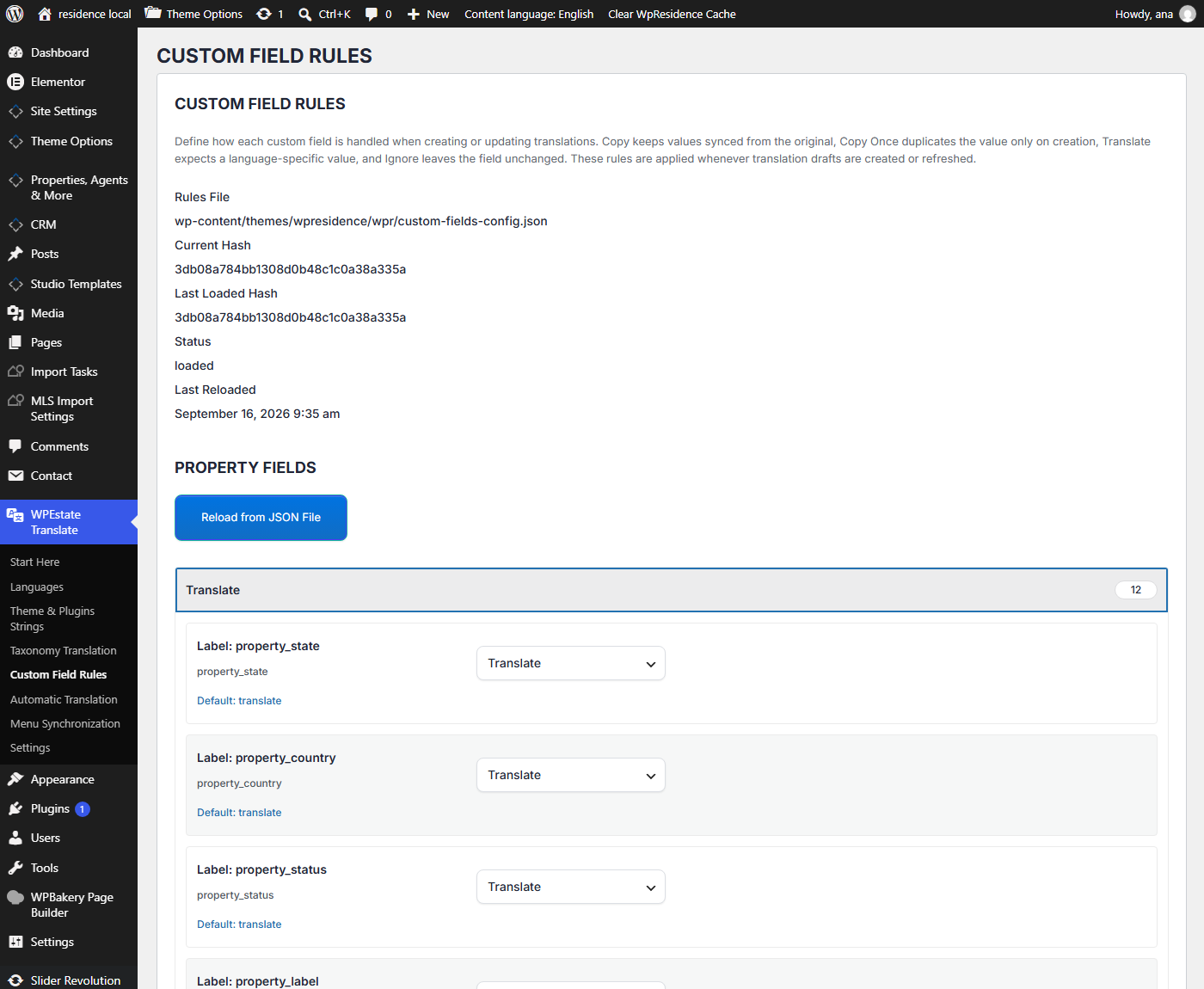
- Custom field rules: decide which property fields should be copied between languages and which fields should be translated separately.
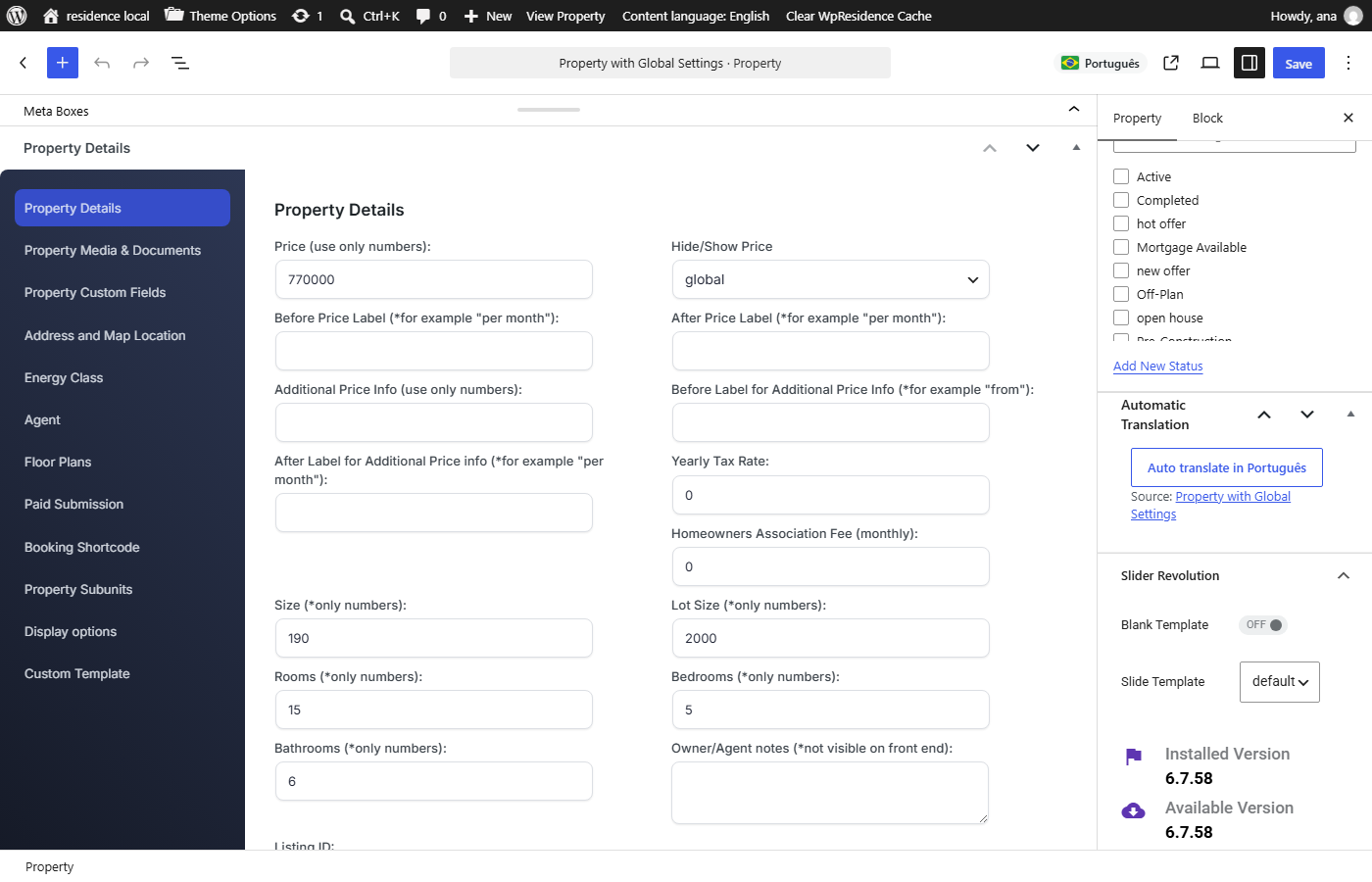
- Automatic translation: use automatic translation to create draft translations.
- Menus: create and assign navigation menus per language.
- Language dropdown: let visitors switch between active languages.
- Language-aware URLs: use language prefixes and language-specific links for multilingual content.
Before you start
Before setting up the multilingual site, check the points below.
- WPResidence must be installed and updated.
- The required WPResidence plugins must be installed and active.
- WPEstate Translate must be installed and active.
- You should know the main/default language of the website.
- You should know which secondary languages you want to add.
- If you want automatic translation, you need your own API key for the translation provider you want to use.
- Make a full website backup before starting a large translation setup.
Start with the default language first. Add and check the original content in the default language before creating translated versions.
Install and activate WPEstate Translate
Install the plugin from the package or source provided with your WPResidence theme files.
- Go to Plugins > Add New.
- Upload the WPEstate Translate plugin zip file.
- Install and activate the plugin.
- After activation, check the WordPress admin menu for WPEstate Translate.
After activation, the plugin creates the needed translation structure and adds its own admin screens.
The main admin menu includes sections such as:
- Start Here
- Languages
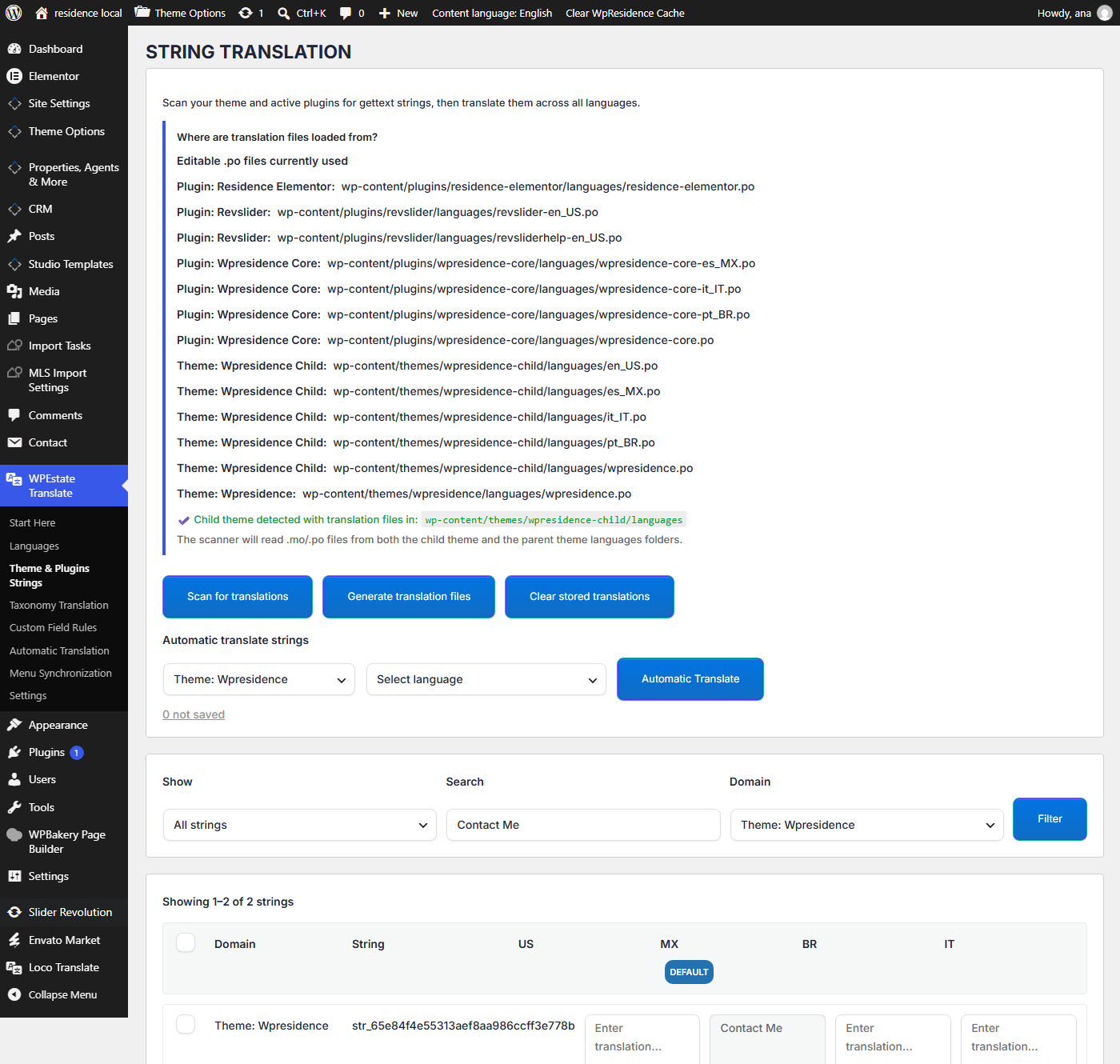
- Theme & Plugins Strings
- Taxonomy Translation
- Custom Field Rules
- Automatic Translation
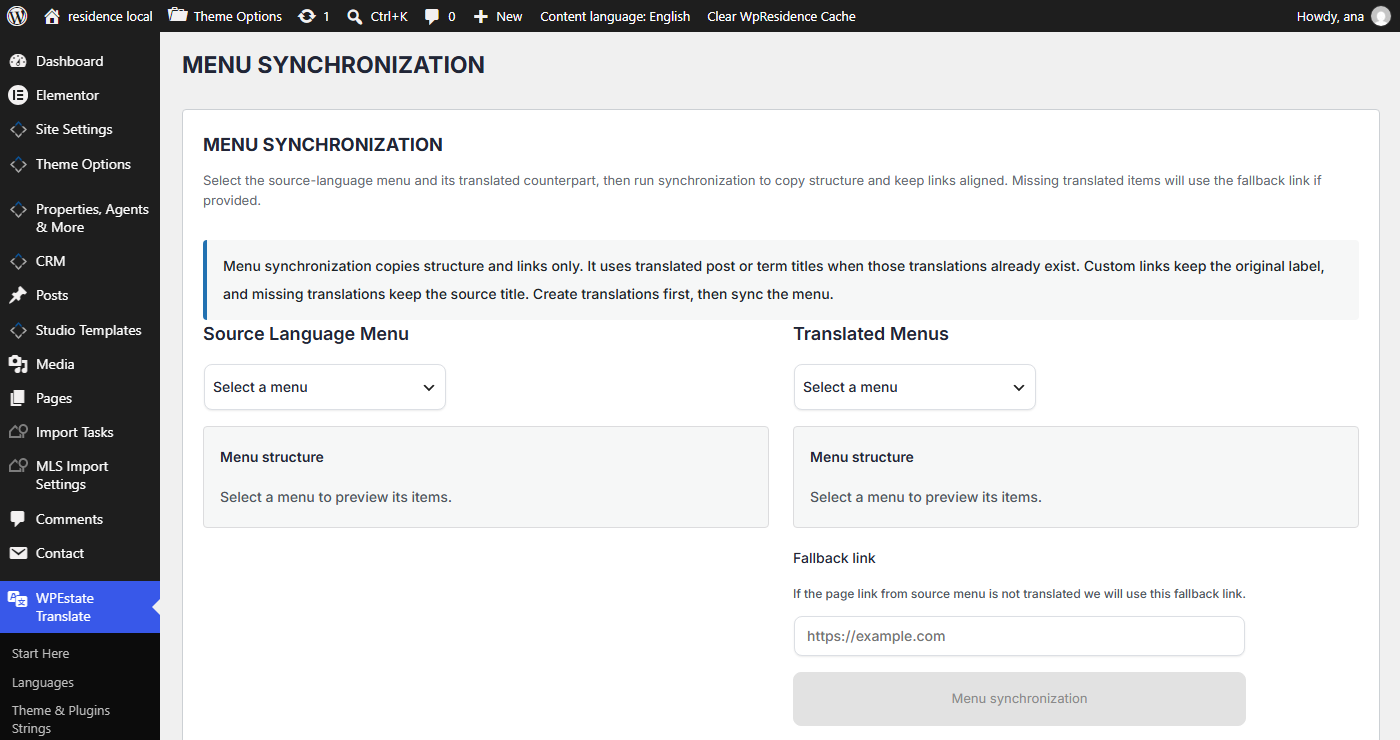
- Menu Synchronization
- Settings
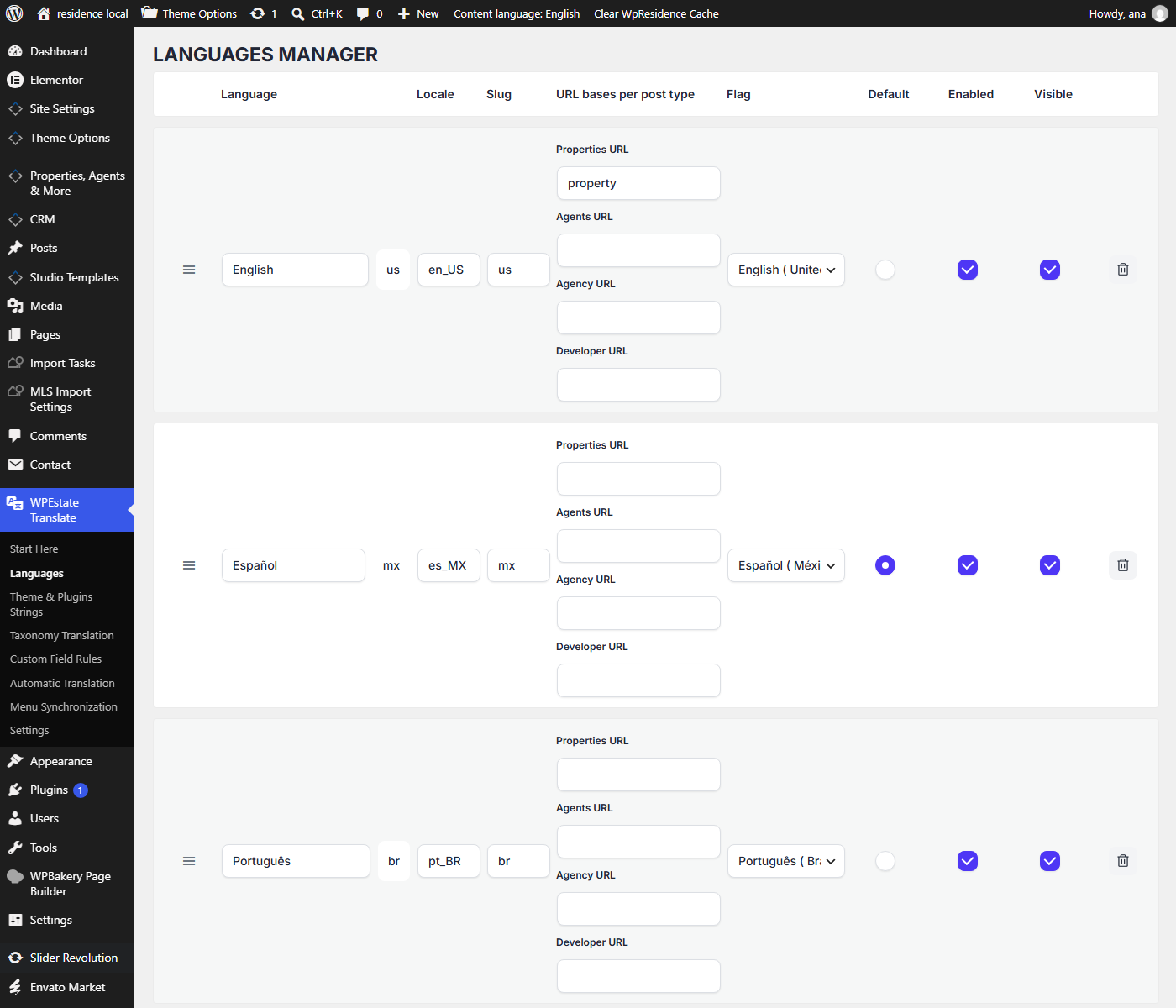
Add and manage languages
Go to:
WPEstate Translate > Languages
Use this page to add the languages you want to use on the website.
From this section, you can:
- Add a new language from the language catalog.
- Enable or disable a language.
- Set the default language.
- Reorder languages.
- Check the language slug used in URLs.
- Check the flag and display name used in the language dropdown.
The default language should be the language used for the original content. Translations are created from this main language.
Review the plugin settings
Go to:
WPEstate Translate > Settings
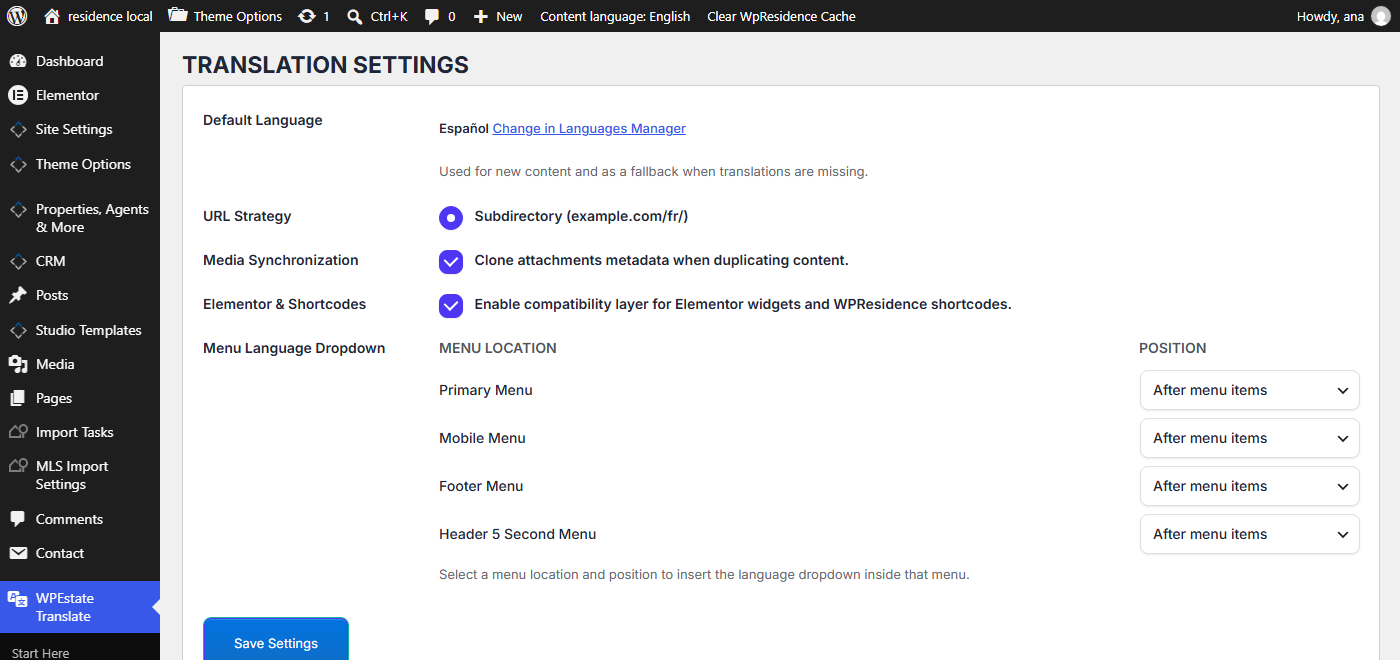
Review the global translation settings before translating the website.
From this section, check:
- Default Language: confirms the main website language.
- URL prefix behavior: controls how language slugs are added to URLs.
- Media synchronization: controls how media is shared between translations.
- Elementor and shortcode compatibility: helps translated Elementor and shortcode content render correctly.
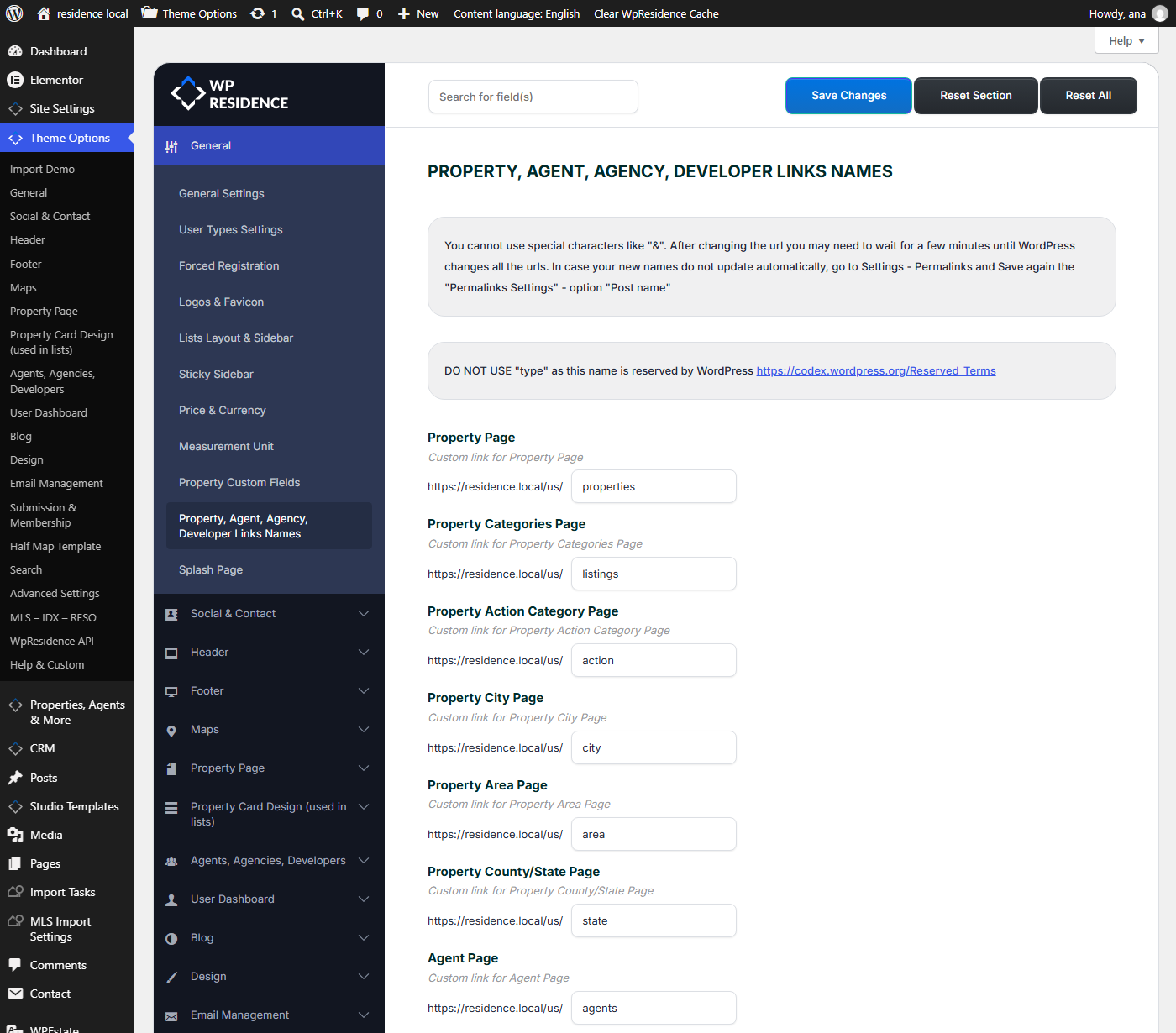
- Menu Language Dropdown: controls where the language dropdown is added for the default WPResidence menu locations.
Menu Language Dropdown
The Menu Language Dropdown option is used when you want to add the language dropdown to the default WPResidence menu locations.
Go to:
WPEstate Translate > Settings
In the Menu Language Dropdown section, choose the menu location and the position where the language dropdown should appear.
Available menu locations can include:
- Primary Menu
- Mobile Menu
- Footer Menu
- Header 5 Second Menu
For each menu location, choose where the dropdown should be displayed, or select No dropdown if you do not want to show it in that menu.
Use this option for the default WPResidence header/menu system. If you use a custom Header template created with WPResidence Studio and Elementor, you can keep these menu dropdown settings disabled and add the language dropdown directly inside the Elementor header template.
For most WPResidence multilingual websites, keep the default settings unless you have a specific reason to change them.
Translate theme and plugin strings
Theme and plugin strings are labels that come from WPResidence, WPEstate Translate, or other plugins.
Examples include:
- Button text.
- Search form labels.
- Dashboard labels.
- Form messages.
- Email labels.
- Frontend notices.
- Widget labels.
Go to:
WPEstate Translate > Theme & Plugins Strings
Use this section to scan and translate theme and plugin strings.
- Open Theme & Plugins Strings.
- Scan the theme and plugin strings.
- Select the string you want to translate.
- Add the translation for each active language.
- Save the translation.
- Generate or refresh the translation files if the section asks for it.
- Clear cache and test the front end.
If translated strings are saved but do not show on the front end, regenerate the MO files from the plugin tools and clear cache.
Translate taxonomies
Taxonomies are very important for real estate websites because they are used in property lists, search forms, maps, and archive pages.
Examples include:
- Property categories.
- Property actions.
- Cities.
- Areas.
- Counties or states.
- Property status.
- Features and amenities.
Go to:
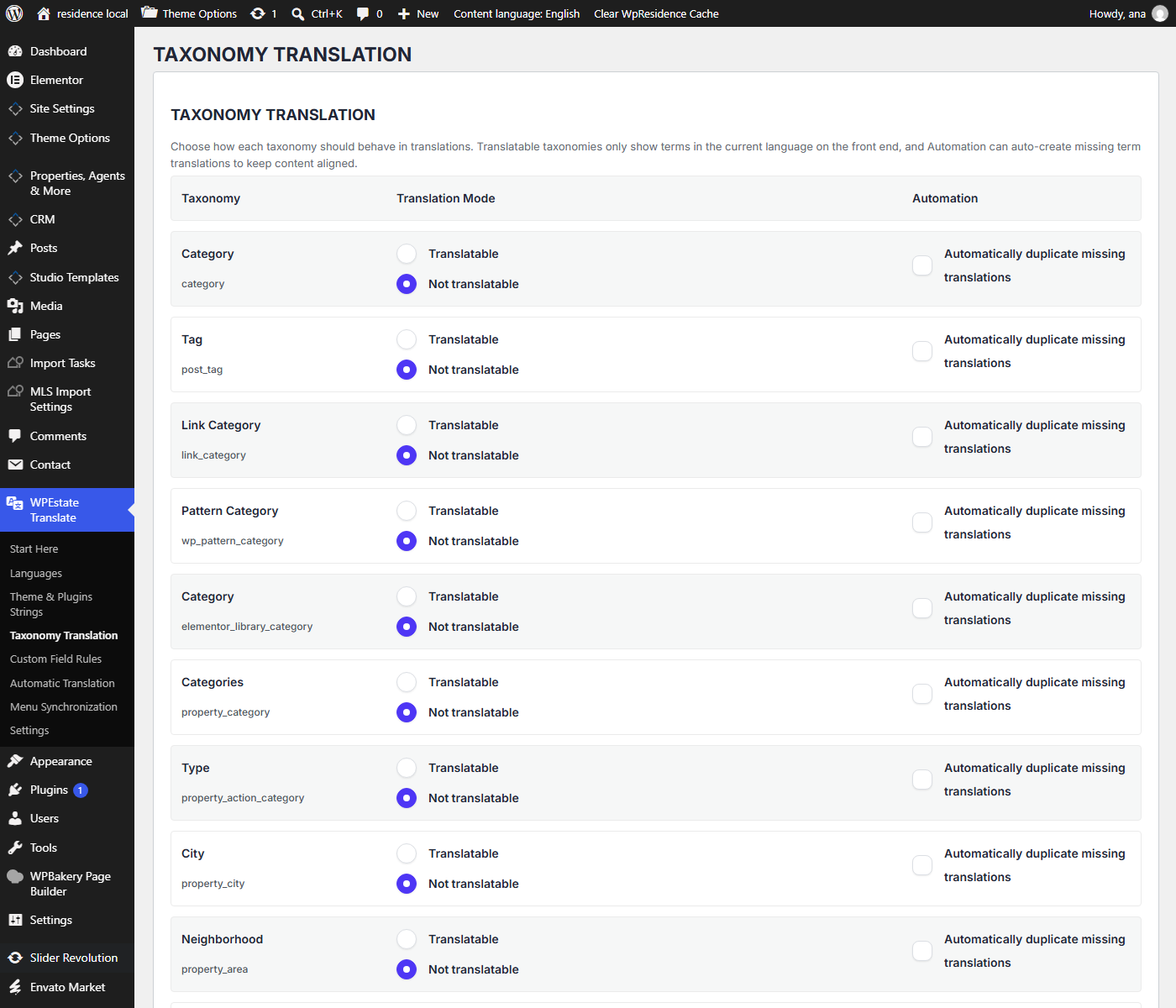
WPEstate Translate > Taxonomy Translation
Use this section to enable and translate the taxonomies that must be multilingual.
- Open Taxonomy Translation.
- Enable the taxonomies that must be translated.
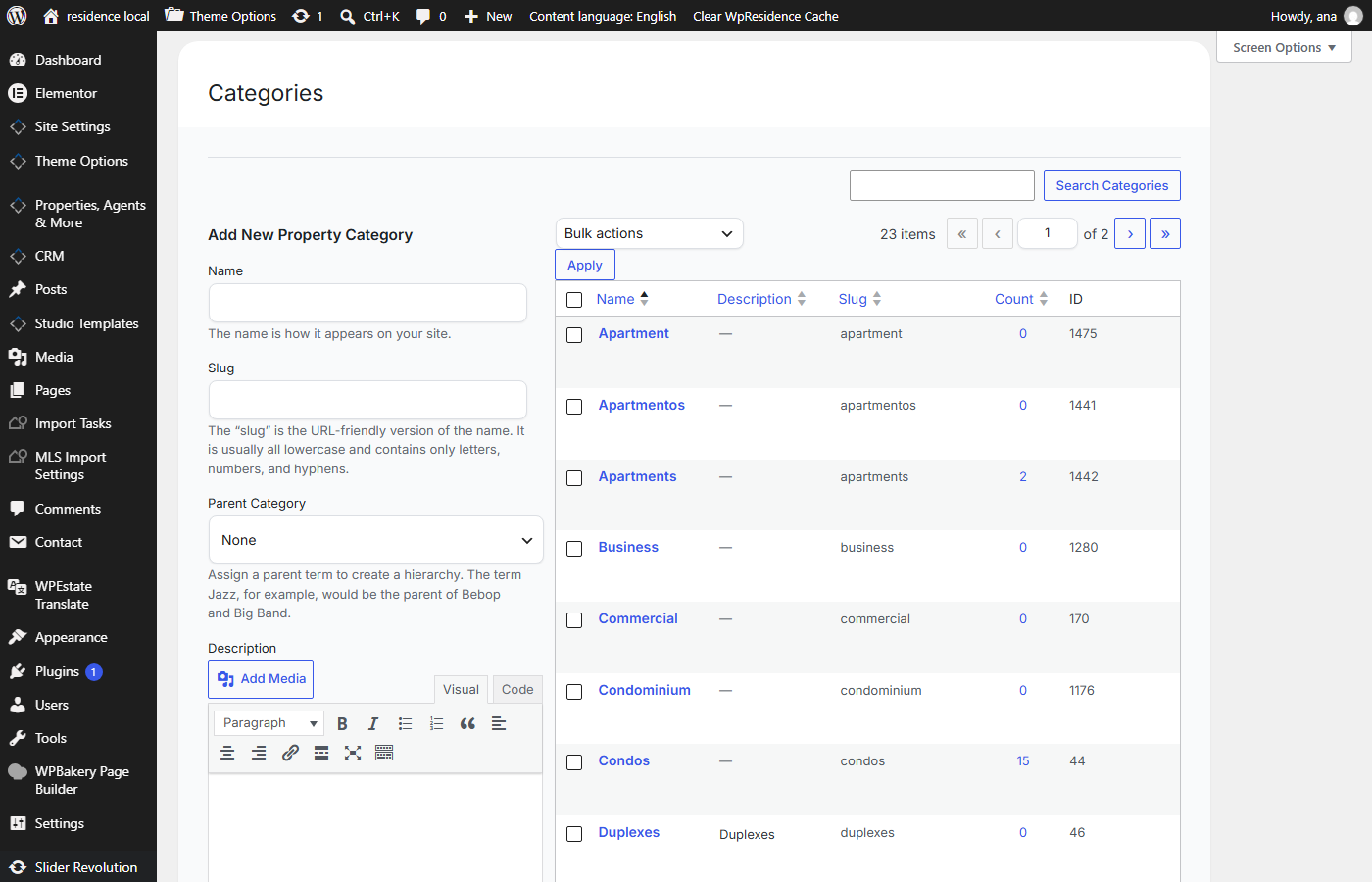
- Create or link translated versions of each term.
- Check that parent-child hierarchy is correct, if the taxonomy uses hierarchy.
- Save the changes.
- Test the taxonomy archive pages and search filters in each language.
Property search filters depend on taxonomy terms. If categories, cities, areas, or features are not translated correctly, search results and archive links may not look correct in each language.
Review custom field rules
Real estate listings use many custom fields. Some values should usually stay the same in every language, while other values should be translated separately.
Go to:
WPEstate Translate > Custom Field Rules
Use this section to decide how custom fields behave across translated content.
Common examples:
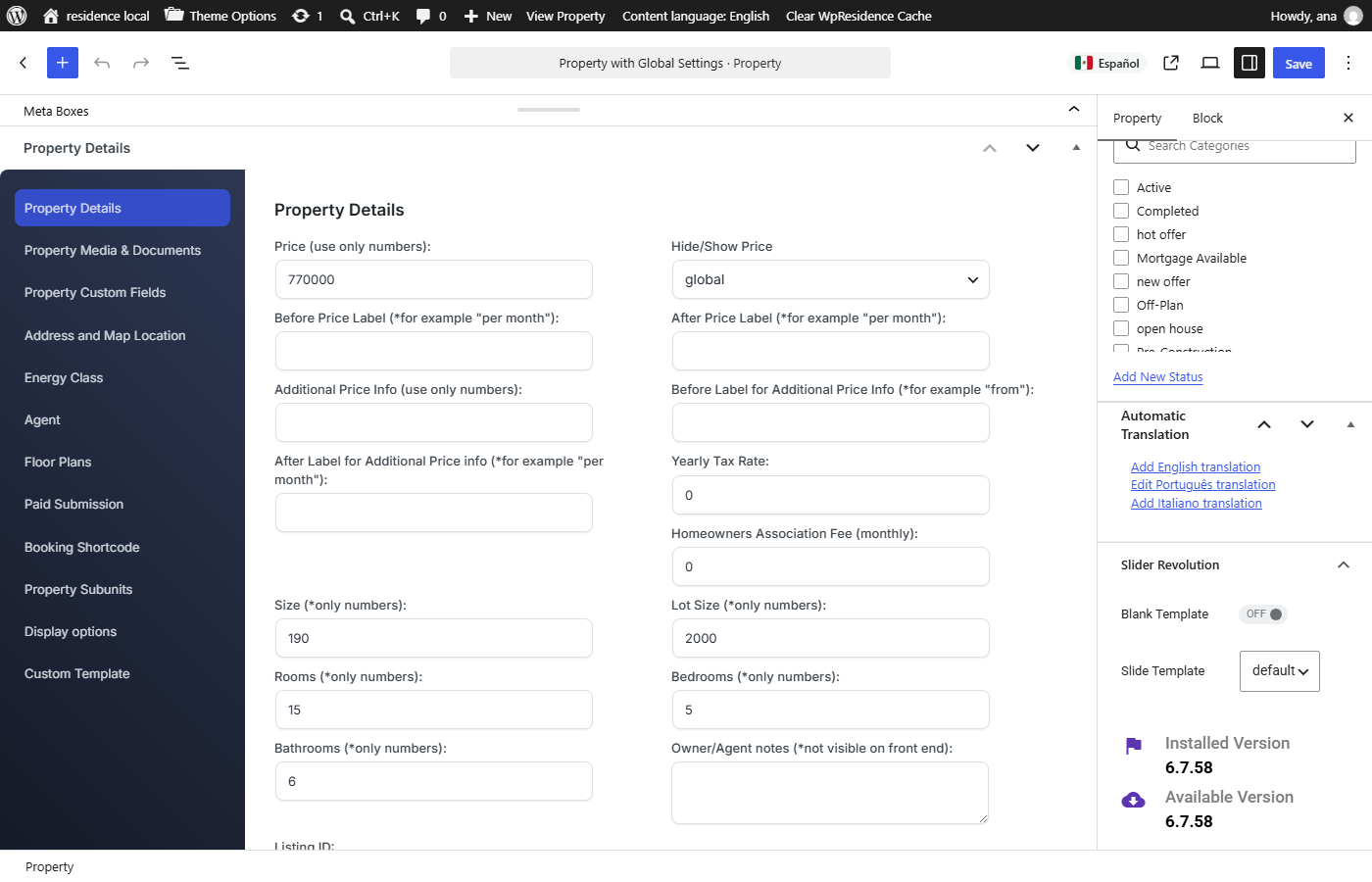
- Copied fields: price, coordinates, property size, number of rooms, number of bedrooms, number of bathrooms, and similar factual values.
- Translated fields: text descriptions, marketing text, custom SEO text, and other language-specific text.
Review custom field rules before translating many properties. This helps avoid situations where factual values are translated by mistake or language-specific text is copied instead of translated.
Translate properties, pages, posts, agents, agencies, and developers
After languages, strings, taxonomies, and custom field rules are configured, start translating your content.
You can translate:
- Pages.
- Posts.
- Properties.
- Agents.
- Agencies.
- Developers.
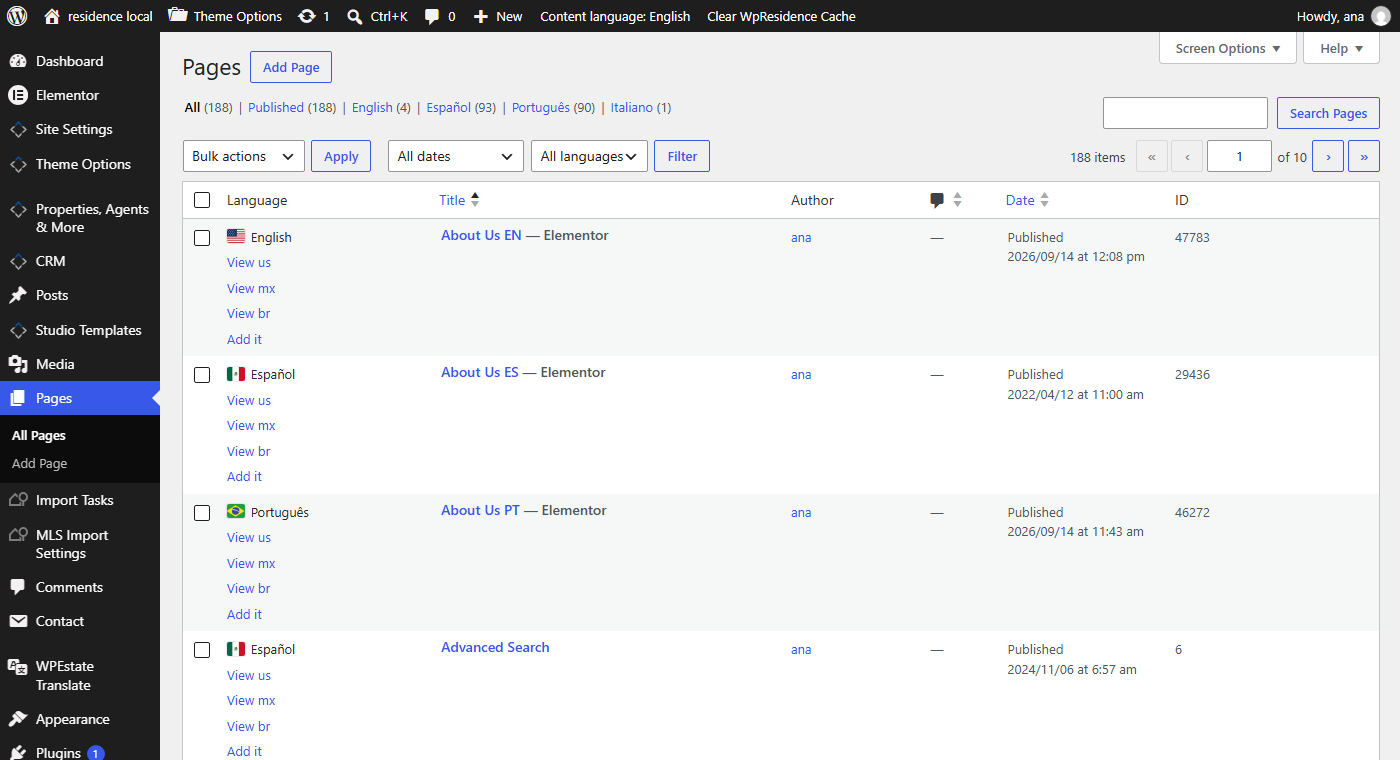
To create a translation:
- Go to the post type you want to translate, for example Properties or Pages.
- Find the item you want to translate.
- Use the language column or translation controls added by WPEstate Translate.
- Click the option to create the missing translation for the target language.
- The plugin creates a translated draft linked to the original item.
- Edit the translated draft.
- Translate the title, content, excerpt, and any language-specific fields.
- Publish or update the translation.
Each translation is a separate WordPress item, but it is linked to the original content by the plugin. Do not create unrelated duplicate posts manually if you want the language dropdown and translation links to work correctly.
Translate Elementor pages and WPResidence widgets
If your WPResidence website uses Elementor pages, Studio templates, or WPResidence Elementor widgets, translate those elements as part of the page translation workflow.
WPEstate Translate can work with Elementor content and WPResidence widget fields that are part of the translated page content.
To translate Elementor pages:
- Create or open the translated version of the page.
- Edit the translated page with Elementor.
- Translate headings, text widgets, buttons, tabs, sections, and other visible text.
- Check WPResidence Elementor widgets used on the page.
- Update the page.
- Open the translated page on the front end and confirm the text appears in the correct language.
If text was typed directly inside an Elementor widget or Studio template, translate it inside the translated Elementor version of that page or template.
Use automatic translation
WPEstate Translate can use automatic translation to create a first draft of translated content.
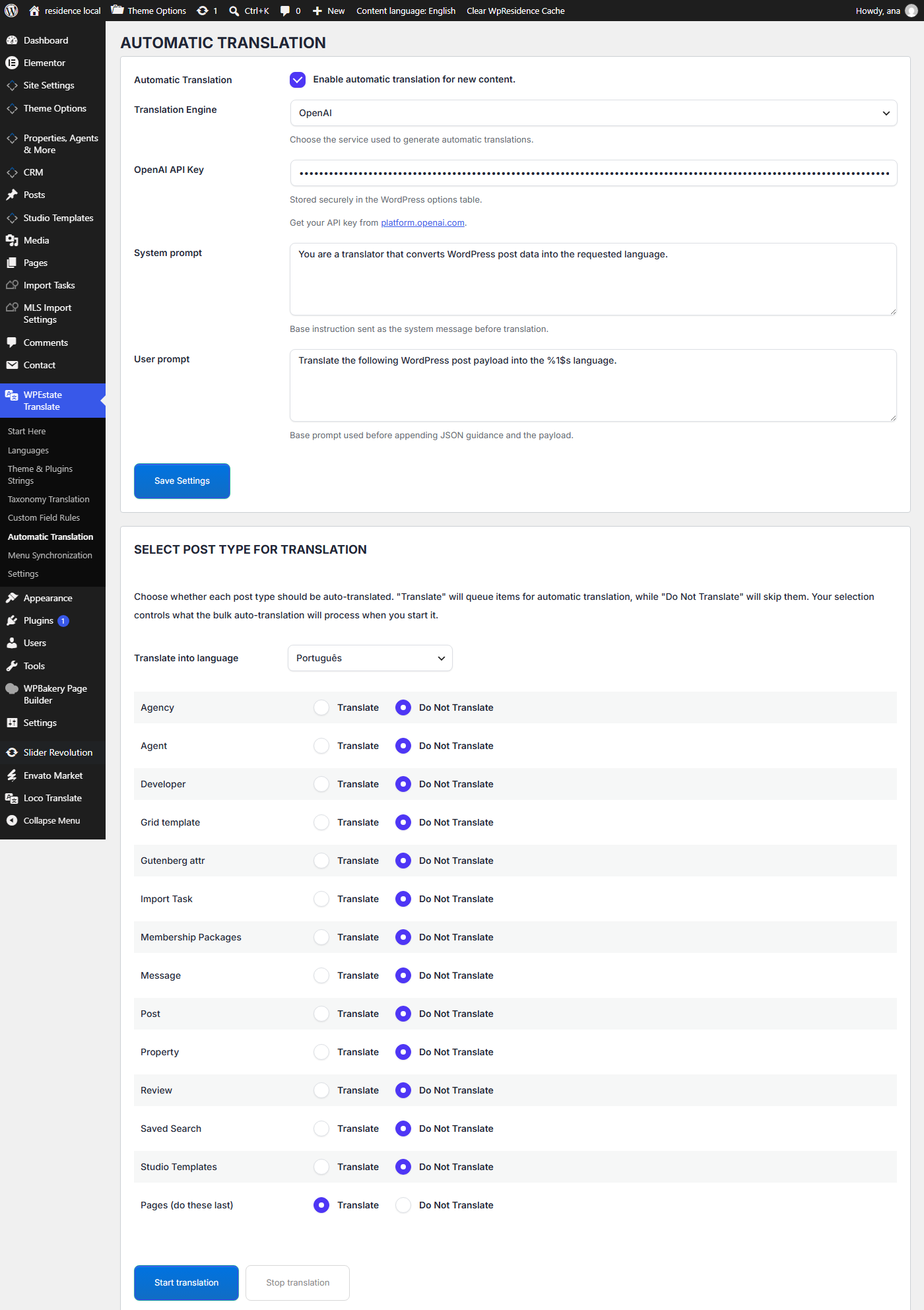
The automatic translation workflow uses your own API key. WPEstate does not charge for this feature and does not sell translation credits.
Go to:
WPEstate Translate > Automatic Translation
Use this section to add your API key and configure automatic translation.
Automatic translation can help with:
- Posts.
- Pages.
- Properties.
- Agents.
- Theme and plugin strings.
- Some compatible Elementor content.
Automatic translation creates a draft or first version. Always review and correct the translated content before using it on a live website.
How to check OpenAI automatic translation costs
WPEstate Translate is included with WPResidence, but automatic translation uses your own OpenAI API account if you choose OpenAI as the automatic translation provider.
This means:
- There is no WPEstate Translate translation credit system.
- There is no WPEstate Translate pay-as-you-go translation service billed by us.
- There is no WPEstate Translate annual translation fee billed by us.
- OpenAI bills API usage directly to your OpenAI account.
OpenAI API pricing depends on the model used and the number of tokens processed. Tokens are parts of text sent to and returned by OpenAI.
You can check the current OpenAI API pricing here:
https://openai.com/api/pricing/
You can check your API usage and costs from your OpenAI Platform account here:
https://platform.openai.com/usage
OpenAI also explains how to check token usage here:
https://help.openai.com/en/articles/6614209-how-do-i-check-my-token-usage
You can export monthly usage or cost details from the OpenAI API Usage Dashboard:
Automatic translation costs are usually small for normal website content, but the final cost depends on your content volume, number of languages, and selected OpenAI model. Always check your OpenAI usage dashboard for the exact cost in your account.
Translate menus and add the language dropdown
Navigation menus should match the language used by the visitor.
Translate and synchronize menus
Go to:
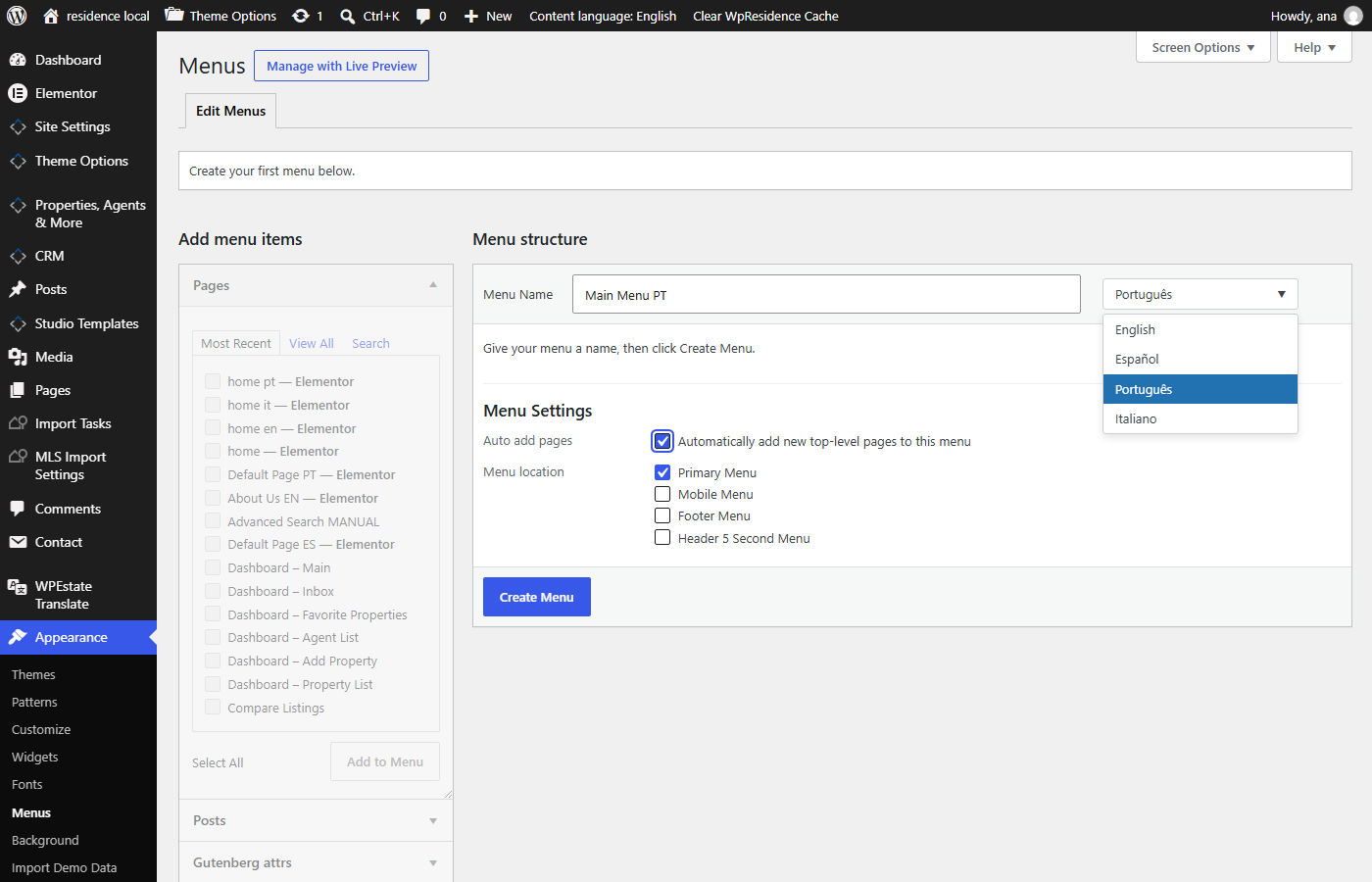
Appearance > Menus
With WPEstate Translate active, menus can be assigned to specific languages.
You can also use:
WPEstate Translate > Menu Synchronization
Use menu synchronization to keep the menu structure aligned across languages.
Recommended workflow:
- Create the main menu in the default language.
- Create or synchronize menus for the other languages.
- Replace menu links with the translated page, property archive, or taxonomy URLs.
- Assign each menu to the correct language and theme location.
- Test the header menu in every language.
Add the Language Dropdown to the default WPResidence header
If you use the default WPResidence header and menu system, add the language dropdown from:
WPEstate Translate > Settings
Find the section:
Menu Language Dropdown
Select the menu location where you want to show the language dropdown, then choose the position for that menu.
For example, you can enable the dropdown for:
- Primary Menu
- Mobile Menu
- Footer Menu
- Header 5 Second Menu
After you choose the position, save the settings and test the menu on the front end.
This option is for the default WPResidence menu locations. It inserts the language dropdown inside the selected menu location.
Add the Language Dropdown to a WPResidence Studio Header template
If you use a custom Header template created with WPResidence Studio and Elementor, add the language dropdown directly inside the header template.
In this case, keep the Menu Language Dropdown settings disabled or set to No dropdown, so the dropdown is not added automatically to the default menu locations.
To add the dropdown in a Studio Header template:
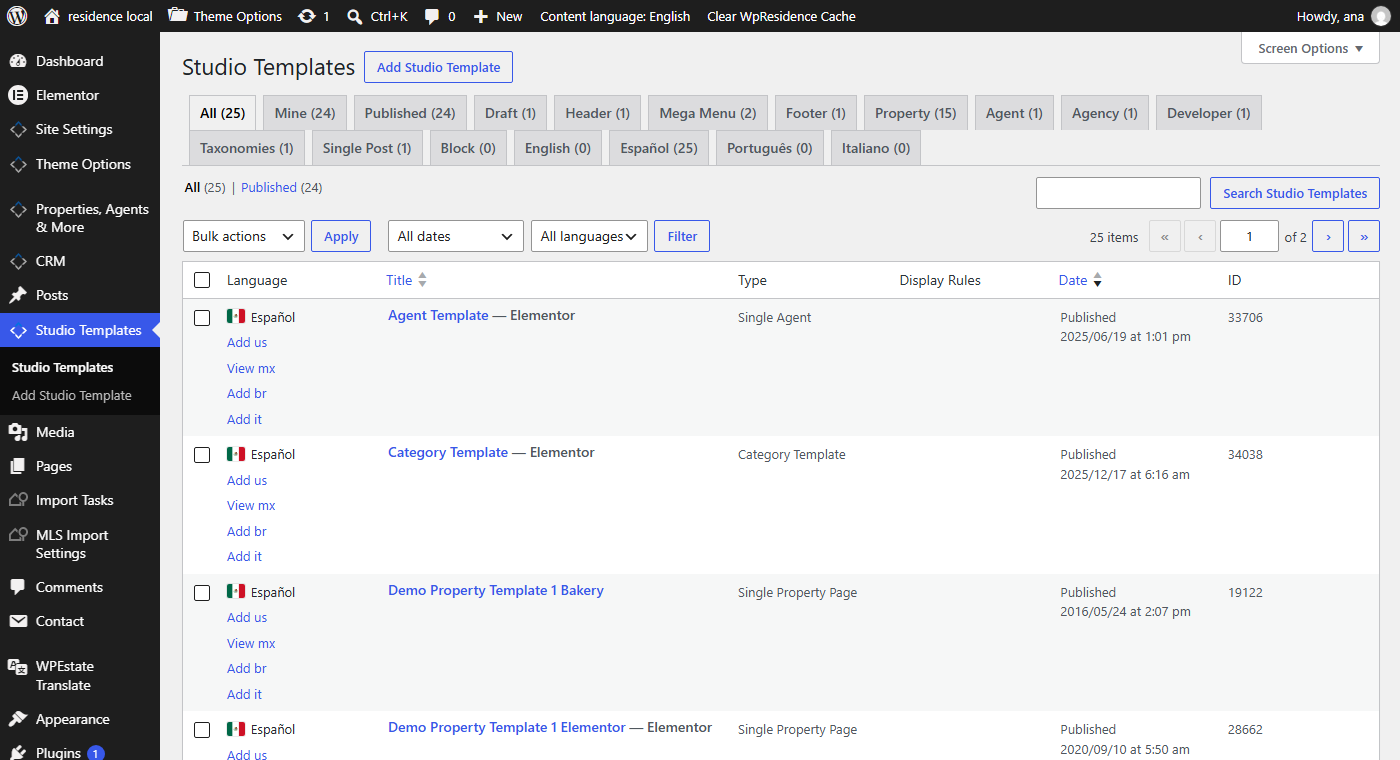
- Go to WPResidence Studio Templates.
- Open the active Header template with Elementor.
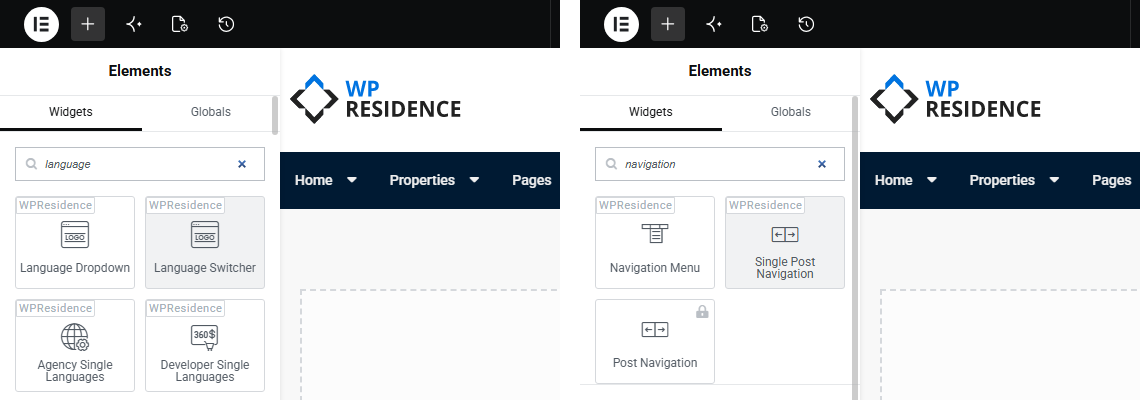
- Search for the Language Dropdown widget in the Elementor widgets panel.
- Drag the widget where you want it to appear in the header.
- Update or publish the template.
- Test the header on the front end.
Use the Elementor Language Dropdown widget when the header is built with WPResidence Studio. This gives you control over where the language dropdown appears inside the custom header layout.
After creating translated menus and adding the language dropdown, always test the menu links and language dropdown on the front end. Make sure each language opens the correct translated pages, properties, taxonomies, or fallback URLs.
Language URLs and SEO notes
WPEstate Translate creates language-aware URLs so each language can have its own version of the page or property link.
Depending on your settings, translated pages can use language prefixes in the URL.
For example:
- yourdomain.com/property/example-property/: default language URL.
- yourdomain.com/fr/property/example-property/: French URL, if French uses the fr slug.
The plugin can also help with multilingual SEO by keeping the language versions connected and by handling language-aware links.
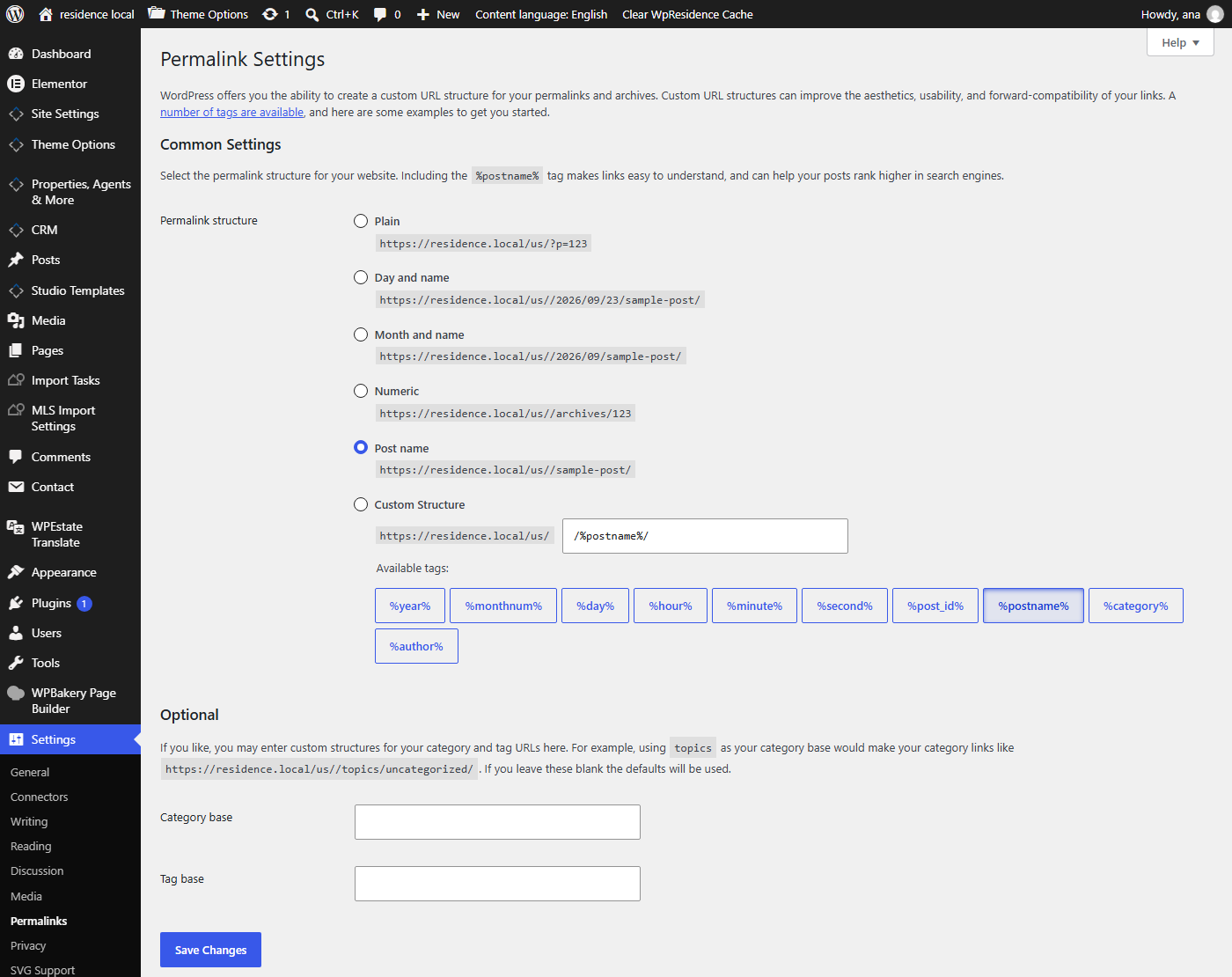
After changing languages, URL settings, or permalinks, clear cache and resave permalinks if needed from Settings > Permalinks.
Test the multilingual website
After setup, test the website carefully in each language.
Check the following:
- The language dropdown shows all active languages.
- Each language opens the correct translated page.
- Header menus show the correct language.
- Footer menus show the correct language.
- Properties show only in the active language.
- Property cards show the correct translated labels.
- Single property pages show translated content.
- Agents, agencies, and developers have translated versions where needed.
- Property categories, actions, cities, areas, and features are translated.
- Search filters show translated terms.
- Search results do not mix languages.
- Elementor pages and widgets show translated text.
- Theme strings such as buttons and labels are translated.
- Translated URLs work correctly.
- Cache is cleared after major translation changes.
Troubleshooting
The translation is saved but does not show on the front end
- Clear theme cache, plugin cache, server cache, CDN cache, and browser cache.
- Check that the correct language is active on the front end.
- Check if the translated content is published, not only saved as draft.
- Check if the text is controlled by Theme Options, Elementor, a widget, or a taxonomy instead of the string translator.
- Regenerate or refresh MO files if the translated text is a theme/plugin string.
The property search mixes languages
- Check that properties are translated with WPEstate Translate and not manually duplicated as unrelated posts.
- Check that taxonomies are translated and linked correctly.
- Check custom field rules for important property meta.
- Clear cache and test again.
The language dropdown does not go to the translated page
- Check that the current page or property has a translated version.
- Check that the translation is published.
- Check that the translated item is linked to the original item by WPEstate Translate.
- Check menu synchronization and translated menu links.
- If you use the default WPResidence header, check WPEstate Translate > Settings > Menu Language Dropdown.
- If you use a WPResidence Studio Header template, check the Language Dropdown widget inside the Elementor template.
Menu items still show in the wrong language
- Go to Appearance > Menus.
- Check that each menu is assigned to the correct language.
- Check that each menu item links to the translated page or translated archive.
- Use WPEstate Translate > Menu Synchronization if you need to align menu structure.
Taxonomy names still show in the default language
- Go to WPEstate Translate > Taxonomy Translation.
- Check that the taxonomy is enabled for translation.
- Check that the term has a translated version.
- Check parent-child term hierarchy if the taxonomy is hierarchical.
- Clear cache and test again.
Automatic translation did not translate everything
- Check that automatic translation is configured correctly.
- Check that the API key is valid.
- Check your API usage and billing limits.
- Check if the content type is supported by the automatic translation workflow.
- Translate missing text manually if needed.
- Review all automatic translations before publishing.
Important notes
- WPEstate Translate is included with WPResidence and does not require a separate paid license from us.
- Automatic translation uses your own API account, and API usage is billed directly to your account by the API provider.
- Manual translations do not require OpenAI API usage.
- WPEstate Translate is managed from the WPEstate Translate admin menu.
- Add and configure languages before translating content.
- Translate both content and taxonomies for a complete real estate multilingual setup.
- Properties, agents, agencies, developers, posts, and pages can have separate language versions.
- Taxonomies such as categories, actions, cities, areas, statuses, and features should be translated for correct search and archive behavior.
- Custom field rules help control which property values are copied and which are translated.
- Elementor and Studio template text must be checked in translated pages/templates.
- Theme and plugin strings may require MO file generation before they appear on the front end.
- Menus must be created or synchronized per language.
- For the default WPResidence header/menu system, the language dropdown is added from WPEstate Translate > Settings > Menu Language Dropdown.
- For a custom Header template created with WPResidence Studio and Elementor, keep the menu dropdown settings disabled if needed and add the Language Dropdown Elementor widget directly inside the header template.
- The language dropdown should be tested after menus and translated content are created.
- Automatic translation is useful, but final translations should always be reviewed by a human.
- Clear all cache after major translation changes.
Related help
- WPResidence Translate Plugin Overview
- Installing, Activating and Uninstalling WPResidence Translate
- Managing Languages in WPResidence Translate
- WPResidence Translate Settings Page
- Translating Posts and Pages
- Translating Theme and Plugin Strings
- Taxonomy Translation
- Meta Sync Across Language Variants / Custom Field Rules
- Automatic Translation with OpenAI, Google, DeepL, and Azure
- Menu Translation and Language-Specific Menu Locations
- WPResidence Language Switcher Widget
- URL Structure and Permalinks in WPResidence Translate
- Generating MO Translation Files
- Cache Purge and Reset Tools