
The Automatic Translation screen in WPEstate Translate lets you pre-fill translations for posts, properties, agents, and individual strings using an AI translation service. This saves hours of manual work and gives translators a strong starting draft instead of a blank page. Automatic translation is one of several features covered in our complete multi-language real estate website guide.
Supported Providers
The plugin is architected for four providers. In the current version, only one is production-ready:
| Provider | Status | Notes |
|---|---|---|
| OpenAI (ChatGPT models) | Available | The recommended path today. Uses the gpt-4o-mini model via the official OpenAI API. |
| Google Translate | Planned | Handler is present but returns “not implemented yet”. Do not rely on it in this release. |
| DeepL | Planned | Handler is present but returns “not implemented yet”. |
| Microsoft Azure Translator | Planned | Handler is present but returns “not implemented yet”. |
Step 1 – Get an OpenAI API Key
Create an account at platform.openai.com, add a payment method, and generate an API key. Keys look like sk-…. Keep the key private: anyone with it can spend from your OpenAI account.
Step 2 – Configure the Plugin
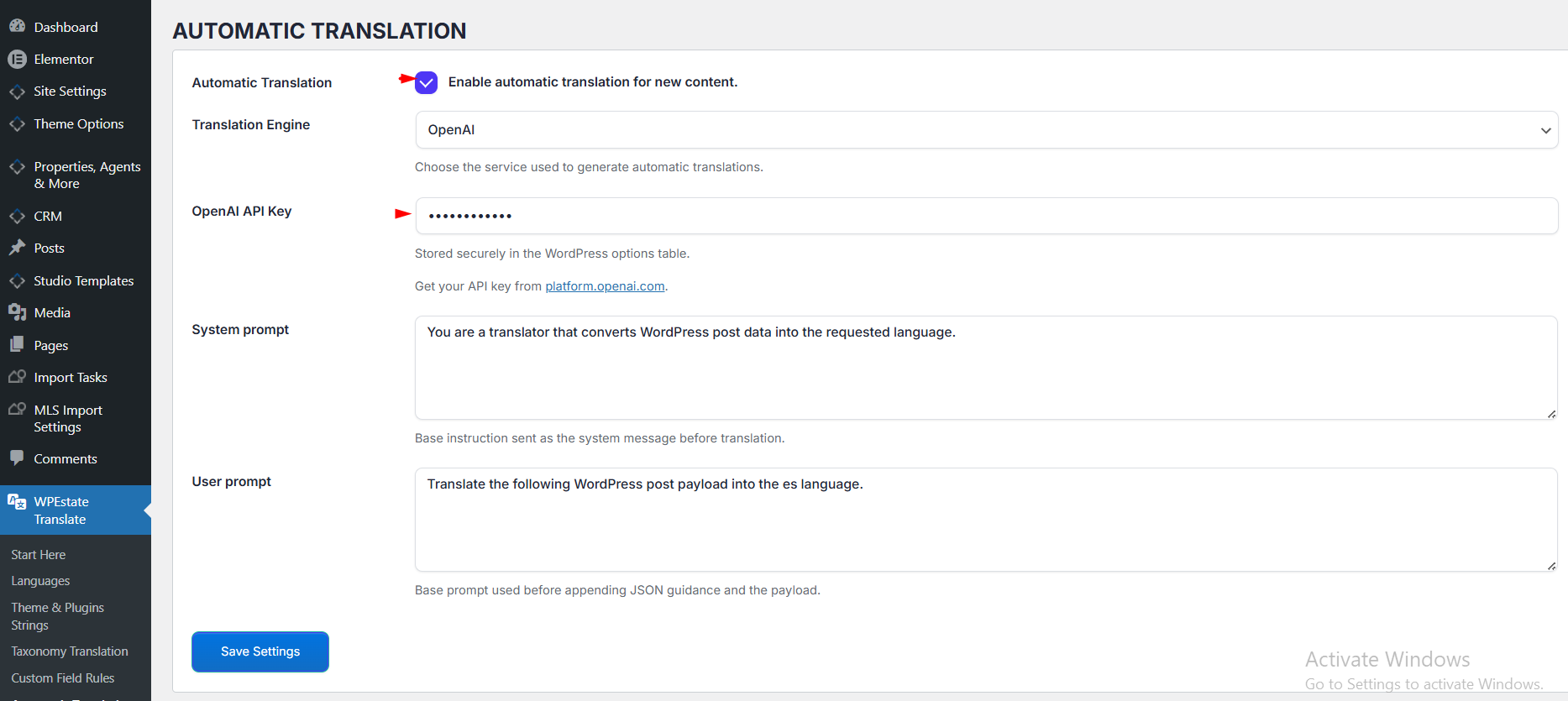
Go to WPEstate Translate → Automatic Translation:
- Automatic Translation – tick to enable auto-translation for new content.
- Translation Engine – choose OpenAI.
- OpenAI API Key – paste the key. It is stored in the WordPress options table.
- System prompt – the base instruction sent as the system message. Default: You are a translator that converts WordPress post data into the requested language. You can customise the tone (formal vs informal) here.
- User prompt – the base instruction sent as the user message. Default: Translate the following WordPress post payload into the %1$s language. The %1$s placeholder is replaced with the target language code.
Click Save Settings.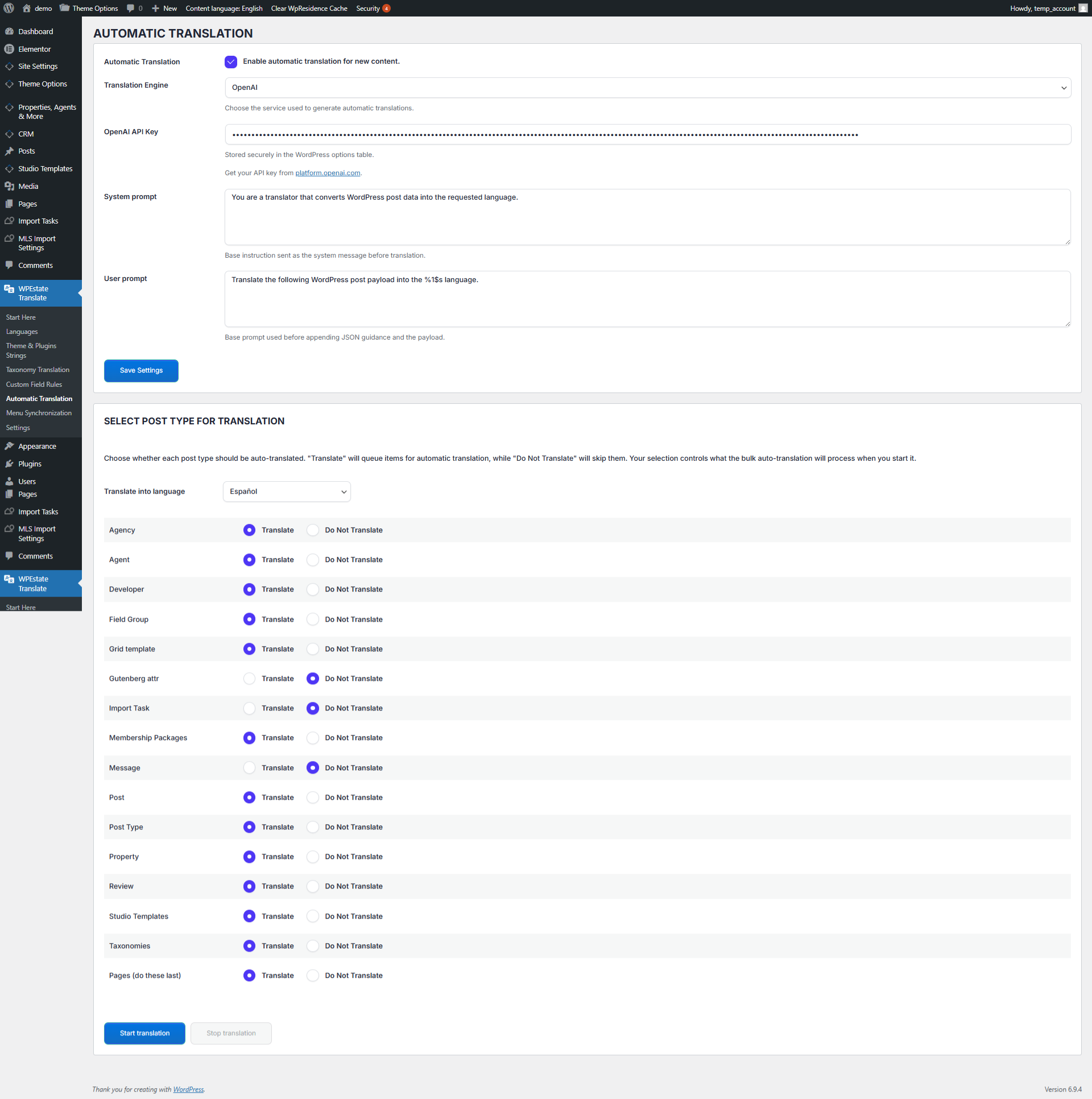
Step 3 – Choose Post Types
The second card, Select post type for translation, lists every public post type on your site (Posts, Pages, Properties, Agents, etc.). For each one pick:
- Translate – include in bulk auto-translation runs.
- Do Not Translate – skip.
Step 4 – Pick the Target Language
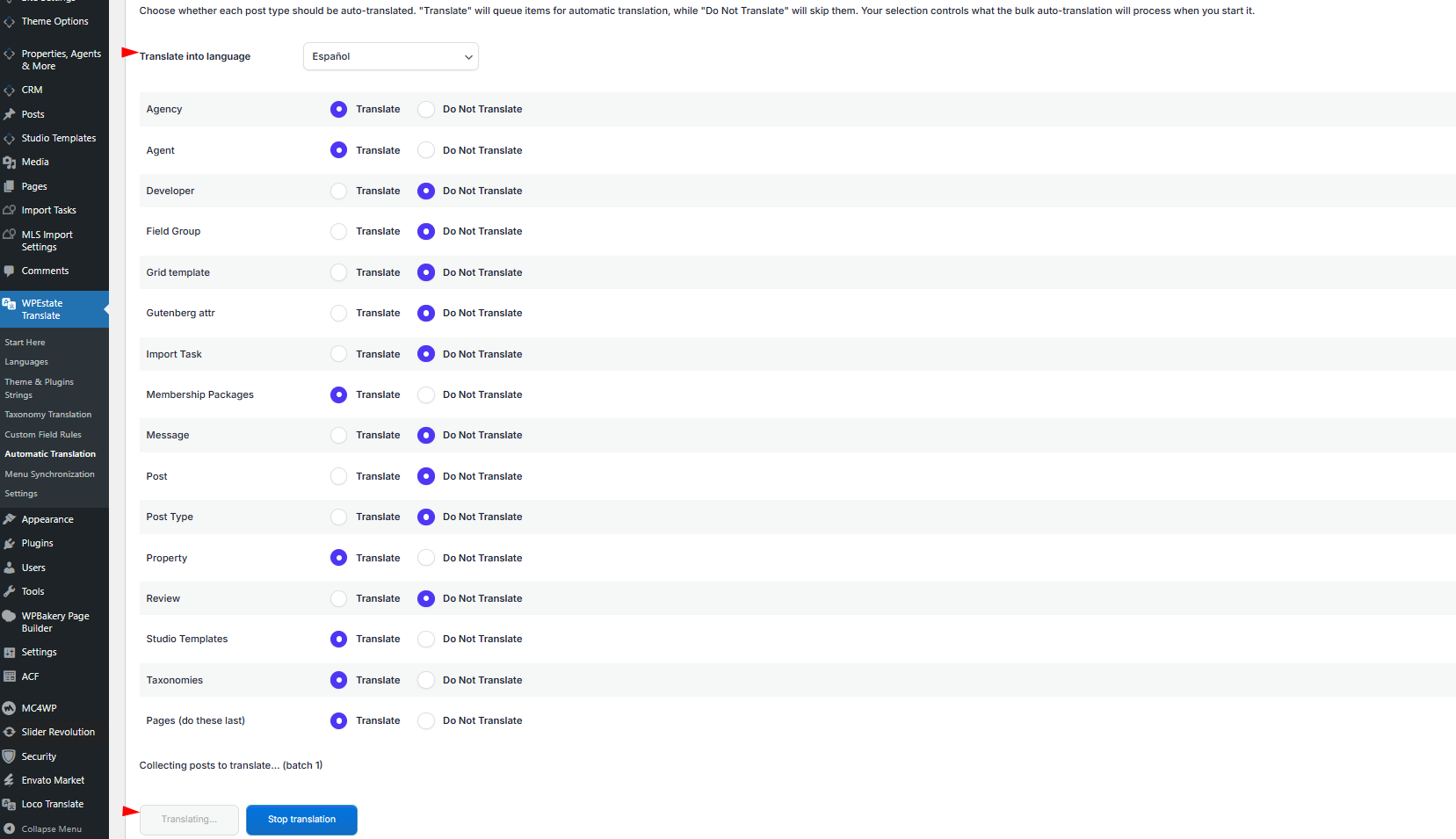
Use the Translate into language dropdown to choose which language is being filled this run. Auto-translate handles one target language at a time; repeat the run for each additional language.
Step 5 – Run the Bulk Job
Click Start translation. A progress status area shows processing per post. You can halt a run at any time with Stop translation. Partial progress is kept – restarting picks up where it left off.
Auto-Translate on the String Grid
The same OpenAI settings power the Automatic translate strings block on Theme & Plugins Strings. Pick a domain, a target language, and click Automatic Translate to fill untranslated textareas.
Auto-Translate From the Post Editor
When editing a post, page, or property, the editor header language selector also offers a one-click auto-translate action. This is handy for one-off items you don’t want to run as a bulk job.
Glossary & Translation Memory
A Glossary screen lets you define fixed translations for specific terms (brand names, legal phrases, domain jargon). Each entry takes a Source Term, a Preferred Translation, and optional Context / Notes. The plugin also maintains a translation memory keyed by similarity hash, so repeated sentences reuse previous translations and reduce API cost.
Cost Considerations
- OpenAI bills per token. Translating a typical property description costs a fraction of a cent; translating thousands of posts at once can add up.
- Use the Do Not Translate radio for post types you don’t need (for example utility CPTs).
- Always review machine output. Real estate language (legal terms, measurements) benefits from human review.
Rate Limits & Timeouts
Each request can take several seconds (the HTTP timeout is 540 seconds). The plugin retries up to 3 times on transient failures. If OpenAI returns a rate-limit or transient 5xx error, wait a minute and re-run – processed items will be skipped automatically.
Fallback Behaviour
- If the API key is missing, the button shows an error; nothing is written.
- If OpenAI returns malformed JSON, the plugin rejects the response and leaves the post untouched.
- If you select Google, DeepL, or Azure today, the request returns a “not implemented yet” message.
Related Articles
- Settings Page – global translation options.
- Translating Theme & Plugin Strings – pair auto-translate with the string grid.
- Custom Field Rules – decide which meta fields should be translated.
For the full product overview of our multilingual setup, see the multi-language real estate website guide.