WP Residence Help WP Residence Help

  • WpEstate
  • WPRESIDENCE
  • Video Tutorials
  • Client Support
  • API
Home / 30. WPResidence Translate Plugin / WPResidence Translate — Settings Page

WPResidence Translate — Settings Page

1 view 0

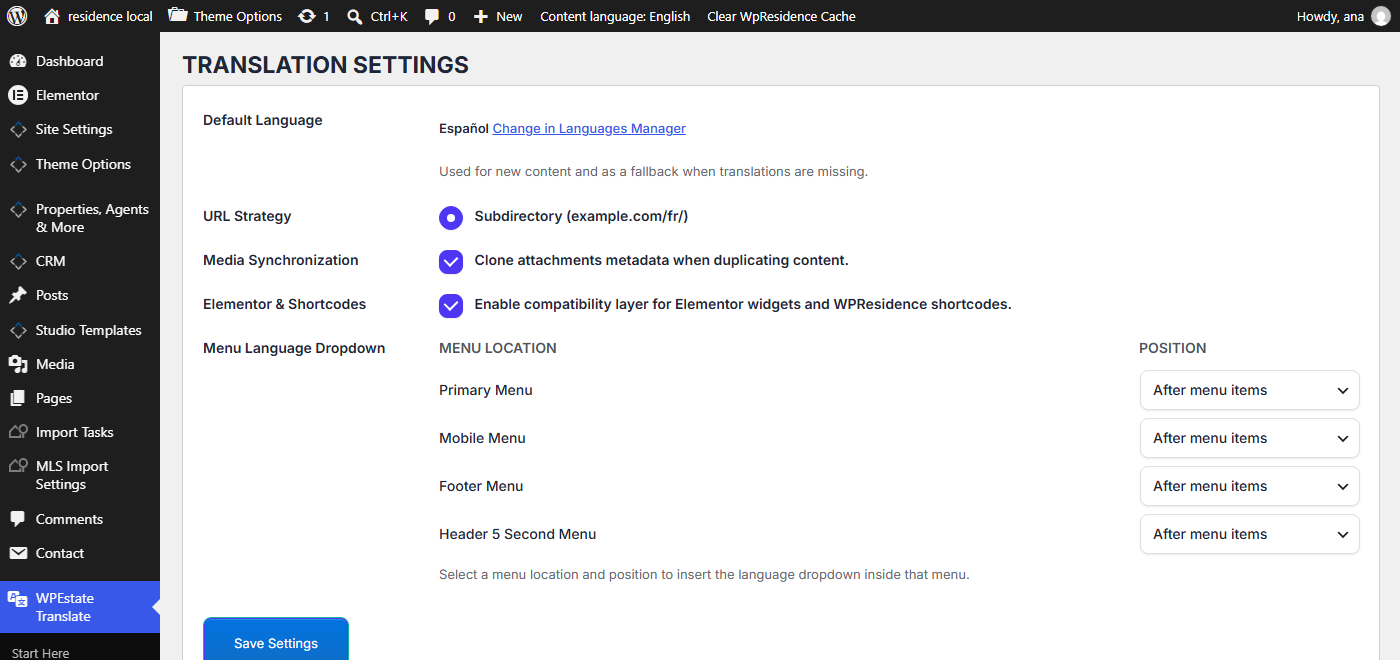
The Settings page is where you configure the global behavior of WPResidence Translate. Most of these options are set once during initial setup and never touched again. This article explains every field on the screen in plain English so you can make informed choices while you build a multi-language real estate website.

Where to Find It

In wp-admin go to WPEstate Translate > Settings. The page is gated by the Manage Options capability, so only administrators can access it.

Screenshot: WPEstate Translate Settings page with Default Language, URL Strategy, and Media Synchronization sections

The page is split into two forms:

  1. The main Translation Settings card, where you edit configuration.
  2. The Reset Translation Settings card at the bottom, for starting over.
  3. A Delete Translations card for bulk removing translated content (covered in the Cache Purge & Reset Tools article).

Default Language

A dropdown populated with every language currently active in WPEstate Translate > Languages. The language you pick here is used for:

  • New content you create. A post saved without a language assignment is treated as being in the default language.
  • Fallback display. If a visitor requests a translation that does not yet exist, the site falls back to this language.
  • The language whose posts are treated as “originals” in the translation linking table.

You should almost always make your site’s primary editing language the default. Changing it later is possible, but it re-labels existing originals — expect to review your translation links afterwards.

URL Strategy

Controls how translated URLs are structured. WPResidence Translate currently supports a single strategy:

Strategy Example URL Notes
Subdirectory example.com/fr/ Each non-default language lives under a folder-like prefix. Default language is served at the site root.

The radio button is present for future expansion (subdomain and query-parameter strategies), but subdirectory is the only supported mode today. The sanitizer locks the saved value to subdirectory.

Media Synchronization

A single checkbox: Clone attachments metadata when duplicating content.

  • Checked (default) — when you create a translation of a post, its featured image and attached media references are cloned to the new language variant, so the translated post shows the same pictures without you having to re-upload them.
  • Unchecked — media is not cloned automatically. Useful if you want each language variant to pick its own gallery and featured image.

For real estate sites this is almost always kept on — property photos are identical across languages.

Elementor & Shortcodes

A checkbox: Enable compatibility layer for Elementor widgets and WPResidence shortcodes.

With this enabled, the plugin remaps widget and shortcode identifiers across language variants so a translated page renders the correct translated resource. For example, a property search form placed on your homepage keeps working when the page is viewed in French — it quietly resolves the French variant of the form definition.

Keep this on unless you have a specific reason to disable it; turning it off usually results in translated pages showing English source content inside widgets.

Menu Language Dropdown

If your theme registers any navigation menu locations (WPResidence registers several — primary, footer, mobile, etc.), you will see a grid with one row per menu location and a Position dropdown. Pick where the language switcher appears inside each menu:

  • No dropdown — do not inject a language switcher into this menu.
  • Before menu items — language dropdown appears as the first item.
  • After menu items — language dropdown appears as the last item.

Screenshot: Menu Language Dropdown grid listing menu locations with Position select boxes

If the theme has no registered menu locations, a short description message appears in place of the grid.

Save Settings

Click Save Settings at the bottom of the main card to persist your choices. You will see a green success bar at the top of the page when the save succeeds. Any validation issues are reported in a red bar below the page title.

The Reset Section

At the bottom of the page you will see a secondary card: Reset Translation Settings. This is a destructive action — it clears plugin data, theme option translations, and saved settings, while keeping your actual translated posts. Always read the confirmation dialog before clicking.

Full details are in the companion Cache Purge & Reset Tools article.

The Delete Translations Section

Directly below the reset card, you will also find a Delete Translations area with two sub-sections:

  • Delete Translated Posts — pick post types (properties, posts, pages, agents, etc.), pick a non-default language, and permanently delete the translated copies.
  • Delete Translated Terms — pick taxonomies, pick a non-default language, and remove translated terms.

Originals in the default language are never affected by these two buttons. Again, the Cache Purge & Reset Tools article covers the full workflow, including how the batch delete progress bar works.

Other Settings Screens You Might Expect Here

A few settings live on their own dedicated pages rather than the main Settings screen:

What you are looking for Where it lives
Add/remove languages, set default WPEstate Translate > Languages
Automatic translation provider & API keys WPEstate Translate > Automatic Translation
Translatable taxonomies WPEstate Translate > Taxonomy Translation
Per-field custom meta rules WPEstate Translate > Custom Field Rules
Menu alignment across languages WPEstate Translate > Menu Synchronization

Tips for Multilingual Real Estate Sites

  • Start with Media Synchronization and Elementor & Shortcodes enabled. Turn them off only if you run into a specific integration issue.
  • Pick the default language of your editorial team, not the target audience language. Translations branch off from the default, so editors should be fluent in it.
  • Set the Menu Language Dropdown on your primary header menu first — that is the most visible switcher for visitors.

What To Read Next

  • Managing Languages — pick which languages your site speaks.
  • Automatic Translation — configure OpenAI, Google, DeepL, or Azure keys.
  • Cache Purge & Reset Tools — the admin-side maintenance controls.

For a big-picture look at the feature set, see WPResidence’s multi-language real estate website page.

30. WPResidence Translate Plugin

Related Articles

  • String Scanner — Developer Guide
  • The String Scanner
  • Gettext Pipeline & MO Files — Developer Guide
  • Gettext & MO Files — Making Translations Appear on the Front End

WP Residence Documentation

  • 01. Getting Started
    • How to Get Support
    • Get your buyer license code.
    • Use SSL / https
    • Server / Theme Requirements
  • 02. Installation & Setup
  • 03. Installation FAQ
  • 06. Search & Filtering
    • Advanced Search Display Settings
    • Advanced Search Form
    • Geolocation Search for Half Map
    • Save Search Theme Options
    • Advanced Search Colors
  • 09. Agent, Agency & Developers
  • 08. Property Pages & Layouts
  • 07. Property Lists, Categories & Archive
  • 13. WPResidence Elementor Studio
  • 10. Blog Posts & Blog List
  • 11. Shortcodes
    • Contact Form
    • Featured Agency/Developer
    • Membership Packages
    • Testimonials
    • Google Map with Property Marker
    • Listings per Agent, Agency or Developer
    • Display Categories
    • Agent List
    • Recent Items Slider
    • Recent items
    • List Properties or Articles by ID
    • Featured Agent
    • Featured Article
    • Featured Property
    • Login & Register Form
    • Icon Content Box Shortcode
  • 12. Widgets
  • 04. Theme Options & Global Settings
    • General Settings
    • User Types Settings
    • Appearance
    • Logos & Favicon
    • Header
    • Footer Style and Colors
    • Price & Currency
    • Property Custom Fields
    • Features & Amenities
    • Listing Labels
    • Theme Slider
    • Permalinks
    • Splash Page
    • Social & Contact
    • Map Settings
    • Pin Management
    • How read from file works
    • General Design Settings
    • Custom Colors Settings
    • Header Design & Colors
    • Mobile Menu Colors
    • User Dashboard Colors
    • Print PDF Design
    • Property, Agent, Blog Lists Design Settings
    • Sidebar Widget Design
    • Font management
    • How to add custom CSS
    • Custom Property Card Unit – Beta version
    • Email Management
    • Import & Export theme options
    • reCaptcha settings
    • YELP API Integration
    • iHomefinder Optima Express IDX
    • MEMBERSHIP & PAYMENT Settings
    • Property Submission Page
    • PayPal Setup
    • Stripe Setup
    • Wire Transfer Payment Method
  • 20. Translations & Languages
  • 26. FAQ
  • 10. Pages
  • 11. Header
  • 12. Footer
  • 05. Maps & Location Settings
  • 18. Payments & Monetization
  • Plugins
    • 19. Included Plugins
    • 22. Third Party Plugins – IDX Compatibility
    • 21. Third-Party Plugins – Multi-Language
    • 23. Third party Plugins – Other
  • Technical
    • 24. Technical how to | Custom Code Required
    • 25. Technical: Child Theme

Join Us On

Powered by WP Estate - All Rights Reserved
  • WpEstate
  • WPRESIDENCE
  • Video Tutorials
  • Client Support
  • API