
When you translate a property, some information should be identical in every language — the price, the number of bedrooms, the GPS coordinates — while other information should be unique per language — the title, the description, the SEO summary. WPEstate Translate gives you a per-field rule engine that decides, for each custom field, whether it is copied across translations or translated independently. This article explains how to work with it on a day-to-day basis. For the full picture of how WPResidence powers a multi-language real estate website, see the parent guide.
Why Meta Sync Matters
A property listed in English, French, and Romanian is three linked posts in WordPress — but they describe the same physical property. If an agent updates the price on the English version, the French and Romanian versions must show the same price. Leaving that to manual editing is a recipe for stale data, inconsistent search filters, and angry leads. The meta sync engine keeps values aligned automatically, so your team only edits them once.
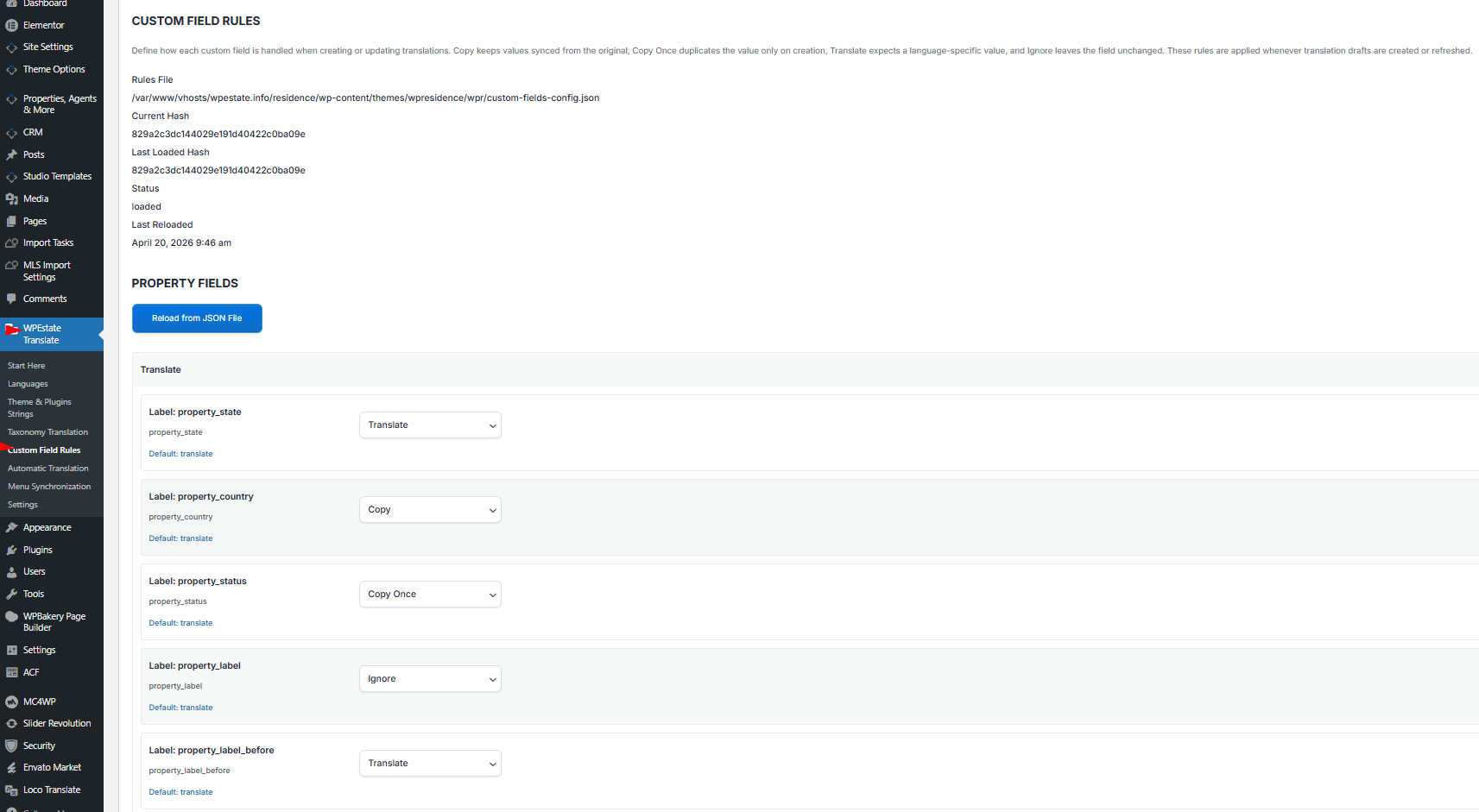
Where To Find Custom Field Rules
In your WordPress admin, open WPEstate Translate > Custom Field Rules. The screen lists every custom field the plugin knows about, grouped by post type (Property fields first, then any other post types that expose translatable meta).
Each field has four possible behaviors, presented as collapsible accordion groups on the page:
| Rule | What it does | Typical use |
|---|---|---|
| Translate | The field is expected to hold a different value per language. Nothing is auto-copied. | Title, excerpt, long description, SEO tagline. |
| Copy | Every time the source post is saved, the value is mirrored to every sibling translation. | Price, beds, baths, size, GPS coordinates, MLS ID, featured flag. |
| Copy Once | The value is copied only when a translation is first created. After that, each language can diverge. | Default featured image, initial category pick, starter gallery list. |
| Ignore | The field is left alone in every language; no copying, no warnings. | Language-specific badges, per-language tracking IDs, custom admin notes. |
Changing a Rule
- Open WPEstate Translate > Custom Field Rules.
- Find the post type group (for example, Property Fields).
- Expand the accordion for the behavior the field is currently in.
- Locate the field by its label or meta key (both are shown on the row).
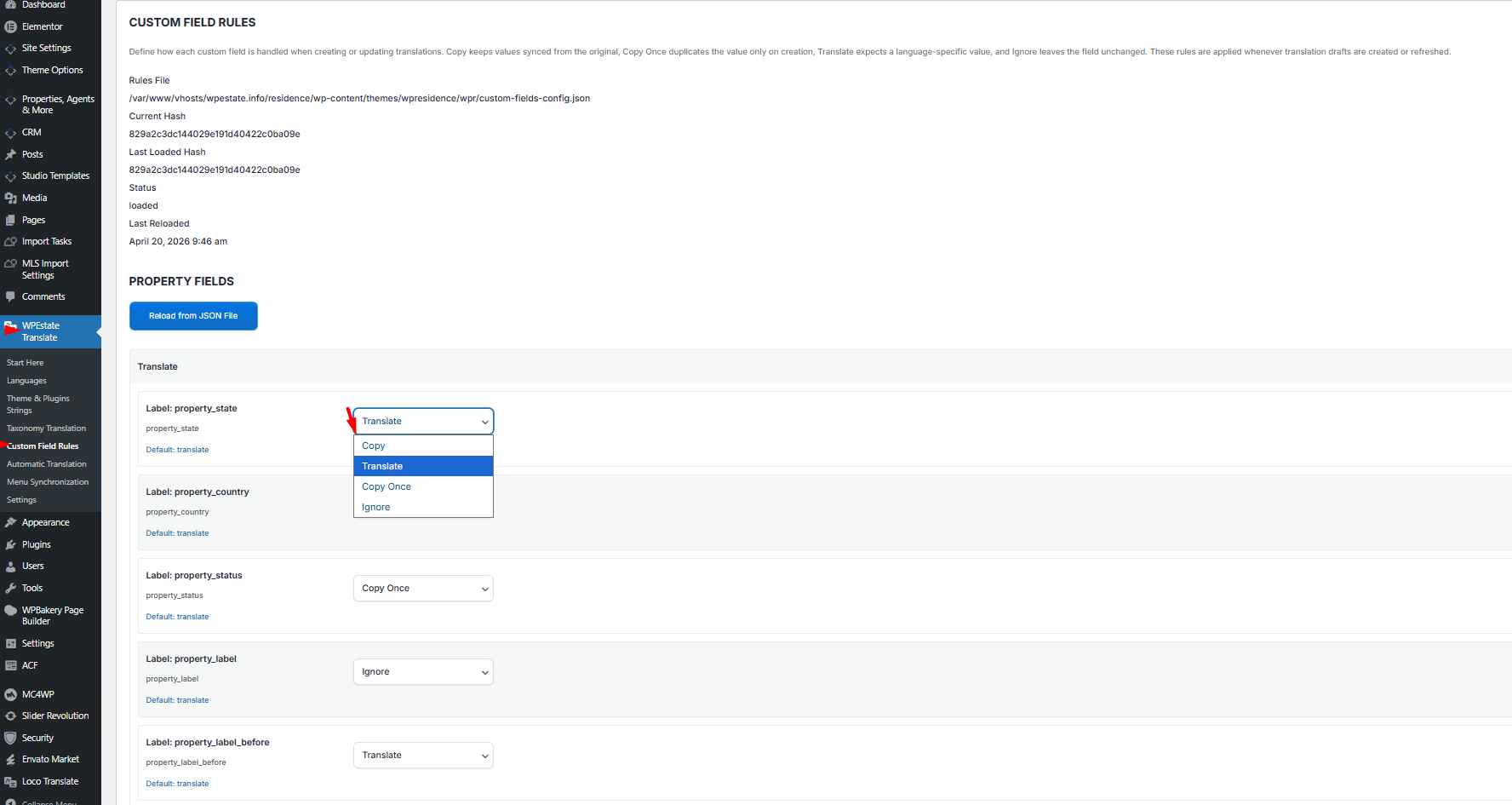
- Use the dropdown on the right to pick the new behavior.
- The change is saved in the background; a status message appears next to the dropdown.
The Default Rules and the JSON File
WPResidence ships a default set of rules in a JSON configuration file inside the theme. Those are the recommended behaviors that cover the standard property custom fields (price, rooms, size, address, coordinates, and so on). Any change you make from the admin page is stored as an override on top of the default — so you can always tell which fields follow the defaults and which were adjusted.
Each row on the page shows the Default value beneath the meta key. If a row has a colored border, it means an override is active for that field.
Reloading Rules From the JSON File
If a new version of WPResidence ships with updated defaults — or you edit the JSON file manually in a child theme — press the Reload from JSON File button at the bottom of the page (and also on the Property section). This re-reads the file, updates the defaults, and clears any existing overrides.
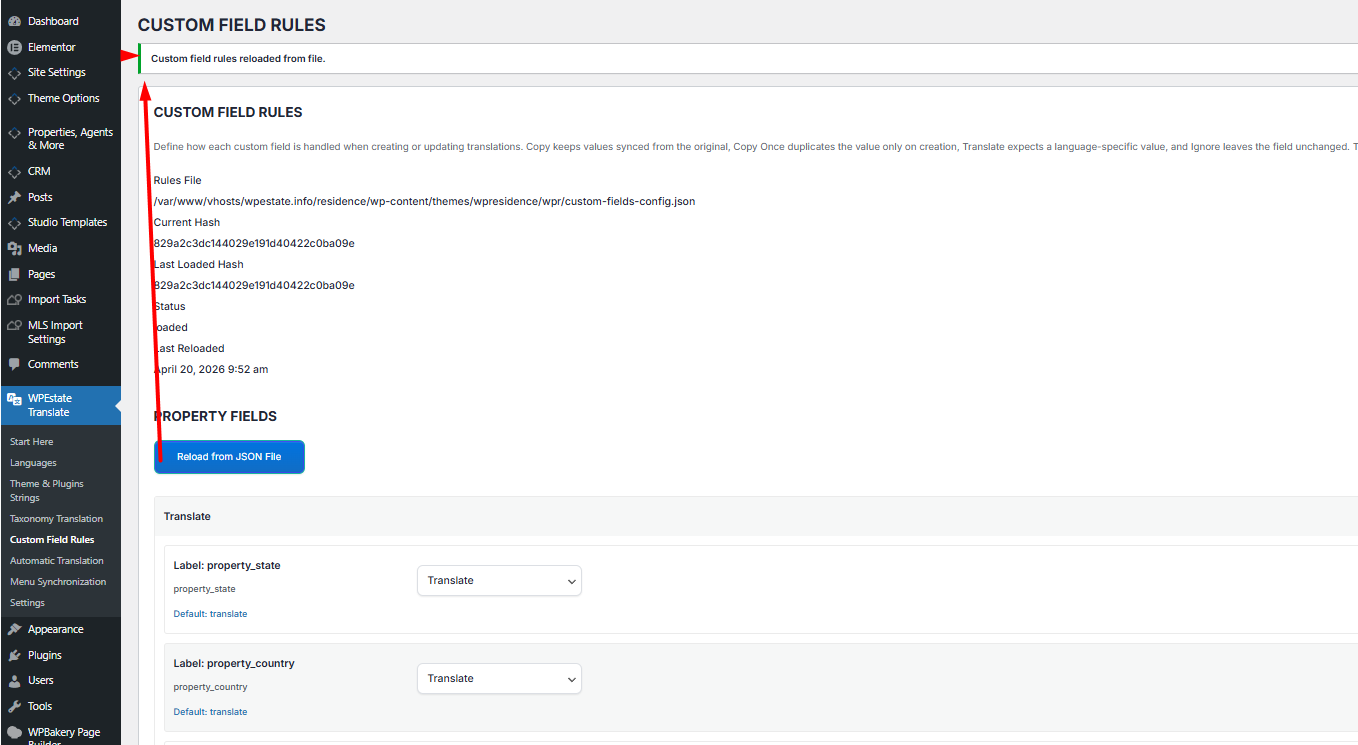
The status panel at the top of the page shows the rules file path, the current file hash, the last-loaded hash, the load status, and the last reload timestamp — useful when a support engineer asks what configuration you are running.
What Actually Happens When You Save a Translation
When you save any translation (not just the original), the plugin looks at every field configured with Copy behavior and mirrors the saved value to every sibling post in the translation set. So editing the price on the French property updates it on the English and Romanian counterparts automatically.
Fields marked Translate or Ignore are never touched by this process. Fields marked Copy Once are filled in at translation-creation time only, after which they can diverge freely.
Tips for Real Estate Teams
- Keep numeric and structural fields on Copy: price, currency, beds, baths, interior size, lot size, latitude, longitude, status, action type.
- Keep text fields on Translate: title, excerpt, property description, category tagline, SEO meta.
- Use Copy Once for anything a translator may want to personalize later but that needs a sensible starting value.
- Use Ignore for experimental or debug meta you do not want the plugin to touch.
- When adding a new custom field to the theme, add it to the JSON file so the default rule is part of your standard setup.
Non-Latin Languages
All meta values — including those in Cyrillic, Arabic, Hebrew, Chinese, Japanese, Korean, Thai and Greek — are preserved byte-for-byte during copy. No silent transliteration, no character loss.
What To Read Next
- Translating Posts & Pages — the editor workflow that creates translation variants.
- Taxonomy Translation — the equivalent of meta sync for categories, locations, and features.
- Automatic Translation — auto-filling Translate fields with OpenAI, Google, DeepL, or Azure.
To see how meta sync fits the bigger picture of running a multi-language real estate website, check the WPResidence translation landing page.