
WPResidence supports two map systems: OpenStreetMap and Google Maps.
The map system is selected from:
Theme Options → Map Configuration → Map General Settings
From this section, you can choose the map provider, add the required API keys, set the default map starting point, manage zoom, enable pin clusters, and control map settings used across the website.
Choose the Map System
Go to:
Theme Options → Map Configuration → Map General Settings
Use the map system option to select the provider used by the theme:
- OpenStreetMap
- Google Maps
The selected map system applies to WPResidence maps across the website, including property maps, map hero headers, map widgets, map shortcodes, the map item in the Property Overview section, and the map included in Print.
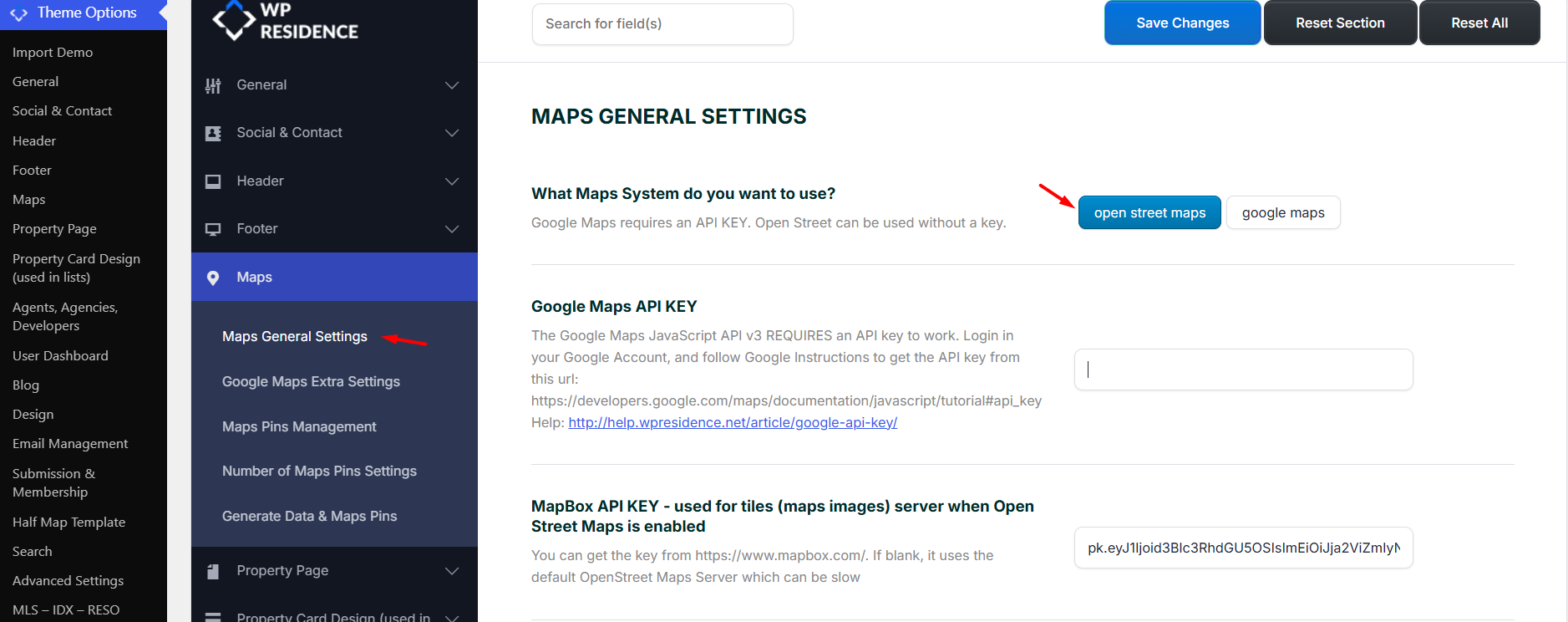
Use OpenStreetMap
OpenStreetMap can be used without a Google Maps API key.
To set OpenStreetMap as the map system:
- Go to Theme Options → Map Configuration → Map General Settings.
- Select OpenStreetMap as the map system.
- Save the changes.
- Clear cache and test the map on the frontend.
MapBox API Key for OpenStreetMap
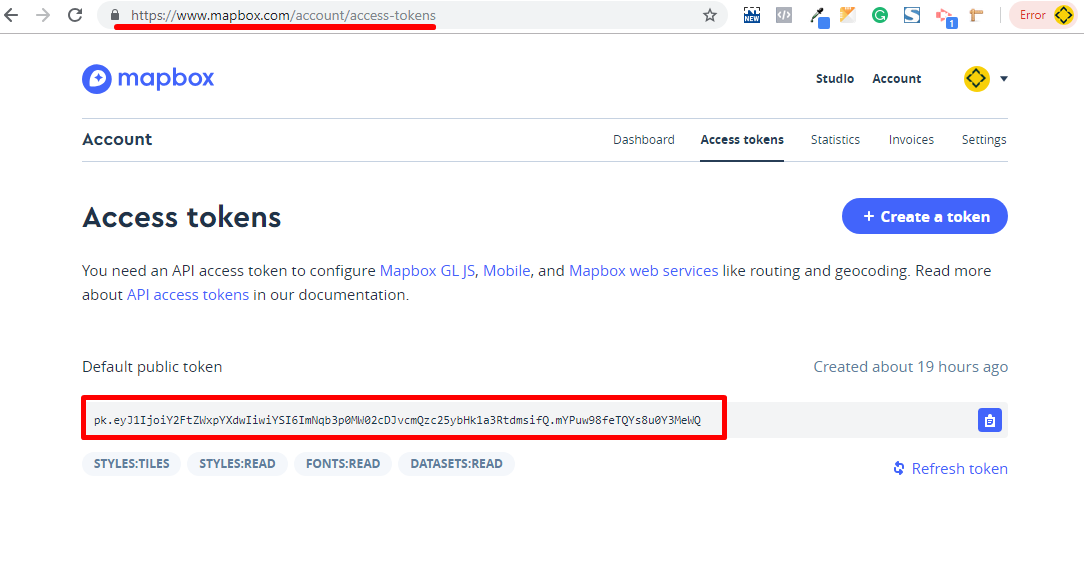
MapBox is used only when the selected map system is OpenStreetMap.
MapBox is not the same as Google Maps. It does not replace the Google Maps API key. It is used for OpenStreetMap map tiles and map images.
You can get a MapBox API key from:
Map Images for Overview and Print
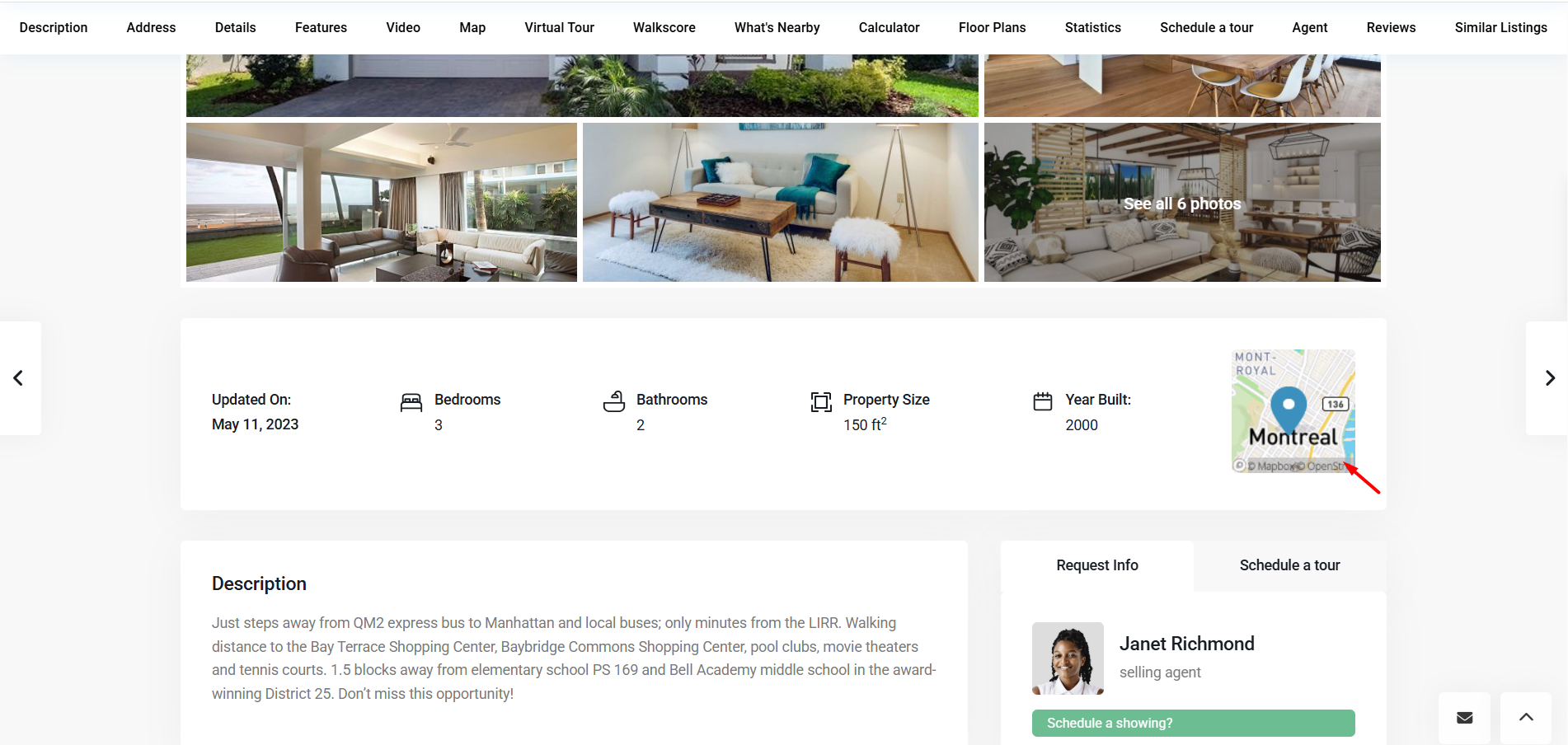
New: The Map item in the Property Overview section works with both map systems supported by WPResidence.
The map is also included in Print and behaves like the Overview map.
For these map images to display correctly, the correct provider setup is required:
- OpenStreetMap: a valid MapBox API key is needed for the Overview map image and the Print map image.
- Google Maps: a valid Google Maps API key is needed, and the Google Maps Static API must be enabled in the Google Cloud project used for that key.
The property must also have a saved location and valid latitude / longitude coordinates.
The Property Overview map item is managed from:
Theme Options → Property Page → Overview section → Arrange Overview Details
Enable the Map item if you want the small map image to appear in the Overview section.
How to manage the Property Overview map
OpenStreetMap Limitations
OpenStreetMap does not support all Google Maps features.
These options are not available with OpenStreetMap:
- Google Street View
- Google Places options used on the property page map
OpenStreetMap Language
Changing the OpenStreetMap tile language is not a theme option.
This requires custom code changes in the map scripts and depends on the tile provider used. Because this is a code customization, it is outside the standard theme options setup.
Use Google Maps
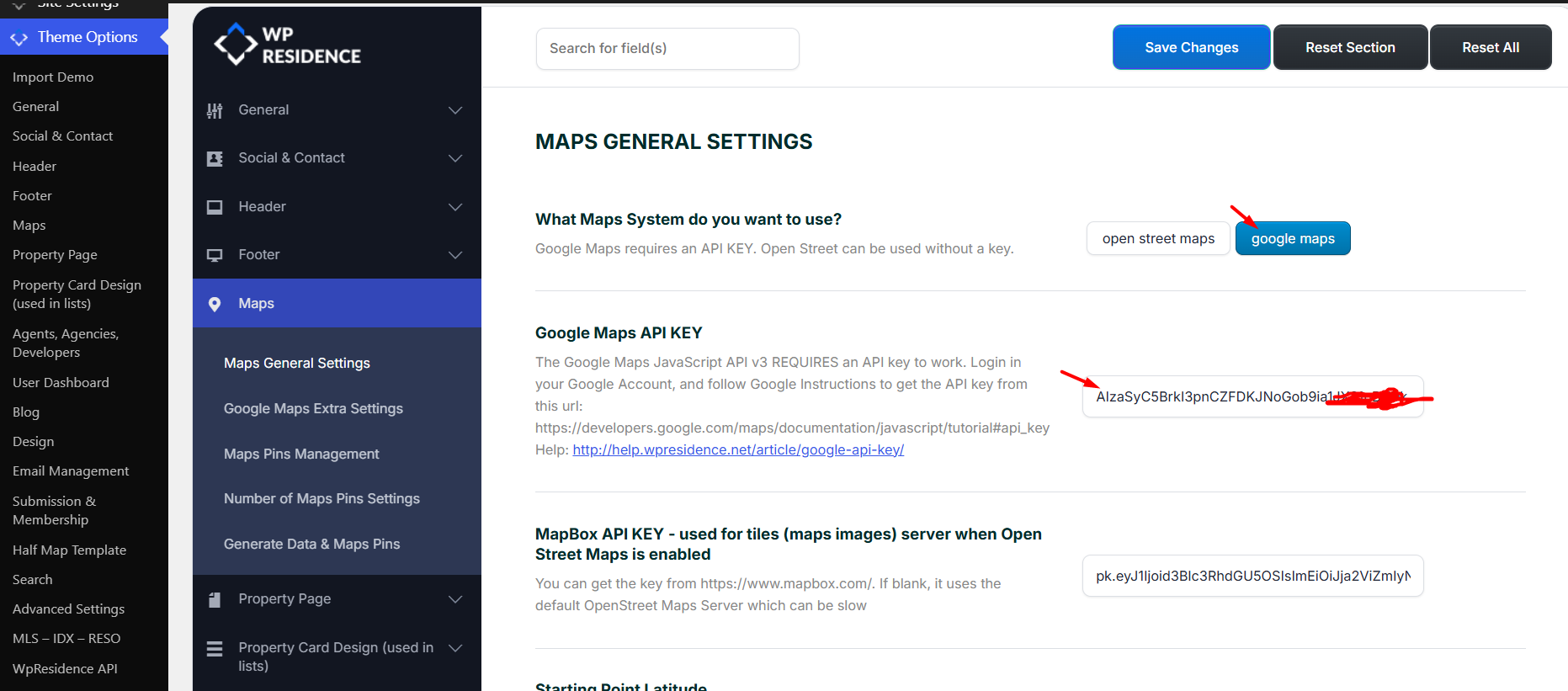
To use Google Maps, select Google Maps as the map system and add your own Google Maps API key.
Go to:
Theme Options → Map Configuration → Map General Settings
Then:
- Select Google Maps as the map system.
- Add your Google Maps API key.
- Save the changes.
- Clear cache and test the map on the frontend.
Google Maps API Key
Google Maps requires your own Google Maps API key.
The API key is added in:
Theme Options → Map Configuration → Map General Settings
Google Maps will not work correctly if the API key is missing, invalid, restricted incorrectly, or if the required Google APIs are not enabled.
When creating the Google Maps API key, make sure your Google Cloud project is configured correctly:
- Billing is enabled in Google Cloud.
- The required Google Maps APIs are enabled.
- The API key is restricted to your website domain.
- The domain restriction includes the correct website URL format.
Google Maps – How to add Google API Key
Google Maps Static API
The Google Maps Static API is required when Google Maps is used for map images generated by WPResidence.
This applies to:
- The Map item in the Property Overview section
- The Map included in Print
If Google Maps is selected and these map images do not show, check the Google Cloud project used by your API key and enable the Google Maps Static API.
Google Maps Extra Settings
After Google Maps is selected and the API key is added, you can manage extra Google Maps display options from:
Theme Options → Map Configuration → Google Maps Extra Settings
These settings can control options such as:
- Default Google Maps view
- Google Maps pin cache
- Google Maps search over the map
- Custom Google Maps style JSON
Disable Maps for the Entire Website
If you do not want to use maps on the website, maps can be disabled from the theme settings.
How to disable maps for the entire website
Related Help
- Google Maps Extra Settings
- Google Maps – How to add Google API Key
- Google Maps is not loading – what settings to check
- How to find latitude and longitude / set Google Maps coordinates
- How to set the location of a property on the map
- How to manage the Property Overview map
- Print PDF Management
- Map with Listings or Contact Details widget / shortcode
- Global Header Options
- Custom Header Options
- Default Contact Page Template
- How to disable maps for the entire website