
Go to Theme Options → Search → Advanced Search Form to manage the global WPResidence search form fields.
These settings control the default theme search forms, including:
- Search forms displayed in Hero Media
- Search forms used with the Advanced Search Results page
- Advanced Search widgets
- Advanced Search shortcodes
- Mobile search
- Theme default search forms used by the selected Advanced Search Type
What These Settings Control
The Advanced Search Form settings define the fields and logic used by the global WPResidence search forms.
From this area, you can manage:
- The Advanced Search Type
- The fields shown in the search form
- The field order
- The field labels
- The comparison logic for each field
- Price, rooms, bedrooms, bathrooms, amenities, and features search options
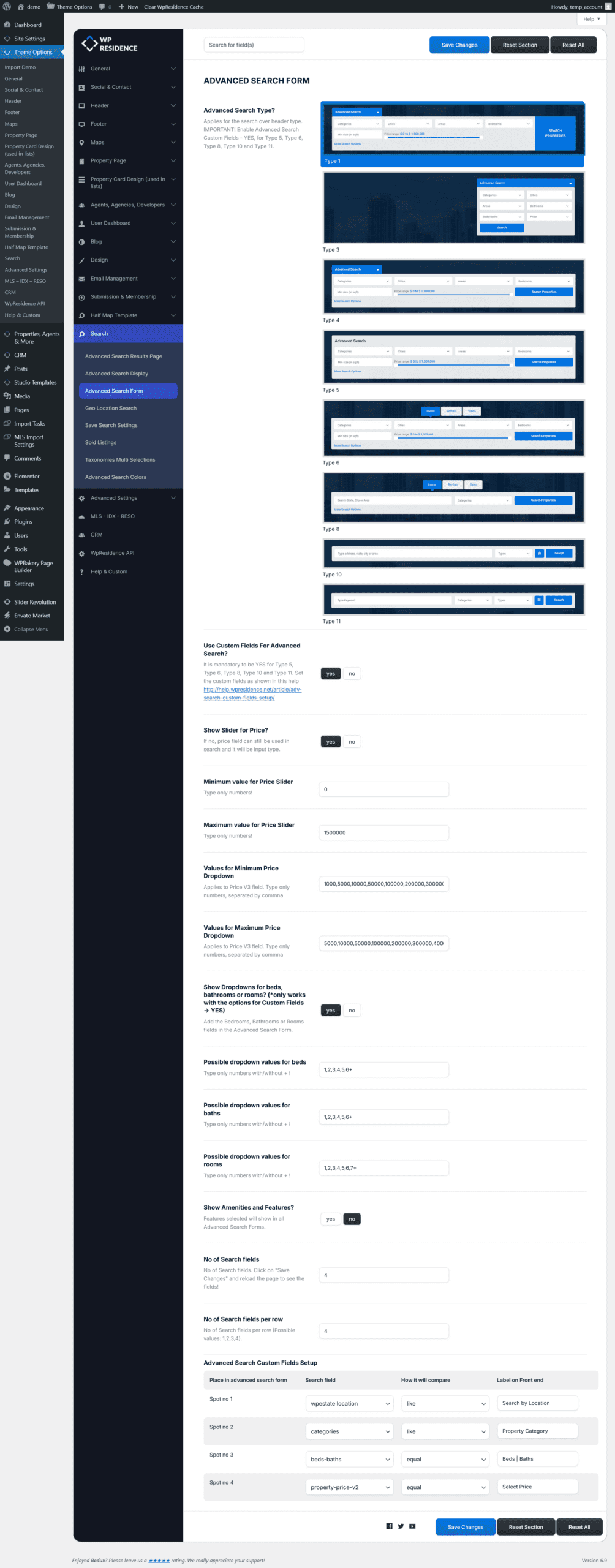
Choose the Advanced Search Type
WPResidence includes several predefined Advanced Search Types. The selected type controls how the search form is displayed and how the fields are organized.
Select the search type that matches the layout and search logic you want to use.
| Advanced Search Type 1 | Advanced Search Type 6 |
| Advanced Search Type 3 | Advanced Search Type 8 |
| Advanced Search Type 4 | Advanced Search Type 10 |
| Advanced Search Type 5 | Advanced Search Type 11 |
Enable Custom Search Fields
The option Use Custom Fields for Advanced Search? controls if the search form uses the custom field setup from this section.
Set this option to Yes if you use one of these search types:
- Advanced Search Type 5
- Advanced Search Type 6
- Advanced Search Type 8
- Advanced Search Type 10
- Advanced Search Type 11
When this option is enabled, you can choose the fields, order, labels, and comparison logic used in the search form.
Advanced Search Custom Fields Setup
Set the Search Fields
The field rows define what visitors can search for.
Common fields include:
- Location
- Property category
- Property action or type
- Property status
- Price
- Bedrooms
- Bathrooms
- Rooms
- Property size
- Year built
- Title keyword
- Custom numeric fields
- Custom text fields
For each field, you can set the field type, label, and comparison logic.
Advanced Search Custom Fields Setup
Buy / Rent or Sale / Let Search Setup
If you want separate buying and lettings journeys, use taxonomies/categories and Search Type 6. Do not start with custom hidden fields.
Recommended setup:
- Create or organize your property taxonomies, for example Sale and Rent / Let.
- Use Advanced Search Type 6 to show category-based tabs.
- Set the supported search fields for each category.
- Use the default Advanced Search Results page for submitted searches.
Advanced Search Custom Fields Setup
You can also create separate landing pages, for example:
- Buying page: list or search only Sale properties
- Lettings page: list or search only Rent / Let properties
For custom area blocks, you can add images or buttons that link to manually created pages, for example Buy in Solihull or Rent in Solihull.
Price Search Options
WPResidence supports several price filtering methods, depending on your search type and selected fields.
Price can be used as:
- Price slider
- Manual input field
- Dropdown values
Currency settings are managed from Theme Options → General → Price & Currency.
Price Slider
The Show Slider for Price? option enables or disables the price slider in the search form.
When the slider is enabled, set:
- Minimum value for Price Slider
- Maximum value for Price Slider
Price Dropdowns
To use price dropdowns, select the Price V3 field in the Advanced Search Custom Fields setup.
Then define the values for:
- Minimum Price Dropdown
- Maximum Price Dropdown
These values are also reused in the Property List Directory.
Rooms, Bedrooms, and Bathrooms Dropdowns
Rooms, bedrooms, and bathrooms are default WPResidence fields.
When dropdowns are enabled, these fields can appear as dropdowns instead of input fields.
Advanced Search Custom Fields Setup
Amenities and Features Fields
Visitors can filter listings by amenities and features, such as pool, parking, garden, elevator, or other custom features.
Create the amenities and features first, then enable them for search.
Homepage Location-Only Search
When enabled, the homepage search form displays only the location field.
The location search can include:
- Address
- City
- Area
- State
- Zip code
Advanced Search Results Page
The Advanced Search Results page displays the properties that match the filters submitted from the search form.
Elementor Search Form Builder
The Elementor Search Form Builder is used for page-specific search forms.
Use it when you need a custom search form only on a specific Elementor page.
Search Form Builder for Elementor