
FAQ: Price Slider Limits and Missing Results in Advanced Search
This FAQ explains why properties can be missing from search results when the price slider maximum value is too low.
The most important rule is this:
Quick Fix
If properties with higher prices are missing after search, check the maximum price value in the search form.
You must check the form where the search starts and the form used on the Search Results page.
Example:
- The homepage search form has maximum price set to 2,000,000.
- A property has price 3,000,000.
- The visitor searches from the homepage.
- The Search Results page receives 2,000,000 as the maximum price.
- The property priced at 3,000,000 is excluded.
To fix this, update the maximum price in every search form used on the website.
Check:
- Homepage or custom page: Elementor Search Form Builder widget, if used.
- Search Results page: Theme Options search setup.
- Tabs/categories: each tab can have its own price values.
How the Price Slider Works
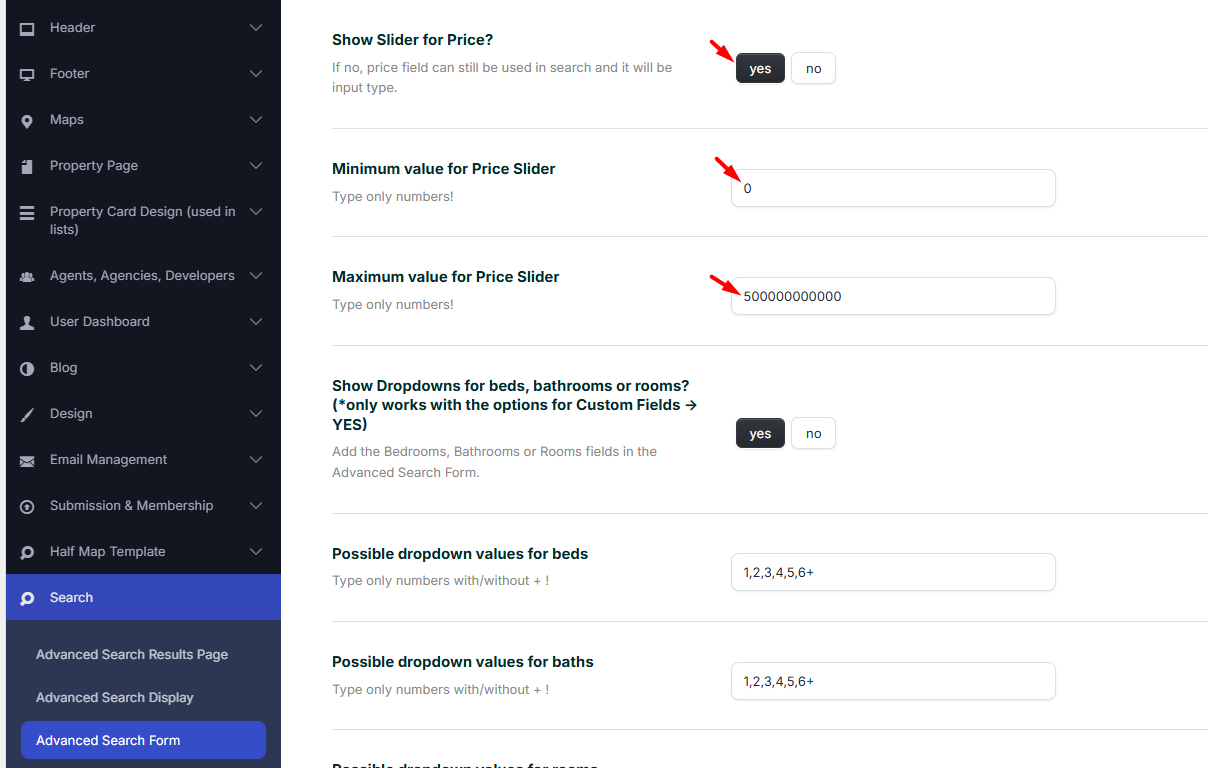
The WPResidence price slider does not calculate the minimum and maximum price automatically from the current properties.
The slider uses the values saved in the search form settings.
This means:
- If an agent adds a property with a higher price, the slider maximum does not update by itself.
- If an agent deletes the most expensive property, the slider maximum does not change by itself.
- The admin must set a maximum value that covers the prices expected on the website.
Example:
- The slider maximum is set to 2,000,000.
- An agent adds a property priced at 3,000,000.
- The slider still ends at 2,000,000.
- Visitors cannot select 3,000,000 from that slider.
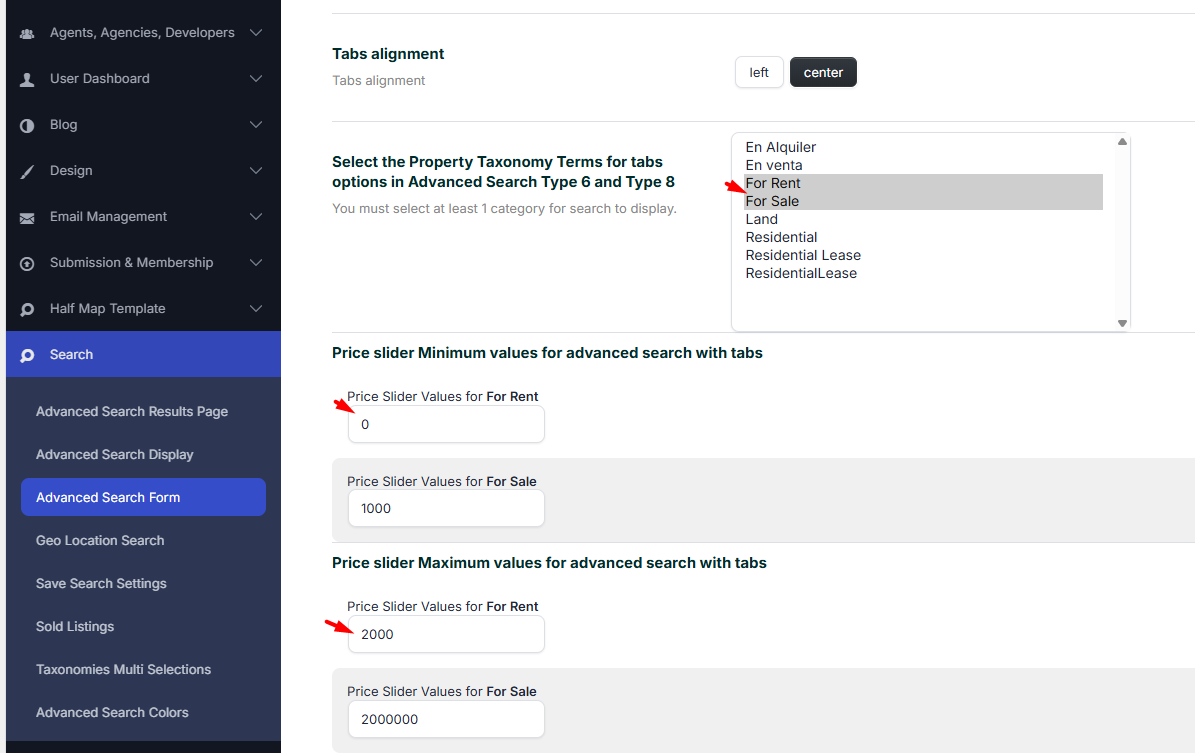
If you use search tabs with different categories, you can set different price values for each category or tab.
Why Properties Are Missing After Search
When a visitor clicks the search button, the selected search values are sent to the Advanced Search Results page.
If the search form sends a maximum price that is too low, properties above that price are excluded.
This can happen even if the property exists and is published.
Example:
- Property price: 3,000,000
- Search form maximum price: 2,000,000
- Result: the property is not included after search.
The property may still show in a normal unfiltered property list. But after the visitor searches, the price filter is applied.
Where to Check Price Values
Check the price field in every search form used on the website.
Common places are:
- Theme Options > Search > Advanced Search Form
- Theme Options > Search > Advanced Search Type 6, if using category tabs
- Elementor Search Form Builder, if the search form was added on a page with Elementor
- Advanced Search shortcode, if using a shortcode search form
All price settings should use the same logic.
Match these values:
- Price field type
- Minimum price
- Maximum price
- Price step, if used
- Price values for each category/tab, if tabs are used
Elementor Search Form Builder
If the homepage or another page uses the Elementor Search Form Builder, that search form is unique to that page.
It does not copy the values from Theme Options.
It does not update automatically when Theme Options are changed.
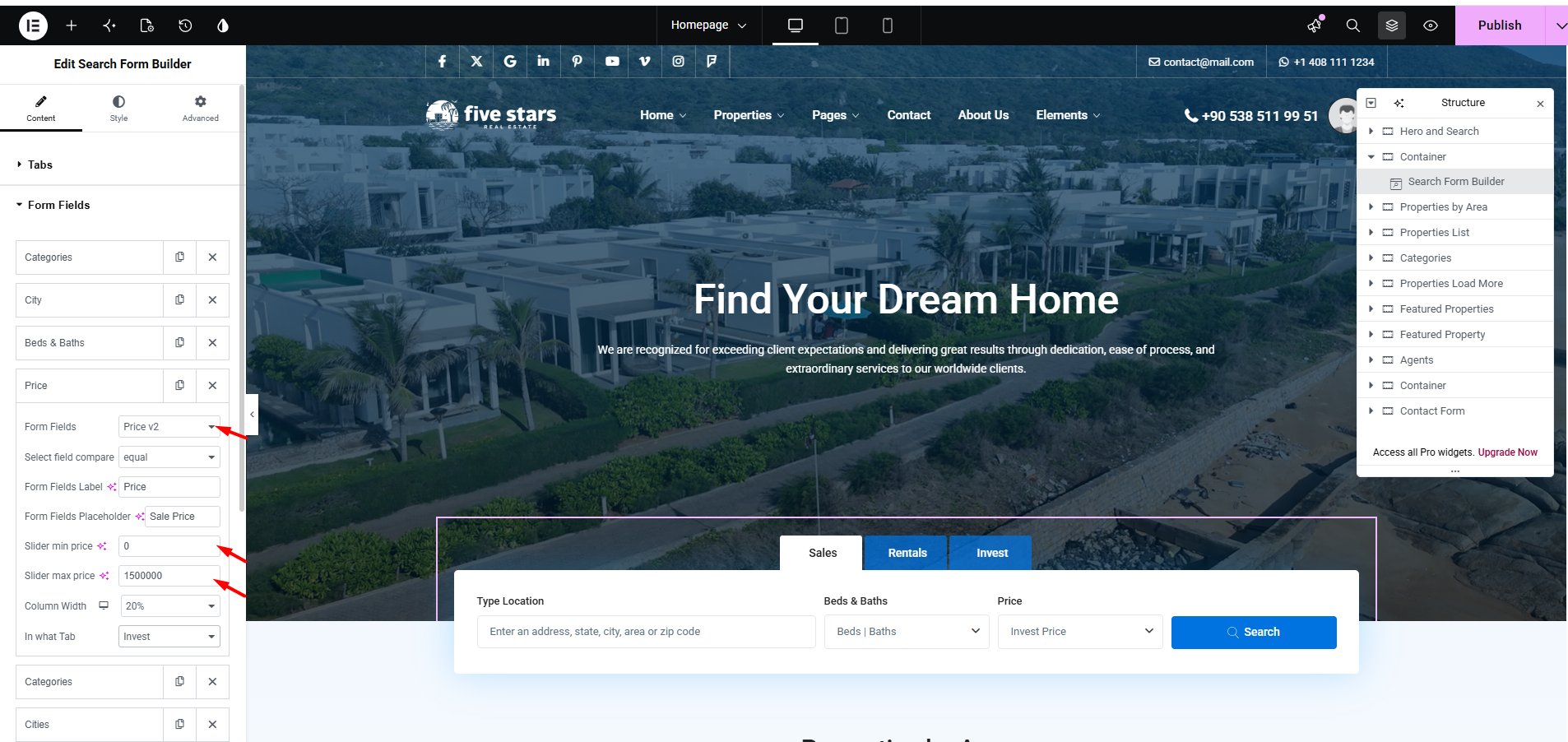
To edit the price field in Elementor:
- Go to Pages > All Pages.
- Edit the page where the search form is added.
- Click Edit with Elementor.
- Open the Search Form Builder widget.
- Check each tab or category used in the form.
- Open the price field settings.
- Update the minimum and maximum price values.
- Make sure the values match the search setup from Theme Options.
- Update the Elementor page.
- Clear cache and test the search.
Theme Options Search Form
The default WPResidence search form is managed from:
Theme Options > Search > Advanced Search Form
From this section, check the price field setup.
If your Search Results page shows the theme search form, these are the values used there.
After changing the price values:
- Save Theme Options.
- Clear cache.
- Test the search again.
Advanced Search Type 6 and Category Tabs
Advanced Search Type 6 is used when the search form has tabs, usually based on categories, actions, types, or other taxonomies.
Each tab can have its own search fields and its own price values.
For example:
- Sales can have a higher maximum price.
- Rentals can have a lower maximum price.
- Land can have a different maximum price.
If you use tabs, check every tab.
Do not check only the first tab.
Recommended setup:
- Use the same tabs on the homepage and on the Search Results page.
- Use the same fields for each tab.
- Use the same minimum and maximum price values for each matching tab.
- Test each tab separately.
Best Setup
For a simple and stable setup, use one of the options below.
Option 1: Keep the Price Slider and Use a Higher Maximum Price
Set the maximum price high enough to cover the most expensive listings you expect on the website.
Example:
- If properties can reach 3,000,000, do not set the maximum to 2,000,000.
- Use a higher value, such as 5,000,000, if this fits your market.
This avoids hiding higher-priced listings after search.
Option 2: Use Min Price and Max Price Input Fields
If agents add and delete properties often, input fields can be easier to manage than a fixed slider.
Visitors can type the price they need.
This is better when prices change often or when listing prices vary a lot.
Option 3: Use Dropdown Price Values
You can also use predefined price values.
Example:
- 0 – 100,000
- 100,000 – 250,000
- 250,000 – 500,000
- 500,000 – 1,000,000
- 1,000,000+
Option 4: Match Elementor and Theme Options
Use this option when the homepage search is built with Elementor and the Search Results page uses Theme Options.
Update the price fields in both places:
- Homepage: Elementor Search Form Builder
- Search Results page: Theme Options search setup
This is the recommended setup when visitors start the search from the homepage and land on the Advanced Search Results page.
Troubleshooting Checklist
If properties are missing after search, check this list:
- Check the property price in the property edit page.
- Check the price maximum in the search form where the visitor starts the search.
- If the search starts from the homepage, check the homepage search form.
- If the homepage uses Elementor, edit the Elementor Search Form Builder widget.
- Check the price maximum in Theme Options > Search.
- If using tabs, check the price values for every tab/category.
- Make sure Elementor price values match Theme Options price values.
- Save the changes.
- Clear cache.
- Test again with a property that was missing before.
Important Notes
- The price slider does not update automatically based on existing properties.
- The price slider uses the minimum and maximum values saved in the search form settings.
- The search form sends its selected price values to the Advanced Search Results page.
- If the maximum price is too low, higher-priced properties can be excluded after search.
- An Elementor Search Form Builder added on a page is a separate search form.
- Elementor Search Form Builder does not sync automatically with Theme Options.
- If the homepage uses Elementor search, update the price fields inside Elementor too.
- If the Search Results page uses Theme Options, update the price fields in Theme Options too.
- If using Advanced Search Type 6 tabs, check every tab/category.
- For websites with many agent updates, min/max price input fields can be easier than a fixed slider.