
Where the Google Maps API Key Is Added
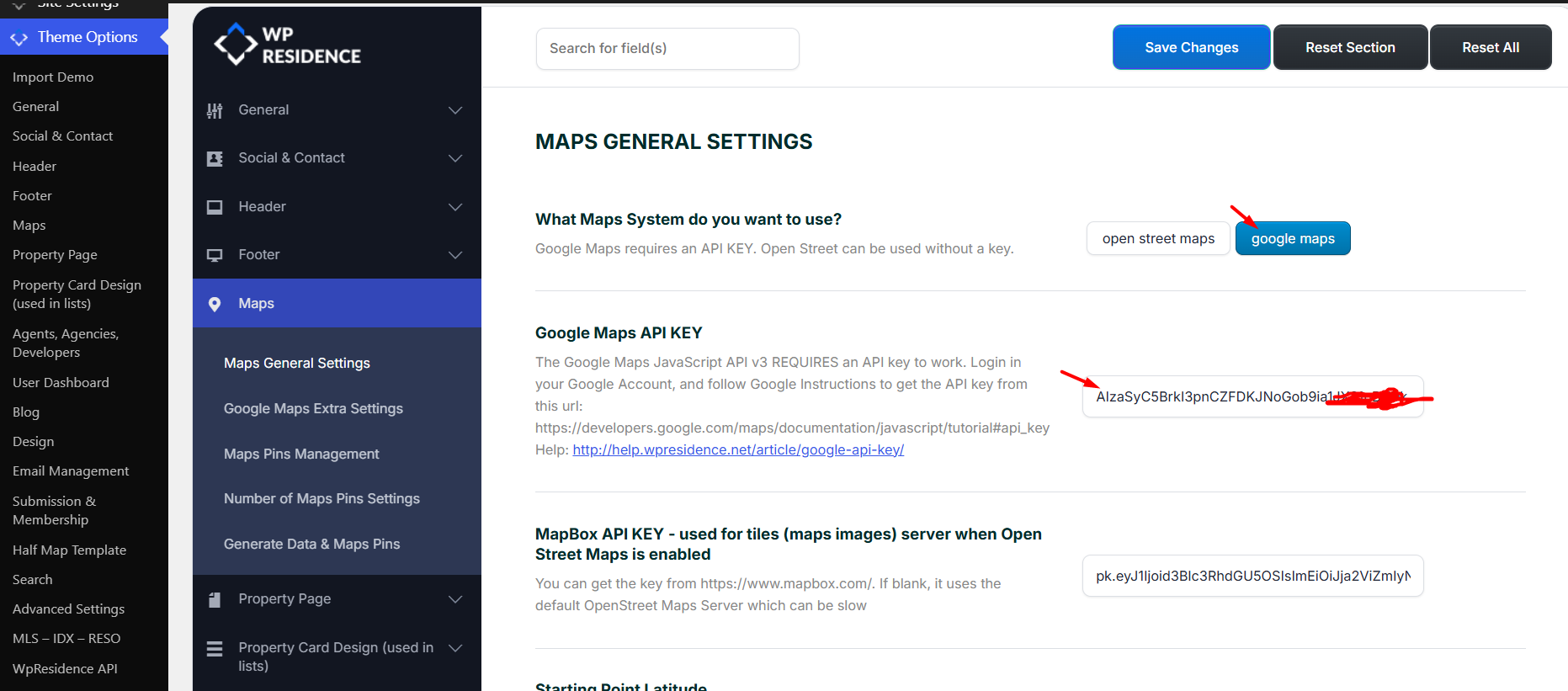
Google Maps requires your own API key before you start using it in WPResidence.
The API key is added in:
Theme Options → Map Configuration → Map General Settings
Before You Start
To create and use a Google Maps API key, you need a Google Cloud project with billing enabled.
Google manages Google Maps pricing, billing, and free usage limits from Google Cloud. Check the official Google documentation for current pricing and cost control options:
Google Maps Platform billing and pricing
Set budgets, limits, and alerts
Create a Google Cloud Project
Go to:
- Log in with your Google account.
- Create a project or select an existing project.
- Add billing to the project.

Enable the Required Google APIs
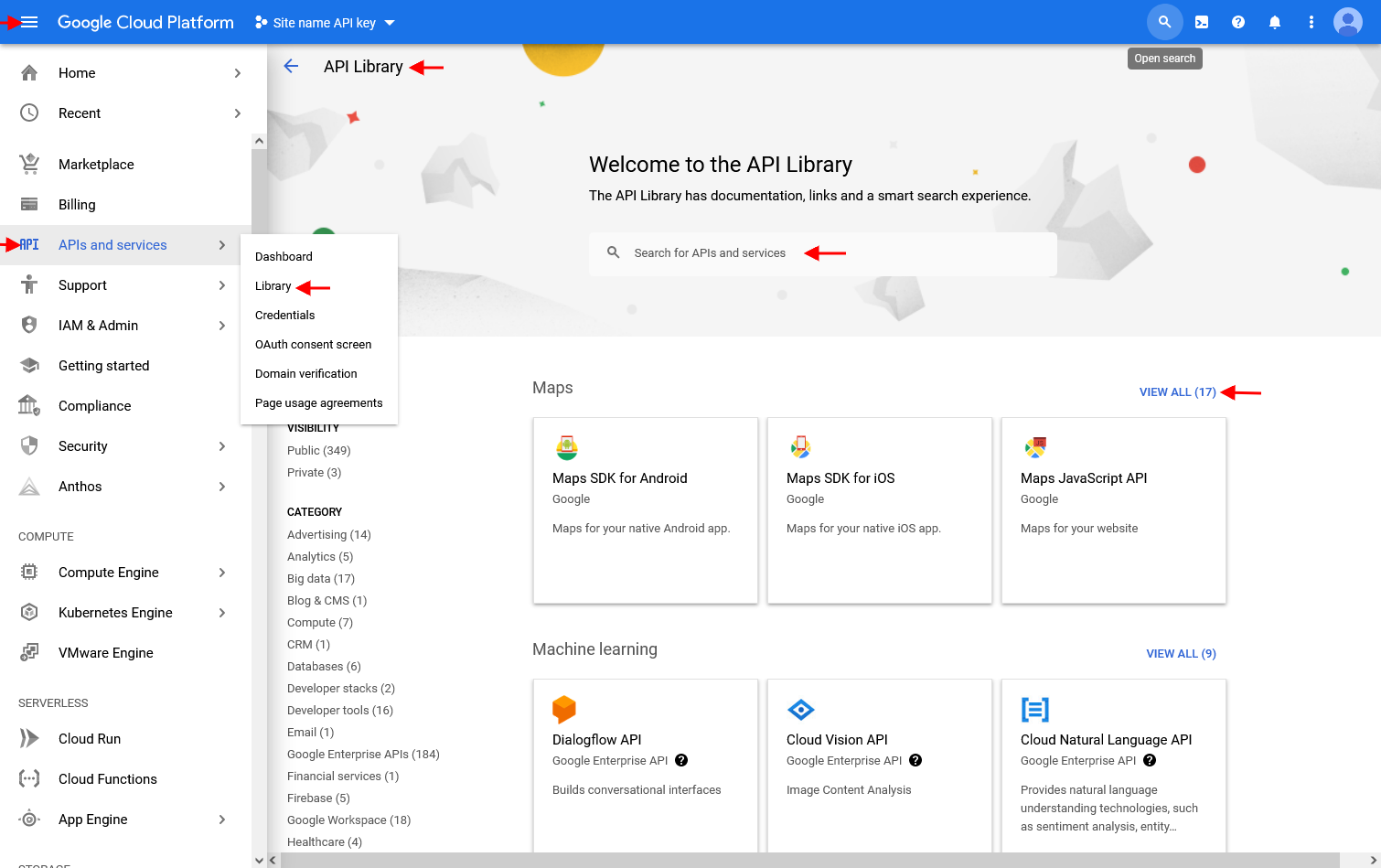
In your Google Cloud project, go to the API Library and enable the APIs used by the theme map features.
Enable these APIs:
- Maps JavaScript API – required for the interactive Google map.
- Places API – used for Google Places and autocomplete features.
- Geocoding API – used to convert addresses into coordinates.
- Geolocation API – used for location-based map features.
- Street View Static API – used for Google Street View features.
- Google Maps Static API – required for map images used in Property Overview and Print/PDF.

Google Maps Static API for Overview and Print Maps
New: The Map item in the Property Overview section works with Google Maps when the Google Maps Static API is enabled.
The map is also included in Print/PDF and behaves like the Overview map.
These maps are map images, not interactive maps. That is why the Google Maps Static API is required.
Enable the Google Maps Static API in the same Google Cloud project connected to your Google Maps API key.

Create the API Key
After the required APIs are enabled, create the API key.
- Open the Google Cloud project.
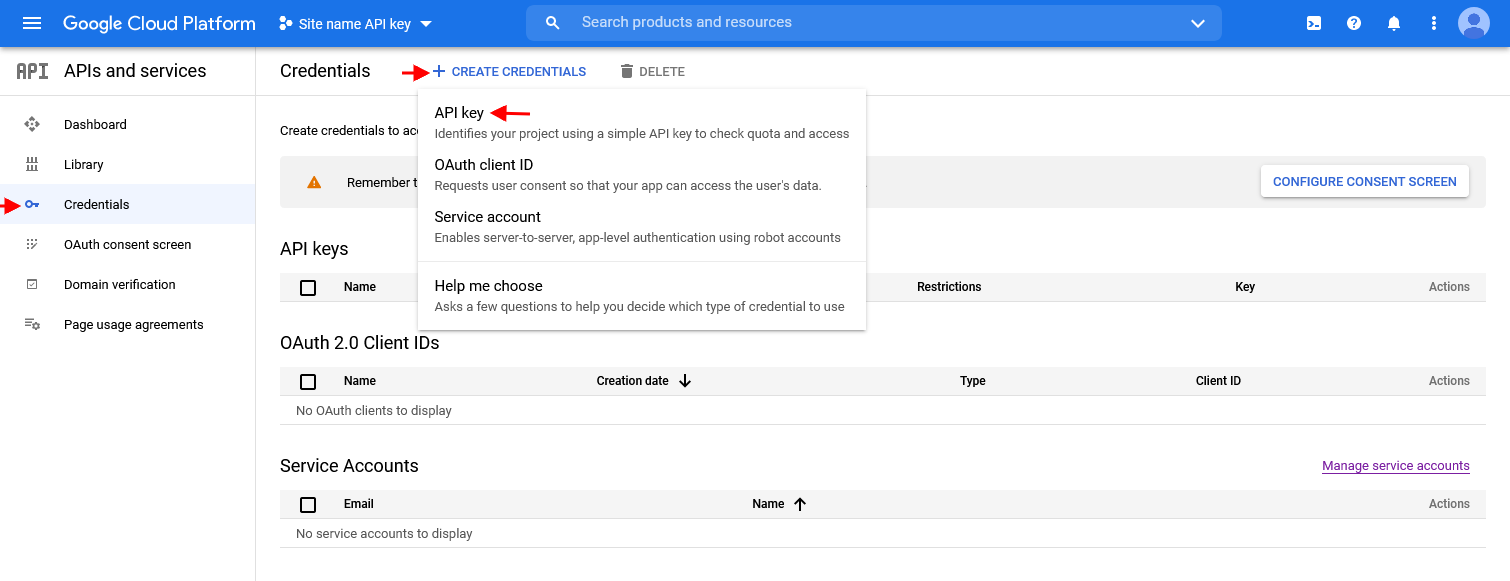
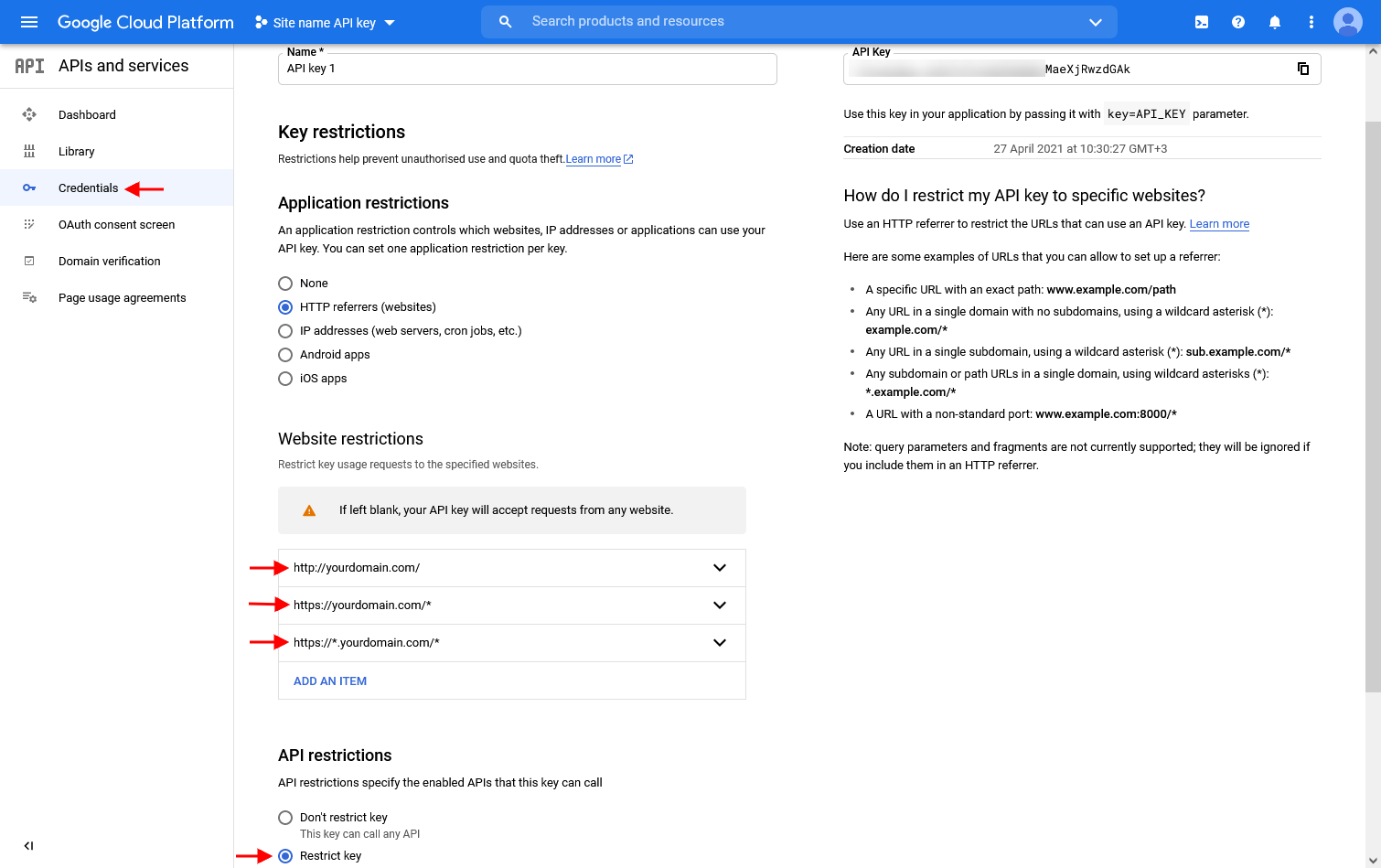
- Go to APIs & Services → Credentials.
- Select Create Credentials → API key.
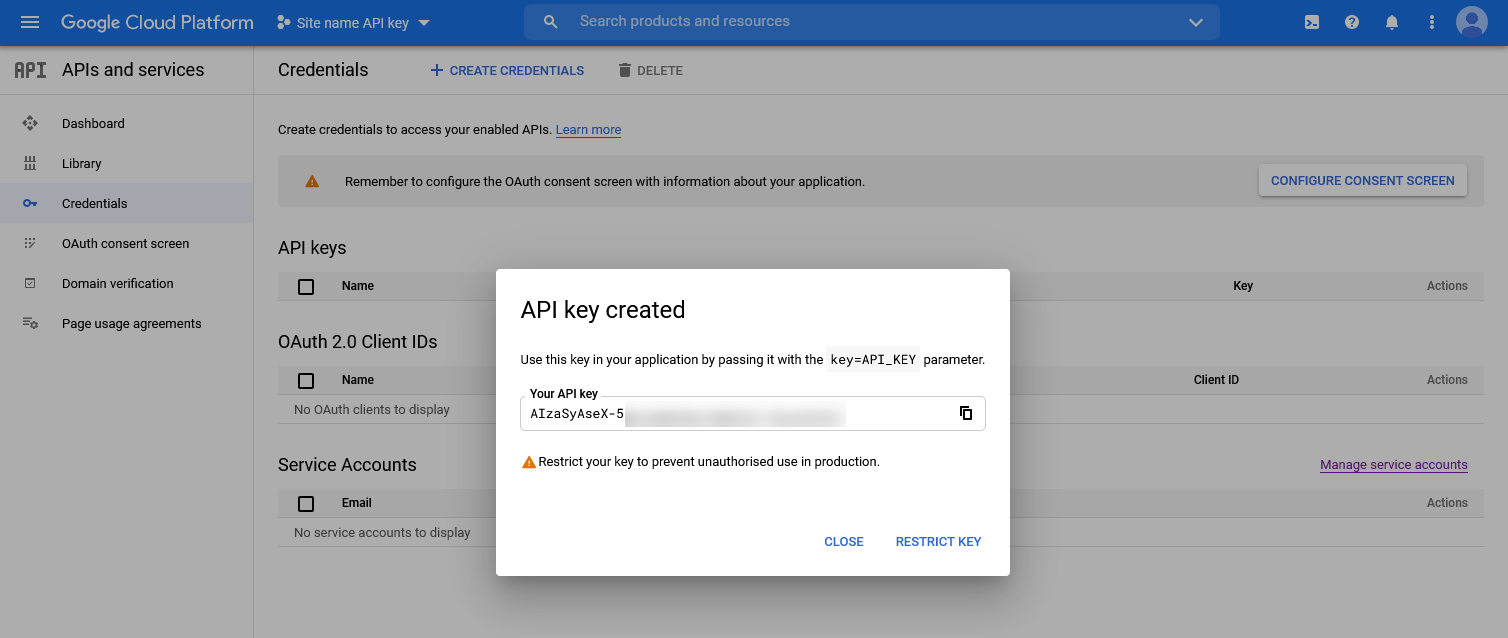
- Copy the generated API key.
Restrict the API Key
After the API key is created, restrict it so it can be used only on your website.

Use HTTP referrers as the application restriction and add your website domain.
Use wildcard rules for pages inside the main domain. For example:
https://yourdomain.com/*
https://www.yourdomain.com/*
Replace yourdomain.com with your real domain.
Add the API Key in WPResidence
Copy the API key from Google Cloud.

Then go to:
Theme Options → Map Configuration → Map General Settings
Paste the key in the Google Maps API key field and save the settings.
How to Check If the Key Is Correct
If the map does not load, open the page on the frontend and check the browser console.
To check the console:
- Open the page where the map should display.
- Right click on the page.
- Select Inspect.
- Open the Console tab.
- Read the exact Google Maps error shown there.
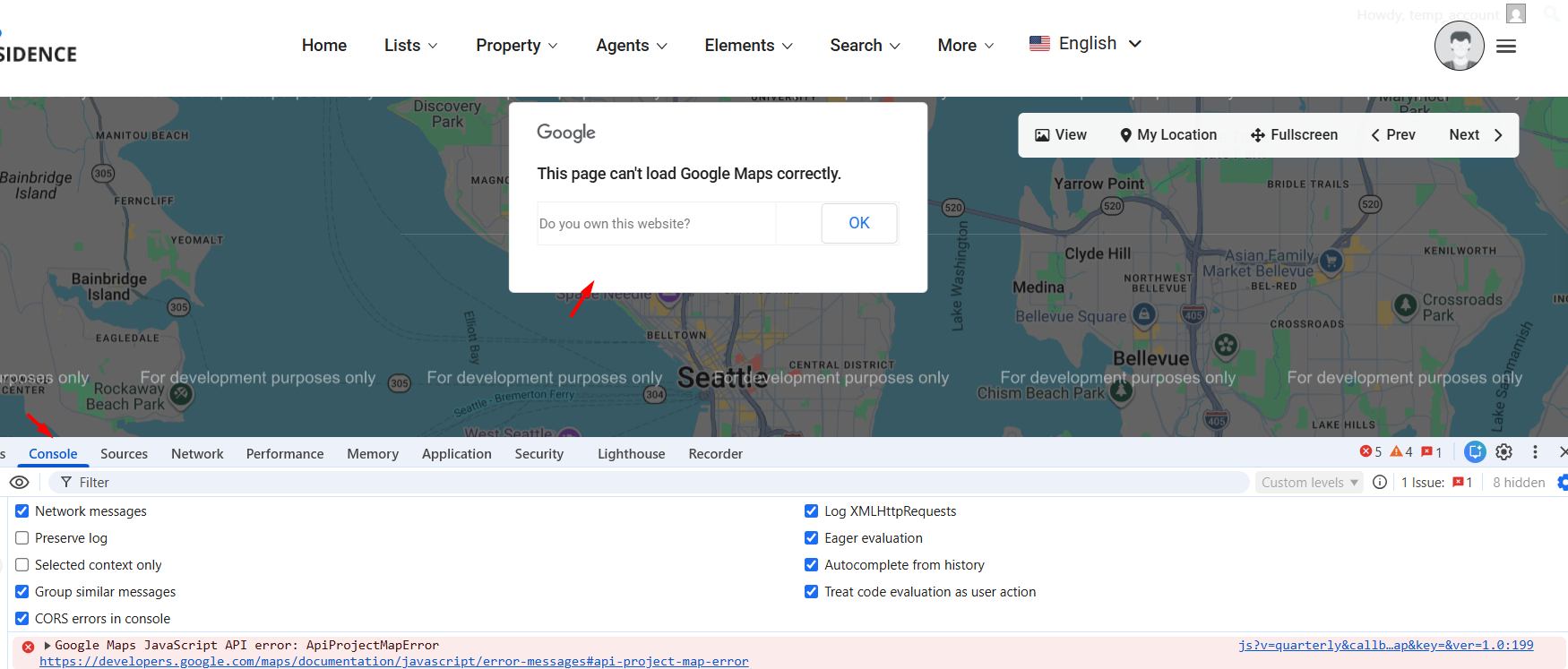
Common issues are:
- The API key is missing or incorrect.
- Billing is not enabled.
- The required API is not enabled.
- The domain restriction does not include the current domain.
- The key is restricted to the wrong APIs.
- The property does not have valid latitude / longitude coordinates.
OpenStreetMap and MapBox Note
If you use OpenStreetMap, you do not need a Google Maps API key.
However, for map images used in the Property Overview section and in Print/PDF, WPResidence needs a valid MapBox API key.
MapBox is used only for OpenStreetMap map images/tiles. It is not the same as Google Maps.
Map Type: OpenStreetMap or Google Maps