
These options allow you to customize how Google Maps is displayed in WPResidence.
Before using these settings, make sure Google Maps is selected as the map system and the Google Maps API key is added in:
Theme Options → Map Configuration → Map Type: Open Street or Google Maps
Map Type: Open Street or Google Maps
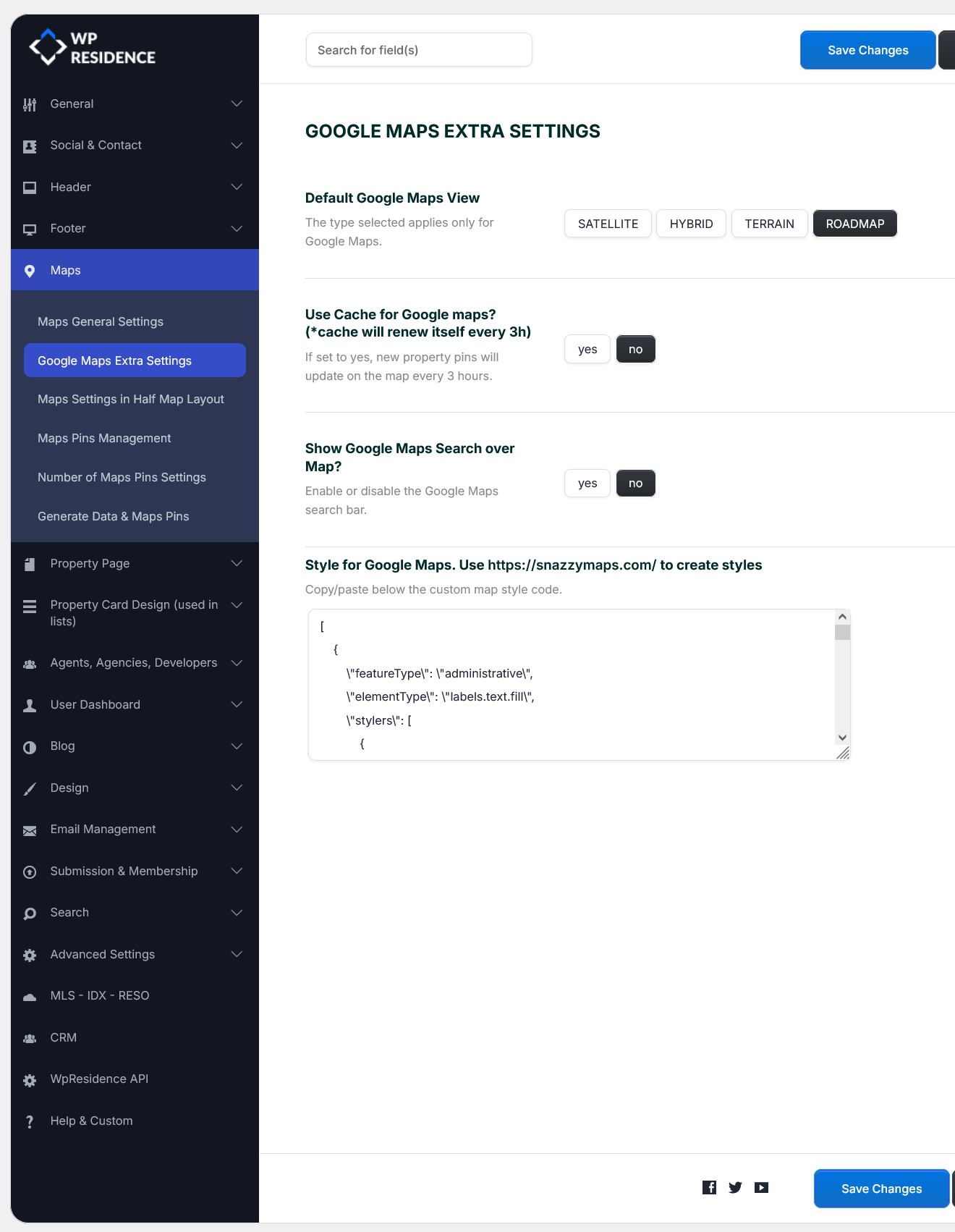
Google Maps Extra Settings Overview
Go to:
Theme Options → Map Configuration → Google Maps Extra Settings
From this section, you can manage:
- The default Google Maps view
- Google Maps cache for map pin data
- The Google Maps search field shown over the map
- The custom visual style for Google Maps
Before You Use These Settings
These settings work only when Google Maps is the active map system.
First check:
- Go to Theme Options → Map Configuration → Map Type: Open Street or Google Maps.
- Select Google Maps as the map system.
- Add the Google Maps API key.
- Save changes.
Map Type: Open Street or Google Maps
Default Google Maps View
This option selects the default map type used when Google Maps is active.
Available options:
- ROADMAP – standard 2D map view.
- SATELLITE – aerial image view.
- HYBRID – combines normal map and satellite view.
- TERRAIN – highlights terrain and physical features.
Use Cache for Google Maps
This option controls whether Google Maps pin data is cached for better performance.
- Yes – map pin data is cached and refreshed automatically.
- No – the map loads fresh pin data more often, but this can affect loading speed on sites with many properties.
Show Google Maps Search Over Map
This option shows or hides the Google Maps search field displayed over the map.
- Yes – the search field appears over the map.
- No – the search field is hidden.
Style for Google Maps
You can customize the visual style of Google Maps by adding a valid JSON style.
You can get Google Maps styles from:
To apply a custom Google Maps style:
- Go to Snazzy Maps.
- Choose or create a map style.
- Copy the JSON style code.
- Paste the JSON code into Style for Google Maps.
- Click Save Changes.
- Clear cache and test the map on the frontend.
Example of Custom Style JSON
Below is a short example of a Google Maps JSON style. You can replace it with any valid JSON style copied from Snazzy Maps.
[
  {
    "featureType": "administrative",
    "elementType": "labels.text.fill",
    "stylers": [
      {
        "color": "#444444"
      }
    ]
  },
  {
    "featureType": "landscape",
    "elementType": "all",
    "stylers": [
      {
        "color": "#f2f2f2"
      }
    ]
  },
  {
    "featureType": "poi",
    "elementType": "all",
    "stylers": [
      {
        "visibility": "off"
      }
    ]
  },
  {
    "featureType": "water",
    "elementType": "all",
    "stylers": [
      {
        "color": "#0CC3F8"
      },
      {
        "visibility": "on"
      }
    ]
  }
]Where These Settings Apply
The Google Maps Extra Settings apply to Google Maps used by WPResidence, including maps displayed as hero maps, contact maps, property maps, and Elementor map widgets.
Global Hero Media Maps
If the map is used as global Hero Media, manage it from:
Theme Options → Header → Hero Media Header
Custom Page Hero Media Maps
If a specific page uses a custom map hero, edit that page and check its custom Header Media settings.
Contact Page Template
The default Contact Page template can use the contact page details and map settings.
Contact details are managed from:
Theme Options → Social & Contact → Contact Page Details
Theme Options – Social & Contact
Elementor Map Widget or Map Shortcode
If the map is added inside a page built with Elementor, edit the page with Elementor and select the Map with Listings or Contact Details widget.
The widget can show property listing markers or the contact / office location pin.
Map with Listings or Contact Details widget / shortcode
If Google Maps Does Not Load
If Google Maps is stuck on loading or does not display correctly, open the frontend page and check the browser console first. The console usually shows the exact Google Maps API response or JavaScript error.
Check first that Google Maps is configured from:
Theme Options → Map Configuration → Map Type: Open Street or Google Maps
Map Type: Open Street or Google Maps
Common causes include:
- Google Maps is not selected as the active map system
- Google Maps API key is missing or incorrect
- Required Google Maps APIs are not enabled in Google Cloud
- Billing is not enabled in Google Cloud
- The API key domain restrictions do not allow the current website
- Latitude or longitude values are missing or invalid
- The custom Google Maps style JSON is invalid
- Cached map pin data has not refreshed yet
For Google Maps API errors, correct the exact issue shown in the console from the Google Cloud project, clear cache, and test again.
For coordinate issues, check the coordinates used by the page, property, or contact location.
If the map stopped loading after adding a custom Google Maps style, remove the custom JSON, save the settings, clear cache, and test the map again.
Google Maps is not loading – what settings to check
How to find latitude and longitude / set Google Maps coordinates
How to set the location of a property on the map
Related Help
- Map Type: Open Street or Google Maps
- Google Maps General Settings
- Google Maps is not loading – what settings to check
- How to find latitude and longitude / set Google Maps coordinates
- How to set the location of a property on the map
- Global Header Options
- Custom Header Options
- Default Contact Page Template
- Theme Options – Social & Contact
- Map with Listings or Contact Details widget / shortcode