
What the Advanced Search Results Half Map layout is
The Advanced Search Results Half Map layout shows the search results list and the map on the same page.
This layout is used only for the Advanced Search Results page, which is the page visitors reach after submitting a search.
The list shows the matching properties, and the map shows the pins for the results available on the current page.
Create the Advanced Search Results page
First, make sure the Advanced Search Results page exists.
- Go to Wp-admin → Pages.
- Create or edit the page used for search results.
- From Page Attributes → Template, select Advanced Search Results.
- Publish the page.
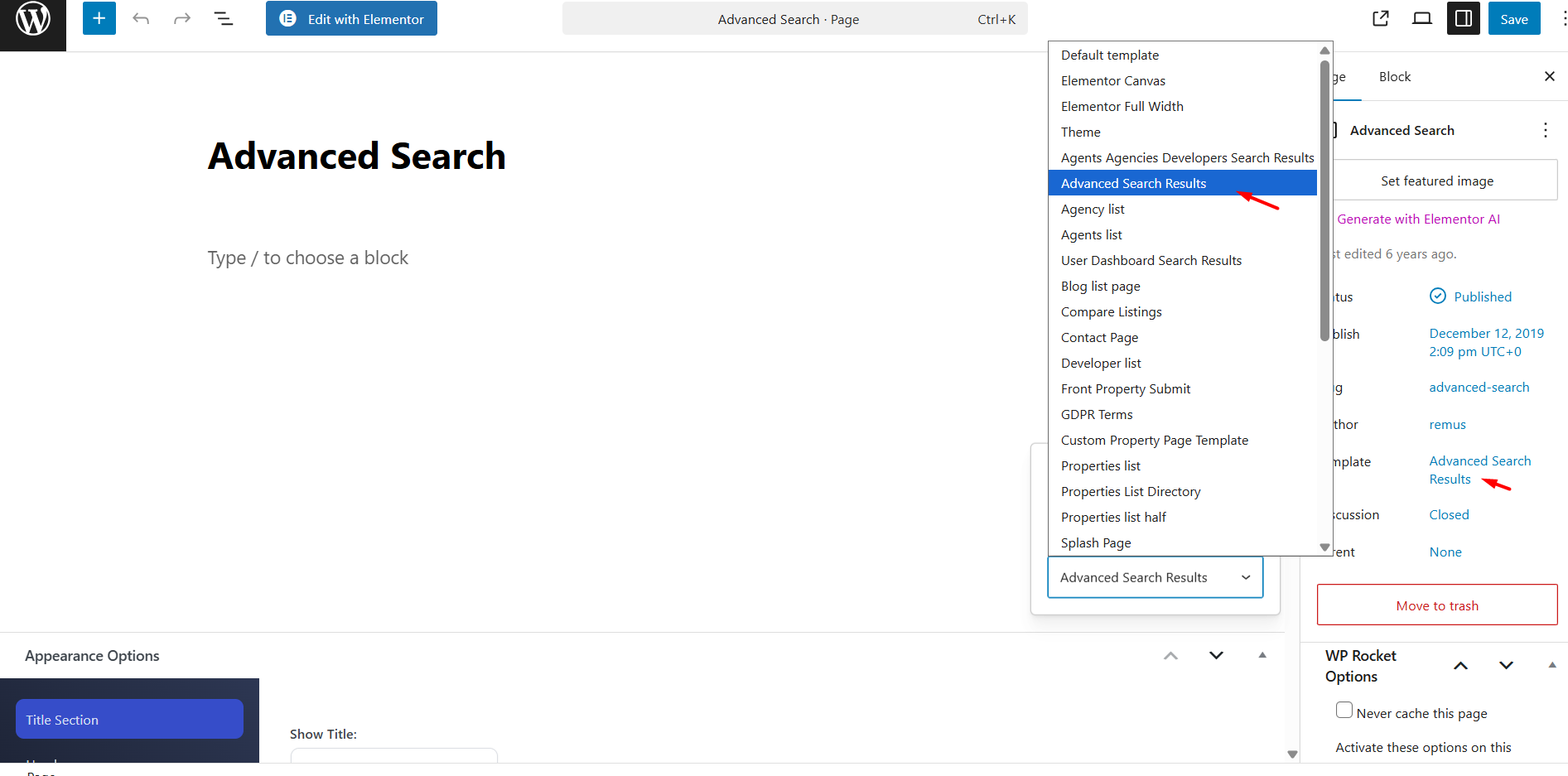
Enable the Half Map layout
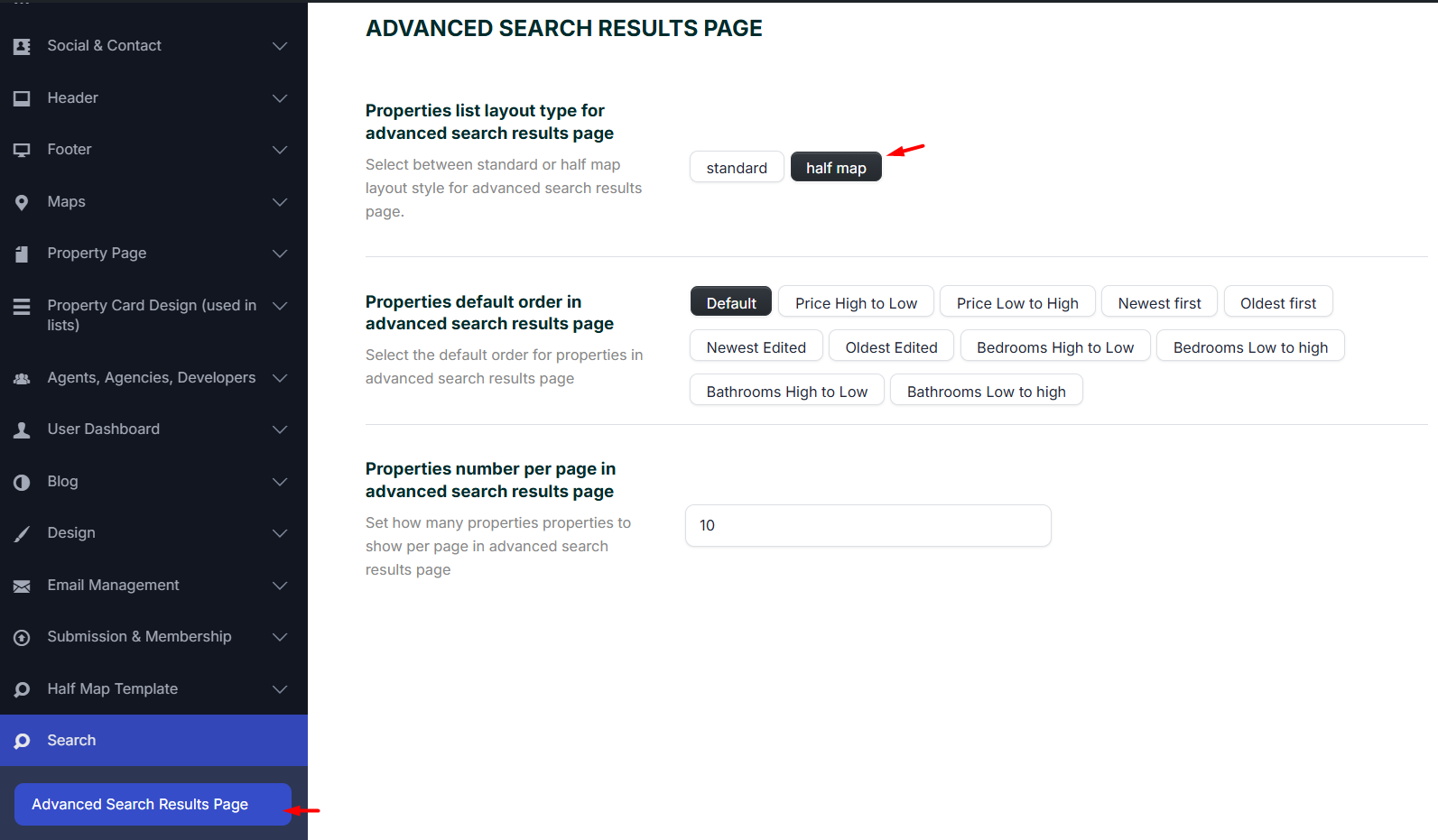
To make the Advanced Search Results page display as Half Map, go to:
Theme Options → Search → Advanced Search Results Page
Set Properties list layout type for advanced search results page to Half Map, then save the changes.
Required settings
For the Advanced Search Results Half Map layout to work correctly, the page header media must be set to Maps.
You can set this:
- Globally from Global Header Options.
- Per page from the page Appearance Options. Help: Custom Header Media Options.
Help: Advanced Search Custom Fields setup
Half Map options
The Half Map display options are managed from:
Theme Options → Maps → Half Map Template
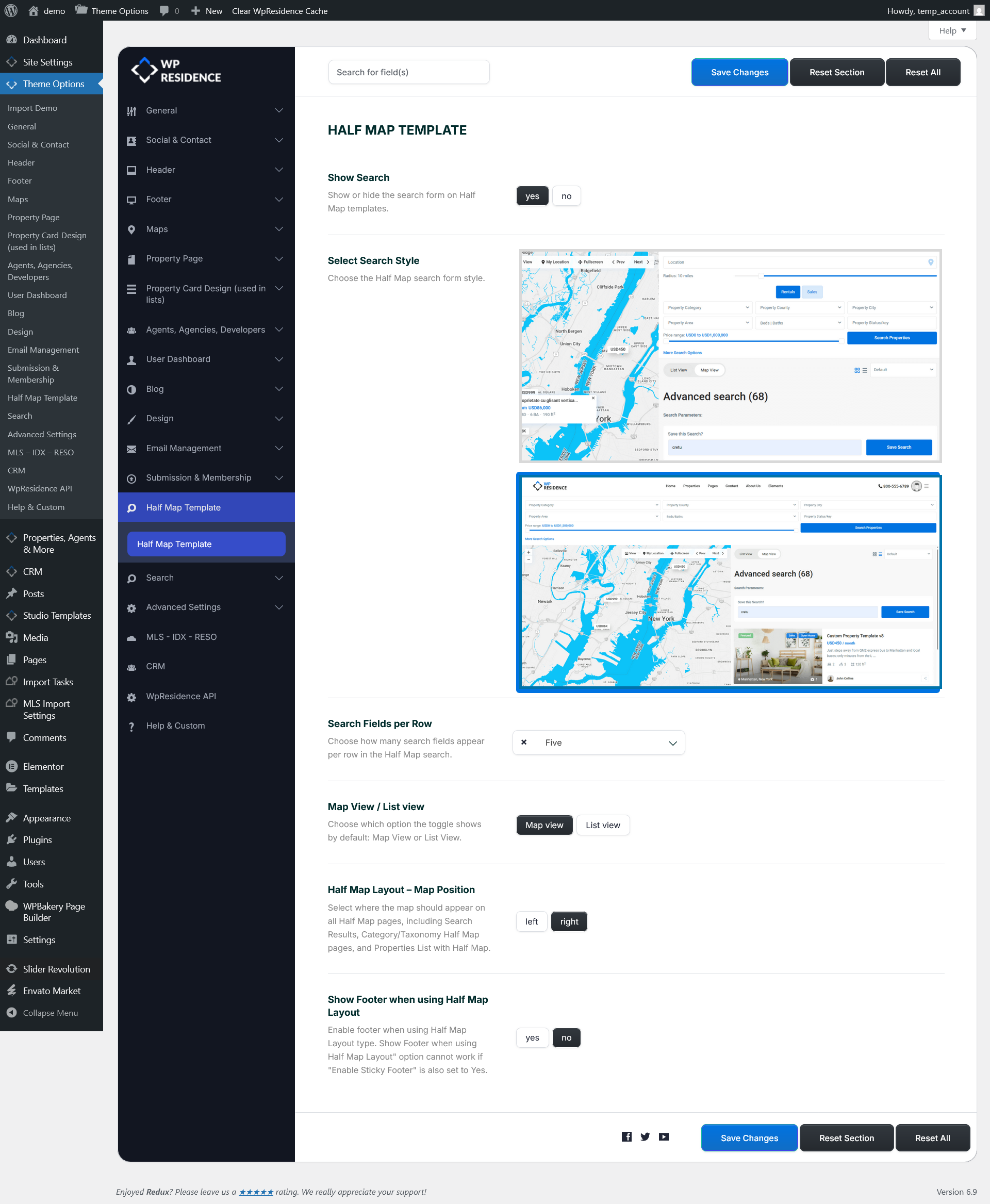
From this section, you can manage:
- Show Search – Show or hide the search form on Half Map pages.
- Select Search Style – Change the visual style of the search bar.
- Search Fields per Row – Choose how many fields show on one row.
- Default View – Choose if the page opens with Map View or List View.
- Map Position – Show the map on the left or right side.
- Show Footer – Show or hide the footer on Half Map pages.
Default property order
The default order of properties on the Advanced Search Results page is managed from:
Theme Options → Search → Advanced Search Results Page
You can choose options such as Default, Price High to Low, Price Low to High, Newest First, Oldest First, Bedrooms High to Low, Bedrooms Low to High, Bathrooms High to Low, or Bathrooms Low to High.
Quick troubleshooting
If the Advanced Search Results Half Map page does not work correctly, check these items:
- The page exists and is published.
- The page uses the Advanced Search Results template.
- The page is not used as the homepage.
- The page hero header media is set to Maps.
- The search results layout is set to Half Map.
- The search fields are configured in Theme Options → Search → Advanced Search Form.
- Permalinks are set to Post Name in Settings → Permalinks.
- Theme cache and plugin cache were cleared after changing settings.