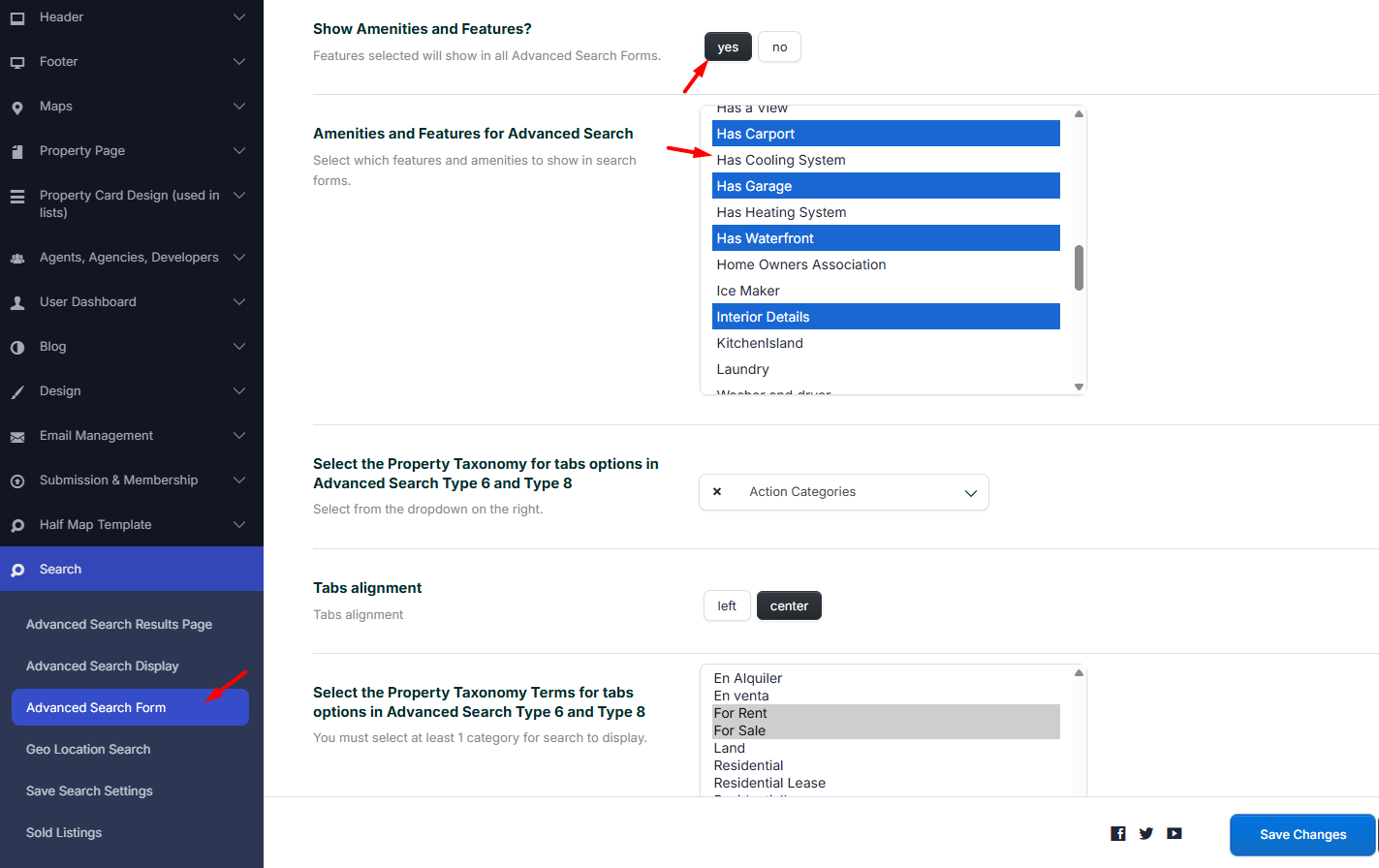
Enable Custom Search Fields
The option Use Custom Fields for Advanced Search? controls if the search form uses the custom field setup from this section.
Set this option to Yes if you use one of these search types:
- Advanced Search Type 5
- Advanced Search Type 6
- Advanced Search Type 8
- Advanced Search Type 10
- Advanced Search Type 11
When this option is enabled, you can choose the fields, order, labels, and comparison logic used in the search form.
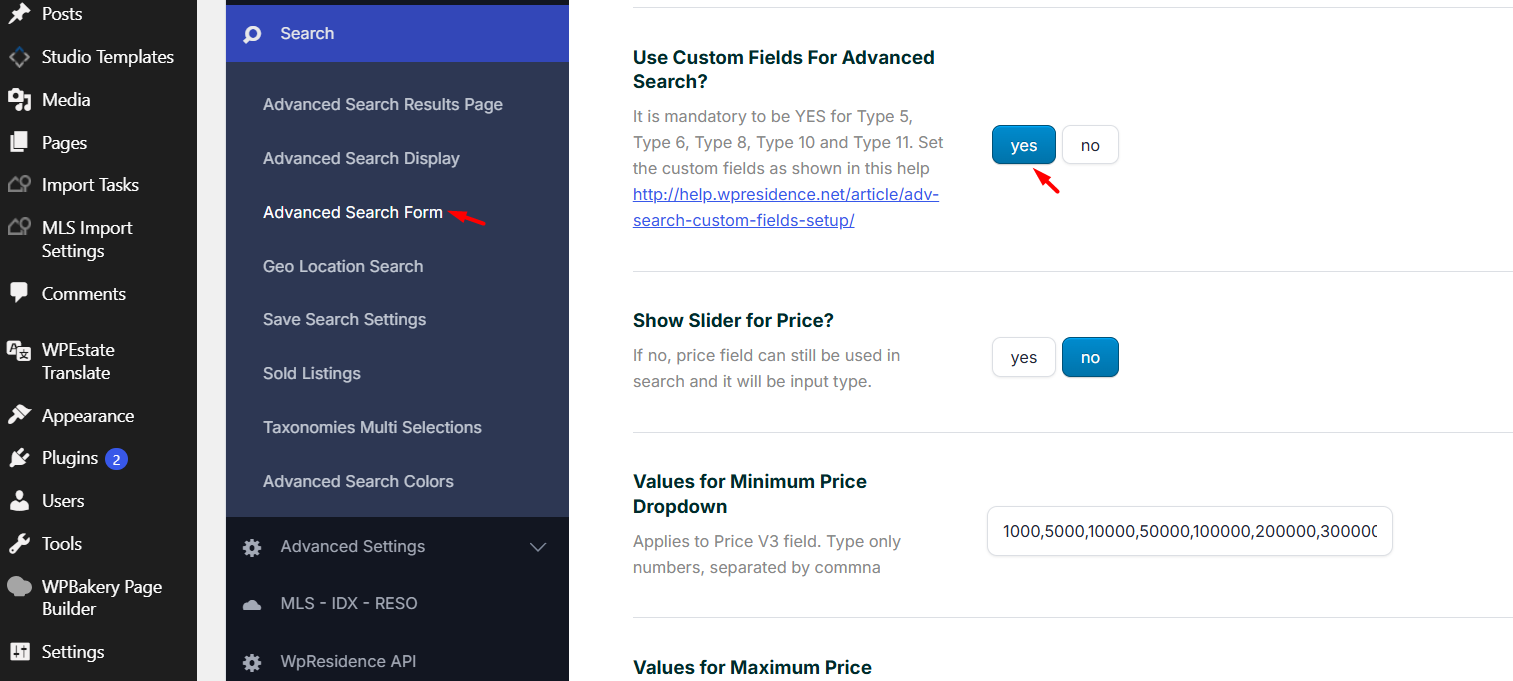
Recommended setup flow
The global Advanced Search fields are managed from Theme Options → Search → Advanced Search Form.
These settings apply to the theme default search system, including the search form shown in Hero Media, Advanced Search Results pages, widgets, shortcodes, and other default theme search forms.
To configure the Advanced Search fields, follow this order:
- Go to Theme Options → Search → Advanced Search Form.
- Set Use Custom Fields for Advanced Search? to Yes.
- Set the Number of Search Fields.
- Set the Number of Search Fields per Row.
- Click Save Changes.
- Refresh the Theme Options page.
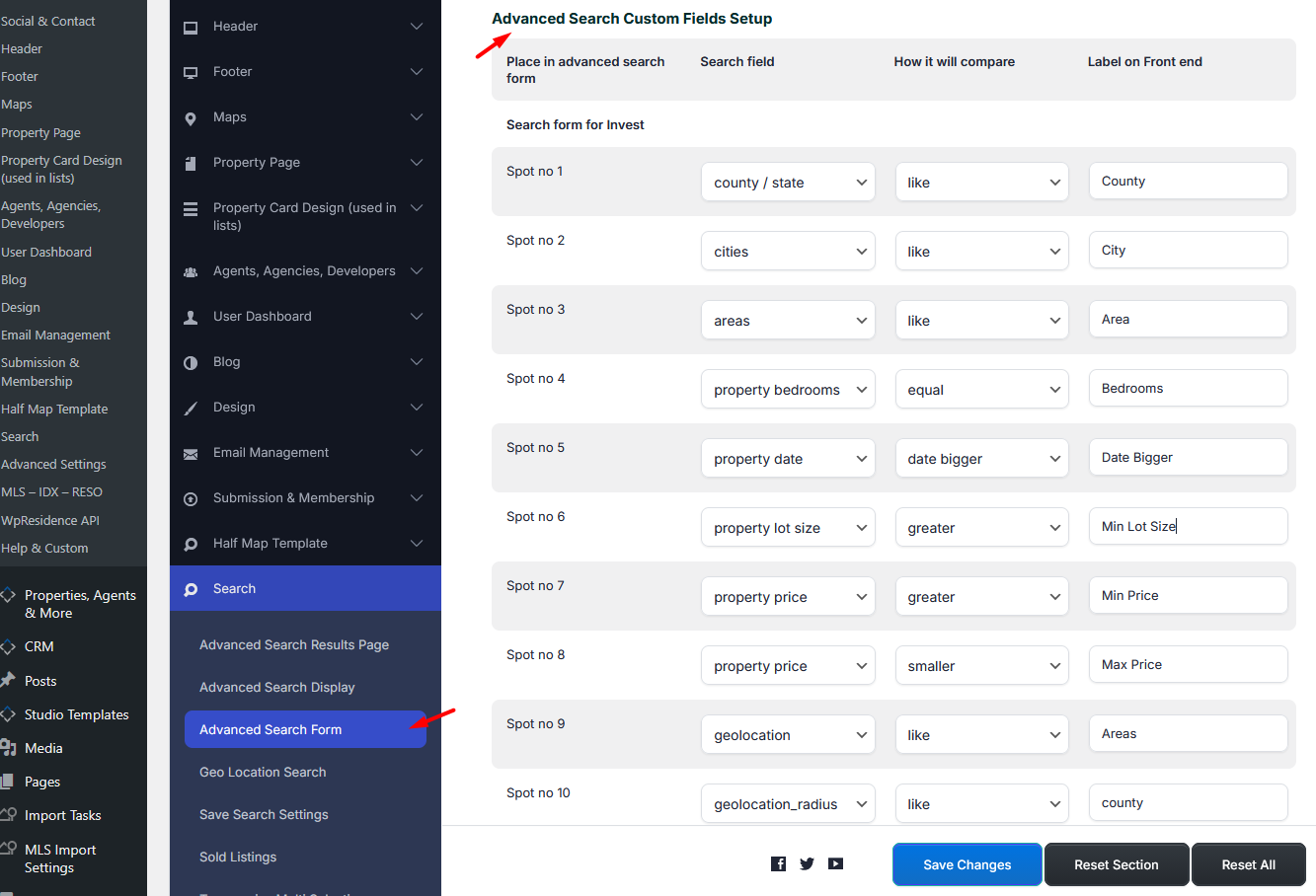
- Configure each field from Advanced Search Custom Fields Setup.
Theme Options Setup
To configure the global Advanced Search fields, go to:
Theme Options → Search → Advanced Search Form → Advanced Search Custom Fields Setup
Enable custom fields for Advanced Search
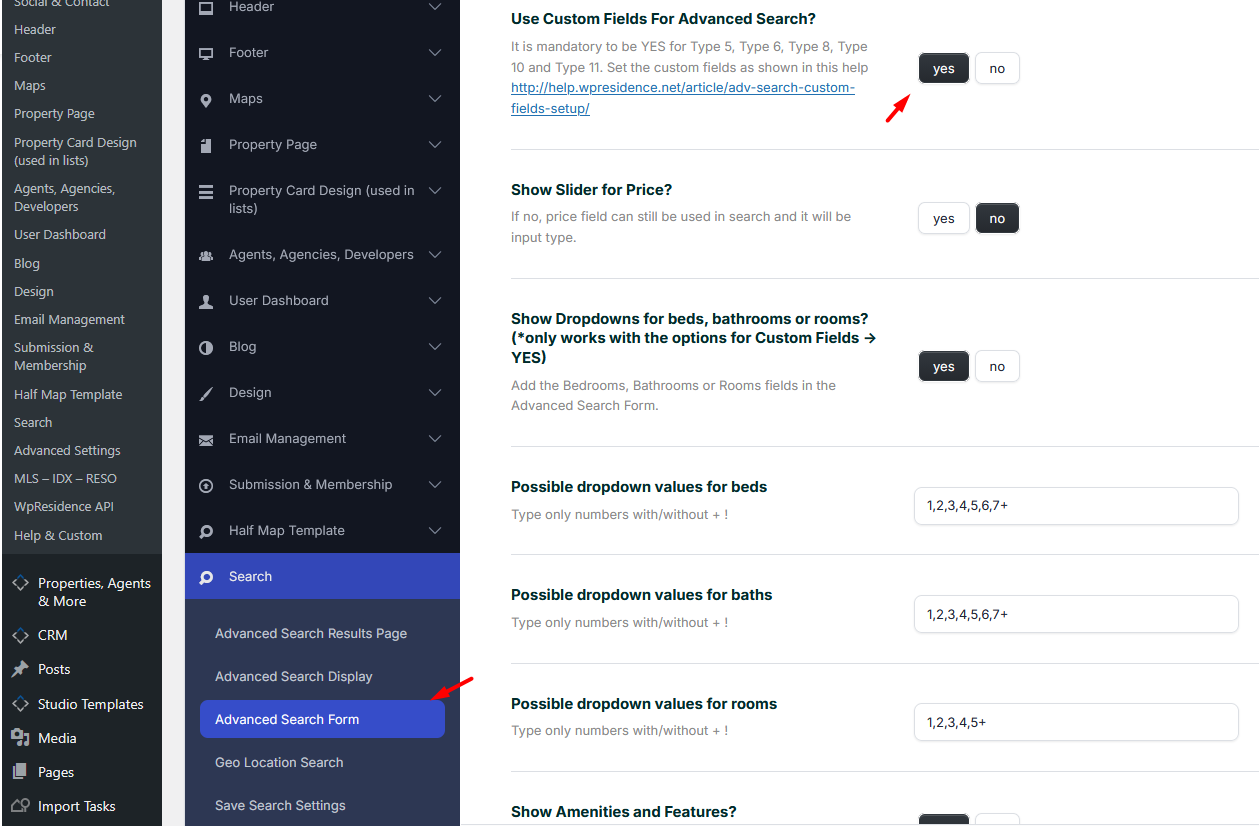
Set Use Custom Fields for Advanced Search? to Yes.
Set the number of fields
Configure these options:
- Number of Search Fields – controls how many fields are available in the search form.
- Number of Search Fields per Row – controls how many fields show on each row.
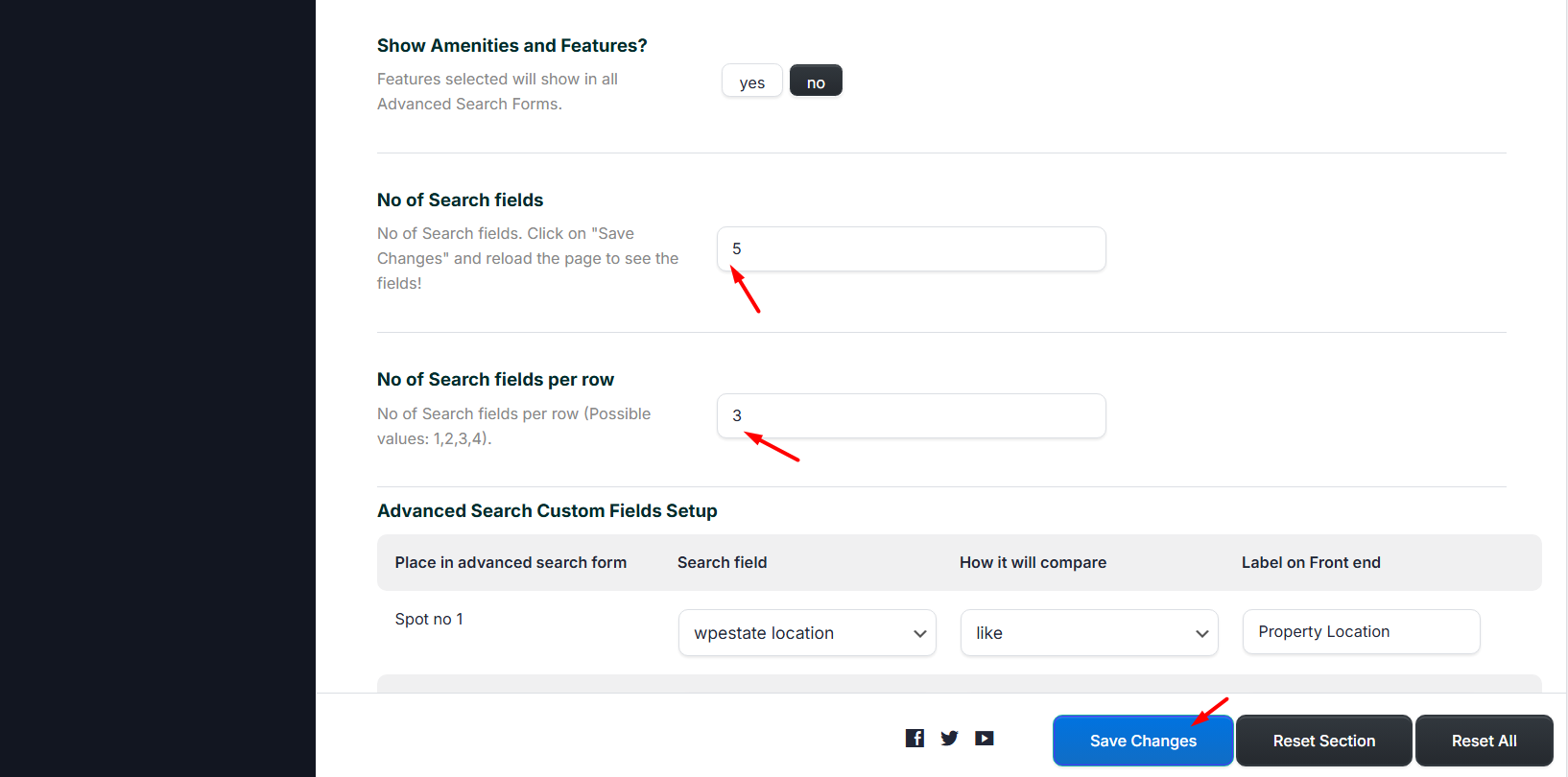
After saving and refreshing the page, use Advanced Search Custom Fields Setup to choose the fields and their compare terms.
Elementor Search Form Builder note
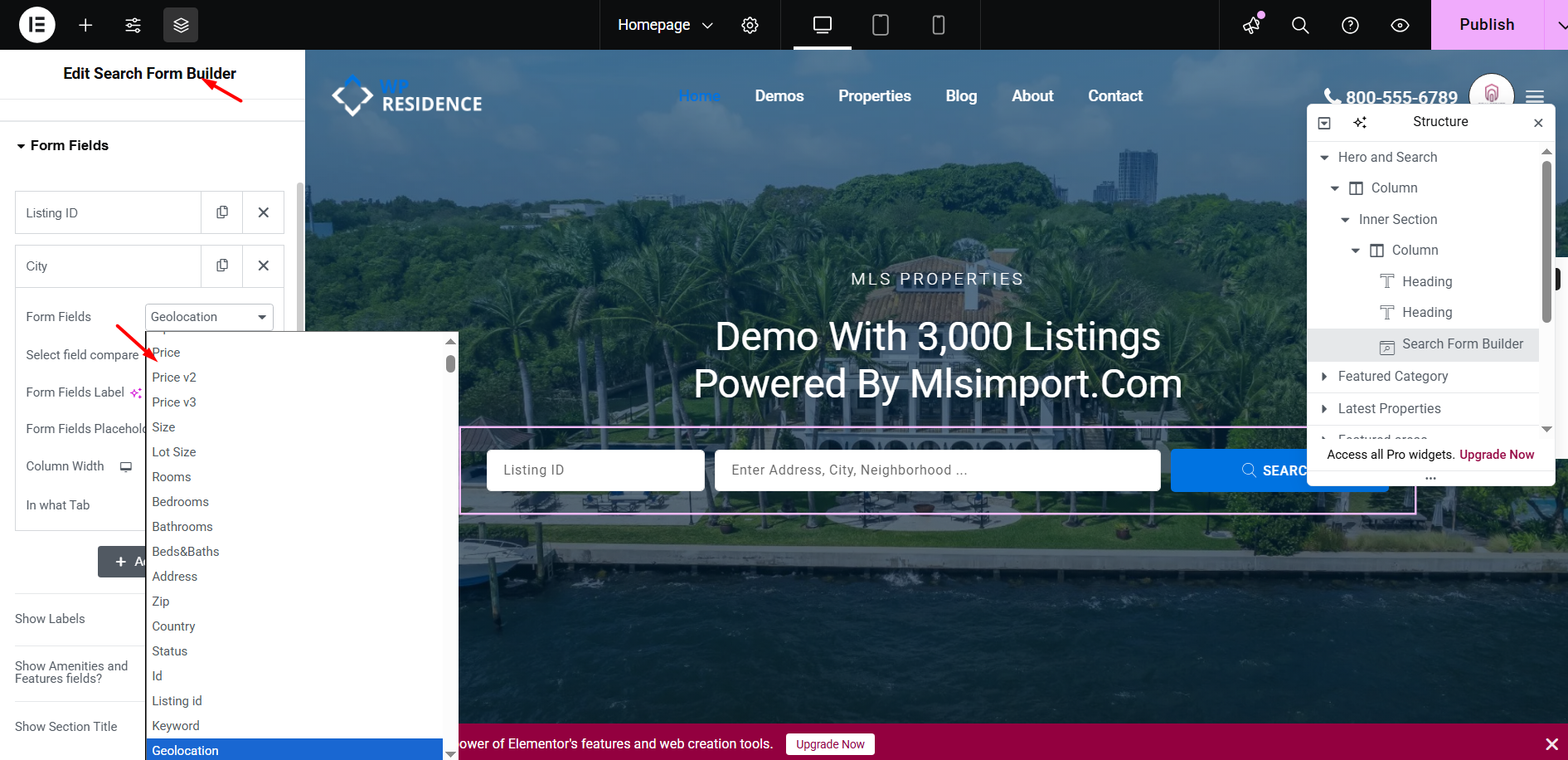
The same field types can be used in a search form created with the Elementor Search Form Builder.
Elementor search forms are page-specific and are configured directly from the Elementor widget.
If you use both the global search form and Elementor search forms, we recommend keeping the same field logic in both places for consistency.
Read more here:
Property Search Form Builder for Elementor
Search field reference
Each field needs the correct compare term. The most common compare terms are:
| Compare term | Use for |
|---|---|
| LIKE | Text fields, location fields, taxonomy dropdowns, country, zip, title keyword, Listing ID. |
| EQUAL | Exact value search, price field, beds/baths component, numeric fields when exact match is needed. |
| GREATER | Bedrooms, bathrooms, rooms, size, lot size, number custom fields. |
| SMALLER | Numeric fields where users search below a selected value. |
| DATE GREATER | Date custom fields where the selected date should be after a value. |
| DATE SMALLER | Date custom fields where the selected date should be before a value. |
Location fields
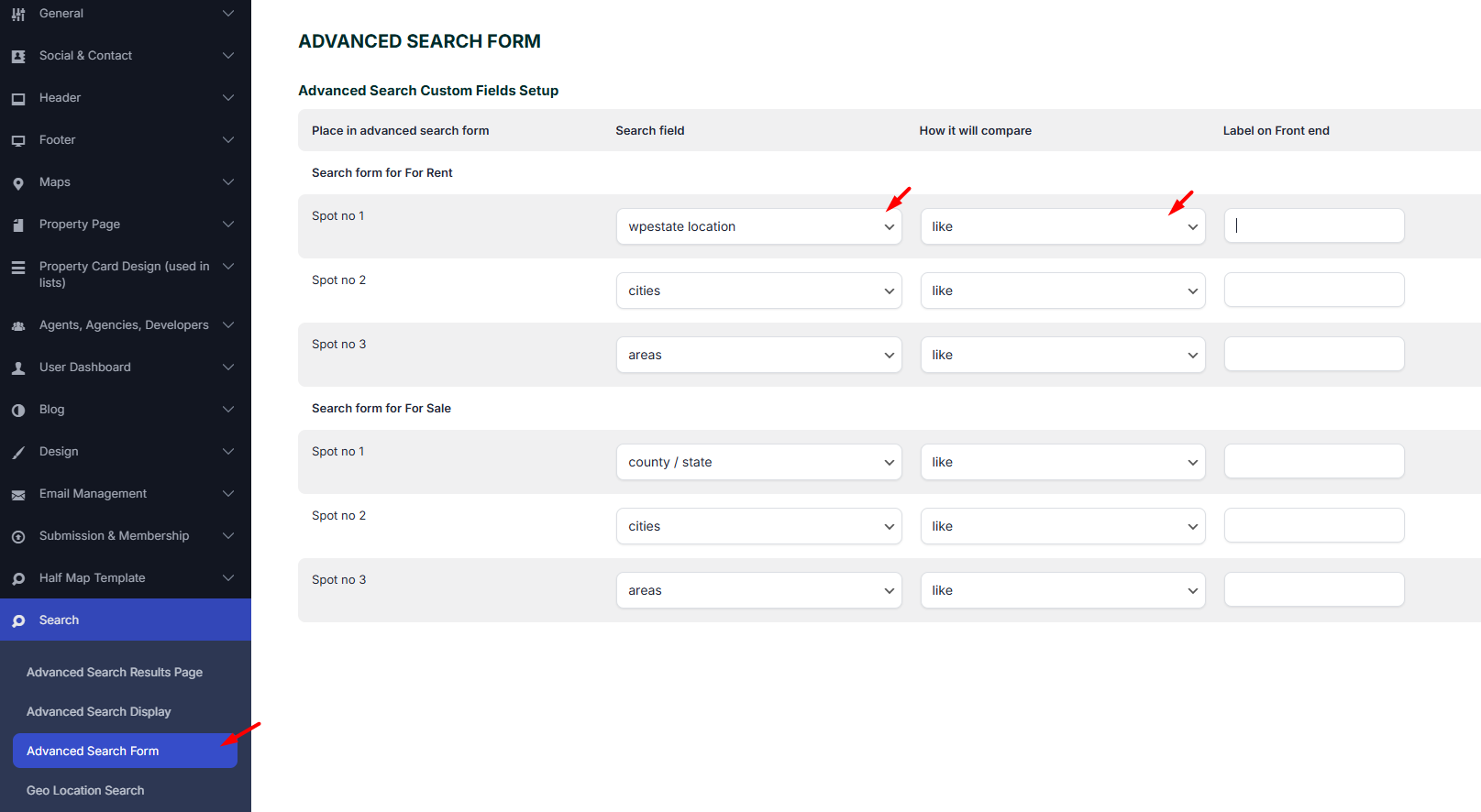
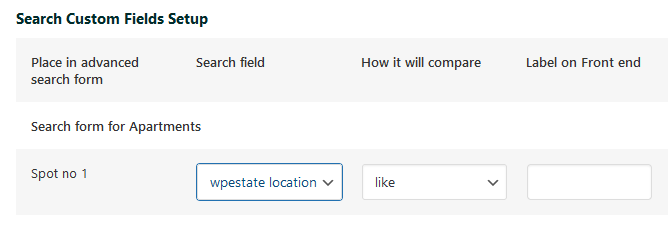
WPEstate Location field
The Location field allows visitors to search by location-related information.
It can search by:
- Address
- State or county
- City
- Area
- Zip code
Use LIKE as the comparison operator.
Front-end example:

Taxonomy fields
You can add dropdown fields for property taxonomies.
Supported taxonomy fields include:
- Property type
- Property category
- County or state
- Area
- City
- Status
Use LIKE as the comparison operator.
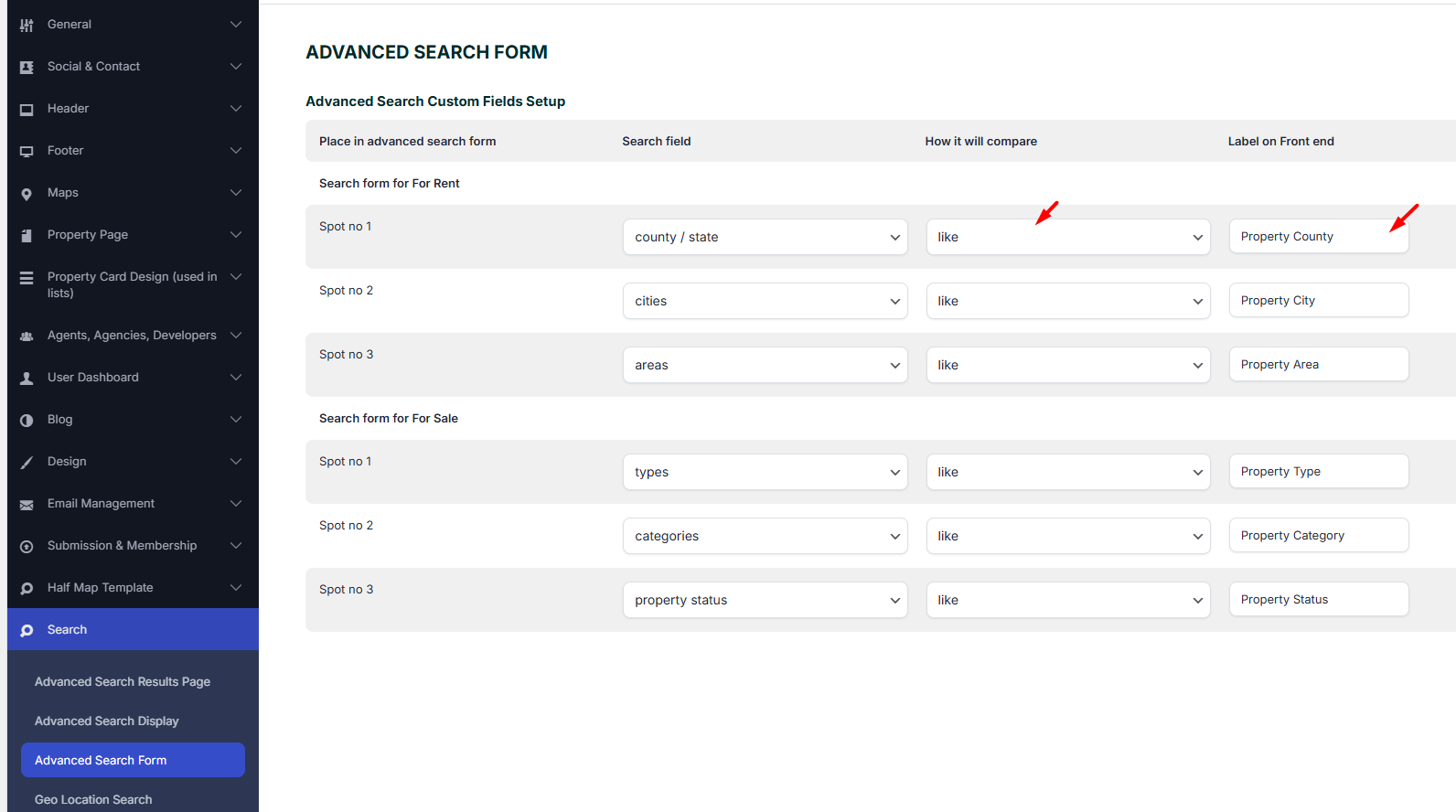
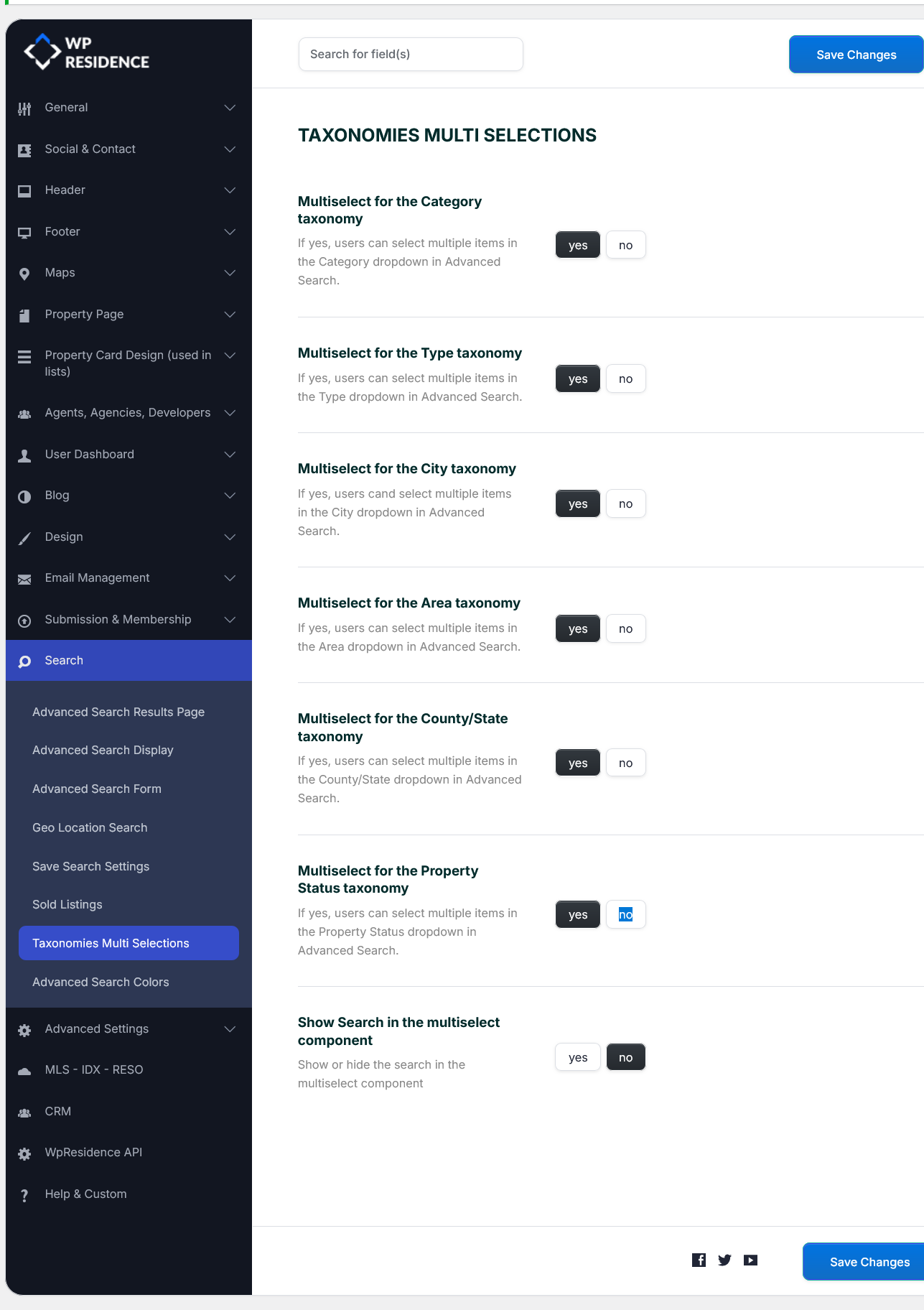
Multi-selection for taxonomy fields can be enabled from:
Theme Options → Search → Taxonomies Multi Selections
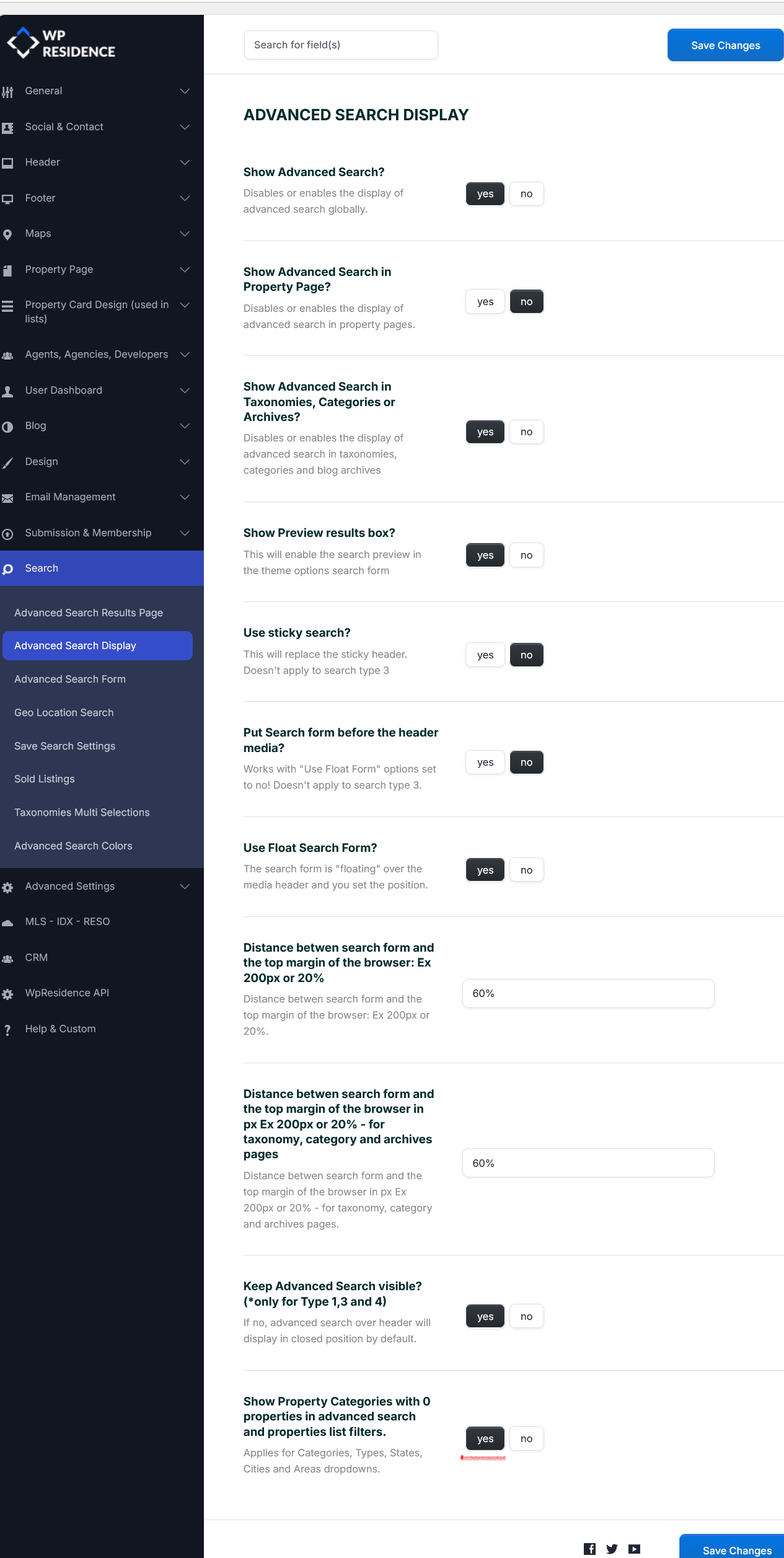
You can choose whether to show taxonomy terms with no properties from:
Theme Options → Search → Advanced Search Display → Show Property Categories with 0 properties?
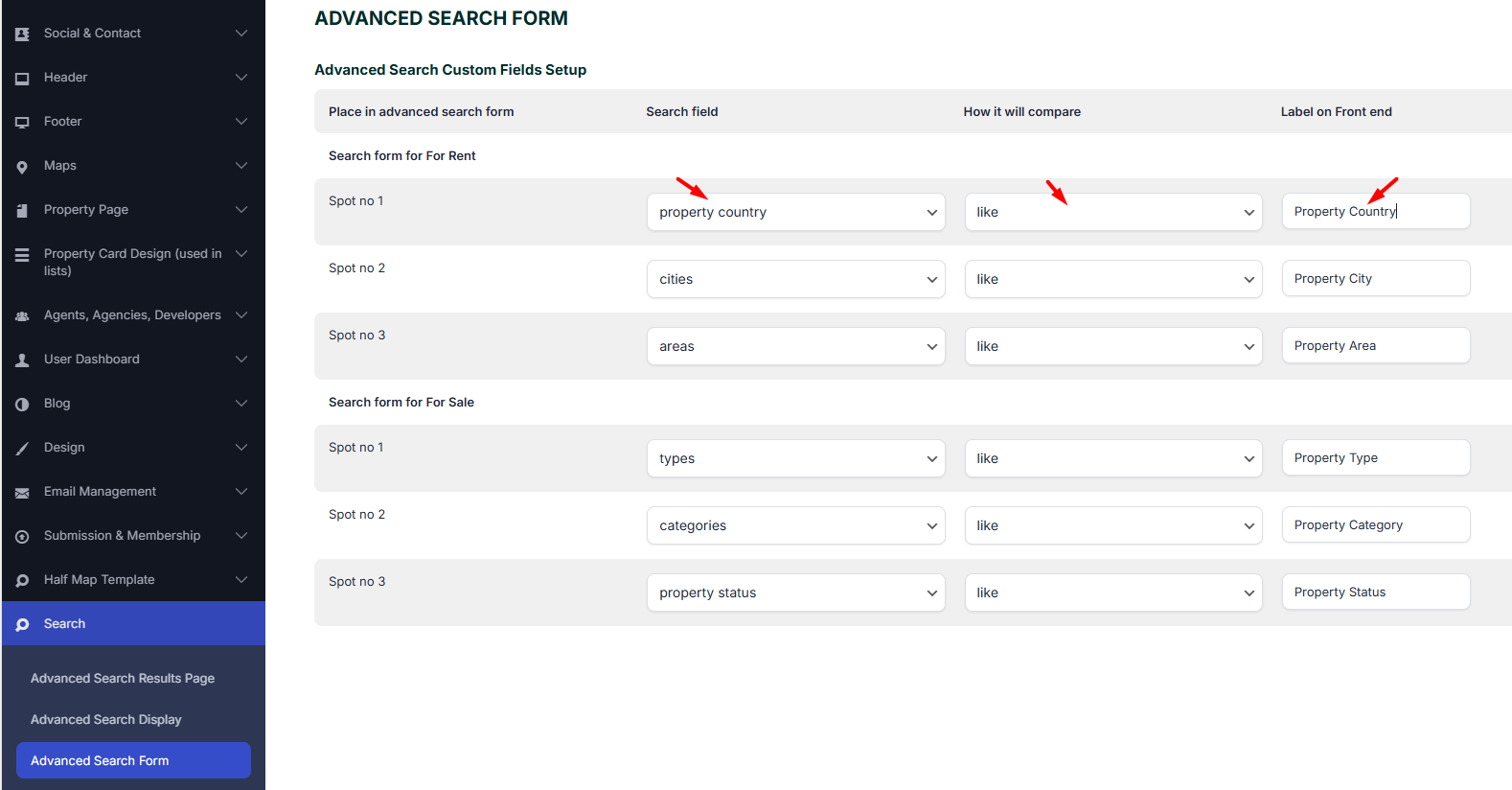
Country field
The Country field works as a separate dropdown in the search form.
- Use LIKE as the comparison operator.
- The field works independently from state, city, and area.
- Countries are not dynamically filtered by other location fields.
You can view or manage the country list from Theme Options → General → General Settings and from the Add Property pages.
Property detail fields
Bedrooms, bathrooms, and rooms
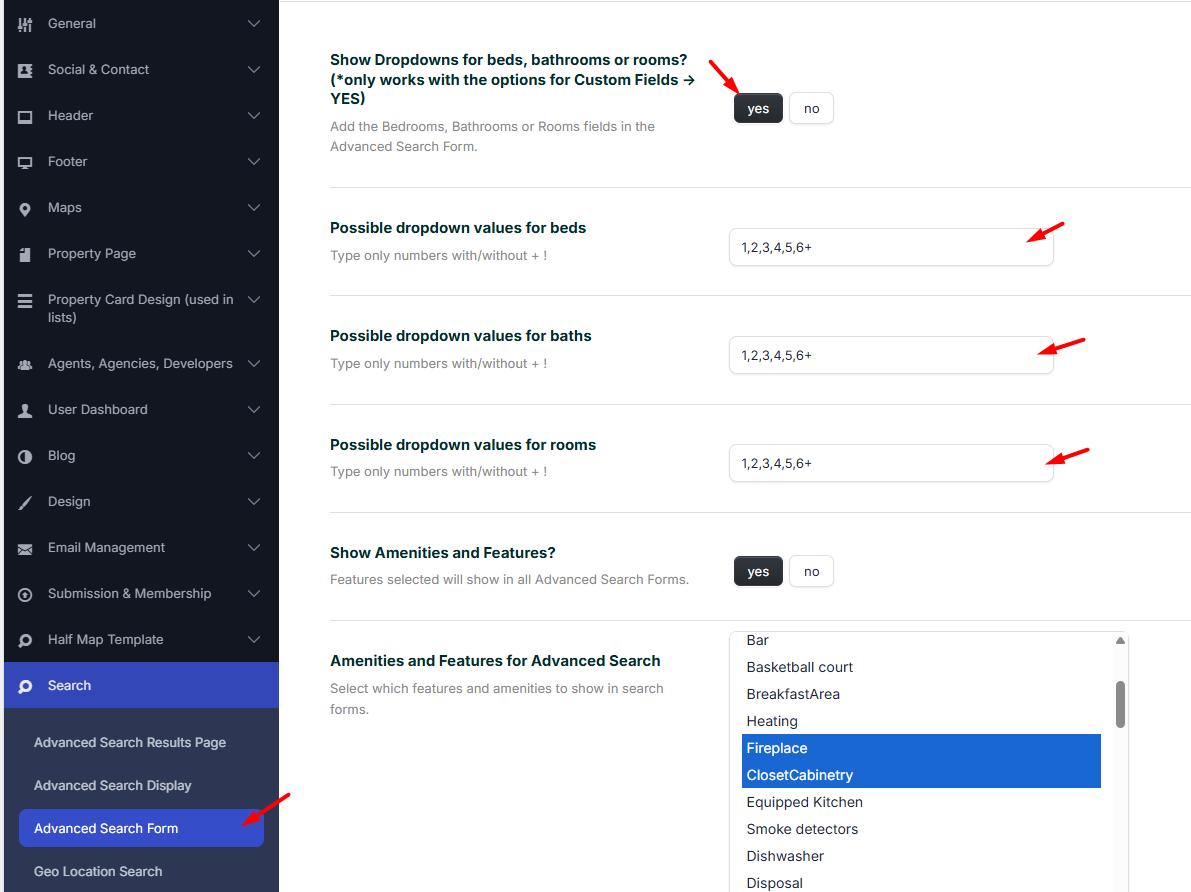
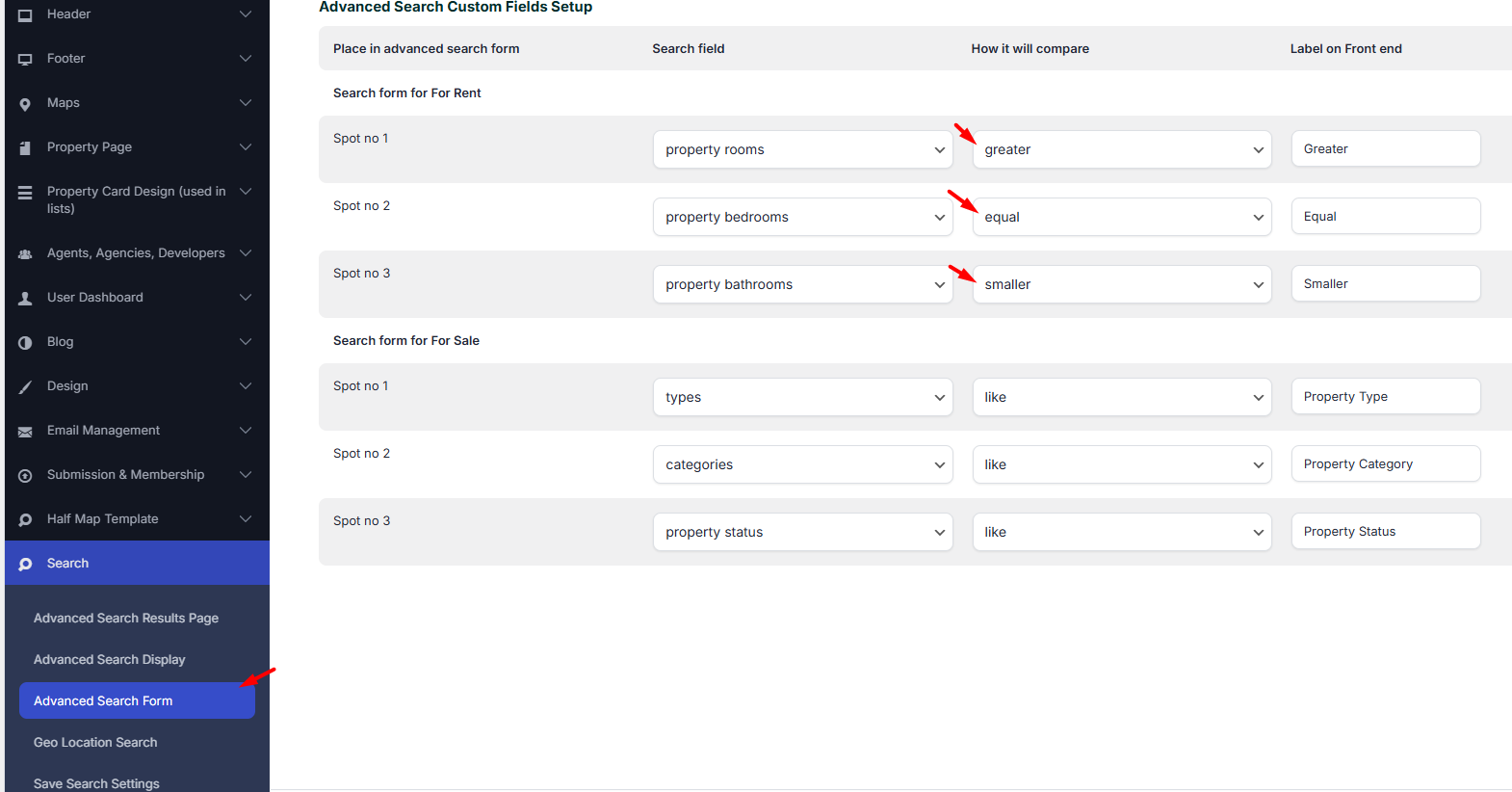
Bedrooms, bathrooms, and rooms are default WPResidence fields.
They can be used as dropdowns or input fields.
- For dropdowns, enable Show Dropdowns for Beds, Bathrooms, or Rooms?.
- For input fields, set the option to No.
Use one of these comparison operators:
- EQUAL
- GREATER
- SMALLER
Beds and baths component
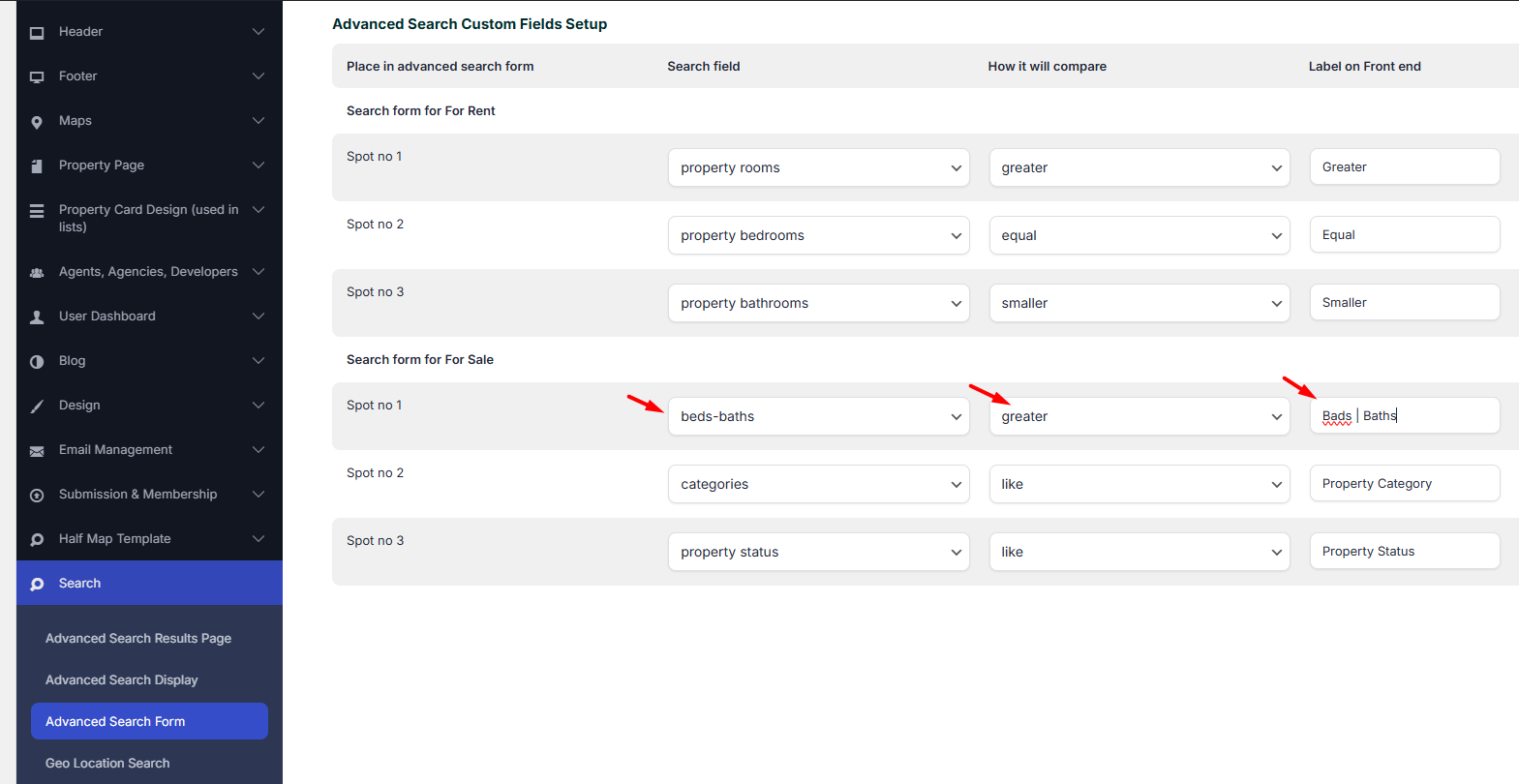
The Beds/Baths component lets visitors search by beds and baths from one combined field.
Use GREATER as the compare term.
The number of beds and baths are synced with theme option setting
Property size and lot size
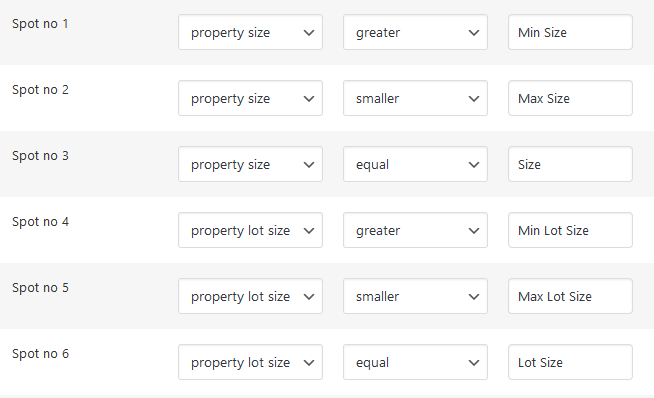
Property size and lot size are default numeric fields.
Use one of these comparison operators:
- EQUAL
- GREATER
- SMALLER
Add a label for each field in the search form setup.
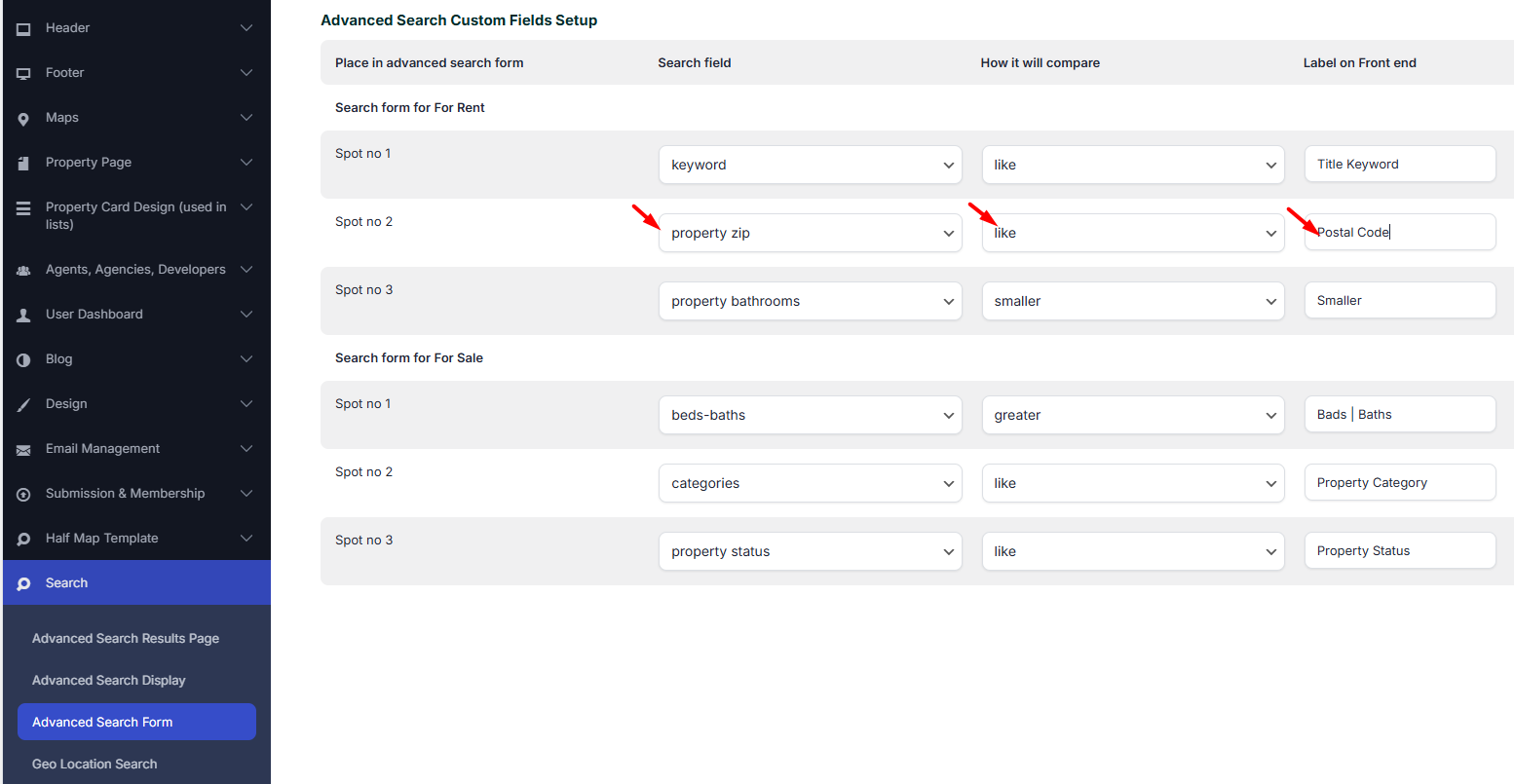
Property zip
Property zip is a default text field.
Use LIKE as the comparison operator.
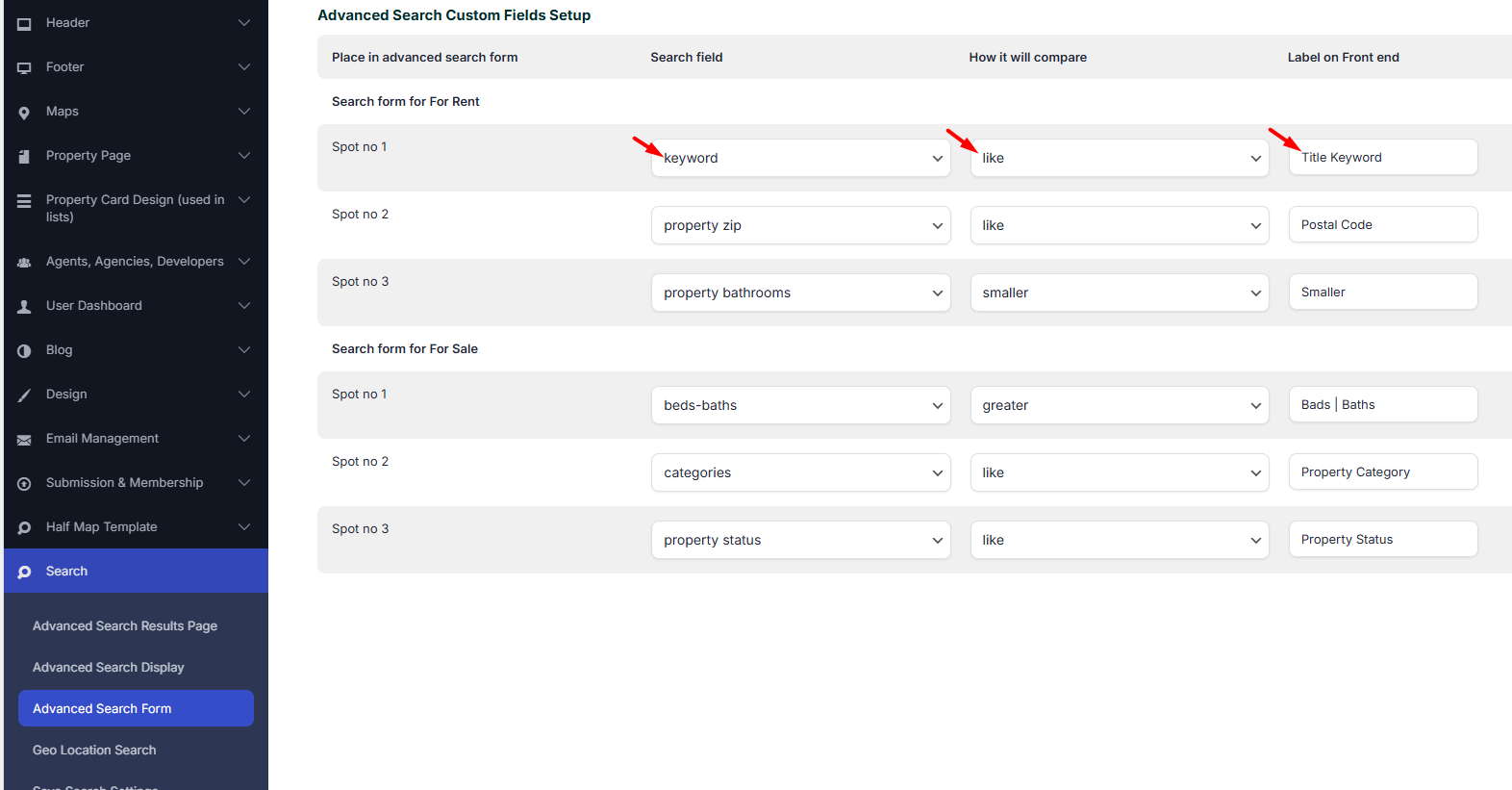
Title keyword
The Title Keyword field searches only in the property title.
Use LIKE as the comparison operator.

Property ID fields
WordPress property ID
Each property has a WordPress post ID created automatically by WordPress.
This is different from the custom visible Listing ID field that can be set in Theme Options or on the property.
If you want visitors to search by a visible property reference number, use the manual Listing ID field instead.
Manual listing ID or property ID
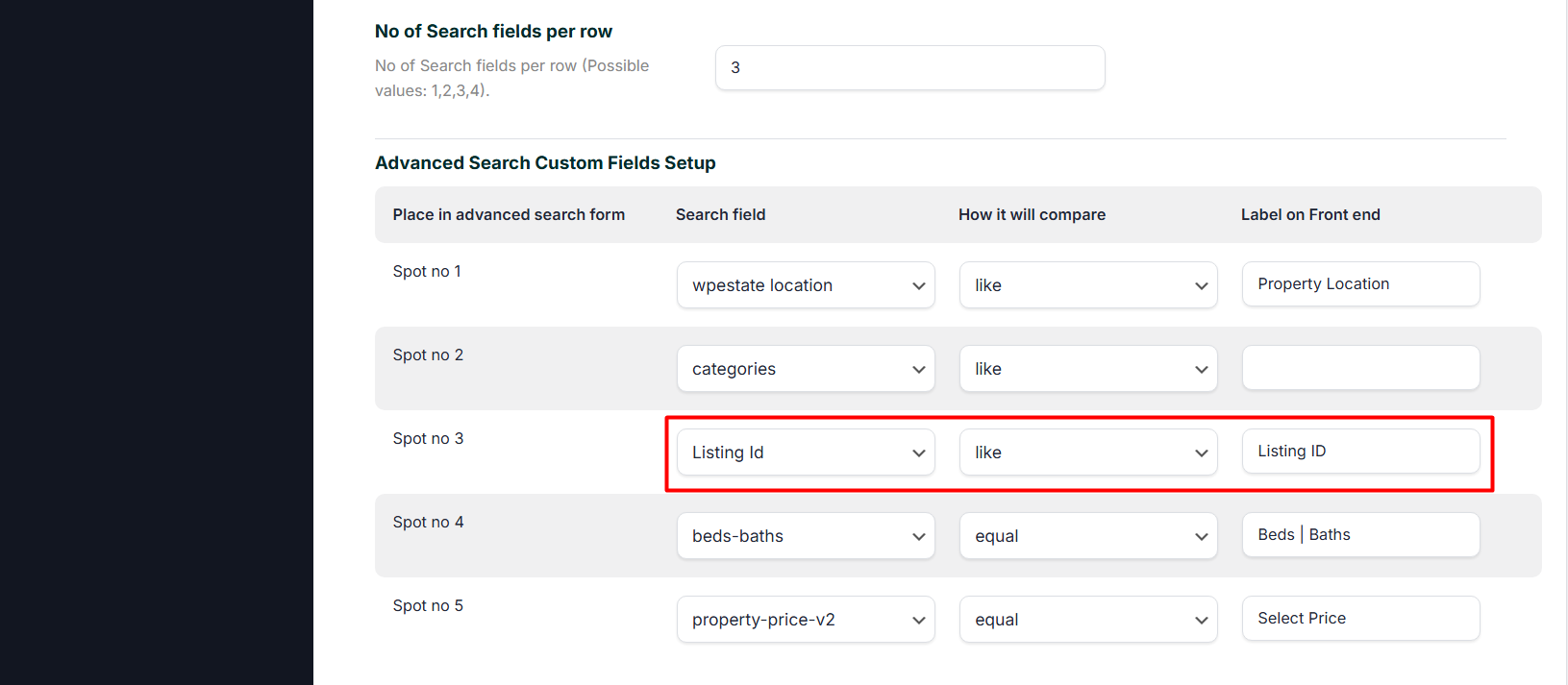
If you use a custom Listing ID or Property ID, add the ID to each property first.
Help:
How to add custom property ID to search
In the search form setup, use the Listing ID field and set the comparison method to LIKE.
Custom fields
Custom fields must be created first from:
Theme Options → Listing Custom Fields
Help:
How to add property custom fields
Dropdown custom field
Use LIKE as the comparison operator.
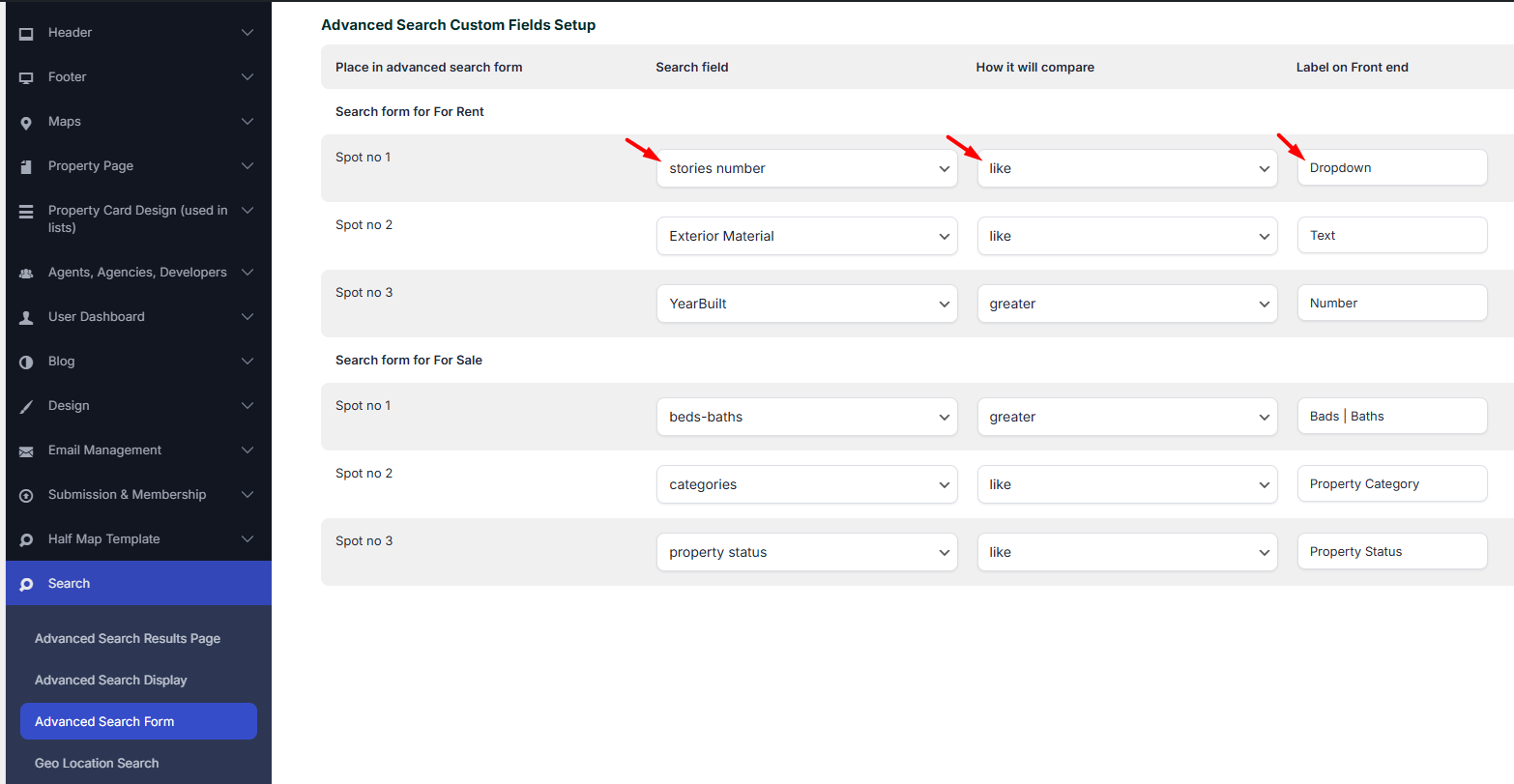
Text custom field
Select Text Custom Field in the search form setup and use LIKE as the comparison operator.
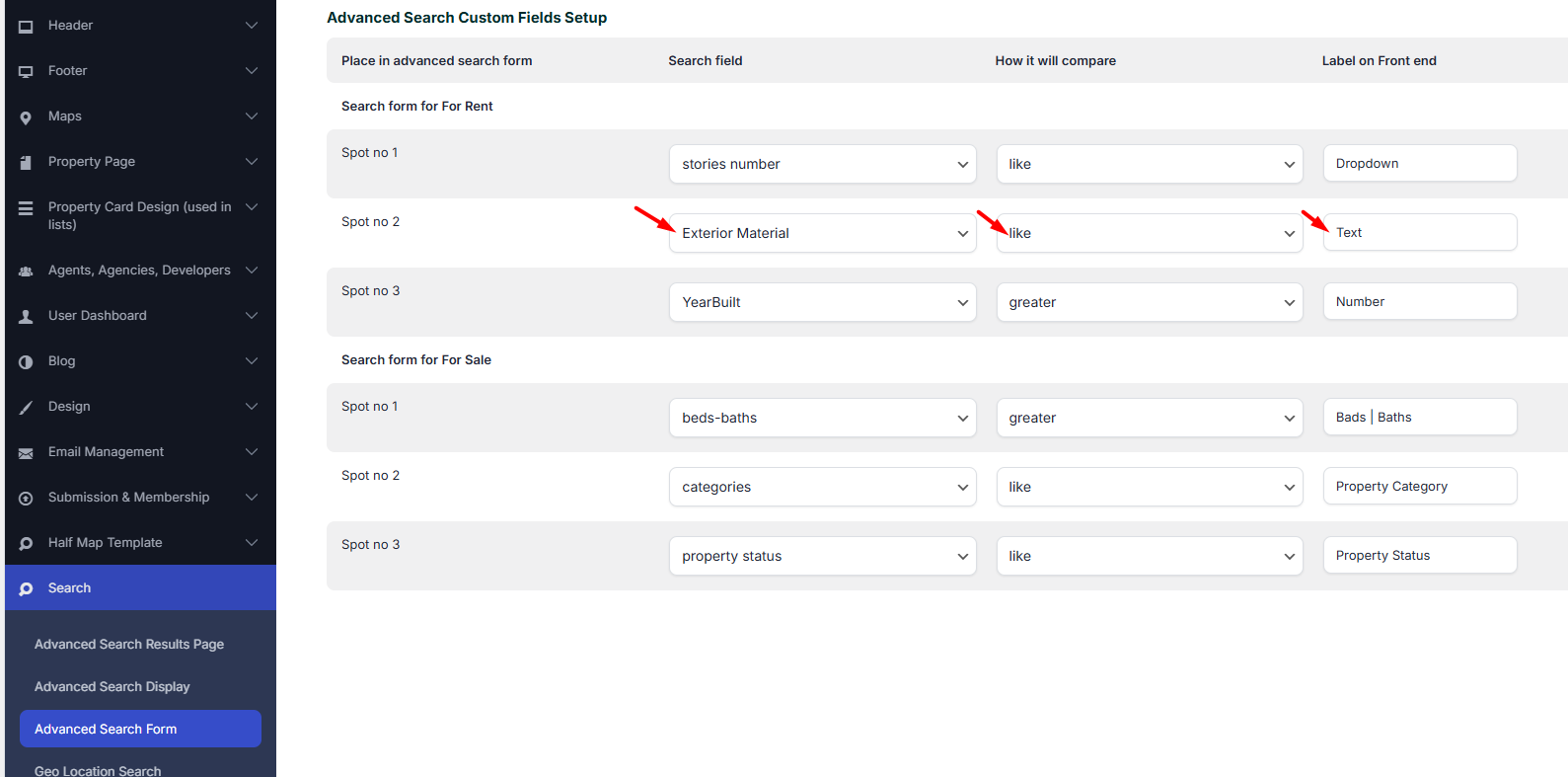
Number custom field
Use one of these comparison operators:
- EQUAL
- GREATER
- SMALLER
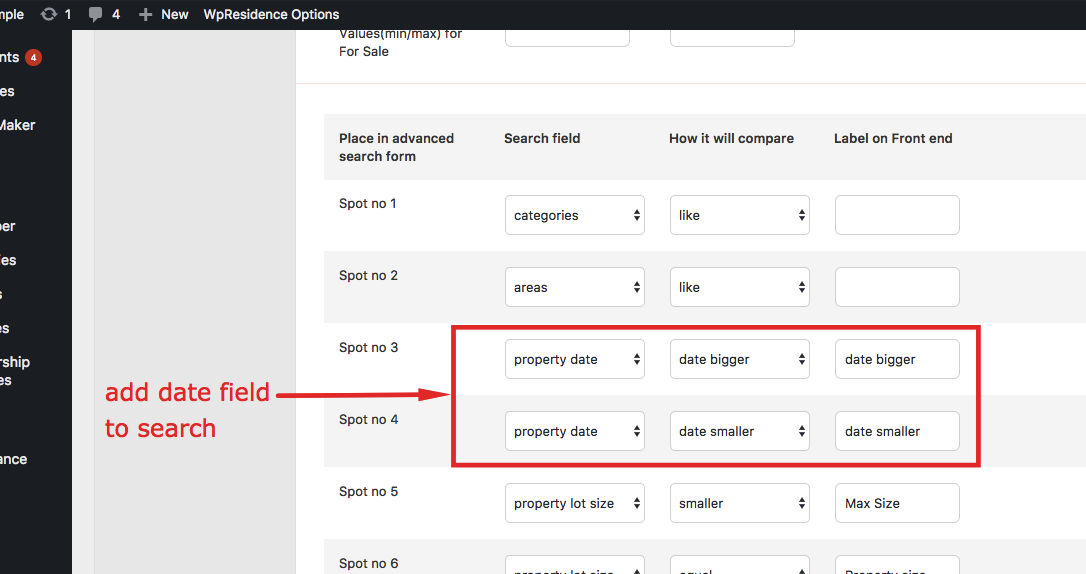
Date custom field
For date fields, use DATE GREATER or DATE SMALLER as the comparison operator.
Price fields
WPResidence supports several price field styles in Advanced Search.
You can use:
- Price slider
- Minimum and maximum price input fields
- Price v2 field with input and slider behavior
- Price v3 dropdown field
Price slider V1 or Price Slider V2
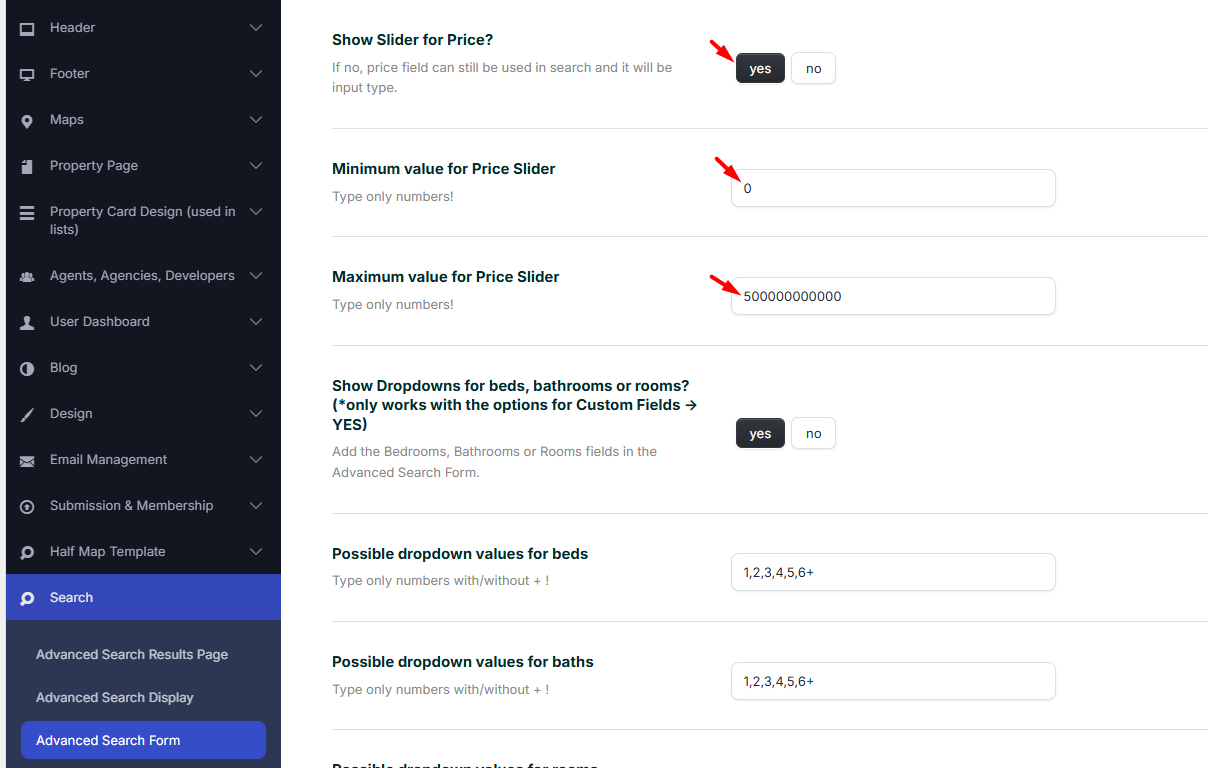
To use the price slider, go to Theme Options → Search → Advanced Search Form and set Show Slider for Price? to Yes.
Global search defines the minimum and maximum slider values in the price settings.
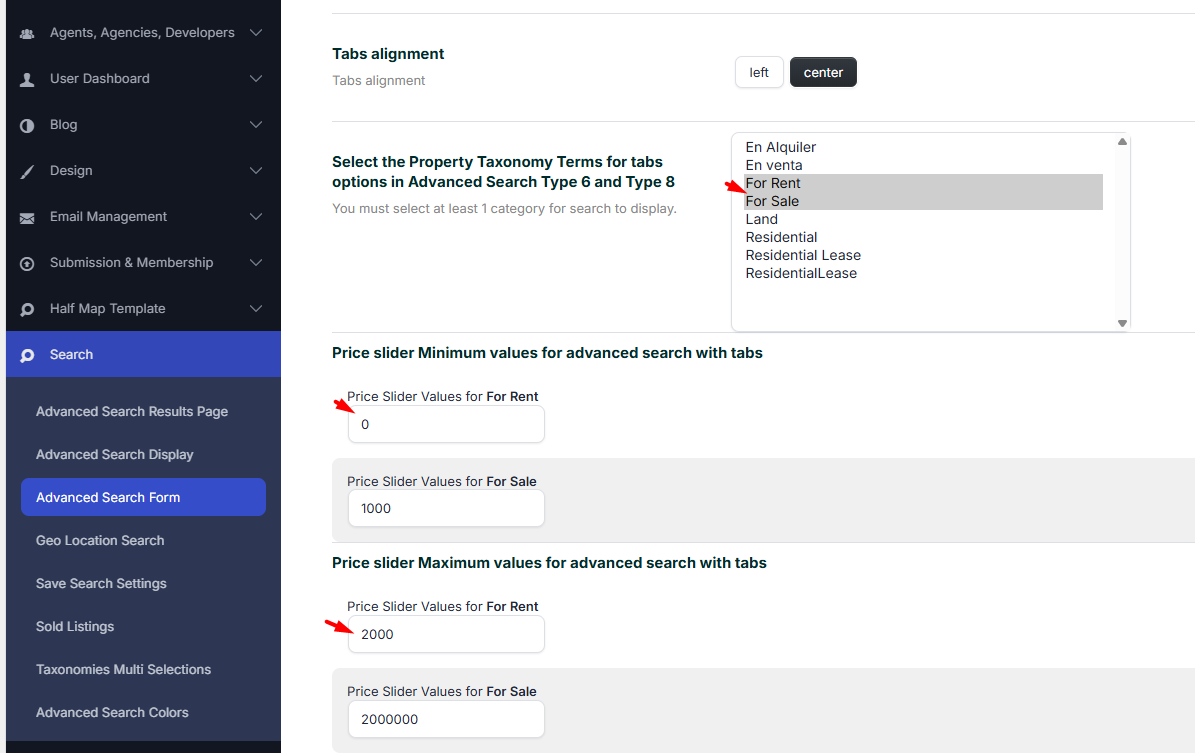
Search by specific categories defines minimum and maximum in each category
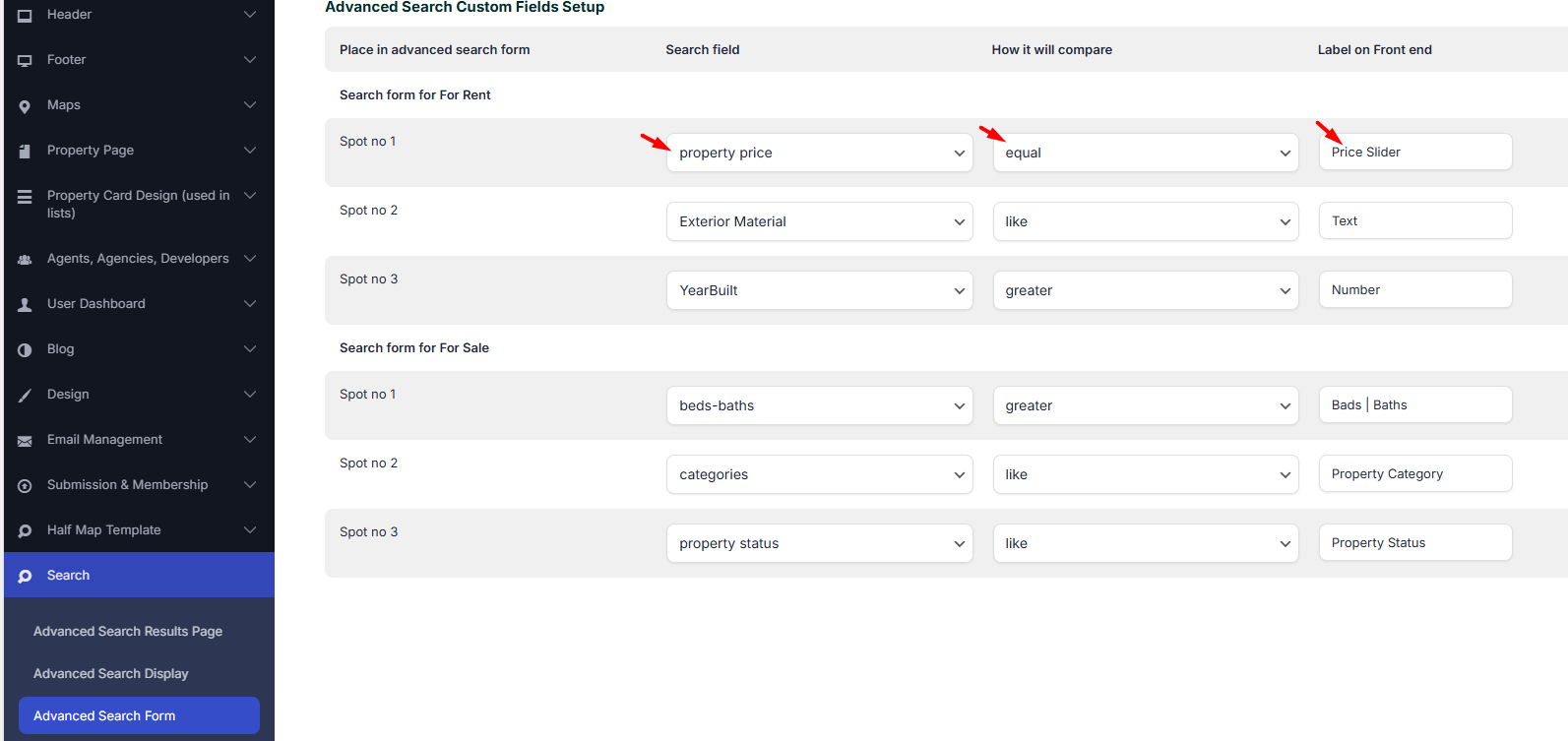
The fields in Search Form can be “Property Price”
You can use Equal as Compare
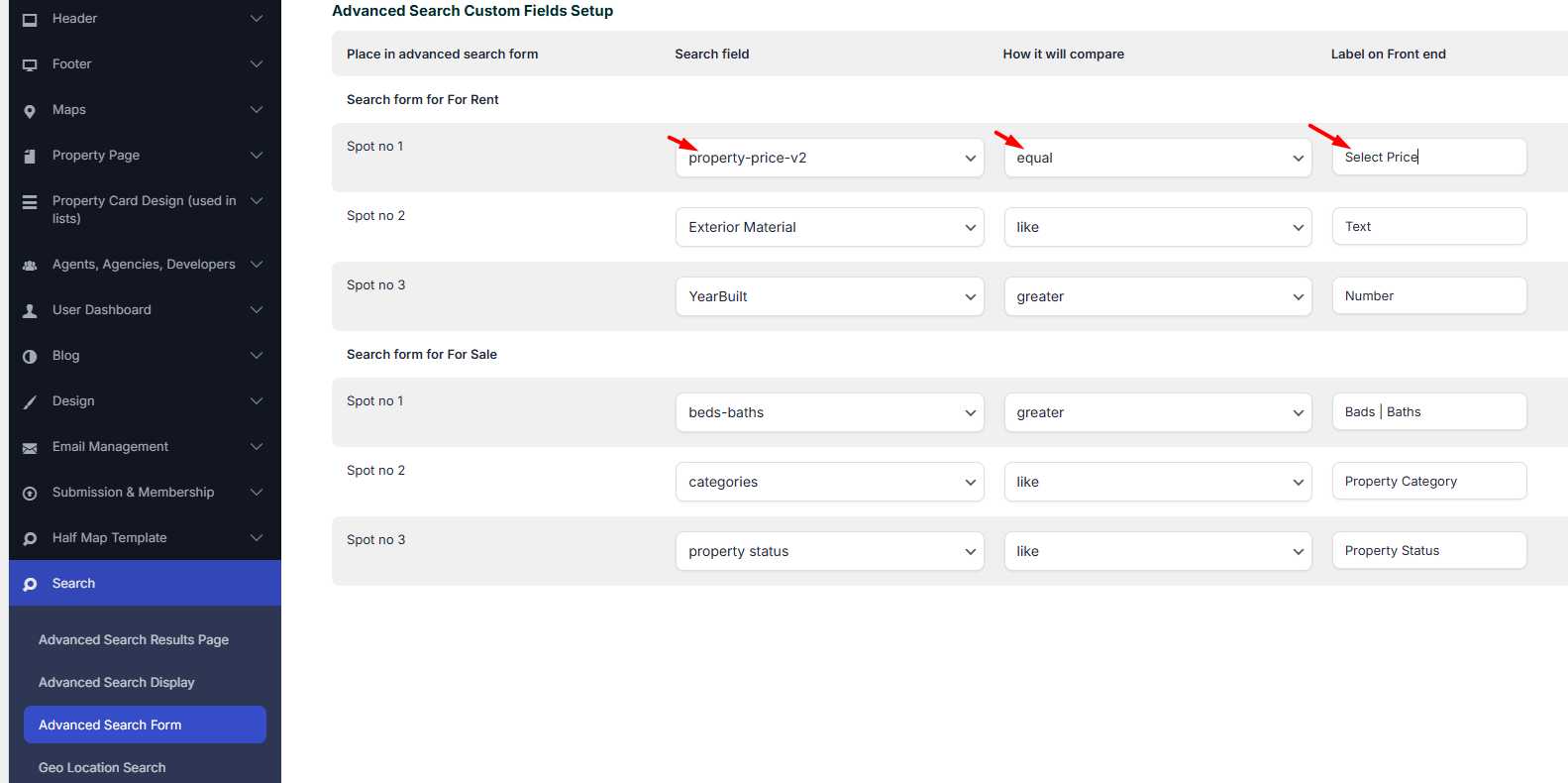
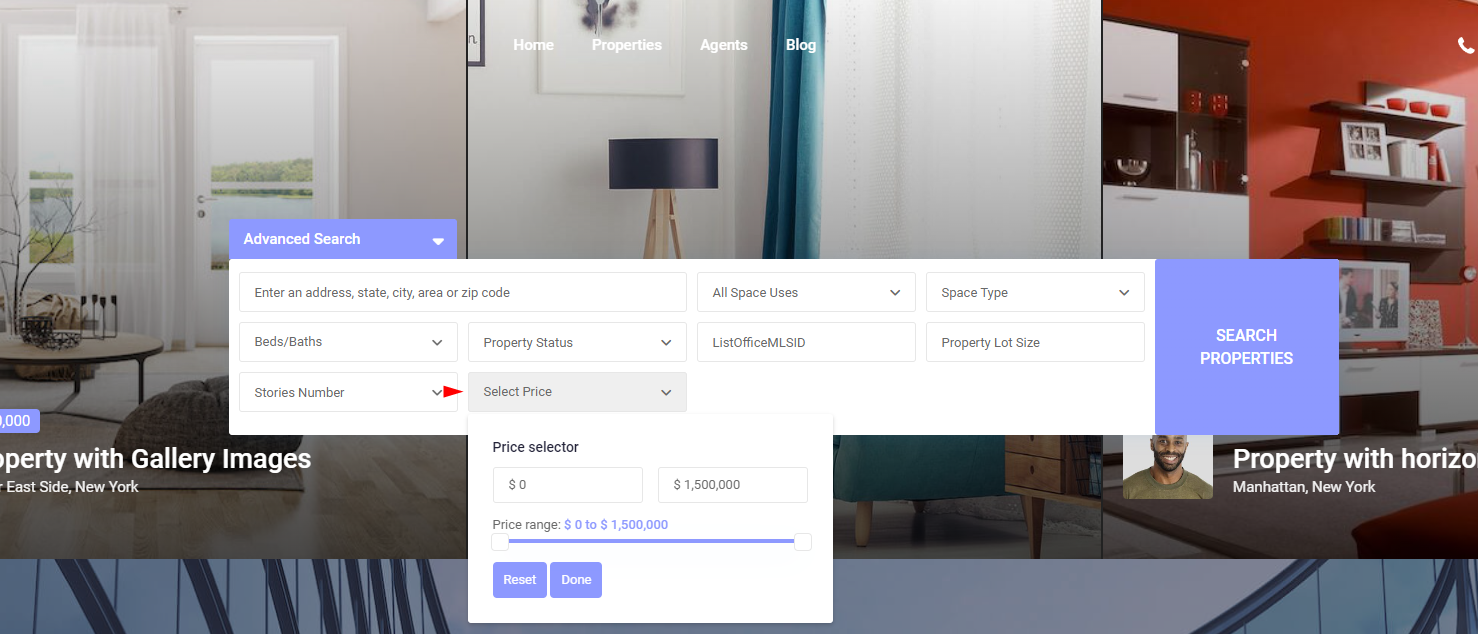
Or you can use “property price v2”
Use Equal as Compare
Price input fields
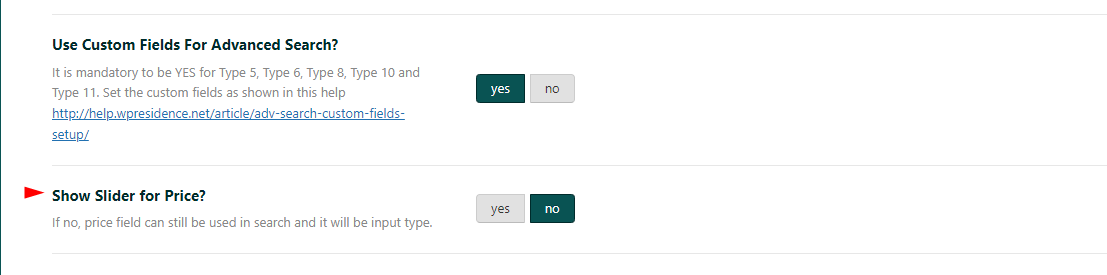
To use minimum and maximum price input fields, first disable the price slider.
Go to Theme Options → Search → Advanced Search Form and set Show Slider for Price? to No.
Then add Minimum Price and Maximum Price fields to the search form.

Front-end example:
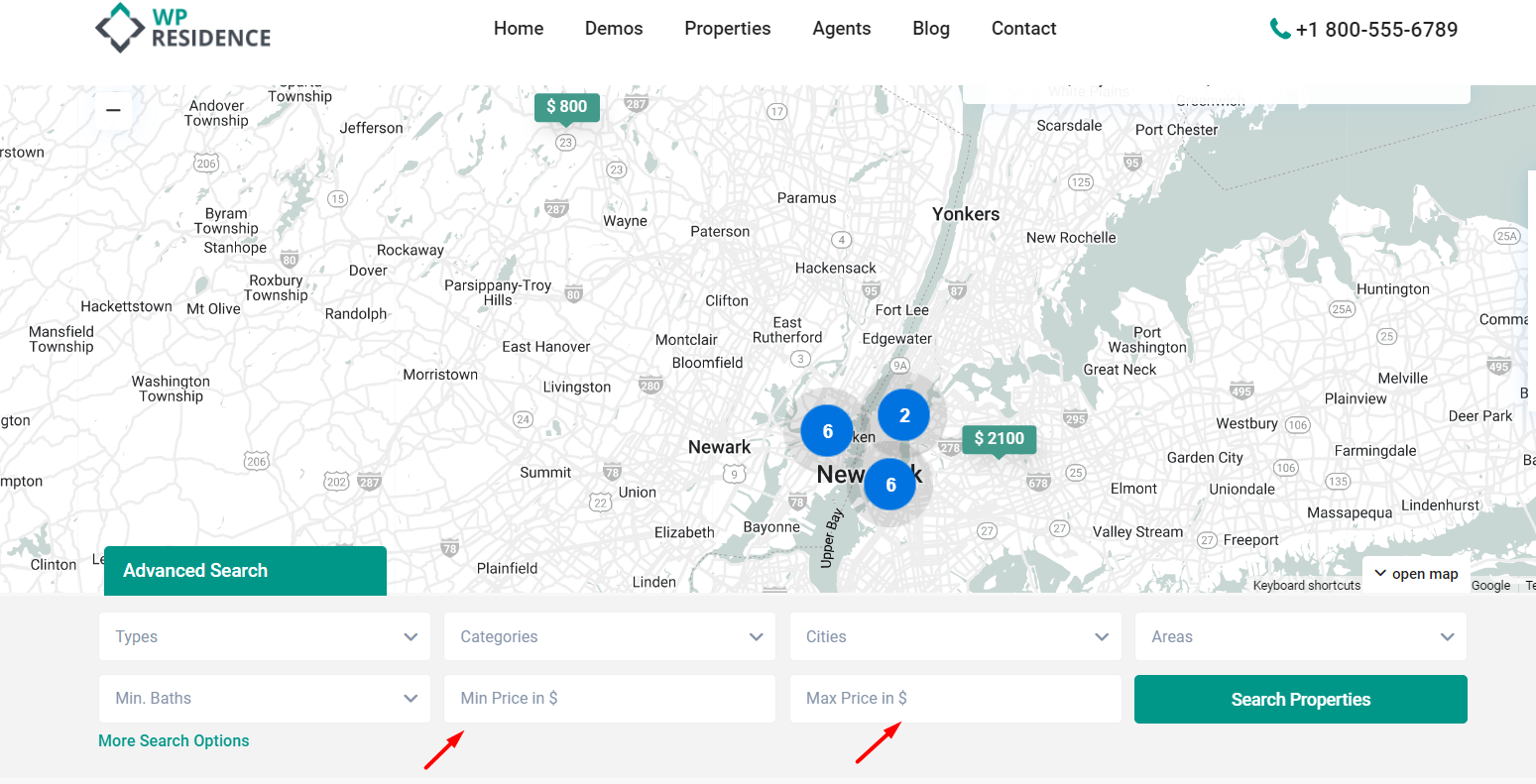
Price field with input and slider
In the search fields setup, select Price v2 for this price functionality.
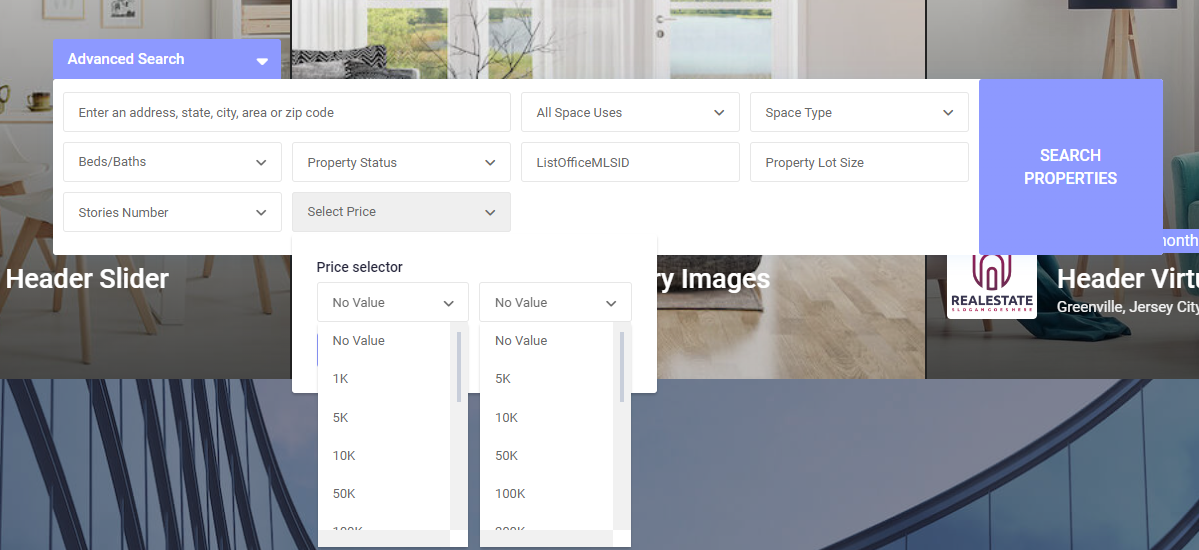
Dropdown price field
The Price v3 field is used for dropdown price selection.
In the search fields setup, select Price v3.
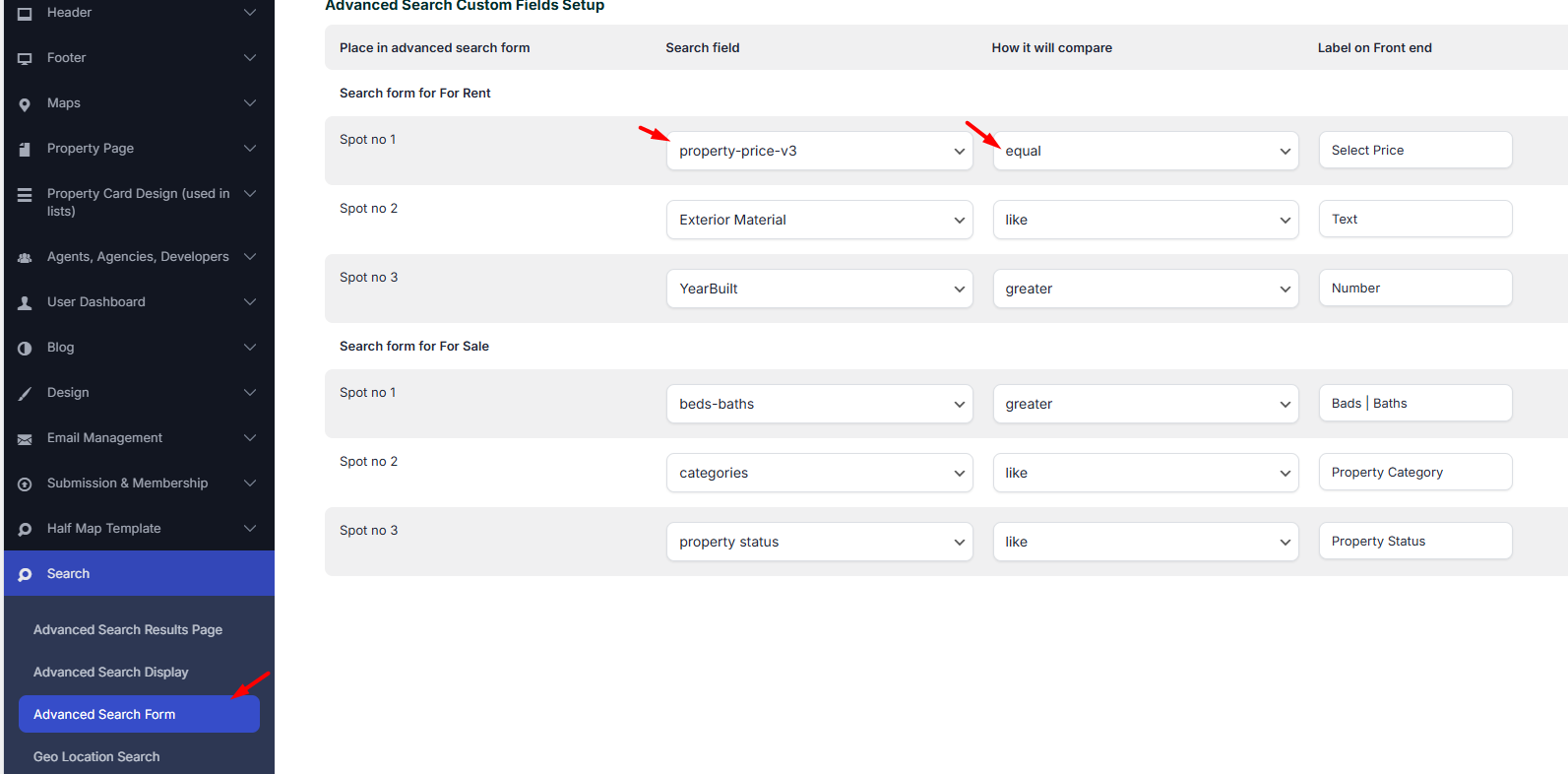
You can define predefined minimum and maximum price values in Theme Options.
Example for rentals:
- Minimum Price: 100,500,1000,1500,2000,2500,3000
- Maximum Price: 500,1000,1500,2000,2500,3000,3500,4000,4500,5000
Example for sales:
- Minimum Price: 50000,100000,150000,200000,300000,500000,750000
- Maximum Price: 100000,150000,200000,300000,500000,750000,1000000,1500000,2000000
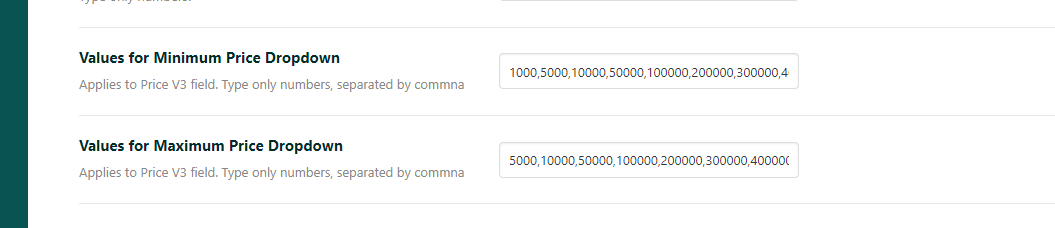
Price values for tabbed search types
For Search Type 6 and Search Type 8, price dropdown values must be added separately for each category used as a tab.
This lets you define different price ranges for tabs such as Rentals and Sales.
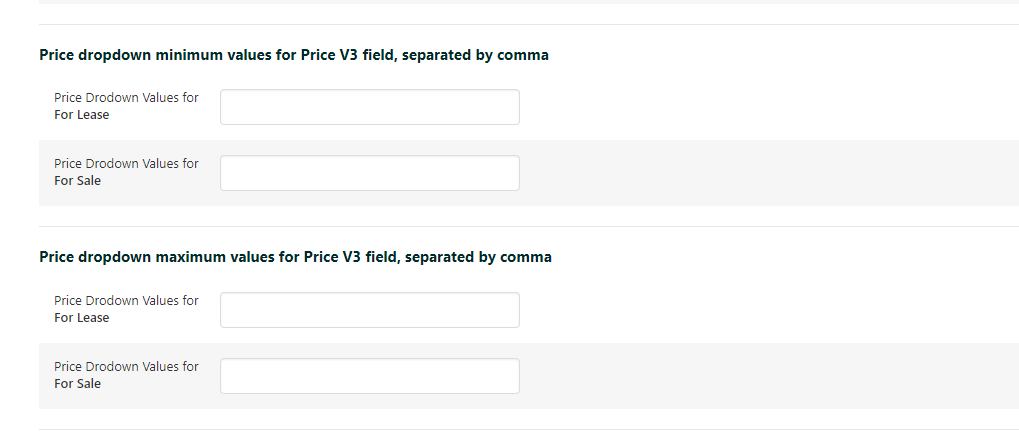
Front-end example:
Geolocation and radius search
You can add Geolocation and Radius fields to the custom search form.
These fields allow users to search for properties based on a map location and a selected radius.

Amenities and features
To add amenities and features to search, go to Theme Options → Search → Advanced Search Form.
Enable the Amenities and Features fields and select which amenities or features should be displayed.
This allows users to filter properties by specific features, such as pool, garage, garden, elevator, parking, or other custom amenities.
Help:
How to manage amenities and features fields