
Advanced Search Type 10 provides a compact search form that allows users to search properties by typing an Address, City, Area, or State, combined with a property type selector.
When the search bar is clicked, an extended advanced search opens. The fields shown in this extended search are synced with the Advanced Search custom fields configured in the admin area.
These extended search fields are shared across:
- Advanced Search Results pages
- Half Map Ajax filters
- Mobile search
- Advanced Search widget
- Advanced Search shortcode

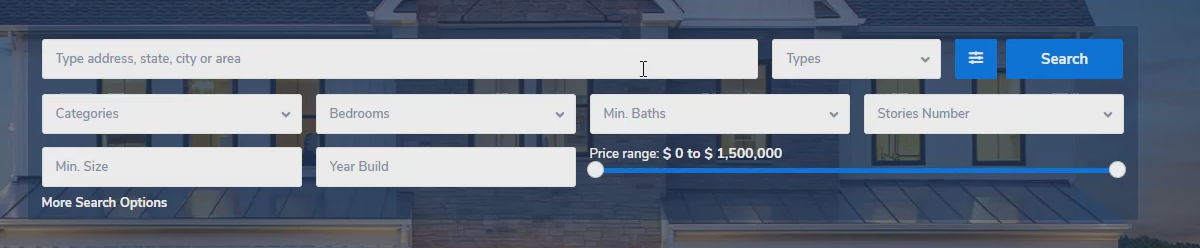
Select Advanced Search Type 10
Go to:
Theme Options → Search → Advanced Search Form
Set Advanced Search Type to Type 10.
Configure the extended search fields
The fields that appear when the search expands are configured from:
Theme Options → Search → Advanced Search Form
These fields use the same logic and comparison rules as the global Advanced Search. Advanced Search Form – Field Setup
Configure search form display options
Display options such as layout, spacing, and visibility are managed from:
Theme Options → Search → Advanced Search Display Advanced Search Display Options
Configure search form colors
To customize colors for fields, background, and buttons, go to:
Theme Options → Search → Advanced Search Colors Advanced Search Color Settings
Elementor Search Form Builder – Important Note
If you use the Elementor Search Form Builder widget on specific pages, keep in mind:
- The global Advanced Search Type selected in Theme Options still applies.
- Search fields are configured inside the Elementor widget and do not sync with Theme Options.
- Changes made in Theme Options → Search → Advanced Search Form do not affect Elementor-based search forms.
- Button styling (colors, padding, typography, alignment) is controlled entirely from the widget’s Style tab.
- This allows page-level customization without altering global search behavior.
Elementor widget guide:
Property Search Form Builder for Elementor