Configure the Map System First
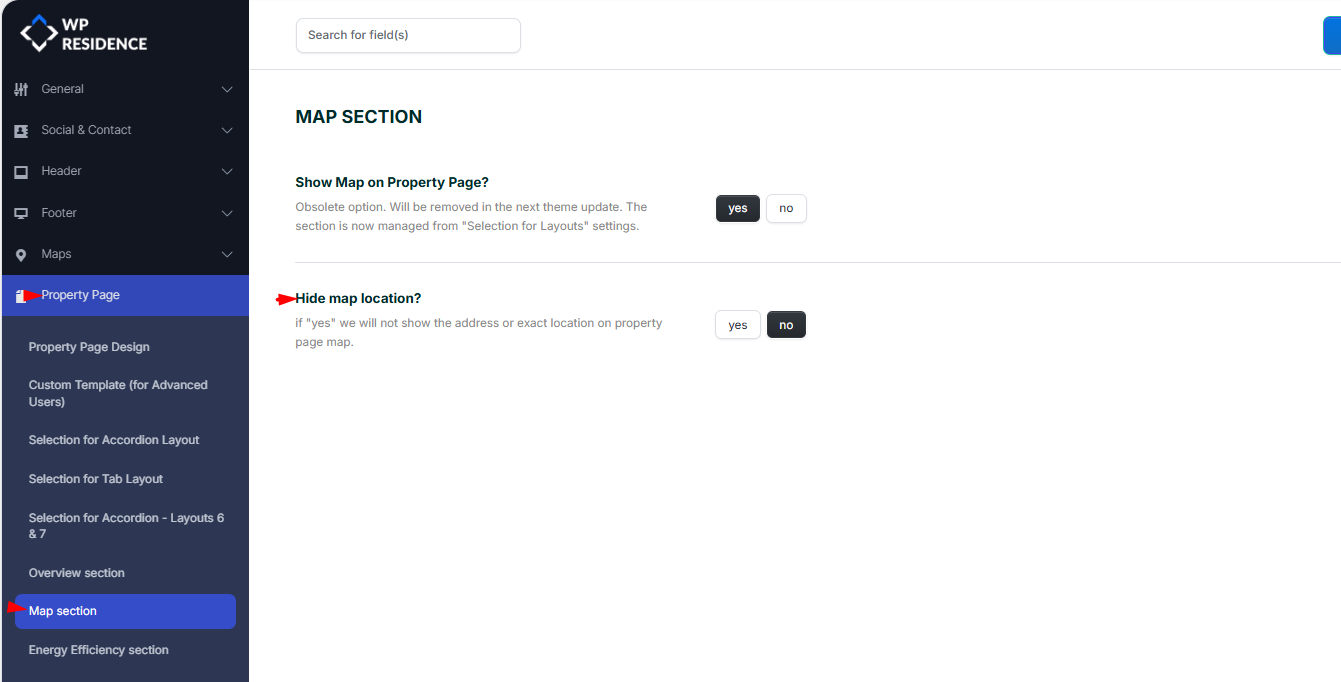
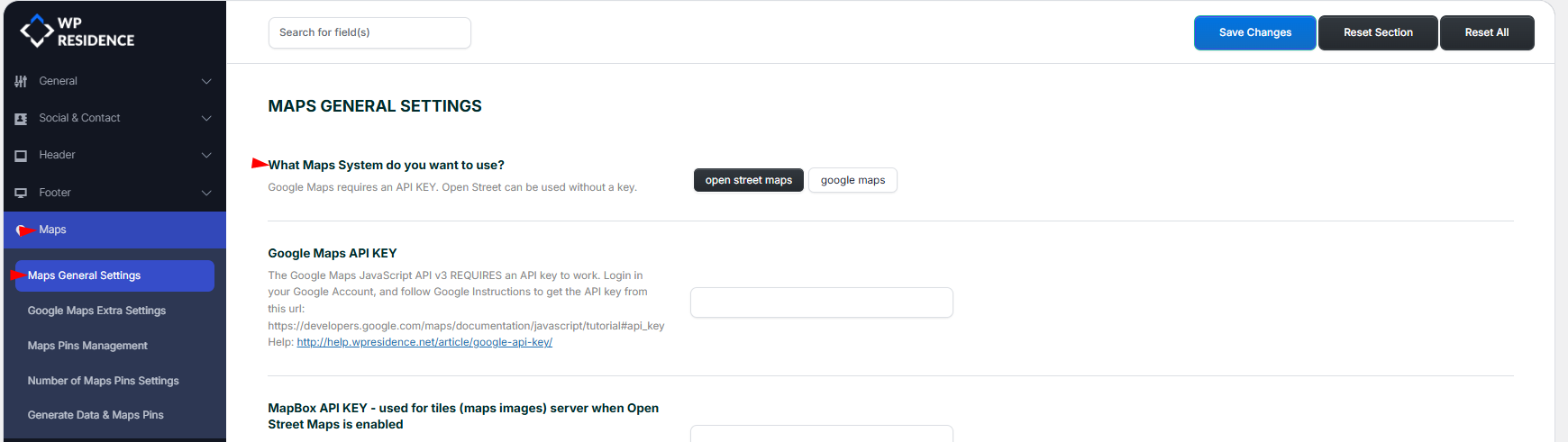
Before setting the property location on the map, make sure your map system is configured correctly in Theme Options > Map > Map Settings.
WPResidence lets you use either Google Maps or OpenStreetMap as the map provider.
If you use Google Maps, you must add a valid Google Maps API key.
Ways to Place the Property Pin
A property pin can be placed on the map in several ways, depending on how the property is added and how the submission form is configured.
The property pin can be placed in 4 ways:
1. Automatic Pin Placement with Autocomplete
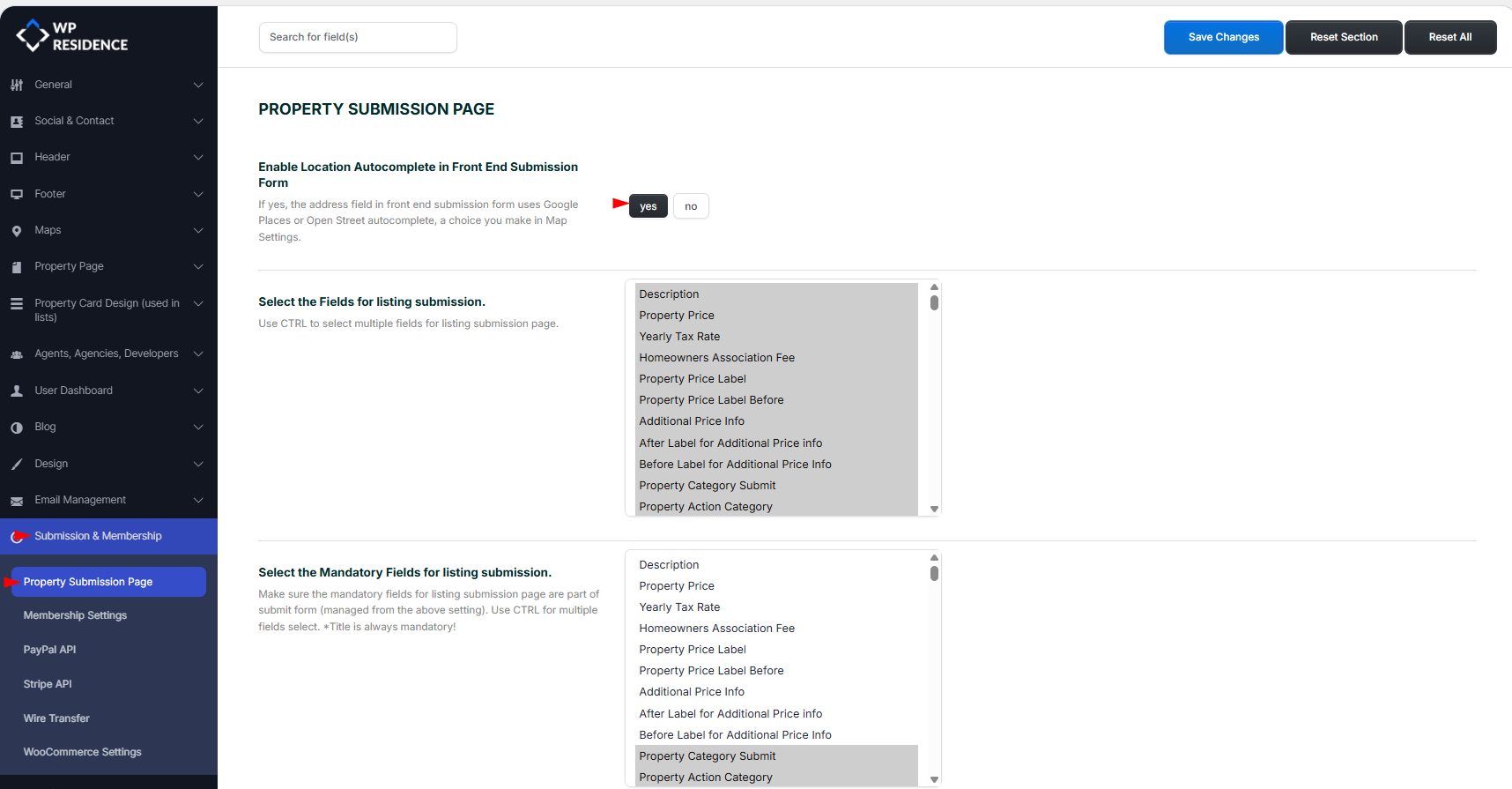
Step 1. Enable Autocomplete in Front End Submission Form from Theme Options > Submission & Membership > Property Submission Page.
Step 2. For the pin to be placed automatically when the property is submitted, all address-related fields must be selected in the submission form.
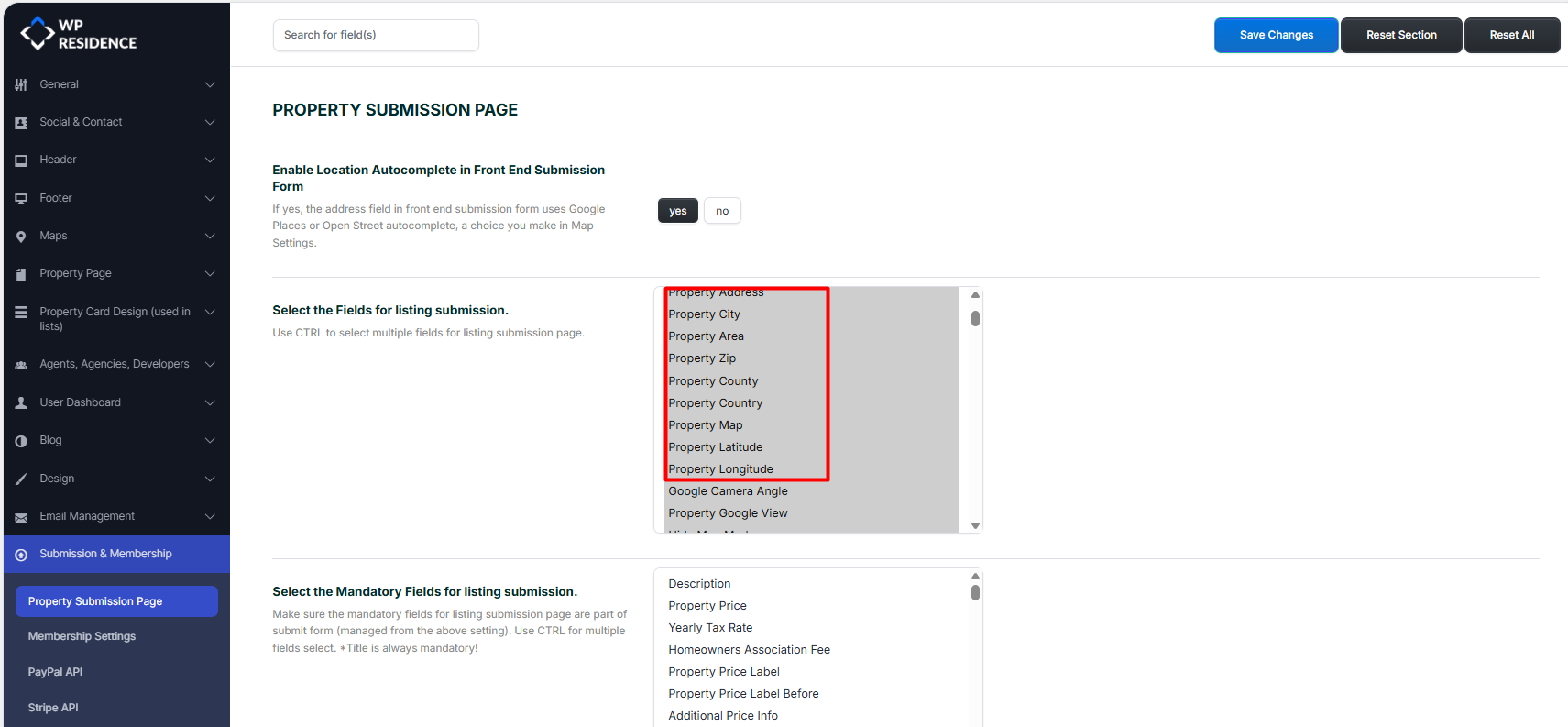
This option applies to the property address and city fields in the submission form.
- If the geolocation system is set to Google Places, typing the address in the front-end submission form will show Google autocomplete suggestions, as in the screenshot below.

- If the geolocation system is set to OpenStreetMap, typing the address in the front-end submission form will show OpenStreetMap suggestions, as in the screenshot below.
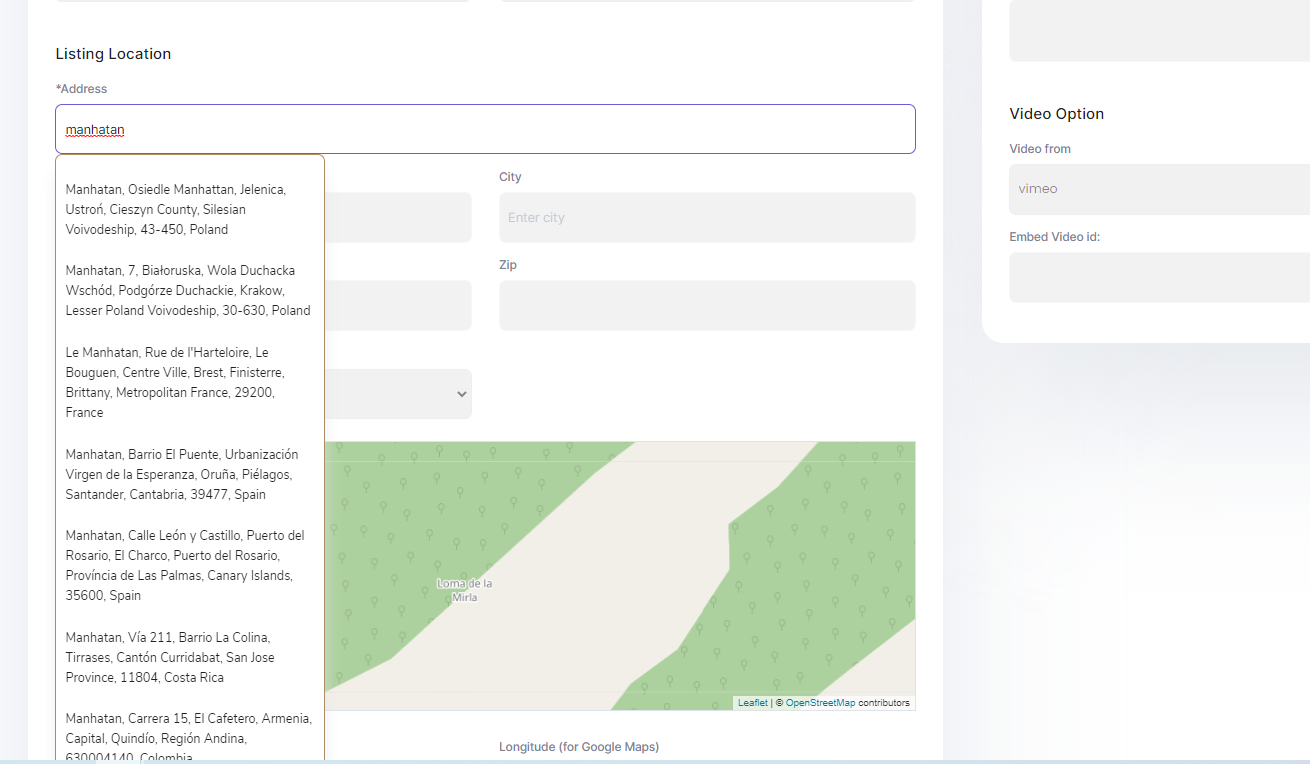
2. Place Pin with Property Address Button
If autocomplete is disabled, the submission form will show dropdowns for city, area, state, and similar location fields.
When autocomplete is off, these values must already exist in the admin under property taxonomies so they can be selected in the submission form.
In this setup, the property pin must be placed manually by using the button:
Place Pin with Property Address
This option tells the theme to read the entered address and try to place the pin on the map based on that information.
If you use this setup, make sure the needed cities, areas, and states already exist in the site admin so they can be selected in the form.
Help article for how to manage property categories
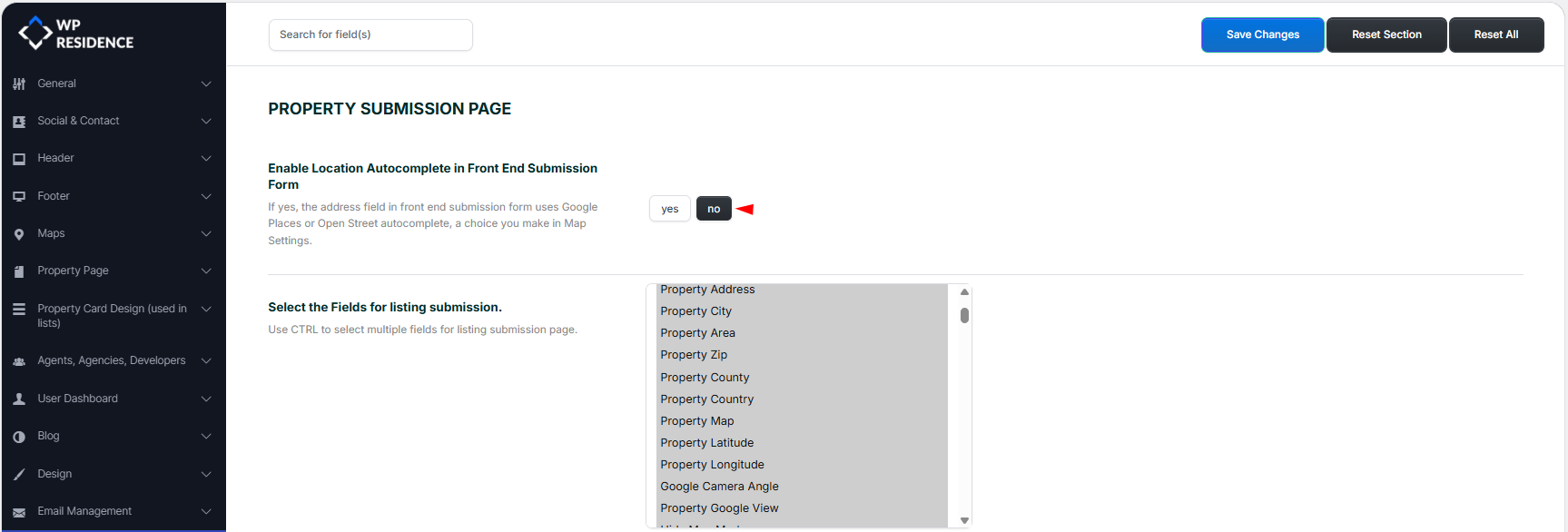
Property location must be triggered manually by using the Place Pin with Property Address button, by selecting the pin location manually on the map, or by copying latitude and longitude values.
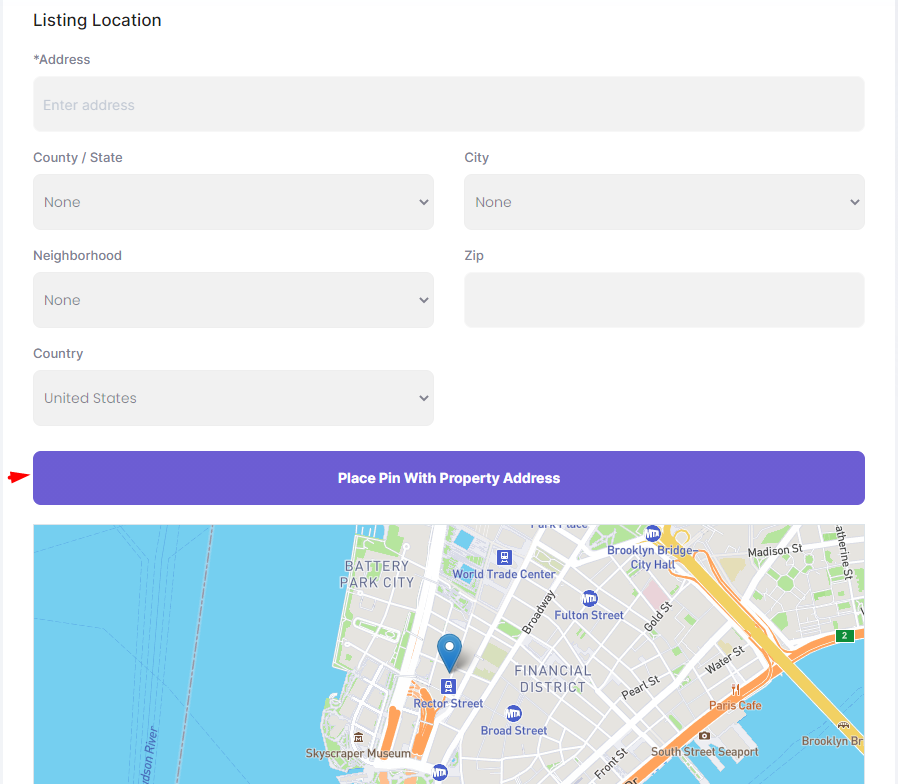
3. Place Pin Manually on the Map
You can also place the pin manually by clicking directly on the map.
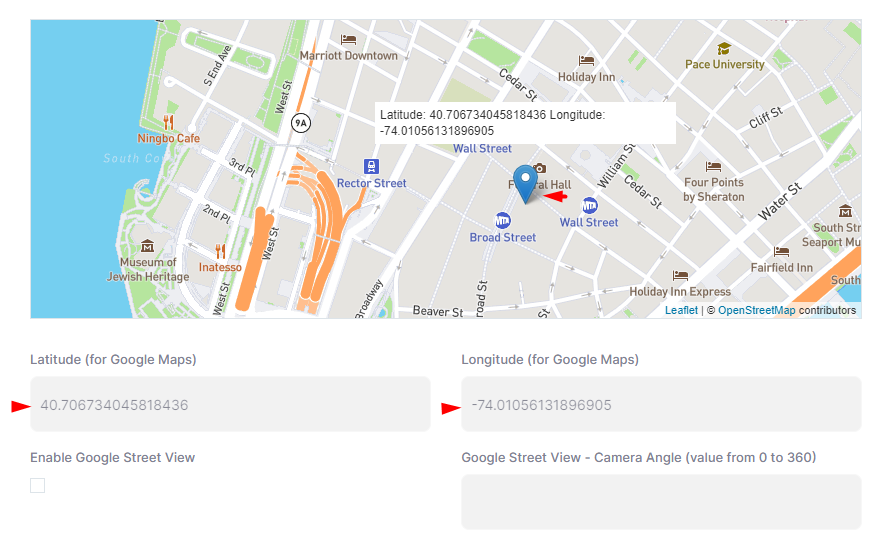
4. Copy Latitude and Longitude
You can also place the pin by manually entering the Latitude and Longitude fields.
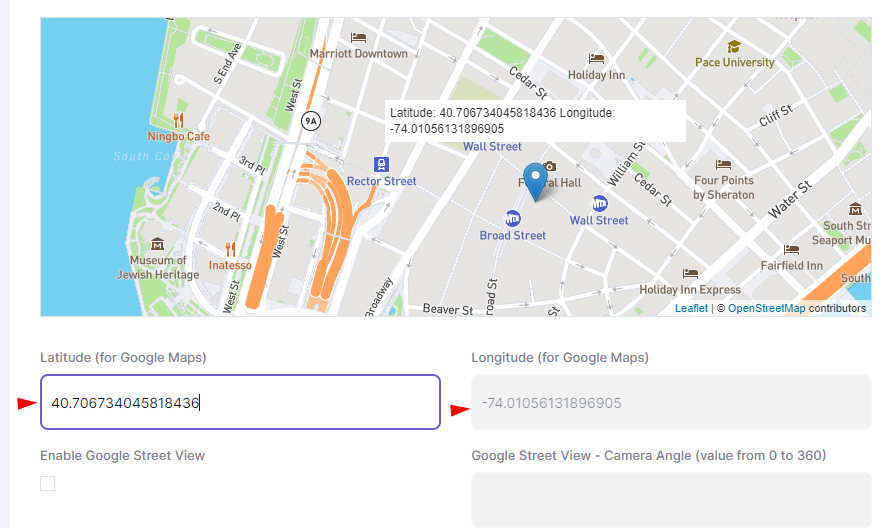
5. Add Latitude and Longitude in WP-ADMIN – Properties – Edit Property – Meta boxes – Address & Map Location
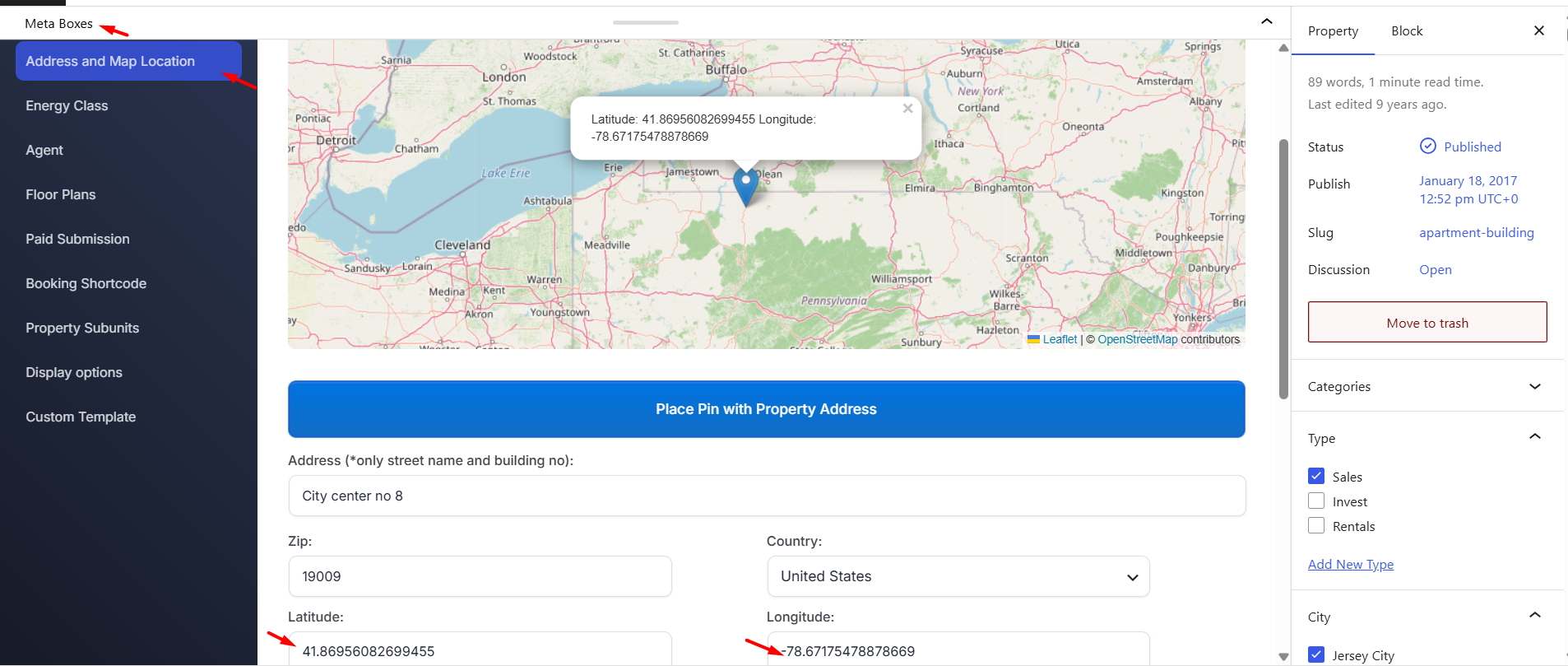
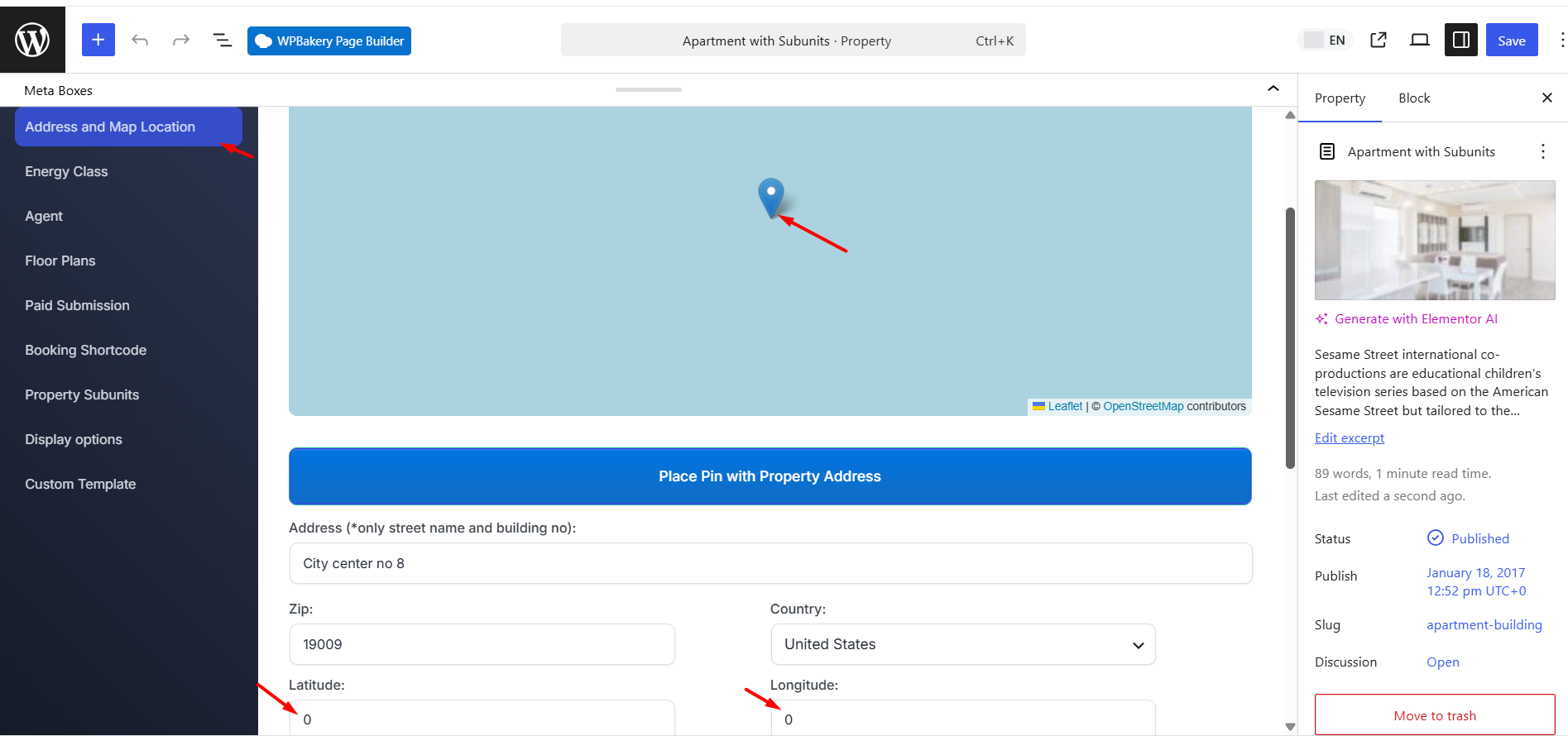
What Happens If Coordinates Are Missing or Saved as 0 / 0
Each property needs correct latitude and longitude values to show the pin in the correct place on the map.
If the property does not have valid coordinates saved, the marker data can be saved with default values:
Latitude: 0
Longitude: 0
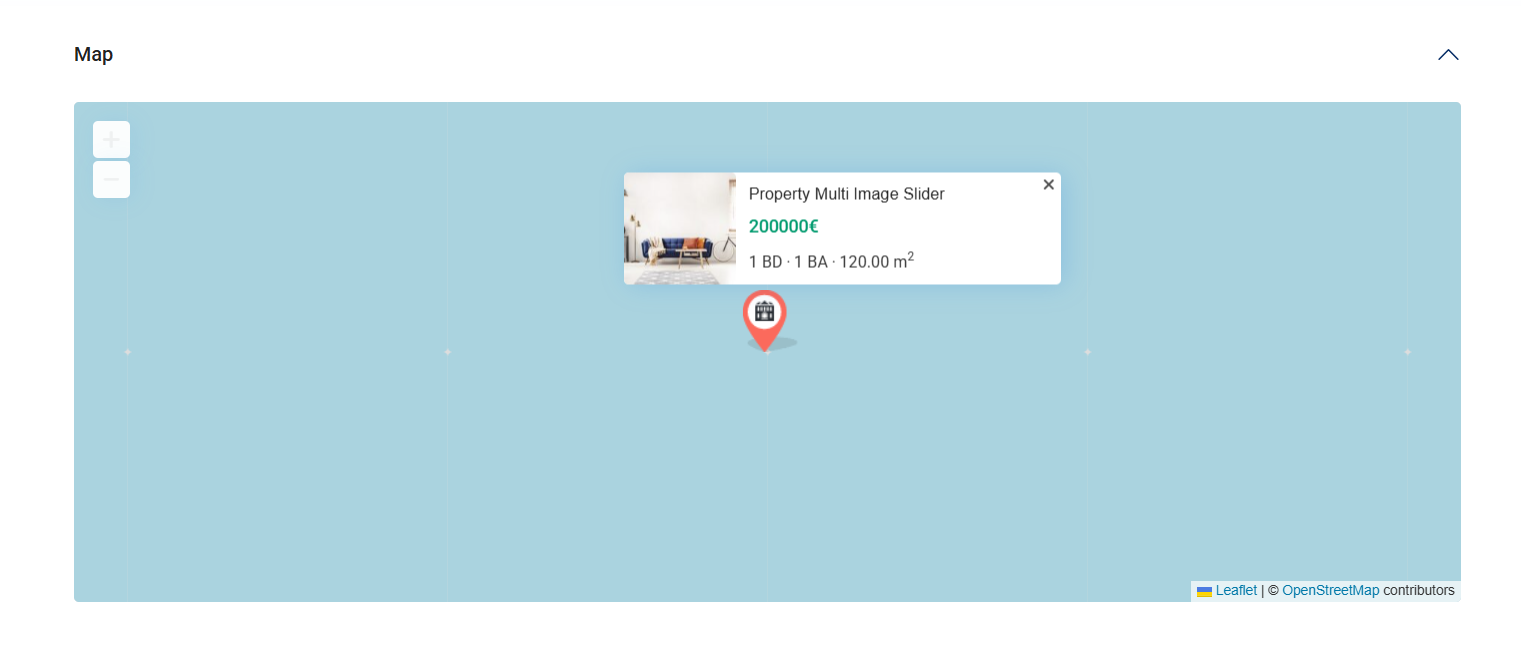
This location points to the ocean near the equator. Because of this, the map may look like it is not loading correctly, or it may show only a blue/green map area.
If you see a popup with the property image and price on that blue/green area, that popup is the property marker info box. It means the map is loading, but the property marker is loading at the wrong coordinates.
To fix this:
- Edit the property.
- Go to the map/location section.
- Add the correct latitude and longitude, or place the pin correctly on the map.
- Save/update the property.
- Clear cache and check the property page again.
Read from File Enabled – Generate Data and Map Markers
If you use Read from File, the file with map pins and coordinates must re-generated by re-generating the file.
After you edit property coordinates, update property locations, or import properties, use Generate data and map markers to rebuild the map marker data.
This option is useful after location changes, but it does not replace the need to save correct coordinates for each property.
If a property has no latitude and longitude, or if it has 0 / 0 saved, generating the markers again will not fix the location. The property coordinates must be corrected first.
Optional: Hide the Map Marker
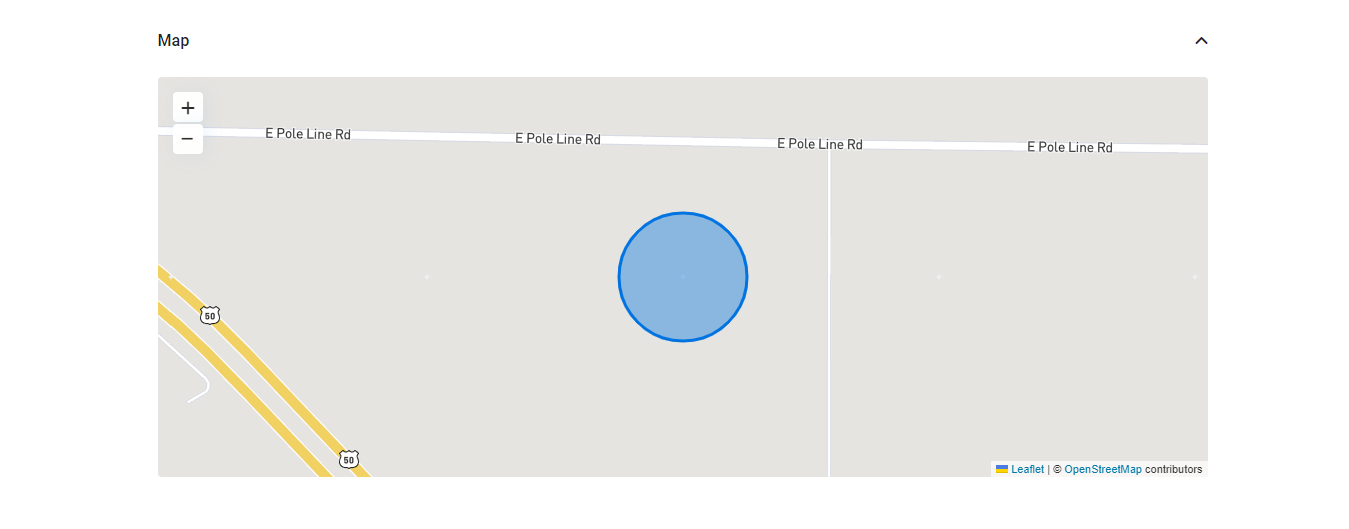
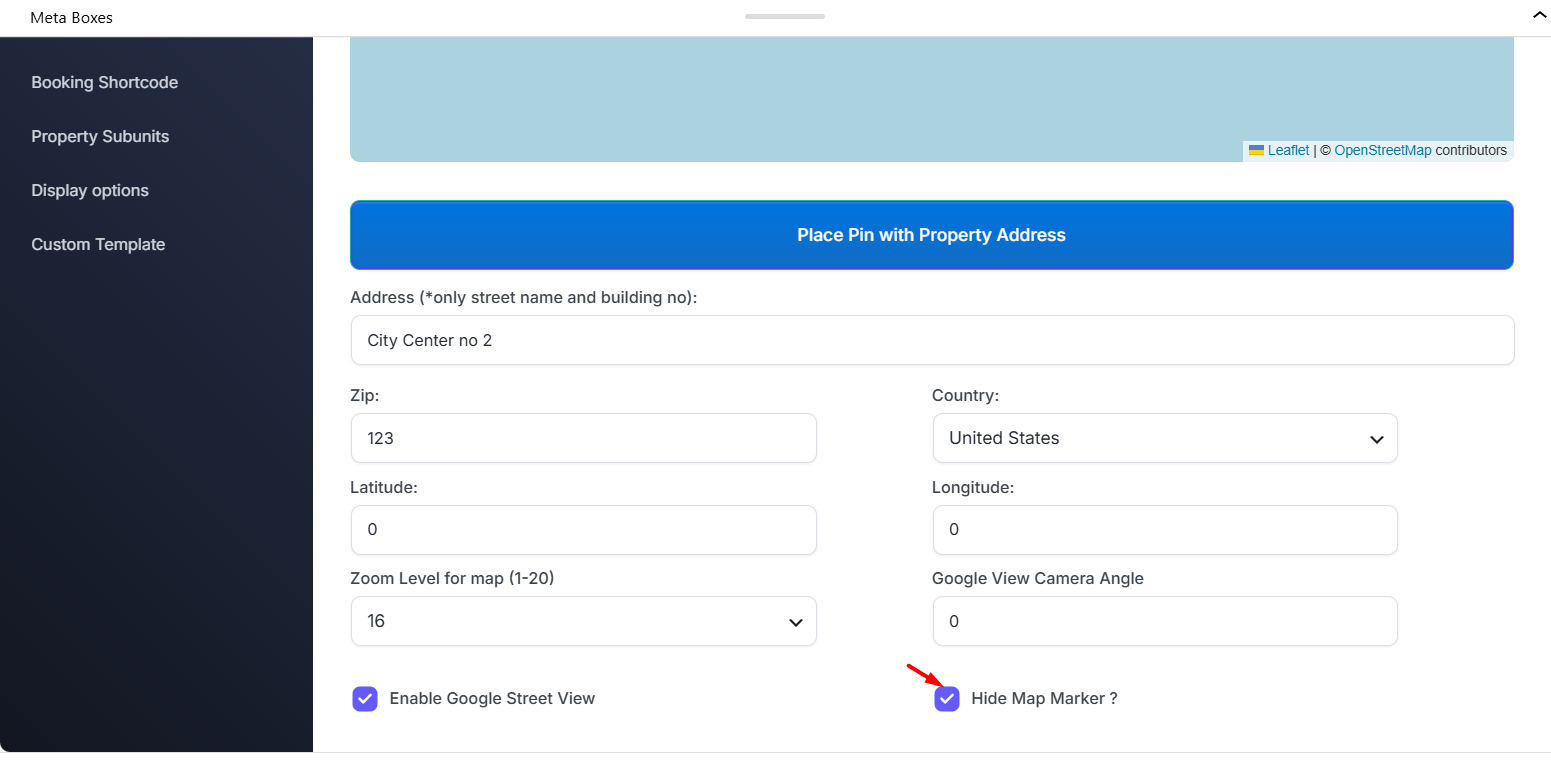
You can hide the single property map marker location for all properties or only for specific properties.
On the front end, the location looks like this:
You can manage this setting per property:
Or you can hide the location for all properties from theme options: