
Demo page: https://main.wpresidence.net/recent-items/
Recent Items Overview
The Recent Items widget and shortcode can display properties, blog posts, or agents in a list section on any page. You can use it in both Elementor and WPBakery.
The exact options shown depend on the item type you select. The most advanced settings are available when Properties is selected.
Using the Widget in Elementor
- Edit the page with Elementor
Open the page where you want to add the section. - Add the widget
Search for WPResidence Items List and drag it into the page. - Choose the content type
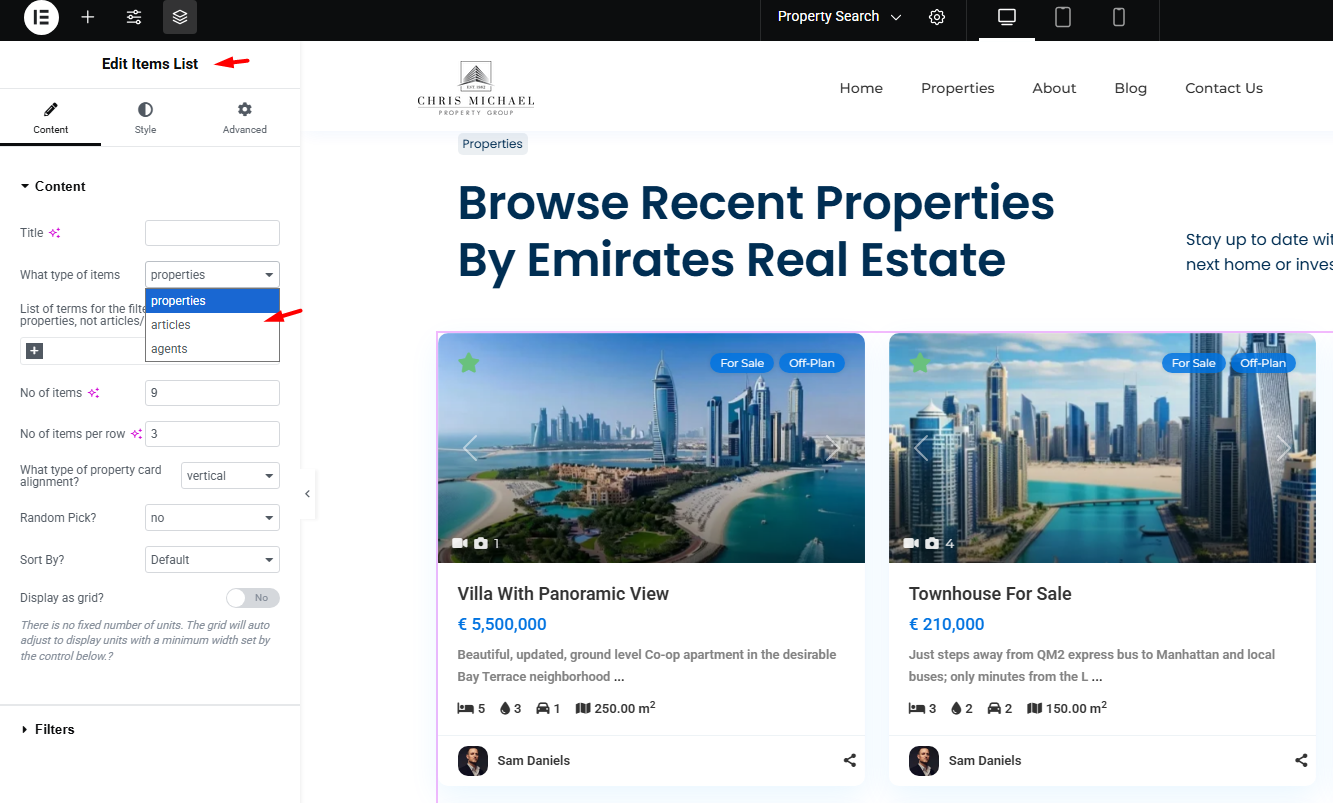
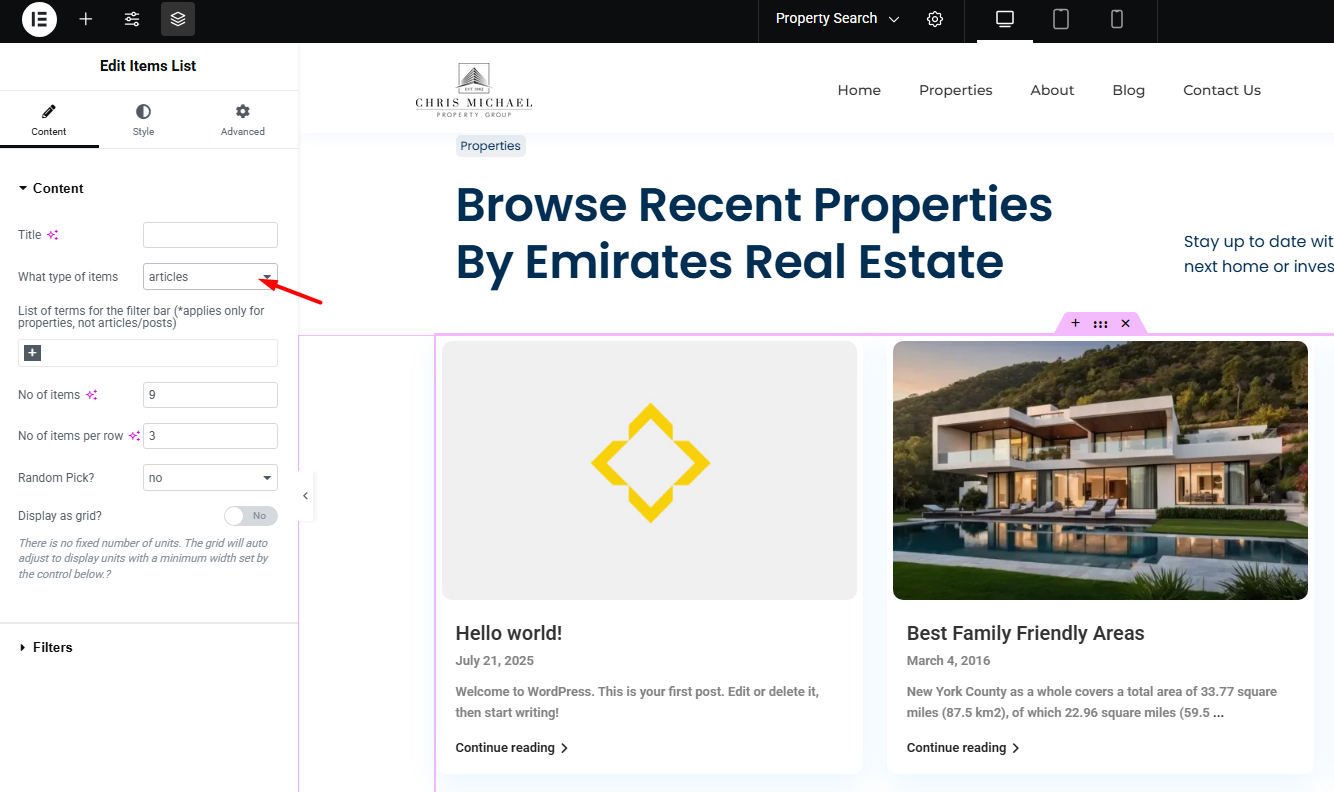
From What type of items, select properties, articles, or agents.
In the main Content panel you can set:
- Title – Optional title displayed above the section.
- What type of items – Choose properties, articles, or agents.
- List of terms for the filter bar – Adds filter terms above the list. This applies only to properties.
Displaying Properties
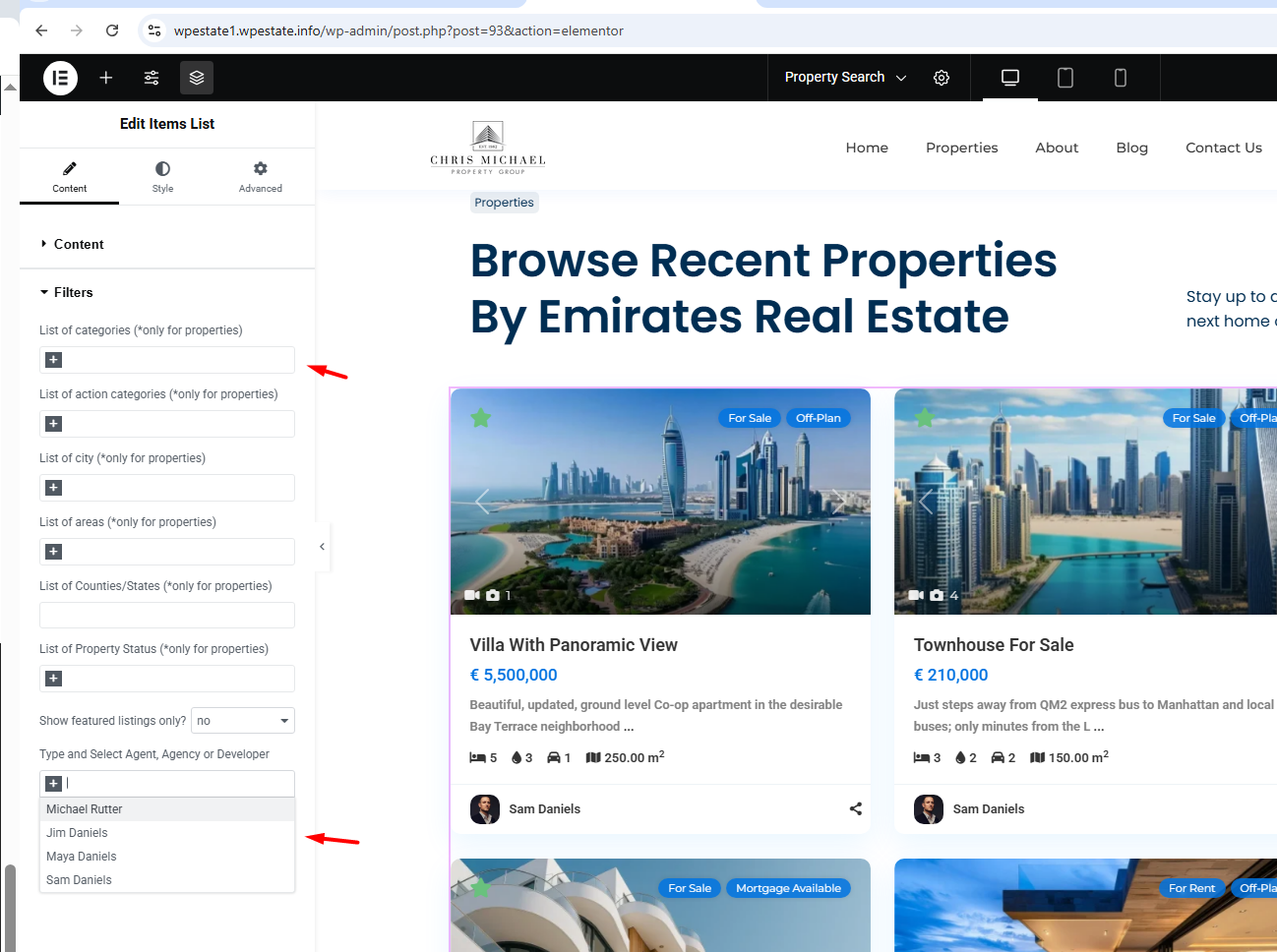
Select properties in What type of items to display property cards. After that, open the Filters panel to limit which properties are shown.
You can filter the property list by:
- List of categories – Show only selected property categories.
- List of action categories – Show only selected actions, such as For Sale or For Rent.
- List of city – Show only properties from selected cities.
- List of areas – Show only properties from selected areas or neighborhoods.
- List of Counties/States – Filter by county or state.
- List of Property Status – Filter by status terms created on your site.
- Type and Select Agent, Agency or Developer – Show properties assigned to a specific agent, agency, or developer.
If you leave these filter fields empty, the widget can display properties from all available terms, based on the other settings you choose.
Show Only Featured Properties
To display only featured properties in the Recent Items widget, you need to complete 2 separate steps.
Step 1. Mark the property as Featured
Edit the property from wp-admin, open the Property Details tab, and enable Make it a Featured Property. Only properties already marked as featured can appear in a featured-only list.
Featured properties can also be set through paid submission or membership-based submission, depending on your site setup. Help article: https://help.wpresidence.net/article/featured-properties-paid-submission-set-to-no/
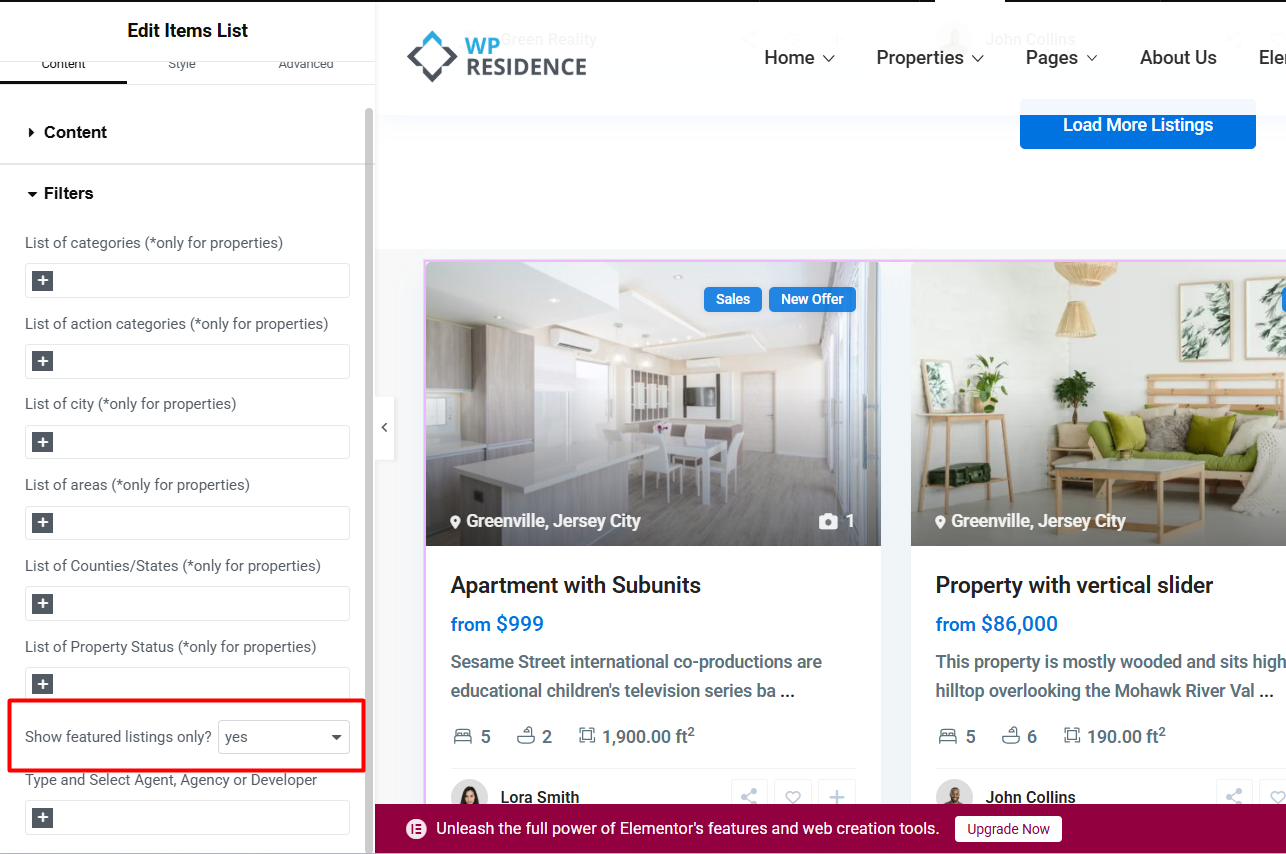
Step 2. Enable the featured-only filter in the widget
- Set What type of items to properties.
- In the Filters panel, set Show featured listings only? to yes.
If this option is set to yes, the widget will show only featured properties. If it is set to no, the widget will show both featured and regular properties that match the other filters.
Example: If you want to display all featured properties from your site, set Show featured listings only? to yes and leave the category and location filters empty.
Other Property Display Options
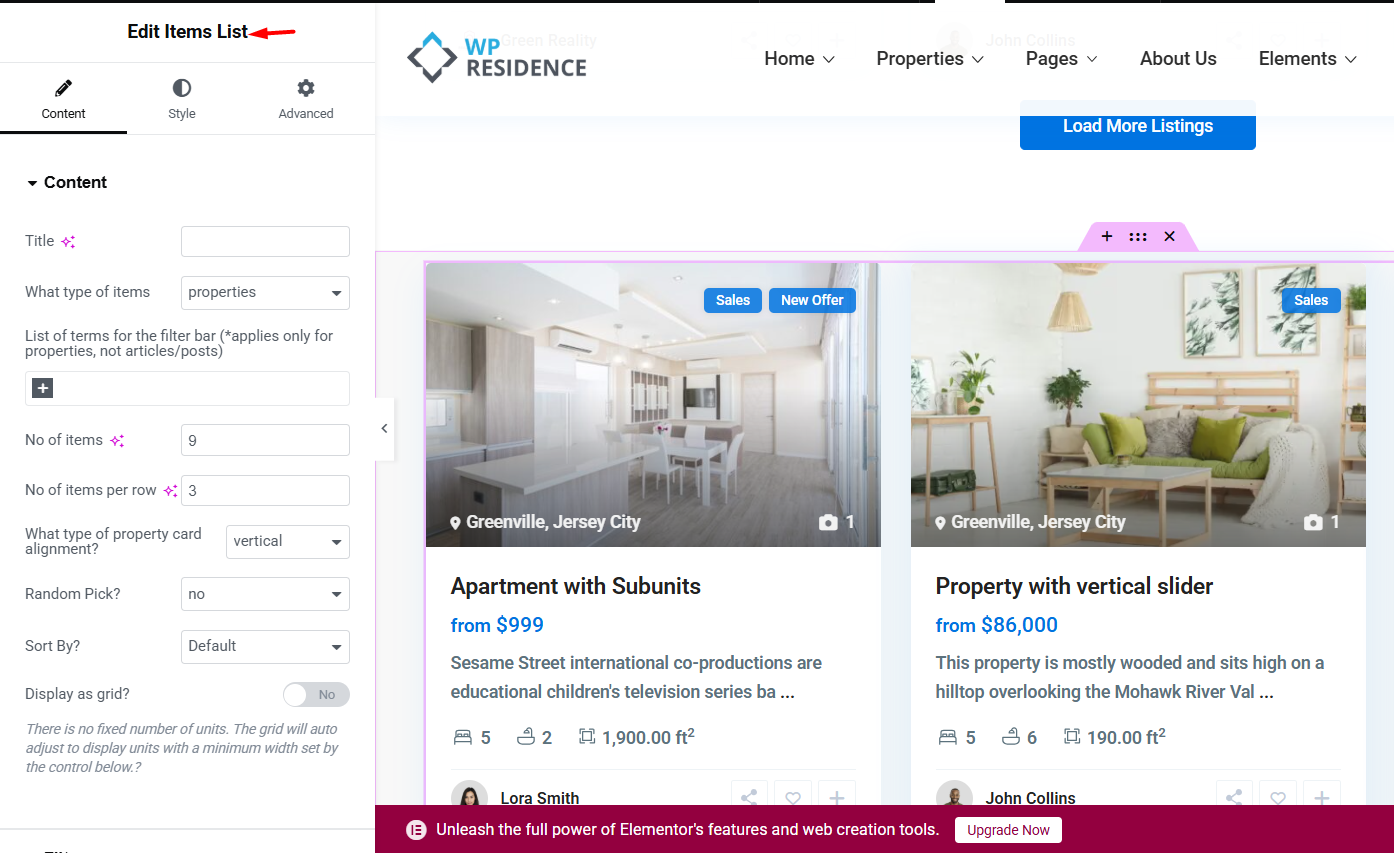
After choosing which properties to display, you can control how they appear in the section.
- No of items – Sets how many property cards are shown initially.
- No of items per row – Sets how many cards appear on each row when using the standard layout.
- What type of property card alignment? – Choose the card layout style, such as vertical or horizontal, depending on the available design.
- Random Pick? – If enabled, properties are shown in random order.
- Sort By? – Controls the order of the results.
- Display as grid? – Displays the items in a responsive grid layout instead of fixed columns.
The Sort By option can be used to order properties by different criteria, such as:
- Default
- Price High to Low
- Price Low to High
- Newest first
- Oldest first
- Bedrooms High to Low
- Bedrooms Low to high
- Bathrooms High to Low
- Bathrooms Low to high
- Newest Edited
- Oldest Edited
If Random Pick? is enabled, the widget will try to display properties in random order instead of following the Sort By selection. Please note that this may not work as expected when WPResidence Theme Cache is enabled, because cached results can prevent the list from refreshing randomly on each page load. It is also not generally recommended for large lists, as random queries can increase server load.
The property card design used in this widget is controlled from Theme Options. See help article: https://help.wpresidence.net/article/default-property-card-units/
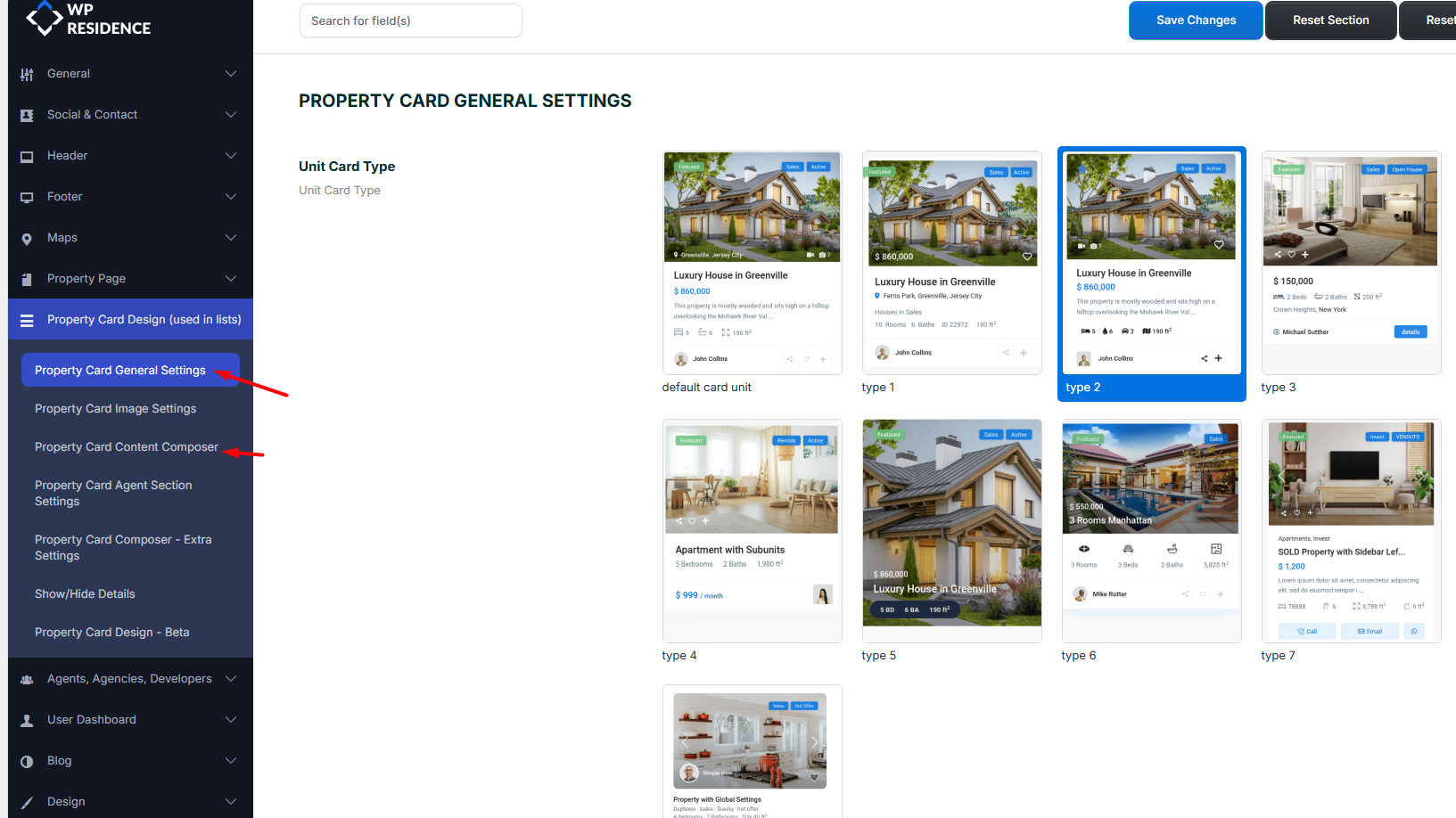
Displaying Blog Posts
Select articles in What type of items to display blog posts.
- Property filters such as categories, cities, featured listings, or property status do not apply.
- You can still control the number of posts and the overall layout of the section.
- Sorting and property-specific filters are not available in this mode.
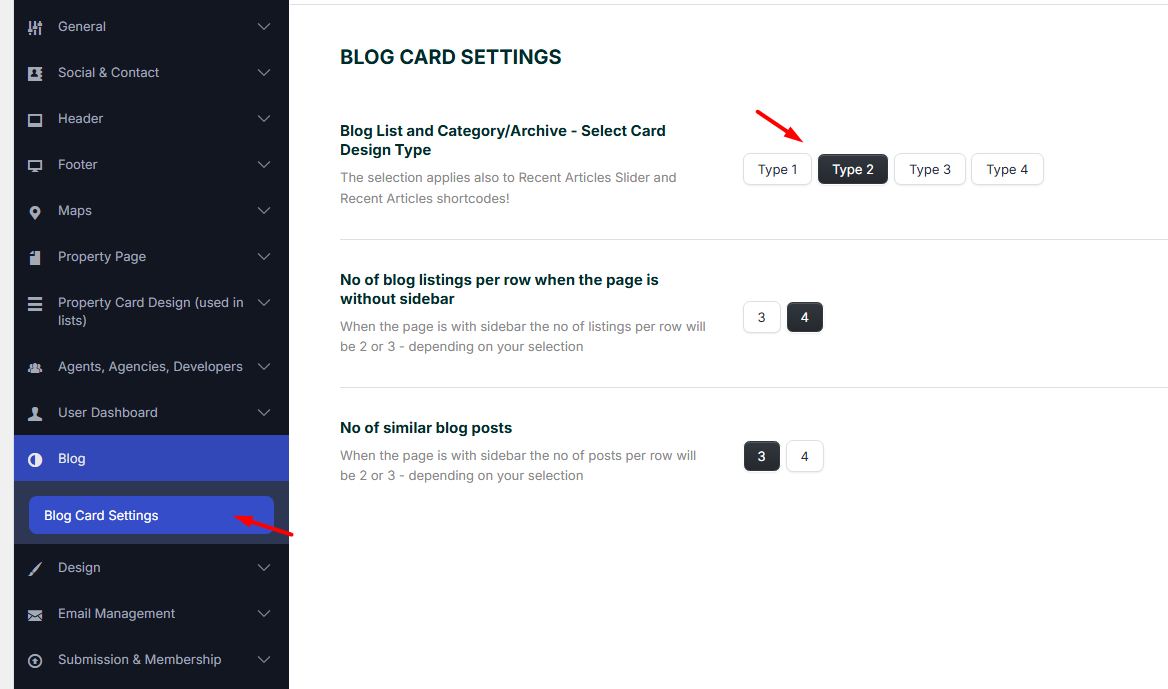
The blog card design also follows the global settings from Theme Options.
Displaying Agents
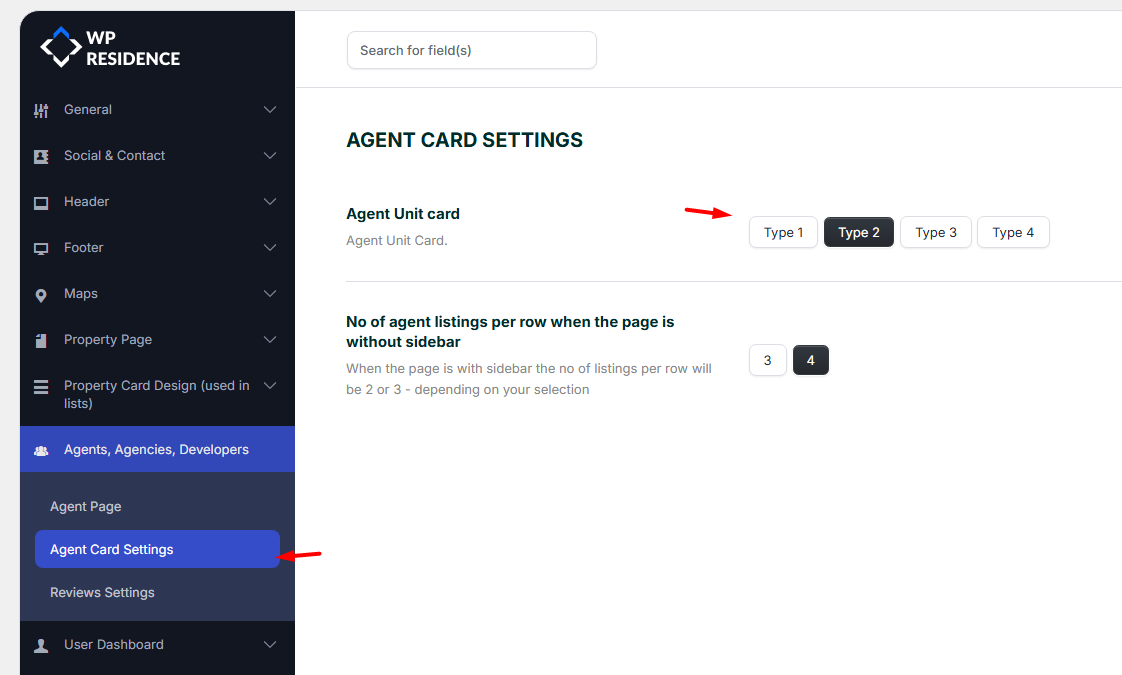
Select agents in What type of items to display agent cards.
- Agents are displayed using the agent card design from the theme.
- You can control the number of items and the section layout.
- Property-specific filters do not apply when agents are selected.
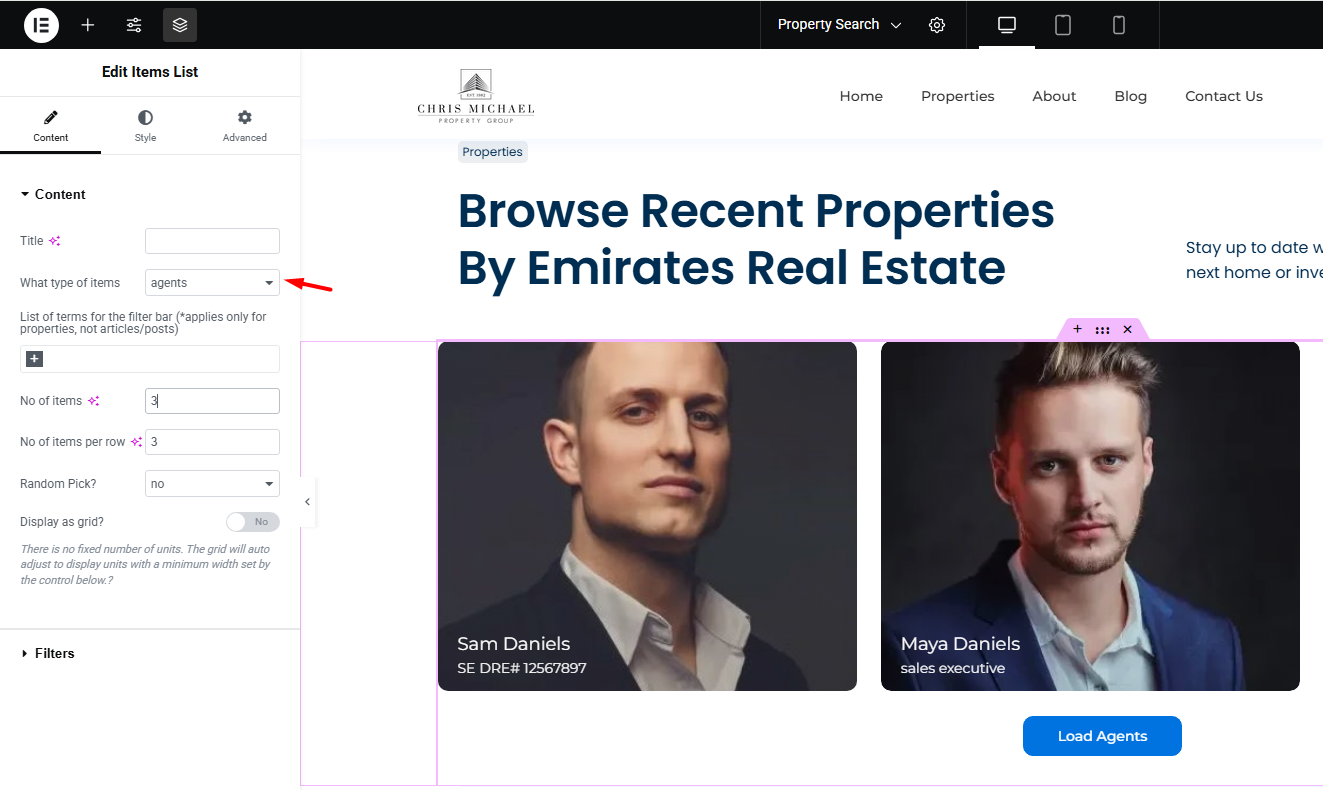
The agent card design also syncs with the settings from Theme Options.
Using the Recent Items Shortcode in WPBakery
For pages created with WPBakery, the logic is the same.
- Edit the page and add a new row or section.
- Insert the Recent Items shortcode element.
- Select the item type: properties, articles, or agents.
- If you want to show only featured properties, first mark those properties as featured, then enable the featured-only option in the shortcode settings.
- Adjust the remaining display settings such as number of items, sorting, and layout.
The same filtering rules explained above for Elementor also apply to the WPBakery shortcode version.