
How to Add or Edit Property Status
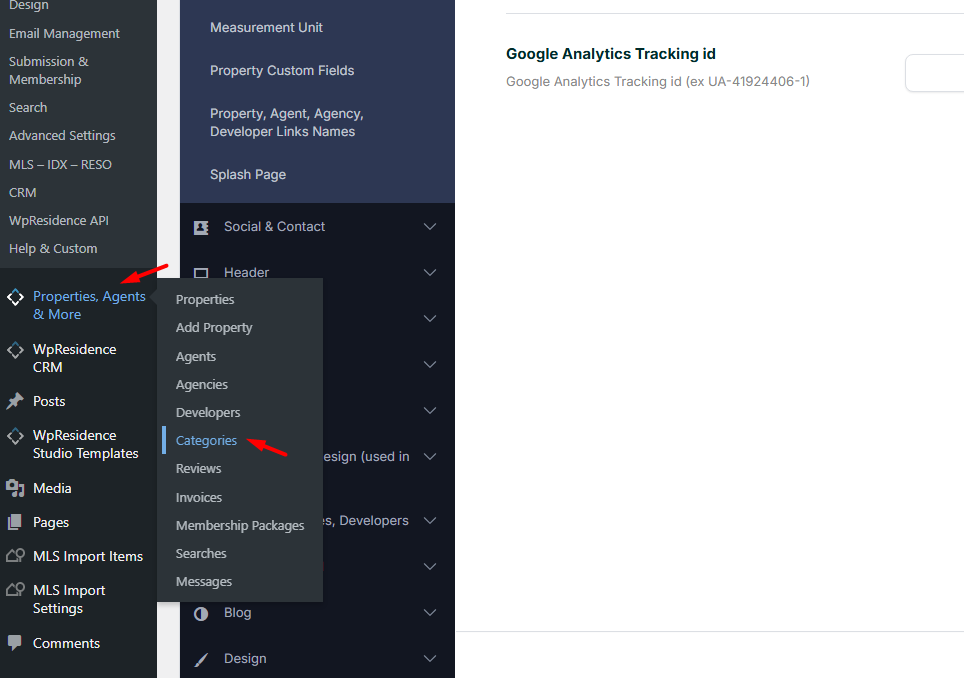
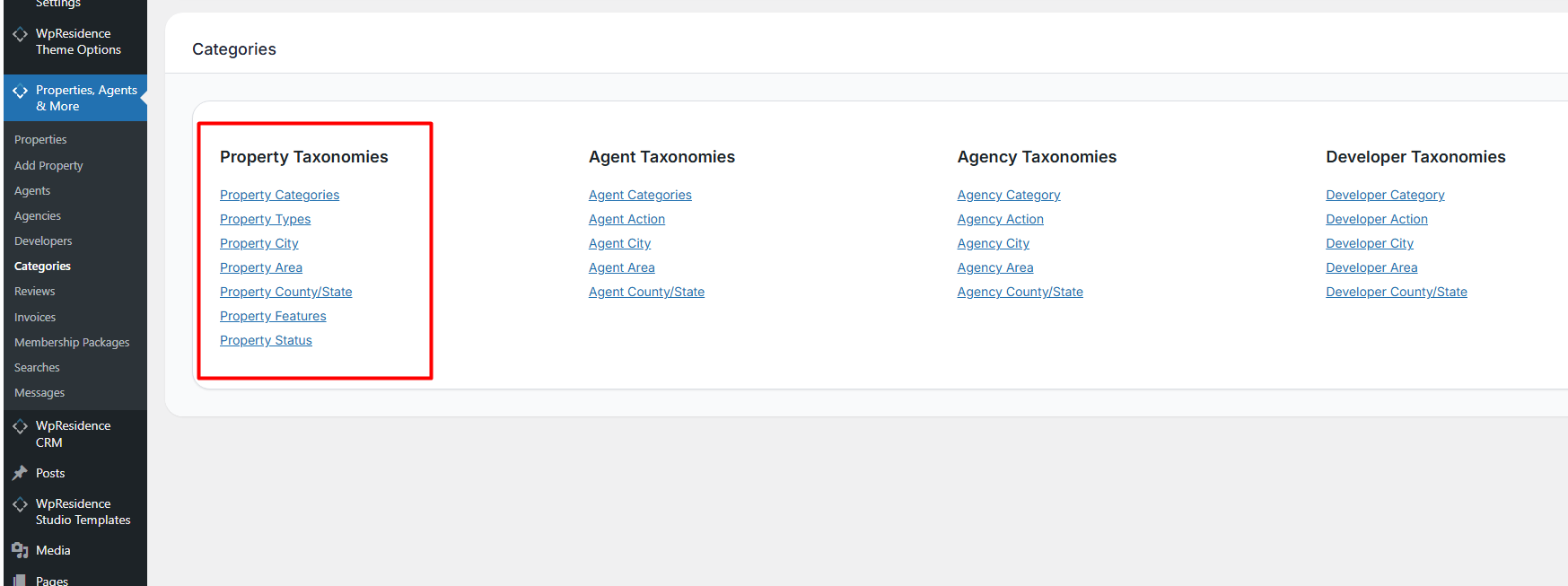
Property Status is managed from:
Theme Admin > Properties > Property Status
From this section, you can create new property statuses, edit existing property statuses, or delete the ones you no longer need.
You can create as many property statuses as needed, depending on your website structure.
How to Change the Colors of Property Status
When you add a new property status, you may also want to add custom CSS to style it on the property card and on the property page.
For example, if you add a property status named Hot Offer, WordPress will usually generate the CSS class as hot-offer.
Example CSS for the Property Card
.ribbon-inside.hot-offer {
  background: #f2ec2e;
  color: #ffffff;
}
Example CSS for the Property Page
.slider-property-status.horizontalstatus.ribbon-wrapper-hot-offer .hot-offer {
  background-color: green;
  color: #ffffff;
}
Note: The CSS class depends on the status slug. If your status name has spaces, WordPress usually replaces spaces with hyphens. For example, Hot Offer becomes hot-offer.
If your status does not change color after adding the CSS, inspect the status label in the browser and confirm the exact CSS class used for your status.
Help article about how to add custom CSS
How to Set Property Status From wp-admin
To assign a Property Status to a property from the WordPress admin area:
- Go to Theme Admin > Properties.
- Edit the property.
- Find the Property Status box.
- Select the status you want to assign.
- Update the property.
The selected status will be displayed according to the theme design and the property layout used on your website.
How to Set Property Status From the Front-end Submission Form
To allow users to select a Property Status from the front-end submission form, first make sure the field is enabled in the submission settings.
Step 1: Enable the Property Status Field
Go to:
Theme Options > Membership > Property Submission Page
Select the Property Status field for the listing submission form.
Step 2: Select the Status From the Front-end Submission Form
After the field is enabled, users can select the Property Status when they submit or edit a property from the front end.
Help article about how to add a new property from the front end
How to Add Property Status to Advanced Search Custom Fields
You can add Property Status as a field in the Advanced Search form from:
Theme Options > Search > Advanced Search Form
In the Search Custom Field Setup section, add or configure the Property Status field according to the search form setup you want to use.
Help article about Advanced Search custom fields setup
Important Notes
Property Status is different from property category, property action, city, area, or county/state. It is used as an additional visual label or classification for a property.
If you create custom property statuses and want each one to have a different color, you must add custom CSS for each status slug.
After adding or changing custom CSS, clear your website cache, server cache, CDN cache if used, and browser cache.