
What Print Page Design Controls
WPResidence allows you to control the layout and content of the property print/PDF page.
This is the version of the property page that users can generate when they use the Print to PDF option from a property page.
You can choose which sections appear in the PDF and control their order, so the printed property presentation includes only the information you want to show.
Where to Find the Settings
Go to:
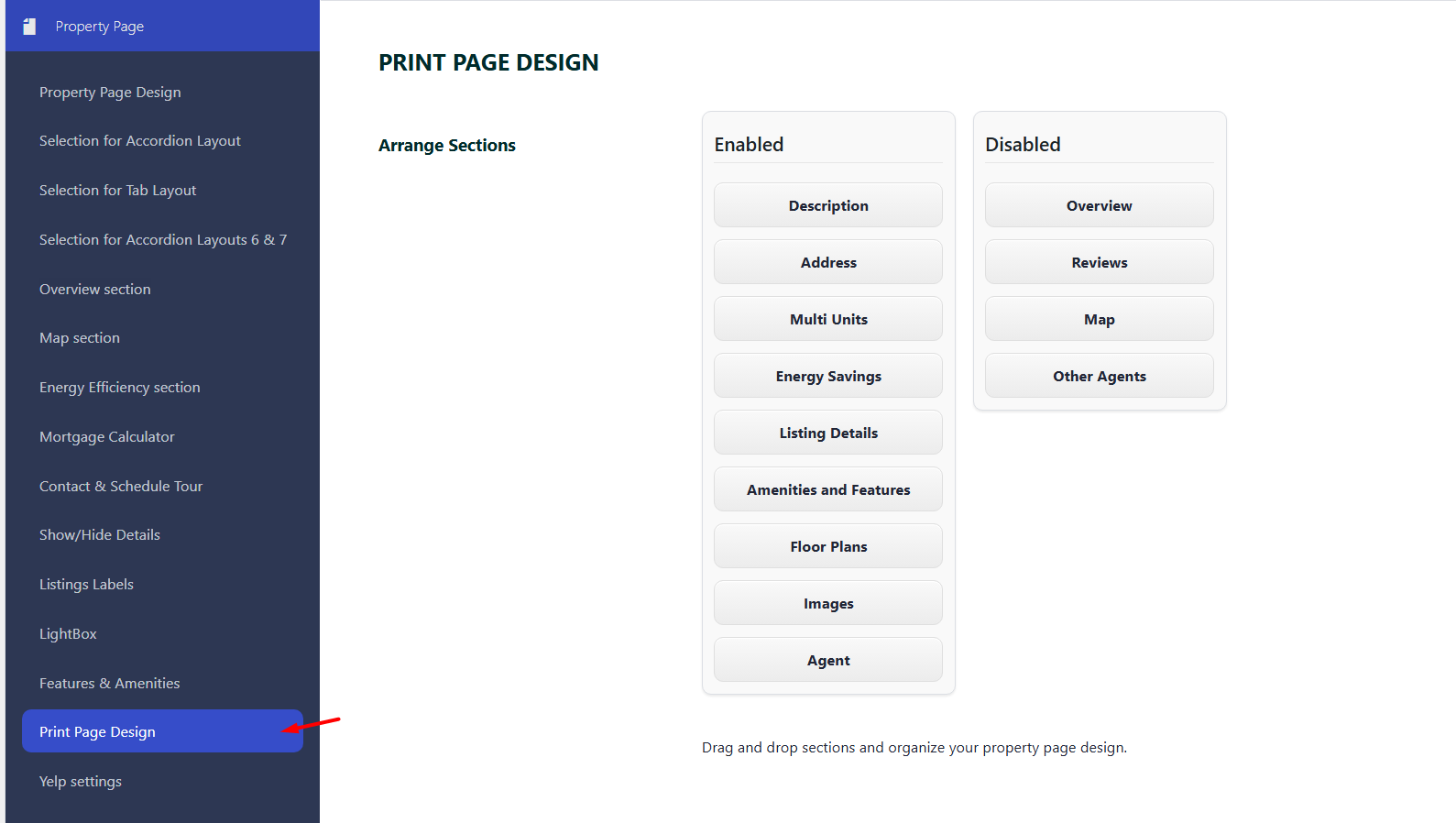
Theme Options → Property Page → Print Page Design
Available Options
From this section, you can manage the print/PDF page sections.
- Arrange Sections: Drag and drop sections to reorder them on the print/PDF page.
- Disable Sections: Move any section you do not want to include to the Disabled column. Disabled sections will not appear in the printed or PDF version of the property page.
Use these options to create a cleaner print layout and include only the property details your clients should see.
Map in Print or PDF
New: The Map section is now included in Print and behaves like the Map item from the Property Overview section.
The map shown in Print/PDF is a map image. It is not the same as the interactive map displayed on the property page.
For the map image to display correctly, the property must have a saved location and valid latitude / longitude coordinates.
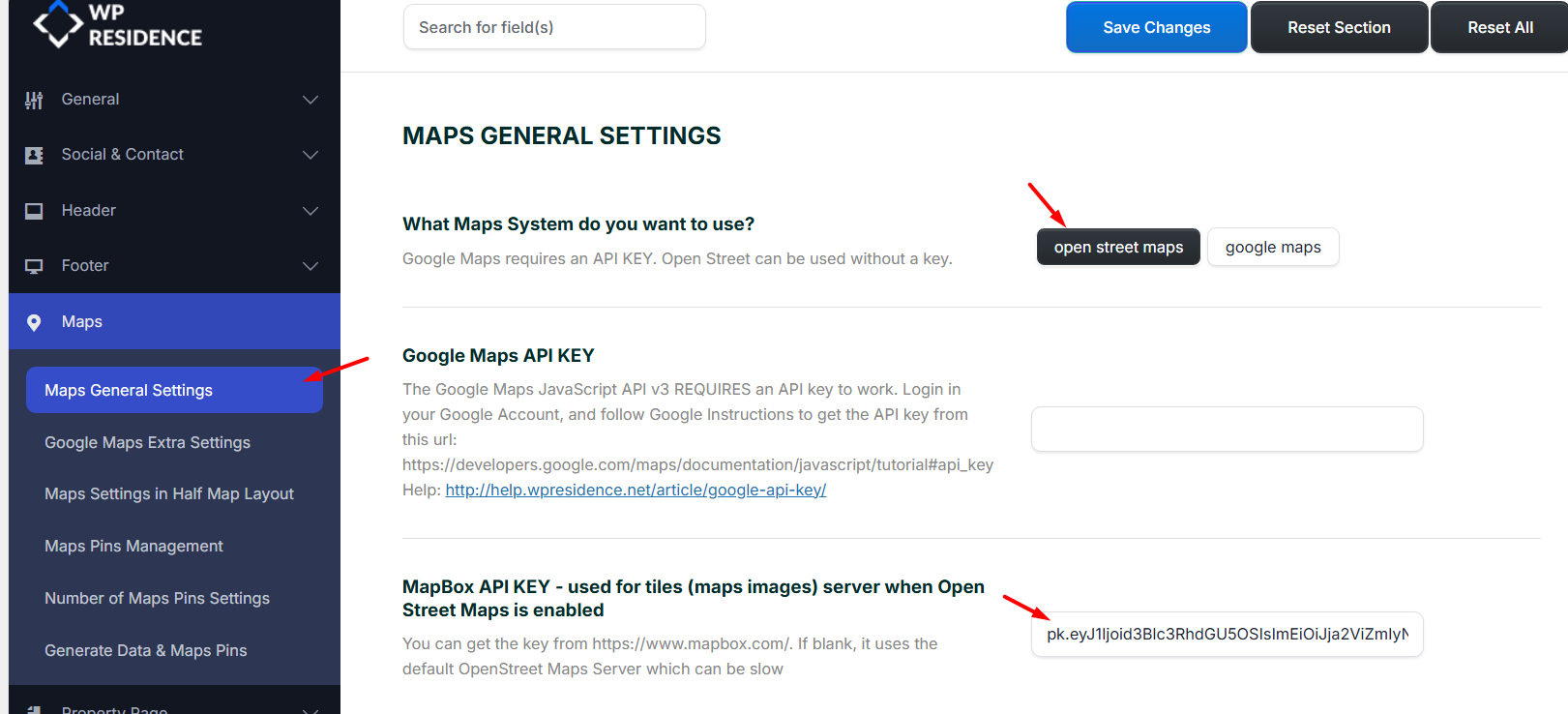
The map image also needs the correct API setup based on the map system selected in:
Theme Options → Map Configuration → Map General Settings
Map Type: OpenStreetMap or Google Maps
Google Maps
If you use Google Maps, the site must have a valid Google Maps API key added in the map settings.
For the Print/PDF map image to work, enable the Google Maps Static API in the Google Cloud project connected to that API key.

OpenStreetMap
If you use OpenStreetMap, add a valid MapBox API key so the theme can generate map images for the Print/PDF page.
The MapBox API key is needed for the map image. It is not the same as a Google Maps API key.
Where Users Create the PDF
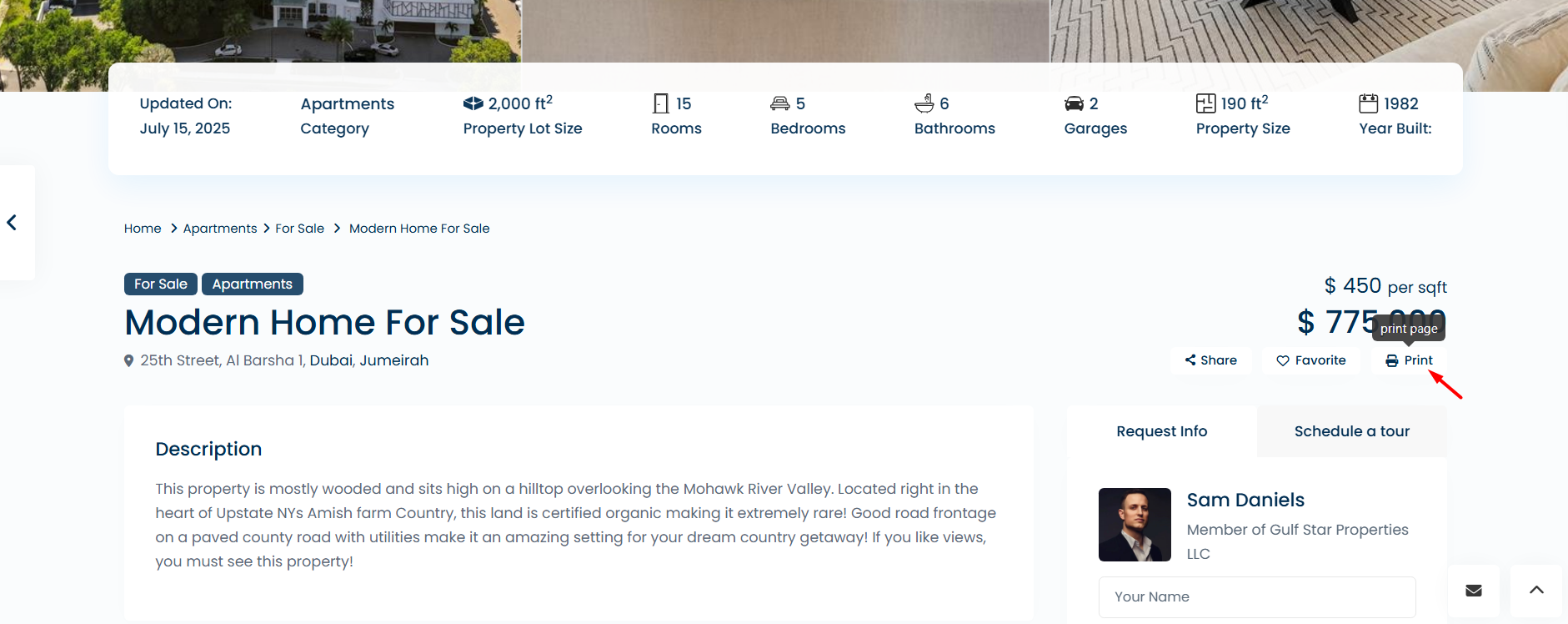
Users can create the PDF from the property page by selecting the Print to PDF option.
Print Page Logo
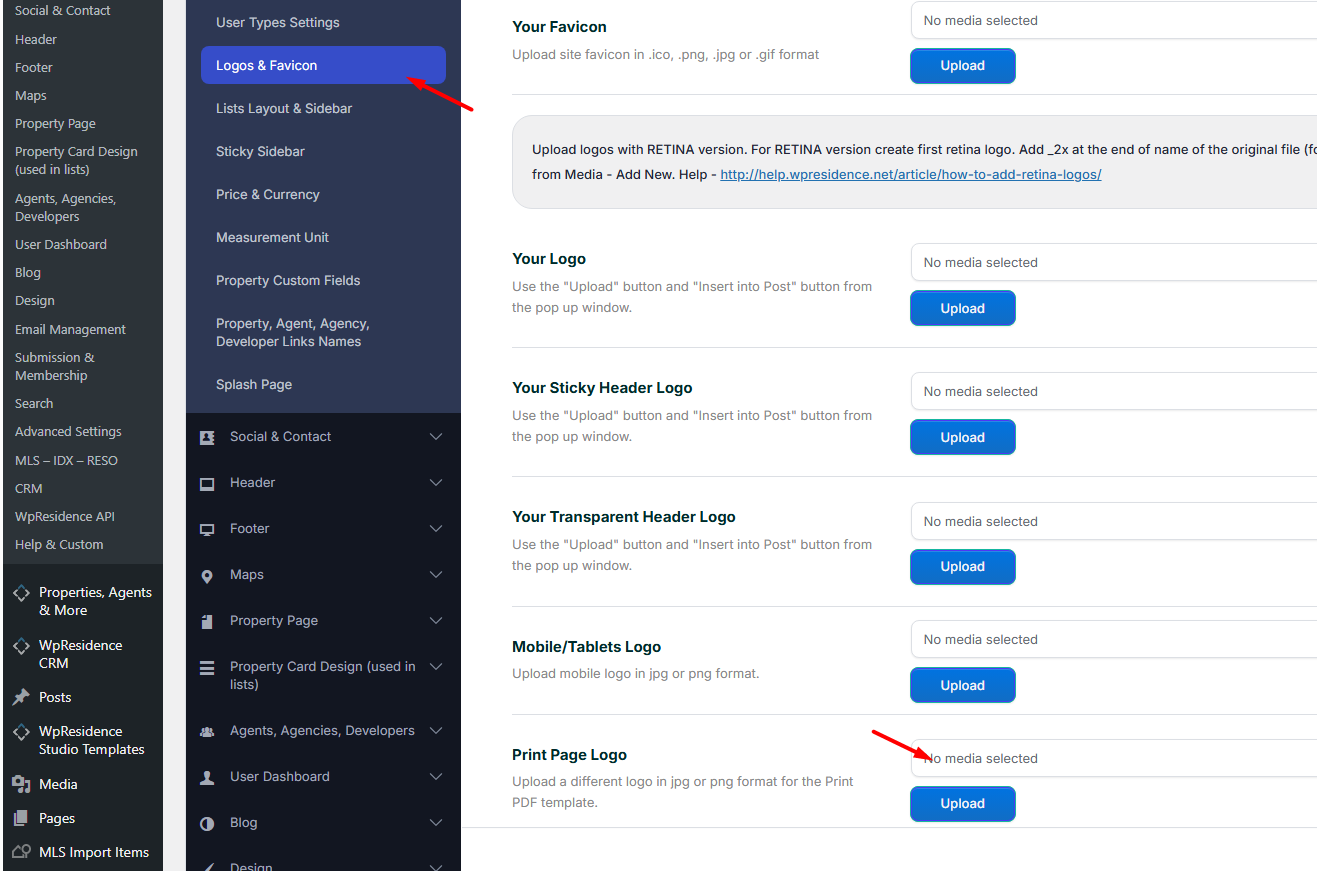
The logo used on the print/PDF page is managed from the Logos and Favicon settings.
Go to:
Theme Options → General → Logos & Favicon
Upload or change the logo used for the print page from this section.
Important Notes
- The Print/PDF map behaves like the Property Overview map.
- For Google Maps, the Google Maps Static API must be enabled in Google Cloud.
- For OpenStreetMap, a valid MapBox API key is required for map images.
- The property must have valid latitude and longitude coordinates.
- If you change the print layout and do not see the update immediately, clear cache and reload the property page.