
Install and activate WPEstate Translate, add your languages and set the default language in the Languages Manager. The video ends with the safe way to deactivate or remove the plugin.
Watch Video on Youtube
This article shows how to install WPEstate Translate, what happens when you activate it, and what stays in your database if you deactivate, reset or delete it. Everything is done in wp-admin.
Before You Install
- The WPResidence theme is active.
- You are logged in as an administrator.
- You have a recent backup of the site.
Install the Plugin
From the theme (recommended):
- Go to Appearance > Install Plugins.
- Find WPEstate Multi Language in the list and click Install.
- Click Activate.
From a zip file:
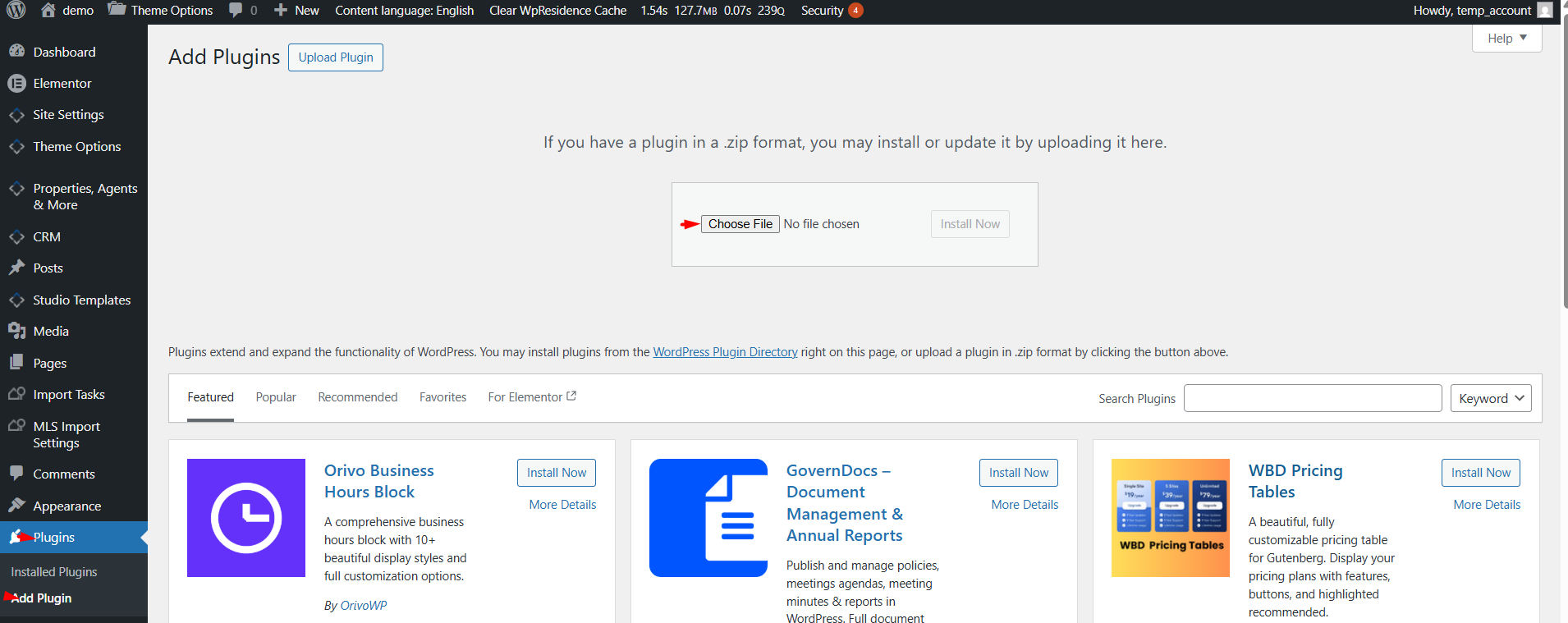
- Go to Plugins > Add Plugin and click Upload Plugin.
- Choose the file wpestate-translate.zip and click Install Now.
- Click Activate Plugin.
What Activation Does
On activation the plugin:
- creates its two database tables, for string translations and for links made by older versions, and removes four empty tables left by older versions;
- loads its catalog of more than 250 languages and regional variants;
- adds your site language from Settings > General > Site Language as the default language, if no language exists yet;
- marks all existing posts, pages and properties as default-language content;
- loads the Custom Field Rules that ship with the theme;
- refreshes the permalinks, so language URLs such as /fr/ work right away.
More on the tables: Where Your Translations Live.
First Steps After Activation
WPEstate Translate > Start Here is a checklist with a button for each screen. The first step is the most important:
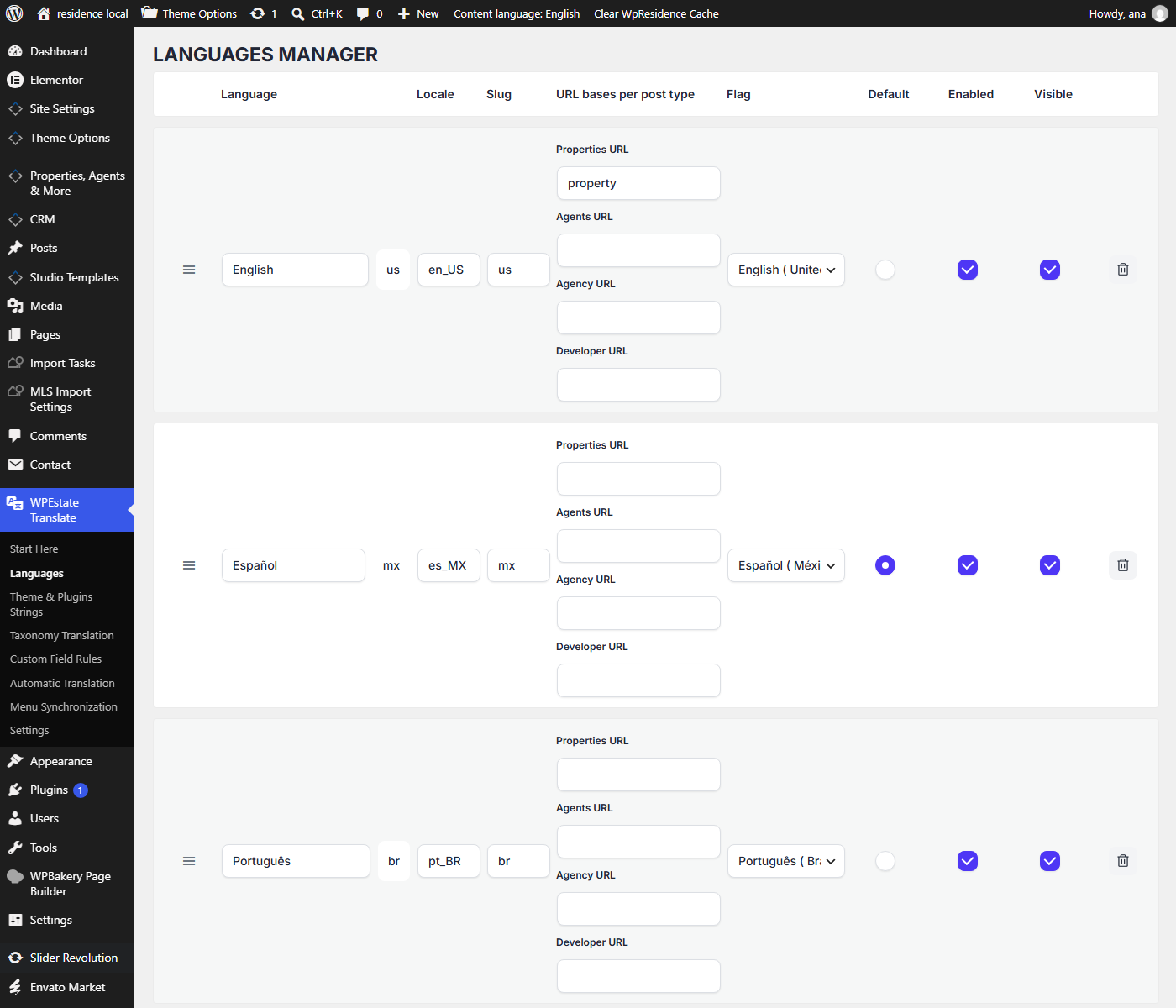
- Go to WPEstate Translate > Languages.
- Add the languages your site will offer.
- Tick the Default radio button of your main language, if it is not the one already marked.
- Click Save languages.
The other steps are explained in WPEstate Translate Plugin Overview and Managing Languages.
Deactivate, Reset or Delete
| Action | What is removed | What stays |
|---|---|---|
| Deactivate the plugin | Nothing. Language URLs and the WPEstate Translate menu stop working while it is off. | Everything. Activate it again and the site is multilingual again. |
| Reset Translation Settings in WPEstate Translate > Settings | The language list, settings, API keys, Custom Field Rules changes, language switcher settings and all string translations. The plugin then starts again with only the site language. | Translated posts and terms, as normal WordPress content. |
| Delete the plugin from Plugins | The language list, the language catalog and the plugin settings. | Translated posts and terms, their language links and the two database tables. Add the same languages again if you reinstall. |
To remove the translated posts or terms of one language and keep the plugin, use Delete Translations at the bottom of WPEstate Translate > Settings. See Cache Purge and Reset Tools.
Troubleshooting
| Problem | Fix |
|---|---|
| The WPEstate Translate menu does not show | Make sure you are logged in as an administrator, then reload wp-admin. |
| Pages under /fr/ or another prefix show a 404 error | Go to Settings > Permalinks and click Save Changes. |
| The wrong language is the default | Go to WPEstate Translate > Languages, tick Default for the right language and click Save languages. |