
The 404 page is the page shown by WordPress when a visitor opens a link that does not exist.
Example:
- A deleted page link
- A wrong property URL
- A mistyped URL
- An old link that no longer exists
WPResidence uses its own 404 page template. Small design changes can be handled with CSS, but changing the full 404 page layout or content requires template customization.
404 Page vs Real 404 Errors
There are two different situations:
- The visitor opens a wrong or missing link: WordPress shows the 404 page. This is normal.
- An existing property, category, page, agent, agency, or developer URL shows 404: this is usually a permalink issue or setup issue that needs to be checked.
This article explains how to manage the design of the 404 page.
If real properties or categories show 404, check the section:
If Existing Properties or Categories Show 404
Can I Edit the 404 Page Without Code?
WPResidence does not include a no-code builder option to replace the full 404 page template.
You can make small visual changes without editing theme files, such as:
- Change colors
- Change spacing
- Hide small elements
- Adjust text style
- Hide the map with CSS
For small CSS changes, go to:
Theme Options > Design > Custom CSS
Full layout changes are different. If you want to change the full 404 page structure, text, sections, or template logic, this requires a child theme and a custom 404.php template.
Remove the Map from the 404 Page Without Editing Template Files
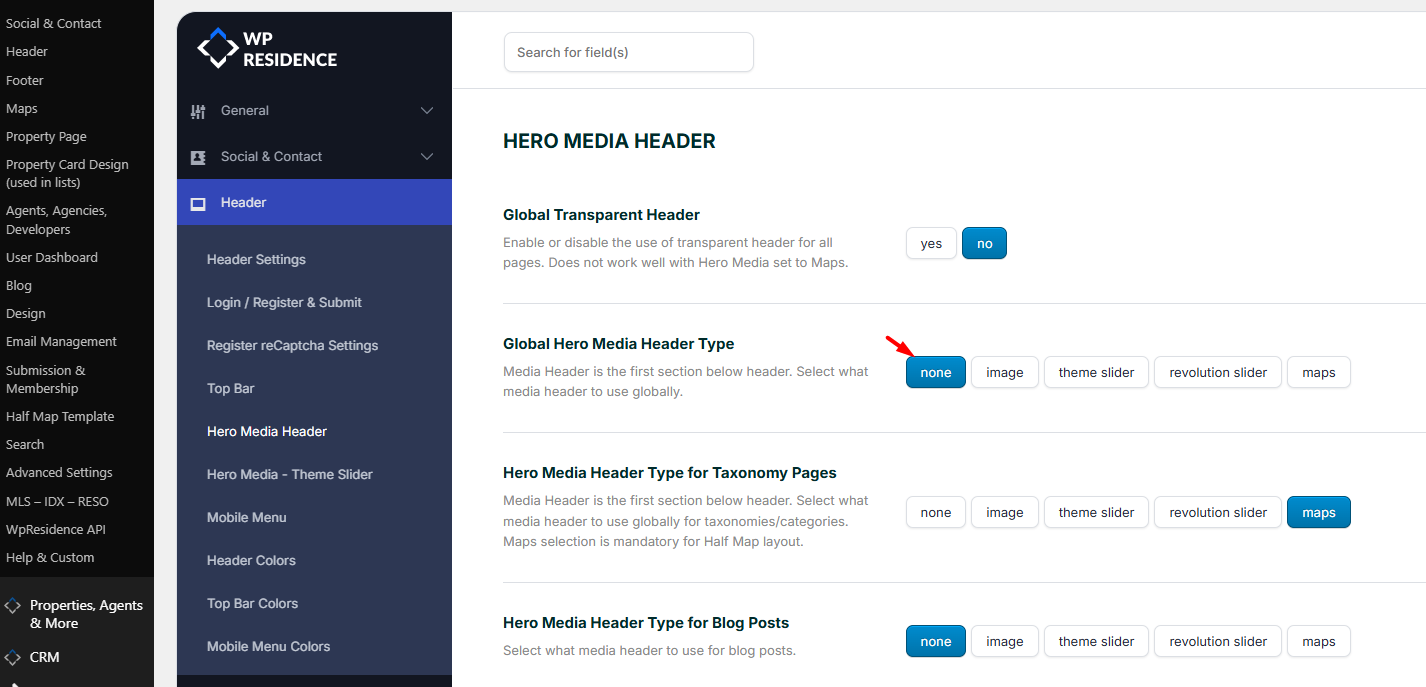
If the 404 page shows a map because the global Hero Media Header is set to Map, the no-code option is to disable the global map header.
Go to:
Theme Options > Header > Hero Media Header
Set the global Media Header option to:
None
Save the settings.
Then clear the website cache and browser cache.
Important: This changes the global hero media header. It can affect all pages that use the global header settings.
Keep the Map Only on Selected Pages
If you disable the global map header, but still want the map on specific pages, set the map at page level.
Go to:
Pages > All Pages
Edit the page where you still want the map.
Check the page header / custom header options and select the map as the media header for that page.
This lets you keep the global header disabled while enabling the map only on selected pages.
Related help:
Global Hero Header Media Options
Change the Full 404 Page Layout
The full 404 page layout is controlled by the theme template file:
404.php
Changing this file is template customization.
Do not edit the parent theme file directly, because changes can be lost after a theme update.
If you need to change the full 404 page layout, use a child theme and copy the 404.php file there, then customize it in the child theme.
This type of change is custom development and is not covered by standard theme support.
If Existing Properties or Categories Show 404
If the problem is not the design of the 404 page, but existing content showing 404, refresh the WordPress permalinks.
Go to:
Settings > Permalinks
Do not change anything.
Click:
Save Changes
This forces WordPress to regenerate the permalink rules.
Use this when existing links show 404, such as:
- Property pages
- Property categories
- Property taxonomy pages
- Agent pages
- Agency pages
- Developer pages
Related help:
404 Page Not Found on Properties and Categories Pages
Permalinks for Properties, Agents, Agencies and Developers
Important Notes
- The 404 page is shown only when WordPress cannot find the requested URL.
- Small visual changes can be made with Custom CSS.
- Removing the global map header without code can be done by setting the global Hero Media Header to None.
- If you still need maps on specific pages, set the map from the individual page header options.
- Changing the full 404 layout requires a child theme and template customization.
- Do not edit the parent theme 404.php file directly.
- If real content shows 404, refresh permalinks first.
Related Help
404 Page Not Found on Properties and Categories Pages
Permalinks for Properties, Agents, Agencies and Developers
Global Hero Header Media Options