WP Residence Help WP Residence Help

  • WpEstate
  • WPRESIDENCE
  • Video Tutorials
  • Client Support
  • API
Home / 30. WPResidence Translate Plugin / Admin Bar Language Switcher & Editor Header Selector

Admin Bar Language Switcher & Editor Header Selector

1 view 0

Once your site has two or more languages, WPResidence Translate adds two helpful controls inside wp-admin (outside the plugin’s own menu). They exist so editors can tell at a glance which language they are working in and can flip to another language without leaving the current screen. This article explains both, where to find them, and how to use them when you manage a multi-language real estate website.

Screenshot: WordPress admin bar showing the Content language dropdown with several languages listed

1. The Admin Bar Language Switcher

This is a dropdown labeled Content language: {Language Name} on the top WordPress toolbar, visible on every admin page.

Where to Find It

Look at the top right of any wp-admin screen (next to the user avatar and Howdy menu). The control only appears when:

  • You are logged in.
  • Your user can edit_posts (contributor and above).
  • At least two languages are configured as active in the plugin.
  • The admin bar itself is showing.

What It Does

Clicking a language in the dropdown saves that choice against your user account and reloads the current admin page. From that moment, any admin screen that lists or filters translatable content (property list, agent list, page list, taxonomy tables, metaboxes) will show the language variants for the language you picked.

Important: this switcher does not change the language of the WordPress admin interface itself. Menu labels, button text, and dashboard widgets continue to display in your personal WordPress user-profile language. Only the content being shown is filtered.

How the Choice is Remembered

Your selection is stored per user, so each admin keeps their own preferred working language. Logging out and back in preserves the setting. To reset, pick the default language again from the same dropdown.

Screenshot: Admin bar dropdown expanded showing language list with current language marked

2. The Editor Header Language Selector

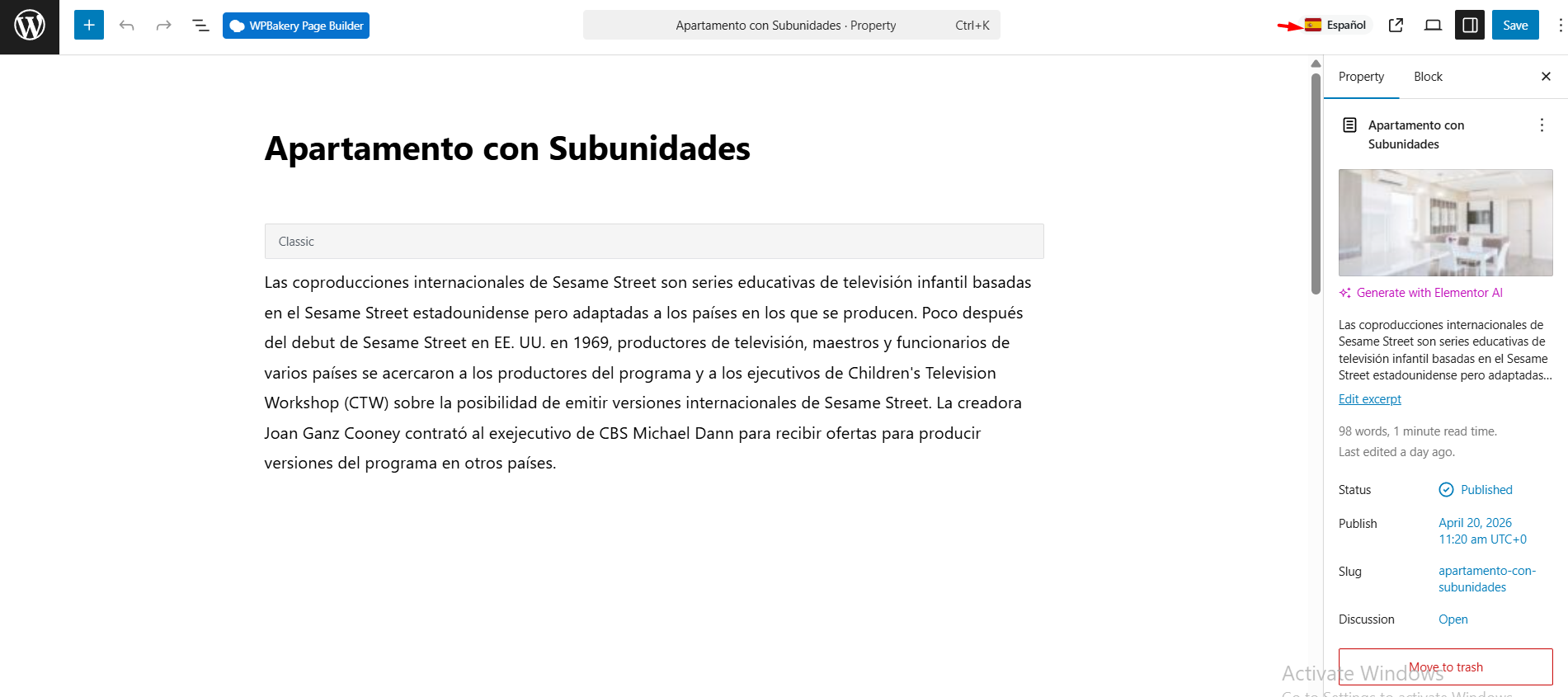
When you open a post, page, property, agent, or any translatable custom post type in the editor, the plugin shows the current language as a small flag-and-name badge near the top of the editor screen.

Where to Find It

Open any post in the block editor. The badge appears in the top header of the editor, alongside the regular Save Draft / Preview / Publish controls. It displays:

  • The flag of the post’s language.
  • The language name (or ISO code if no name was configured).

The alt text on the flag image is automatically “{Language} flag” for accessibility.

What It Tells You

The editor header badge answers one question at a glance: which language am I editing right now? This matters because:

  • Every translatable post is tied to exactly one language behind the scenes.
  • The Automatic Translation button in the publish panel targets the post’s language.
  • Custom fields and meta sync rules behave differently depending on the language context.

What Language Does It Show?

The plugin picks the language in this order:

  1. The language you chose in the admin bar switcher, if set.
  2. The default language configured on the Languages screen.
  3. As a final fallback, English (en).

For an existing translated post, the badge matches the post’s stored language (for example a French translation will always show French even when the admin bar is set to English).

Screenshot: Block editor top bar showing the language badge with flag and language name

How the Two Switchers Work Together

Think of them as different jobs for different moments:

Tool Use it when…
Admin bar switcher You are browsing list screens (All Posts, All Properties, categories, agents) and want to see a specific language’s content.
Editor header badge You are editing a single post and want to confirm the language assigned to it before you publish or run auto-translation.

Who Sees What

  • The admin bar switcher requires the edit_posts capability. Subscribers and logged-out visitors do not see it.
  • The editor header badge is shown on post editor screens (post.php and post-new.php) for any user who can open the editor.
  • Full language management (adding, removing, reordering) still requires the manage_options capability.

Non-Latin Languages

Both controls render language names exactly as you typed them on the Languages screen. Arabic, Chinese, Hebrew, Cyrillic, Thai, Greek, and other non-Latin labels display correctly without extra configuration.

Troubleshooting

  • Admin bar switcher is missing: you likely have only one active language or the admin bar is turned off for your profile.
  • Editor badge shows the wrong language: the post was saved against that language in a previous session. Re-link the post through the translation UI or use the admin bar switcher to open the correct variant.
  • Flag is missing next to the language name: the language’s flag field is empty on the Languages screen.

For a broader picture of how languages flow through a real estate site, see our guide to a multi-language real estate website.

What To Read Next

  • Managing Languages — add, reorder, and set the default language.
  • Language Switcher Widget — the frontend equivalent of the admin bar switcher.
  • Translating Posts & Pages — create and link language variants.
30. WPResidence Translate Plugin

Related Articles

  • WPResidence Translate — Performance & Caching (Developer Reference)
  • Performance & Caching for a Multilingual WPResidence Site
  • WP_Query Language Filtering — Developer Guide
  • WP_Query Language Filtering

WP Residence Documentation

  • 01. Getting Started
    • How to Get Support
    • Get your buyer license code.
    • Use SSL / https
    • Server / Theme Requirements
  • 02. Installation & Setup
  • 03. Installation FAQ
  • 06. Search & Filtering
    • Advanced Search Display Settings
    • Advanced Search Form
    • Geolocation Search for Half Map
    • Save Search Theme Options
    • Advanced Search Colors
  • 09. Agent, Agency & Developers
  • 08. Property Pages & Layouts
  • 07. Property Lists, Categories & Archive
  • 13. WPResidence Elementor Studio
  • 10. Blog Posts & Blog List
  • 11. Shortcodes
    • Contact Form
    • Featured Agency/Developer
    • Membership Packages
    • Testimonials
    • Google Map with Property Marker
    • Listings per Agent, Agency or Developer
    • Display Categories
    • Agent List
    • Recent Items Slider
    • Recent items
    • List Properties or Articles by ID
    • Featured Agent
    • Featured Article
    • Featured Property
    • Login & Register Form
    • Icon Content Box Shortcode
  • 12. Widgets
  • 04. Theme Options & Global Settings
    • General Settings
    • User Types Settings
    • Appearance
    • Logos & Favicon
    • Header
    • Footer Style and Colors
    • Price & Currency
    • Property Custom Fields
    • Features & Amenities
    • Listing Labels
    • Theme Slider
    • Permalinks
    • Splash Page
    • Social & Contact
    • Map Settings
    • Pin Management
    • How read from file works
    • General Design Settings
    • Custom Colors Settings
    • Header Design & Colors
    • Mobile Menu Colors
    • User Dashboard Colors
    • Print PDF Design
    • Property, Agent, Blog Lists Design Settings
    • Sidebar Widget Design
    • Font management
    • How to add custom CSS
    • Custom Property Card Unit – Beta version
    • Email Management
    • Import & Export theme options
    • reCaptcha settings
    • YELP API Integration
    • iHomefinder Optima Express IDX
    • MEMBERSHIP & PAYMENT Settings
    • Property Submission Page
    • PayPal Setup
    • Stripe Setup
    • Wire Transfer Payment Method
  • 20. Translations & Languages
  • 26. FAQ
  • 10. Pages
  • 11. Header
  • 12. Footer
  • 05. Maps & Location Settings
  • 18. Payments & Monetization
  • Plugins
    • 19. Included Plugins
    • 22. Third Party Plugins – IDX Compatibility
    • 21. Third-Party Plugins – Multi-Language
    • 23. Third party Plugins – Other
  • Technical
    • 24. Technical how to | Custom Code Required
    • 25. Technical: Child Theme

Join Us On

Powered by WP Estate - All Rights Reserved
  • WpEstate
  • WPRESIDENCE
  • Video Tutorials
  • Client Support
  • API