
Once you have added your languages, the next step on a multi-language real estate website is translating your actual content. WPEstate Translate adds a dedicated workflow to the standard WordPress editor that lets you create a language variant of any post, page, property, agent, agency, or developer, edit it, and keep it linked to the original.
This article walks through the day-to-day editor workflow from a content editor’s perspective. The developer-facing companion article covers the database and the trid linking layer.
Before You Start
- At least two languages must be active under WPEstate Translate > Languages. One of them must be marked as the default.
- You need the Edit Posts capability on the post type you want to translate. Administrators and editors have this by default.
- If you want to use automatic translation inside the editor, configure a provider first under WPEstate Translate > Automatic Translation.
Creating a Translation From the Post List
The fastest way to start a translation is directly from the posts, pages, or properties list screen.
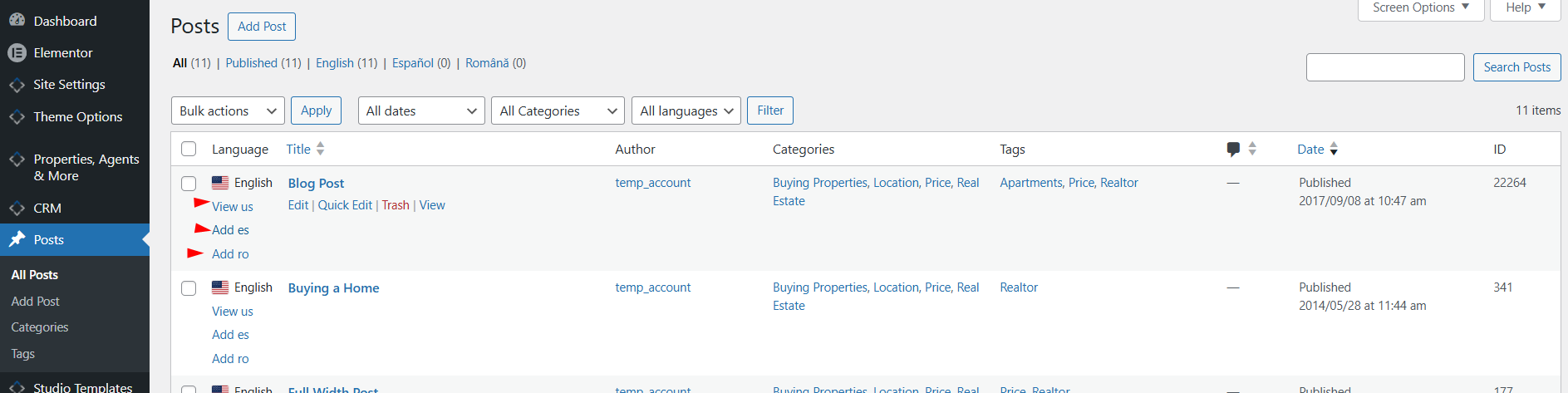
- Go to Posts > All Posts (or Pages, Properties, Agents, Agencies, Developers).
- Locate the row of the post you want to translate.
- In the Language column you will see flag icons for every active language. A filled flag means a translation already exists in that language; a dashed flag with a plus icon means the translation is missing.
- Click the plus icon next to the language you want to create. WPEstate Translate immediately creates a draft translation cloned from the original and redirects you to its editor.
The new draft is pre-filled with the source post’s title, content, featured image, attachments, taxonomies, and compatible custom fields. You can then rewrite everything in the target language.
The Editor Header Language Badge
When you are editing a post, look at the top of the block editor. WPEstate Translate injects a small badge that shows the flag and the name of the language you are currently editing.
This tells you two things at a glance:
- Which language variant you are working on.
- That the post is linked to a translation group (rather than being standalone content).
Switching Between Language Versions
Below the post title, WPEstate Translate injects a list of the post’s sister translations. Each active language shows either:
- A direct edit link to the existing translation in that language, or
- A “create translation” link that spawns a new draft in that language.
Clicking a language name takes you straight to that variant’s editor without leaving the dashboard, so you can review all language versions of the same post in sequence.
Automatic Translation Inside the Editor
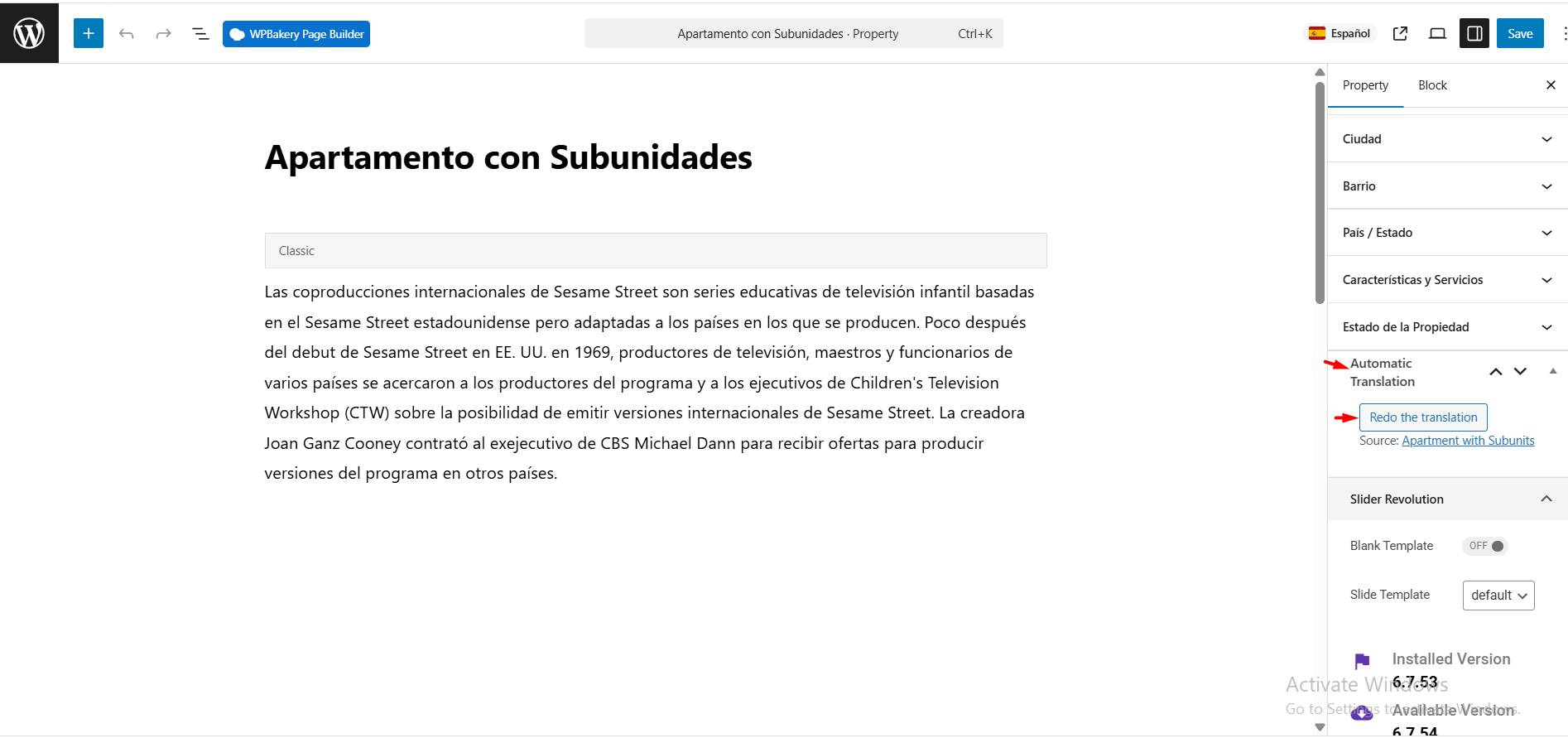
If you configured an automatic translation provider (OpenAI, Google Translate, DeepL, or Microsoft Azure), the editor gets two extra controls:
- An Auto Translate button in the Publish sidebar (Classic editor) or the Automatic Translation meta box (Block editor). The label reads Auto translate in {Language Name}.
- A Redo The Translation button once a translation has been processed at least once — useful if you have updated the original.
Click the button, wait for the provider to respond, and the editor fields (title, content, excerpt, Yoast fields, Elementor text blocks, WPBakery text, selected meta fields, and taxonomies) are repopulated with the machine-translated output. You can then review and polish before clicking Update.
If you are editing the default-language version of a post, the auto-translate box shows Original post — no translation action instead. You auto-translate into a language, not out of the default.
Editing an Existing Translation
To edit an existing translation, you have three entry points:
- The post list Language column — click the filled flag.
- The links under the title in any sibling translation.
- The admin bar language switcher (top WordPress toolbar). Switching language while viewing a post list filters posts to the chosen language.
Translations behave like normal WordPress posts: draft/publish states, revisions, featured images, and scheduling all work. The only extra thing WPEstate Translate does is keep the translation bound to its source through the translation group.
What Gets Copied When You Create a Translation
- Post title, content, and excerpt — copied as a starting point, meant to be rewritten.
- Featured image and attachments — cloned.
- Page template selection — preserved.
- Taxonomies (categories, tags, property categories, locations, features, etc.) — mapped to the translated term where one exists, otherwise copied.
- Custom fields — copied, translated, or skipped per the rules on the Custom Field Rules page.
Keeping Translations In Sync
When you update the original post, sister translations are marked with a Needs Update flag that shows up as a small warning icon in the post list Language column. Re-open the translation to review and re-run auto-translate if you want to refresh the content automatically.
Non-Latin Alphabets
All translation fields preserve UTF-8 content end-to-end, so you can translate posts into Russian, Arabic, Hebrew, Chinese, Japanese, Korean, Thai, or Greek without any special setup. Slugs, titles, and meta fields all handle non-Latin characters.
Common Questions
Can I translate WooCommerce products, properties, agents?
Yes. Any post type registered in WordPress can be translated with the same workflow. WPEstate Translate is aware of the WPResidence custom post types out of the box.
What if I delete a translation?
Only that single language variant is removed. The original post and other translations stay intact. The translation record in the plugin’s tracking table is removed when the post is permanently deleted.
Can two people translate the same post in different languages at once?
Yes — each language variant is a separate WordPress post with its own edit lock.
What To Read Next
- Post List Table Enhancements — the Language column, filters, badges, and sortable headers.
- Meta Sync Across Language Variants — which custom fields copy and which stay independent.
- Automatic Translation — connecting OpenAI, Google, DeepL, or Azure.
For the full picture of how this workflow fits a real estate site, see our guide to building a multi-language real estate website with WPResidence.