The Items Slider widget can be used for properties, agents, and articles, depending on what you select in the widget settings.
Add the widget with Elementor Builder
Edit the page with Elementor and search for the Content Slider widget.
Drag and drop the widget into the page section where you want the slider to appear.
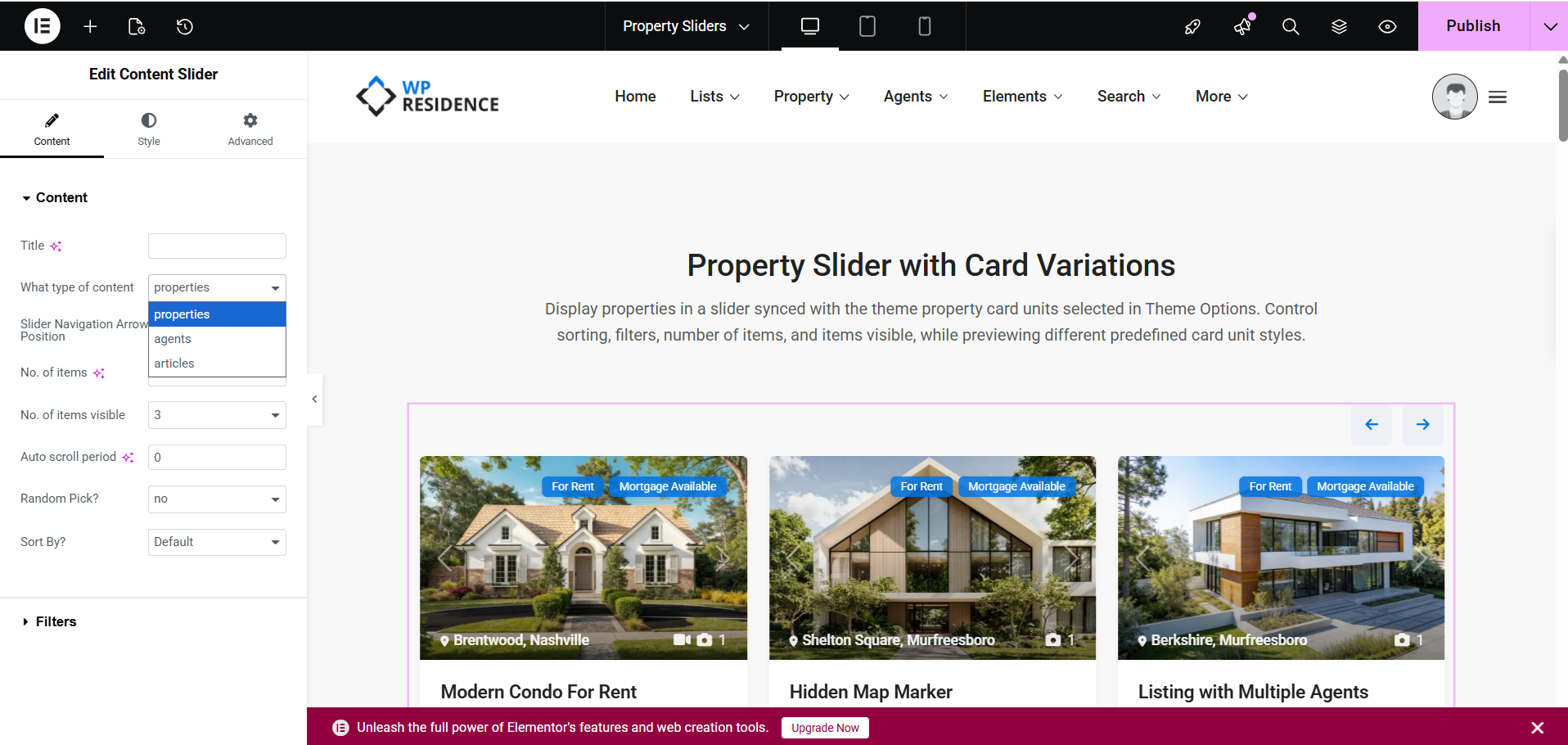
Elementor widget settings
The widget includes the following main options in the Content tab:
- Title – add an optional section title
- What type of content – select properties, agents, or articles
- Slider Navigation Arrow Position – choose where the navigation arrows should appear
- No. of items – select how many items to pull into the slider
- No. of items visible – select how many items should be visible at once
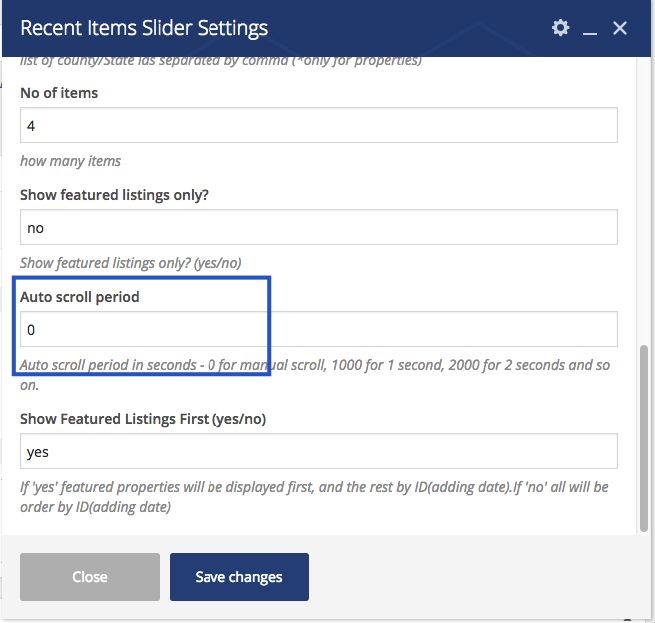
- Auto scroll period – set the auto-slide delay
- Random Pick? – choose if items should be displayed randomly
- Sort By? – choose how the items should be sorted
The What type of content dropdown now allows 3 content types:
- properties
- agents
- articles
If you choose properties, the property filters below will apply.
If you choose agents or articles, the property-specific filters will not apply.
Slider Navigation Arrow Position
This option controls where the slider arrows are displayed in the widget design.
No. of items
This field controls how many items are loaded into the slider.
No. of items visible
This field controls how many items are visible on screen at the same time.
Auto scroll period
This field controls the automatic sliding interval.
If set to 0, the slider will move only when the visitor uses the navigation arrows.
Random Pick?
If enabled, the slider can show the selected items in random order instead of the default or chosen sort order.
Sort By?
This option controls the order in which the items are shown when random order is not used.
Filters for properties
If you use the widget for properties, you can select which listings to show from the available filters.
The widget includes a Filters section for property selection.
These filters can include property terms such as:
- categories
- action categories
- city
- area
- county/state
Depending on your version and setup, additional property-only options may also be available, such as showing featured listings only or showing featured listings first.
If you use the widget for agents or articles, these property filters do not apply.
Add the shortcode from the classic editor with WPBakery Page Builder
The shortcode can be used from the WPBakery editor or from the classic WordPress editor.
The following details apply:
1. Section Title

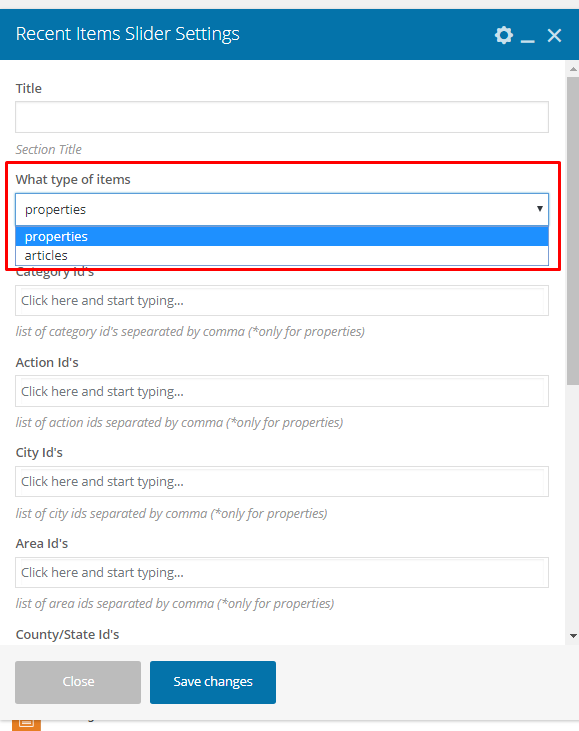
2. What type of items you want to list
You can select between properties and articles. In the current Elementor widget, agents are also available, but in older shortcode interfaces only some options may apply depending on the selected type.
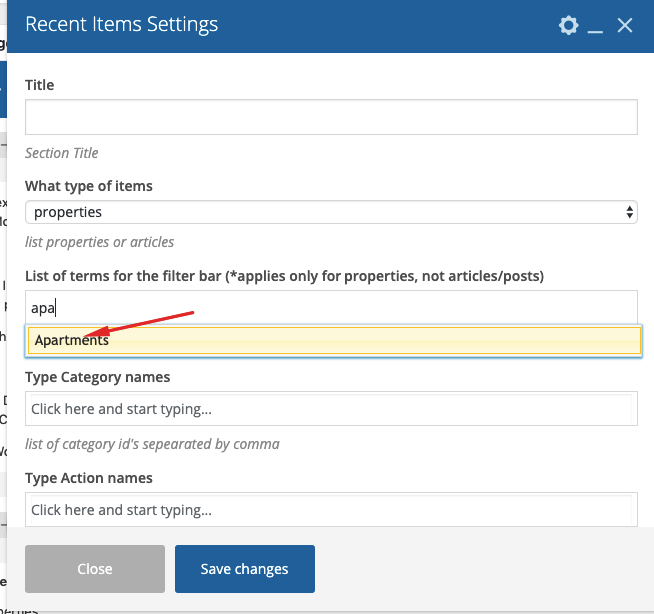
3. Type Category, Action, Country, City and Area names in any combination you wish
IMPORTANT! These options are displayed only if you select to display properties.
4. No. of items
The shortcode requires at least 4 properties if you use the 3-column list style, or 5 properties for the 4-column style list.
Help for number of property listings and blogs per row: Property, Agent and Blog Lists Design Settings
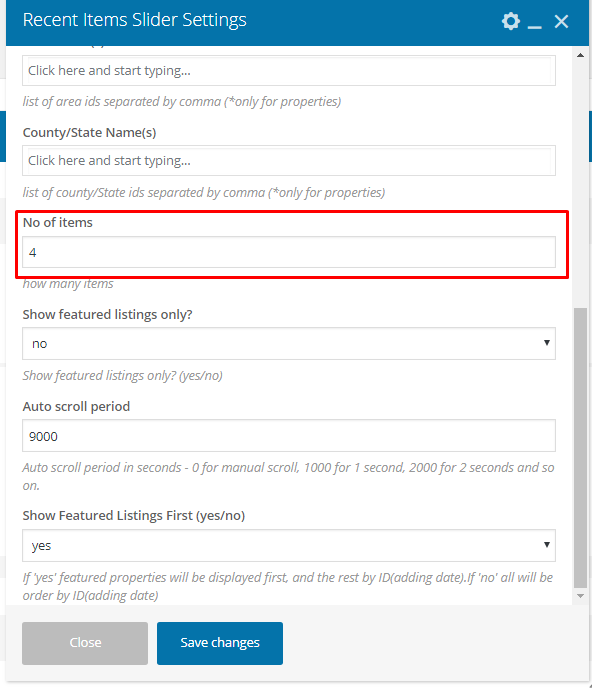
5. Show featured listings only? and Show Featured Listings First (yes/no)
You can choose if you want featured listings first. If set to no, properties are listed by publish date. If set to yes, featured properties appear first, followed by the rest by publish date.

IMPORTANT! These options are displayed only if you select to display properties.
6. For the slider you can set the auto-scrolling period. If 0, the slider will change only with the arrows.