
What this option controls
WPResidence allows you to change the link names, also called slugs, used in the URLs for:
- Properties
- Agents
- Agencies
- Developers
- Property categories and related taxonomy pages
For example, you can rename the default URL base used for property pages or agent pages to better match your website structure.
Where to change the link names
You can edit these link names from:
Theme Options > General > Property, Agent, Agency, Developer Links Names
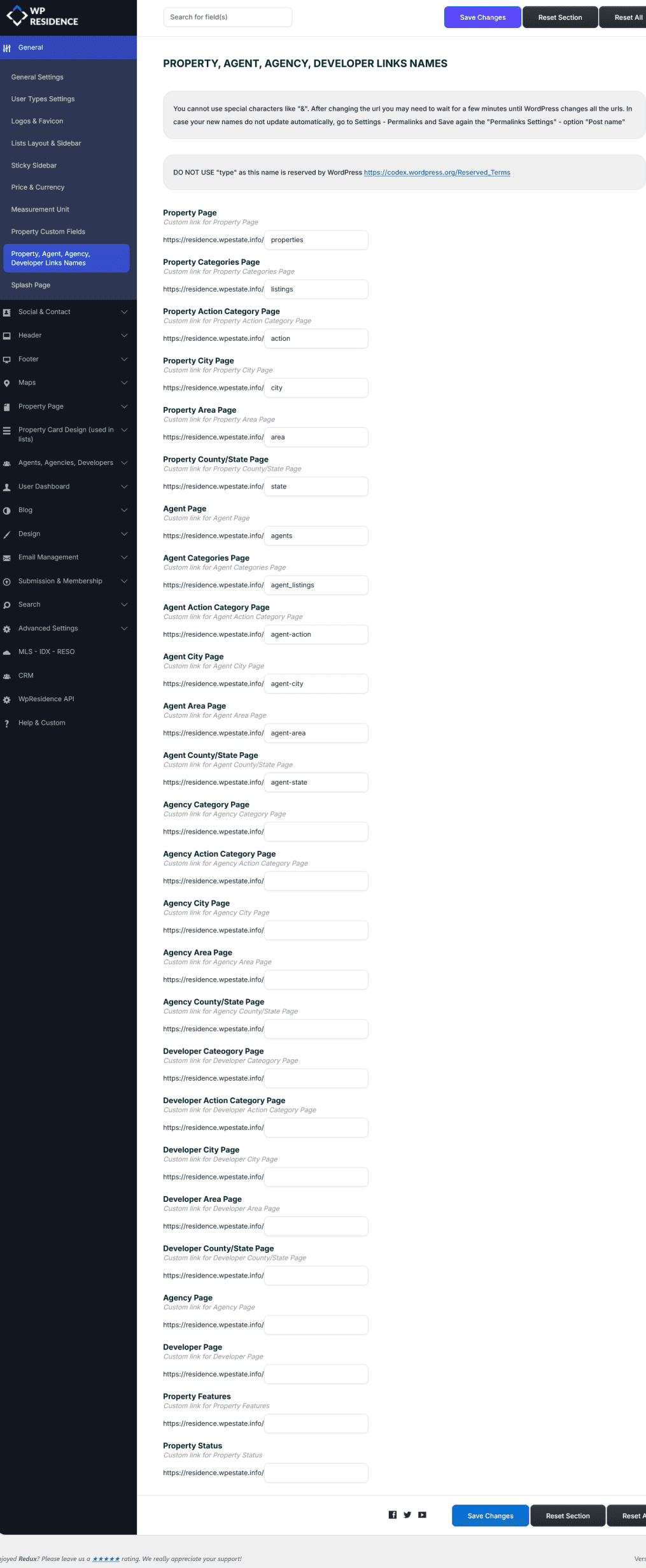
After you make your changes, save the Theme Options.
Important notes before changing links
- Use simple lowercase words for the new slugs.
- Do not use special characters, for example &.
- Do not use spaces. Use hyphens instead, for example real-estate-agents.
- Do not use type as a slug because it is reserved by WordPress.
- You can check the full list of WordPress reserved terms here: https://codex.wordpress.org/Reserved_Terms
- After changing a link name, WordPress may need a few minutes to update all URLs.
- If the links do not update immediately, refresh the permalinks as explained below.
How to fix 404 errors after changing links
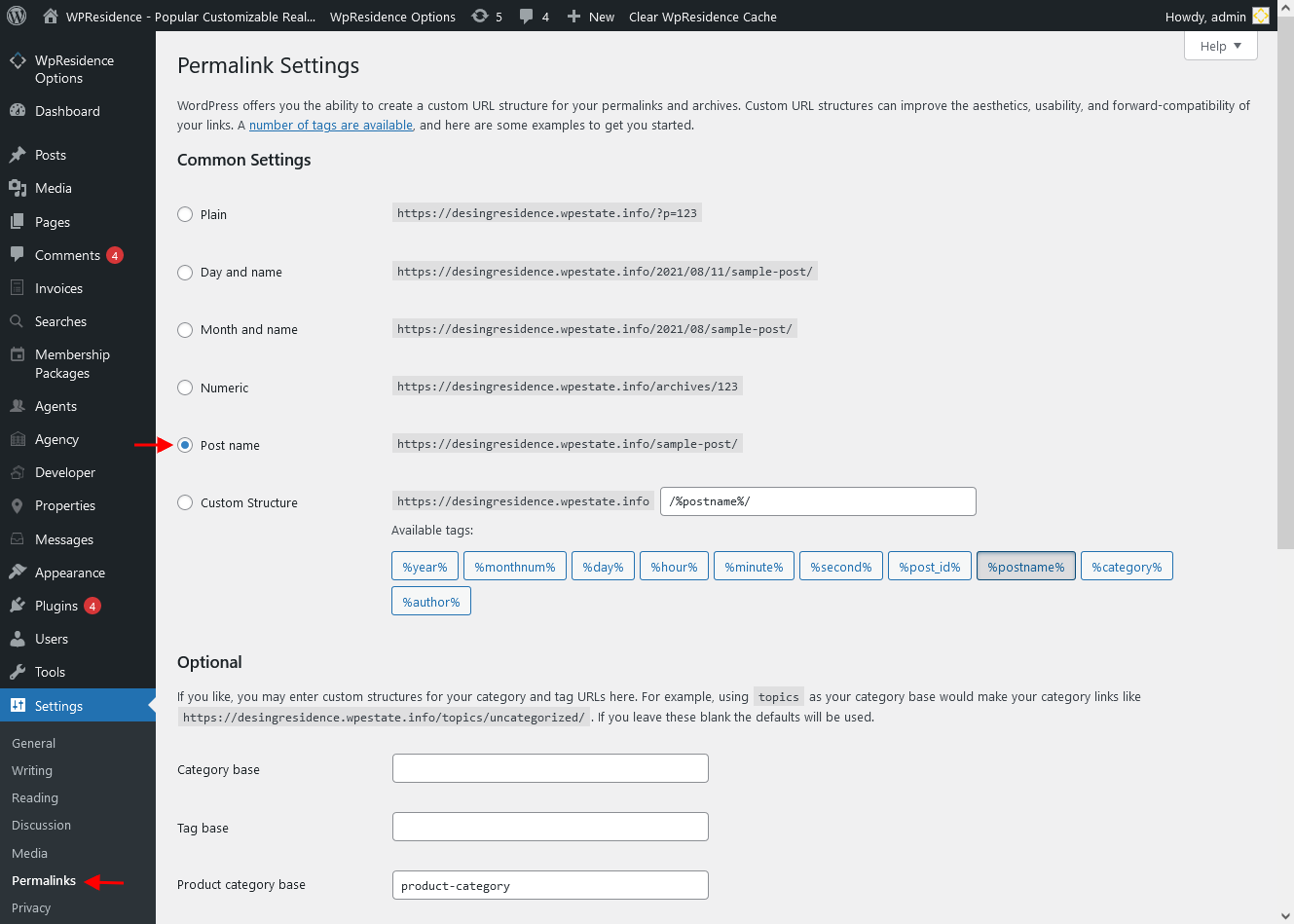
If you get a 404 Page Not Found error after changing link names, refresh the WordPress permalink structure.
- Go to Settings > Permalinks.
- Do not change anything on the page.
- Click Save Changes.
This forces WordPress to regenerate the permalink rules and should fix the 404 error.
Limitations
- You can rename the existing URL slugs.
- You cannot change the full URL structure from this option.
- You cannot create completely custom permalink logic from Theme Options only.
- If you already have indexed URLs, changing slugs may affect SEO unless redirects are created.
Advanced custom permalink structures
If you want to create a more advanced permalink structure, for example using a custom property ID instead of the property title, this requires custom permalink logic or a dedicated plugin.
You can see an example here:
How to make permalinks for properties with custom ID instead of title