
The Similar Listings settings control the related properties shown on single property pages.
Similar listings appear when the theme finds other published properties that match the current property based on the selected taxonomy rules, such as category, action category, city, area, type, or other selected taxonomies.
What Similar Listings control
The Similar Listings section controls the related properties displayed on the property page.
The theme checks the current property and looks for other published properties that share the selected taxonomy terms.
For example, similar listings can be based on:
- Property category
- Property action category
- City
- Area
- Type
- Other selected property taxonomies
Where to find the settings
Go to:
Theme Options > Property Page > Similar Listings
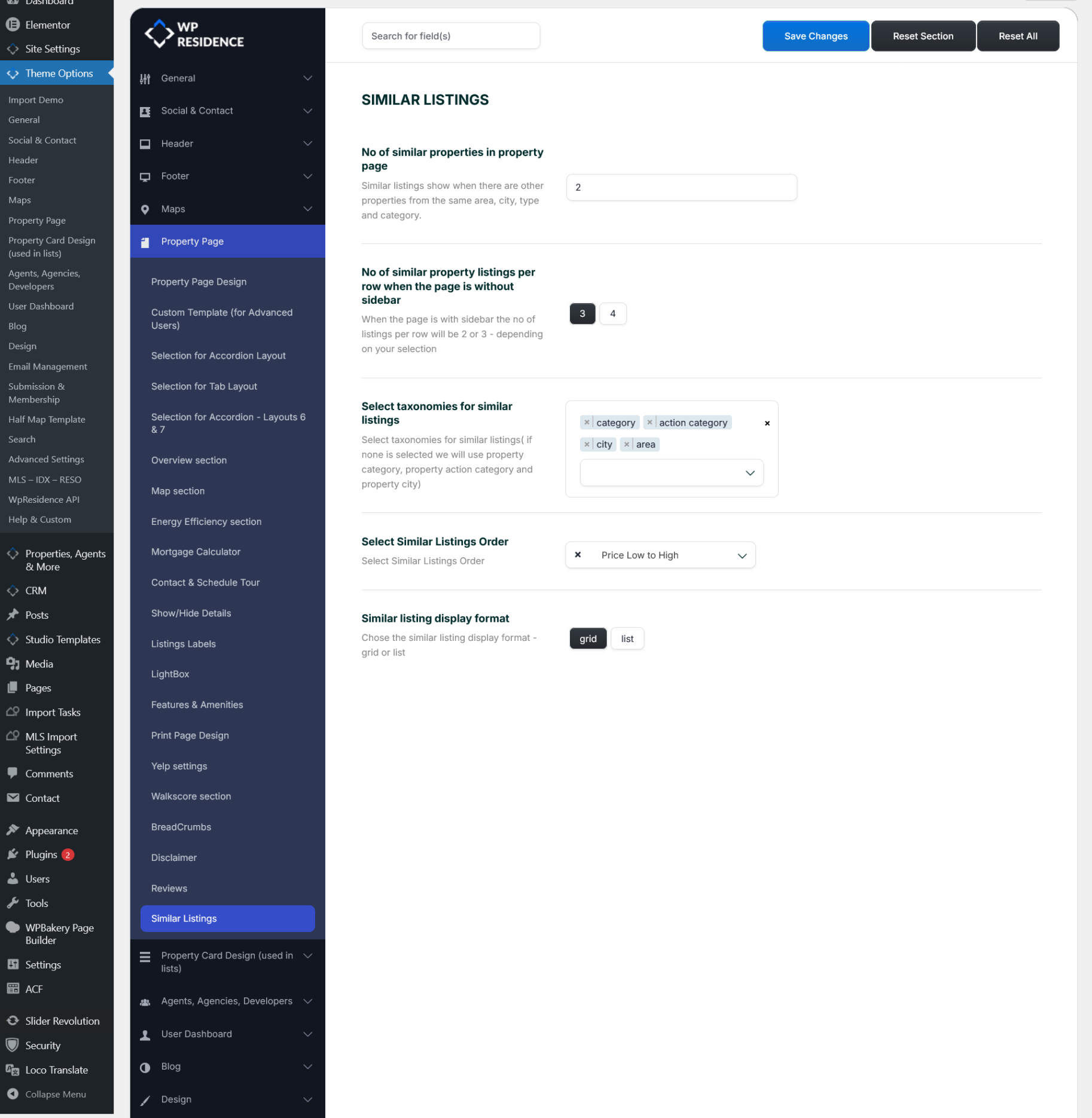
Number of similar properties
The option No of similar properties in property page controls how many similar listings are displayed on the property page.
For example, if you add 2, the property page will show up to 2 similar properties, if matching properties exist.
Similar listings show only when there are other published properties that match the selected rules.
Similar listings per row
The option No of similar property listings per row when the page is without sidebar controls the layout of the Similar Listings section.
You can choose how many similar listings show per row when the property page does not use a sidebar.
When the property page has a sidebar, the number of listings per row will usually be smaller, depending on the available page width and the selected layout.
Select taxonomies for similar listings
The option Select taxonomies for similar listings controls how the theme decides which properties are similar.
You can select taxonomies such as:
- Category
- Action Category
- City
- Area
- Type
The theme will look for other properties that share the selected taxonomy terms with the current property.
Select Similar Listings order
The option Select Similar Listings Order controls the order in which similar properties are displayed.
You can select the order of the properties shown in the Similar Listings section, for example by price, date, or another available order option.
Similar listing display format
The option Similar listing display format controls how similar listings are displayed on the property page.
You can choose:
- Grid
- List
Use Grid for a card-style layout.
Use List for a list-style layout.
Related articles on blog posts
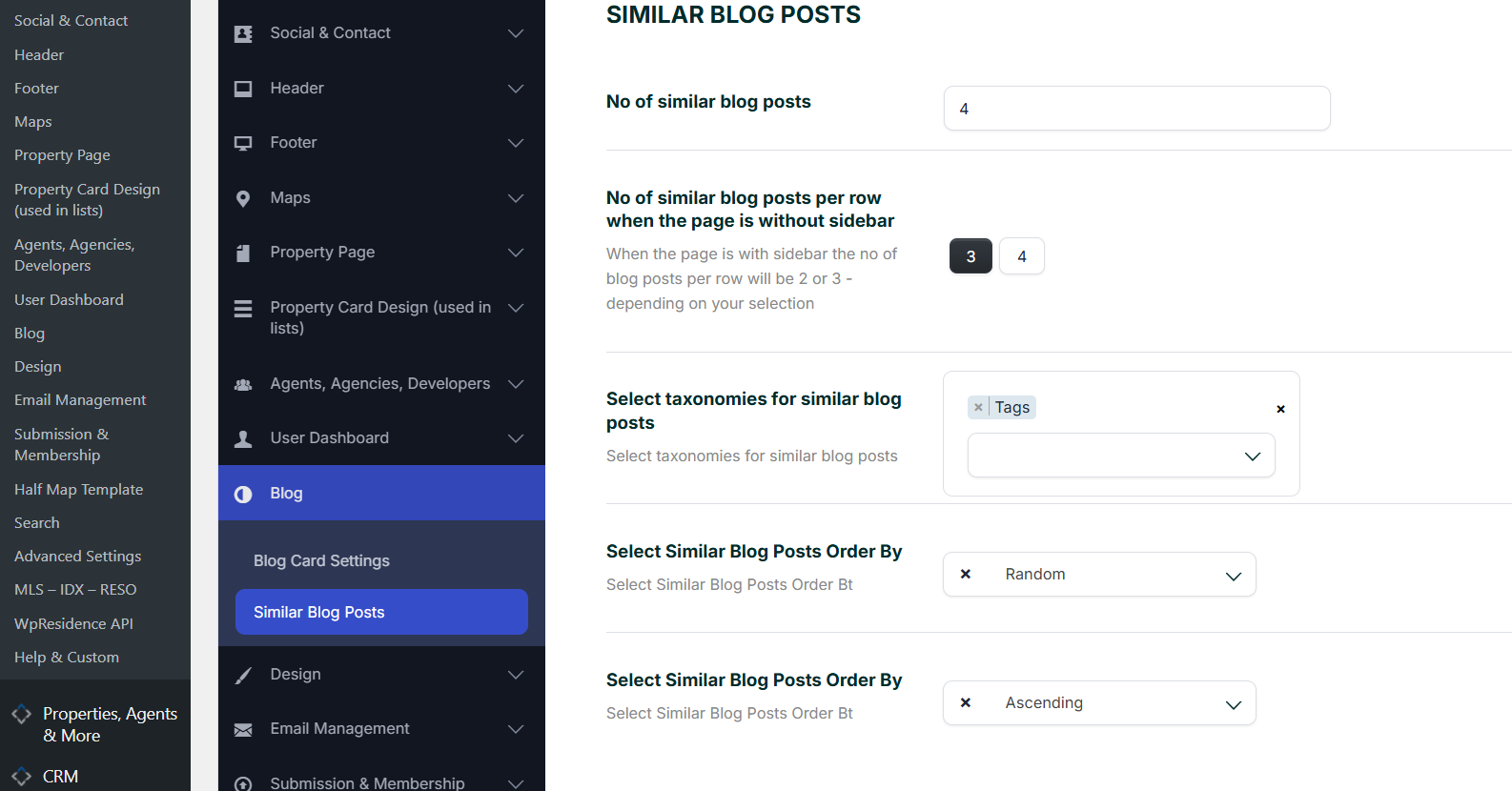
Blog posts have their own related content settings.
The Similar Blog Posts section is managed from:
Theme Options > Blog > Similar Blog Posts
This is separate from the Similar Listings settings for property pages.
Important notes
- Similar listings depend on published properties that share the selected taxonomy terms.
- If no similar listings show, check that other properties use the same selected taxonomy terms.
- If you select too many taxonomy conditions, the results may become too restrictive.
- If no taxonomy is selected, the theme uses property category, property action category, and property city.
- After changing the settings, save Theme Options and clear cache if the website uses cache.