
Roles
You can manage these options from:
Theme Options > Submission & Membership > Roles
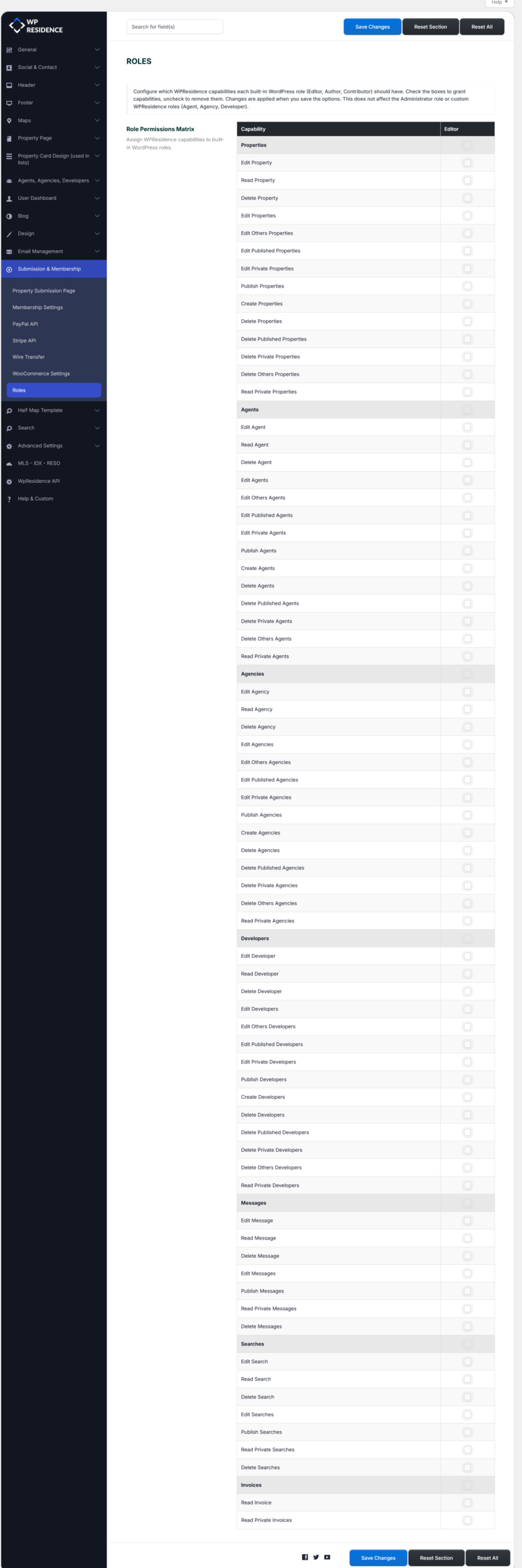
This new option added in WPResidence 5.6.0 lets you assign WPResidence capabilities to built-in WordPress user roles.
It is useful if you want roles such as Editor, Author, or Contributor to have access to WPResidence custom content and actions without giving them full administrator access.
What this option does
The Role Permissions Matrix lets you decide which built-in WordPress roles can work with WPResidence post types and actions.
The matrix is organized by:
- Capability on the left
- WordPress role columns on the right
You can check the boxes to grant a capability to a role, or uncheck them to remove that capability from the selected role.
The changes are applied when you save the options.
How to use the Role Permissions Matrix
- Go to Theme Options > Submission & Membership > Roles.
- Review the list of WPResidence capabilities shown in the matrix.
- Find the role column you want to edit, for example Editor.
- Check the boxes for the capabilities you want to allow.
- Uncheck the boxes for the capabilities you want to block.
- Click Save Changes.
This allows you to build a custom permission setup for non-admin users who need access to WPResidence content from the WordPress dashboard.
Capability groups shown in the matrix
The matrix includes capability groups for the main WPResidence content types.
In the screenshot, the available groups include:
- Properties
- Agents
- Agencies
- Developers
- Messages
- Searches
- Invoices
Each group contains detailed actions such as reading, editing, publishing, creating, or deleting items.
Examples of capabilities you can assign
Depending on the content type, the matrix can include capabilities such as:
- Edit a single item
- Read a single item
- Delete a single item
- Edit multiple items
- Edit others’ items
- Edit published items
- Edit private items
- Publish items
- Create items
- Delete published items
- Delete private items
- Delete others’ items
- Read private items
This gives you much finer control than a simple yes or no role switch.
Example use cases
Allow Editors to manage Properties
If you want Editors to manage property content from wp-admin, you can enable property-related capabilities such as:
- Edit Property
- Read Property
- Edit Properties
- Publish Properties
- Create Properties
If needed, you can also allow them to edit or delete other users’ properties by enabling the matching advanced capabilities.
Allow a role to manage Agents only
If you want a role to work only with agents, you can enable the Agent capabilities and leave the other groups unchecked.
This is useful if someone on your team should manage agent profiles but should not manage properties, invoices, or messages.
Restrict access to sensitive data
If you want a role to view content without being able to publish or delete, you can grant only reading and limited editing capabilities and leave publishing or delete permissions unchecked.
This can be useful for internal review workflows.
Important things to keep in mind
- Changes take effect after you click Save Changes.
- The matrix applies to built-in WordPress roles, not WPResidence front-end roles.
- Be careful when granting delete, publish, or edit others’ capabilities, because these give broader control.
- Always test with a non-admin account after changing role permissions.
When to use this option
This option is useful when:
- you have a content team working in wp-admin
- you want Editors or Authors to manage WPResidence content
- you want to separate who can manage properties, agents, agencies, or invoices
- you need more control over backend permissions in multi-user websites
What this option does not change
This option does not replace the WPResidence front-end role system for:
- Agent
- Agency
- Developer
Those roles continue to work according to the theme’s own user and submission system.
The Roles matrix is specifically for assigning WPResidence capabilities to the built-in WordPress roles used in the backend.