
If you build your WPResidence pages with Elementor, the WPEstate Translate plugin extends the standard translation flow to cover Elementor widget content. This article explains what gets translated, where to edit it, and how to check that your translated pages look the same as the source language. For a broader context, see our guide on building a multi-language real estate website.
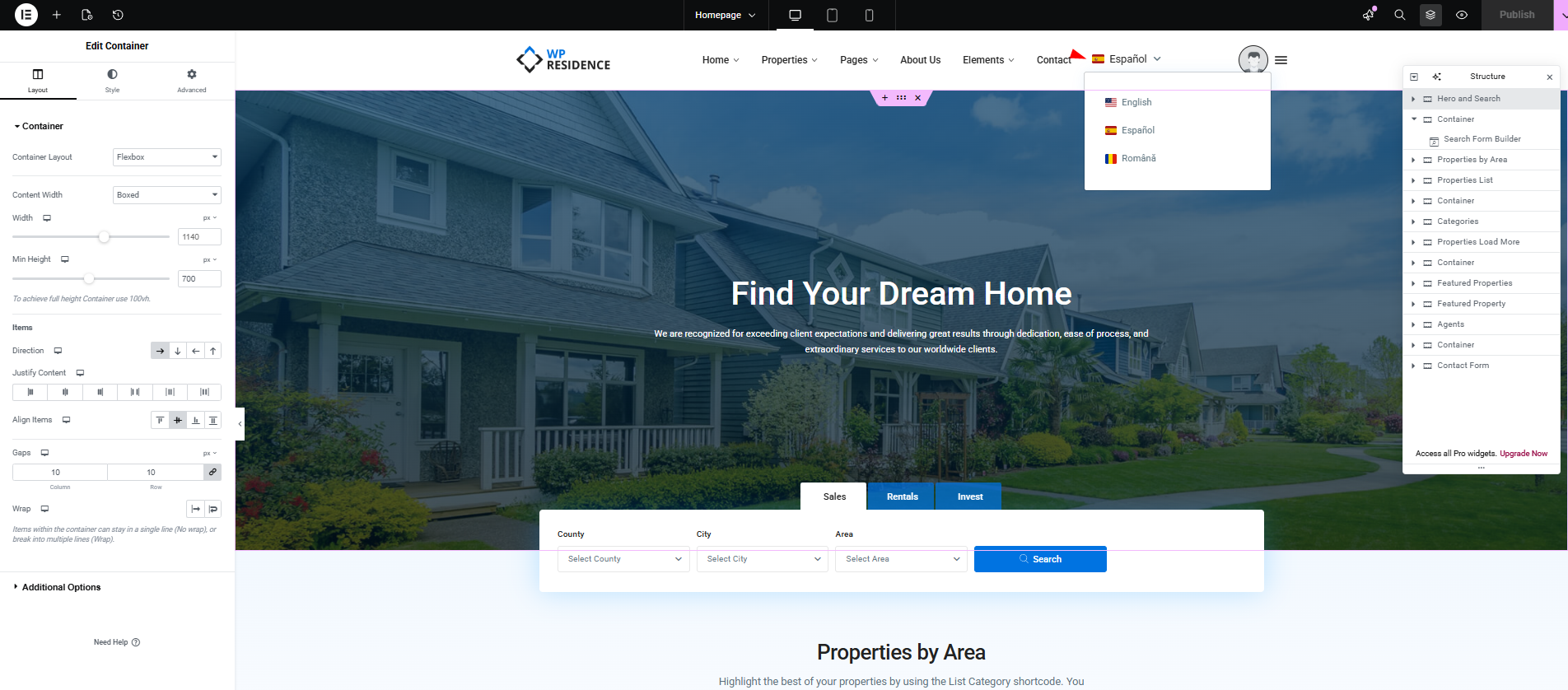
What Elementor Content Gets Translated
WPEstate Translate reads every Elementor widget on a page and translates three kinds of content:
- Text fields — titles, headings, text editors, button labels, sub-headings, descriptions, and any field the widget exposes as plain text.
- Taxonomy references — terms selected inside WPResidence widgets (property actions, categories, cities, areas, counties, features, statuses). Term IDs are remapped to the translated terms for the active language.
- Post/agent/property IDs — when a widget points to a specific property, agent, or developer, the plugin swaps in the translated post ID so the right content shows up.
How the Translation Workflow Looks
The day-to-day steps are exactly the same as for any page:
- Open the source-language page and build it normally in Elementor.
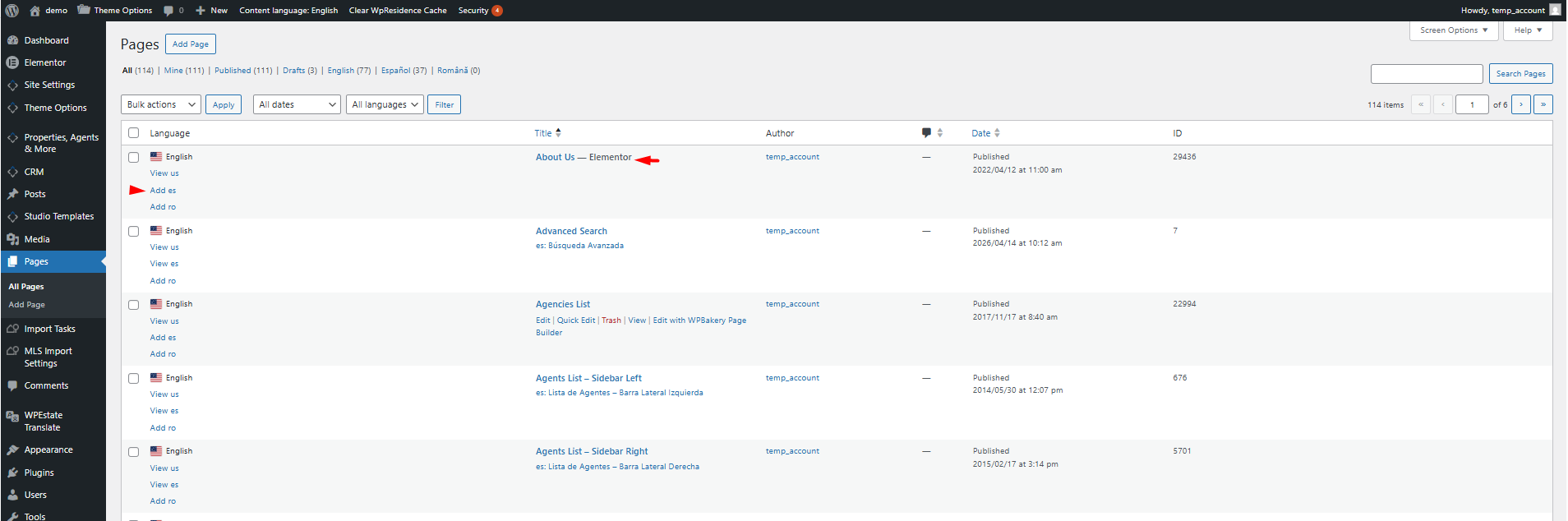
- Save and exit Elementor. In the WordPress post list or the post editor header, click the language selector and choose Create translation for the target language.
- The plugin creates a linked copy of the page with the same Elementor layout intact.
- Open the translated page in Elementor. The structure (sections, columns, widgets) is identical to the source. Edit only the text strings inside each widget.
- If the page uses WPResidence widgets that reference terms or specific properties, the plugin picks up the translated term IDs and post IDs automatically — no manual swapping.
Supported WPResidence Elementor Widgets
Widget support is driven by a widget field map bundled with the plugin. It covers the WPResidence widgets you will typically use on a multilingual site: Search Form Builder, Agent Grids, property lists, slideshows, CTA blocks, and similar. The map lists which fields are text, which are taxonomy references, and which hold post IDs.
You can extend the map from your child theme by dropping a file at wpr/translatable_widget_fields.json. The parent theme can ship its own version at the same relative path. Child theme overrides win over the parent, which wins over the bundled defaults.
Search Form Builder & Agent Grids
Two widgets deserve a special mention because they reference taxonomy term IDs directly:
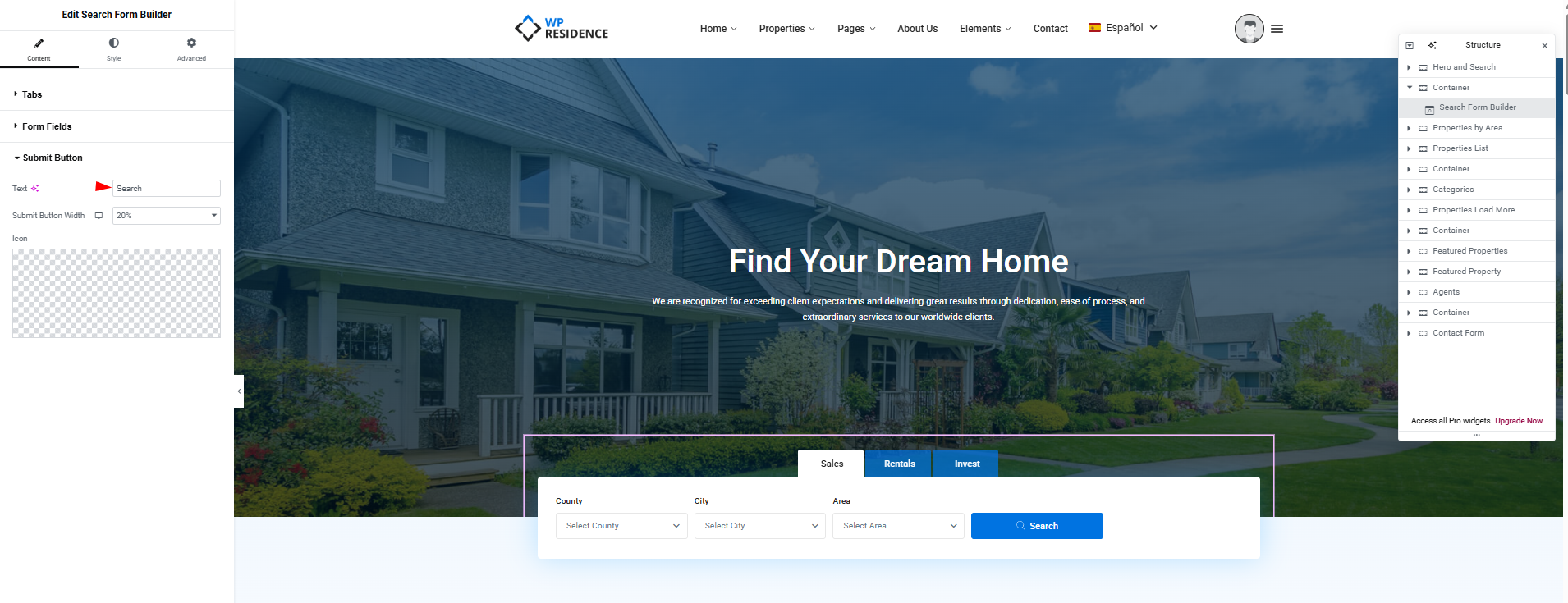
- WPResidence Search Form Builder — the tab chips (action, category, city, area, county, status) are stored as term IDs. The plugin remaps them on the frontend to the correct term ID for the viewer’s language and primes a short-lived transient so the search form renders the translated labels without an extra database round trip.
- WPResidence Agent Grids — the list of agent IDs shown in the grid is swapped per language when agent translations exist.
Text Strings That Are Not Inside Widgets
Strings that come from the theme (button labels, form messages, email templates) are not Elementor widget content. Those live in WPEstate Translate > Theme & Plugins Strings. If a word you see on your Elementor page did not appear for translation inside Elementor, check the string translation page next.
Verifying a Translated Elementor Page
- Open the translated page on the frontend in the target language (by clicking the language switcher, or by visiting the language-prefixed URL).
- Check every widget: titles, buttons, badges, tab labels.
- For Search Form Builder, confirm the dropdown options show translated taxonomy term names.
- For Agent Grids or property lists, confirm the cards link to the translated agent or property single pages.
- If something shows untranslated, re-open the page in Elementor under the target language and update the field directly.
Non-Latin Alphabets
Text fields inside Elementor widgets preserve non-Latin characters (Cyrillic, Arabic, Chinese, Japanese, Korean, Greek, Thai, Hebrew). Type your translation directly into the widget — the plugin does not run slug-style sanitation on the visible copy.
Common Issues
- Widget shows source-language text. The field may not be listed in the widget field map. Add it through a child-theme
wpr/translatable_widget_fields.jsonoverride or ask your developer to extend it. - Search form tabs show the wrong language. Confirm the taxonomy term has a translation in Taxonomy Translation. Without a translation the original term is used as a fallback.
- Agent grid is empty in a language. The agents referenced by the widget have no translation yet in that language. Create the agent translations first.
What To Read Next
- Shortcode & Widget ID Remapping — how the ID swapping works across shortcodes and widgets.
- Taxonomy Translation — translate the terms used by search forms and grids.
- Translating Posts & Pages — the core translation editor workflow.
More on running a complete multi-language real estate website is available on our main docs page.